CodeSign Secure Documentation
  • Overview
    • About CodeSign Secure
    • Getting Started
    • Documentation Guide
    • Portal Overview
    • Troubleshooting
      • FAQ
    • Glossary
  • Reference Guide
    • Header Bar
      • CodeSign Secure Documentation
      • Swagger API
      • Profile Section
    • Dashboard
      • Key Performance Indicators
      • Issued Certificates
      • Signatures Generated
      • HSM Health Check
    • Keys and Certificates
      • Key and Certificate Lifecycle
    • App Management
    • Signing Requests
      • Approval Workflows
    • Signing Tools
    • Reports
      • Signing Request Report
      • Audit Trail
      • Certificate Report
      • Client Report
    • Logs
    • System Setup
      • Identity Store
      • Backup
      • User
      • Roles and Permissions
      • Email
      • Signing Projects
      • SSL/TLS Management
      • Environment
      • Plugins
  • Setup & Architecture
    • Identity and Access Control
    • Architecture and Concepts
    • Installation
      • Windows
        • Installing the Server
        • Ports and Protocols
        • High Availability and Backup
        • Upgrades and Compatibility
    • Security
      • Security Hardening Checklist
      • Client Authentication
      • Designing Signing Policies
  • Release Notes
    • Releases for 2026
      • v3.2.1
    • Releases for 2025
      • v3.2.0
    • Releases for 2024
      • v3.1.0
  • API Reference
    • Getting Started
    • Authorizing Requests
    • Securing API Access
    • Request and Response Conventions
    • Endpoint Reference
      • Signing
      • Signing Requests
      • Certificates
      • Applications and Environments
      • User Management
      • Permissions
      • Email
      • System Setup
      • Reports
      • Dashboard
      • License
  • Integration Guides
    • Signing Capabilities
      • Supported Formats and Platforms
      • Timestamping
      • Windows Signing - SignTool
        • Signing
        • Macro Signing
      • Apple Signing
      • AppX & MSIX Signing
      • Visual Studio ClickOnce
      • Jar Signing
      • Sign HLK/HCK using CodeSign Secure
      • NuGet Signing
      • Mage Signing
      • Sign OVA/OVF using Encryption Consulting’s Utility Tool
      • Utility Tool for code signing
      • Container Signing
      • PKCS11 Wrapper
        • APK Signing
        • OpenSSL Signing
        • XML Signing
        • JSign Tool Signing
        • Jarsigner Signing
        • GPG2, Debian & RPM Signing
      • Reproducible Build
        • Automated Hash Validation
        • Reproducible Build Process Flow
        • Pipeline Script Components
        • Hash Validation
    • CI/CD Integration
      • GitHub Actions
      • Jenkins
      • GitLab
      • Azure DevOps
      • TeamCity
      • Bamboo
      • Securing CI/CD Credentials

User

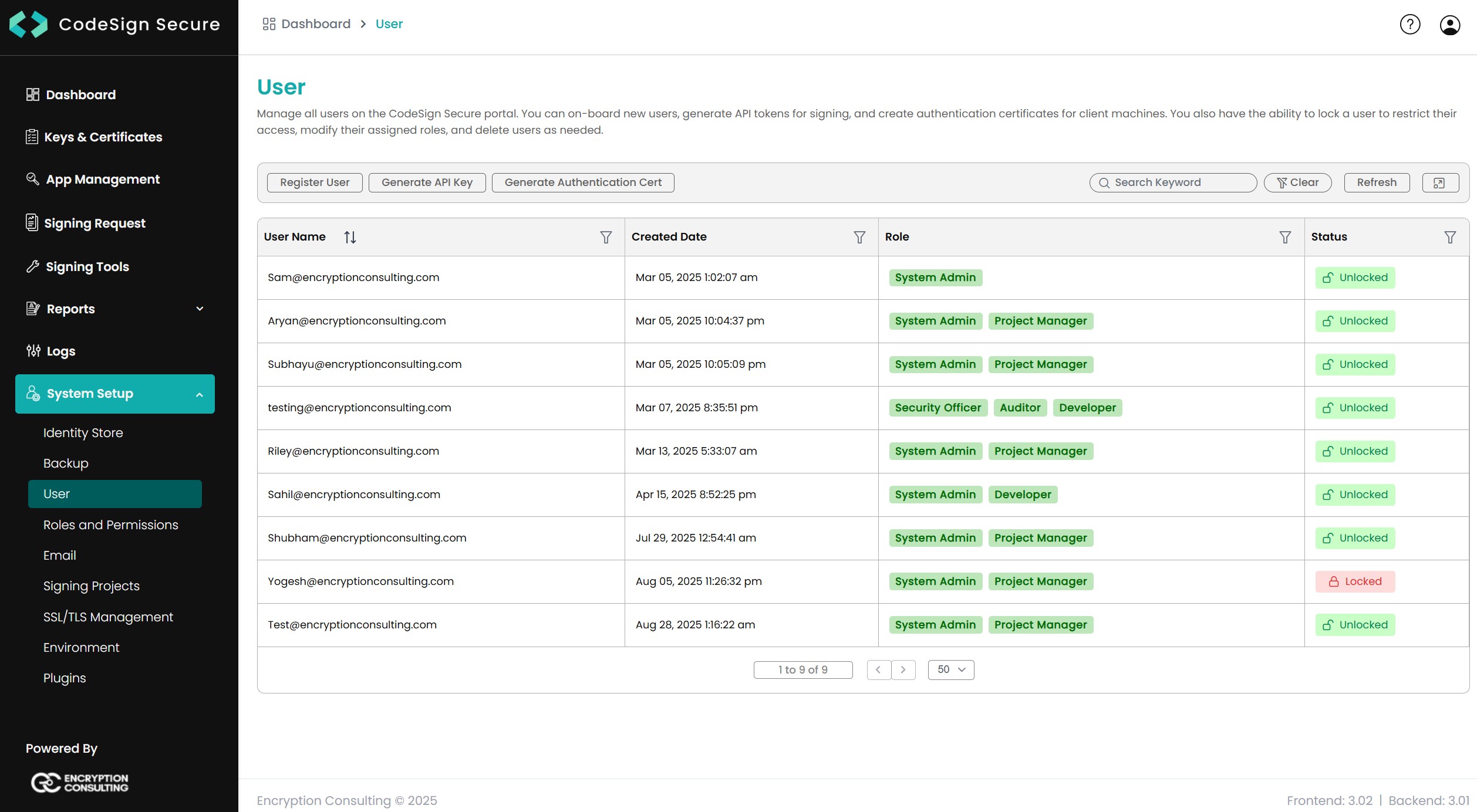
The User management section provides comprehensive tools for administrators to onboard, manage, secure, and decommission all user entities within the CodeSign Secure portal.

User Section

It provides three main options:

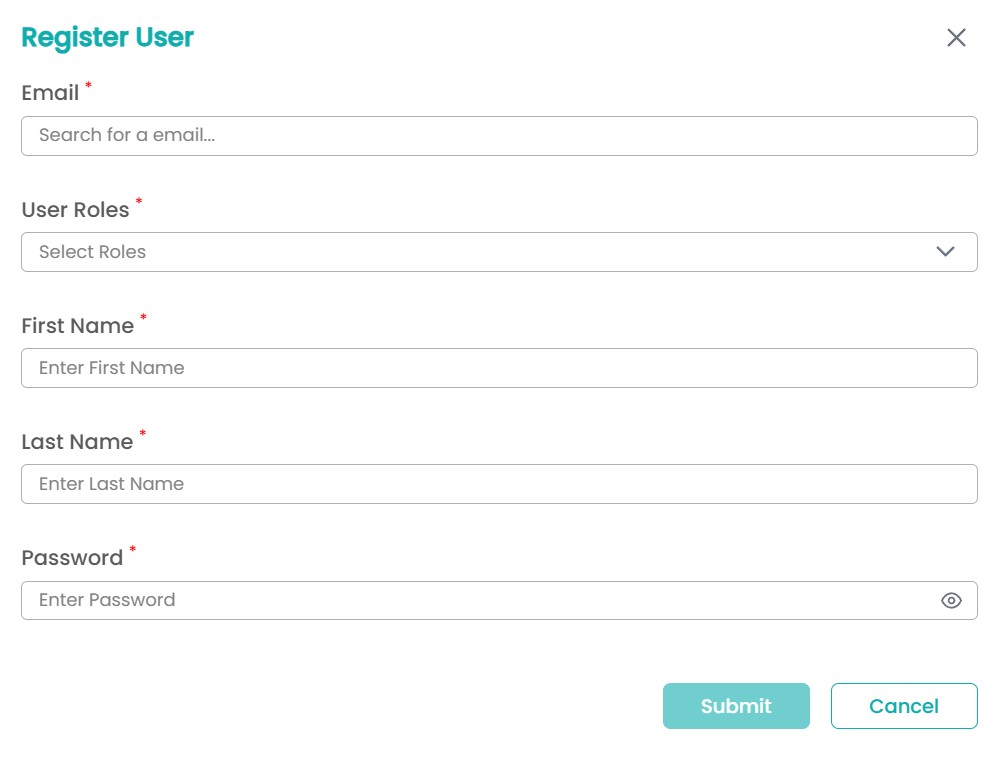
  • Register User: Allows administrators to manually onboard new users by requiring their Email, First Name, Last Name, Password, and assigned User Roles.

    Register User Section

    The password here will be used for local login and user authentication. This allows user to login via both local and Azure AD configurations.

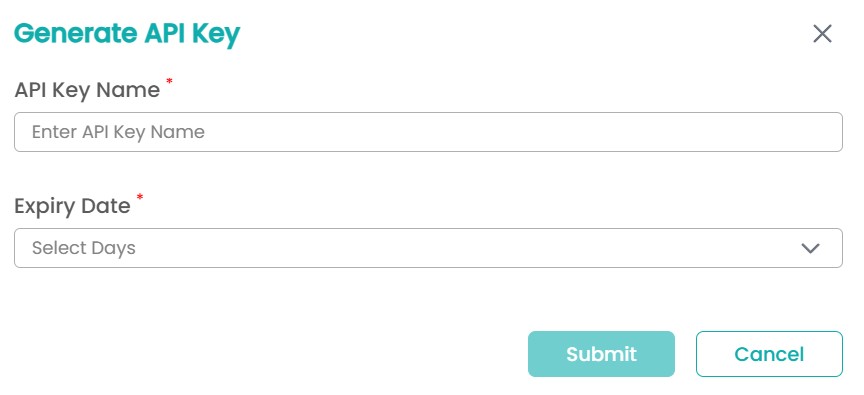
  • Generate API Key: Allows for the creation of API tokens for secure, non-interactive authentication, typically for client machines or automated signing processes. The form requires an API Key Name and an Expiry Date (30, 60 and 90 days).

    Generate API Key Section
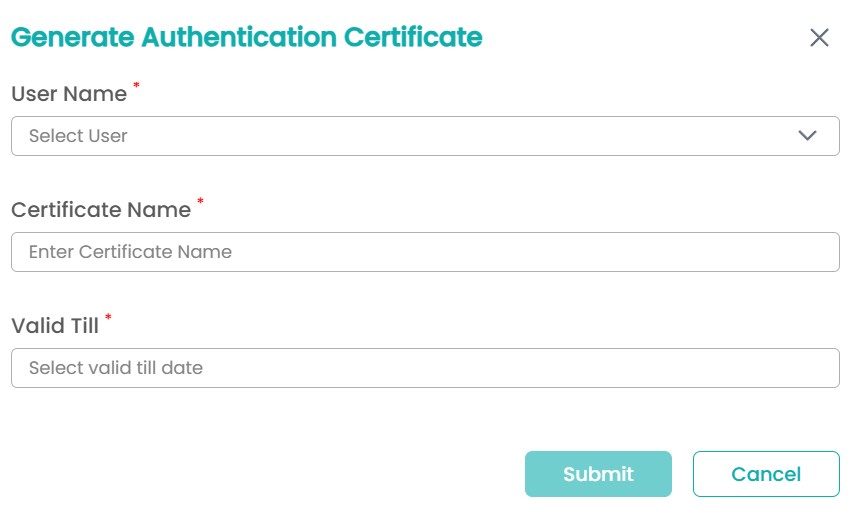
  • Generate Authentication Certificate: Allows the generation of client authentication certificates for users or machines also used at the time of performing signing operation. The form requires selecting a User Name, entering a Certificate Name, and setting a Valid Till date.

    Generate Certificate Section

By right clicking a user entry, the following management actions become available:

  • View Details: Displays comprehensive user information, including Email, Username, Roles, Status, Created Date, and details about any associated SSL Authentication Certificates.

  • Lock: Restricts a user from accessing the portal immediately. A confirmation prompt ensures this action is deliberate. The user's status changes to Locked.

  • Modify Roles: Allows administrators to change or update the list of roles assigned to the user.

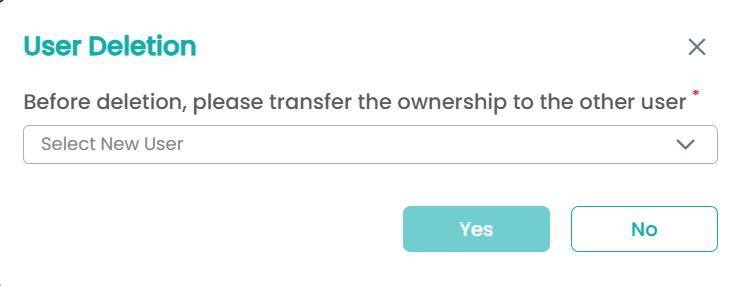
  • Delete: Permanently removes the user account from the system. A confirmation prompt is shown.

Note: When you delete a user, you must choose a replacement user. All objects and records associated with the deleted user are transferred to the replacement user.

User Deletion Confirmation
On this Page:
Support Privacy Policy Terms of Service

Copyright Encryption Consulting LLC. All rights reserved.