CodeSign Secure Documentation
  • Overview
    • About CodeSign Secure
    • Getting Started
    • Documentation Guide
    • Portal Overview
    • Troubleshooting
      • FAQ
    • Glossary
  • Reference Guide
    • Header Bar
      • CodeSign Secure Documentation
      • Swagger API
      • Profile Section
    • Dashboard
      • Key Performance Indicators
      • Issued Certificates
      • Signatures Generated
      • HSM Health Check
    • Keys and Certificates
      • Key and Certificate Lifecycle
    • App Management
    • Signing Requests
      • Approval Workflows
    • Signing Tools
    • Reports
      • Signing Request Report
      • Audit Trail
      • Certificate Report
      • Client Report
    • Logs
    • System Setup
      • Identity Store
      • Backup
      • User
      • Roles and Permissions
      • Email
      • Signing Projects
      • SSL/TLS Management
      • Environment
      • Plugins
  • Setup & Architecture
    • Identity and Access Control
    • Architecture and Concepts
    • Installation
      • Windows
        • Installing the Server
        • Ports and Protocols
        • High Availability and Backup
        • Upgrades and Compatibility
    • Security
      • Security Hardening Checklist
      • Client Authentication
      • Designing Signing Policies
  • Release Notes
    • Releases for 2026
      • v3.2.1
    • Releases for 2025
      • v3.2.0
    • Releases for 2024
      • v3.1.0
  • API Reference
    • Getting Started
    • Authorizing Requests
    • Securing API Access
    • Request and Response Conventions
    • Endpoint Reference
      • Signing
      • Signing Requests
      • Certificates
      • Applications and Environments
      • User Management
      • Permissions
      • Email
      • System Setup
      • Reports
      • Dashboard
      • License
  • Integration Guides
    • Signing Capabilities
      • Supported Formats and Platforms
      • Timestamping
      • Windows Signing - SignTool
        • Signing
        • Macro Signing
      • Apple Signing
      • AppX & MSIX Signing
      • Visual Studio ClickOnce
      • Jar Signing
      • Sign HLK/HCK using CodeSign Secure
      • NuGet Signing
      • Mage Signing
      • Sign OVA/OVF using Encryption Consulting’s Utility Tool
      • Utility Tool for code signing
      • Container Signing
      • PKCS11 Wrapper
        • APK Signing
        • OpenSSL Signing
        • XML Signing
        • JSign Tool Signing
        • Jarsigner Signing
        • GPG2, Debian & RPM Signing
      • Reproducible Build
        • Automated Hash Validation
        • Reproducible Build Process Flow
        • Pipeline Script Components
        • Hash Validation
    • CI/CD Integration
      • GitHub Actions
      • Jenkins
      • GitLab
      • Azure DevOps
      • TeamCity
      • Bamboo
      • Securing CI/CD Credentials

App Management

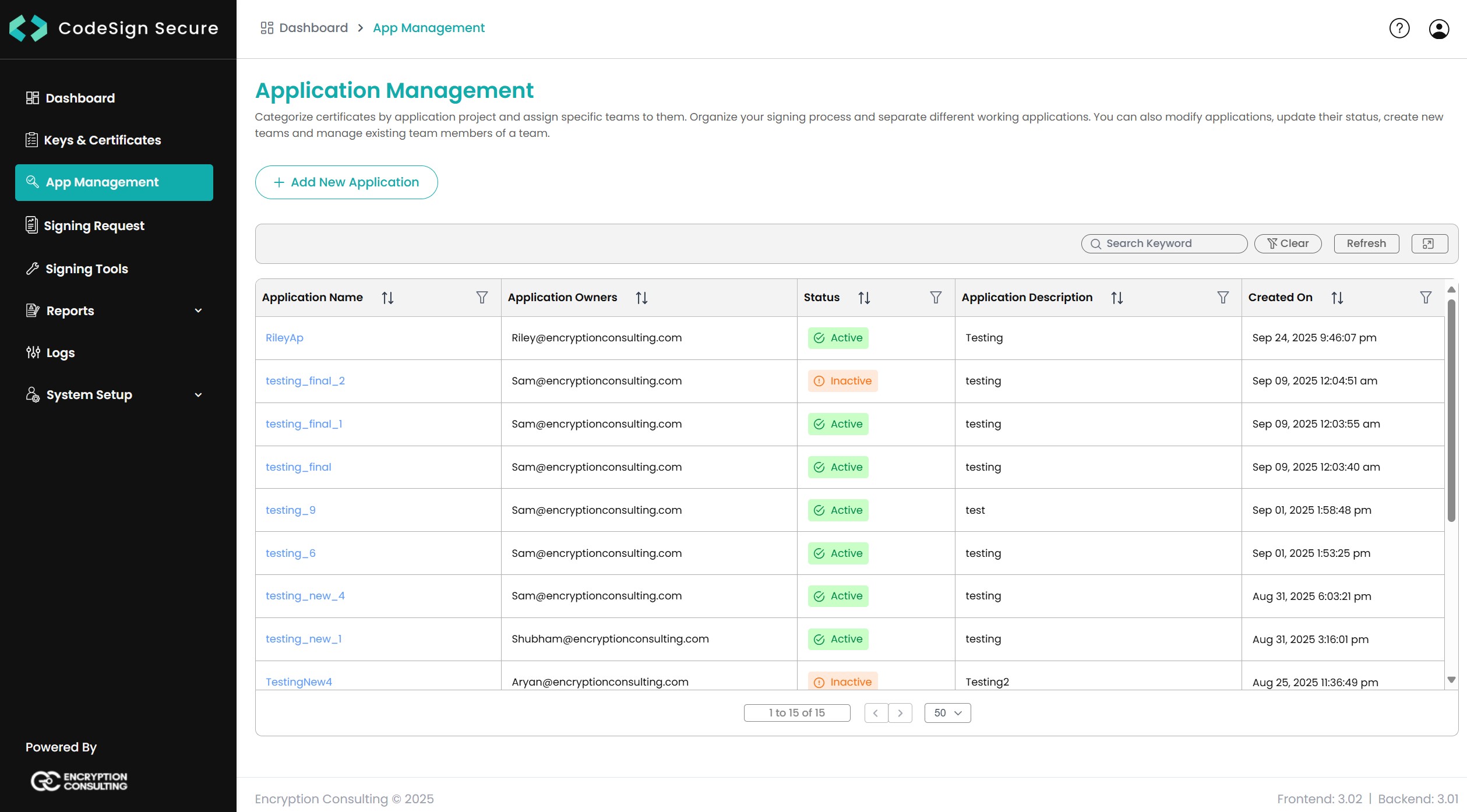
The Application Management section provides a framework to organize your signing certificates by application project, enforce granular access controls, and manage the teams responsible for signing.

App Management

When you navigate to this section, you will see a list of all applications managed within the CodeSign Secure portal. It provides an overview of each application's details such as Application Name, Application Owner, Status, its description, and the created date.

Creating a new Application

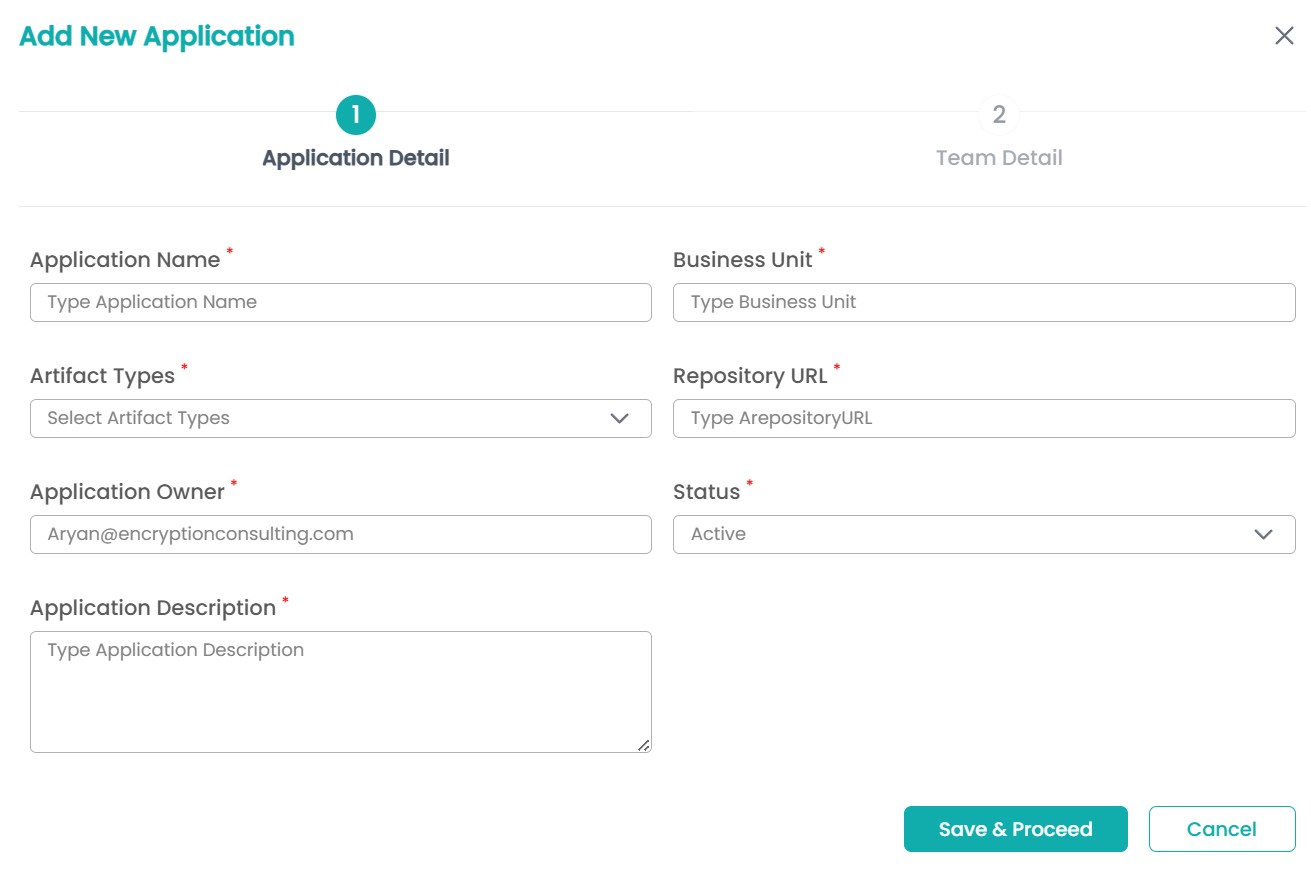
You create a new application by clicking the Add New Application button. The creation process is divided into two steps: Application Detail and Team Detail.

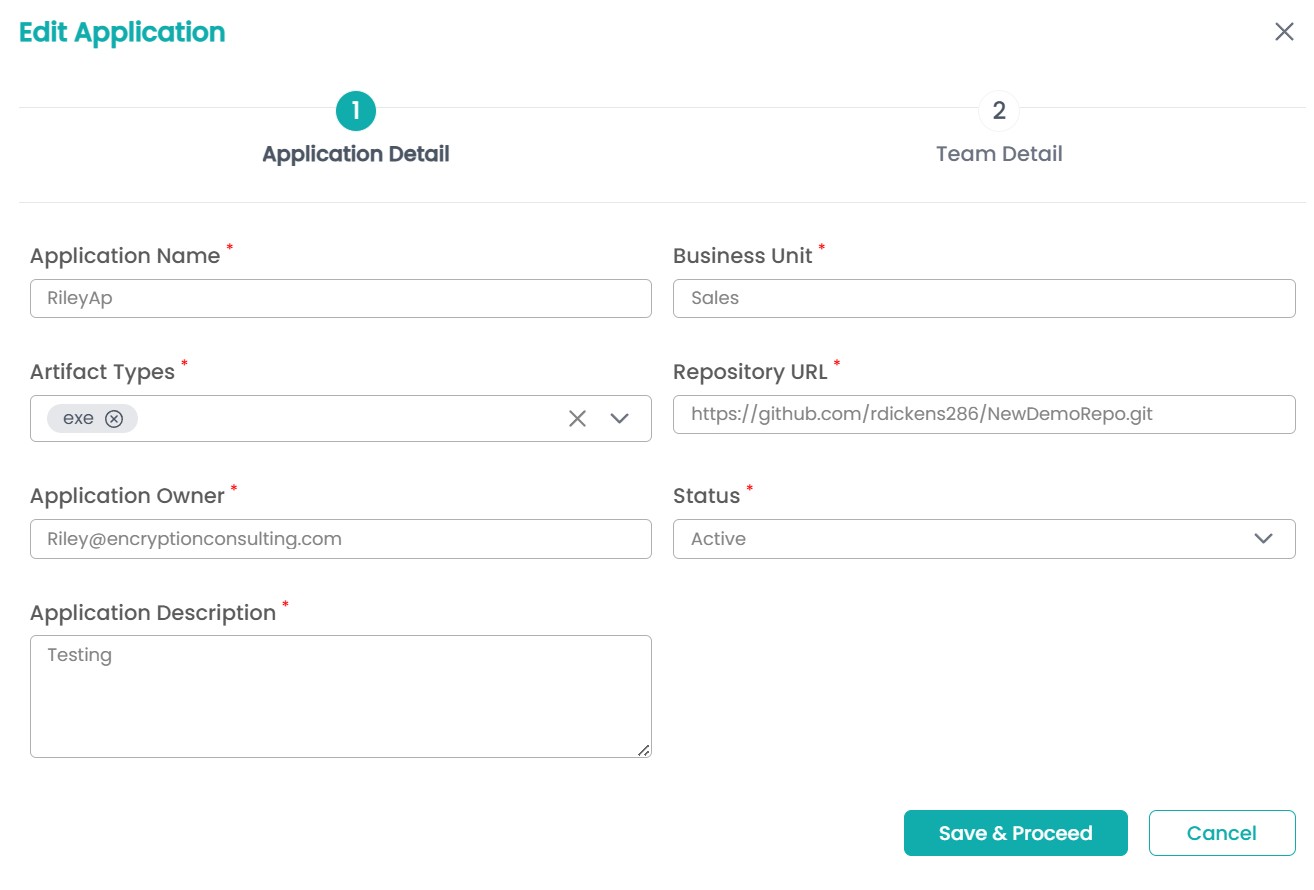
1. Application Detail

This step captures the essential metadata about the application project

App Management
  • Application Name: A unique, mandatory name for the application.

  • Business Unit: The internal department or group to which the application belongs (e.g., Sales).

  • Artifact Types: The specific file extensions this application generates and signs (e.g., exe, dll, jar).

  • Application Owner: The user who creates the application. The creator is the application’s single owner.

  • Application Description: A detailed description of the application's purpose.

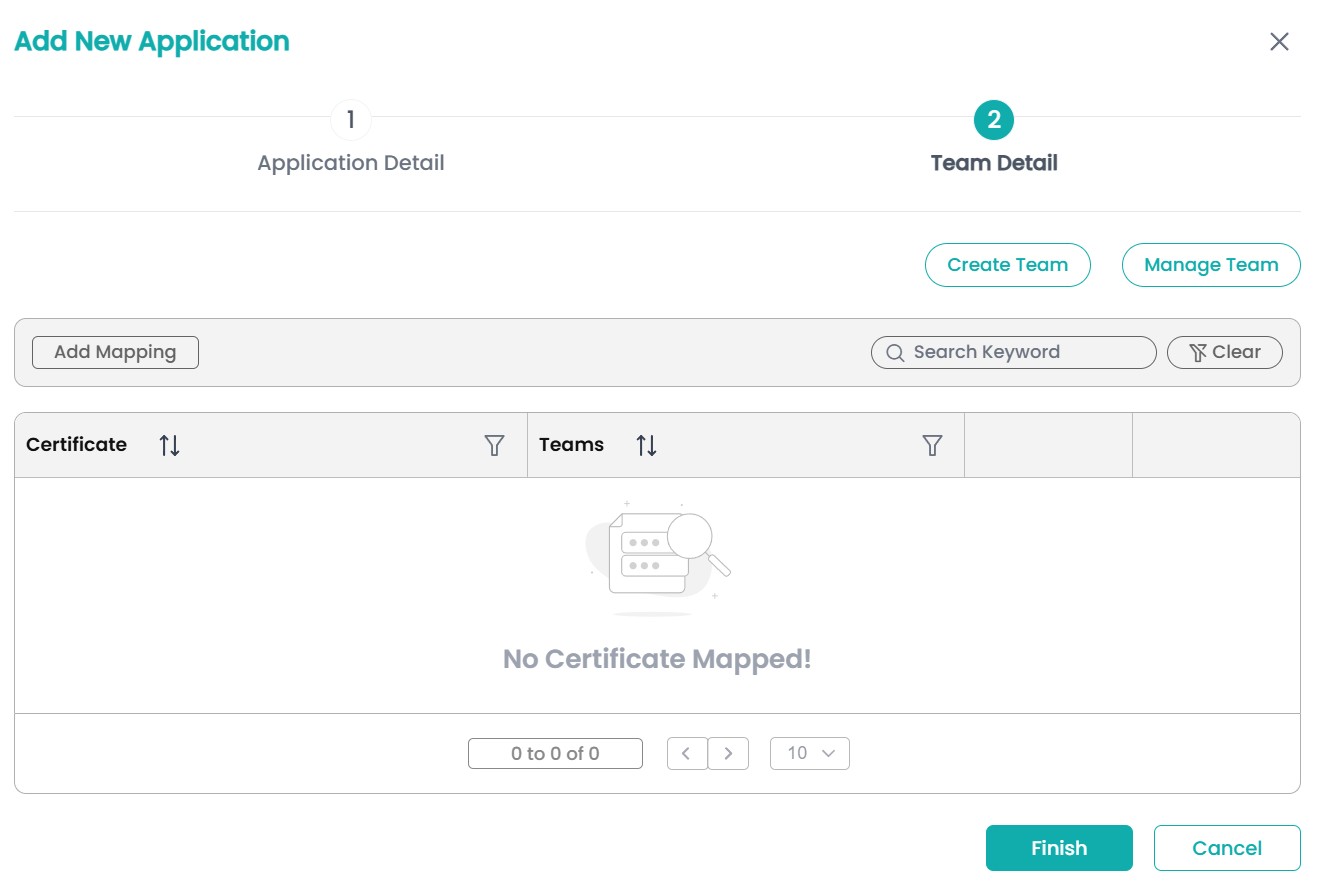
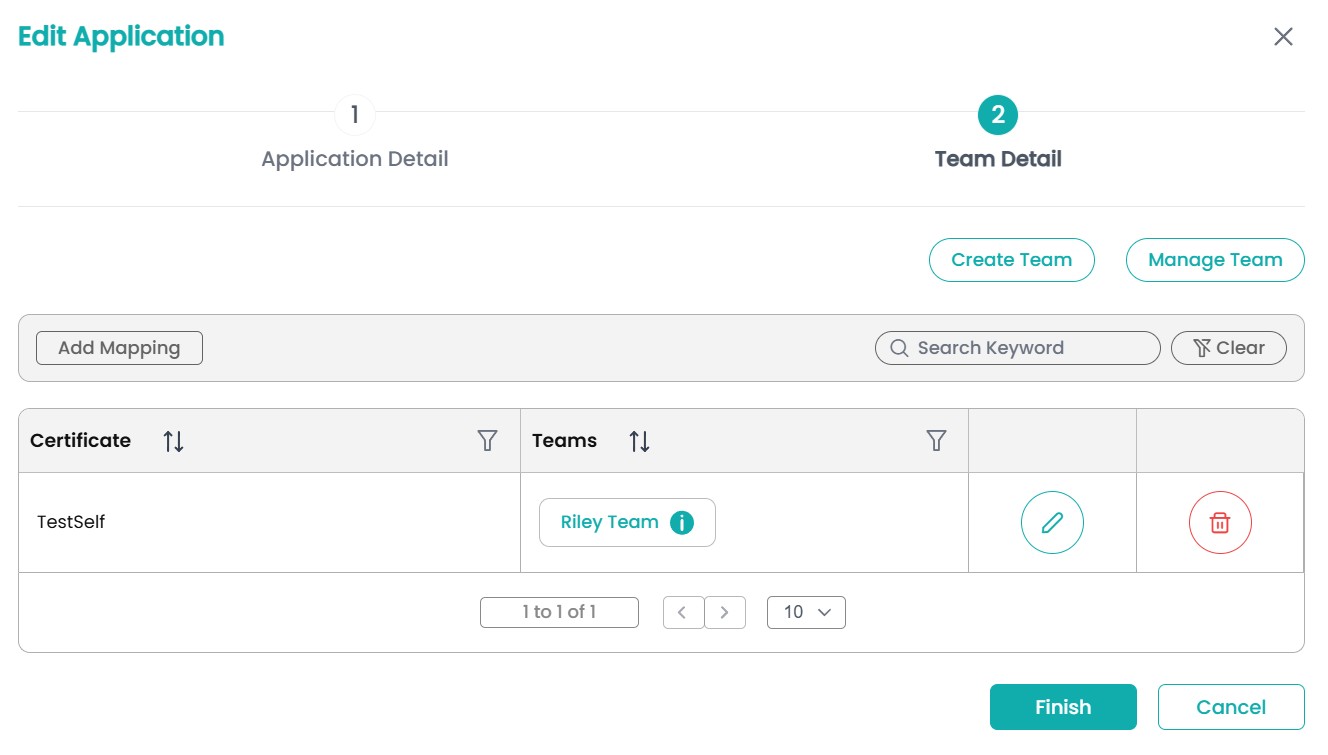
2. Team Detail

This step is where you define, create, manage teams and mapping them to specific signing certificates.

App Management

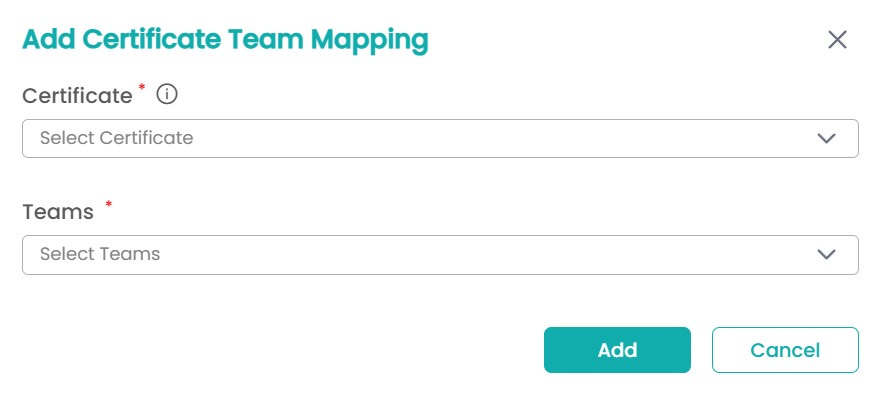
Click the Add Mapping button to link a certificate to a team

  • Certificate: Select the specific certificate/key pair from your inventory.

    Note: It will only show those certificates in the dropdown which have an environment mapped to them, that can be updated from Keys and Certificates section.

  • Teams: Select one or more pre-existing teams authorized to use this certificate for signing.

Only members of the mapped teams will be allowed to execute a signing request using the designated certificate.

App Management

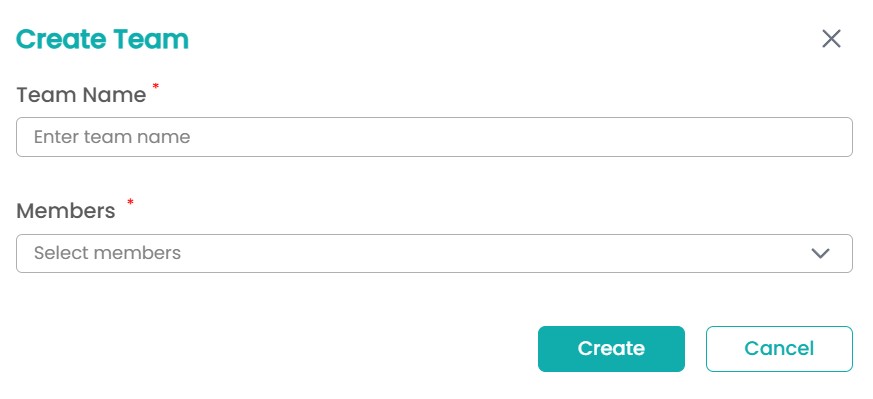
You can create and manage the membership of your teams directly from this screen using the two utility buttons:

  • Create Team: Opens a pop-up window where you can:

    Create Team
    1. Team Name: Define a name for the group.
    2. Members: Select individual users from the portal's user list to assign to this team.
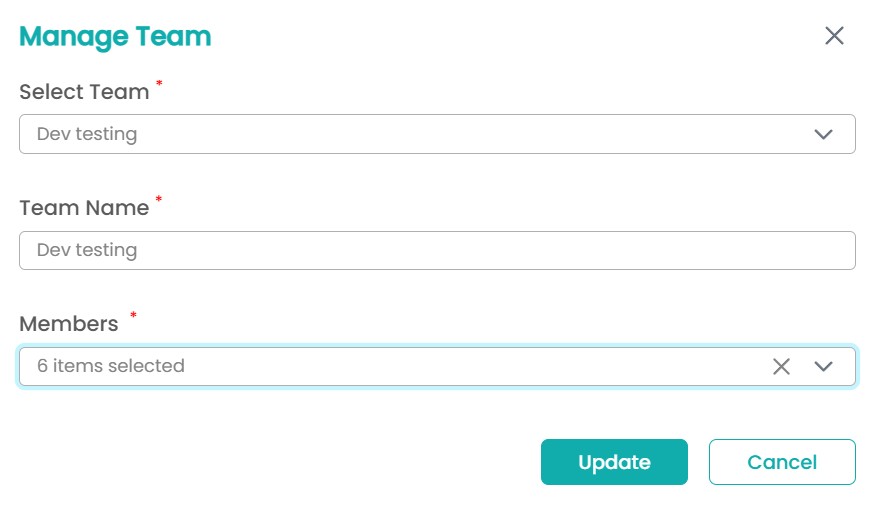
  • Manage Team: Opens a pop-up window to allow you to select an existing team and Update its membership (add or remove users).

    Manage Team
  • Once all certificate and team mappings are complete, click Finish to activate the application.

Options to modify the application

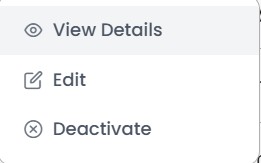
By right-clicking on any application entry, you can perform the following operations:

App Management
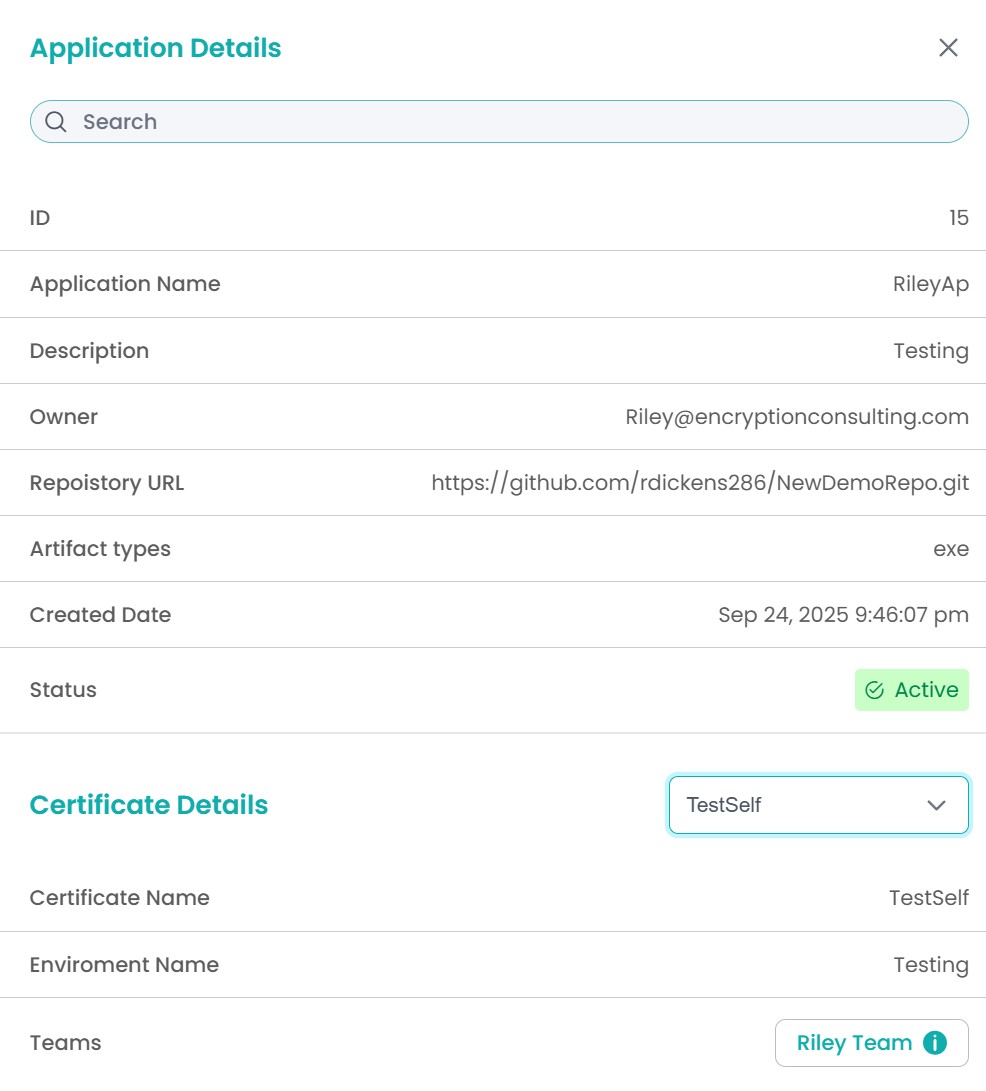
  • View Details: Opens a pop-up window to display all application metadata, including the mapped certificates and their respective teams and members.

    View Details
  • Edit Application: Opens the pop-up to update and modify the application details, certificate mappings, team mappings and team member management.

    Edit Application Edit Application
  • Activate/Deactivate Application: Changes the application’s Status from Active to Inactive or vice versa, preventing its use for future signing operations.

On this Page:
Support Privacy Policy Terms of Service

Copyright Encryption Consulting LLC. All rights reserved.