Sign OVA/OVF using Encryption Consulting’s Utility Tool
Encryption Consulting (EC) understands the need for security in the
modern world and strives to solve these problems through CodeSign
Secure. To that end, we have developed an easily operated
command-line Utility that provides users with seamless and
hassle-free OVA/OVF signing.
CodeSign Secure’s Utility tool is designed for high performance,
accuracy and user-friendliness in mind, making signing of OVA/OVF
files simplified for the users.
Prerequisites
Encryption Consulting’s Utility Tool installed in the system.
OpenSSL Configured in the system. This is used to generate the hash of the OVA/OVF file before signing.
Sample OVA/OVF present in the system.
The Actual process is:
Necessary input
The user needs to give all the input data, mentioned below,
to the utility tool for the signing process.
Username : The
primary email of the user to proceed with the signing
process.
Certificate path :
The path to the certificate being used for signing the
desired file.
Input file path :
The path to the OVA/OVF file that needs to be signed.
Output file path :
The path to the signed OVA/OVF output file.
Application name :
Application name is the application associated with the
certificate used for signing in our web portal.
Environment : The
environment name, whether it’s production,
non-production, Lab, or any specific environment created
by the user in our web portal.
Acquiring an End-Entity Certificate
To sign the OVA or OVF file, the user needs an end-entity
certificate. This certificate can be generated from our web
application, or can be imported into the utility tool. We
prefer importing an EV (Extended Validation) certificate
as it is the highest form of SSL Certificate on
the market.
Generating a Hash
Client-side Hashing is used to calculate the hash of the
file that is to be signed. This hash is sent to the server
along with the private key alias to generate signature.
Generating and attaching the Signature
Signature is generated in the HSM by using the hash and the
private key and this digital signature is sent back to the
client. Once client receives the signature it is attached to
the OVA or OVF package.
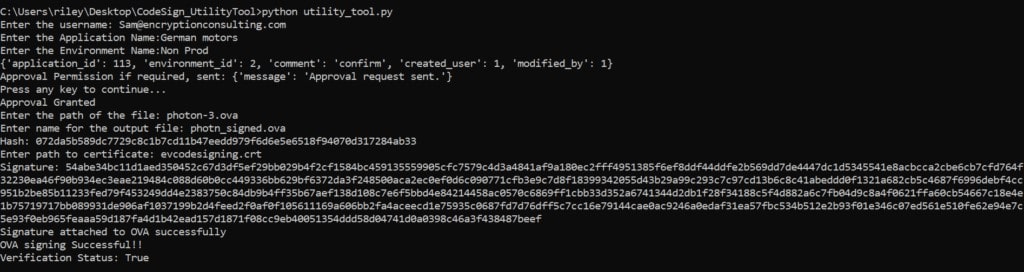
The screenshot of our utility tool signing an OVA
file
Mechanism
Define the
domain variable, which
represents the base URL of the API.
Implementing the
get_token function to
retrieve the authentication token from the API. It takes the
domain and
certificate_path as
parameters and returns the token.
Implement the
sign_ova function to sign
the OVA file with the certificate and hash. It takes the
certificate, hash, and token as parameters and returns the
signature.
Implementing the
store_signature function
to write the generated signature to a temporary file. This is an
intermediate step, not the final output — it takes the signature
as a parameter and does not return any value.
Implementing the
attach_signature function
to read that stored signature and embed it, along with the certificate,
into the OVA file. This produces the final signed OVA/OVF package. It
takes certificate_path,
ova_file_path, and
output_file_path
as parameters and does not return any value.
Implementing the
generate_hash function to
generate the hash value of the OVA file using OpenSSL. It
takes ova_file_path as a
parameter and returns the hash value.
Implementing the
verify_sig function to
verify whether the OVA file with the provided certificate has
been signed. It takes the certificate, hash, token, and
signature as parameters and returns the True or False,
depending on the verification status
Benefits of choosing EC’s Utility Tool
Encryption Consulting’s Utility tool keeps strict compliance
with latest security guidelines. Utility tool showcases some
security features that ensure we are a step ahead in securing
the files.
The following features make CodeSign Secure’s Utility tool a
trustworthy vector for your code signing endeavours.
We strictly adhere to the CA/B Forum guidelines, ensuring that
we maintain the highest standards in the industry.
We go the extra mile by utilizing FIPS 140/2 level 3 compliant
Hardware Security Modules (HSMs). With us, your private key is
generated and securely stored within the HSM, ensuring that it
never leaves the module. This guarantees the impossibility of
a private key compromise.
Client-Side hashing is an extra step that is implemented from
our end to ensure more secure transfer of data between client
and server. Client-side hashing ensure even if the packet is
intercepted the attacker get just the hash which is useless of
the attacker. Client-Side hashing provides a significant
advantage in terms of remote digital signature generation,
reducing the overall bandwidth requirement due to only hash
value upload, and avoiding the attacks of malicious code
signed due to no code file movement within the environment.