- Install NuGet in your system.
- Windows Operating System.
-
Encryption Consulting’s utility tool is installed in the
system.
- OpenSSL configured in the system.
Encryption Consulting is well-versed in compliance standards
(FIPS 140-2 Level 3 HSM), and we also ensure that your package
signing process meets industry regulations and standards. We use
Proxy-Based access to HSM for enhanced security; this way, we
ensure the safeguarding of your private key from unauthorised
access and potential breaches. We understand that each
organisation has unique needs, so we provide tailored solutions
which will fit your requirements. Thus, we provide trust by
providing a secure signing process.
Using Command-Line and Import Certificate (preferably EV)
This method involves leveraging the NuGet (Command Line
Interface) that provides functionality to create, publish, sign,
and manage packages without changing the project files. But
before that, you need to generate a CSR from our web portal, get
it signed using Publicly trusted CA (or MS PKI), and later
import that certificate into our web portal.
-
Download nuget.exe from
here
-
Set these executable files to the PATH environment variable.
Now, use nuget.exe to sign your package.
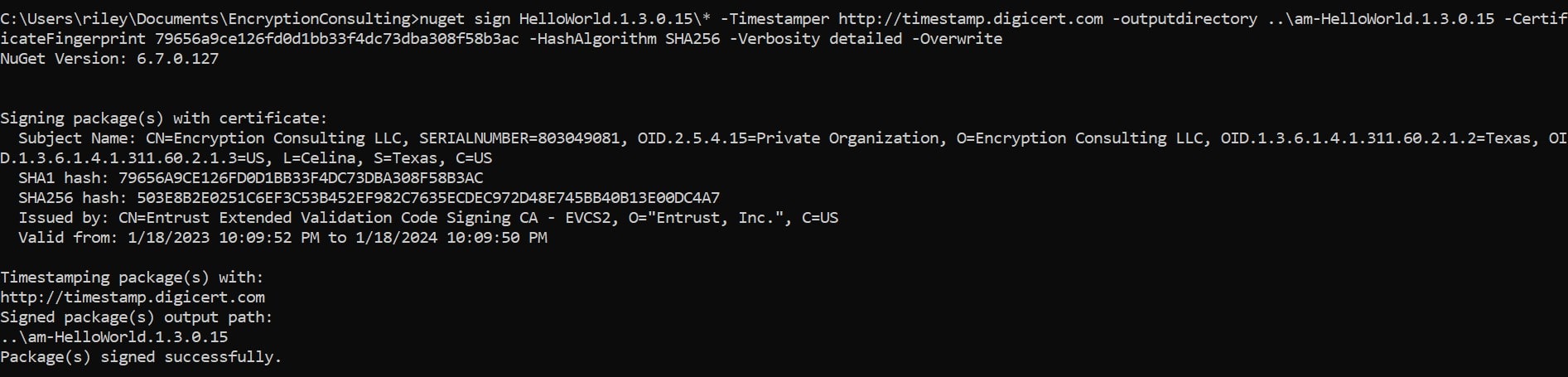
The command is:
nuget sign HelloWorld.1.3.0.15\* -Timestamper
http://timestamp.digicert.com -outputdirectory
..\am-HelloWorld.1.3.0.15 -CertificateFingerprint
79656a9ce126fd0d1bb33f4dc73dba308f58b3ac -HashAlgorithm SHA256
-Verbosity detailed -Overwrite
| Parameters |
Details |
| sign |
This command tells NuGet to sign the selected/specified
package.
|
| HelloWorld.1.3.0.15* |
This specifies the package file(s) to be signed. The
asterisk (*) is a wildcard character that indicates all
files starting with HelloWorld.1.3.0.15 should be signed.
|
| Timestamper http://timestamp.digicert.com |
The -Timestamper option specifies the URL of the
timestamping service to be used.
|
| -outputdirectory ..\am-HelloWorld.1.3.0.15 |
This parameter directs NuGet to place the signed
package(s) into the specified directory relative to the
current directory.
|
| CertificateFingerprint |
The -CertificateFingerprint option specifies the SHA-1
fingerprint of the signing certificate. This uniquely
identifies which certificate should be used from the store
if multiple certificates are available.
|
| -HashAlgorithm SHA256 |
This option defines the hash algorithm to use for creating
the signature. SHA256 is a recommended hash algorithm for
security.
|
| -Verbosity detailed |
The -Verbosity option tells NuGet how much information to
output to the console during the signing process. detailed
means it will output detailed information useful for
debugging or logging.
|
| -Overwrite |
This flag indicates that if the package is already signed,
the existing signature should be overwritten with the new
one. Without this flag, if the package is already signed,
NuGet will not sign it again and will throw an error
instead.
|
To verify whether the package has been signed or not:
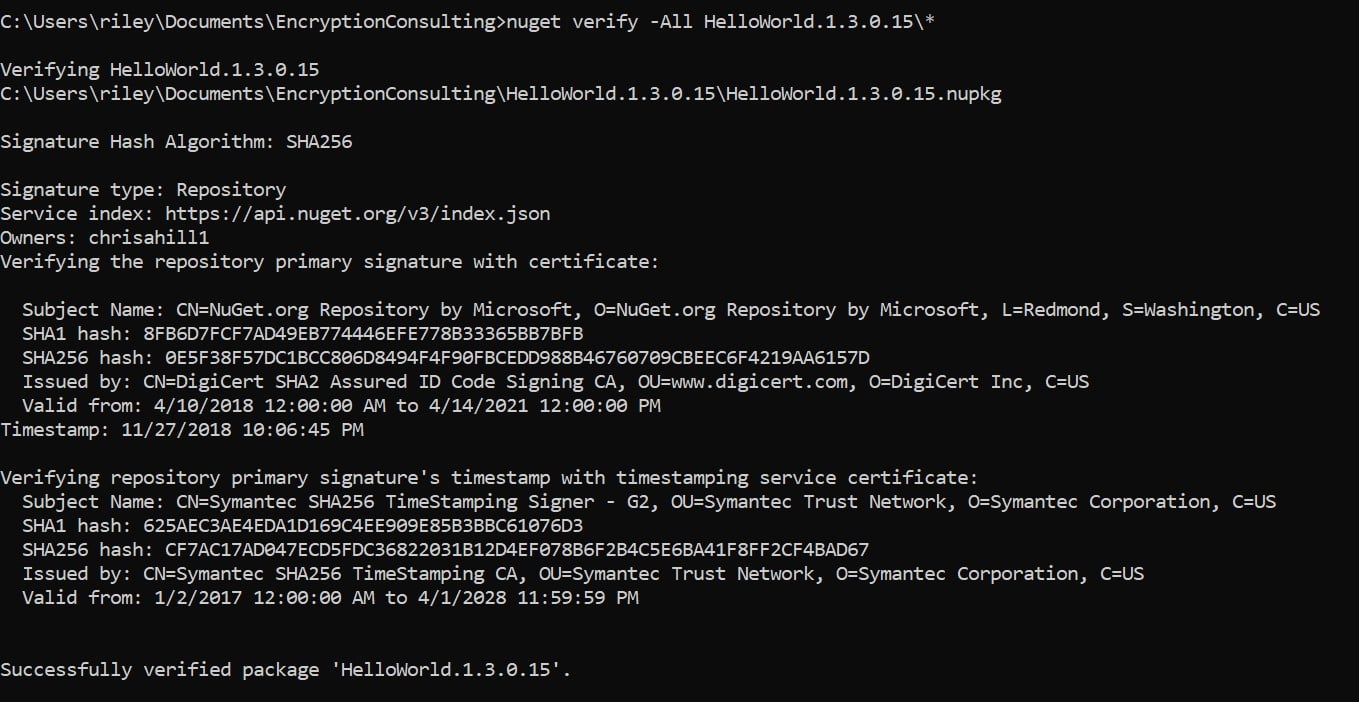
The command is:
nuget verify -All HelloWorld.1.3.0.15\*
Using Command-Line and Self-Signed certificate (from our web
portal)
This method also involves leveraging the NuGet (Command Line
Interface) that provides functionality to create, publish, sign,
and manage packages without changing the project files. But
first, the user needs to generate a Self-Signed certificate from
our web portal. After that, convert the download certificate
from .pem to .crt format for better operations. When these steps
are performed successfully, perform the following steps:
-
Download the
Certificate Chain from
our “Signing Tools” screen. And unzip it in your client
machine.
-
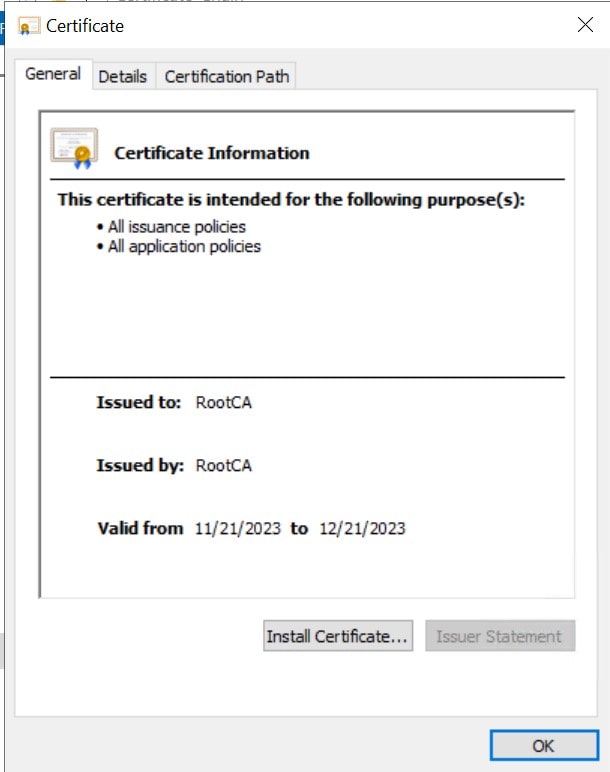
After that, install the Root Certificate into your system:
| Steps |
Outputs |
|
Click on the
INSTALL CERTIFICATE
button.
|
|
|
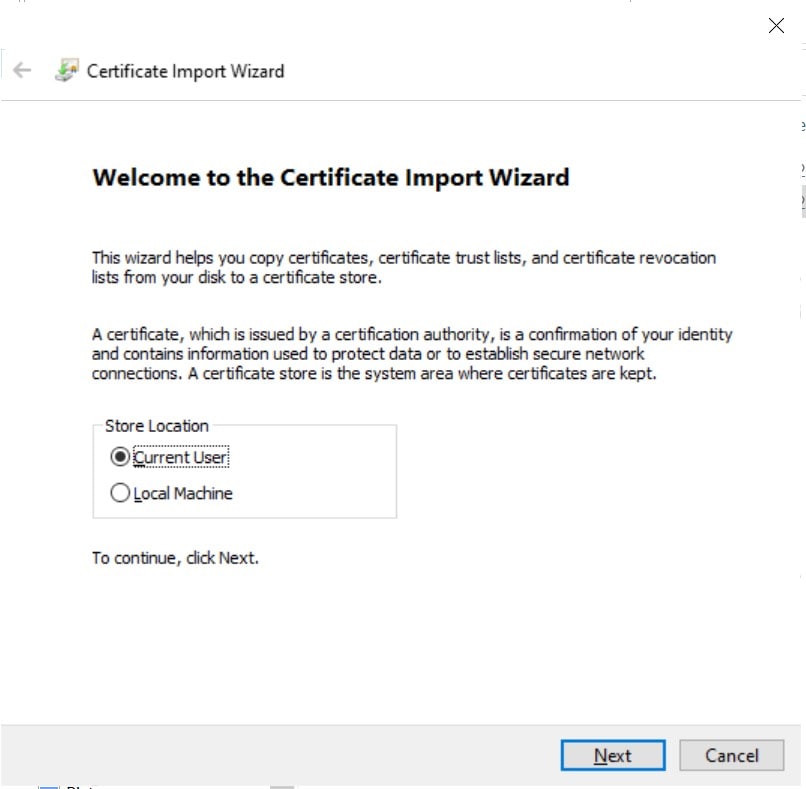
On the “Import Wizard” popup, select
Current User and
then hit NEXT.
|
|
|
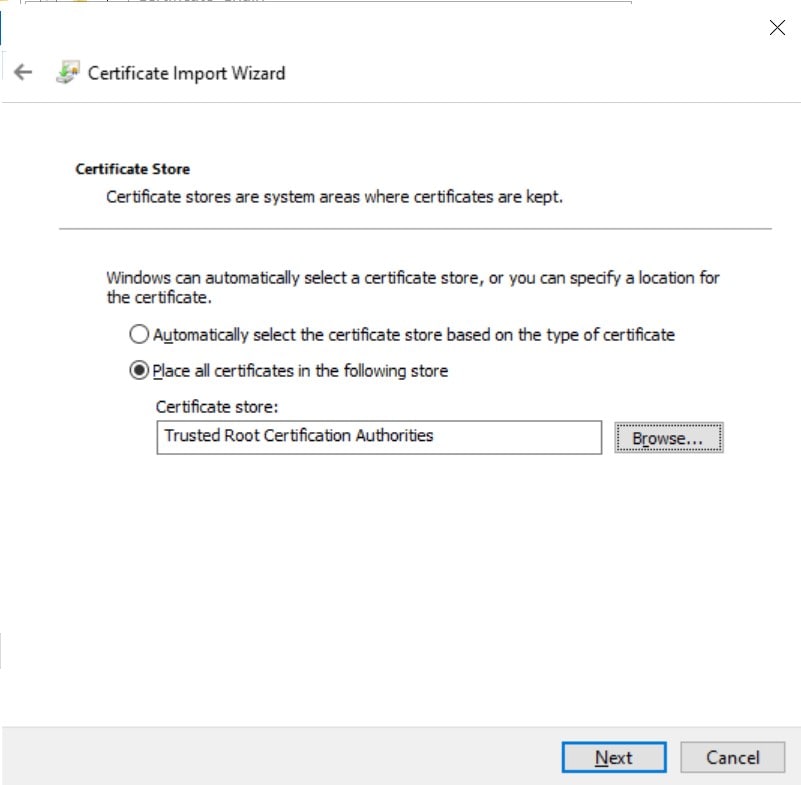
On the “Certificate Store” popup, choose Trusted Root
Certification Authorities for the Root CA certificate
and click on NEXT.
|
|
|
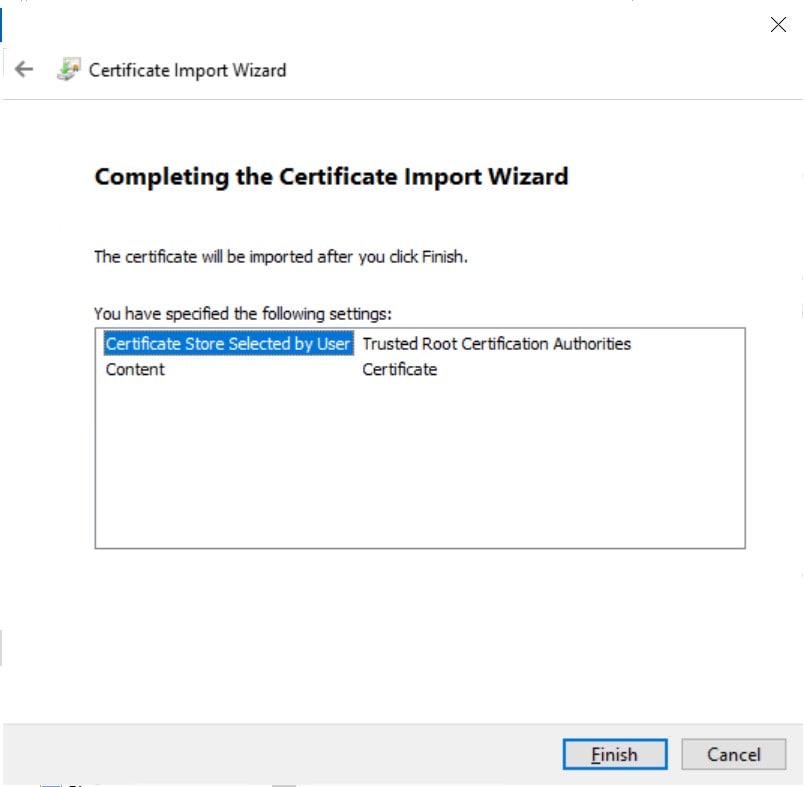
After verifying all the details, click on FINISH.
|
|
-
After installing Root CA, install the Issuing CA from the
Certificate Chain folder (intermediate.crt). Follow the same
procedure, except to install this certificate in
Intermediate Certification Authorities.
-
After successfully installing the Issuing CA, install the End
Entity certificate (or the Self-Signed certificate from our
portal) into your system. The process is the same, except this
certificate will be installed in the
Personal store.
-
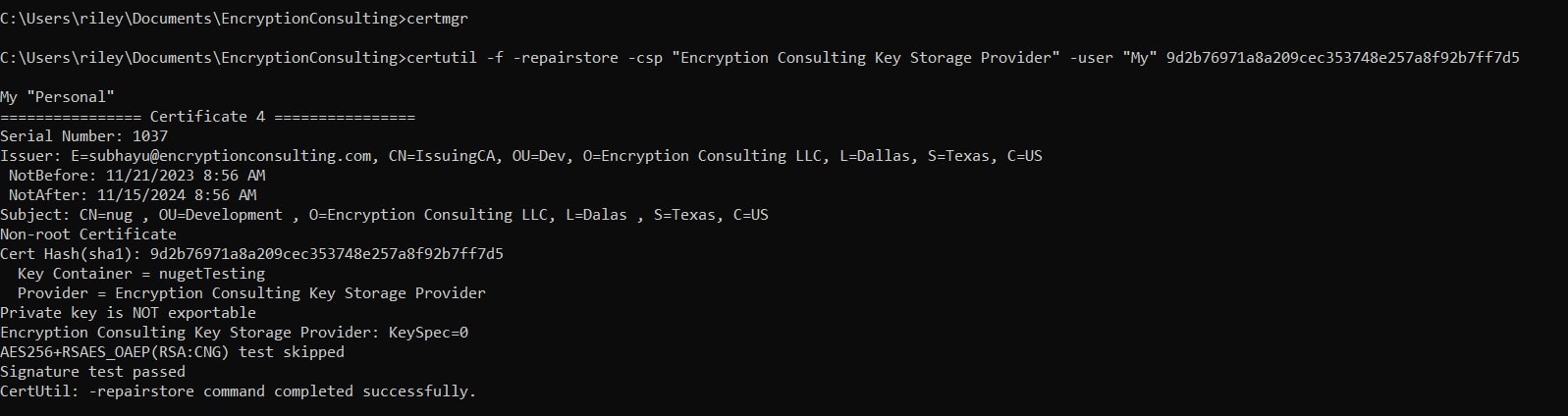
Run the
repairstore command
using the Thumbprint of this End Entity certificate. Like
this:
certutil -f -repairstore -csp "Encryption Consulting Key
Storage Provider" -user "My" <thumbprint of the
certificate>
-
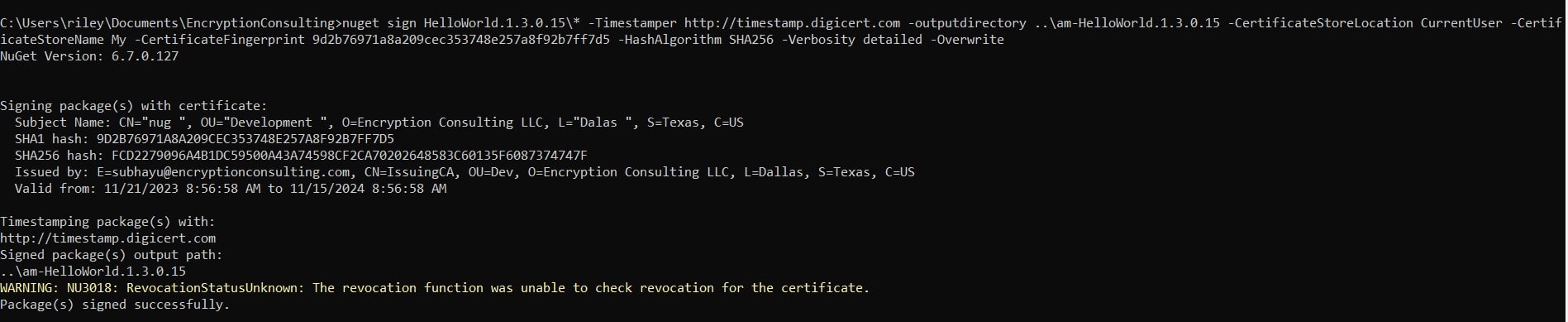
When all of these steps have been completed successfully,
try running the NUGET command-line command using this
certificate’s thumbprint. Here,
nuget sign HelloWorld.1.3.0.15\* -Timestamper
http://timestamp.digicert.com -outputdirectory
..\am-HelloWorld.1.3.0.15 -CertificateStoreLocation
CurrentUser -CertificateStoreName My -CertificateFingerprint
<thumbprint of the certificate> -HashAlgorithm SHA256
-Verbosity detailed -Overwrite
This method involves leveraging our in-house utility tool
designed to perform all kinds of Windows signing (even NuGet
signing). This tool streamlines the signing process, making it
efficient and hassle-free.
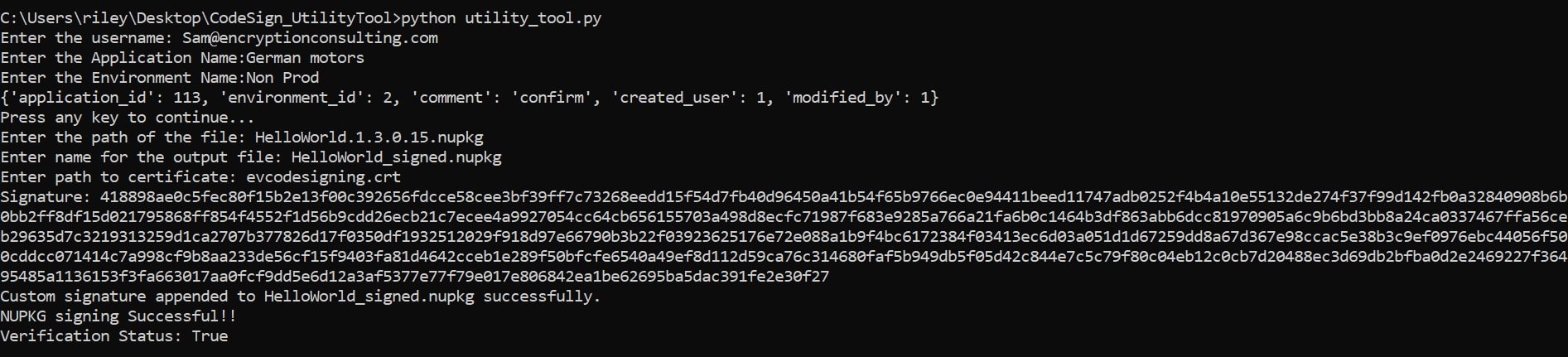
Enter the appropriate details when prompted to get a signed
package. This method allows customisation and increases
efficiency without compromising quality.
