Identity Store (Azure AD)
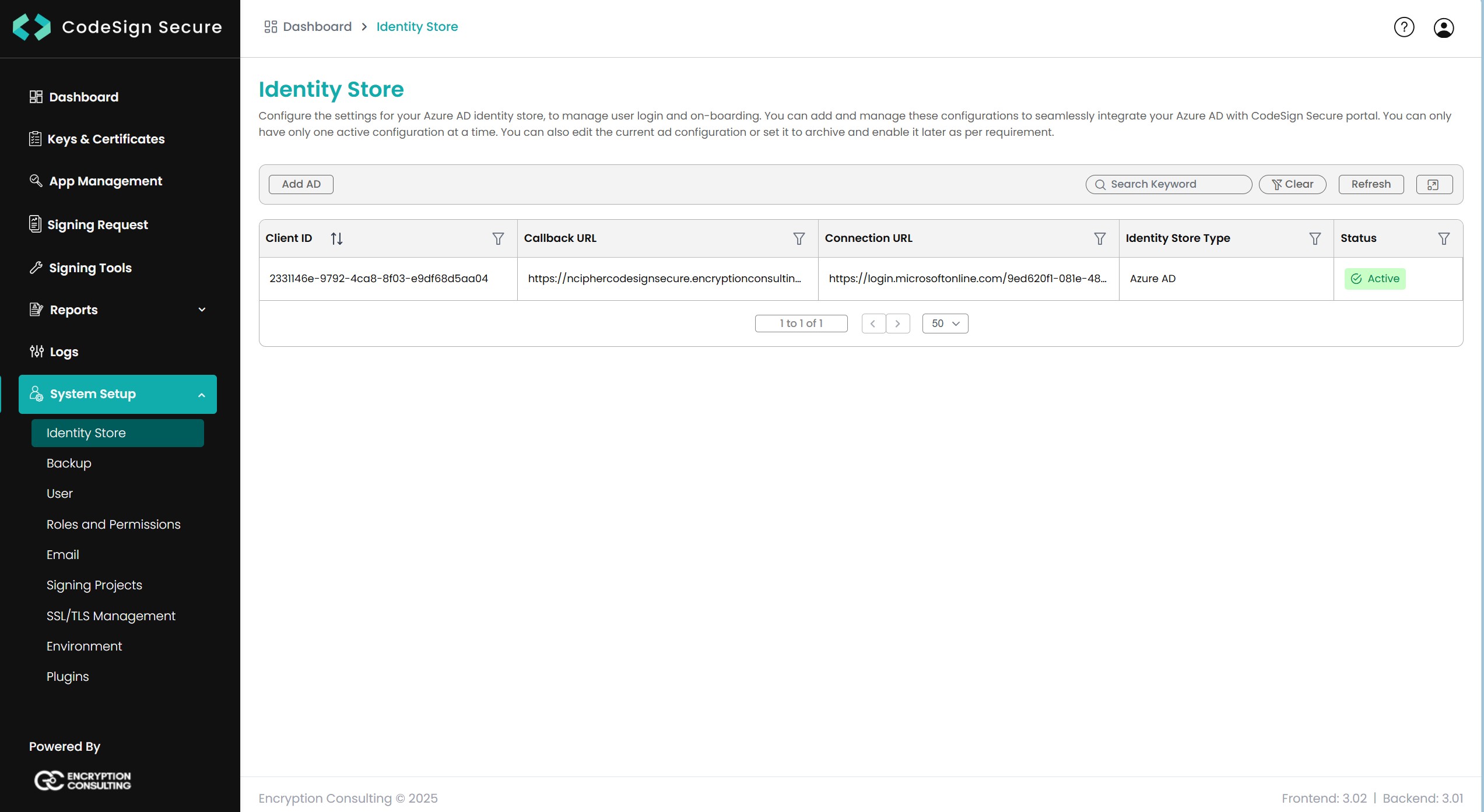
Let users sign in to CodeSign Secure with their Azure AD (Microsoft Entra ID) accounts. Users can also sign in with an email and password registered by a System Admin.
Overview
-
Azure AD is the identity store type available in 3.02.01. Local accounts created in User keep working alongside it.
-
Only one identity store configuration can be active at a time.
-
Setting it up has two parts: register an application in Microsoft Entra ID, then add its details in CodeSign Secure.
Part 1: Register an application in Microsoft Entra ID
-
Sign in to the Azure portal and open Microsoft Entra ID > App registrations > New registration.
-
Enter a name such as CodeSignSecure. For Supported account types, select Accounts in this organizational directory only (Single tenant).
-
Under Redirect URI, select Single-page application (SPA) and enter https://<your_domain>/. Select Register.
-
Open Authentication > Add a platform > Web and add the redirect URI https://<your_domain>/api/auth/azure/callback/.
-
On Overview, copy the Application (client) ID and the Directory (tenant) ID.
-
Open API permissions > Add a permission > Microsoft Graph and add the permissions in the table below, then select Grant admin consent for <your organization>. Every permission should show Granted in the Status column.
-
Open Certificates & secrets > New client secret, enter a description, choose an expiry and select Add. Copy the secret Value immediately; Azure shows it only once. Note the expiry date so you can rotate it in time.
-
Open Token configuration > Add optional claim, choose token type ID, select login_hint and select Add.
Microsoft Graph permissions
| Permission | Type | Admin consent | Why it is needed |
|---|
| User.Read | Delegated | No | Sign in and read the signed-in user’s profile. Added automatically to new registrations; keep it. |
| User.ReadBasic.All | Delegated | No | Read basic profiles of other users |
| User.Read.All | Application (as in the reference configuration) | Yes | Read users’ full profiles |
| Group.Read.All | Delegated | Yes | Read groups |
| GroupMember.Read.All | Delegated | Yes | Read group memberships |
| Sites.ReadWrite.All or Sites.Selected | Application | Yes | Only if backups are stored in SharePoint. See Backup. |
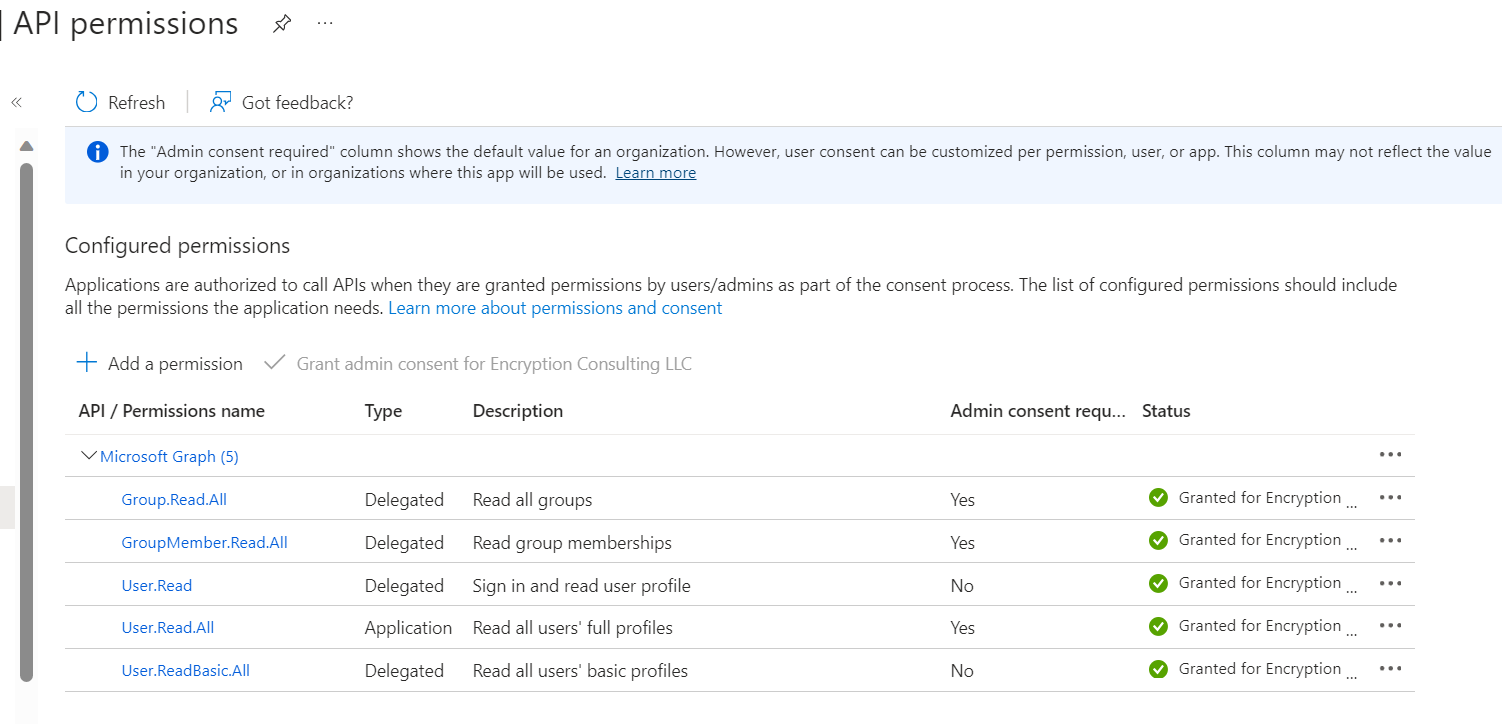
Configured permissions with admin consent granted.
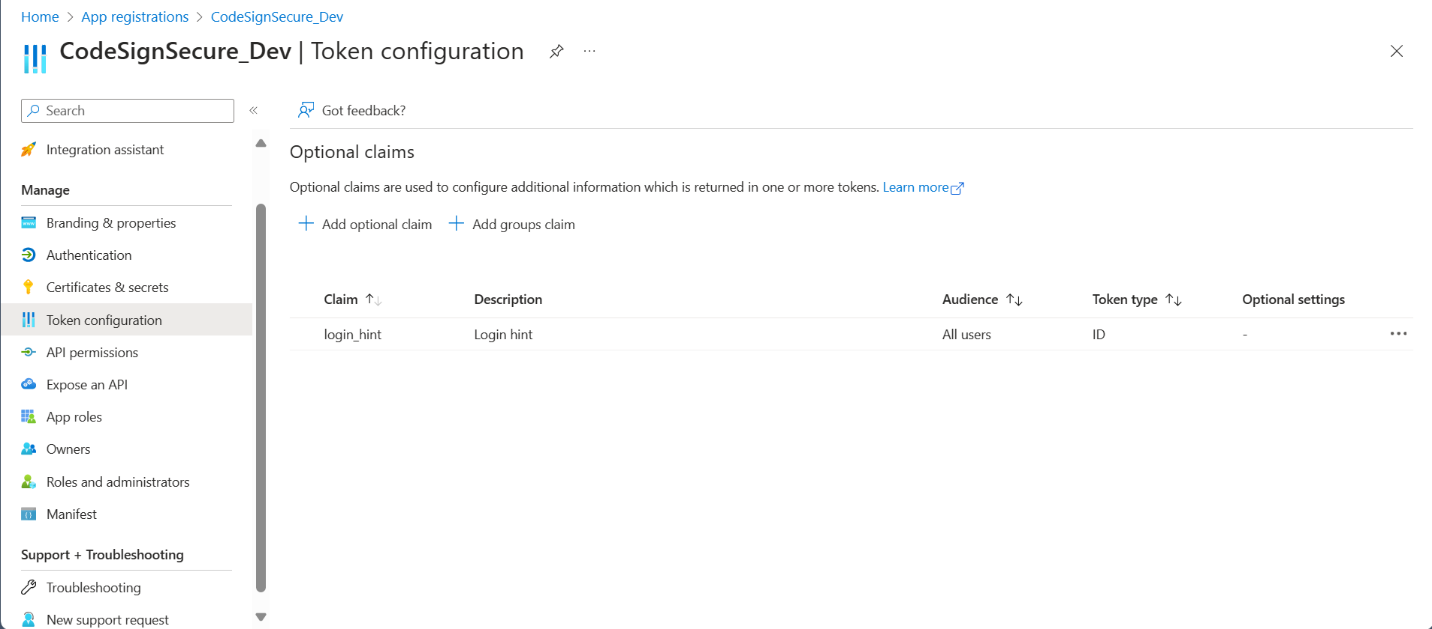
The login_hint optional claim added to the ID token.
Part 2: Add the identity store in CodeSign Secure
Go to System Setup > Identity Store, add a new Azure AD configuration, and fill in the four fields:
| CodeSign Secure field | Value from Microsoft Entra ID | Example |
|---|
| Client ID | Application (client) ID | 1b2c3d4e-... |
| Secret Key | The client secret Value (not the Secret ID) | (hidden) |
| Callback URL | The portal address registered as the SPA redirect URI | https://codesign.example.com/ |
| Connection URL | The sign-in endpoint for your tenant | https://login.microsoftonline.com/<tenant-id> |
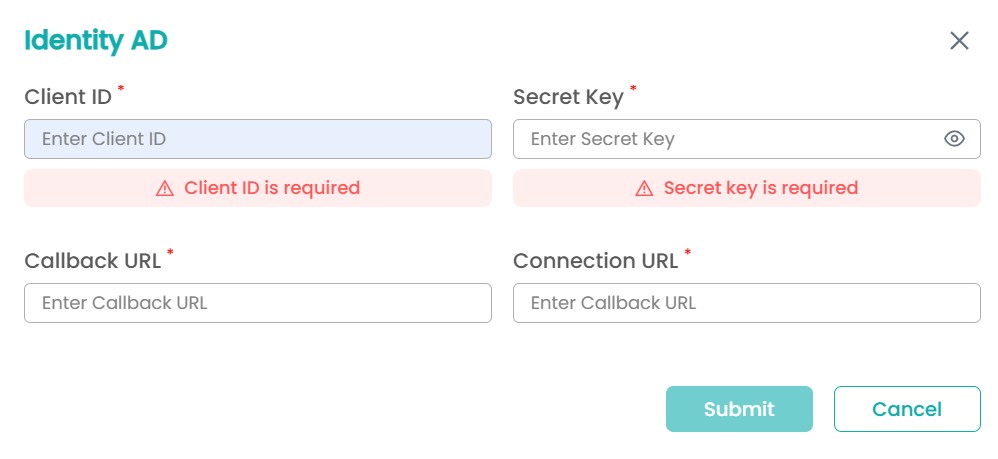
Save the configuration, sign out, and sign in again with an Azure AD account to confirm it works.
Manage the configuration
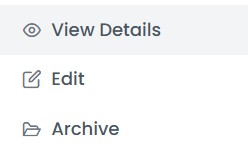
Right-click an entry for these options:
-
View Details shows the Client ID, Callback URL, Connection URL, Status, Secret Key and creation and modification times.
-
Edit changes the configuration.
-
Archive makes the configuration inactive. You are asked to confirm first.
Rotate the client secret
-
In Microsoft Entra ID, create a new client secret and copy its value.
-
In CodeSign Secure, right-click the identity store, select Edit and replace the Secret Key.
-
Sign in with Azure AD to confirm it works. If sign-in doesn’t work, then restart the Apache Monitor service, as settings may be cached.
-
Delete the old secret in Microsoft Entra ID.
Troubleshooting sign-in
| Error | Cause | Fix |
|---|
| AADSTS50011: redirect URI mismatch | The redirect URIs in the app registration don’t match the portal address | Check both redirect URIs in Part 1, including the trailing / |
| AADSTS7000215: invalid client secret | The Secret Key holds the Secret ID or a mistyped value | Paste the secret Value into Secret Key |
| AADSTS7000222: client secret expired | The client secret has passed its expiry date | Rotate the client secret |
| AADSTS65001: consent required | Admin consent was not granted | Select Grant admin consent on the API permissions page |
