JSign Tool Signing
JSign is a versatile, platform-independent tool used for code
signing of Windows executable files, installers, and scripts.
For Linux - Ubuntu
To perform Signing using JSign Tool and our PKCS11 Wrapper in
Linux (Ubuntu) machine, you would need to follow the below steps:
-
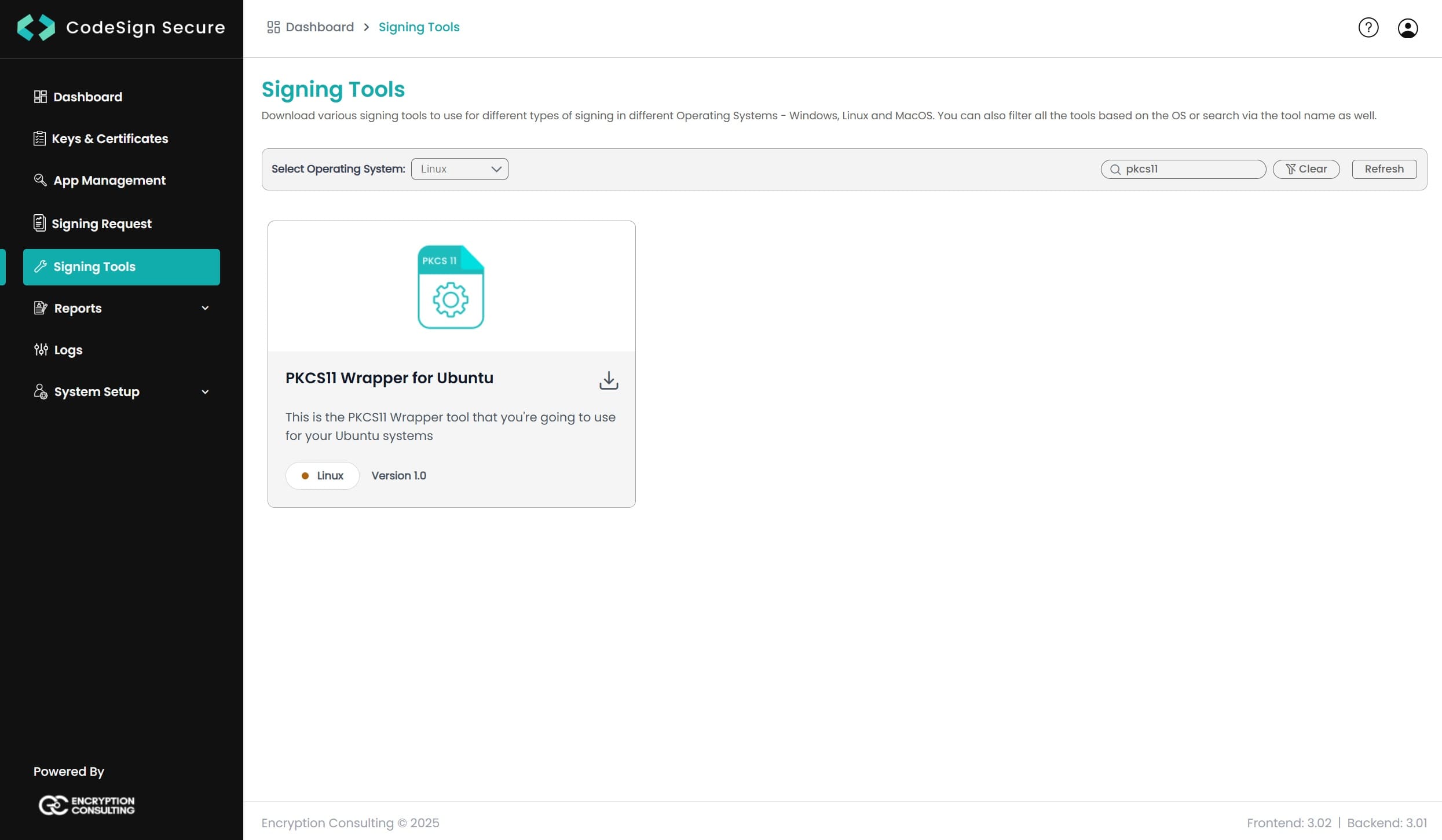
Go to EC CodeSign Secure’s v3.02’s Signing Tools section and
download the PKCS11 Wrapper for Ubuntu.
-
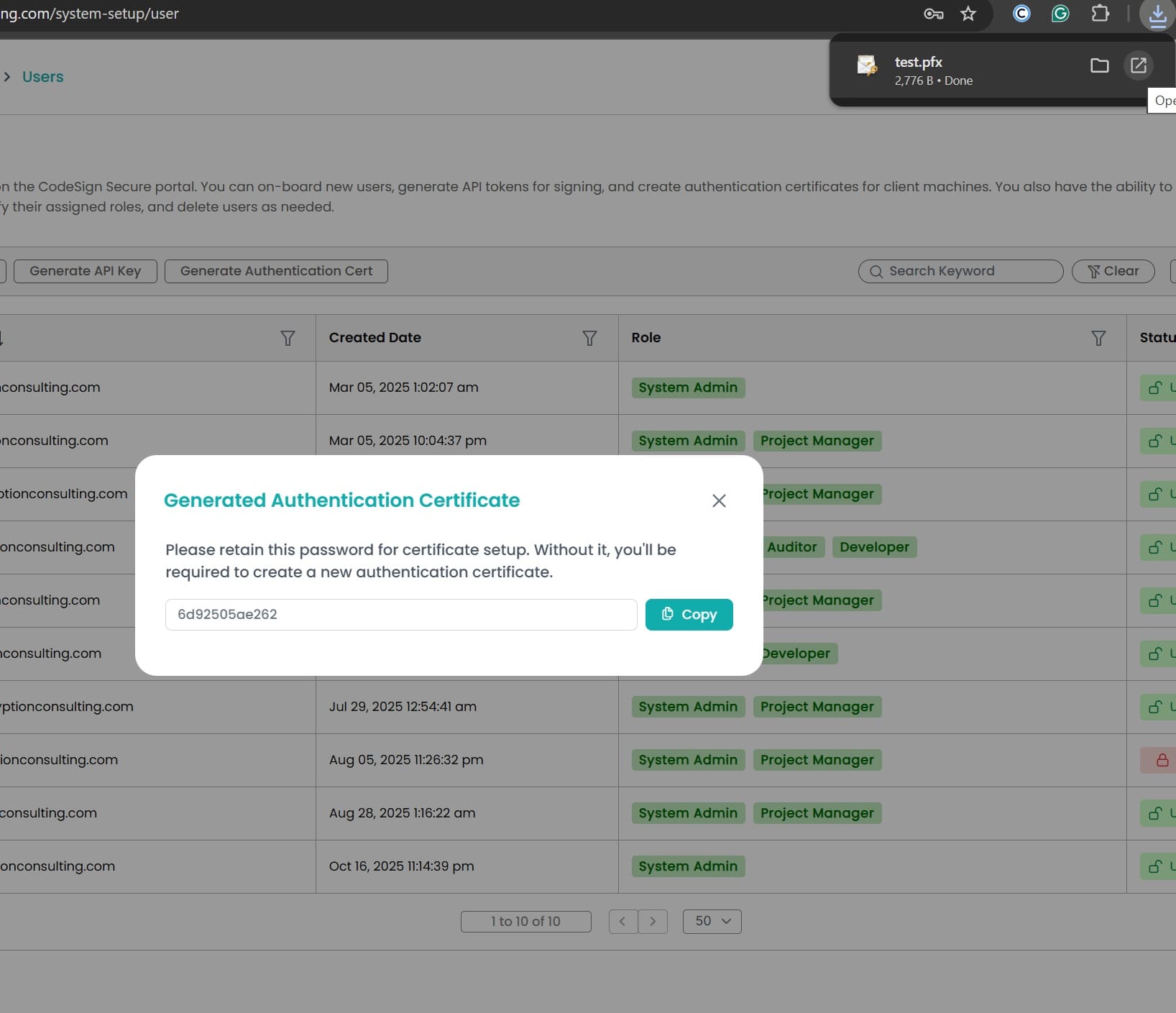
After that, generate a P12 Authentication certificate from the
System Setup > User > Generate Authentication
Certificate
dropdown.
-
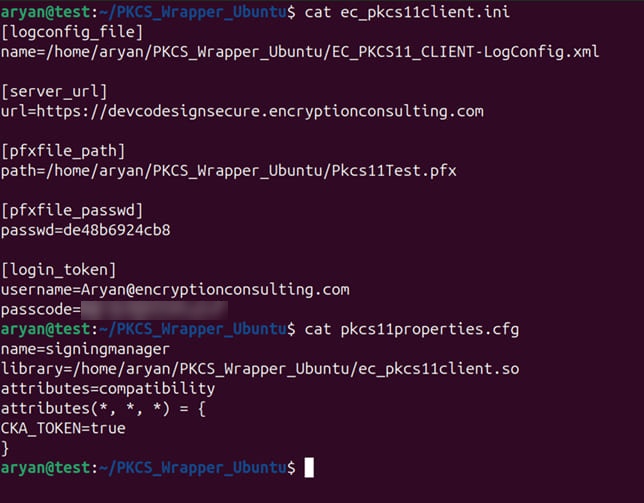
Go to your Ubuntu client system and edit the configuration
files (ec_pkcs11client.ini
and pkcs11properties.cfg)
downloaded in the PKCS11 Wrapper.
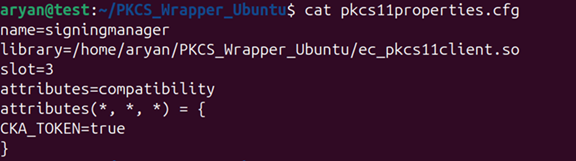
NOTE: When using Luna
HSM, add the
slot number in the
pkcs11properties.cfg file as shown below:
-
Now we need to add the environment variable for the pkcs11
client library.
Run the below command to open the bashrc file:
nano ~/.bashrc

Now add the EC_INI_FILE_PATH variable with the path of the
.ini at the end of the bashrc file, like:
export EC_INI_FILE_PATH=/home/administrator/PKCS11_Wrapper-Ubuntu/ec_pkcs11client.ini
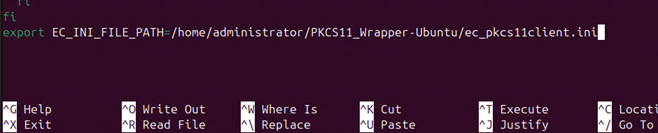
Press Ctrl+X, then enter Y, and then press Enter to save.
Reload the environment variables
source ~/.bashrc

Check whether the variable has been set correctly
echo $EC_INI_FILE_PATH

NOTE: If you can't see
the file location from echo commands, open a new terminal and
try again.
-
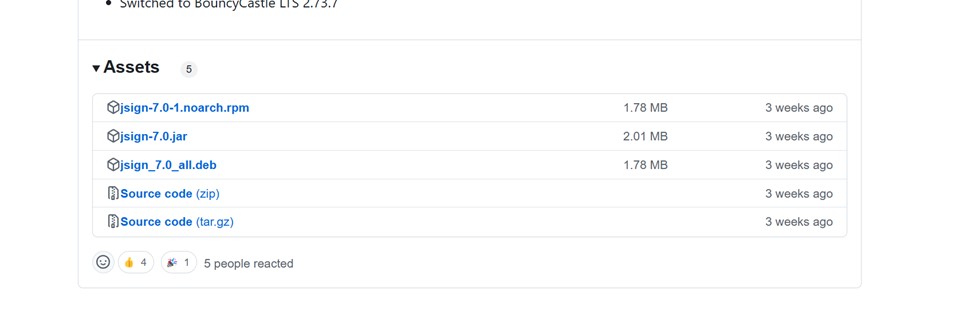
Now, you will need to download the latest version of JSign
tool (DEB package) in your ubuntu machine using this
link.
-
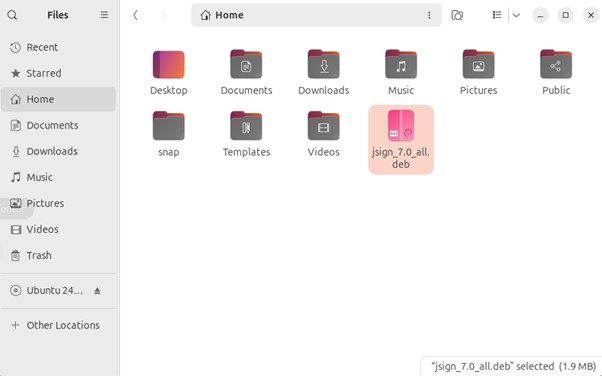
Install the debian package using the below command:
sudo dpkg --install jsign_7.0_all.deb

-
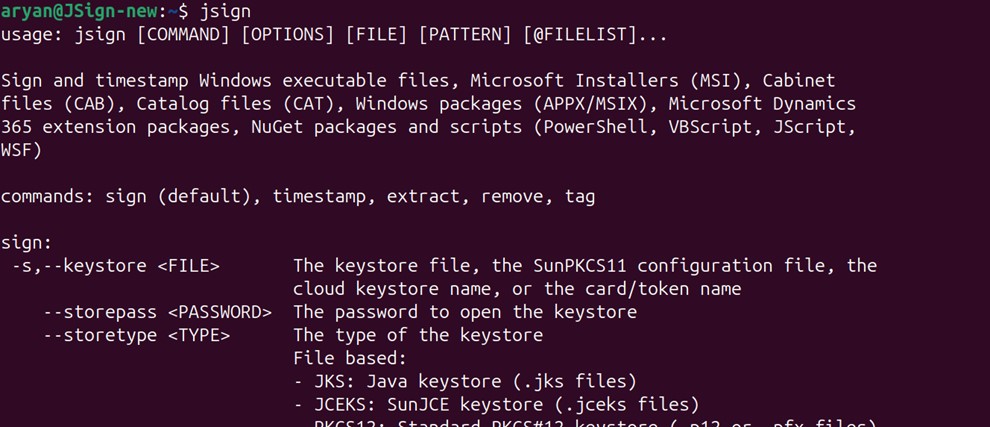
To check whether JSign has been properly installed or not, run
the following command:
jsign
-
You will also need to install Java (Java 17 or lower) on your
Ubuntu machine for JSign to work with our PKCS11 Wrapper.
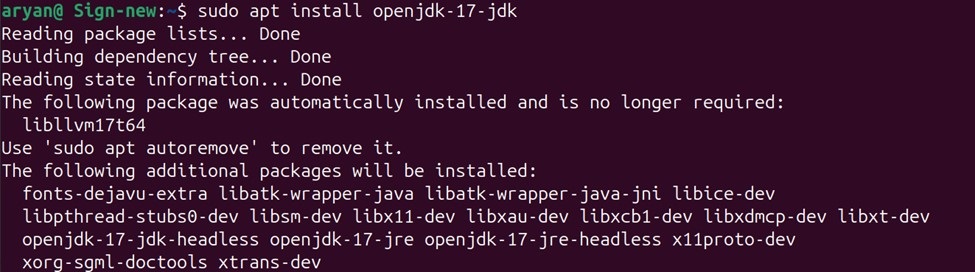
Run the following command to install Java 17 on your Ubuntu
machine
sudo apt install openjdk-17-jdk
-
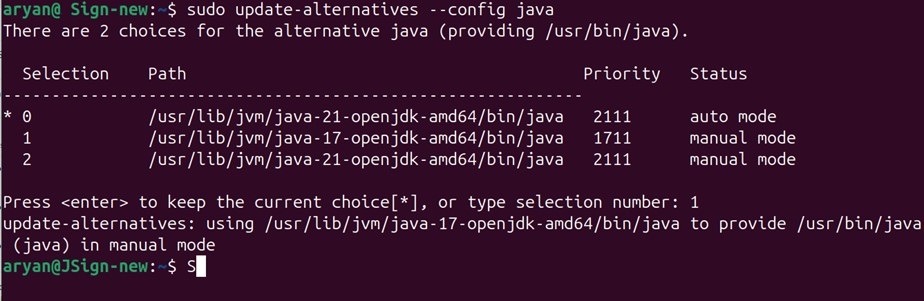
To use Java 17, you will need to set it as the active version.
sudo update-alternatives --config java
-
Now to check whether Java has been installed properly or not,
run:
java -version

-
You would also need to install some other pre-requisite packages
to perform signing using JSign.
- sudo apt-get install curl
- sudo apt-get install liblog4cxx-dev
- sudo apt-get install liblog4cxx12
NOTE: If
"sudo apt-get install liblog4cxx12"
command gives error, run the following steps to install this
package
For amd architecture:
-
wget
http://archive.ubuntu.com/ubuntu/pool/universe/l/log4cxx/liblog4cxx12_0.12.1-4_amd64.deb
- sudo dpkg -i liblog4cxx12_0.12.1-4_amd64.deb
For arm architecture:
-
wget
http://ports.ubuntu.com/pool/universe/l/log4cxx/liblog4cxx12_0.12.1-4_arm64.deb
- sudo dpkg -i liblog4cxx12_0.12.1-4_arm64.deb
We are now ready with our Ubuntu environment to perform the
signing using JSign tool and PKCS11 Wrapper
Signing
For Signing, change the working directory of the terminal to
that folder which contains your "ec_pkcs11client.ini" file.

Now, run the signing command from this directory.
<Path of JSign tool> --keystore <Path of pkcs11properties.cfg> --storepass NONE --storetype PKCS11 --alias <Key alias of the signing certificate> <Path of the file to be signed>
A sample command is provided below:
jsign --keystore pkcs11properties.cfg --storepass NONE --storetype PKCS11 --alias EC-Cert-020 build_project.ps1

NOTE: There is no
verification command for JSign tool.
For MacOS
To perform Signing using JSign Tool and our PKCS11 Wrapper in
MacOS machine, you would need to follow the below steps:
-
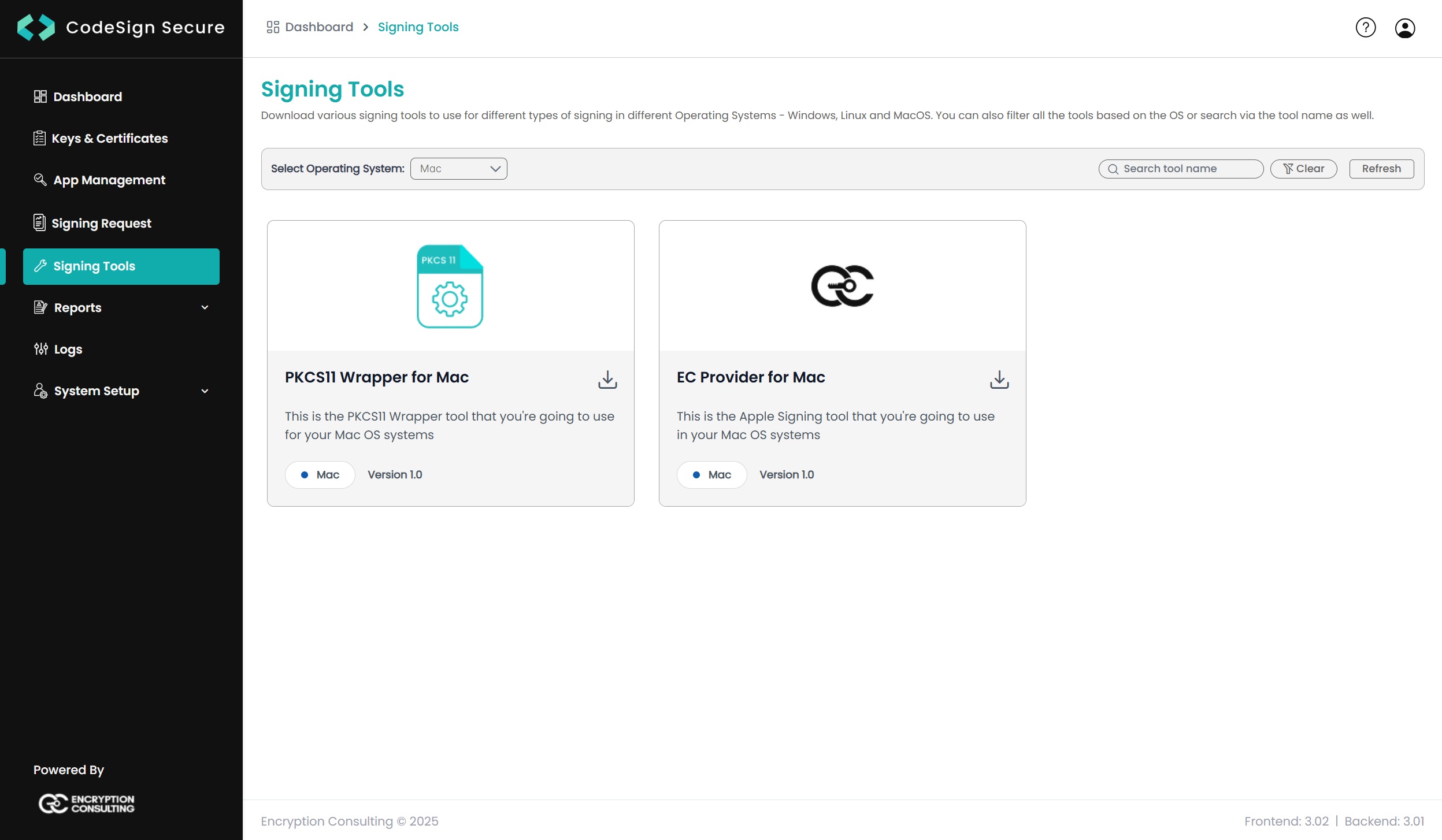
Download our PKCS11 Wrapper Tool from CodeSign Secure portal in
the Signing Tools section in your MacOS.
-
Go to your PKCS11 Wrapper directory (../PKCS11_Wrapper-Mac) and
update the "pkcs11properties.cfg" and "ec_pkcs11client.ini" with
the required details.
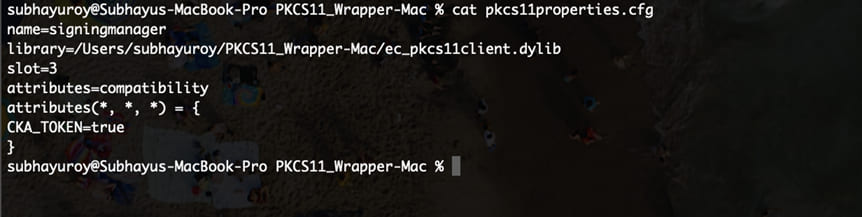
For "pkcs11properties.cfg", update the library path.
NOTE: When using Luna HSM,
add the slot number in the
pkcs11properties.cfg file as shown below:
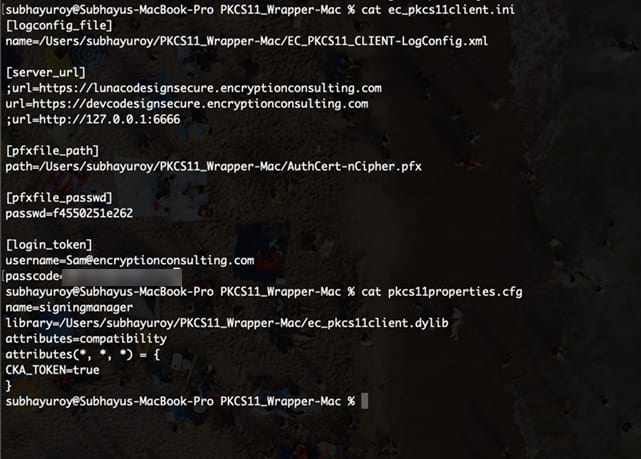
For "ec_pkcs11client.ini" file, update the following fields:
-
name - provide the path location of the Log xml file you
downloaded with the PKCS11 Wrapper tool.
(EC_PKCS11_CLIENT-LogConfig.xml)
-
url - verify the server url of your CodeSign Secure portal.
-
username - provide the username of CodeSign Secure account
-
passcode - provide the secret passcode which was used to setup
CodeSign Secure portal
-
path - Provide the path location of your SSL Authentication
certificate.
-
passwd - Provide the password of your SSL Authentication
certificate.
-
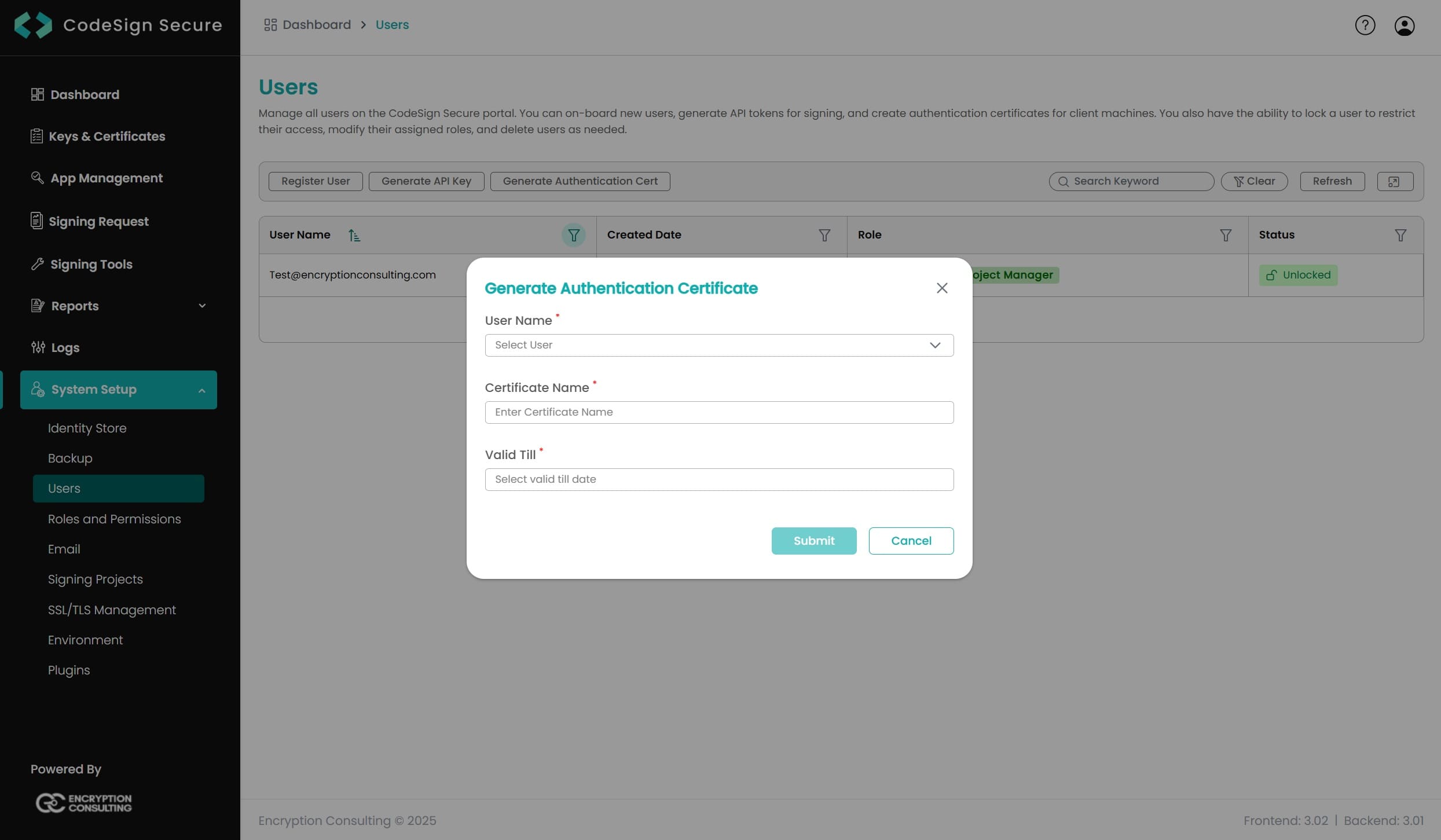
NOTE: To create the SSL Auth Certificate, go to the CodeSign
Secure Portal -> System Setup -> User. From the right drop
down, select the "Generate Authentication Certificate"
option.
-
The initialization and configuration files should look like this
with all the correct file paths and settings.
-
You will also need to install Java (Java 17 or lower) on your
MacOS machine for JSign to work with our PKCS11 Wrapper.
To install Java 17 on your MacOS machine, run the following
command:
brew install openjdk@17
-
Find the location where Java 17 is installed on your machine:
brew info openjdk@17
-
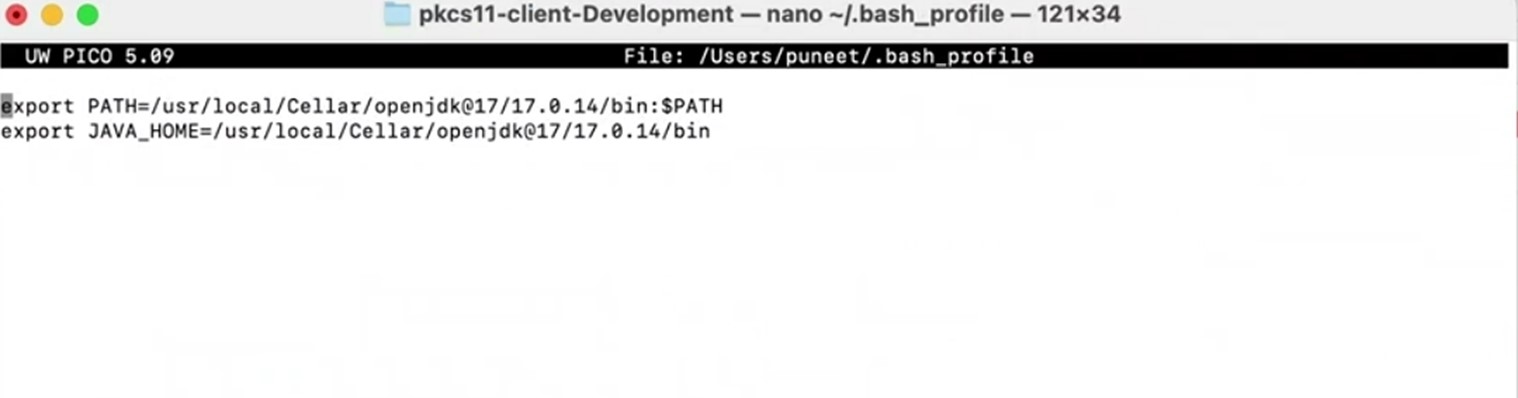
Now set Java 17 as the active version.
For Zsh: nano ~/.zshrc
For Bash:
nano ~/.bash_profile
After running the above command, add these lines:
- export PATH=<Path of Java 17 bin folder>:$PATH
- export JAVA_HOME=<Path of Java 17 bin folder>
-
Reload the environment variables using the below commands:
For Zsh: source ~/.zshrc
For Bash:
source ~/.bash_profile
-
You would also need to install some other pre-requisite packages
to perform signing using JSign.
- brew install log4cxx
- brew install curl
-
Now, you will need to download the latest version of JSign
tool (JAR package) in your MacOS machine using this
link.
-
To check whether JSign has been properly installed or not, run
the following command:
java -jar <Path of JSign Jar Package>
We are now ready with our MacOS environment to perform the
signing using JSign tool and PKCS11 Wrapper
Signing
For Signing, change the working directory of the terminal to
that folder which contains your "ec_pkcs11client.ini" file.
Now, run the signing command from this directory.
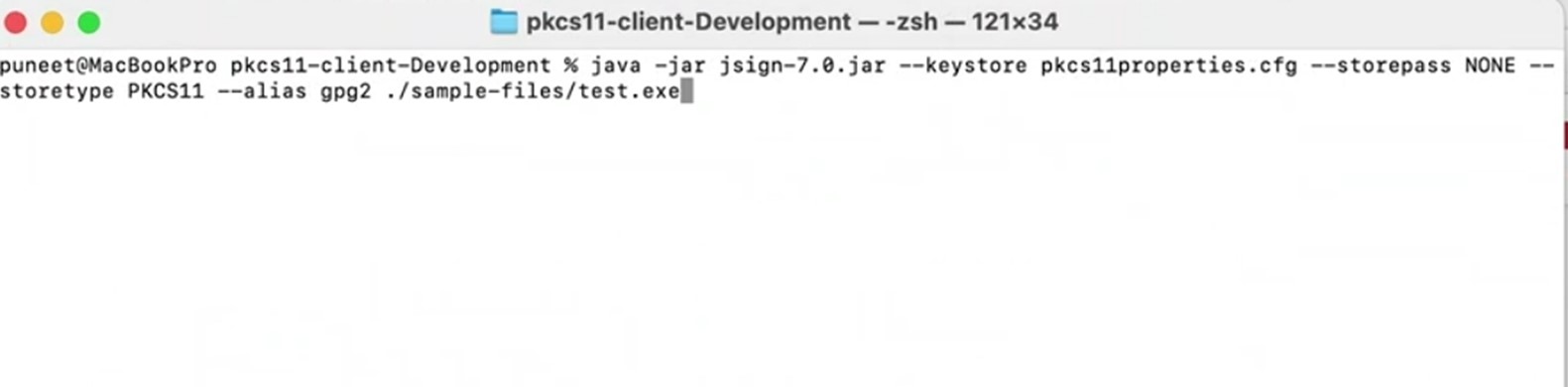
java -jar <Path of JSign tool> --keystore <Path of pkcs11properties.cfg> --storepass NONE --storetype PKCS11 --alias <Key alias of the signing certificate> <Path of the file to be signed>
A sample command is provided below:
java -jar jsign-7.0.jar --keystore pkcs11properties.cfg --storepass NONE --storetype PKCS11 --alias EC-Cert-020 build_project.ps1
NOTE: There is no
verification command for JSign tool.
For Windows
To perform signing using JSign Tool and our PKCS11 Wrapper in
Windows machine, you would need to follow the below steps:
-
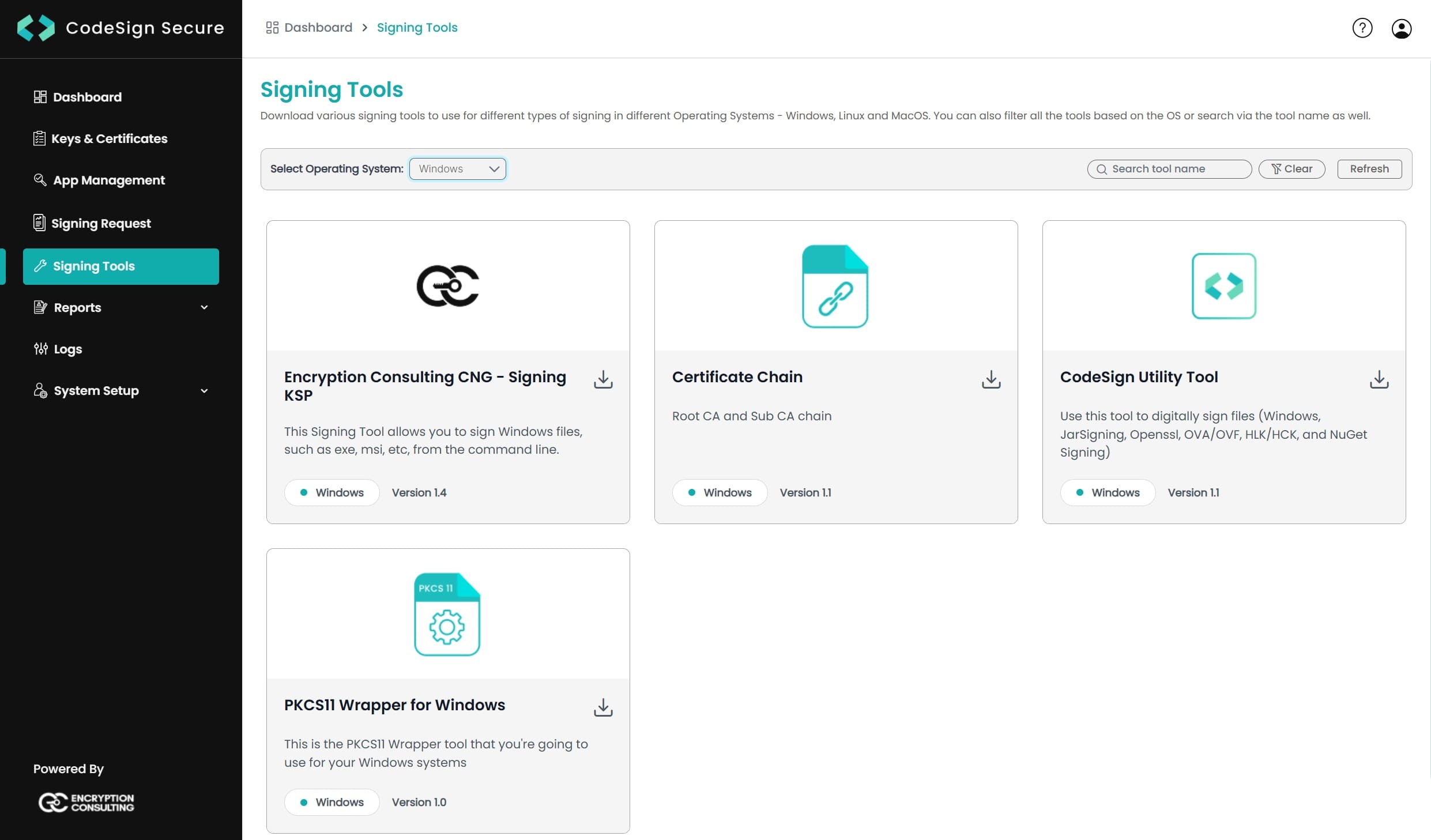
Go to EC CodeSign Secure’s v3.02’s Signing Tools section and
download the PKCS11 Wrapper for Windows.
-
After that, generate a P12 Authentication certificate from the
System Setup > User > Generate Authentication
Certificate
dropdown.
-
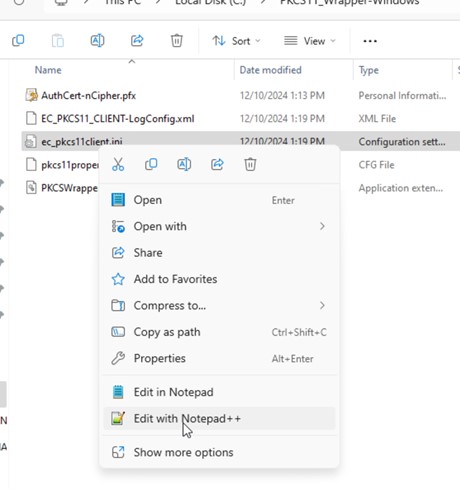
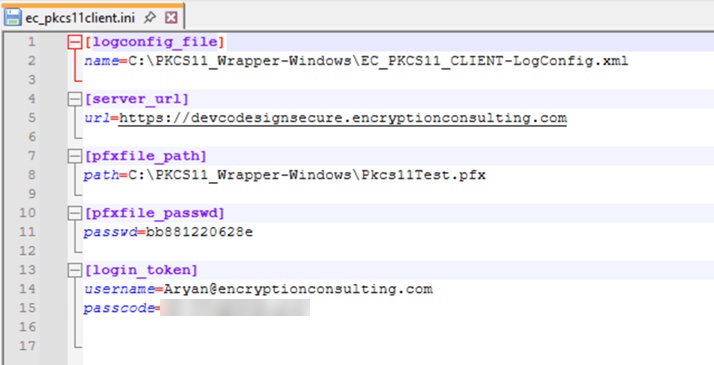
Go to your Windows client system and edit the configuration
files (ec_pkcs11client.ini
and pkcs11properties.cfg)
downloaded in the PKCS11 Wrapper.
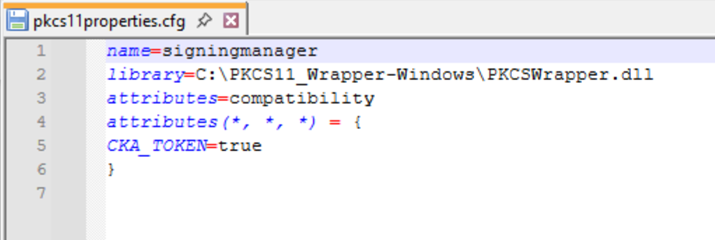
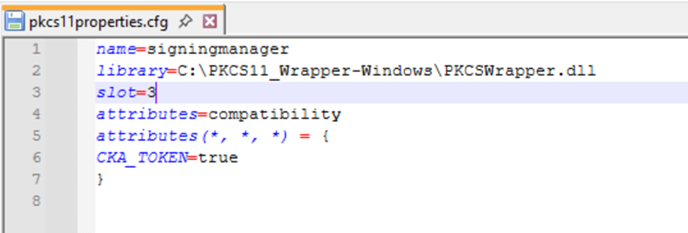
NOTE: When using Luna
HSM, add the
slot number in the
pkcs11properties.cfg file as shown below:
-
Now, let’s install some prerequisites in your client system to
run the PKCS11 Wrapper.
NOTE: Windows requires Java 22, unlike the Linux and
macOS tracks above which use Java 17 or lower.
-
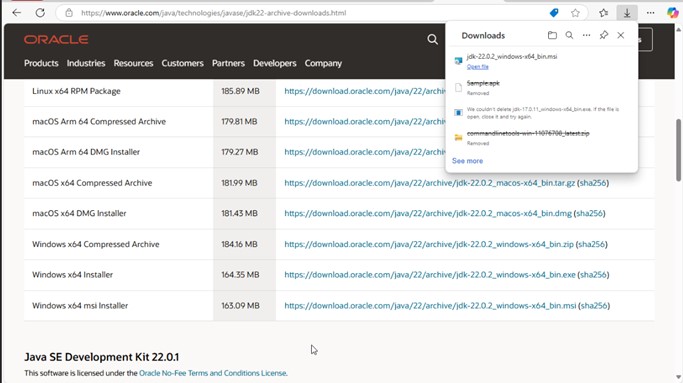
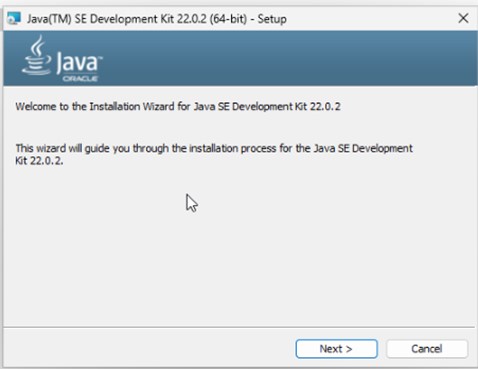
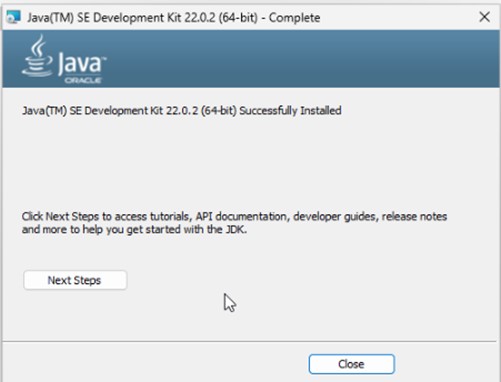
Install Java 22 from
Oracle’s official site, and follow the instructions in the msi file.
-
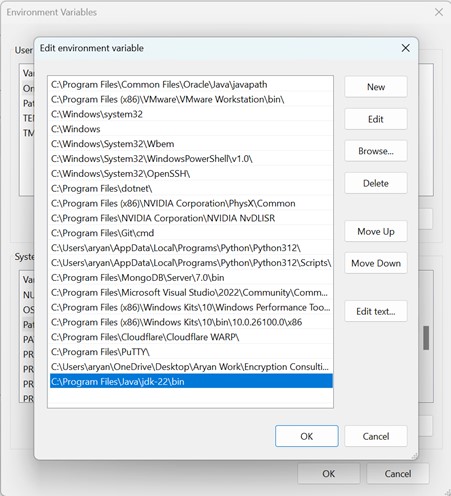
Set Java 22 as the active version by storing the bin path
in the PATH variable.
-
Now, you will need to download the latest version of JSign
tool (JAR package) in your Windows machine using this
link.
-
To check whether JSign has been properly installed or not, run
the following command:
java -jar <Path of JSign Jar Package>
We are now ready with our Windows environment to perform the
signing using JSign tool and PKCS11 Wrapper
Signing
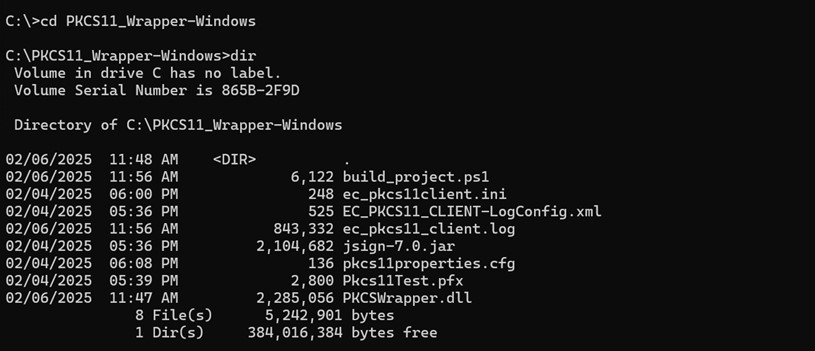
For Signing, change the working directory of the terminal to
that folder which contains your "ec_pkcs11client.ini" file.
Now, run the signing command from this directory.
java -jar <Path of JSign tool> --keystore <Path of pkcs11properties.cfg> --storepass NONE --storetype PKCS11 --alias <Key alias of the signing certificate> <Path of the file to be signed>
A sample command is provided below:
java -jar jsign-7.0.jar --keystore pkcs11properties.cfg --storepass NONE --storetype PKCS11 --alias EC-Cert-020 build_project.ps1

NOTE: There is no
verification command for JSign tool.
