CodeSign Secure Documentation
  • Overview
    • About CodeSign Secure
    • Getting Started
    • Documentation Guide
    • Portal Overview
    • Troubleshooting
      • FAQ
    • Glossary
  • Reference Guide
    • Header Bar
      • CodeSign Secure Documentation
      • Swagger API
      • Profile Section
    • Dashboard
      • Key Performance Indicators
      • Issued Certificates
      • Signatures Generated
      • HSM Health Check
    • Keys and Certificates
      • Key and Certificate Lifecycle
    • App Management
    • Signing Requests
      • Approval Workflows
    • Signing Tools
    • Reports
      • Signing Request Report
      • Audit Trail
      • Certificate Report
      • Client Report
    • Logs
    • System Setup
      • Identity Store
      • Backup
      • User
      • Roles and Permissions
      • Email
      • Signing Projects
      • SSL/TLS Management
      • Environment
      • Plugins
  • Setup & Architecture
    • Identity and Access Control
    • Architecture and Concepts
    • Installation
      • Windows
        • Installing the Server
        • Ports and Protocols
        • High Availability and Backup
        • Upgrades and Compatibility
    • Security
      • Security Hardening Checklist
      • Client Authentication
      • Designing Signing Policies
  • Release Notes
    • Releases for 2026
      • v3.2.1
    • Releases for 2025
      • v3.2.0
    • Releases for 2024
      • v3.1.0
  • API Reference
    • Getting Started
    • Authorizing Requests
    • Securing API Access
    • Request and Response Conventions
    • Endpoint Reference
      • Signing
      • Signing Requests
      • Certificates
      • Applications and Environments
      • User Management
      • Permissions
      • Email
      • System Setup
      • Reports
      • Dashboard
      • License
  • Integration Guides
    • Signing Capabilities
      • Supported Formats and Platforms
      • Timestamping
      • Windows Signing - SignTool
        • Signing
        • Macro Signing
      • Apple Signing
      • AppX & MSIX Signing
      • Visual Studio ClickOnce
      • Jar Signing
      • Sign HLK/HCK using CodeSign Secure
      • NuGet Signing
      • Mage Signing
      • Sign OVA/OVF using Encryption Consulting’s Utility Tool
      • Utility Tool for code signing
      • Container Signing
      • PKCS11 Wrapper
        • APK Signing
        • OpenSSL Signing
        • XML Signing
        • JSign Tool Signing
        • Jarsigner Signing
        • GPG2, Debian & RPM Signing
      • Reproducible Build
        • Automated Hash Validation
        • Reproducible Build Process Flow
        • Pipeline Script Components
        • Hash Validation
    • CI/CD Integration
      • GitHub Actions
      • Jenkins
      • GitLab
      • Azure DevOps
      • TeamCity
      • Bamboo
      • Securing CI/CD Credentials

Approval Workflows: Active Request Scenarios

An active signing request requires immediate action due to the strict 100-second time limit. The approval workflow is dynamically determined by the security policy associated with the certificate's Environment Name.

Scenario 1: MFA-Enabled Approval (Two-Step Verification)

If the policy for the associated Environment Name requires Multi-Factor Authentication (MFA) for approval, the process involves two distinct steps, providing the highest level of assurance.

1. MFA Validation Required: The request first appears with the Approval Status as Pending and the Actions column shows Requires MFA.

MFA Validation Section

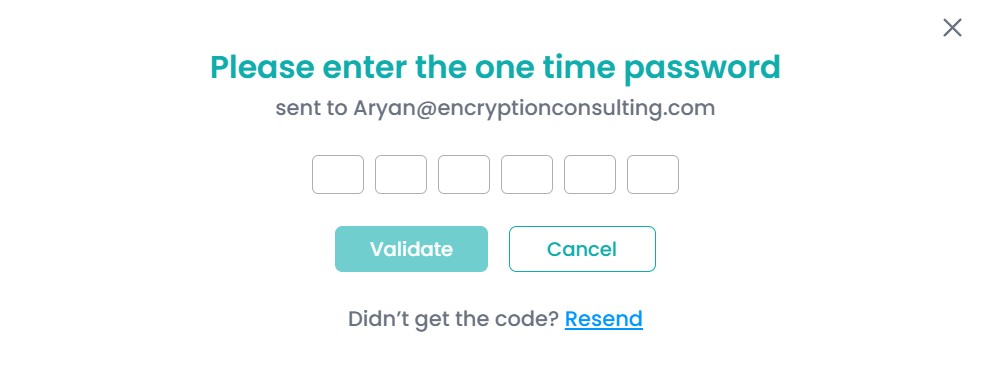
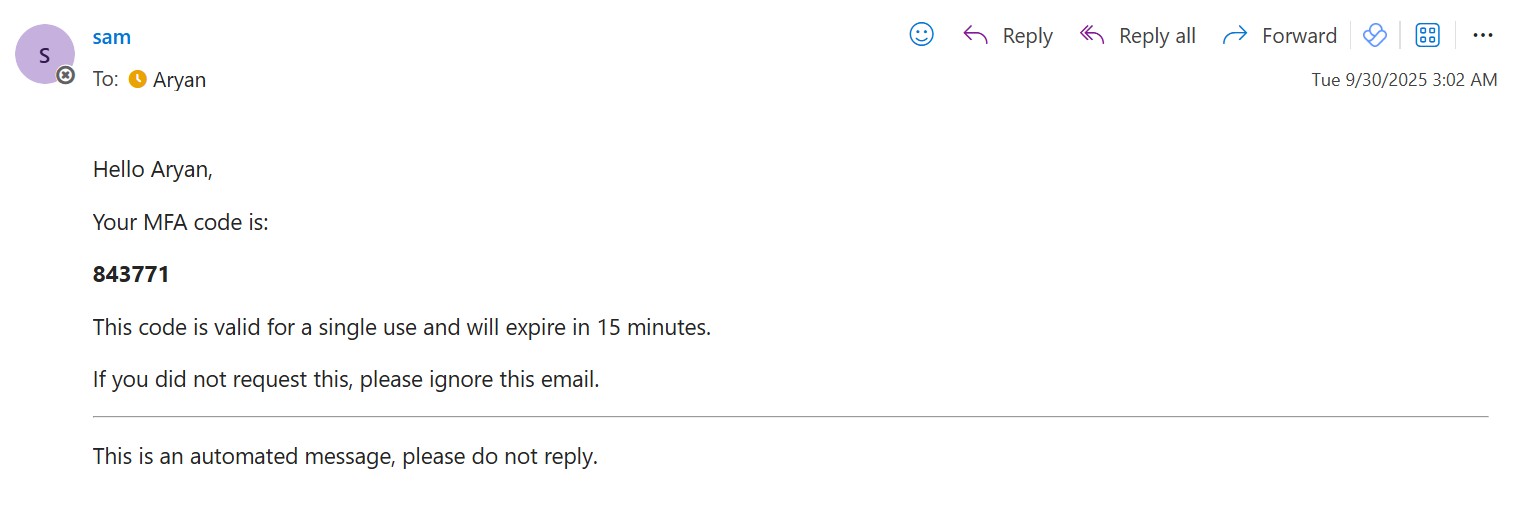
2. MFA Code Submission: Clicking Requires MFA triggers the system to send a one-time MFA code to your registered email. A pop-up then asks you to enter the one-time password.

MFA OTP Section OTP Email

3. Action Buttons Appear: Once you validate your identity with the correct MFA code, the request status is updated, and the full approval action buttons— Approve and Deny—will appear, allowing you to finalize the request.

Action Buttons Section
Scenario 2: Direct Approval (Single-Step Verification)

If the policy for the certificate's Environment Name does not require MFA, you are immediately presented with the final decision options.

1. Direct Action: The active request appears with the Approval Status as Pending, and the Actions column displays the Approve and Deny buttons directly.

Direct Action Section

2. Finalizing the Request: Clicking Approve sends the authorization back to the signing job, updates the status to Approved, and changes the action to Request Completed. Clicking Deny updates the status to Rejected. If the approver doesn't take any action, the request will get timed out and the action button will disappear.

Finalizing Request Section

Note: If you don't see a new request or the status hasn't updated, just hit the refresh button.

On this Page:
Support Privacy Policy Terms of Service

Copyright Encryption Consulting LLC. All rights reserved.