Keys and Certificates section is the central module for managing all cryptographic assets used
for code signing. It allows users to create, import, configure, and maintain the signing keys
and certificates.
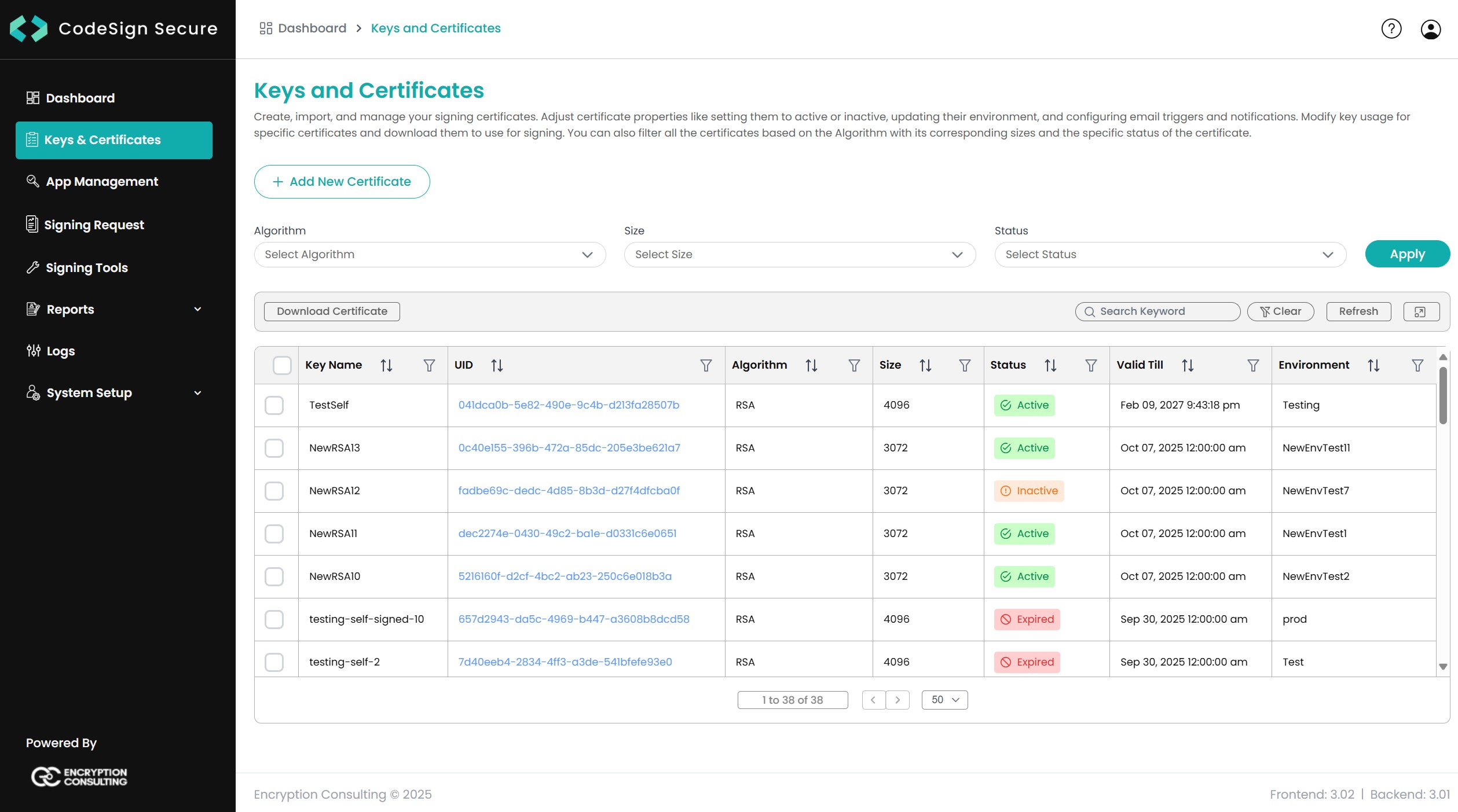
Upon navigating to the Keys and Certificates page, you will be presented with a table containing
all managed certificates, along with tools for searching, filtering, and performing bulk
actions. Filters are available at the top for quickly narrowing the list by Algorithm, Size, and
Status. It also provides a search box to search the table and a Download Certificate button for
bulk download of selected certificates.
Note: Keys can use RSA 2048, 3072 or 4096, or ECDSA P-256, P-384 or P-521. For renewal, rotation and retirement, see Key and Certificate Lifecycle.
Add New Certificate
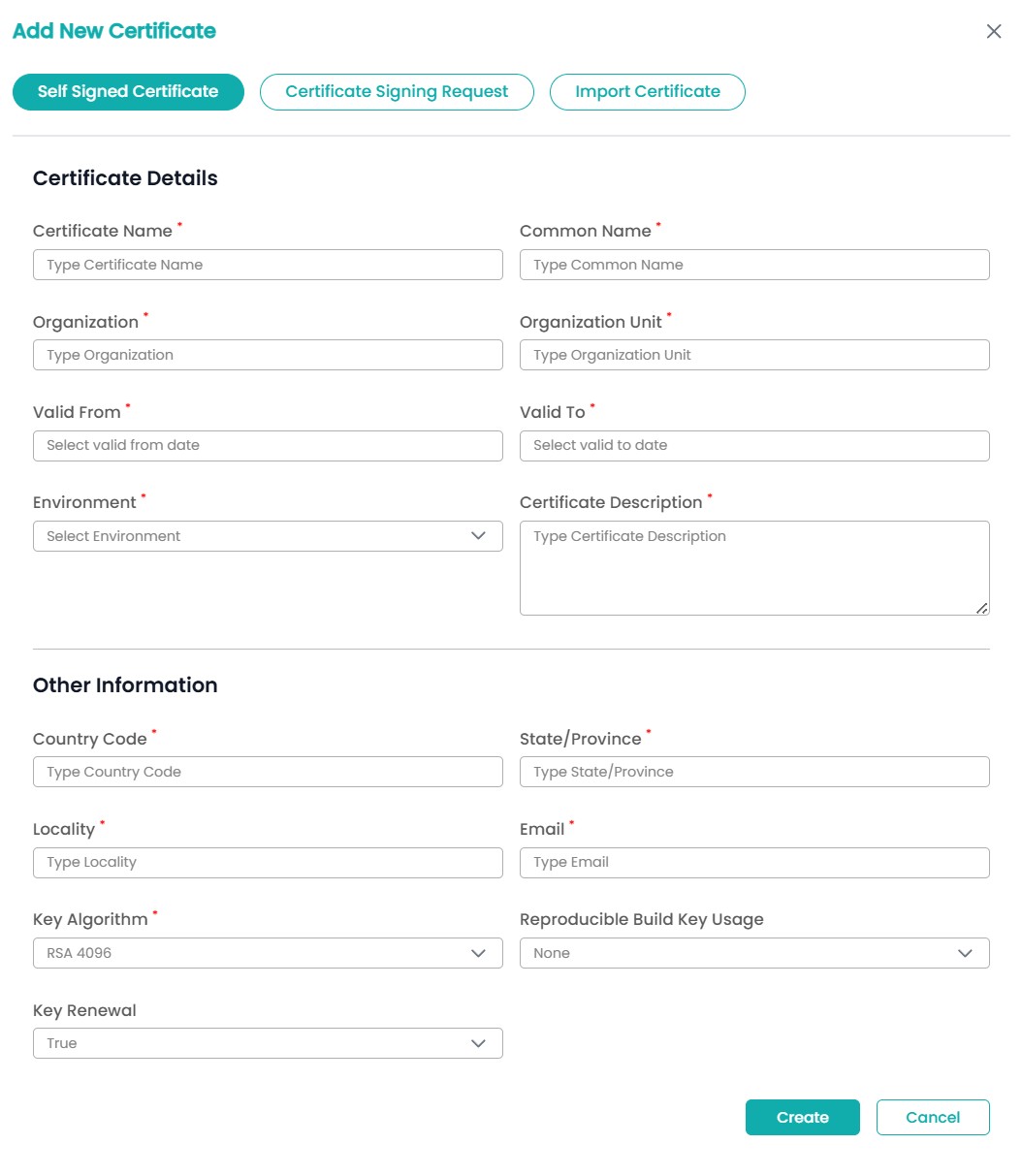
To add a new cryptographic asset to the platform, click the Add New Certificate button,
which presents three methods for certificate creation: Self
Signed Certificate, Certificate
Signing Request (CSR), and Import
Certificate.
1. Self Signed Certificate
This option allows you to generate signing certificate, which is typically used for
internal testing and development environments.
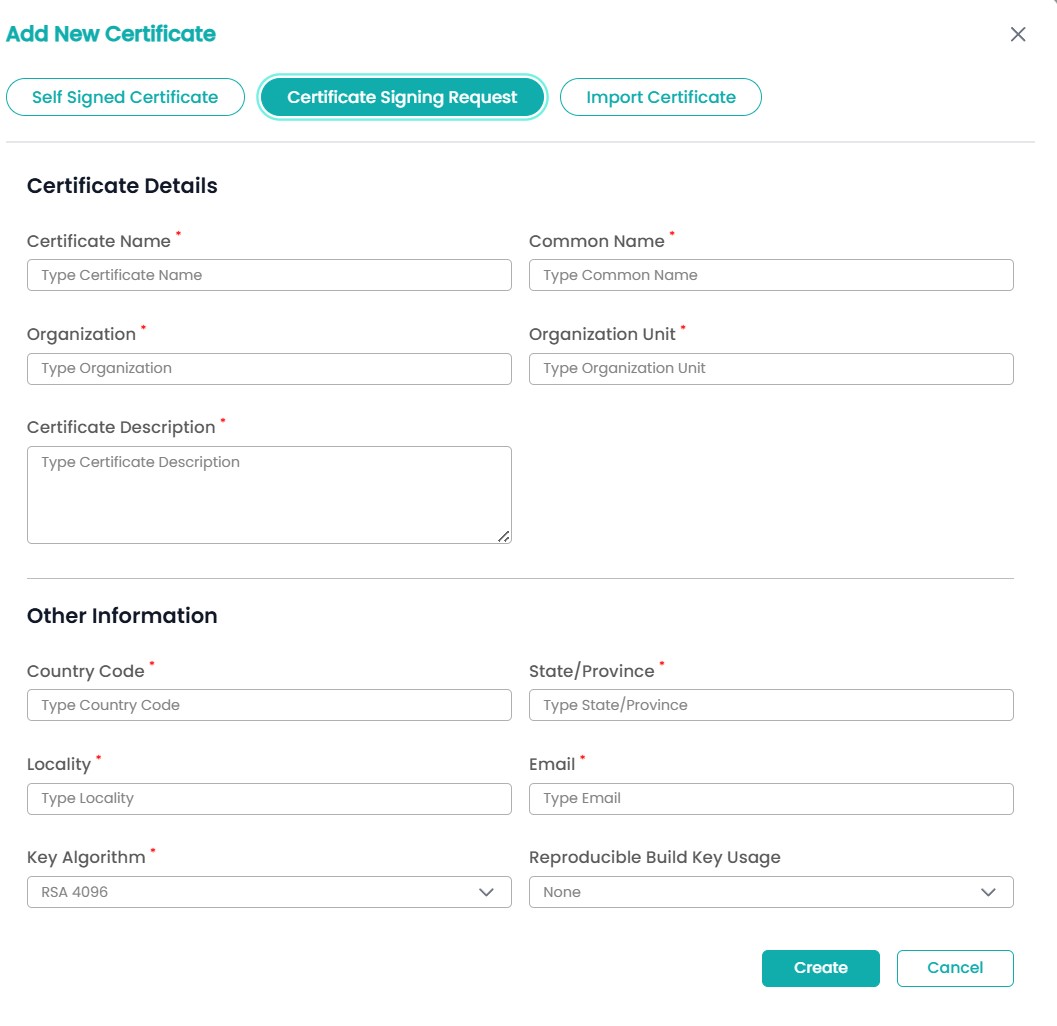
2. Certificate Signing Request
This is the standard process for obtaining a publicly trusted certificate from an
external Certificate Authority (CA). The process generates a private key inside the HSM
and then creates a CSR file based on the provided details, which the user then submits
to the CA.
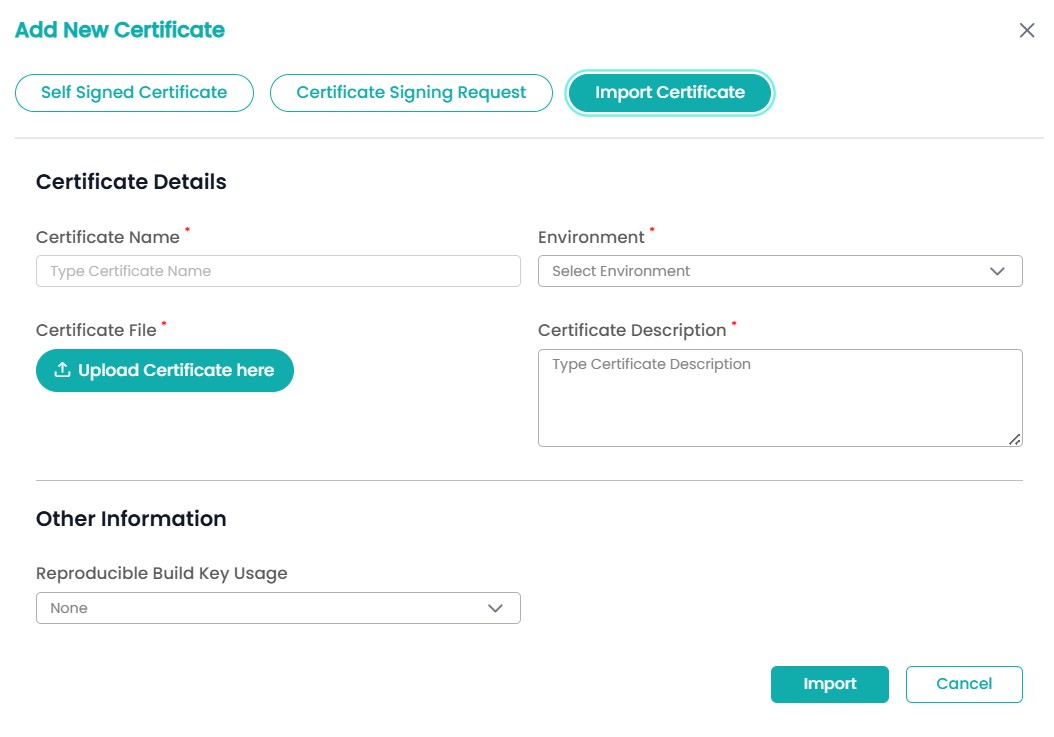
3. Import Certificate
This allows importing the certificate file received from the CA after submitting a CSR
(created from the Certificate Signing Request option from the portal).
Options to modify the certificate
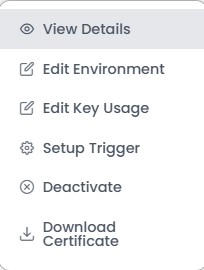
Right-clicking on a certificate row provides several options to manage and modify the
certificate's properties and usage.
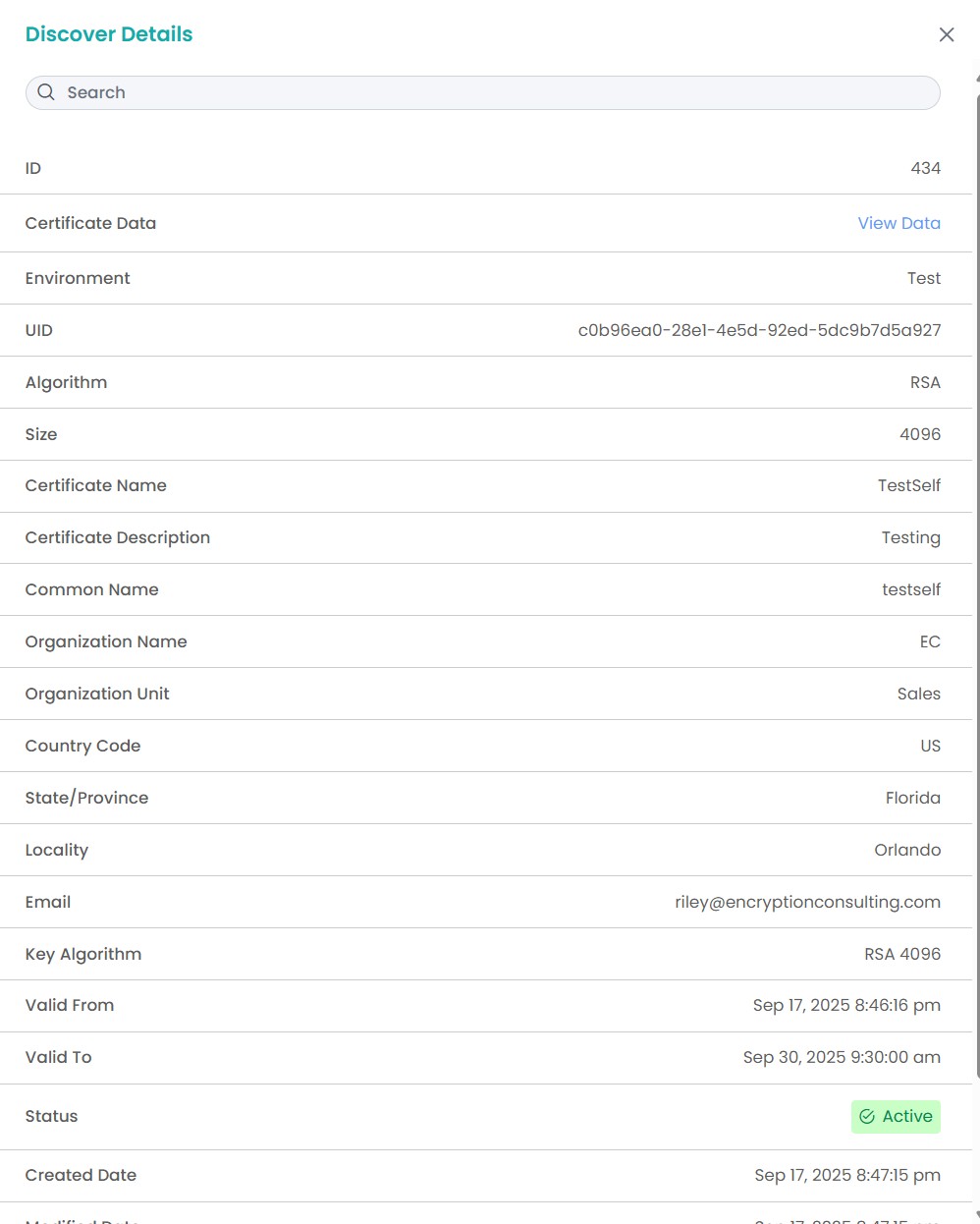
View Details:
Opens a pop-up window to display all X.509 certificate metadata, including the
full public key, validity period, issuer, and subject details.
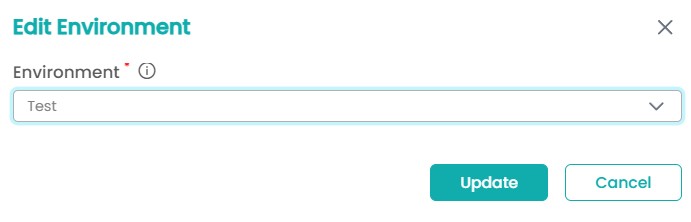
Edit Environment:
Allows to change the Environment label associated with the certificate. You can
only set active environments to a particular certificate. This is critical for
policy enforcement and distinguishing usage contexts which you can create/modify
from the System Setup section.
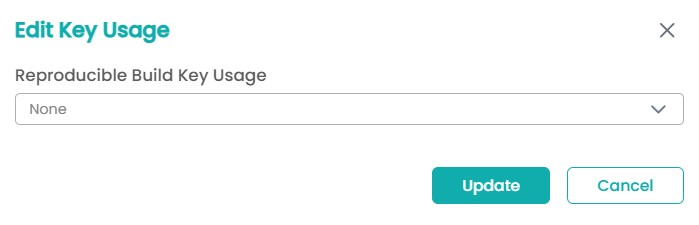
Edit Key Usage:
Allows configuration of the Reproducible Build Key
Usage setting (can be modified from the Signing Projects section in
System Setup).
Options include:
1. None: Default, no reproducible build
enforcement.
2. Pre-Sign Hash Validation: Ensures the
hash of the file to be
signed matches a pre-calculated value before signing.
3. Post-Sign Hash Validation: Ensures
the hash of the signed
artifact matches an expected value after the signing operation.
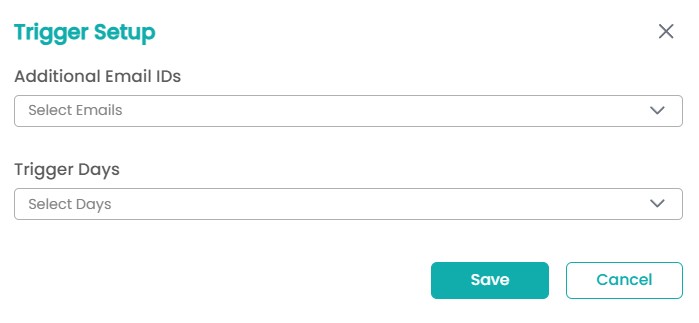
Setup Trigger:
Configures email notification alerts related to the certificate's lifecycle.
1. Additional Email IDs: Specifies who
receives the alert.
2. Trigger Days: Sets the number of days
before the certificate
expiration date that the alert should be sent.
Activate/Deactivate:
Changes the certificate's Status from Active to Inactive or vice versa, preventing its use
for future signing operations without deleting the key.
Download Certificate:
Downloads the public certificate file. The private key remains secure within the
HSM.