CodeSign Secure Documentation
  • Overview
    • About CodeSign Secure
    • Getting Started
    • Documentation Guide
    • Portal Overview
    • Troubleshooting
      • FAQ
    • Glossary
  • Reference Guide
    • Header Bar
      • CodeSign Secure Documentation
      • Swagger API
      • Profile Section
    • Dashboard
      • Key Performance Indicators
      • Issued Certificates
      • Signatures Generated
      • HSM Health Check
    • Keys and Certificates
      • Key and Certificate Lifecycle
    • App Management
    • Signing Requests
      • Approval Workflows
    • Signing Tools
    • Reports
      • Signing Request Report
      • Audit Trail
      • Certificate Report
      • Client Report
    • Logs
    • System Setup
      • Identity Store
      • Backup
      • User
      • Roles and Permissions
      • Email
      • Signing Projects
      • SSL/TLS Management
      • Environment
      • Plugins
  • Setup & Architecture
    • Identity and Access Control
    • Architecture and Concepts
    • Installation
      • Windows
        • Installing the Server
        • Ports and Protocols
        • High Availability and Backup
        • Upgrades and Compatibility
    • Security
      • Security Hardening Checklist
      • Client Authentication
      • Designing Signing Policies
  • Release Notes
    • Releases for 2026
      • v3.2.1
    • Releases for 2025
      • v3.2.0
    • Releases for 2024
      • v3.1.0
  • API Reference
    • Getting Started
    • Authorizing Requests
    • Securing API Access
    • Request and Response Conventions
    • Endpoint Reference
      • Signing
      • Signing Requests
      • Certificates
      • Applications and Environments
      • User Management
      • Permissions
      • Email
      • System Setup
      • Reports
      • Dashboard
      • License
  • Integration Guides
    • Signing Capabilities
      • Supported Formats and Platforms
      • Timestamping
      • Windows Signing - SignTool
        • Signing
        • Macro Signing
      • Apple Signing
      • AppX & MSIX Signing
      • Visual Studio ClickOnce
      • Jar Signing
      • Sign HLK/HCK using CodeSign Secure
      • NuGet Signing
      • Mage Signing
      • Sign OVA/OVF using Encryption Consulting’s Utility Tool
      • Utility Tool for code signing
      • Container Signing
      • PKCS11 Wrapper
        • APK Signing
        • OpenSSL Signing
        • XML Signing
        • JSign Tool Signing
        • Jarsigner Signing
        • GPG2, Debian & RPM Signing
      • Reproducible Build
        • Automated Hash Validation
        • Reproducible Build Process Flow
        • Pipeline Script Components
        • Hash Validation
    • CI/CD Integration
      • GitHub Actions
      • Jenkins
      • GitLab
      • Azure DevOps
      • TeamCity
      • Bamboo
      • Securing CI/CD Credentials

Jarsigner Signing

Jarsigner is a command-line tool within the Java Development Kit (JDK) used for digitally signing Java Archive (JAR) files.

For Linux - Ubuntu

To perform Signing using Jarsigner Tool and our PKCS11 Wrapper in Linux (Ubuntu) machine, you would need to follow the below steps:

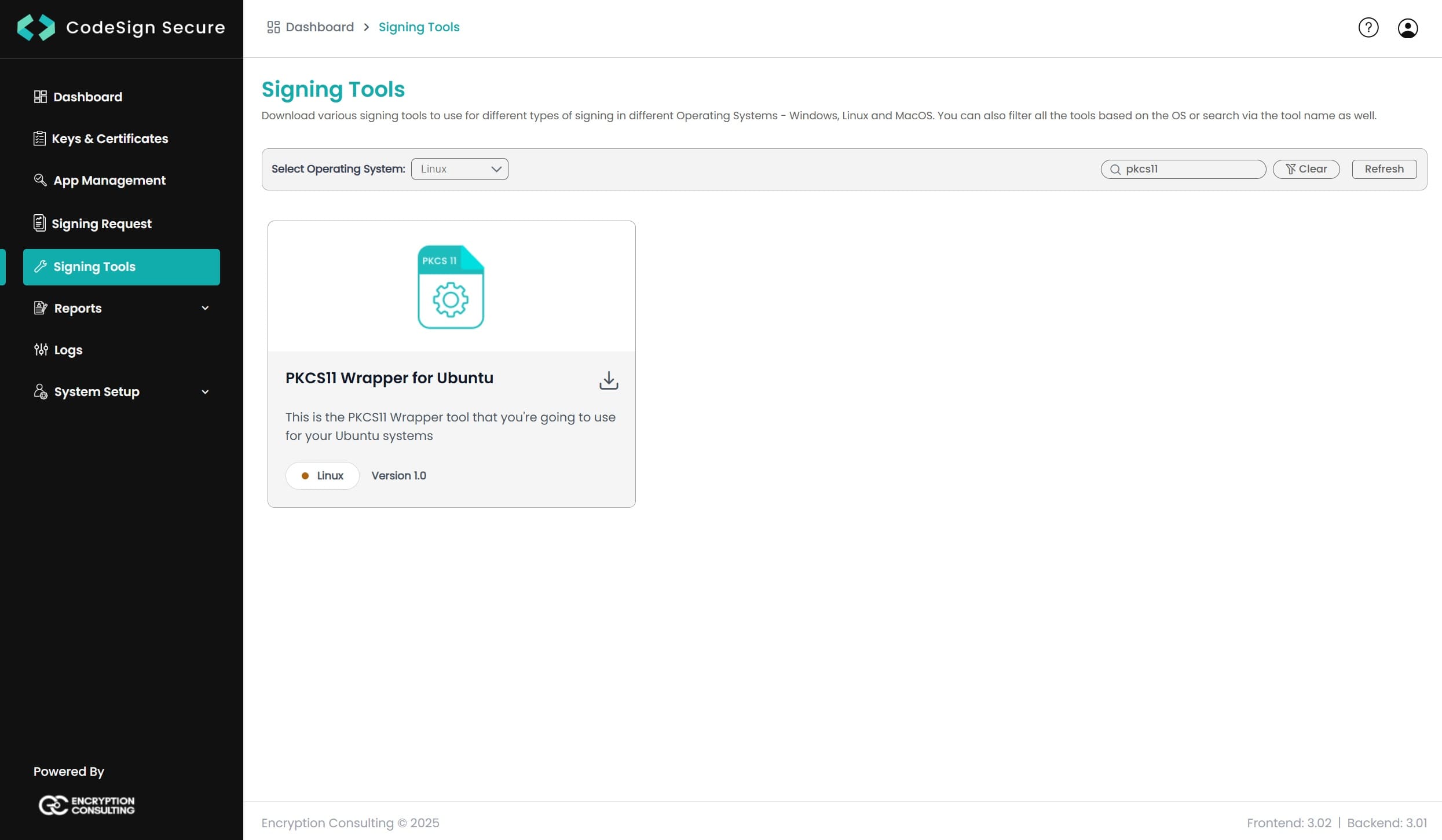
  • Go to EC CodeSign Secure’s v3.02’s Signing Tools section and download the PKCS11 Wrapper for Ubuntu.

    PKCS11 Wrapper Linux

  • After that, generate a P12 Authentication certificate from the System Setup > User > Generate Authentication Certificate dropdown.

    Authentication Certificate

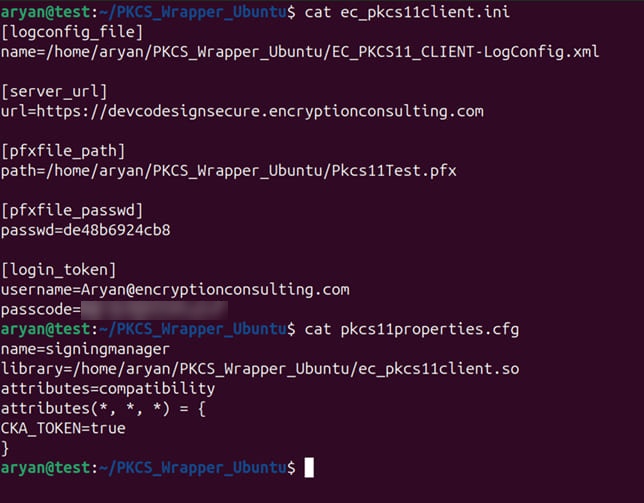
  • Go to your Ubuntu client system and edit the configuration files (ec_pkcs11client.ini and pkcs11properties.cfg) downloaded in the PKCS11 Wrapper.

    APK configuration setup Linux

    NOTE: When using Luna HSM, add the slot number in the pkcs11properties.cfg file as shown below:

    Configuration setup Linux in Luna

  • Now we need to add the environment variable for the pkcs11 client library.

    Run the below command to open the bashrc file:

    nano ~/.bashrc
                      

    Open Nano File

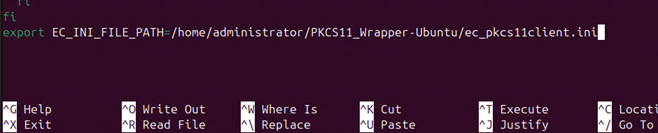
    Now add the EC_INI_FILE_PATH variable with the path of the .ini at the end of the bashrc file, like:

    export EC_INI_FILE_PATH=/home/administrator/PKCS11_Wrapper-Ubuntu/ec_pkcs11client.ini
                      

    Set Variable

    Press Ctrl+X, then enter Y, and then press Enter to save.

    Reload the environment variables

    source ~/.bashrc
                      

    Reload Nano File

    Check whether the variable has been set correctly

    echo $EC_INI_FILE_PATH
                      

    Check Variable

    NOTE: If you can't see the file location from echo commands, open a new terminal and try again.

  • You will also need to install Java (Java 8-17) on your Ubuntu machine for Jarsigner to work with our PKCS11 Wrapper.

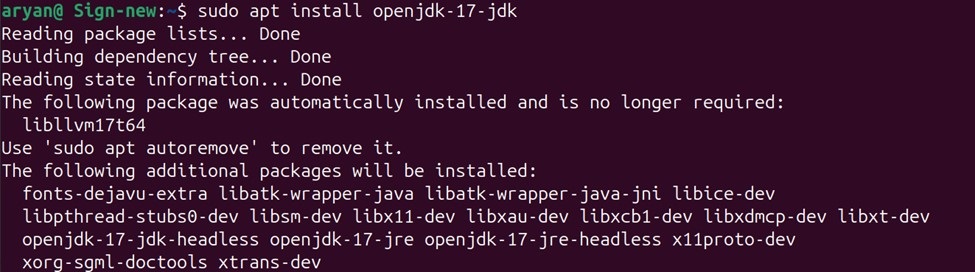
    Run the following command to install Java 17 on your Ubuntu machine

    sudo apt install openjdk-17-jdk
                      

    Install JAVA17

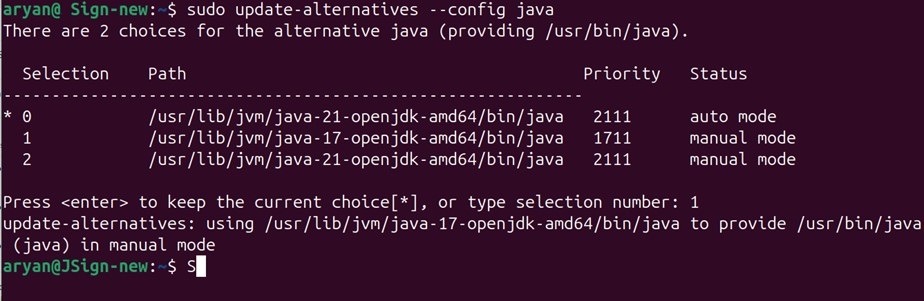
  • To use Java 17, you will need to set it as the active version.

    sudo update-alternatives --config java
                      

    Set JAVA17

  • Now to check whether Java has been installed properly or not, run:

    java -version
                      

    Check JAVA17

  • Set the JAVA_HOME environment variable:

    nano ~/.bashrc
                      

    After running the above command, add these lines at the end of the file:

    • export JAVA_HOME=/usr/lib/jvm/java-17-openjdk-amd64
    • export PATH=$JAVA_HOME/bin:$PATH

    Set JAVA17

    Press Ctrl + X, then Y to confirm, and then Enter to save.

  • Reload the bashrc file using the below command

    source ~/.bashrc
                      
  • Check if the variable has been set

    echo $JAVA_HOME
                      

    If not, then open a new terminal and try again.

  • You would also need to install some other pre-requisite packages to perform signing using Jarsigner.
    • sudo apt-get install curl
    • sudo apt-get install liblog4cxx-dev
    • sudo apt-get install liblog4cxx12

    NOTE: If "sudo apt-get install liblog4cxx12" command gives error, run the following steps to install this package

    For amd architecture:

    • wget http://archive.ubuntu.com/ubuntu/pool/universe/l/log4cxx/liblog4cxx12_0.12.1-4_amd64.deb
    • sudo dpkg -i liblog4cxx12_0.12.1-4_amd64.deb

    For arm architecture:

    • wget http://ports.ubuntu.com/pool/universe/l/log4cxx/liblog4cxx12_0.12.1-4_arm64.deb
    • sudo dpkg -i liblog4cxx12_0.12.1-4_arm64.deb

    We are now ready with our Ubuntu environment to perform the signing using Jarsigner tool and PKCS11 Wrapper

    Signing

    For Signing, change the working directory of the terminal to that folder which contains your "ec_pkcs11client.ini" file.

    Change Working Directory

    Now, run the signing command from this directory.

    <Path of Jarsigner tool> -keystore NONE -storepass NONE -storetype PKCS11 -sigalg SHA256withRSA -providerClass sun.security.pkcs11.SunPKCS11 -providerArg <Path of pkcs11properties.cfg> -signedjar <Path of the file after signing> <Path of the file to be signed> <Key alias of the signing certificate> -tsa http://timestamp.digicert.com

                    

    A sample command is provided below:

    jarsigner -keystore NONE -storepass NONE -storetype PKCS11 -sigalg SHA256withRSA -providerClass sun.security.pkcs11.SunPKCS11 -providerArg pkcs11properties.cfg -signedjar helloworld_signed.jar helloworld.jar EC-Cert-020 -tsa http://timestamp.digicert.com
                    

    Note: Replace EC-Cert-020 with the key label (alias) of your signing certificate. With an ECDSA key, use -sigalg SHA256withECDSA.


    Verification

    For Verification, run the following command:

    <Path of Jarsigner tool> -verify <Path of the file after signing> -certs -verbose
                    

    A sample command is provided below:

    jarsigner -verify helloworld_signed.jar -certs -verbose
                    
For MacOS

To perform signing using Jarsigner and our PKCS11 Wrapper in MacOS machine, you would need to follow the below steps:

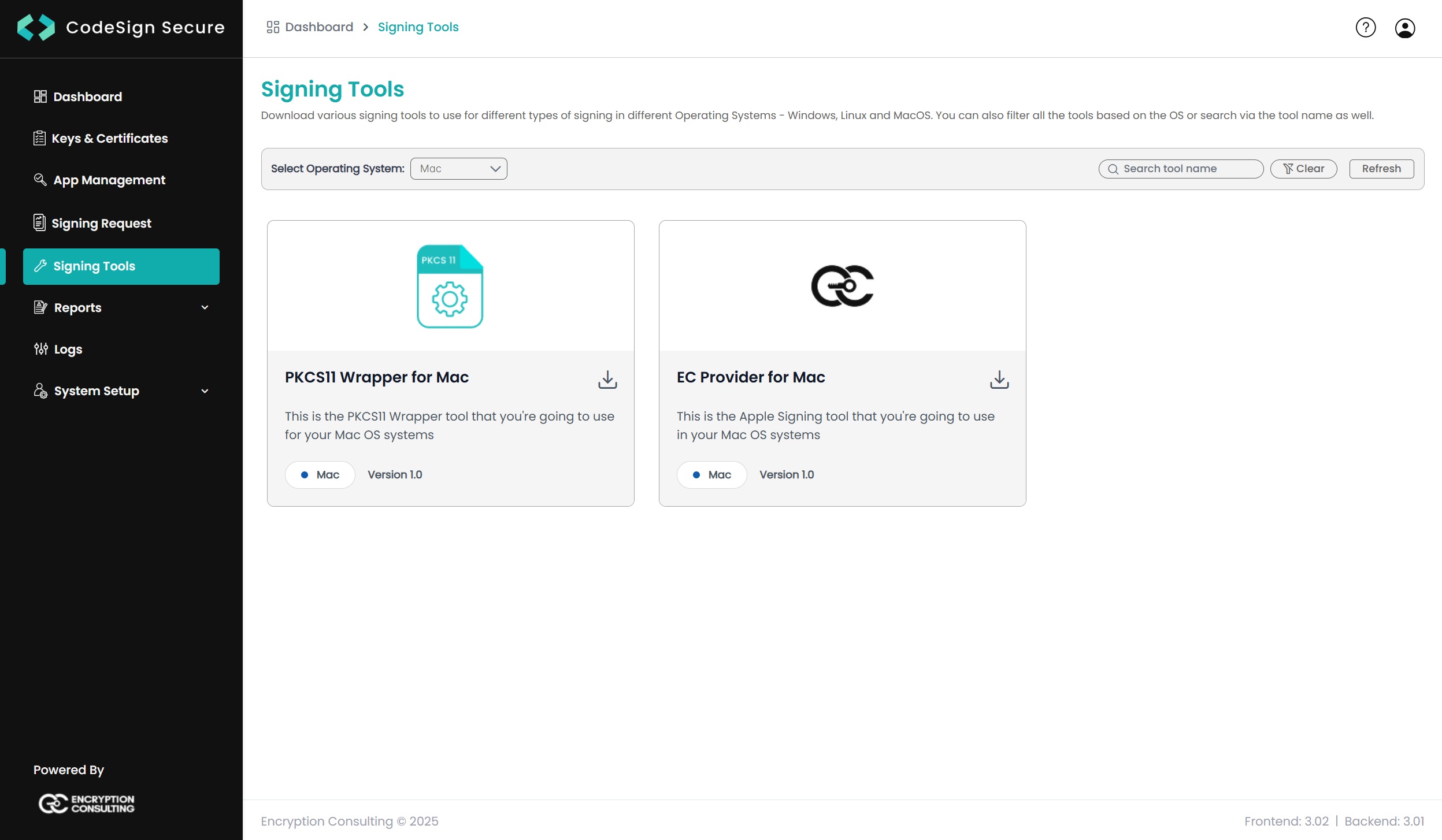
  • Download our PKCS11 Wrapper Tool from CodeSign Secure portal in the Signing Tools section in your MacOS.
  • PKCS11 Wrapper MAC

  • Go to your PKCS11 Wrapper directory (../PKCS11_Wrapper-Mac) and update the "pkcs11properties.cfg" and "ec_pkcs11client.ini" with the required details.

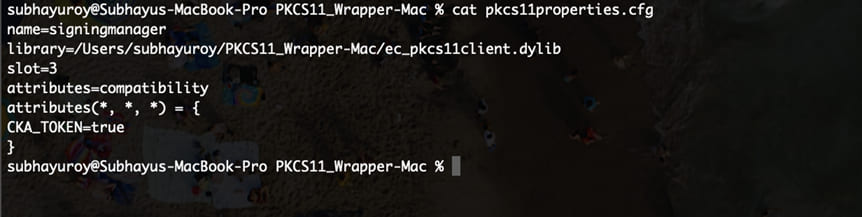
  • For "pkcs11properties.cfg", update the library path.

    NOTE: When using Luna HSM, add the slot number in the pkcs11properties.cfg file as shown below:

    Configuration setup in Luna

    For "ec_pkcs11client.ini" file, update the following fields:

    1. name - provide the path location of the Log xml file you downloaded with the PKCS11 Wrapper tool. (EC_PKCS11_CLIENT-LogConfig.xml)
    2. url - verify the server url of your CodeSign Secure portal.
    3. username - provide the username of CodeSign Secure account
    4. passcode - provide the secret passcode which was used to setup CodeSign Secure portal
    5. path - Provide the path location of your SSL Authentication certificate.
    6. passwd - Provide the password of your SSL Authentication certificate.
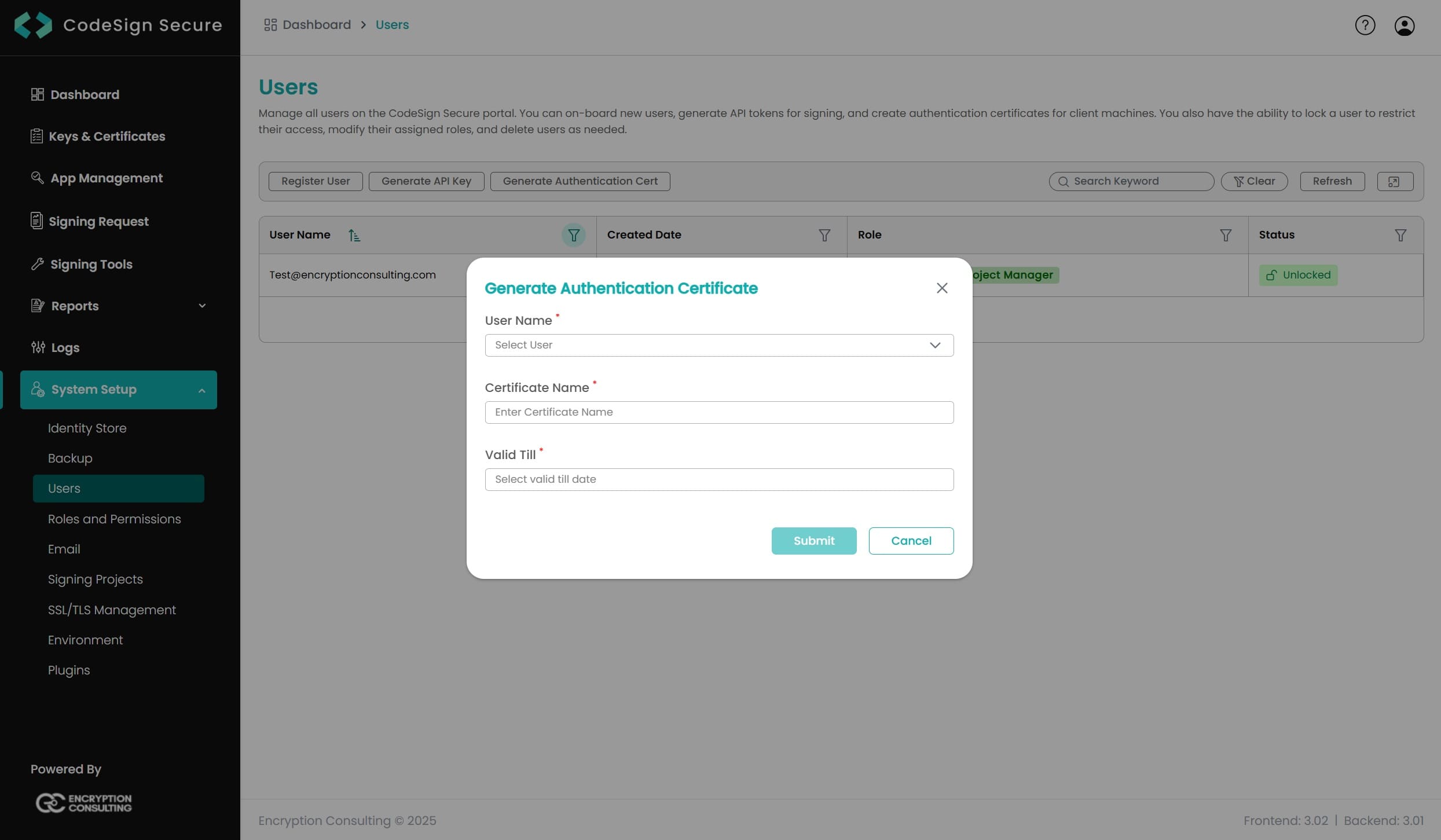
      • NOTE: To create the SSL Auth Certificate, go to the CodeSign Secure Portal -> System Setup -> User. From the right drop down, select the "Generate Authentication Certificate" option.

      Generate Authentication Certificate


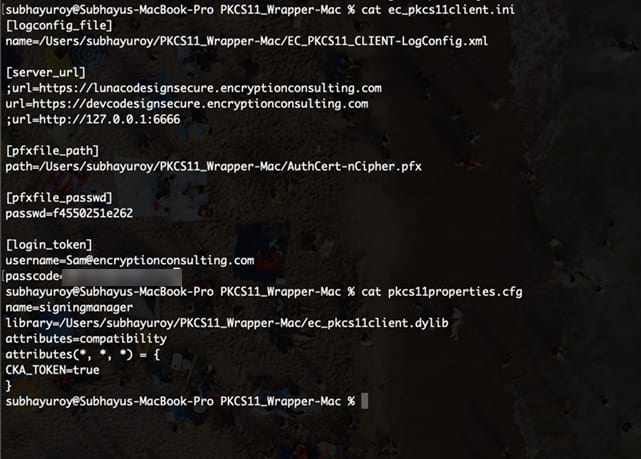
  • The initialization and configuration files should look like this with all the correct file paths and settings.

  • PKCS11 Initialization MAC

  • You will also need to install Java (Java 8-17) on your MacOS machine for Jarsigner to work with our PKCS11 Wrapper.

    To install Java 17 on your MacOS machine, run the following command:

    brew install openjdk@17
                      
  • Find the location where Java 17 is installed on your machine:

    brew info openjdk@17
                      
  • Now set Java 17 as the active version.

    For Zsh: nano ~/.zshrc

    For Bash: nano ~/.bash_profile

    After running the above command, add these lines:

    1. export PATH=<Path of Java 17 bin folder>:$PATH
    2. export JAVA_HOME=<Path of Java 17 bin folder>
  • Reload the environment variables using the below commands:

    For Zsh: source ~/.zshrc

    For Bash: source ~/.bash_profile

  • You would also need to install some other pre-requisite packages to perform signing using Jarsigner.
    • brew install log4cxx
    • brew install curl

    We are now ready with our MacOS environment to perform the signing using Jarsigner tool and PKCS11 Wrapper

    Signing

    For Signing, change the working directory of the terminal to that folder which contains your "ec_pkcs11client.ini" file.

    Now, run the signing command from this directory.

    <Path of Jarsigner tool> -keystore NONE -storepass NONE -storetype PKCS11 -sigalg SHA256withRSA -providerClass sun.security.pkcs11.SunPKCS11 -providerArg <Path of pkcs11properties.cfg> -signedjar <Path of the file after signing> <Path of the file to be signed> <Key alias of the signing certificate> -tsa http://timestamp.digicert.com
                    

    A sample command is provided below:

    jarsigner -keystore NONE -storepass NONE -storetype PKCS11 -sigalg SHA256withRSA -providerClass sun.security.pkcs11.SunPKCS11 -providerArg pkcs11properties.cfg -signedjar helloworld_signed.jar helloworld.jar EC-Cert-020 -tsa http://timestamp.digicert.com
                    

    Verification

    For Verification, run the following command:

    <Path of Jarsigner tool> -verify <Path of the file after signing> -certs -verbose

    A sample command is provided below:

    jarsigner -verify helloworld_signed.jar -certs -verbose
                    
For Windows

To perform signing using Jarsigner Tool and our PKCS11 Wrapper in Windows machine, you would need to follow the below steps:

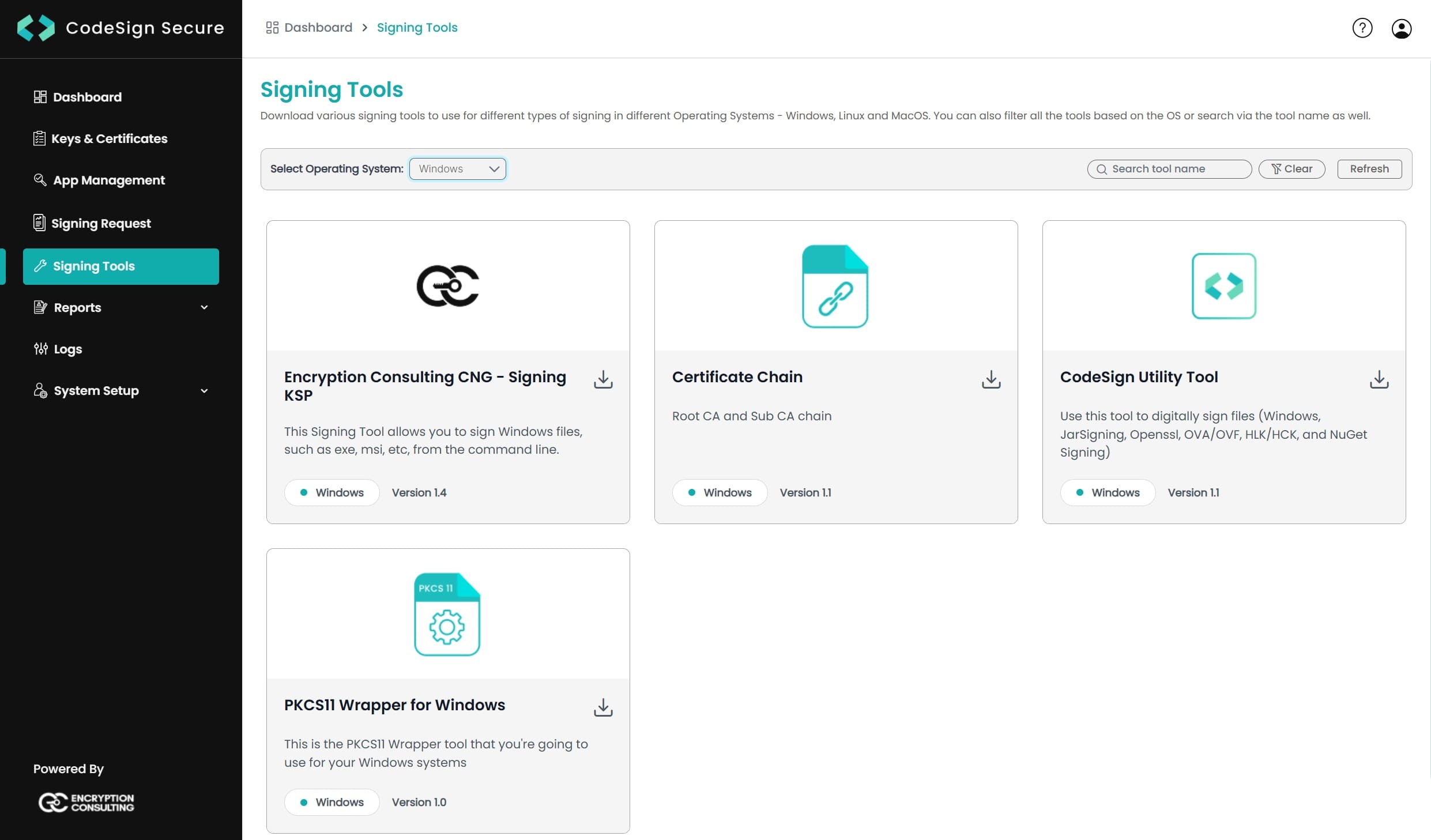
  • Go to EC CodeSign Secure’s v3.02’s Signing Tools section and download the PKCS11 Wrapper for Windows.

    PKCS Wrapper Windows

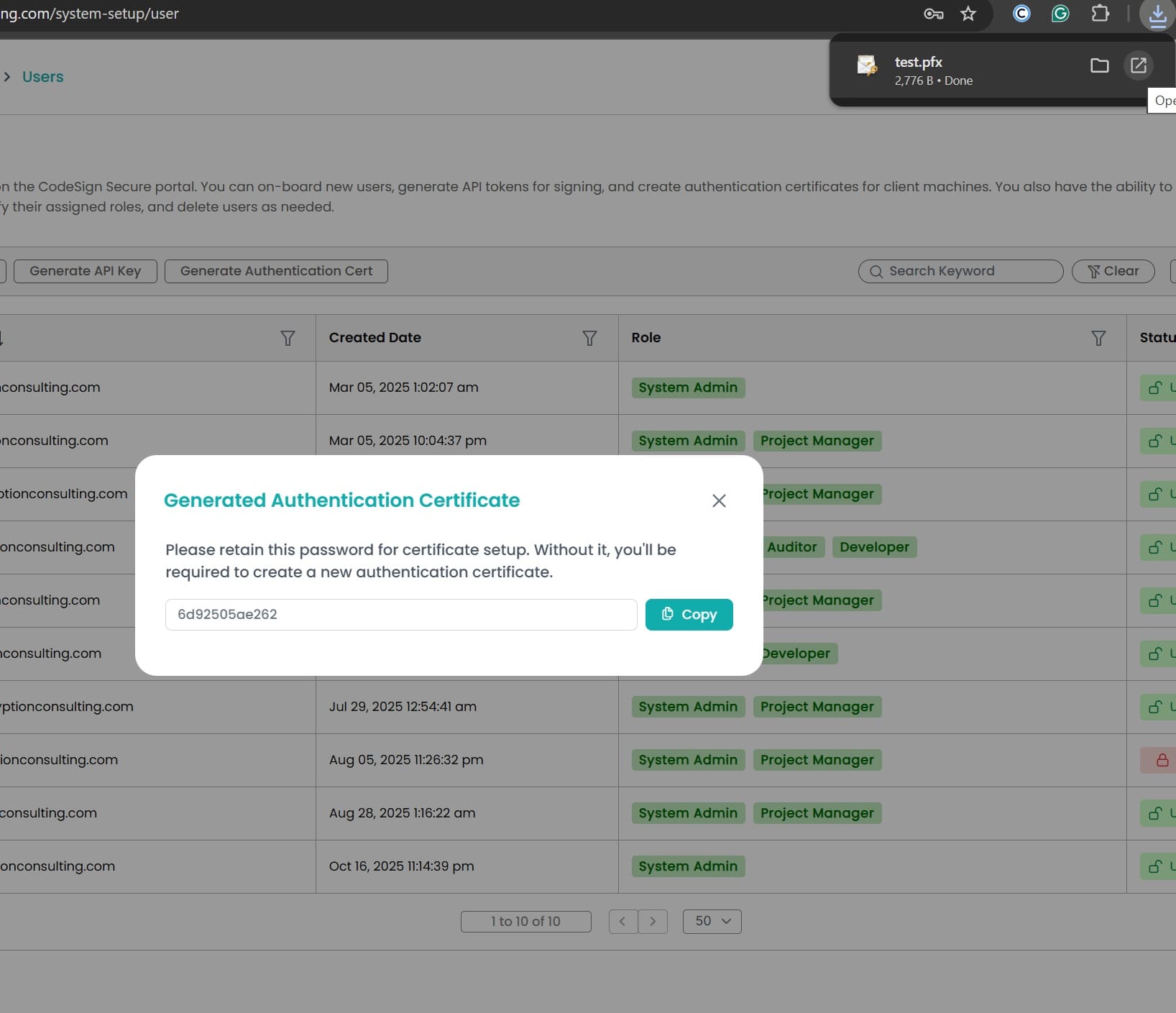
  • After that, generate a P12 Authentication certificate from the System Setup > User > Generate Authentication Certificate dropdown.

    Authentication Certificate

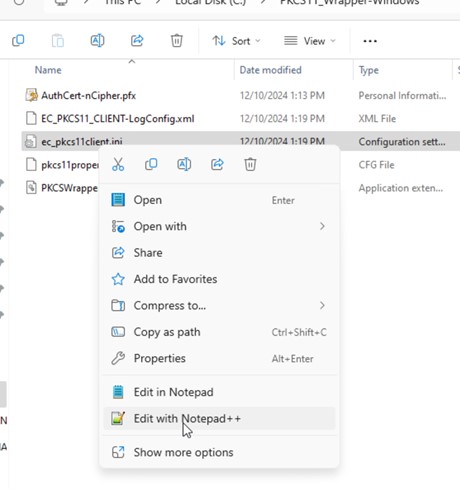
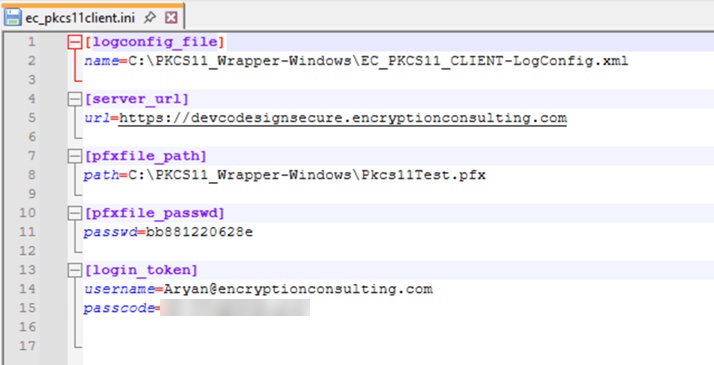
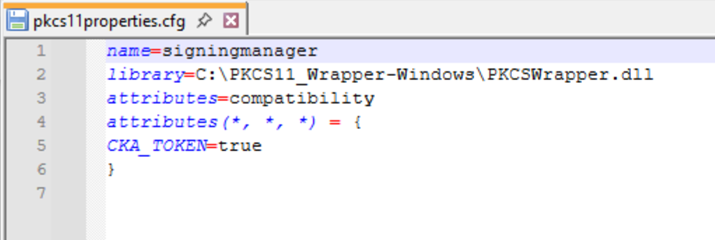
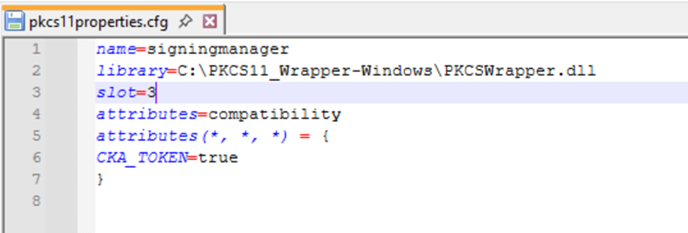
  • Go to your Windows client system and edit the configuration files (ec_pkcs11client.ini and pkcs11properties.cfg) downloaded in the PKCS11 Wrapper.

    APK configuration setup Windows
    APK configuration setup Windows
    APK configuration setup Windows

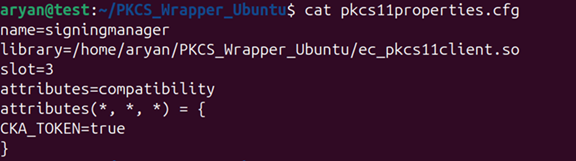
    NOTE: When using Luna HSM, add the slot number in the pkcs11properties.cfg file as shown below:

    Configuration setup in Luna

  • Now, let’s install some prerequisites (Java 8-22) in your client system to run the PKCS11 Wrapper.

    NOTE: Windows requires Java 22, unlike the Linux and macOS tracks above which use Java 8-17.

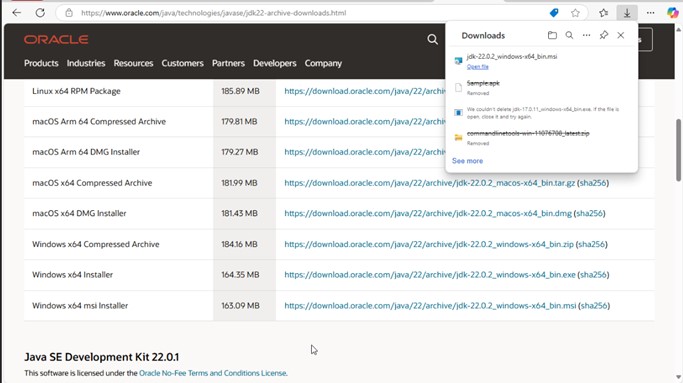
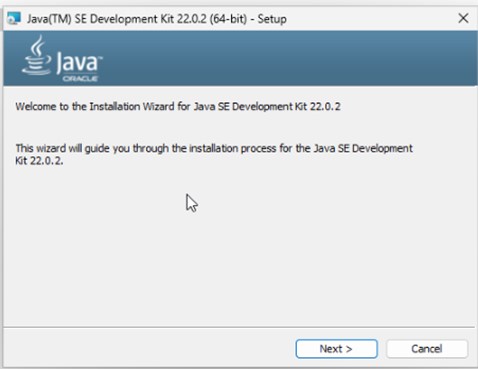
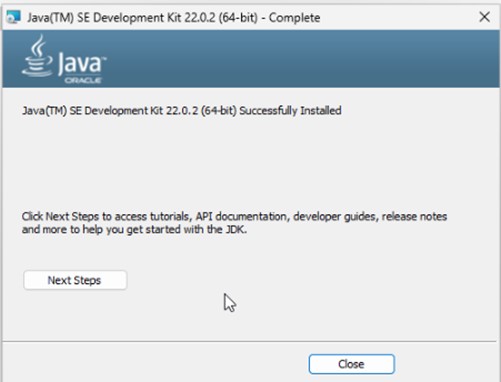
    • Install Java 22 from Oracle’s official site, and follow the instructions in the msi file.

      Install JDK 22 on Windows
      Install JDK 22 on Windows
      Install JDK 22 on Windows

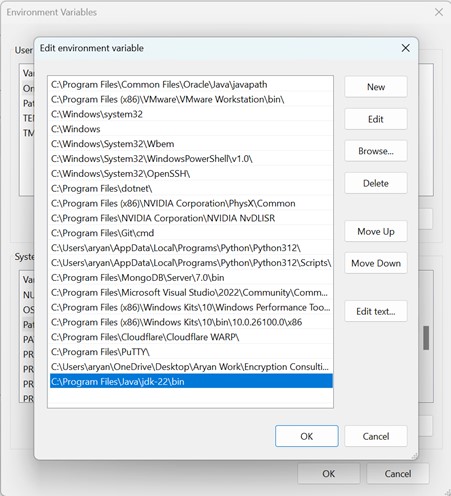
    • Set Java 22 as the active version by storing the bin path in the PATH variable.

      APK Set JDK 22 on Windows

  • We are now ready with our Windows environment to perform the signing using Jarsigner tool and PKCS11 Wrapper

    Signing

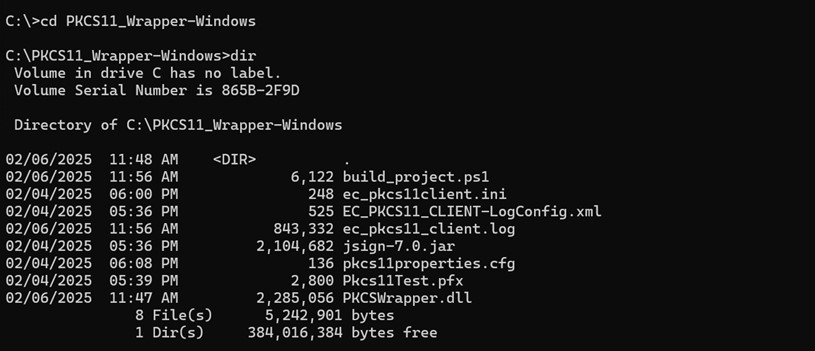
    For Signing, change the working directory of the terminal to that folder which contains your "ec_pkcs11client.ini" file.

    Change Working Directory

    Now, run the signing command from this directory.

    <Path of Jarsigner tool> -keystore NONE -storepass NONE -storetype PKCS11 -sigalg SHA256withRSA -providerClass sun.security.pkcs11.SunPKCS11 -providerArg <Path of pkcs11properties.cfg> -signedjar <Path of the file after signing> <Path of the file to be signed> <Key alias of the signing certificate> -tsa http://timestamp.digicert.com
                    

    A sample command is provided below:

    jarsigner -keystore NONE -storepass NONE -storetype PKCS11 -sigalg SHA256withRSA -providerClass sun.security.pkcs11.SunPKCS11 -providerArg pkcs11properties.cfg -signedjar helloworld_signed.jar helloworld.jar EC-Cert-020 -tsa http://timestamp.digicert.com
                    

    Verification

    For Verification, run the following command:

    <Path of Jarsigner tool> -verify <Path of the file after signing> -certs -verbose
                    

    A sample command is provided below:

    jarsigner -verify helloworld_signed.jar -certs -verbose
                    
On this Page:
Support Privacy Policy Terms of Service

Copyright Encryption Consulting LLC. All rights reserved.