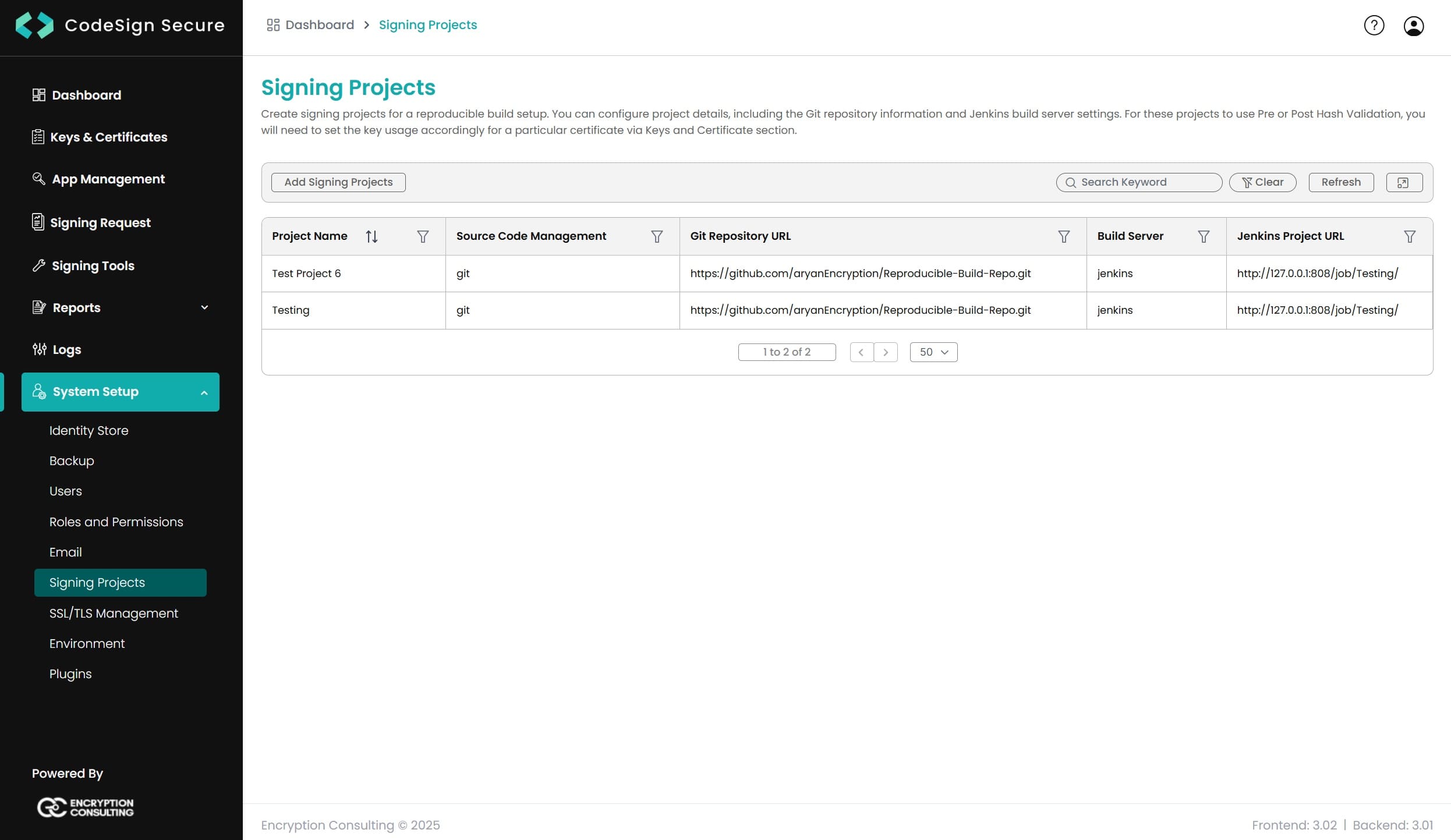
Pipeline Script
-
Pipeline Definition:
Defines the overall pipeline structure (e.g., pipeline { ... }).
-
Stage: Groups related steps
into logical phases (e.g., stage('Build') { ... }).
-
Condition (Optional):
Controls execution based on certain criteria (e.g., when {
expression }).
-
Error Handling (Optional):
Manages unexpected situations during pipeline execution.
-
Shared Resource (Optional):
Reusable component (function/library) for multiple pipelines.
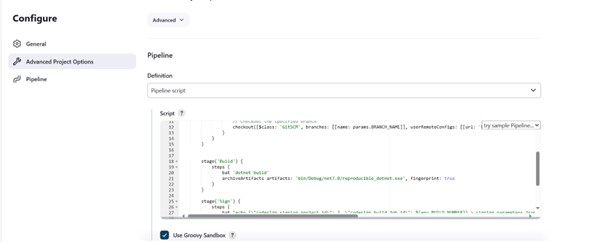
A sample script for Jenkins project is provided below.
                                        pipeline {
                                            agent any
                                            parameters {
                                                string(name: 'BRANCH_NAME', defaultValue: 'main', description: 'Branch to build')
                                            }
                                            stages {
                                                stage('Checkout') {
                                                    steps {
                                                        script {
                                                            // Checks out the existence of the specified branch in the repository
                                                            checkout([$class: 'GitSCM', branches: [[name: params.BRANCH_NAME]], userRemoteConfigs: [[url: 'https://github.com/shivamSharmaMWP/reproducible_dotnet.git', credentialsId: 'shivamSharmaMWP']]])
                                                        }
                                                    }
                                                }

                                                stage('Build') {
                                                    steps {
                                                    // Provide the build command according to source code language
                                                        bat 'dotnet build'
                                                    // Archive the unique versions of the specified file
                                                        archiveArtifacts artifacts: 'bin/Debug/net7.0/reproducible_dotnet.exe', fingerprint: true
                                                    }
                                                }

                                                stage('Sign') {
                                                    steps {
                                                    // Provide extra Signing Project Parameters – required for this setup
                                                        bat "echo {\"codesign_signing_project_id\": 2, \"codesign_build_job_id\": ${env.BUILD_NUMBER}} > signing_parameters.json"
                                                    // Provide Signing command
                                                        bat 'set EC_SIGN_PARAMS=.\\signing_parameters.json && signtool sign /csp "Encryption Consulting Key Storage Provider" /kc onetech /fd SHA256 /f c:/websites/onetech.crt /tr http://timestamp.digicert.com /td SHA256 bin/Debug/net7.0/reproducible_dotnet.exe'
                                                 // Archive the unique versions of the specified file
                                                        archiveArtifacts artifacts: 'bin/Debug/net7.0/reproducible_dotnet.exe', fingerprint: true
                                                    }
                                                }
                                            }
                                        }
-
Save the configuration for the pipeline. This will create a
build project on Jenkins server.
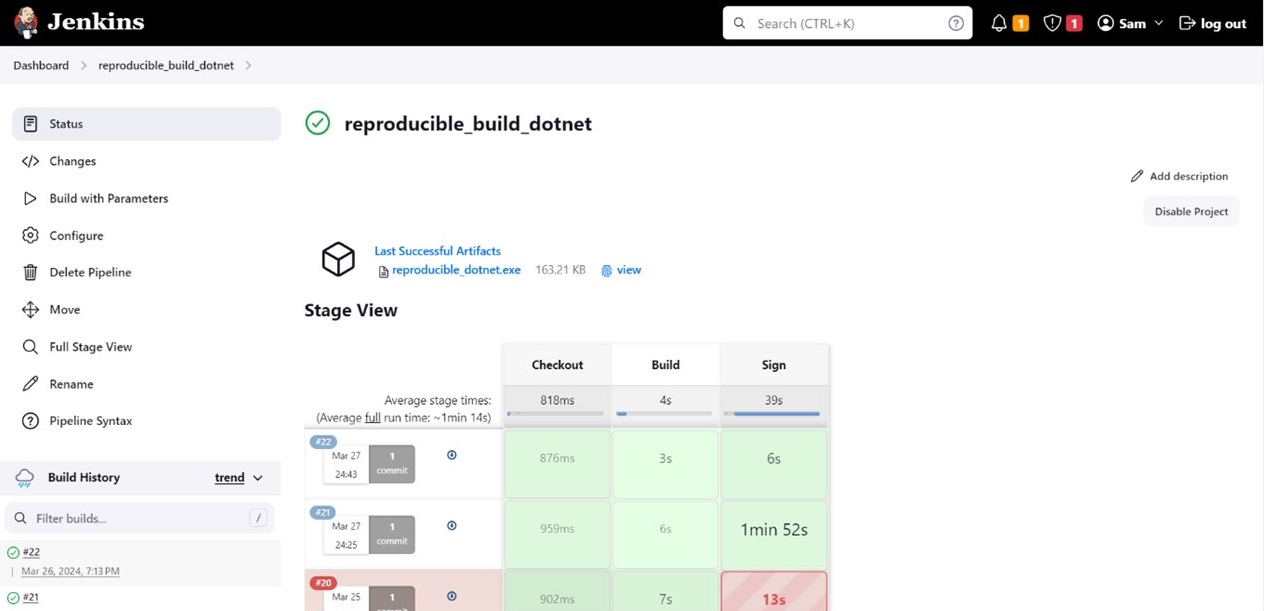
Jenkins Project is configured in such a way that every build
job must contain a commit that it uses to pull the specific
version of source code.
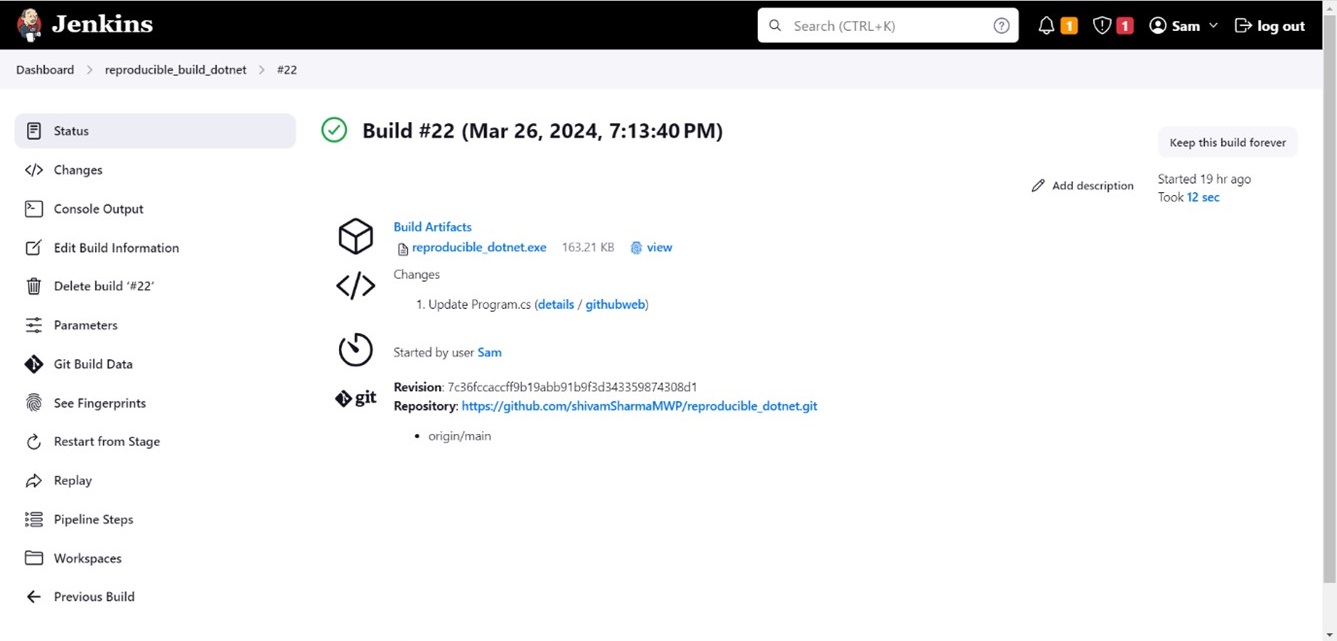
You can adjust your pipeline so that whenever a new commit is
made to the source code in the repository, it should trigger a
new build started on the Jenkins server for that specific
commit, like above.
To access reproducible build functionality from the CodeSignSecure
Server
-
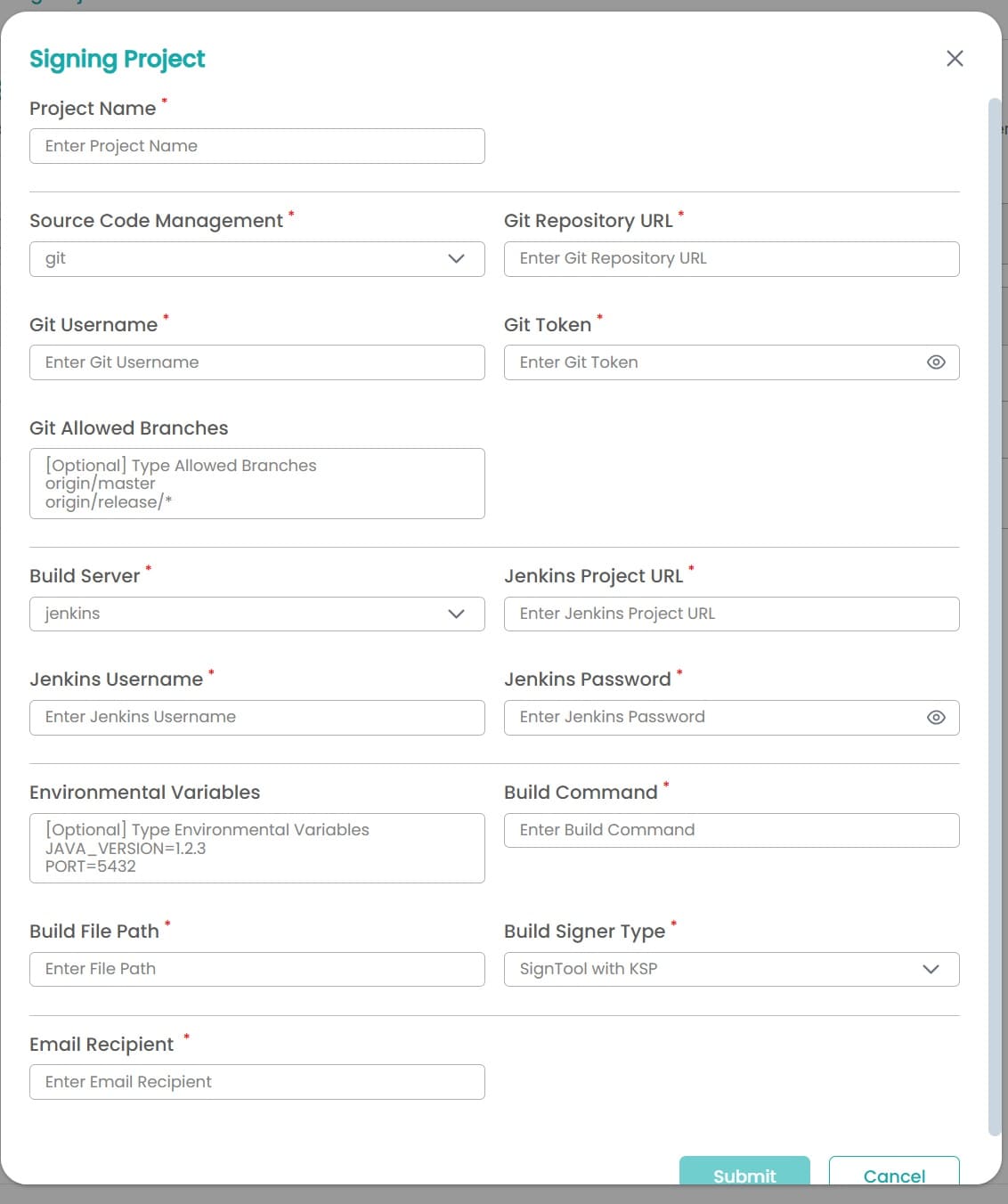
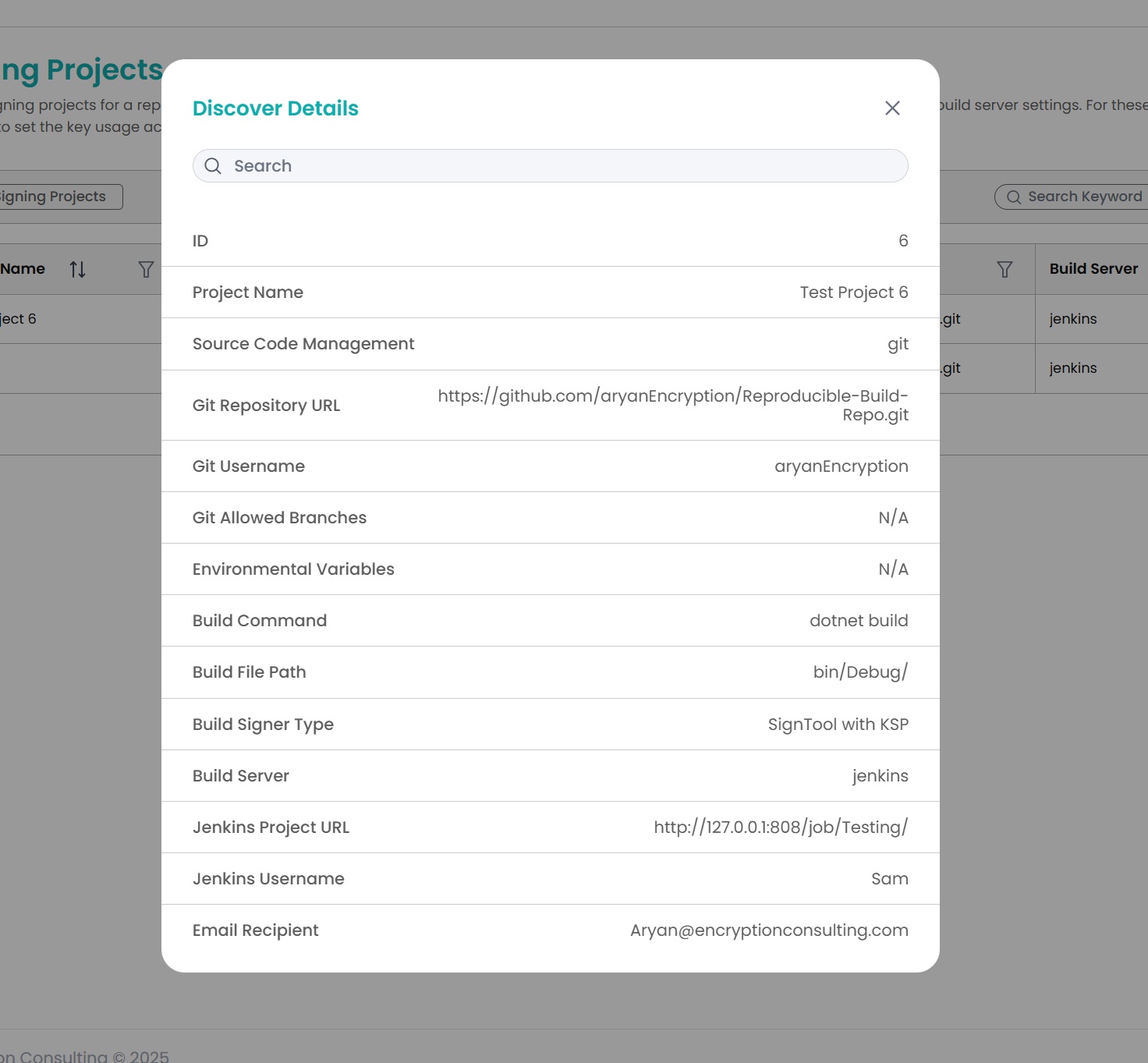
A signing project must be added with the source code repository
details
- Provide the build commands
- Add the Build server (Jenkins) project details
- Add the email to receive signing status notifications
To add a Signing Project on CodeSignSecure server:
After providing the build settings, the project will be created,
and details can be overviewed by selecting the specific project.
Now, use the Certificate or Key from CodeSignSecure keys list
required for signing the code.
-
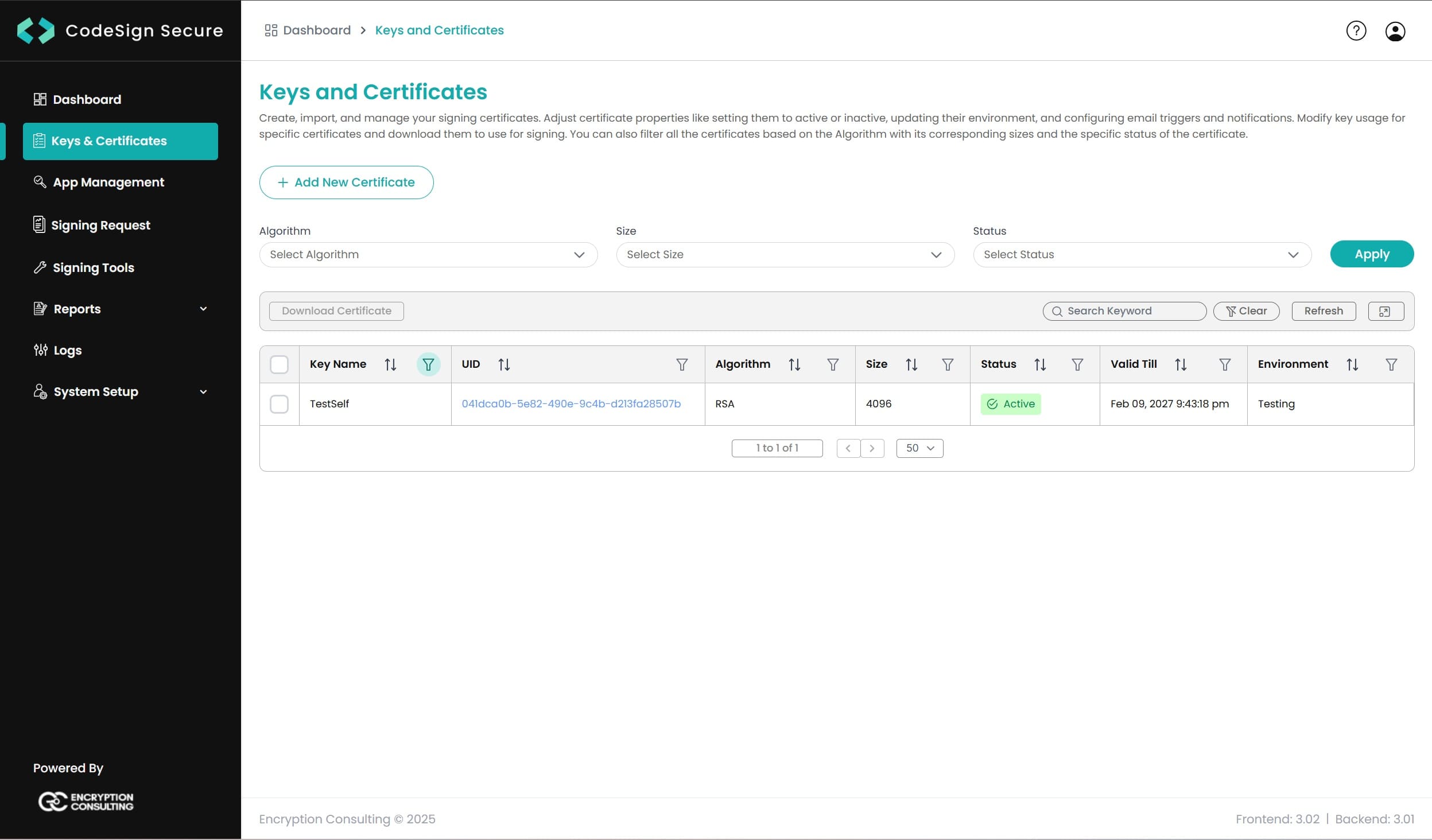
To create a new Key and Certificate, go to the Keys and
Certificates tab on CodeSignSecure and click on Add new
Certificate
-
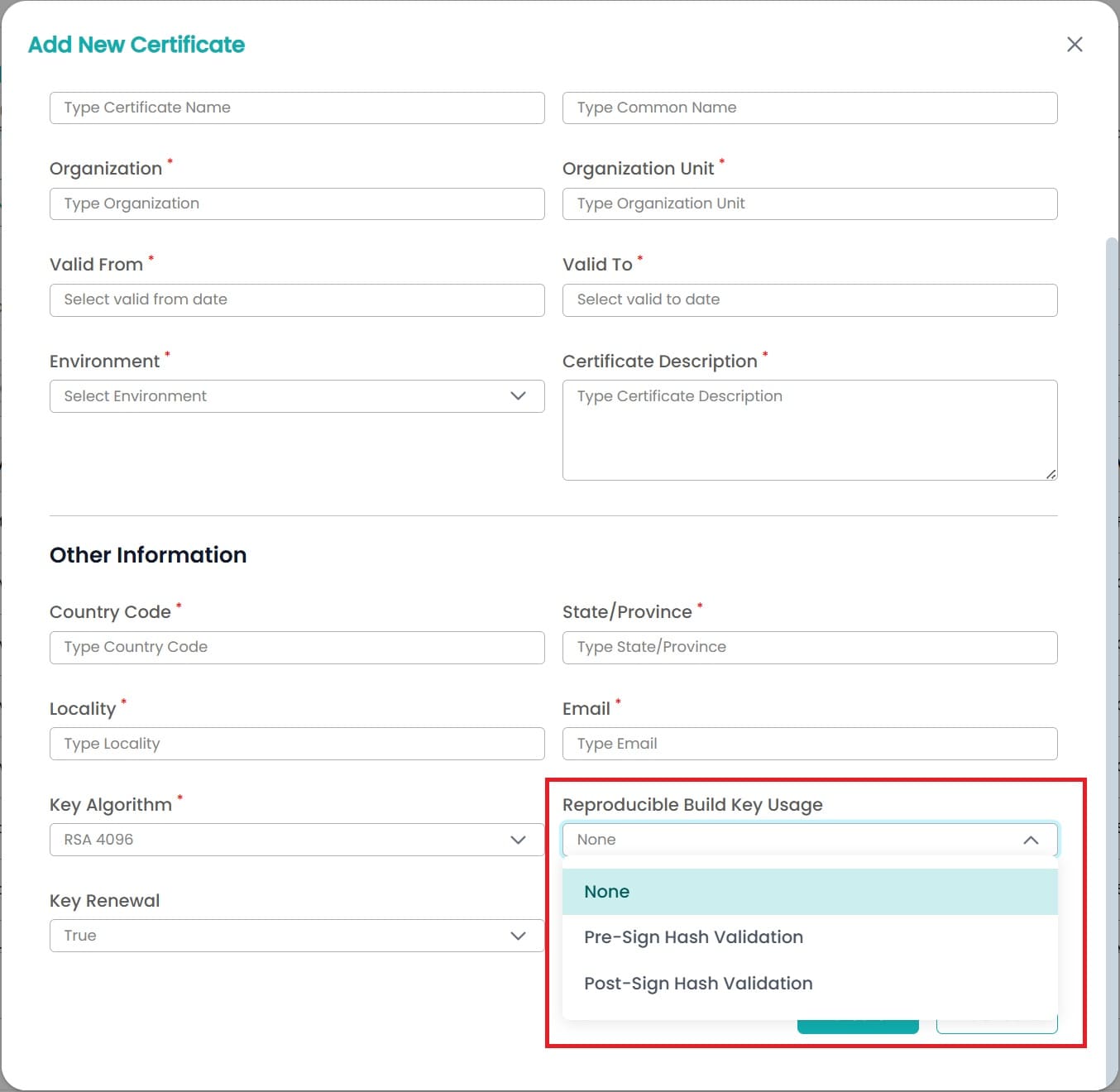
Provide the details regarding the Key & Certificate creation
in the input form.
-
Reproducible Build Key Usage:
This tells whether the key will be used for Pre-Sign Hash
Validation or Post-Sign Hash Validation or none of these. This
is required for the Hash validation of the latest build and
verify the origin of the file.
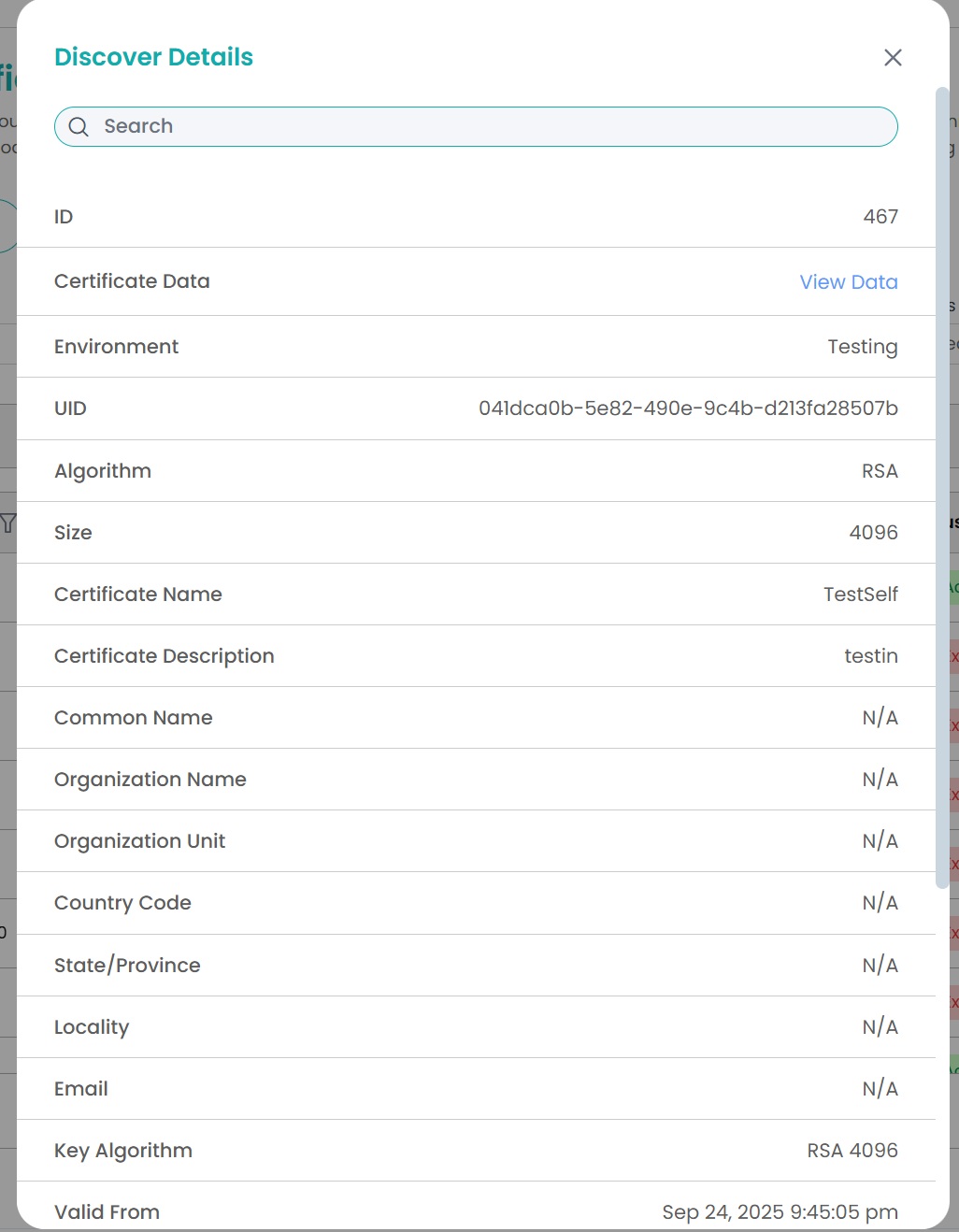
To see the details about a specific key & certificate, click
on the respective certificate's UID.
With this setup, whenever you submit the signing request via
Signtool, it will automatically pass extra parameters of the
Signing Project ID and Build Job ID within the signing
request.
It fetches
commit revision and
build job ID at code
signing time. If parameters are not correct in this
process, code signing will be declined