This section details how to sign jar files using the JarSigner
tool. Java must be installed for it to work. You can download
and install Java from
https://www.oracle.com/java/technologies/downloads.
We need to install the Signed certificate from CodeSignSecure
platform in the Certificate Manager of your system.
-
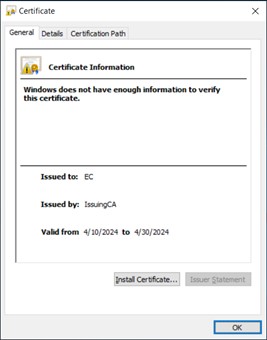
Click on the certificate from CodeSignSecure and then click
on Install Certificate.
-
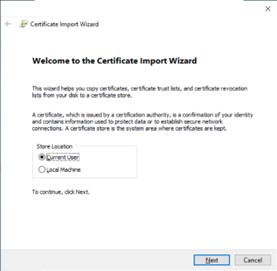
Select “Current User” and click Next.
-
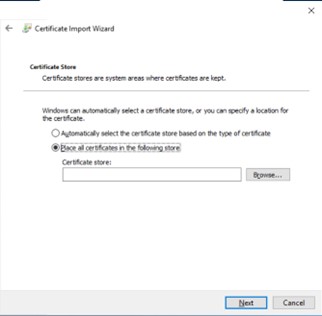
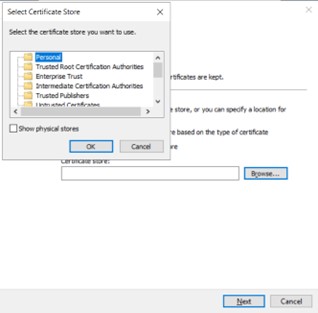
Select “Place all certificates in the following store”.
-
Click on Browse and select Personal. Then click Next.
-
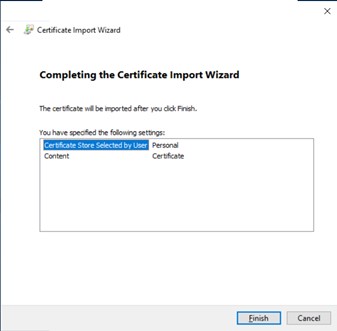
Click Finish on “Completing the Certificate Import Wizard”.
-
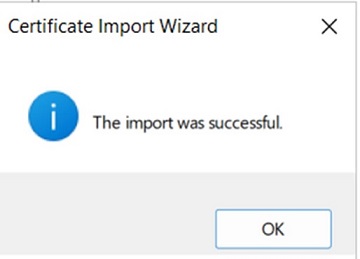
The certificate will be successfully imported
After importing the certificate, we need to assign it a private
key
-
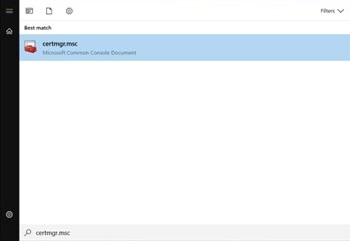
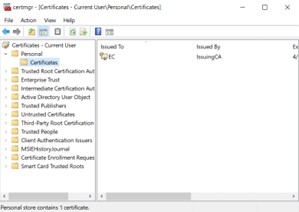
From Start, search “certmgr.msc”
-
Click Personal and then click Certificates
-
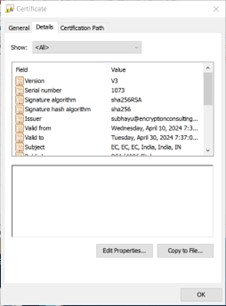
You would be able to see your installed certificate. Click
on the certificate and go to Details tab.
-
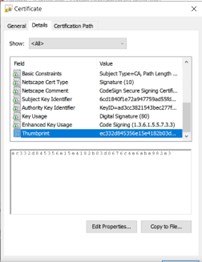
Copy the thumbprint of this certificate
-
Open CMD and run this command. Modify the command with the
thumbprint of your certificate.
certutil -f -repairstore -csp "Encryption Consulting Key
Storage Provider" -user "My" <thumbprint>
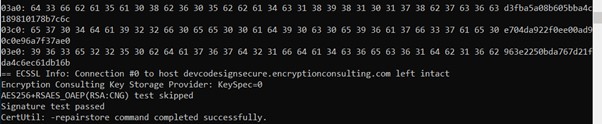
After successfully running the above command, we can now use
this certificate for signing the files.
-
Navigate to Java's jdk installation and go inside the
bin folder (usually located at C:\Program
Files\Java\jdk-20\bin). There you will find JarSigner
application “jarsigner.exe”.
-
You can drag the application to command line to get its path
or simply navigate to that folder using the cmd.
-
In cmd, we will first specify our store type, we are doing
so by using -storetype Windows-My. This is where our
KSP comes into play.
-
Specify signing algorithm with:
-sigalg
SHA256withRSA. You can use whichever signing algorithm you
choose.
-
Specify Time Stamp Server:
-tsa http://timestamp.digicert.com
-
Specify the Jar File you wish to sign.
-
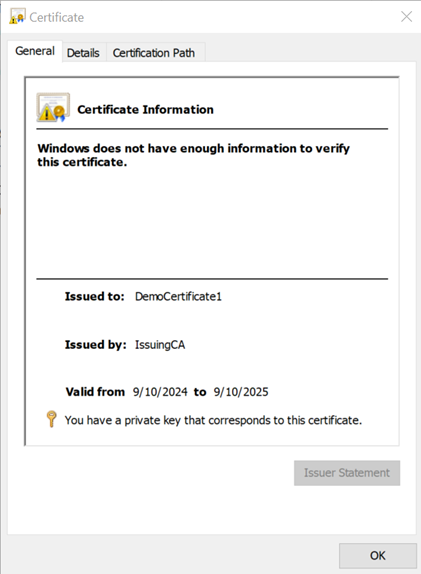
Specify the "Issued to" name of the certificate.
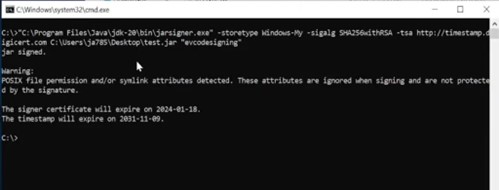
Altogether the command somewhat looks like the following. This
needs to be executed from the directory where JarSigner
Application is located.
<Enter jarsigner.exe file path> -storetype Windows-My
-sigalg SHA256withRSA -tsa http://timestamp.digicert.com
C:\Users\ja785\Desktop\test.jar "<Enter Issued to Name>"
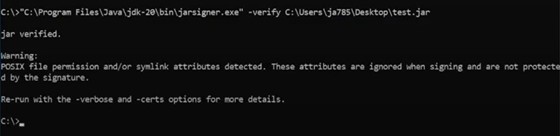
We can run Jar Signer verifier to check if the Jar files has
been signed or not.
It is done in the same directory as that of signer and with the
command below.
jarsigner -verify -verbose <path to the signed jar file>