CodeSign Secure Documentation
  • Overview
    • About CodeSign Secure
    • Getting Started
    • Documentation Guide
    • Portal Overview
    • Troubleshooting
      • FAQ
    • Glossary
  • Reference Guide
    • Header Bar
      • CodeSign Secure Documentation
      • Swagger API
      • Profile Section
    • Dashboard
      • Key Performance Indicators
      • Issued Certificates
      • Signatures Generated
      • HSM Health Check
    • Keys and Certificates
      • Key and Certificate Lifecycle
    • App Management
    • Signing Requests
      • Approval Workflows
    • Signing Tools
    • Reports
      • Signing Request Report
      • Audit Trail
      • Certificate Report
      • Client Report
    • Logs
    • System Setup
      • Identity Store
      • Backup
      • User
      • Roles and Permissions
      • Email
      • Signing Projects
      • SSL/TLS Management
      • Environment
      • Plugins
  • Setup & Architecture
    • Identity and Access Control
    • Architecture and Concepts
    • Installation
      • Windows
        • Installing the Server
        • Ports and Protocols
        • High Availability and Backup
        • Upgrades and Compatibility
    • Security
      • Security Hardening Checklist
      • Client Authentication
      • Designing Signing Policies
  • Release Notes
    • Releases for 2026
      • v3.2.1
    • Releases for 2025
      • v3.2.0
    • Releases for 2024
      • v3.1.0
  • API Reference
    • Getting Started
    • Authorizing Requests
    • Securing API Access
    • Request and Response Conventions
    • Endpoint Reference
      • Signing
      • Signing Requests
      • Certificates
      • Applications and Environments
      • User Management
      • Permissions
      • Email
      • System Setup
      • Reports
      • Dashboard
      • License
  • Integration Guides
    • Signing Capabilities
      • Supported Formats and Platforms
      • Timestamping
      • Windows Signing - SignTool
        • Signing
        • Macro Signing
      • Apple Signing
      • AppX & MSIX Signing
      • Visual Studio ClickOnce
      • Jar Signing
      • Sign HLK/HCK using CodeSign Secure
      • NuGet Signing
      • Mage Signing
      • Sign OVA/OVF using Encryption Consulting’s Utility Tool
      • Utility Tool for code signing
      • Container Signing
      • PKCS11 Wrapper
        • APK Signing
        • OpenSSL Signing
        • XML Signing
        • JSign Tool Signing
        • Jarsigner Signing
        • GPG2, Debian & RPM Signing
      • Reproducible Build
        • Automated Hash Validation
        • Reproducible Build Process Flow
        • Pipeline Script Components
        • Hash Validation
    • CI/CD Integration
      • GitHub Actions
      • Jenkins
      • GitLab
      • Azure DevOps
      • TeamCity
      • Bamboo
      • Securing CI/CD Credentials

Documentation Guide

How this documentation is organized, how to find what you need, and what the formatting means.

How the documentation is organized
SectionWhat you’ll find
OverviewAbout CodeSign Secure, a step-by-step getting-started walkthrough, this guide, a tour of the portal, troubleshooting, the FAQ, and the glossary.
Reference GuideEvery area of the CodeSign Secure portal, from the header bar and dashboard to System Setup.
Setup & ArchitectureHow sign-in and access control work, the architecture and its components, installing CodeSign Secure on Windows, and security guidance.
Release NotesWhat changed in each release, grouped by year.
API ReferenceGetting a token, request and response conventions, and every endpoint by area.
Integration GuidesSigning each file type with its native tools, and signing from CI/CD pipelines.
Page Layout at a Glance

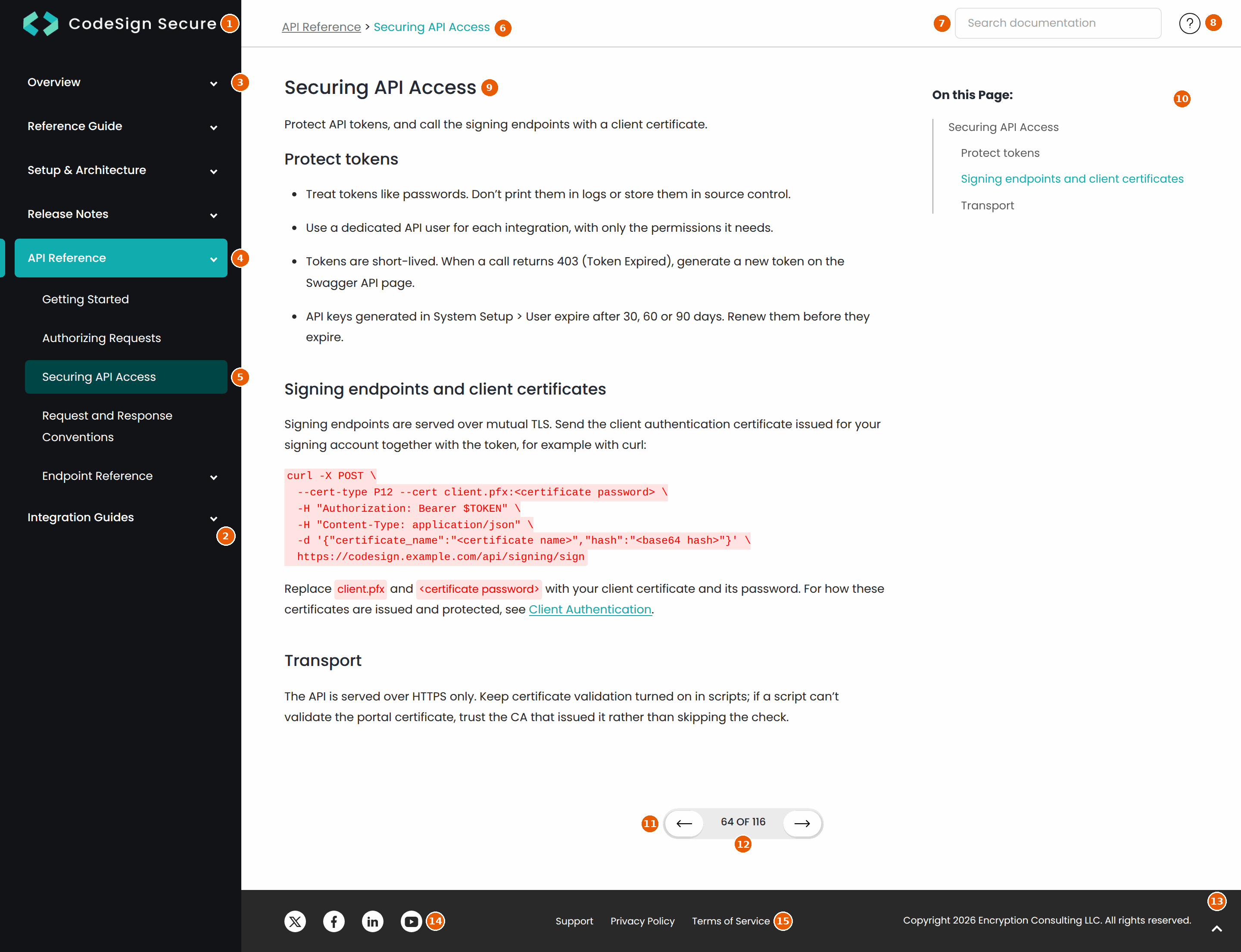
Every page of the documentation shares the same layout. The screenshot below shows a typical page with its main navigation features numbered. Each number is described in the table that follows the screenshot.

Tip: Hover over a numbered marker or an area of the screenshot to see the name of that feature, and click it to jump to its description.

Documentation navigation features 1. CodeSign Secure Logo 2. Section List 3. Section Arrow 4. Current Section 5. Current Page 6. Breadcrumb 7. Search Box 8. Help and Support 9. Page Title 10. On this Page 11. Previous and Next 12. Page Counter 13. Back to Top 14. Social Links 15. Support and Legal Links
No.FeatureDescription
1CodeSign Secure LogoTakes you back to the Overview page, the starting point of the documentation, from any page.
2Section ListThe sidebar lists every section of the documentation: Overview, Reference Guide, Setup & Architecture, Release Notes, API Reference, and Integration Guides. Click a section name to open it.
3Section ArrowAn arrow next to a section or page means that it contains further pages. When you open that section or page, it expands in the sidebar to list the pages it contains.
4Current SectionThe section that contains the page you are reading is highlighted and expanded, so you can always see which part of the documentation you are in and move to another page in the same section.
5Current PageThe page you are reading is highlighted within its section. When you reload a page or open another one, the sidebar keeps this page in view.
6BreadcrumbShows where the current page sits in the documentation, for example API Reference > Securing API Access. Click the first item to go to the parent page.
7Search BoxSearches all sections of the documentation as you type. Use the arrow keys and Enter to open a result. For details, see Finding information.
8Help and SupportOpens the Encryption Consulting contact page, where you can reach the support team if you cannot find what you need in the documentation.
9Page TitleThe name of the page you are reading. It matches the page name in the sidebar and the last item of the breadcrumb.
10On this PageLists the headings of the current page. Click a heading to jump to that part of the page. As you scroll, the heading you are currently reading is highlighted.
11Previous and NextMove to the previous or next page in reading order. Reading order follows the sidebar from top to bottom, so you can read a whole section page by page.
12Page CounterShows the position of the current page within the documentation, for example 64 OF 116.
13Back to TopAppears in the lower-right corner once you scroll down a page. Click it to return to the top of the page.
14Social LinksLinks to the Encryption Consulting pages on X, Facebook, LinkedIn, and YouTube.
15Support and Legal LinksLinks to Encryption Consulting support, the privacy policy, and the terms of service.

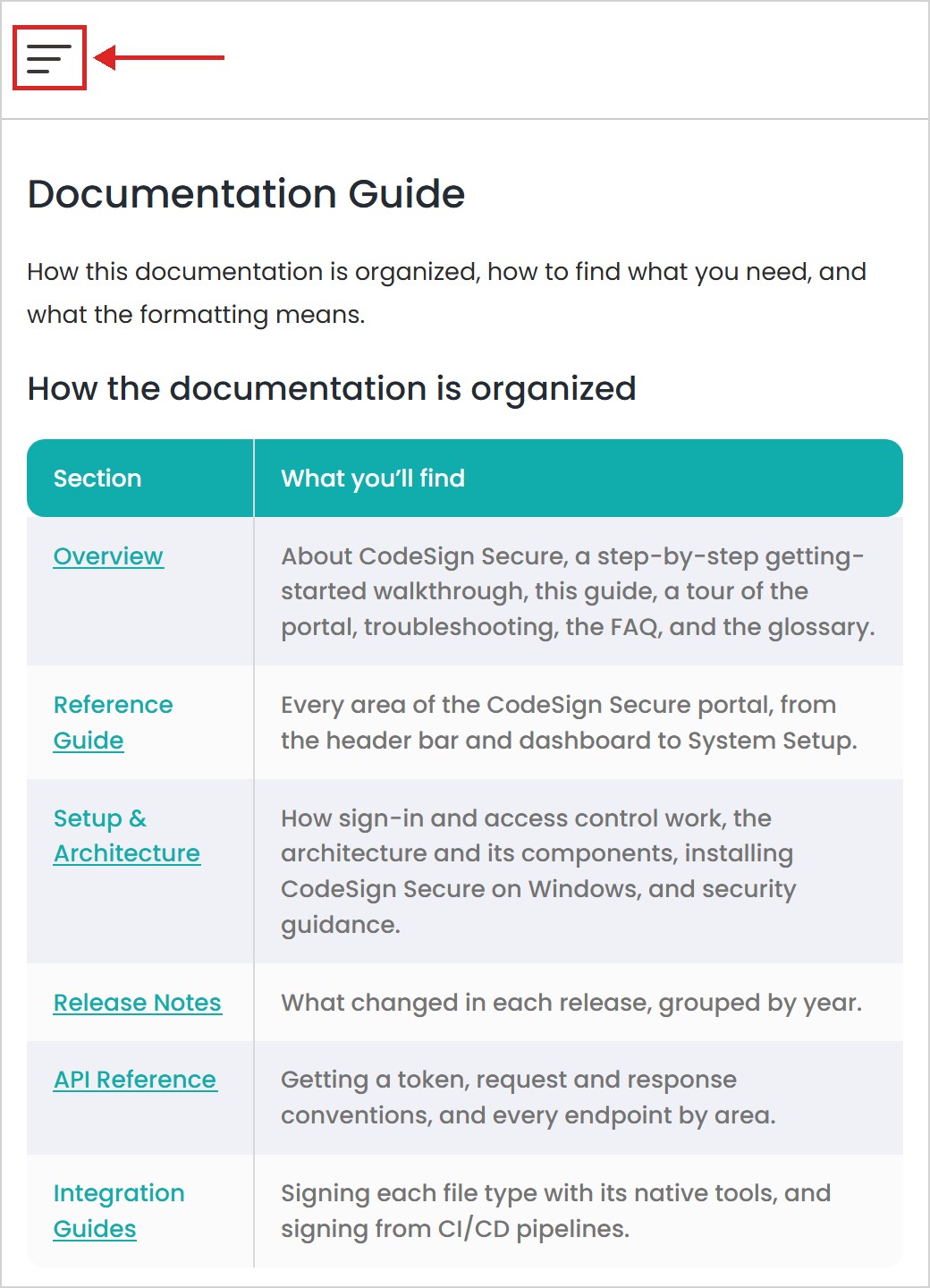
Note: The documentation is designed for desktop browsers. On screens below 767px, the sidebar is hidden; open it with the menu button at the top of the page.

Menu button at the top of the page on a small screen
Finding information
  • Sidebar: expand a section to see its pages. The page you are on is highlighted.

  • Search: type in the search box at the top of every page to search all pages, including the API Reference. Use the arrow keys and Enter to open a result.

  • On this Page: the list on the right links to each part of the current page.

  • Breadcrumb: the path at the top shows the section the page belongs to.

  • Previous and Next: the arrows at the bottom of each page move through the documentation in sidebar order.

Conventions
ConventionMeaningExample
Bold textA button, field, menu, or page in the portalSystem Setup > User > Register User
Code styleA command, file name, path, variable, or value you typesigntool verify /pa setup.exe
Angle bracketsA placeholder to replace with your own valuehttps://<your domain>/api/
NoteAdditional information, a tip, or something important to check before you continue

Screenshots show example data. Names, dates, and values in your portal will differ.

Versions

This documentation covers CodeSign Secure 3.02.01. To see the version you run, hover over the version in the profile menu of the header bar; the portal footer shows the frontend and backend versions. For what changed in each release, see Release Notes.

Getting help
  • For common problems and their fixes, see Troubleshooting and the FAQ.

  • For the meaning of a term, see the Glossary.

  • To contact Encryption Consulting, select Support in the footer of any page. Include the product version, what you were doing, and the full error text. A support package from Profile > Maintenance helps the support team diagnose server issues.

On this Page:
Support Privacy Policy Terms of Service

Copyright Encryption Consulting LLC. All rights reserved.