CodeSign Secure Documentation
  • Overview
    • About CodeSign Secure
    • Getting Started
    • Documentation Guide
    • Portal Overview
    • Troubleshooting
      • FAQ
    • Glossary
  • Reference Guide
    • Header Bar
      • CodeSign Secure Documentation
      • Swagger API
      • Profile Section
    • Dashboard
      • Key Performance Indicators
      • Issued Certificates
      • Signatures Generated
      • HSM Health Check
    • Keys and Certificates
      • Key and Certificate Lifecycle
    • App Management
    • Signing Requests
      • Approval Workflows
    • Signing Tools
    • Reports
      • Signing Request Report
      • Audit Trail
      • Certificate Report
      • Client Report
    • Logs
    • System Setup
      • Identity Store
      • Backup
      • User
      • Roles and Permissions
      • Email
      • Signing Projects
      • SSL/TLS Management
      • Environment
      • Plugins
  • Setup & Architecture
    • Identity and Access Control
    • Architecture and Concepts
    • Installation
      • Windows
        • Installing the Server
        • Ports and Protocols
        • High Availability and Backup
        • Upgrades and Compatibility
    • Security
      • Security Hardening Checklist
      • Client Authentication
      • Designing Signing Policies
  • Release Notes
    • Releases for 2026
      • v3.2.1
    • Releases for 2025
      • v3.2.0
    • Releases for 2024
      • v3.1.0
  • API Reference
    • Getting Started
    • Authorizing Requests
    • Securing API Access
    • Request and Response Conventions
    • Endpoint Reference
      • Signing
      • Signing Requests
      • Certificates
      • Applications and Environments
      • User Management
      • Permissions
      • Email
      • System Setup
      • Reports
      • Dashboard
      • License
  • Integration Guides
    • Signing Capabilities
      • Supported Formats and Platforms
      • Timestamping
      • Windows Signing - SignTool
        • Signing
        • Macro Signing
      • Apple Signing
      • AppX & MSIX Signing
      • Visual Studio ClickOnce
      • Jar Signing
      • Sign HLK/HCK using CodeSign Secure
      • NuGet Signing
      • Mage Signing
      • Sign OVA/OVF using Encryption Consulting’s Utility Tool
      • Utility Tool for code signing
      • Container Signing
      • PKCS11 Wrapper
        • APK Signing
        • OpenSSL Signing
        • XML Signing
        • JSign Tool Signing
        • Jarsigner Signing
        • GPG2, Debian & RPM Signing
      • Reproducible Build
        • Automated Hash Validation
        • Reproducible Build Process Flow
        • Pipeline Script Components
        • Hash Validation
    • CI/CD Integration
      • GitHub Actions
      • Jenkins
      • GitLab
      • Azure DevOps
      • TeamCity
      • Bamboo
      • Securing CI/CD Credentials

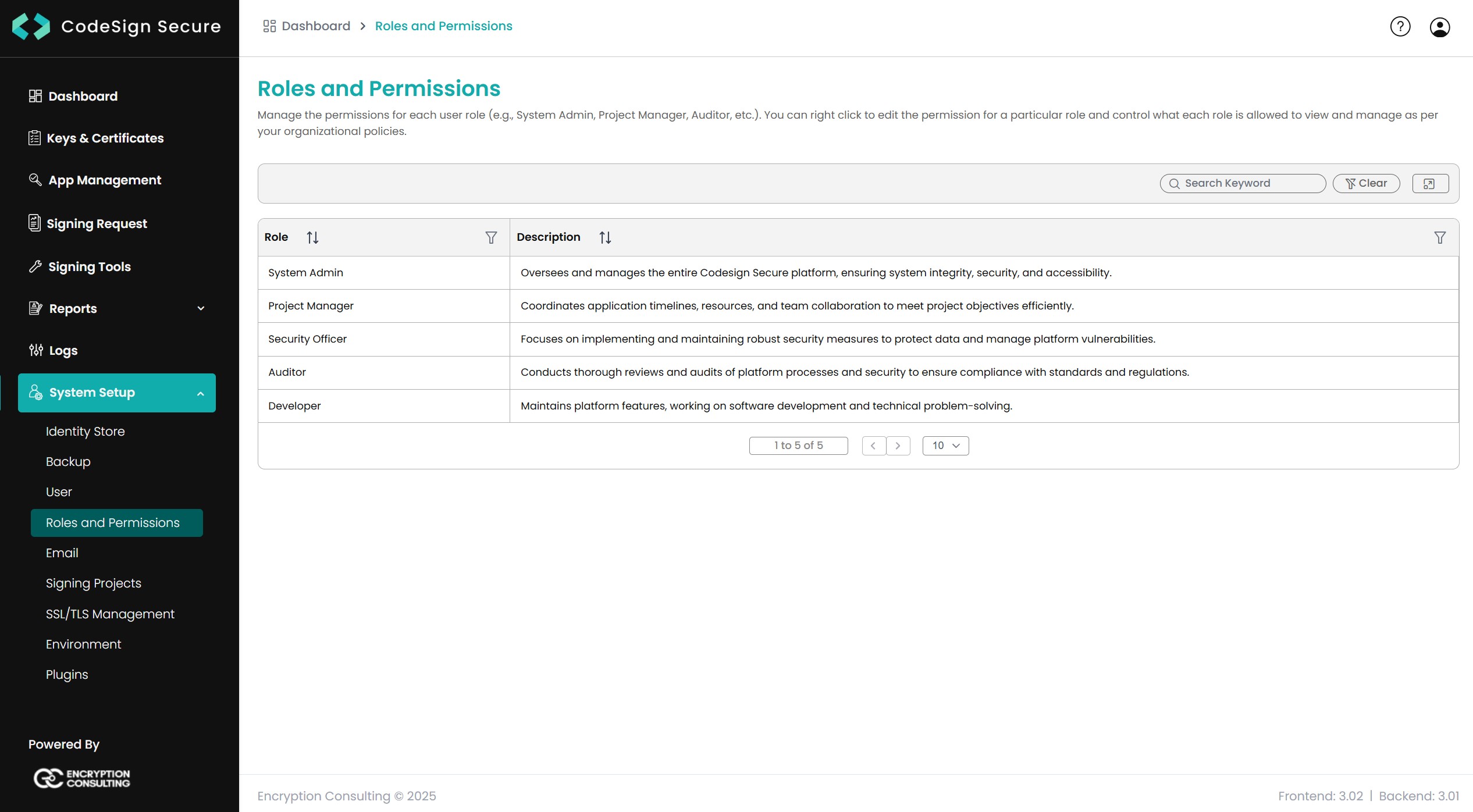
Roles and Permissions

Define what each role can see and do in the portal. Every role other than System Admin starts with no permissions until a System Admin enables them.

Roles and Permissions section
Default roles
RoleDescription in the portalDefault permissions
System AdminOversees and manages the entire CodeSign Secure platform, ensuring system integrity, security, and accessibility.Enabled for platform administration. Review the list after installation.
Project ManagerCoordinates application timelines, resources, and team collaboration to meet project objectives efficiently.None
Security OfficerFocuses on implementing and maintaining robust security measures to protect data and manage platform vulnerabilities.None
AuditorConducts thorough reviews and audits of platform processes and security to ensure compliance with standards and regulations.None
DeveloperMaintains platform features, working on software development and signing operations.None

Important: Until a System Admin enables permissions for a role, users with only that role can’t use the related features. Enable permissions before you assign roles to users.

Who can approve signing requests

For the Certificate Owner and Quorum policies, approvers must hold the System Admin or Project Manager role, or both. Quorum members can only be chosen from users with these roles.

View and edit permissions

Right-click a role to open its options.

Role options menu
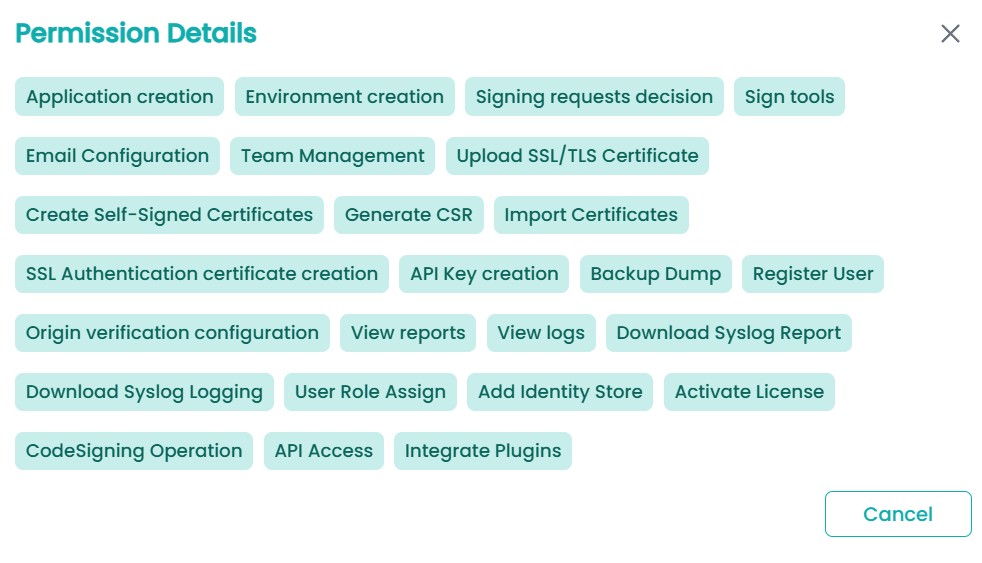
  • View Details lists every permission currently assigned to the role.

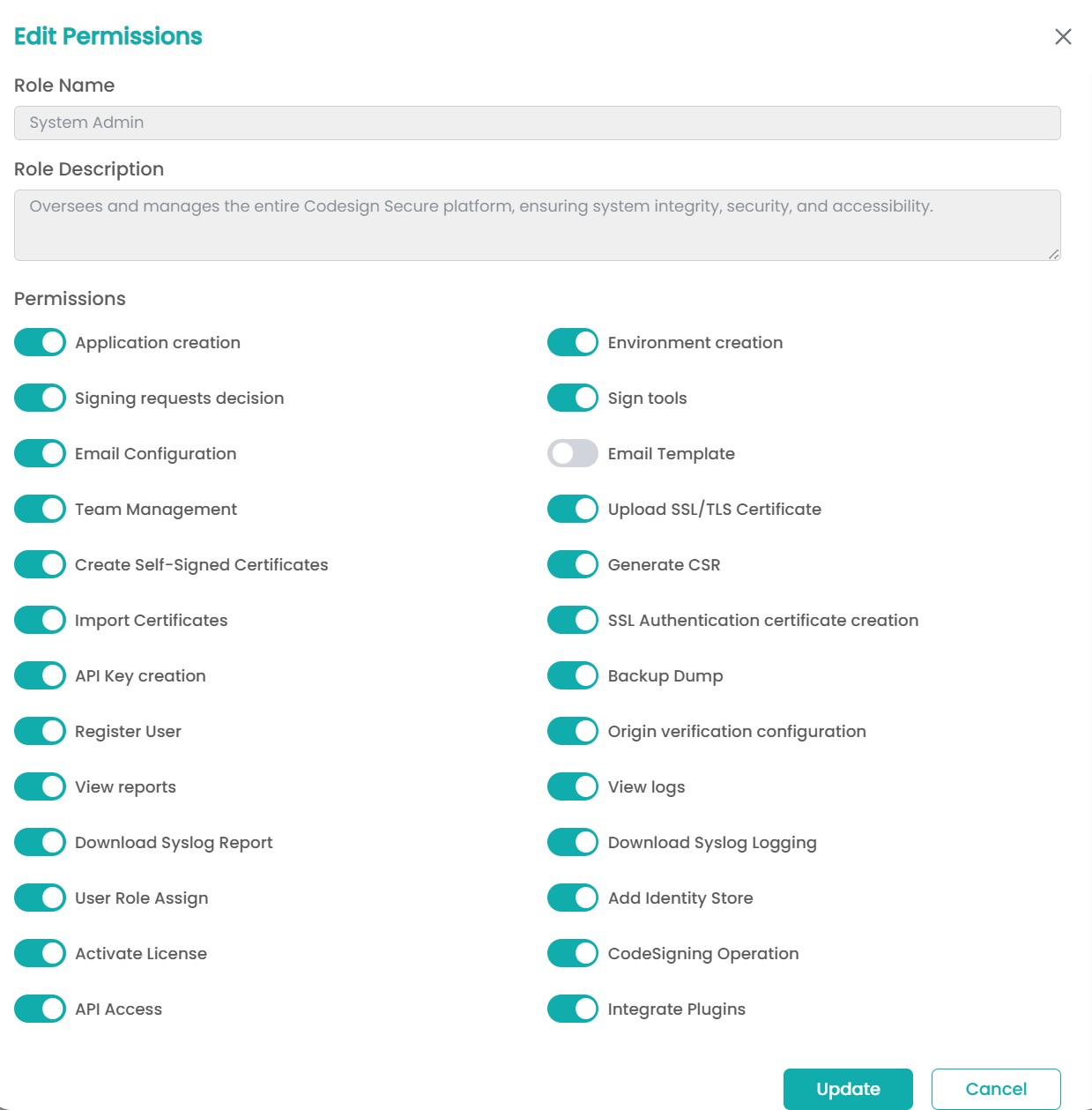
  • Edit Permissions lets you switch each permission on or off. Hover over a permission to see what it controls, then select Update.

Permission details Edit permissions
Permission reference

The portal’s hover text is the authoritative description of each permission.

PermissionAllows the user toPortal area
Application creationCreate and edit applicationsApp Management
Environment creationCreate and edit environments and their approval policiesSystem Setup > Environment
Signing requests decisionApprove or deny signing requestsSigning Request
Sign toolsOpen the Signing Tools download pageSigning Tools
Email ConfigurationAdd and manage SMTP sender configurationsSystem Setup > Email > Config
Email TemplateCreate and manage email templatesSystem Setup > Email > Template
Team ManagementCreate teams and manage their membersApp Management
Upload SSL/TLS CertificateGenerate a CSR and import the portal TLS certificateSystem Setup > SSL/TLS Management
Create Self-Signed CertificatesCreate self-signed signing certificatesKeys and Certificates
Generate CSRGenerate a key pair in the HSM and a certificate signing requestKeys and Certificates
Import CertificatesImport CA-issued certificatesKeys and Certificates
SSL Authentication certificate creationGenerate client authentication certificatesSystem Setup > User
API Key creationGenerate API keysSystem Setup > User
Backup DumpSchedule, download, and restore backupsSystem Setup > Backup
Register UserRegister new usersSystem Setup > User
Origin verification configurationConfigure signing projects for reproducible-build hash validationSystem Setup > Signing Projects
View reportsOpen the Reports sectionReports
View logsOpen the Logs sectionLogs
Download Syslog ReportDownload system logs from the Reports areaReports
Download Syslog LoggingDownload system logs from the Logs pageLogs
User Role AssignChange the roles assigned to usersSystem Setup > User
Add Identity StoreAdd and manage the Azure AD identity storeSystem Setup > Identity Store
Activate LicenseUpdate the product licenseProfile > License
CodeSigning OperationSign with CodeSign Secure client toolsClient tools
API AccessUse the CodeSign Secure REST APIAPI
Integrate PluginsConfigure, connect, and disconnect pluginsSystem Setup > Plugins
Recommended role design

Separate the people who administer the platform, look after keys, approve signing, request signing, and audit activity.

RoleSuggested permissions
System AdminAdd Identity Store, Email Configuration, Email Template, Upload SSL/TLS Certificate, Backup Dump, Integrate Plugins, Activate License, Register User, User Role Assign
Security Officer (key custodian)Create Self-Signed Certificates, Generate CSR, Import Certificates, Environment creation, Origin verification configuration, View logs, View reports
Project Manager (application owner and approver)Application creation, Team Management, Signing requests decision, View reports
Developer (requester or pipeline)CodeSigning Operation, Sign tools, and API Access if the pipeline calls the API
AuditorView reports, View logs, Download Syslog Report, Download Syslog Logging
  • Keep at least two named System Admins.

  • Make sure the people who submit production signing requests aren’t the only eligible approvers.

  • Give automation its own API users with only CodeSigning Operation, and API Access where needed.

  • Review roles and assignments every quarter and after organizational changes.

On this Page:
Support Privacy Policy Terms of Service

Copyright Encryption Consulting LLC. All rights reserved.