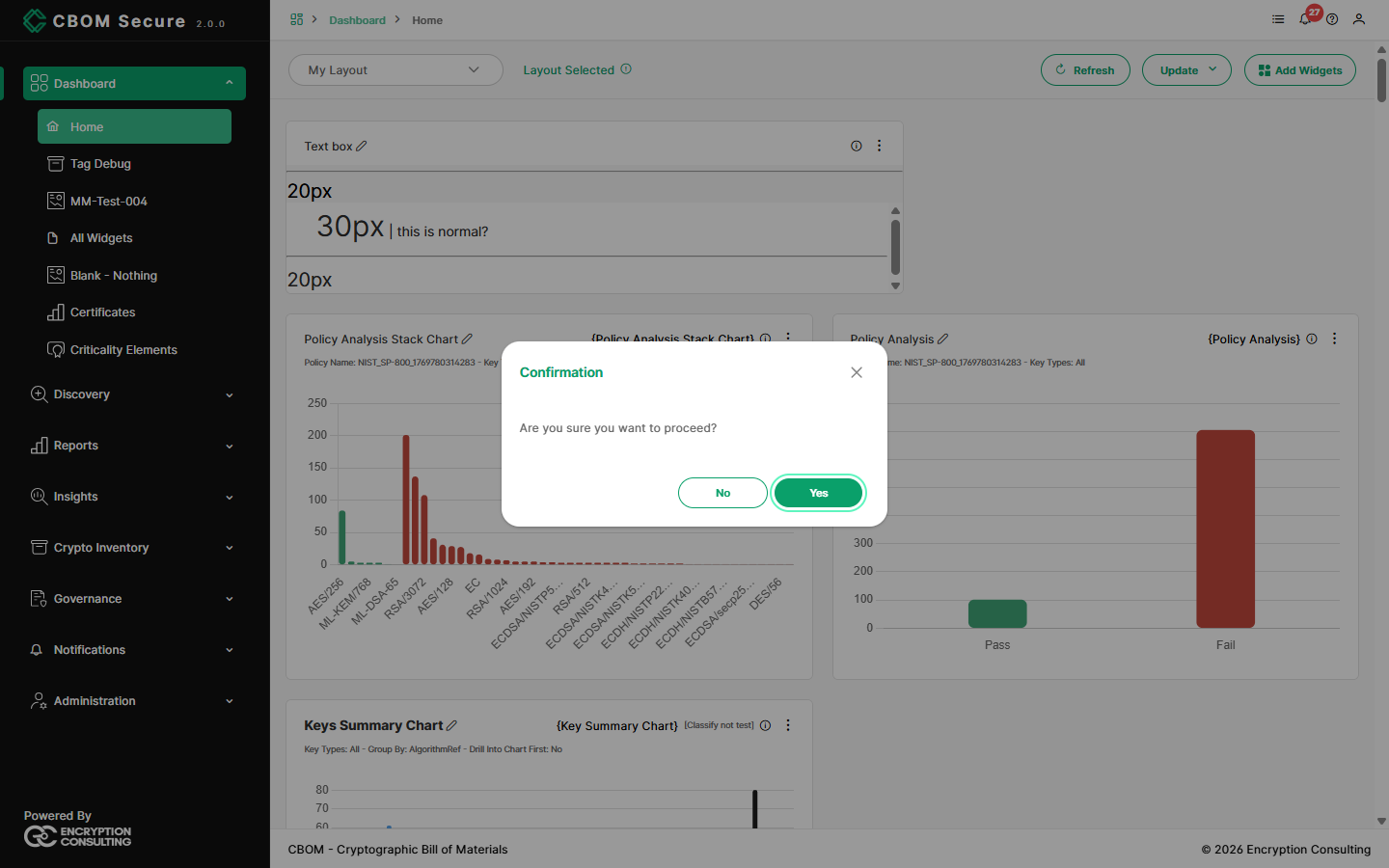
Top Bar and User Menu
The bar across the top of every screen does two things:
On the left, a breadcrumb shows where you are, such as Notifications > Cases. Each segment links back to that level.
On the right, four controls are always within reach, whichever screen is open.
| Control | What it opens |
|---|---|
| List icon | Add Submenus to Dashboard Menu |
| Bell | Notifications addressed to you |
| Question mark | Help for the screen you are on |
| Person icon | The User menu |
Add Submenus to Dashboard Menu
The list icon pins dashboard templates into the left menu, so that the ones you use often are a click away under Dashboard, beneath Home.
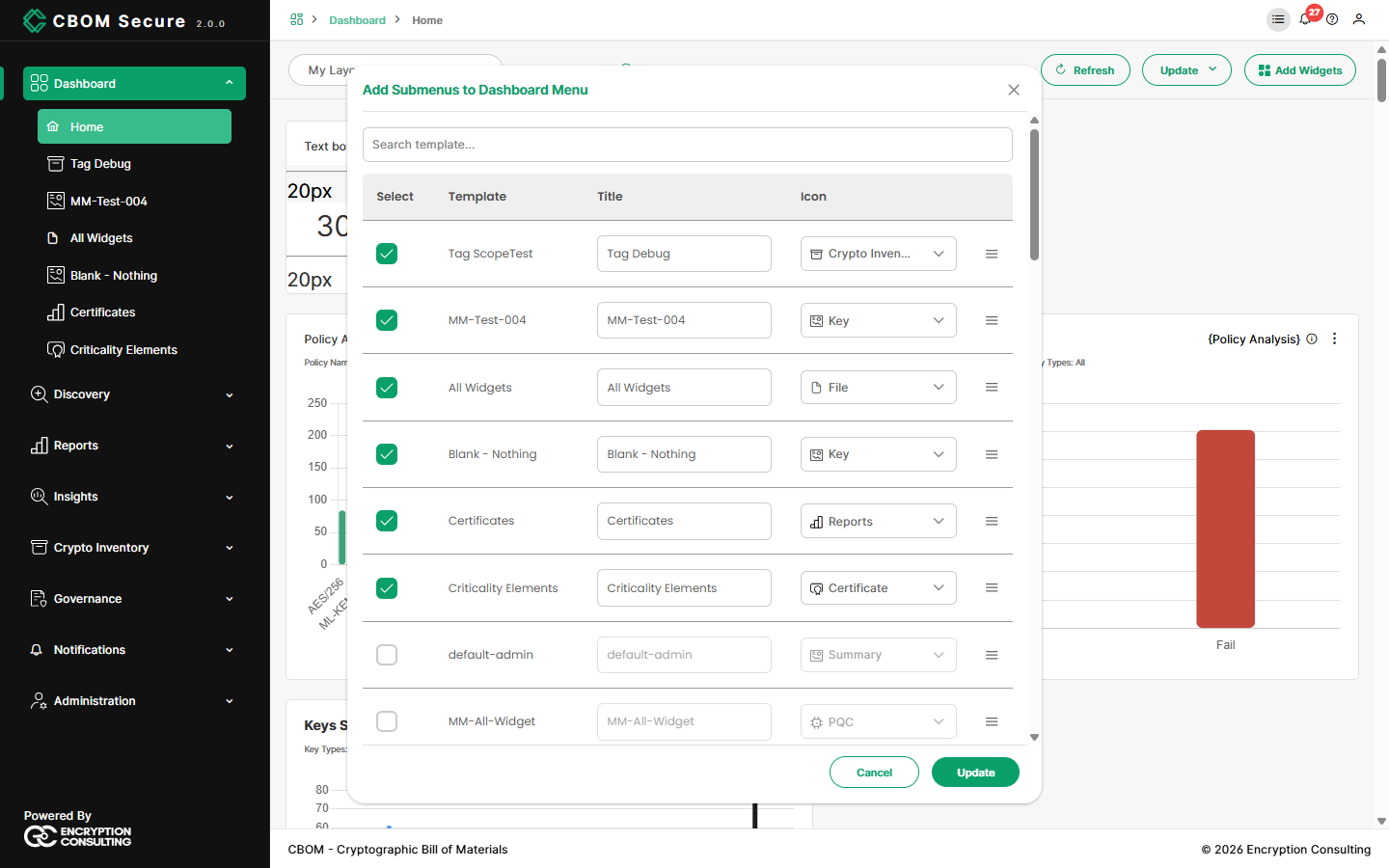
Select: Tick each template to show in the menu.
Template: The template's own name.
Title: The label the menu entry shows. Change it to anything shorter or clearer.
Icon: The icon shown beside the entry.
Drag rows to set the order of the entries, then click Update. The menu is your own: the entries you choose appear for you, not for other users. To make a template first, see Building a Dashboard Template.
Notifications
The bell shows a red badge with the number of unread notifications delivered to you in CBOM Secure. Click it to open the panel.
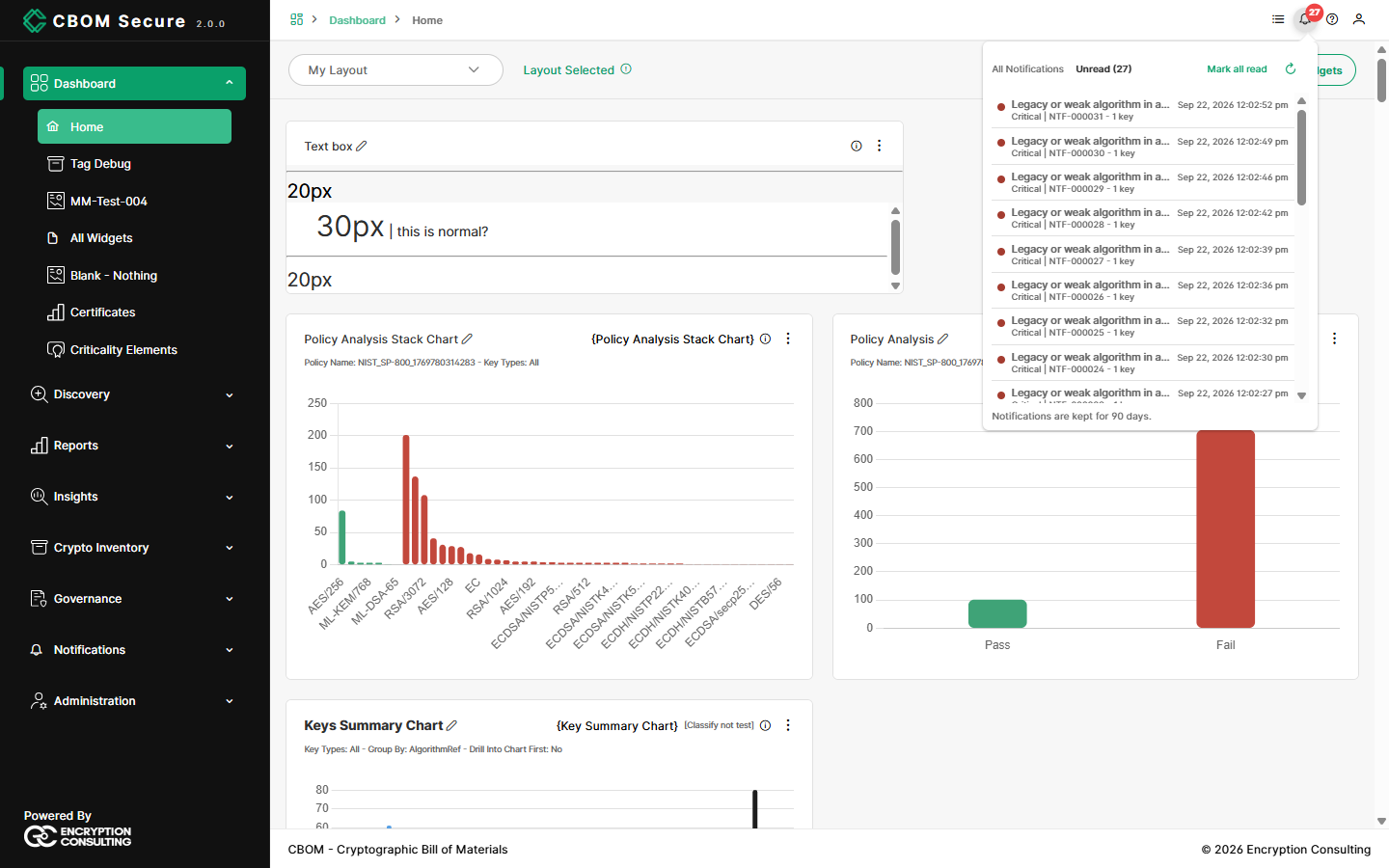
All Notifications / Unread: Switch between everything you have received and only what you have not opened yet.
Each entry: The rule that raised it, when, its severity, and the case number with how many materials it covers. Click an entry to open that case.
Mark all read: Clears the unread count, after a confirmation.
Refresh: Fetches anything new without reloading the page.
These are the in-app notifications sent by a rule's CBOM Secure output. To choose which findings notify whom, see Rules. To work the cases themselves, see Cases. The bell appears for users with permission to read notifications.
Help
The question mark opens this help in a new browser tab, on the page that documents the screen you are on. Where a screen has no page of its own, the help for its section opens, or the help home page.
User Menu
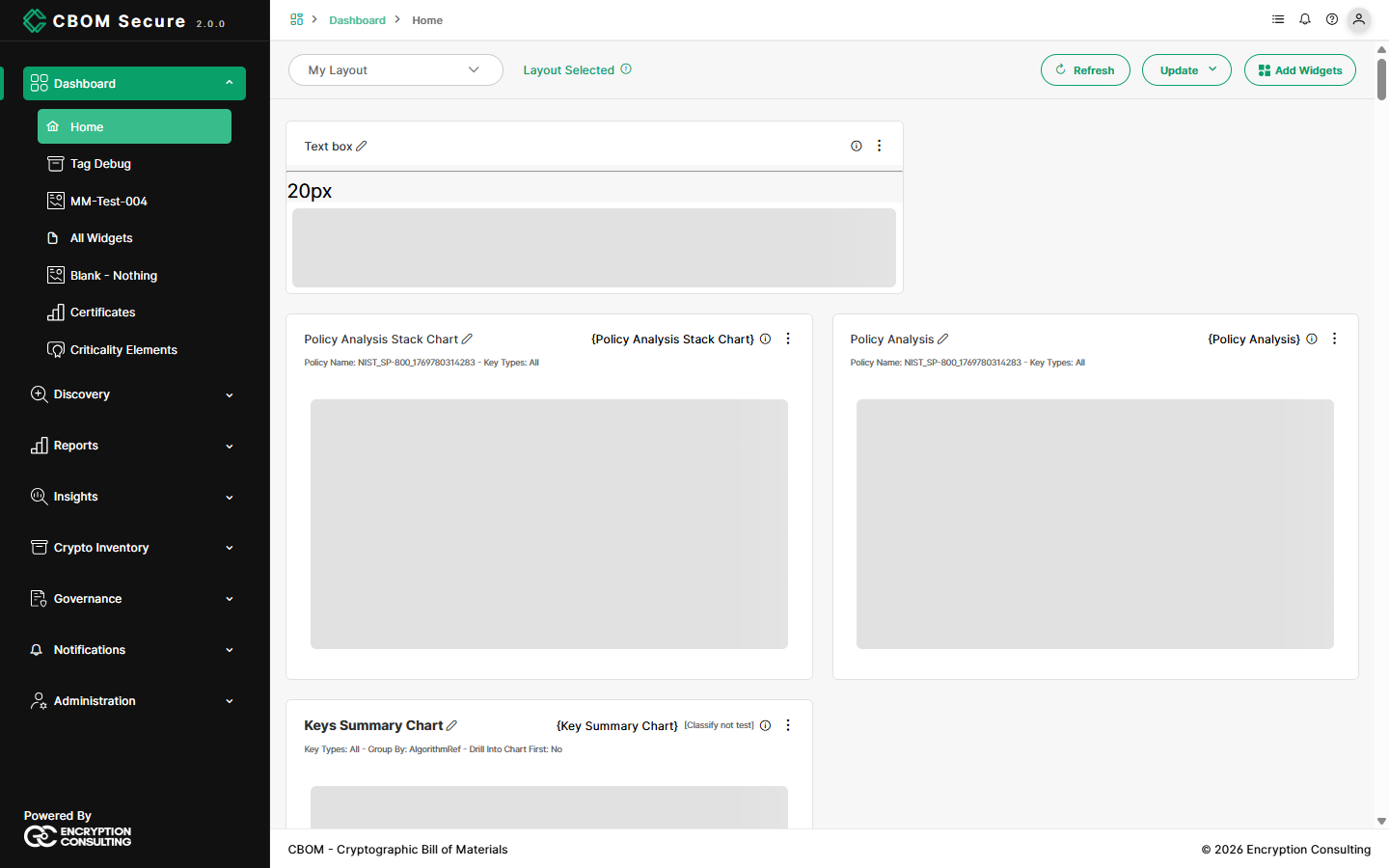
The person icon opens your user menu. Its top shows your name, email address and the roles you hold. Below that are the following entries. Entries you lack permission for are not shown.
UI Preferences
Your personal display settings. They apply to your account only, on every browser you sign in from.
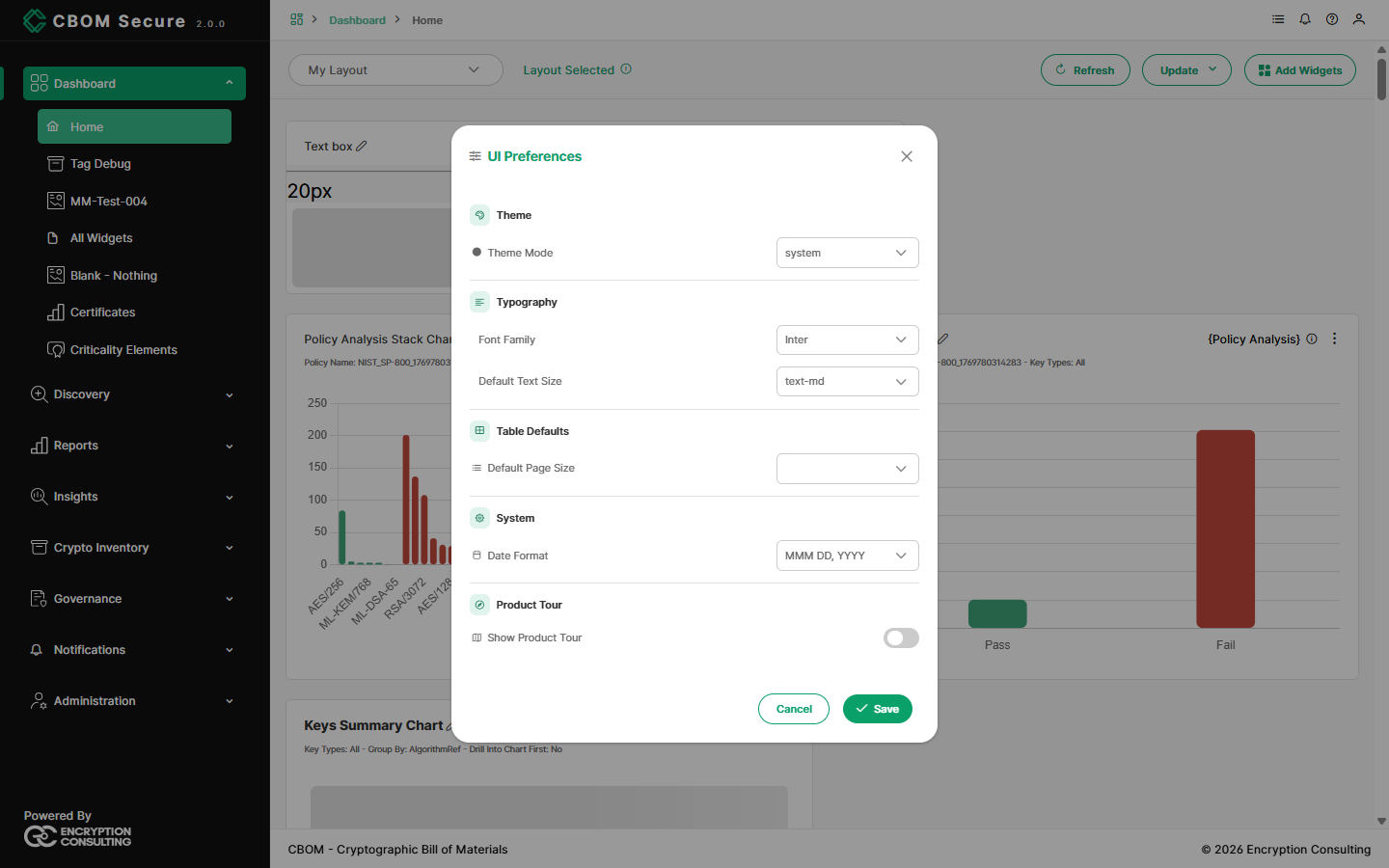
Theme Mode: light, dark, or system to follow your operating system.
Font Family and Default Text Size: The typeface and base text size across the portal.
Default Page Size: How many rows tables show per page. System uses the installation's default.
Date Format: How dates are displayed, for example MMM DD, YYYY.
Show Product Tour: Turn the guided tour of the portal back on.
Click Save to apply the settings, or Cancel to leave them as they were.
System Configuration
Opens the installation-wide settings page, for administrators. See System Configuration.
Reset Password
Change your own password. Enter it in New Password and again in Confirm Password, then click Reset. The new password must meet the installation's password policy; see Password Policy.
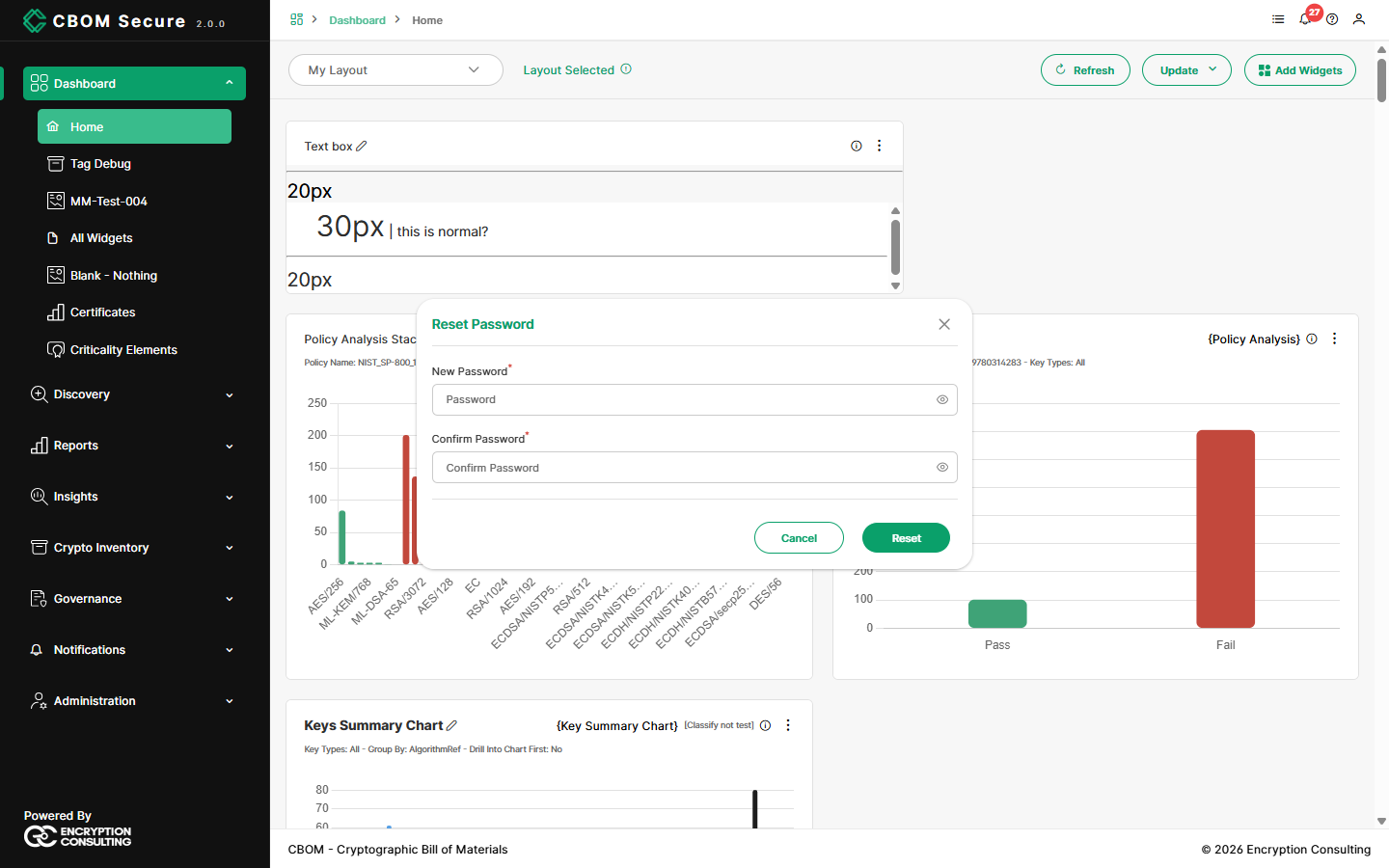
If you sign in through your organisation's single sign-on, your password is managed there instead. Administrators reset other users' passwords from User Management.
Support
Opens the Encryption Consulting contact page in a new tab.
API Docs
Opens the interactive API documentation in a new window. It lists every endpoint of the CBOM Secure API, with its parameters and responses, and lets you try calls directly. For the endpoints by area and how to authenticate to them, see API Reference and API Authentication.
Logout
Signs you out after a confirmation: click Yes to end your session, or No to stay signed in. Signing out ends the session on the server as well, so a later visit asks you to sign in again; see Login and Authentication.