
Task
A Task is a runnable discovery job. It combines one or more templates (what to scan) with one or more hosts (where to scan), and is then deployed to actually run discovery. Tasks are where templates and hosts come together and execution happens. The page is reached from Discovery > Tasks > Networked Deployments in the left navigation menu. The Tasks submenu also holds Cloud Deployments and Off-Grid Deployments, which track the cloud and air-gapped runs of the same task model.
Viewing Tasks
Tasks are listed in a paginated table. The toolbar above the table carries Create Task and Bulk Delete Tasks on the left, with a full-screen toggle on the right. A checkbox in each row lets you select tasks for bulk actions; Bulk Delete Tasks stays disabled until at least one row is ticked. Each button is hidden altogether if your roles do not carry the matching permission: task:create and task:delete.
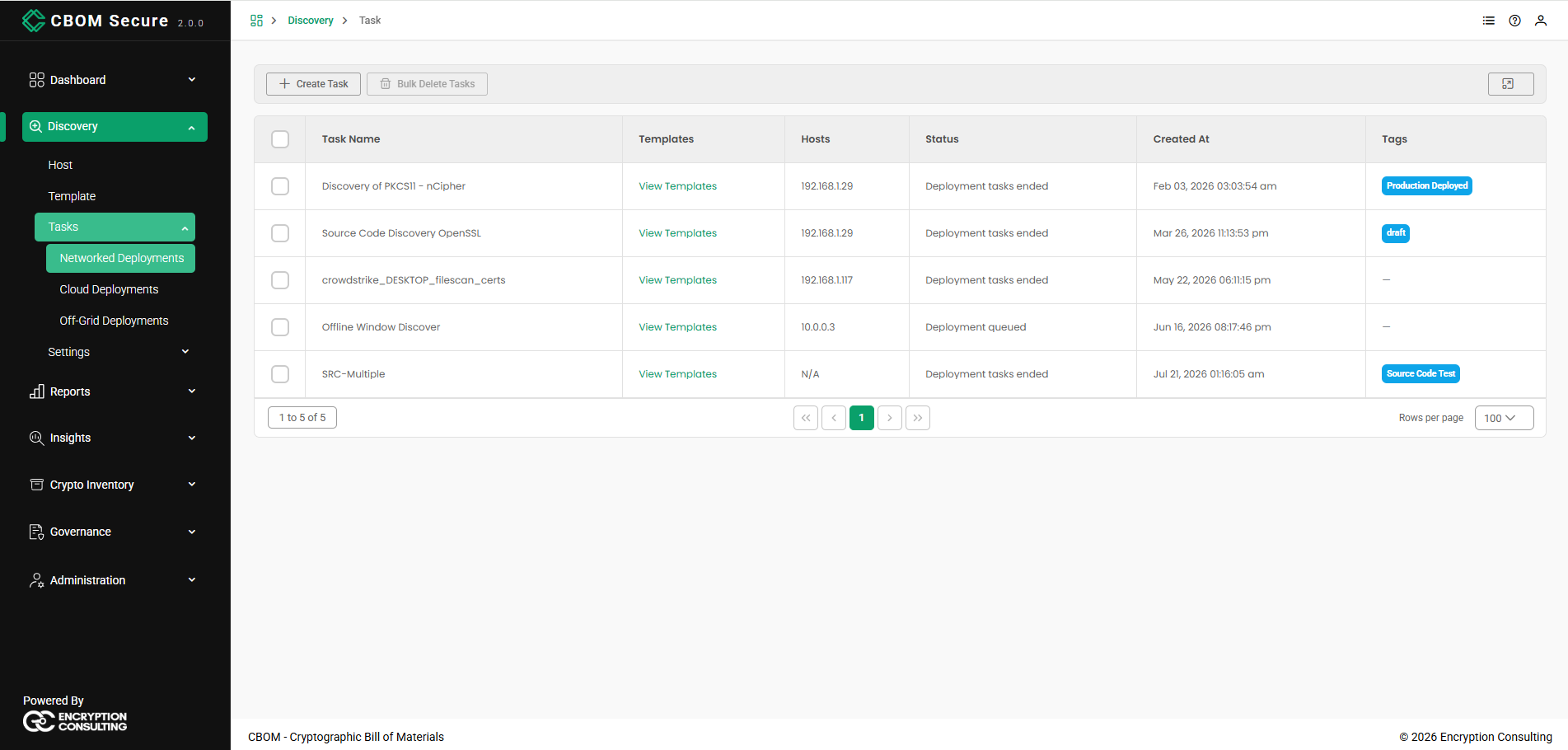
Each row describes a single task:
-
Task Name: The name of the task.
-
Templates: A View Templates link to see the templates the task uses.
-
Hosts: The hosts the task runs against (or N/A if none apply).
-
Status: The task's overall progress message — for example, that its discovery task file was written to the build server, or that deployment tasks have ended. A task that has never been deployed shows N/A.
-
Created At: When the task was created, in your own time zone.
-
Tags: The tags applied to the task, shown as chips. Up to three are displayed and any beyond that are summarised as +n; a task with no tags shows a dash.
Viewing a Task's Templates
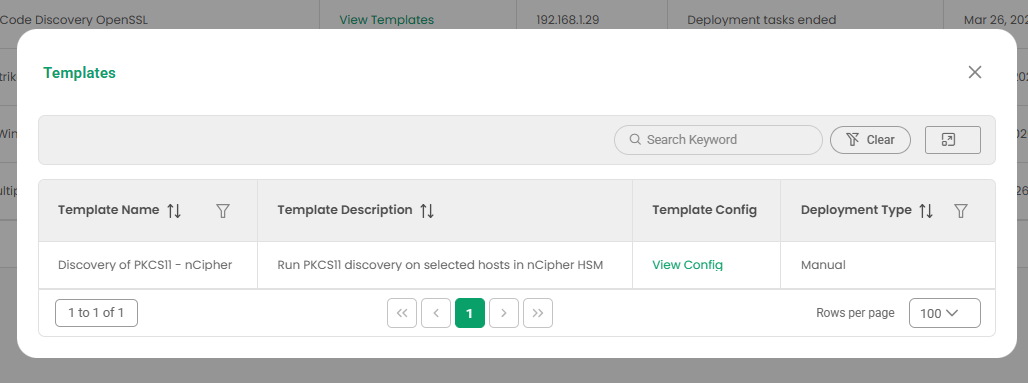
Click View Templates in the Templates column to open the Templates dialog, which lists the templates associated with the task — their Template Name, Template Description, a Template Config (View Config) link, and Deployment Type.
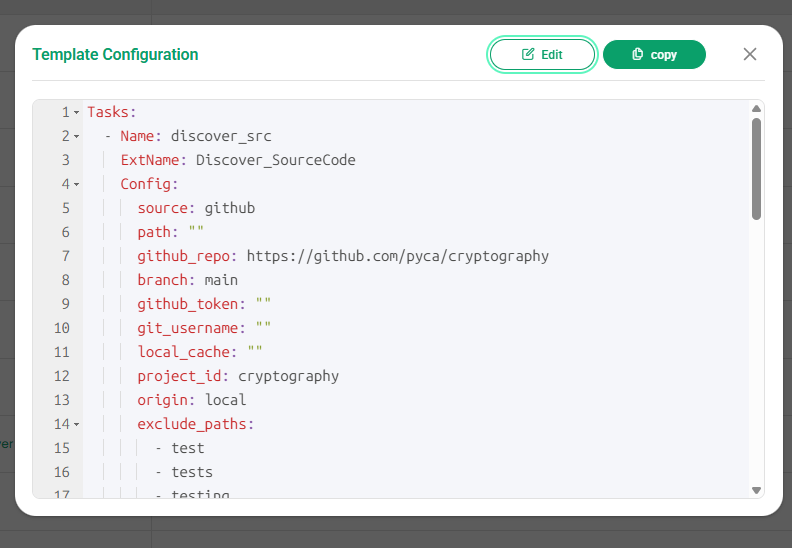
Selecting View Config opens the template's Template Configuration as YAML, which you can copy to the clipboard.
Creating a Task
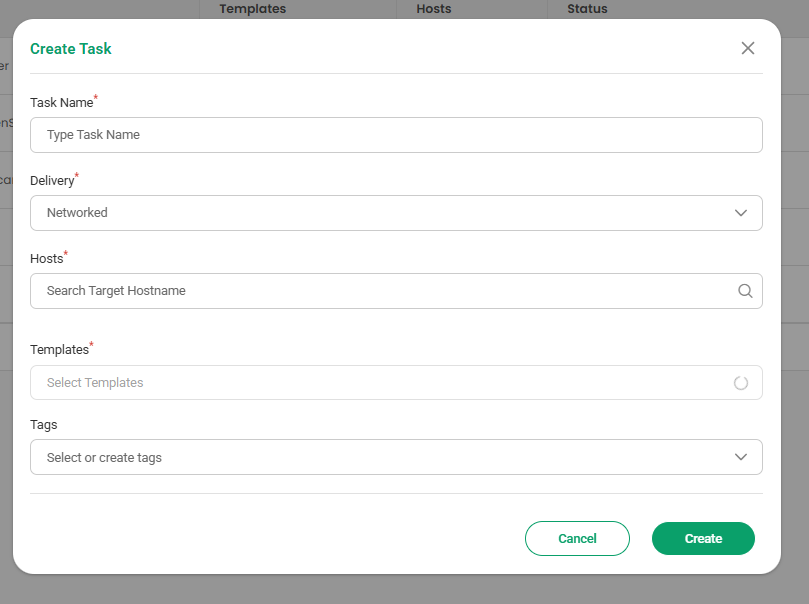
Click Create Task to open the Create Task dialog and define the job:
-
Task Name: A name for the task (required). Letters, numbers, spaces, hyphens and underscores only.
-
Delivery: How the task reaches its targets (required) — Networked for hosts CBOM Secure can connect to directly, or Off-Grid for air-gapped hosts that receive a bundle instead. Changing Delivery clears any templates already chosen, because each delivery draws from its own template list.
-
Hosts: The hosts the task will run against (required). Use the Search Target Hostname box to open the host list, tick the ones you want, and they are added below as removable chips. A chip carrying a warning triangle marks a host with no destination address, which discovery cannot reach.
-
Templates: The templates that define what to discover (required). The dropdown lists only templates whose own delivery matches the task's, is searchable by template name, and shows the chosen templates as chips.
-
Tags: Optional labels for grouping and filtering the task. Existing tags can be selected, or a new one created from the dropdown's footer.
Use the host search to pick targets — selected hosts are checked in the list and added below as chips. The host list can be narrowed by Source using the same All / Manual / CSV / CrowdStrike chips as the Host page, and loads more hosts as you scroll:
Then choose one or more templates. Both pickers sit in the dialog shown above, so there is no separate step to move through.
Once the task name, delivery, hosts and templates are set, click Create to save the task (or Cancel to discard it).
Task Actions
Right-click any task row to open a context menu with Deploy, Edit Task, and Delete options.
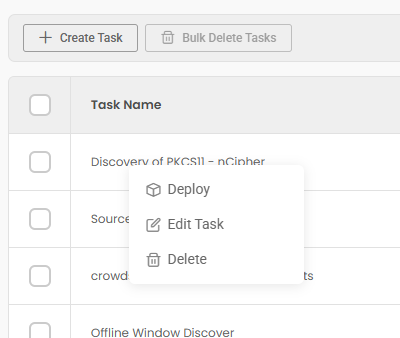
Deploy
Deploy runs the task — sending its templates to the selected hosts to begin discovery. A Deployment Started notice appears immediately, followed by one success or failure notification per host and template as each result arrives. The task's Status in the list then reflects its progress.
When the deployment returns, a Deployment Result dialog summarises what was ingested:
-
Inserted / Updated / Skipped: How many cryptographic material documents this run added, refreshed, or declined to store. These counts are computed per request and never stored, so this dialog is the only place they appear.
-
Deployment Details: The Task ID, Delivery, the number of Templates, Hosts Targeted (or the Cloud Server for a cloud delivery), and Materials Found.
-
Host Results: A per-host table of Host, Task and Status. Hover a status for the enqueued or failure detail behind it.
-
Errors: A collapsed panel, shown only when the run produced errors, listing each one in full.
Edit Task
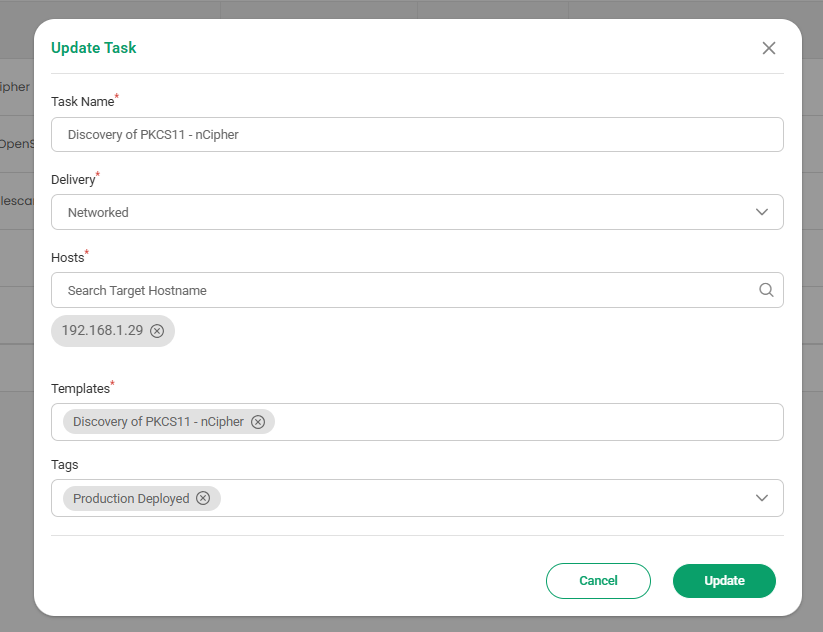
Edit Task reopens the same dialog under the header Update Task, pre-populated with the task's current name, delivery, hosts, templates and tags. Adjust them as needed and click Update to save your changes.
Delete
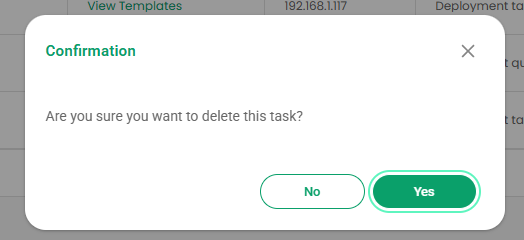
Removes the task from the platform. A confirmation prompt is shown before the task is permanently deleted.
Bulk Delete Tasks
To remove several tasks at once, select them using the row checkboxes and click Bulk Delete Tasks in the toolbar. This deletes all selected tasks together after confirmation.