Standard Policy
The Standard Policy page provides a built-in library of predefined cryptographic policies, each aligned to a widely recognized compliance framework or cryptographic standard. The library shipped with CBOM Secure covers ASD, CIS, CMMC, CMMC-2.0, CNSA-2.0, FIPS, GDPR, HIPAA, IL5+/FedRAMP, ISM-1769, ISM-1917, ISM-1990, ISO, NIST-SP-800, NSM-10, PCI-DSS and SG-MAS. These policies serve as ready-to-use baselines when evaluating the cryptographic posture of your environment, and they are the standards offered by the Select Compliance dropdown when you build a compliance-derived User Policy. The page is reached from Governance > Standard Policy in the left navigation menu.
Who Can Use Standard Policy
The Standard Policy section is restricted to privileged users. Access is granted by the std-policy:read permission, which as shipped is held by the admin role only. Note that this is a different permission from the policy:read that governs User Policy, so a role may be able to open one page and not the other; where the Governance menu appears without a Standard Policy entry, that permission is the reason.
What you can do inside the page is controlled separately: std-policy:create shows Add Standard Policy, std-policy:update shows Edit, and std-policy:delete shows Delete. Role-to-permission mappings are maintained under Roles & Permissions.
Viewing Standard Policies
Standard policies are presented in a paginated table. A toolbar above the table provides the Add Standard Policy action on the left, and a Search Keyword box, Clear, Refresh, and a full-screen toggle on the right.
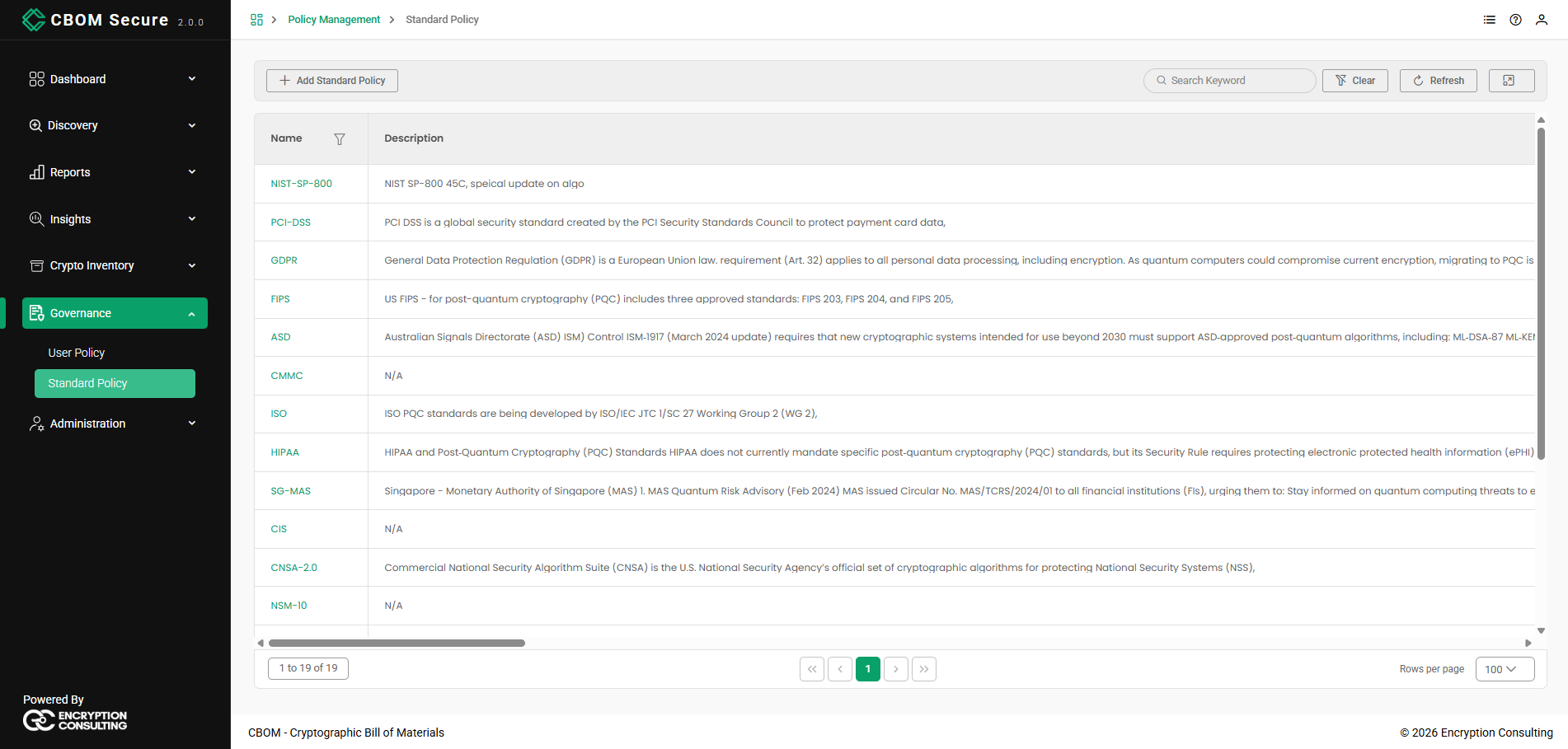
Each row in the table describes a single standard policy:
-
Name: The name of the standard or framework the policy represents (for example, NIST-SP-800 or PCI-DSS).
-
Description: An optional description of the policy, or N/A if none was provided.
-
Allowed Algorithms: A View Algorithm Detail link that opens the full list of algorithms permitted by the policy.
-
Last Updated: The date and time the policy was last modified, or N/A if it has not been changed.
Use the Search Keyword box to filter across the table, or the column filter icons to narrow a single column; Last Updated filters by date with Date is, Date is not, Date is before and Date is after. Refresh reloads the list with the latest data, and Clear resets any applied search or filters.
The footer below the table shows the record range on the left, the first, previous, numbered, next and last page links in the centre, and a Rows per page selector on the right offering 10, 20, 50 or 100 rows. Tables open at 20 rows unless an administrator has set a different size under UI Configuration > Table Defaults in System Configuration. When the list runs to more than five pages, a # (Jump to Page) button appears after the last-page link for typing a page number directly.
Adding a Standard Policy
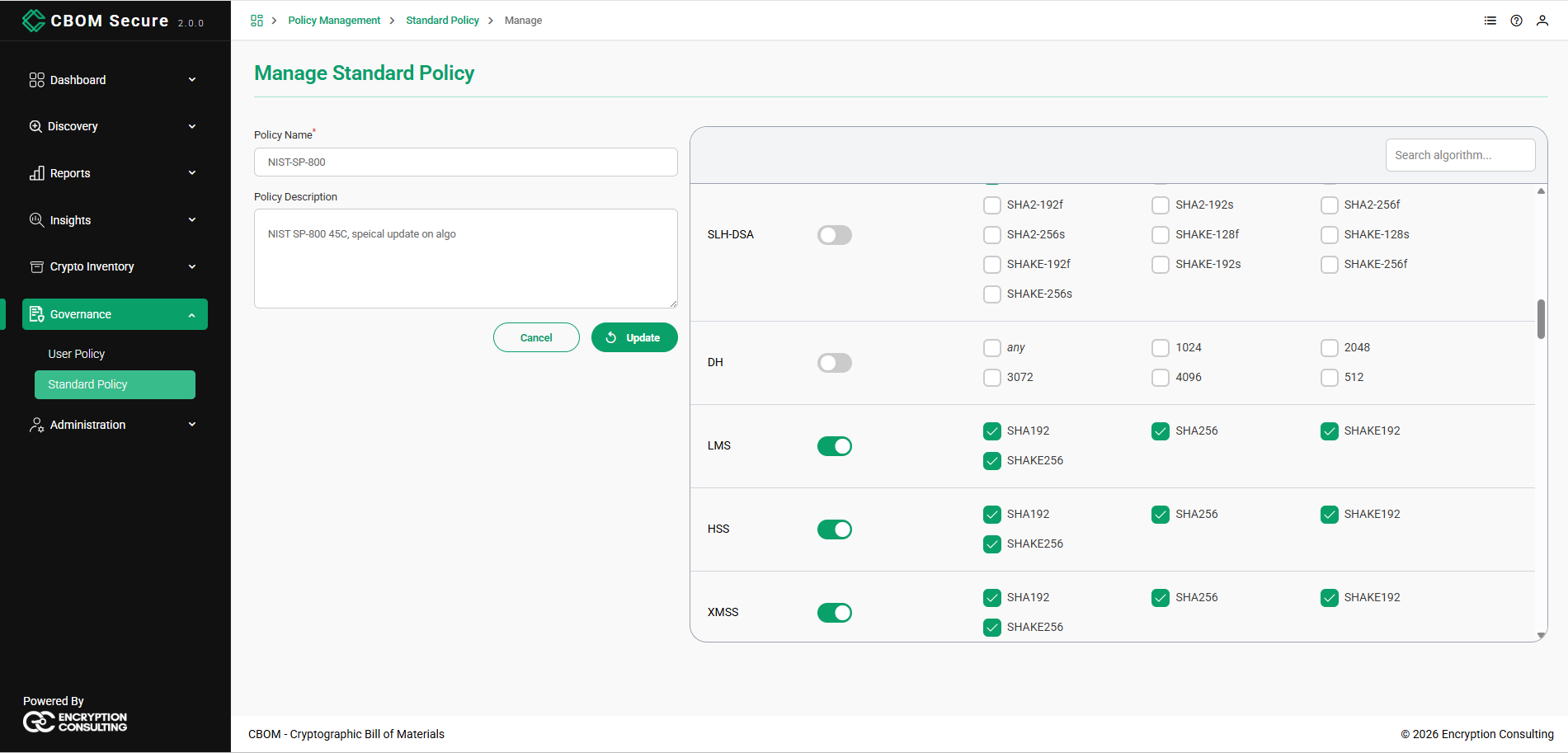
Click Add Standard Policy to open the Manage Standard Policy screen. Provide a Policy Name — the only required field, marked with a red asterisk — and optionally a Policy Description, then define the cryptography the policy allows using the algorithm panel on the right. A Search algorithm box helps you quickly locate a specific algorithm.
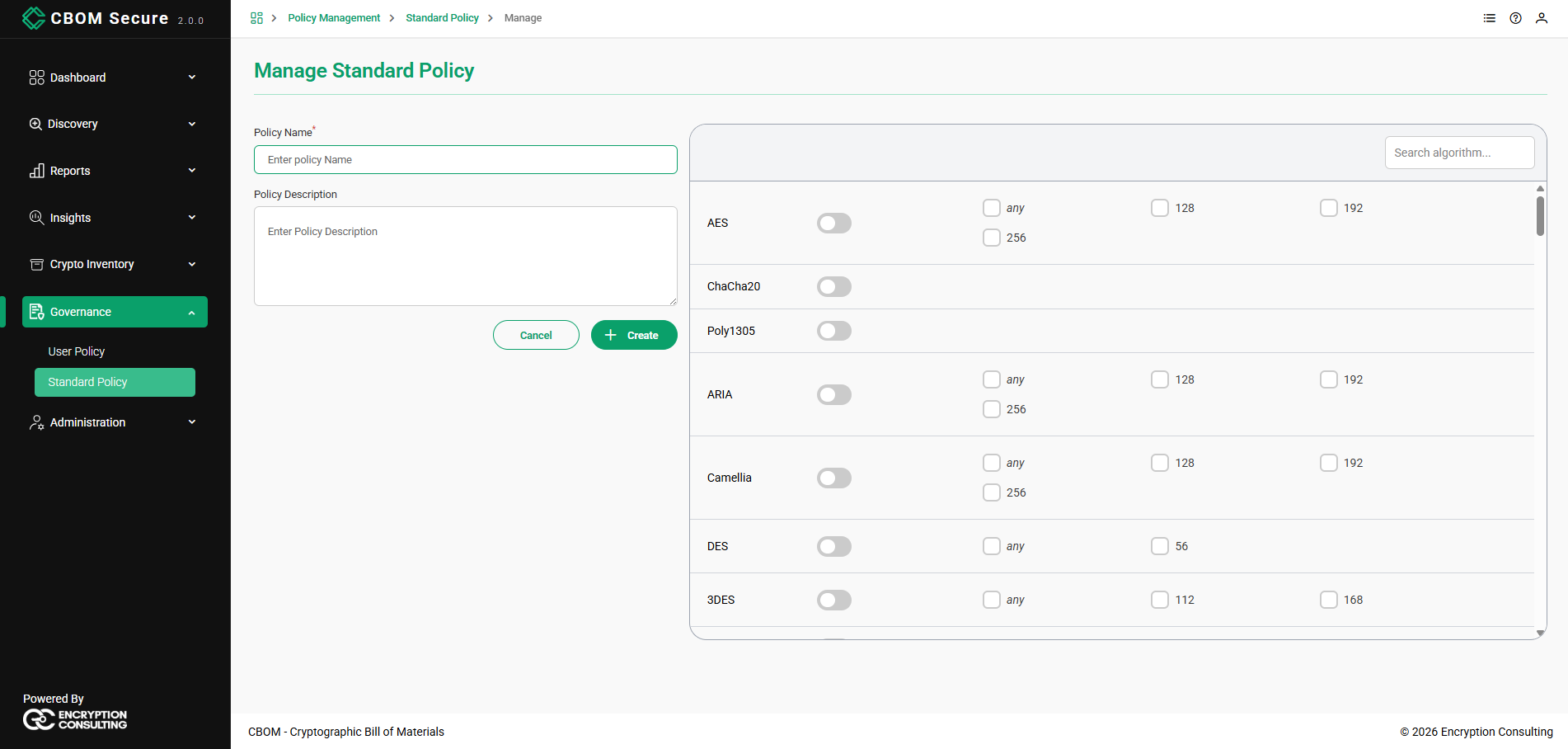
Each algorithm has a master toggle to enable or disable it, and — where applicable — checkboxes for the permitted parameters. What those parameters are depends on the algorithm:
-
Key sizes. AES, ARIA and Camellia offer any, 128, 192 and 256; DES offers 56; 3DES offers 112 and 168; DH offers 512 through 4096. ChaCha20 and Poly1305 have a toggle and nothing to choose.
-
Hash variants. LMS, HSS, XMSS and XMSSMT each offer SHA192, SHA256, SHAKE192 and SHAKE256.
-
Parameter sets. SLH-DSA offers its full set — SHA2-128f/128s through SHA2-256f/256s and SHAKE-128f/128s through SHAKE-256f/256s — so a policy can permit the fast variants and not the small ones, or the other way round.
Selecting any permits every size for that algorithm rather than naming them one by one. When the policy is configured, click Create to save it, or Cancel to discard your changes and return to the list.
Viewing Allowed Algorithms
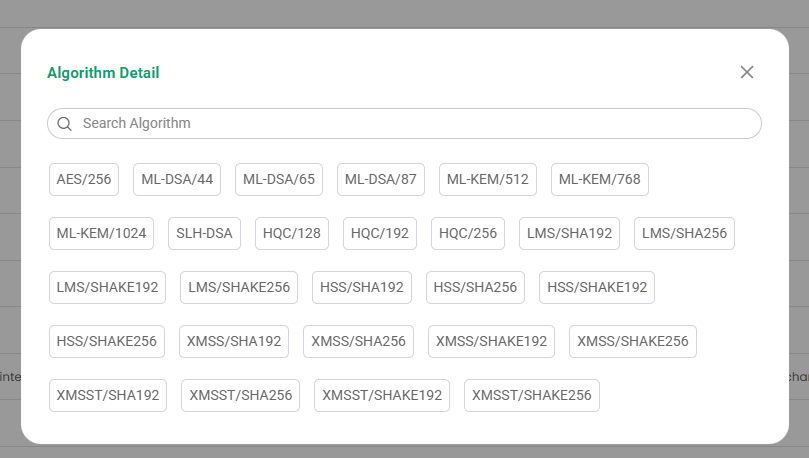
Click the View Algorithm Detail link in the Allowed Algorithms column of any policy to open the Algorithm Detail dialog. It lists every algorithm the policy permits as individual tags. For NIST-SP-800 as shipped that is AES/256, the ML-DSA and ML-KEM parameter sets, SLH-DSA, HQC/128, HQC/192, HQC/256, and the LMS, HSS, XMSS and XMSSMT entries with their SHA and SHAKE variants. A Search Algorithm box at the top lets you find a specific algorithm within the list. This view is read-only; to change which algorithms a policy allows, edit the policy.
Editing and Deleting a Standard Policy
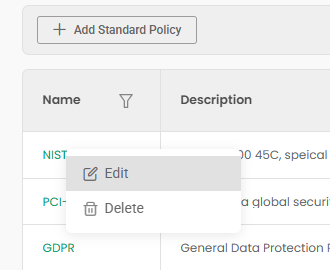
Right-click any policy row to open a context menu with Edit and Delete options.
-
Edit: Opens the Manage Standard Policy screen pre-populated with the policy's current name, description, and enabled algorithms. Adjust the details as needed and click Update to save your changes.
-
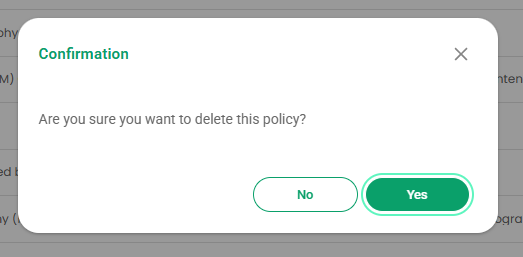
Delete: Removes the standard policy from the platform. A confirmation prompt is shown before the policy is permanently deleted.
Selecting Edit opens the Manage Standard Policy screen in edit mode, with an Update button in place of Create:
Selecting Delete raises a Confirmation dialog — Are you sure you want to delete this policy? — with No and Yes. Nothing is removed until you answer Yes.