
CBOM Documentation

CBOM Secure

  • Product Overview
    • Overview
    • Dashboard Interface
    • Dashboard Operations
    • Data Visualization
    • Overview
    • Host
    • Template
      • Networked Deployments
      • Cloud Deployments
      • Off-Grid Deployments
    • Discovery History
      • Tags
      • Tag Scope
      • Integrations
      • Cloud Servers
      • CycloneDX Export
    • Sensors Reference
    • Overview
    • Summary Report
    • PQC Report
    • AI Services
    • Source Code Visualizer
    • Key
    • Certificate
    • CipherSuites
    • Analysis
    • Policy Management
    • User Policy
    • Standard Policy
    • Overview
    • Cases
    • Criteria
    • Notification Format
    • Rules
      • Connections
      • Health
    • User Management
    • Roles & Permissions
    • Audit Trail
    • System Logs
    • Top Bar and User Menu
    • System Configuration
  • Login and Authentication
    • Introduction
      • Components
      • Data Flows
      • Execution Models
      • Incremental Scanning
      • Security Model
      • Topologies
      • Sizing Guide
      • HA and Scaling
      • Ports and Firewall
      • Prerequisites
      • Docker Compose
      • Native on Linux
      • Deployment Server
      • Install Troubleshooting
      • Validation Checklist
      • Managing Services
      • Logging
      • Certificates
      • Configuration
      • Backup and Recovery
      • Ops Troubleshooting
      • Methods
      • SAML 2.0 SSO
      • OIDC and Entra ID
      • Token Authentication
      • Password Policy
      • Sensor vs Connector
      • Sensor Guide Structure
      • Capability Matrix
      • GitHub Sensor
        • AWS
        • Azure
        • Google Cloud
        • Active Directory
        • LDAP Directories
        • AD CS
        • Thales Luna HSM
        • Entrust nShield HSM
        • HashiCorp Vault KMIP
        • Windows Cert Store
        • Linux Trust Store
        • MSSQL TDE
      • Roadmap
      • Integration Model
      • CrowdStrike
      • ServiceNow
      • ServiceNow and Jira Setup
      • Notification Engine
  • Administrative Guide
    • Glossary
    • Configuration Reference
    • Data Model Reference
    • API Reference
    • API Authentication
    • CycloneDX Export Specification
    • Risk and PQC Scoring
    • Built-in Standards
    • Widget Catalogue
    • AI Services Data Handling

Notification Format

A notification format decides how a case reads when it is sent: which sections appear, in what order, and their wording. Each output on a rule names a format. One format can therefore serve many rules, and restyling it changes every message that uses it.

The page is reached from Notifications > Notification Format in the left navigation menu.

Viewing Formats
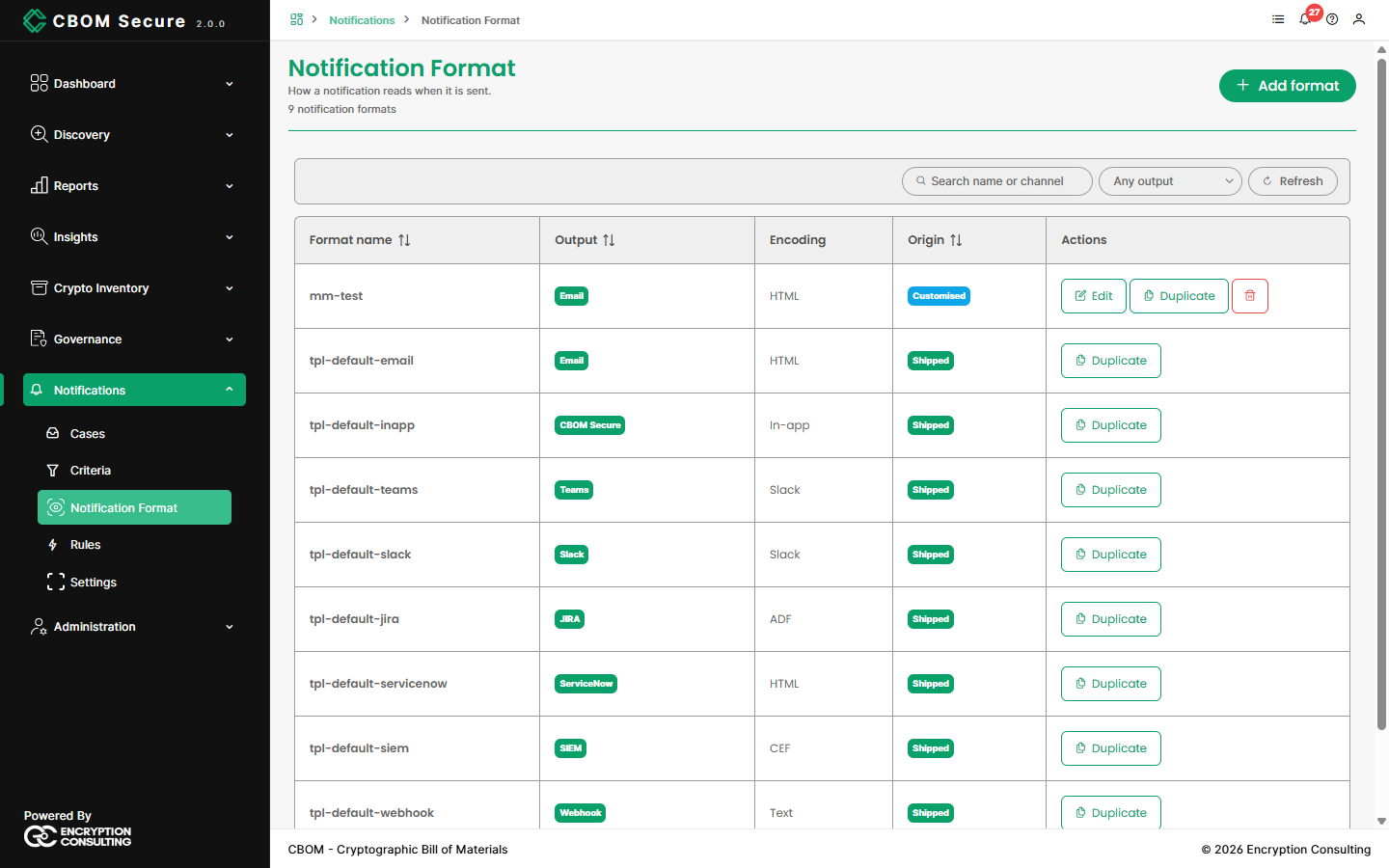
CBOM Secure Notifications — Notification Format
  • Format name: The name rules refer to.

  • Output: The channels the format is written for.

  • Encoding: The form the message takes on that channel — HTML for email and ServiceNow, ADF for Jira, a message card for Teams and Slack, CEF for syslog and SIEM, and the in-app form for the CBOM Secure inbox.

  • Origin: Shipped formats come with the product and cannot be edited or deleted. Customised formats are your own.

  • Actions: Edit, Duplicate and Delete.

Search by name or channel, or filter by output type. To change a shipped format, Duplicate it and edit the copy. A format that a rule still uses cannot be deleted.

Building a Format

Click Add format, or edit a customised one:
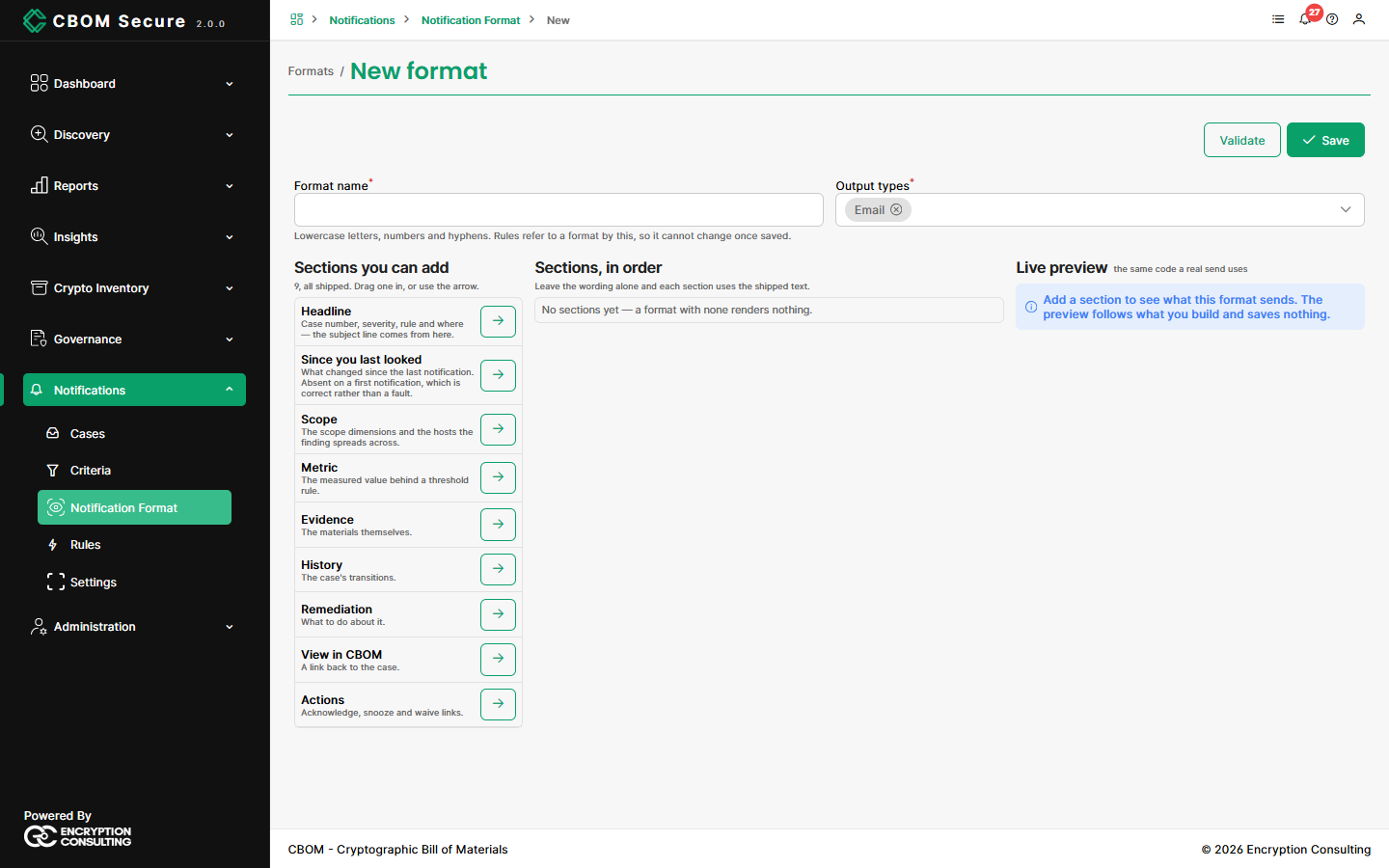
CBOM Secure Notifications — New format
  • Format name: Required. Lowercase letters, numbers and hyphens, not already in use. Rules refer to a format by this name, so it cannot be changed after saving.

  • Output types: Required — at least one channel the format is for.

  • Sections, in order: Drag sections in from Sections you can add, or use the arrow beside each. A format with no sections renders nothing, so at least one is required. Leave a section's wording alone and it uses the shipped text.

The nine sections:

  • Headline: Case number, severity, rule and where. The email subject line comes from here.

  • Since you last looked: What changed since the previous notification. It is absent from a first notification, as it should be.

  • Scope: What the finding covers, and the hosts it spreads across.

  • Metric: The measured value behind a threshold rule.

  • Evidence: The materials themselves.

  • History: The case's transitions.

  • Remediation: What to do about it.

  • View in CBOM: A link back to the case.

  • Actions: Links to acknowledge, snooze or waive.

Evidence and History are left out on channels whose messages are too compact for them: Teams, Slack, syslog and SIEM.

Previewing and Saving

The Live preview uses the same code as a real send, and follows your edits before you save. Choose the channel, the kind of message (opened, changed, still open, reopened or resolved), and optionally a real case to render from.

Validate checks the draft without saving it. Save stores it.

On this Page:
Support Privacy Policy Terms of Service

Copyright 2026 Encryption Consulting LLC. All rights reserved.