
Rules
A rule is what the notification engine watches for, and what it does about it. A rule has four parts:
When: When it runs.
Match: Which materials count as a finding.
Guards: How it keeps itself from flooding anyone.
Output: Which channels it sends to, and in which format.
Each finding it matches becomes a case.
The page is reached from Notifications > Rules in the left navigation menu.
Viewing Rules
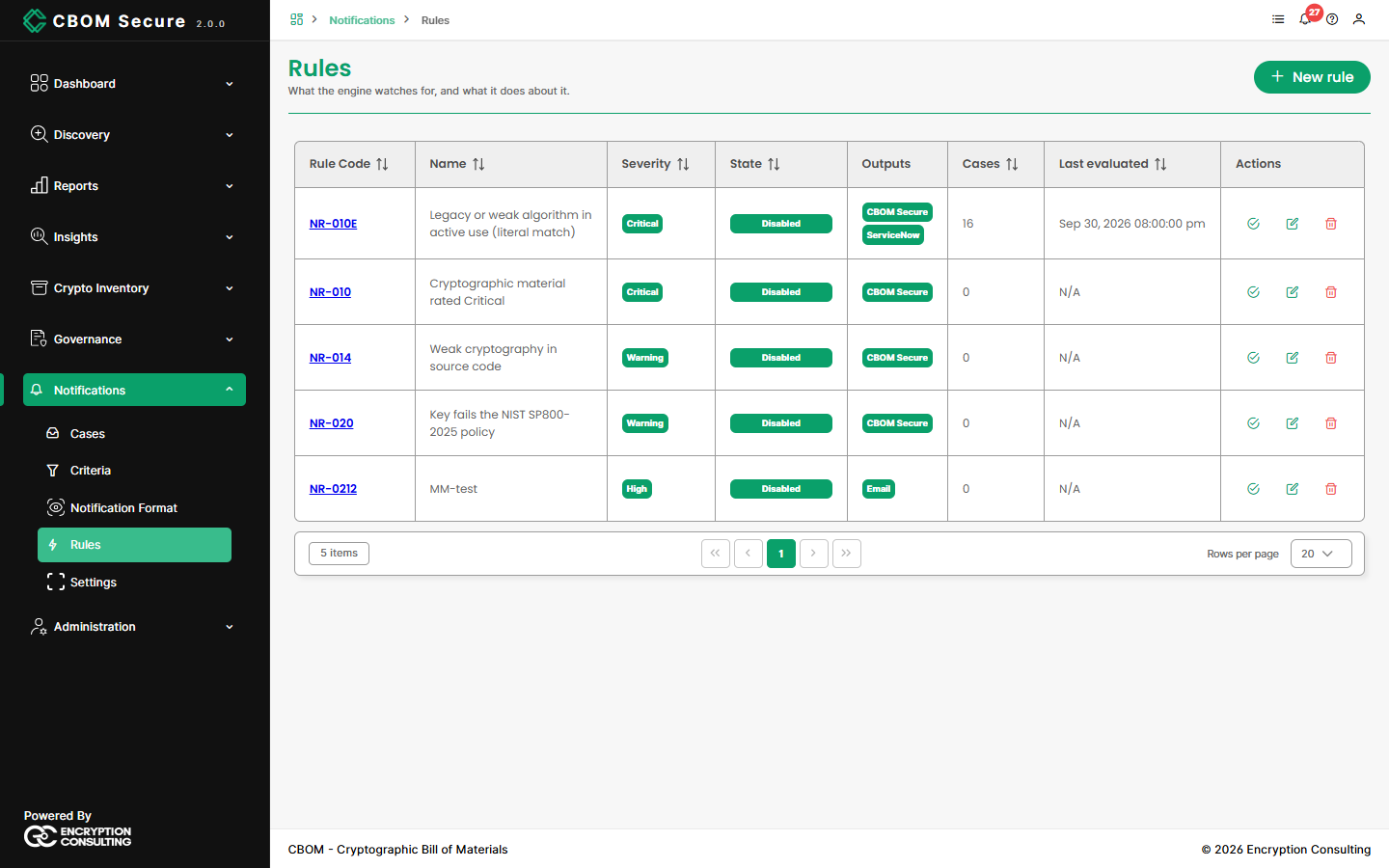
Rule Code: The rule's permanent identifier,
NR-followed by a number. Click it to open the rule.Name and Severity: What the rule is called, and the severity its cases carry.
State: Enabled or Disabled.
Outputs: The channels it delivers to.
Cases: How many open cases it currently holds.
Last evaluated: When it last ran.
The row actions are Simulate and enable (or Disable and Evaluate now on a rule that is already on), Edit and Delete. Disable a rule before you delete it.
A Rule's Detail Page
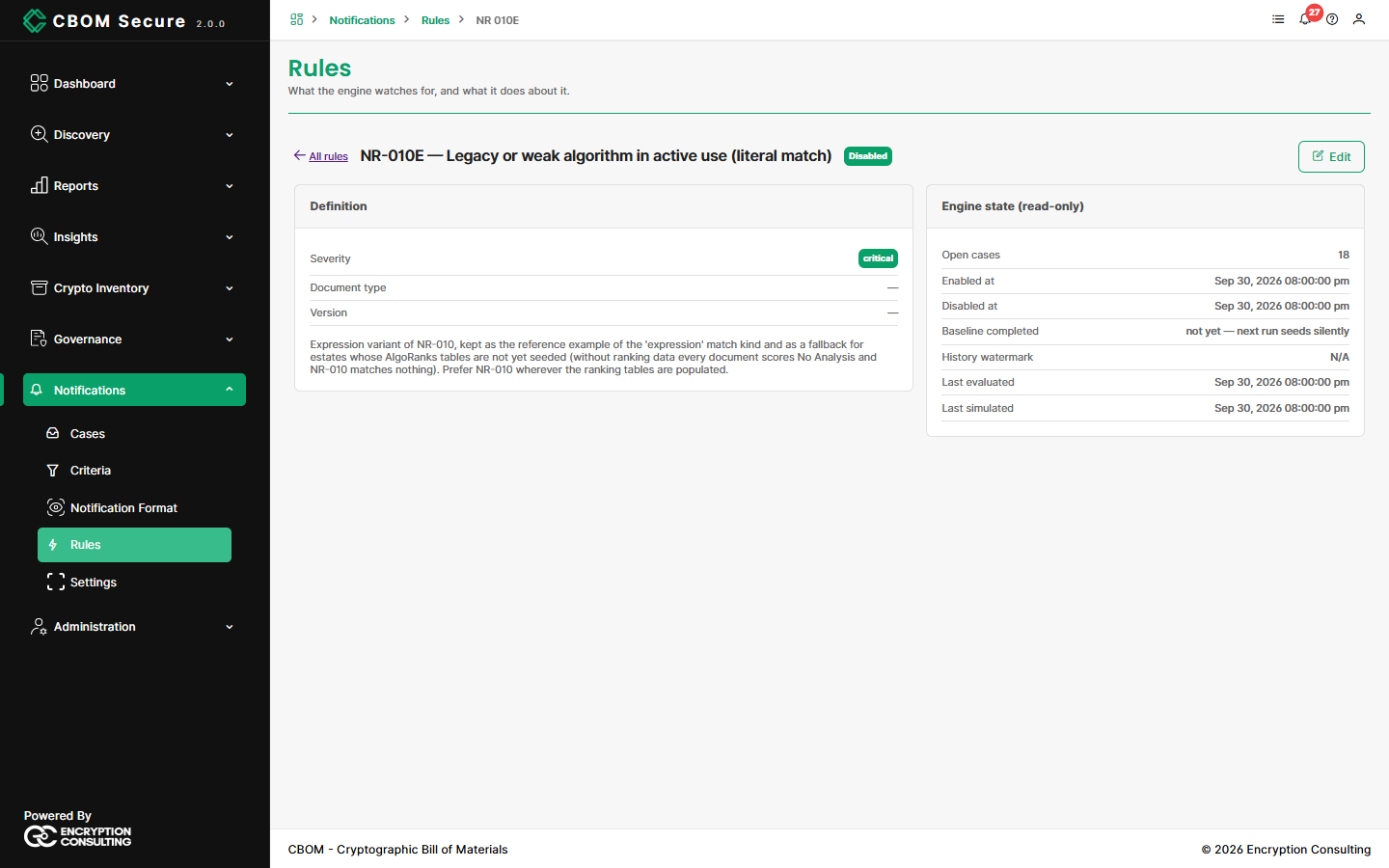
The Definition shows what the rule is. The read-only Engine state shows what the engine has done with it:
Open cases: How many cases the rule currently holds open.
Enabled at / Disabled at: When the rule was last switched on or off.
Last evaluated / Last simulated: When the rule last ran for real, and when it was last previewed.
-
Baseline completed: not yet — next run seeds silently means the rule's next run will record what it finds as baseline, not raise it.
Building a Rule
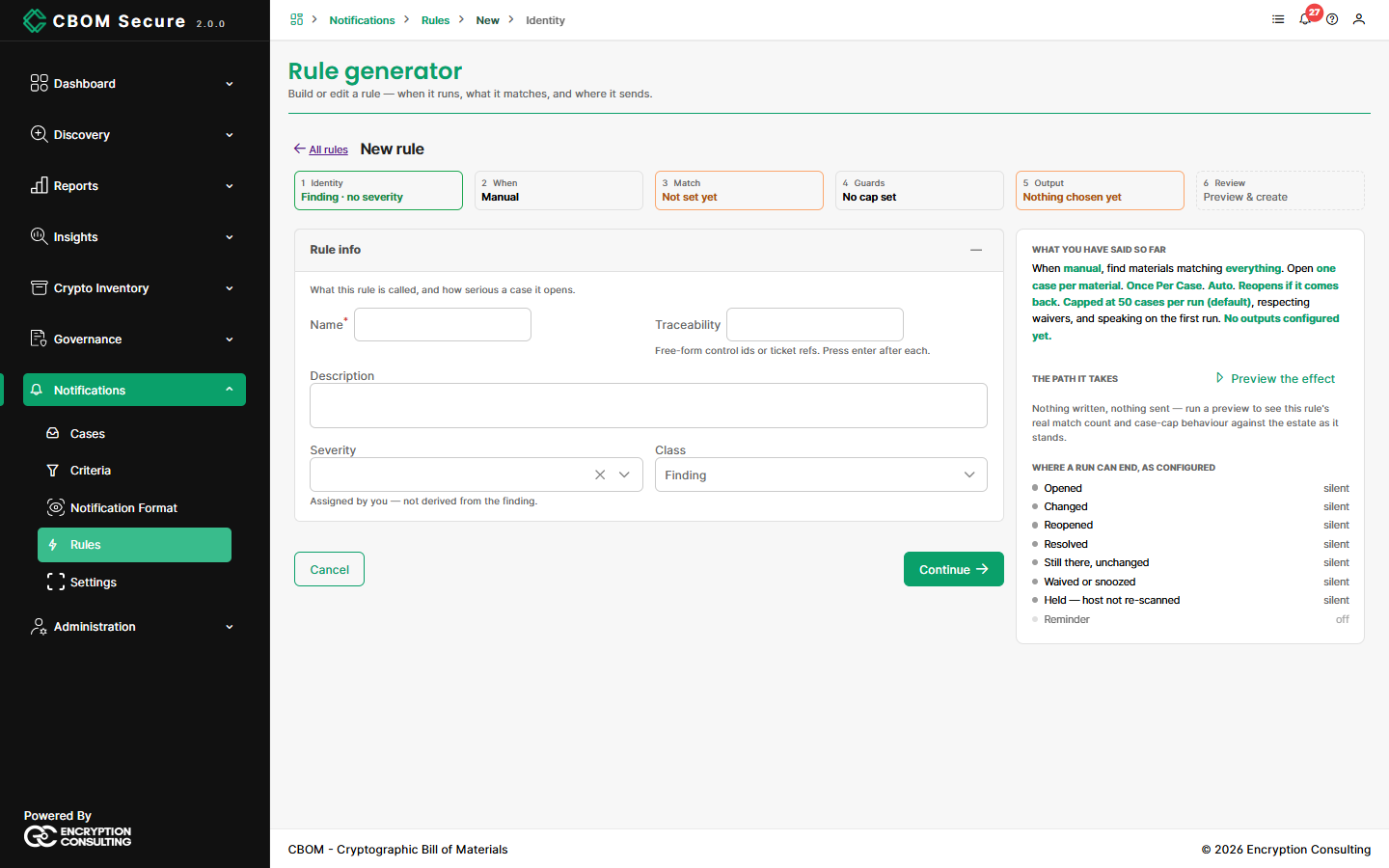
Click New rule to open the rule generator. It has six steps. The panel on the right restates in plain words what the rule will do, and shows where each kind of run would end.
1. Identity
Name (required), Traceability (control ids or ticket references; press Enter after each), Description, Severity, and Class. The severity is yours to assign; it is not derived from the finding. The rule code is allocated when the rule is created.
2. When
Event runs the rule when one of the chosen events happens — a collection finishing, a material being created or resolved, a deduplication pass completing, a task or deployment succeeding or failing, a failed sign-in, an integration sync failing. Manual runs it only when an administrator asks.
3. Match
-
Expression: Name the criteria to match, written in quotes and combined with
$and/$or/$not, or pick a saved scope. -
Criticality: Materials whose risk level is at or worse than the level you choose, optionally narrowed by criteria and key type.
Policy failure: Materials failing a chosen policy, optionally by key type.
Every kind can be narrowed further by a tag scope and by hosts. Once a rule is enabled, its match is locked. To change it, disable the rule first.
4. Guards
-
Max cases per run: Beyond this number, the engine opens one roll-up case instead of many. The default is 50.
Respect waivers: Waived findings stay quiet.
-
Seed silently on first run: The first run records what already exists as Baselined cases and notifies nobody. Only findings that appear afterwards are raised.
5. Output
-
Grouping: One case per document type (the recommended setting), per a list of dimensions you choose, or a single case for the whole rule.
-
Closure: How a case ends. Auto resolves it once the finding is gone for long enough. Manual waits for a person. External follows the ticket. Expire closes it after a set time. You also choose whether it reopens if the finding returns.
-
Repeat: How often a still-open case notifies again. The options are once, once per case (the default), on change, or every time with a cooldown, plus an optional reminder.
-
Outputs: One row per channel — the CBOM Secure inbox, email, Microsoft Teams, Jira or ServiceNow — each with its connection, format and audience. For Jira and ServiceNow you choose what happens to the ticket when a case opens, changes, is reminded, reopens or resolves.
6. Review
Lists every setting. A new rule is always saved disabled: Create and simulate saves it and moves straight on to enabling.
Simulating and Enabling
Simulate and enable first runs the rule against the estate as it stands. Nothing is written and nothing is sent. It reports how many groups would match, how many cases would open, how many would be recorded as baseline, and how many would be suppressed. It also warns if the per-run cap would be reached. Enable stays unavailable until a simulation has run.
Disabling a rule and enabling it again re-baselines it silently. Findings that appeared while it was off are recorded, not raised.