Host
The Host page is where you register and manage the target systems that Discovery runs against. A host record holds the connection details — hostname, operating system, and credentials — that allow CBOM Secure to reach a system and discover the cryptographic material on it. Hosts are the execution targets that discovery tasks are run against. The page is reached from Discovery > Host in the left navigation menu.
Viewing Hosts
Registered hosts are listed in a paginated table. The toolbar above the table carries Add Host, Import CSV and an Actions menu on the left. Actions stays disabled until you tick at least one row, and then offers Bulk Delete Hosts and Create Task. A checkbox in each row (and in the header) selects hosts for those bulk actions.
On the right are the Source filter chips — All, Manual and CSV — followed by a Search ID, hostname or IP box, Search, Clear and a full-screen toggle.
Two controls appear only when an active CrowdStrike integration is configured under Discovery > Settings > Integrations: a Sync CS button on the left, which pulls the latest devices from CrowdStrike Falcon, and a CrowdStrike chip alongside the other source filters.
When a sync finds devices that may already exist as hosts, a warning banner appears above the table with a Review button. It opens a dialog listing each flagged device beside the host it resembles, labelled by what matched (Hostname + IP match, Hostname match or IP match) and comparing hostname, IP address, OS, OS version, source and AID field by field. Resolve each one with Merge or Keep Separate, or tick several and resolve them together. Until an entry is resolved it stays in the queue and the banner remains; the banner itself can be dismissed without resolving anything.
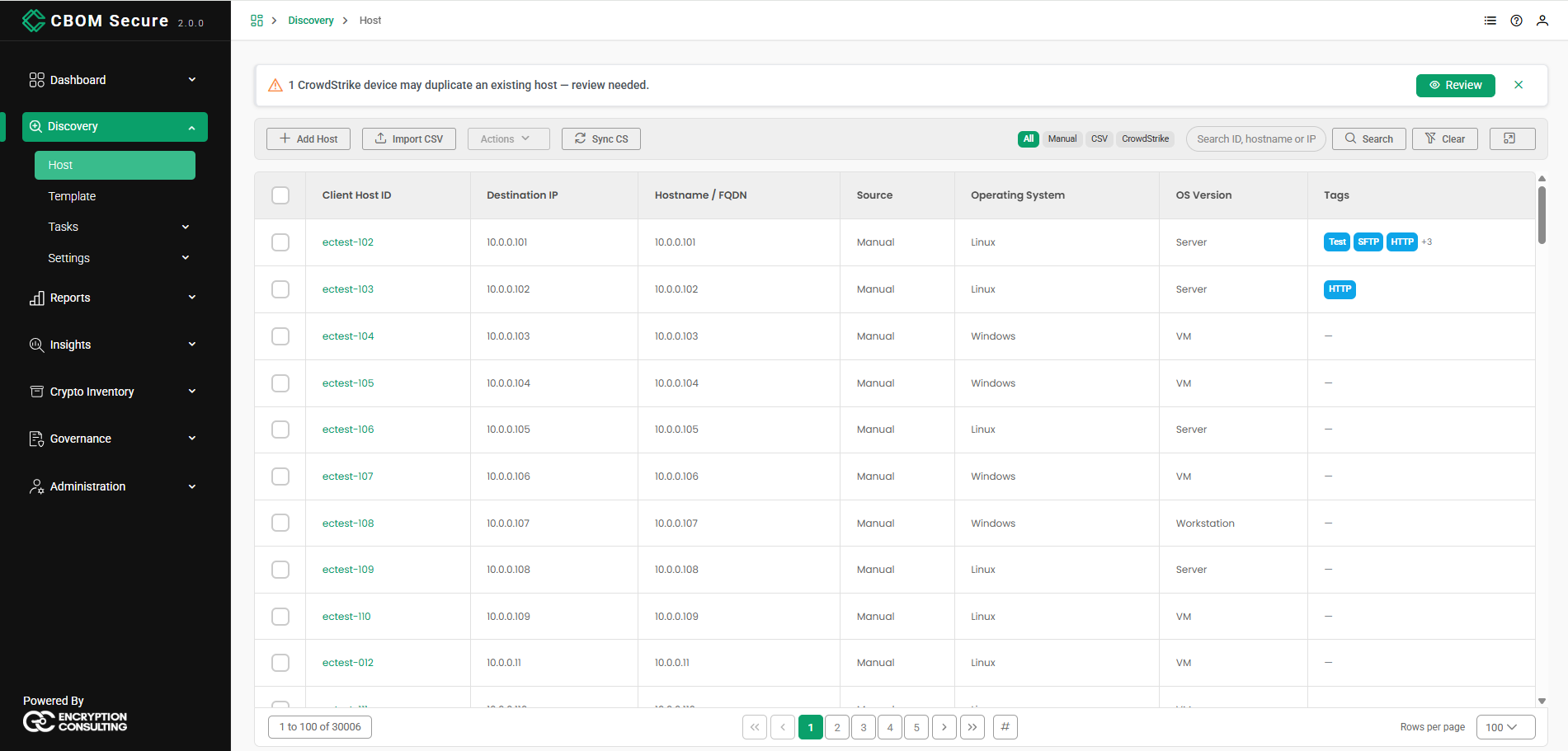
Each row describes a single host:
-
Client Host ID: The identifier assigned to the host (for example, ectest-011). Click it to open Host Details.
-
Destination IP: The address discovery connects to, as entered in Target Hostname.
-
Hostname / FQDN: The hostname the target reported for itself, which may differ from the address used to reach it.
-
Source: How the host record was created — manual, csv, or the name of the integration that supplied it (for example, crowdstrike).
-
Operating System: The host's operating system (for example, Linux or Windows).
-
OS Version: The system type or version (for example, Server, Workstation, or VM).
-
Tags: The tags applied to the host, shown as chips. Up to three are displayed; any beyond that are summarised as +n. A host with no tags shows a dash. Tags are maintained under Discovery > Settings > Tags.
Type into the Search ID, hostname or IP box and click Search to find a host, or Clear to reset the search. This table is server-paged: the search and the Source chips are applied by the server, so they narrow the whole result set rather than only the rows on screen.
The footer below the table shows the record range on the left (for example, 1 to 20 of 143), the first, previous, numbered, next and last page links in the centre, and a Rows per page selector on the right offering 10, 20, 50 or 100 rows. Tables open at 20 rows unless an administrator has set a different size under UI Configuration > Table Defaults in System Configuration. When the list runs to more than five pages, a # (Jump to Page) button appears after the last-page link for typing a page number directly.
Adding a Host
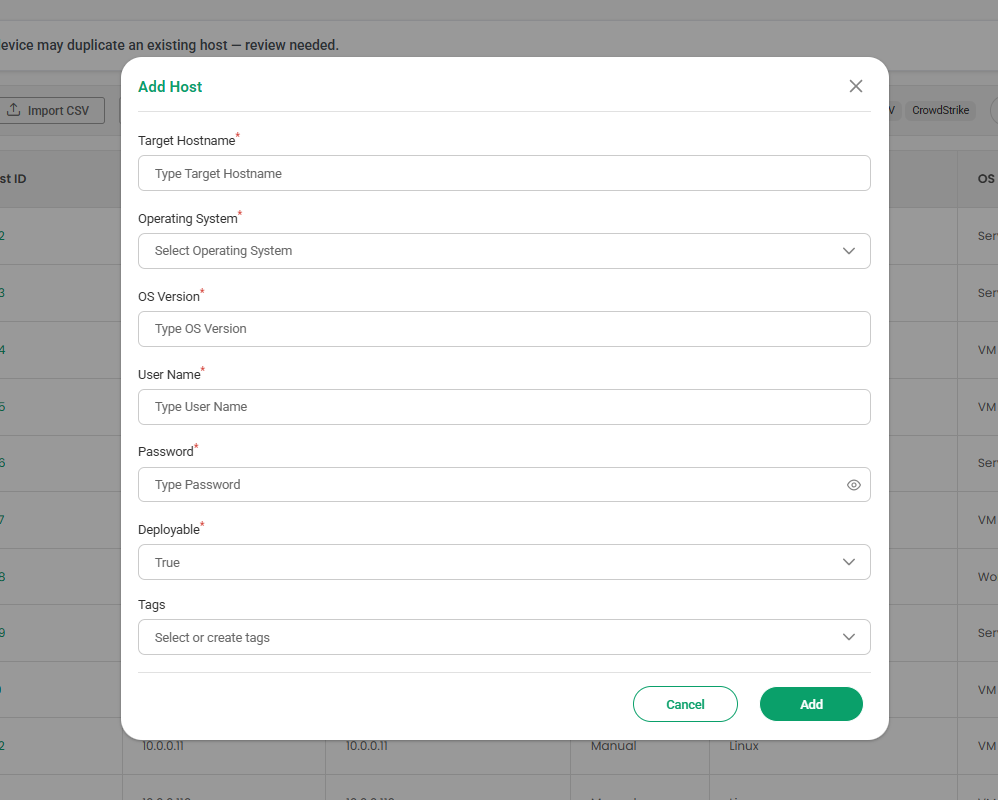
Click Add Host to open the Add Host dialog and enter the host's details. Every field except Tags is required, as indicated by the red asterisk:
-
Target Hostname: The hostname or IP address of the system to discover.
-
Operating System: The host's operating system.
-
OS Version: The system type or version.
-
User Name / Password: The credentials used to connect to the host. Credentials are stored encrypted; the eye icon shows or hides the password as you type.
-
Deployable: Whether the host is eligible for discovery deployment — set to True or False. Only deployable hosts survive the filter applied by Actions > Create Task.
-
Tags: Optional labels for grouping and filtering the host. Pick existing tags from the dropdown, or type a new name and create it from the dropdown's footer without leaving the dialog.
Click Add to register the host, or Cancel to close the dialog without saving.
Importing Hosts from CSV
To register many hosts at once, click Import CSV and choose a CSV file containing the host details. Only .csv files are accepted; anything else is rejected with an error before the upload starts.
A CSV Import Tracking panel then opens in the top-right corner and follows the import while it runs, reporting Status, Processed Rows and Total Rows above a progress bar. The panel is not modal, so you can keep working on the page while the import proceeds.
Hosts imported this way are listed with a Source of csv, so the CSV source chip narrows the table to exactly the records a bulk import created.
Host Actions
Right-click any host row to open a context menu with View Details, Edit Host, and Delete options.
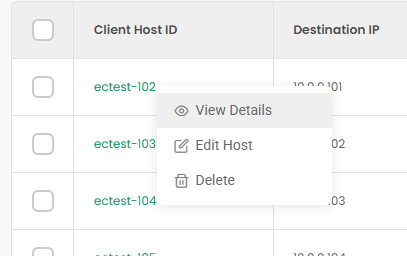
View Details
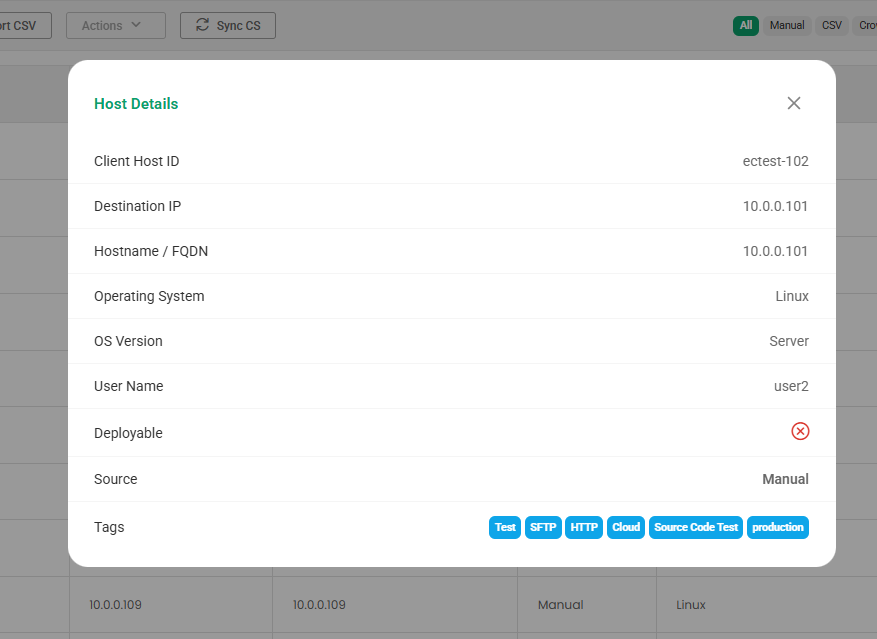
Opens the Host Details dialog, a read-only view of the host's full record — Client Host ID, Destination IP, Hostname / FQDN, Operating System, OS Version, User Name, Deployable, Source and Tags. Deployable is shown as a tick or a cross rather than the words, and Tags as chips. The stored password is never shown.
Edit Host
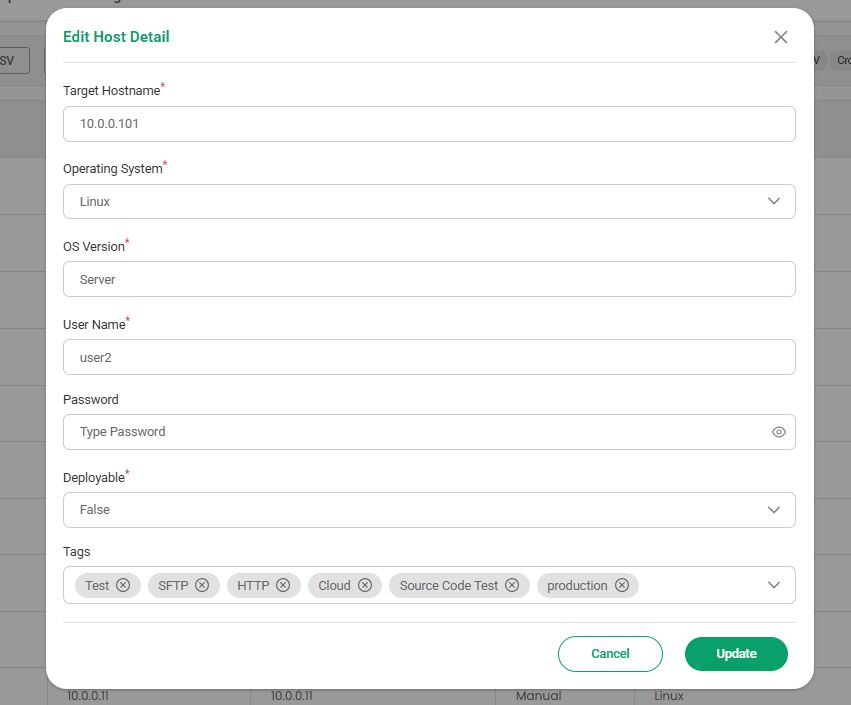
Opens the Edit Host Detail dialog, pre-populated with the host's current details. Update the hostname, operating system, OS version, user name, password, deployable status or tags as needed, then click Update to save your changes (the password is only changed if you enter a new one).
A host supplied by an integration is handled differently. The dialog shows a notice naming the integration that owns the record and leaves only Deployable and Tags editable, because every other field is overwritten on the next sync from the source system.
Delete
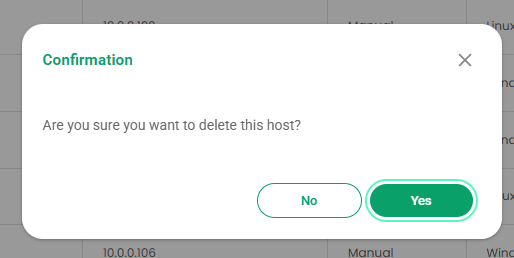
Removes the host from the platform. A Confirmation prompt (Are you sure you want to delete this host?) is shown first; answer Yes to delete it permanently or No to keep it.