
Tags
Tags are the shared labels used to group and filter things across Discovery. A tag defined here can be applied to hosts, to tasks, and to the cryptographic material discovery returns — so one vocabulary covers the whole section rather than each page inventing its own.
The page is reached from Discovery > Settings > Tags in the left navigation menu.
Viewing Tags
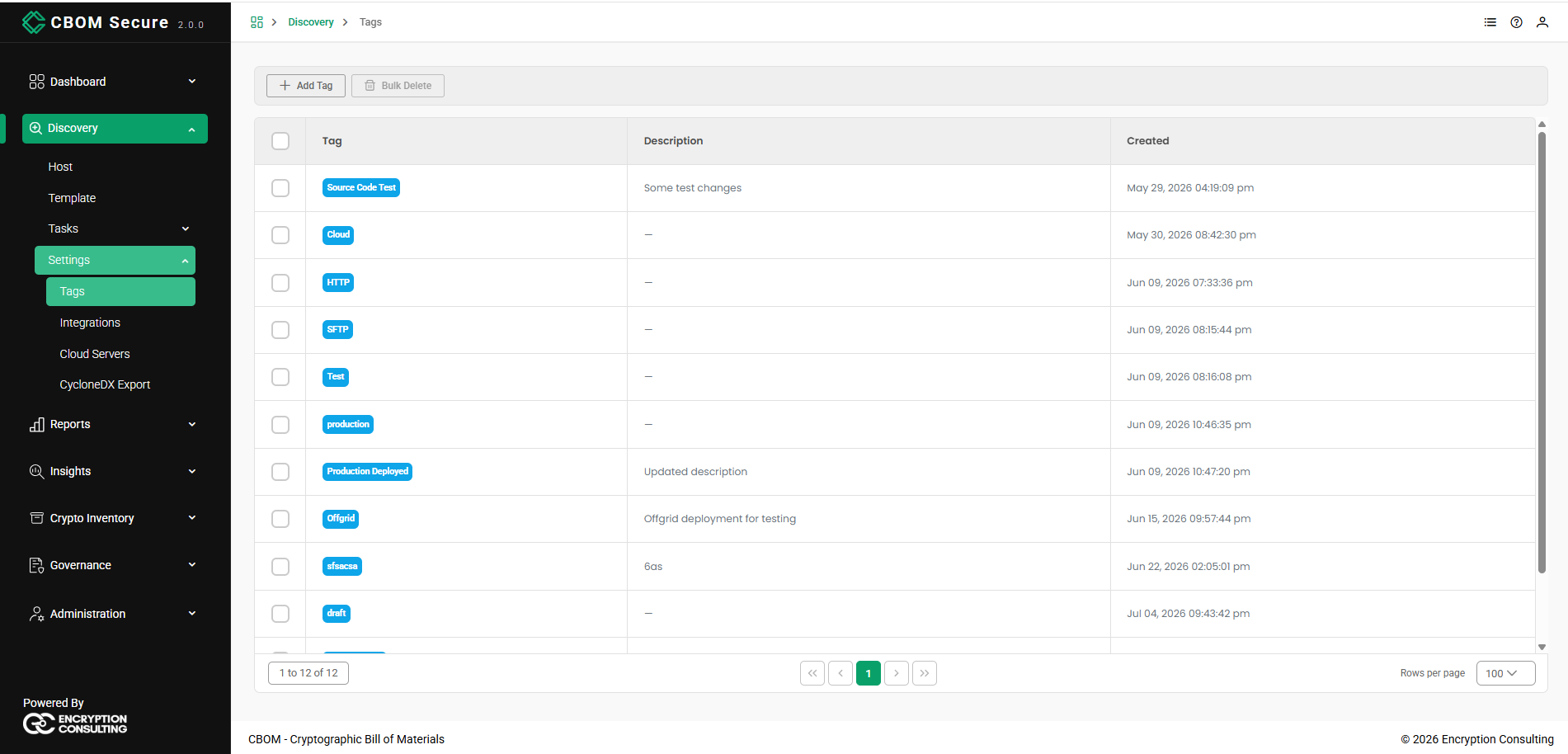
The toolbar carries Add Tag and Bulk Delete, the latter disabled until you tick at least one row.
-
Tag: The tag itself, shown as the chip you will see wherever it is applied.
-
Description: What the tag is for, or a dash if none was given.
Created: When the tag was defined.
The footer carries the same controls as every other table in the portal: the record range on the left, the page links in the centre, and a Rows per page selector on the right.
Adding a Tag
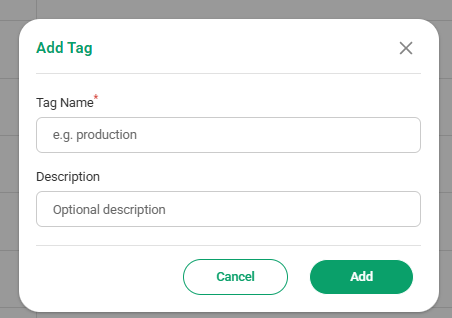
Click Add Tag and give the tag a name:
-
Tag Name: Required, and must be unique. This is the text that appears on the chip, so keep it short.
-
Description: Optional. Worth filling in for a tag whose meaning is not obvious from its name.
Click Add to create the tag, or Cancel to discard it.
Tags can also be created without coming here: the tag pickers on the Host, Task and Cloud Task dialogs let you type a new name and create it in place. This page is where you rename, describe and remove them.
Editing and Deleting a Tag
Right-click any row for Edit Tag and Delete.

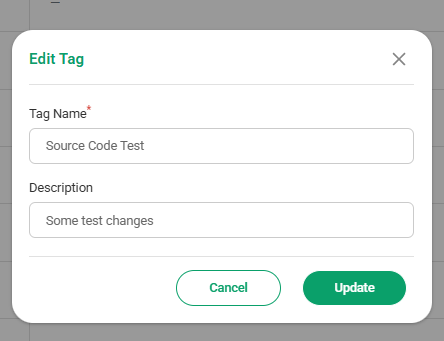
Edit Tag reopens the dialog on the saved values, with Update in place of Add. Renaming a tag changes it everywhere it is applied; nothing is unassigned.
Delete asks to confirm, and the prompt states the consequence plainly: Remove this tag? It will be unassigned from any linked material. The tag disappears from every host, task and document that carried it. Those records are not otherwise affected — only the label is removed.
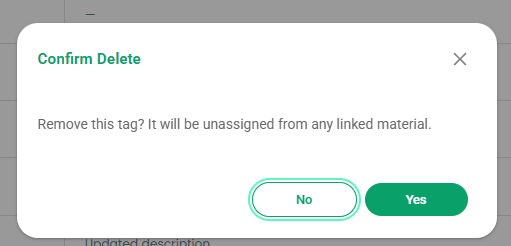
Bulk Delete does the same for every ticked row, behind its own Confirm Bulk Delete prompt.