
Cloud Servers
A Cloud Server is the machine a cloud discovery task runs from. Where a networked task reaches out to each target in turn, a cloud task runs on one of these servers and talks to the cloud provider's APIs from there. Registering a server here is what makes it selectable on a Cloud Deployment.
The page is reached from Discovery > Settings > Cloud Servers in the left navigation menu, and needs the cloud-server:read permission.
Viewing Cloud Servers
Add Cloud Server sits on the toolbar; each registered server is one row.
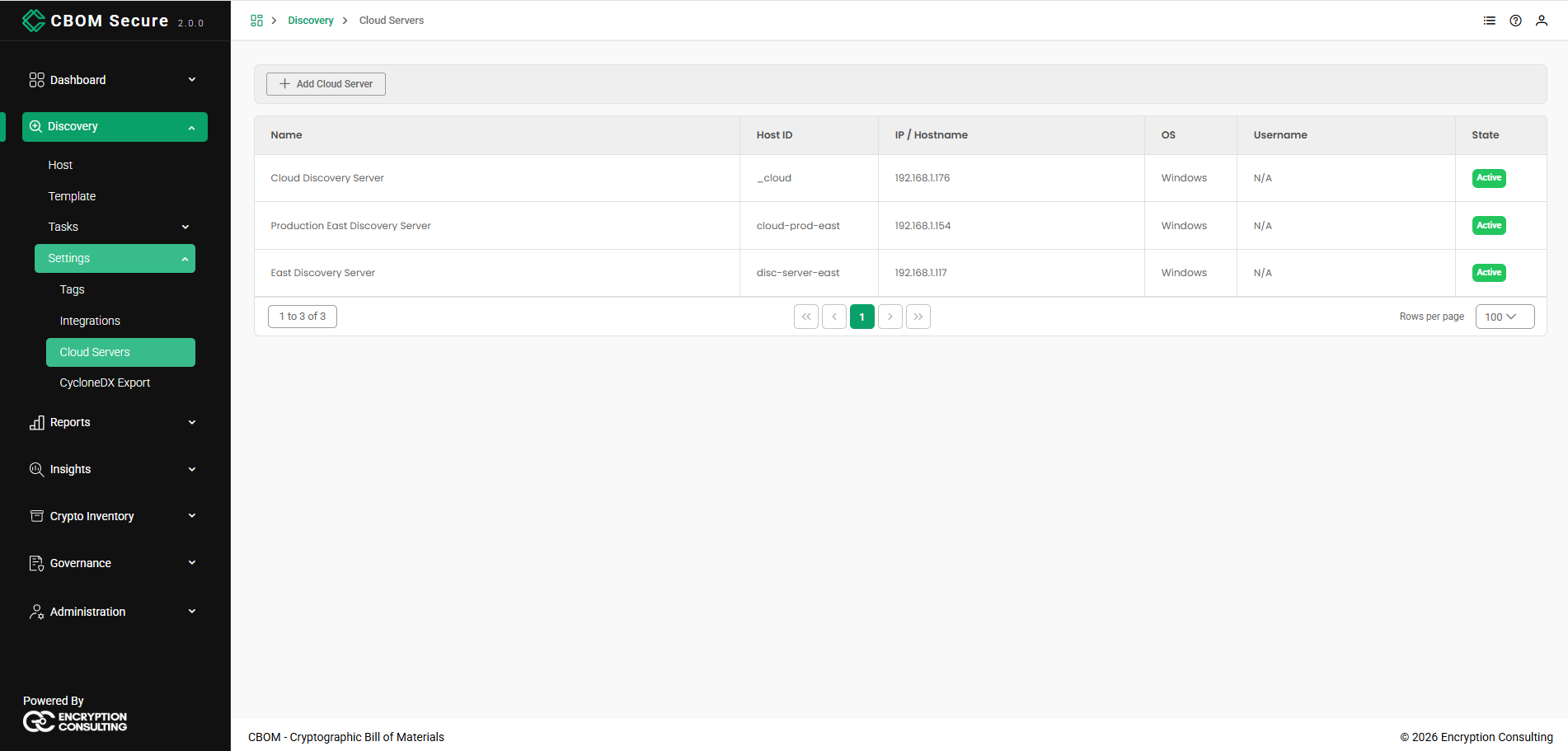
Name: Your own name for the server.
-
Host ID: The identifier the platform uses for it internally.
IP / Hostname: How the server is reached.
OS: Its operating system.
-
Username: The account used to connect, or N/A where none is recorded.
-
State: Active for a server ready to use, or Draft for one saved part-finished. A draft cannot be used by a task until it is completed.
The footer carries the same controls as every other table in the portal: the record range on the left, the page links in the centre, and a Rows per page selector on the right.
Adding a Cloud Server
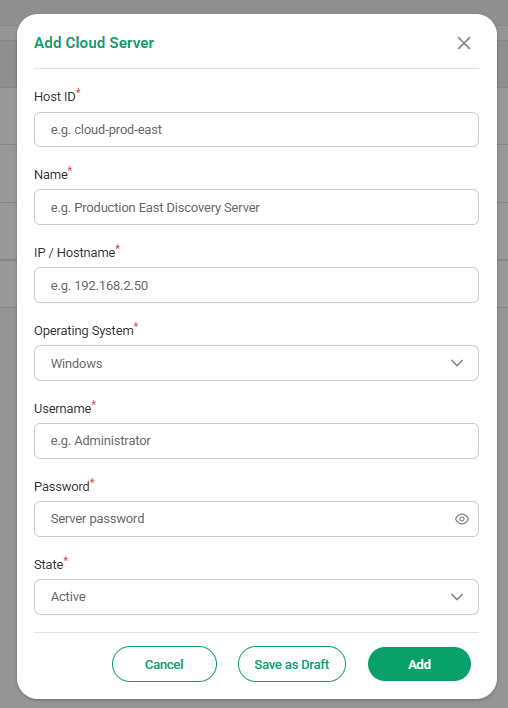
Click Add Cloud Server and enter the server's details. Every field is required:
-
Host ID: A short identifier for the server, for example cloud-prod-east.
Name: A readable name shown in the lists.
IP / Hostname: The address to connect to.
Operating System: The server's platform.
-
Username / Password: The credentials used to reach it. The password is stored encrypted; the eye icon shows or hides it as you type.
-
State: Active to make the server available to tasks straight away.
Click Add to register the server, or Save as Draft to keep an incomplete record you intend to come back to — useful when you are waiting on credentials. Cancel discards it.
Cloud Server Actions
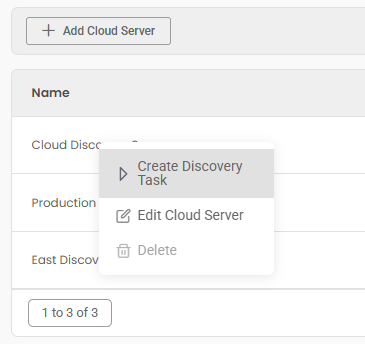
Right-click any row for its actions. Two of the three change with the server's state:
-
Create Discovery Task: Starts a cloud task with this server already chosen. Disabled for a draft, which cannot run anything yet.
-
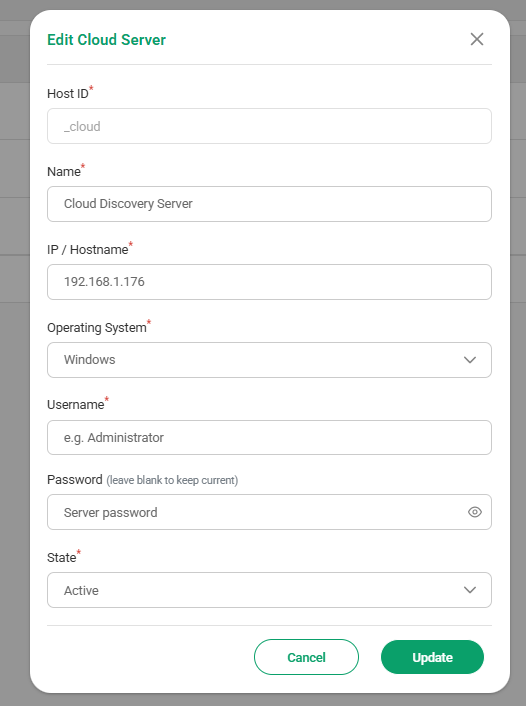
Edit Cloud Server / Edit Draft: Reopens the dialog on the saved values. Host ID is fixed once the server exists, and Password is labelled leave blank to keep current, so an empty field keeps the stored credential rather than clearing it.
-
Delete / Discard Draft: Removes the record. It is disabled for the platform's default server.
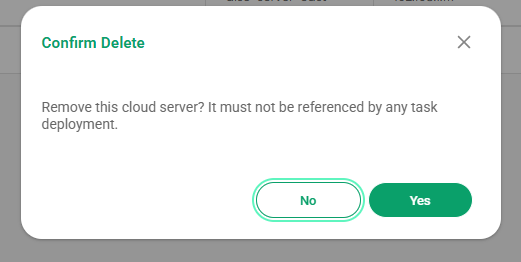
The delete confirmation states the constraint: Remove this cloud server? It must not be referenced by any task deployment. Delete the cloud tasks that use it first. For a draft the prompt is Confirm Discard instead, since nothing can be referencing it.
Creating a Task from a Server
Create Discovery Task opens the same Create Cloud Task dialog as the Cloud Deployments page, with the Cloud Server field already filled in and showing the server's host ID, address and platform.
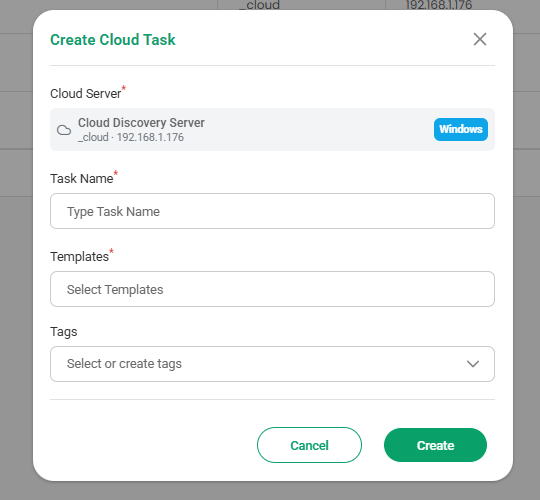
Give the task a name, choose one or more Cloud-delivery templates and any tags, then click Create. The new task appears under Discovery > Tasks > Cloud Deployments, ready to deploy.