
CBOM Documentation

CBOM Secure

  • Product Overview
    • Overview
    • Dashboard Interface
    • Dashboard Operations
    • Data Visualization
    • Overview
    • Host
    • Template
      • Networked Deployments
      • Cloud Deployments
      • Off-Grid Deployments
    • Discovery History
      • Tags
      • Tag Scope
      • Integrations
      • Cloud Servers
      • CycloneDX Export
    • Sensors Reference
    • Overview
    • Summary Report
    • PQC Report
    • AI Services
    • Source Code Visualizer
    • Key
    • Certificate
    • CipherSuites
    • Analysis
    • Policy Management
    • User Policy
    • Standard Policy
    • Overview
    • Cases
    • Criteria
    • Notification Format
    • Rules
      • Connections
      • Health
    • User Management
    • Roles & Permissions
    • Audit Trail
    • System Logs
    • Top Bar and User Menu
    • System Configuration
  • Login and Authentication
    • Introduction
      • Components
      • Data Flows
      • Execution Models
      • Incremental Scanning
      • Security Model
      • Topologies
      • Sizing Guide
      • HA and Scaling
      • Ports and Firewall
      • Prerequisites
      • Docker Compose
      • Native on Linux
      • Deployment Server
      • Install Troubleshooting
      • Validation Checklist
      • Managing Services
      • Logging
      • Certificates
      • Configuration
      • Backup and Recovery
      • Ops Troubleshooting
      • Methods
      • SAML 2.0 SSO
      • OIDC and Entra ID
      • Token Authentication
      • Password Policy
      • Sensor vs Connector
      • Sensor Guide Structure
      • Capability Matrix
      • GitHub Sensor
        • AWS
        • Azure
        • Google Cloud
        • Active Directory
        • LDAP Directories
        • AD CS
        • Thales Luna HSM
        • Entrust nShield HSM
        • HashiCorp Vault KMIP
        • Windows Cert Store
        • Linux Trust Store
        • MSSQL TDE
      • Roadmap
      • Integration Model
      • CrowdStrike
      • ServiceNow
      • ServiceNow and Jira Setup
      • Notification Engine
  • Administrative Guide
    • Glossary
    • Configuration Reference
    • Data Model Reference
    • API Reference
    • API Authentication
    • CycloneDX Export Specification
    • Risk and PQC Scoring
    • Built-in Standards
    • Widget Catalogue
    • AI Services Data Handling

Login and Authentication

Accessing the CBOM Secure web portal requires authentication. Sign in either with a username and password held in the platform's identity server, or through a single sign-on provider your administrator has configured.
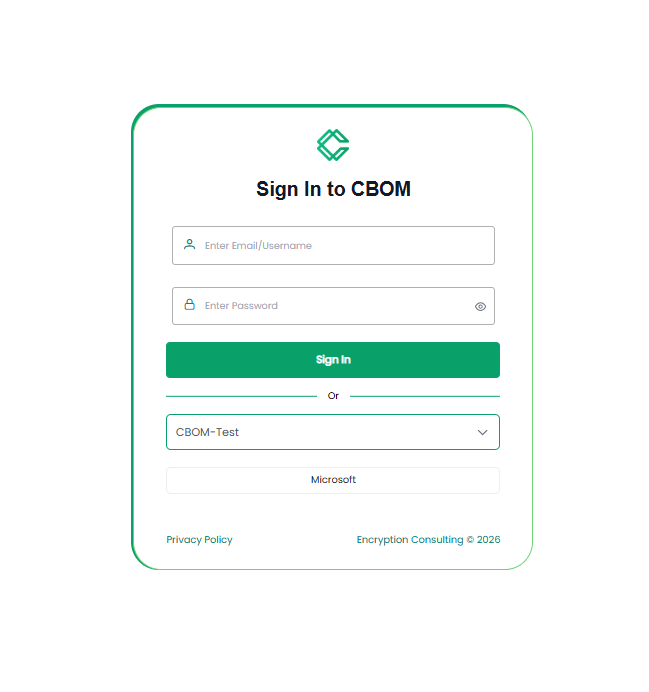
CBOM Secure sign-in page

Initial Login

Navigate to the CBOM Secure portal URL provided by your administrator. The page is headed Sign In to CBOM and takes two values:

  • Email/Username: Your account name, entered in the field marked Enter Email/Username.

  • Password: Your password, entered in the field marked Enter Password. Use the eye icon at the right of the field to show or hide the value as you type.

Click Sign In. On success you are taken to your dashboard — your own saved layout if you have one, otherwise the starting layout configured for your roles. What you can reach from there depends on the roles assigned to your account; see User Management for how roles and permissions fit together.

The landing page is Dashboard > Home. Its toolbar names the layout currently loaded and carries Refresh, Update and Add Widgets; each widget gains a pencil for its title, a kebab menu and a resize handle. All of that is covered in Dashboard Operations.
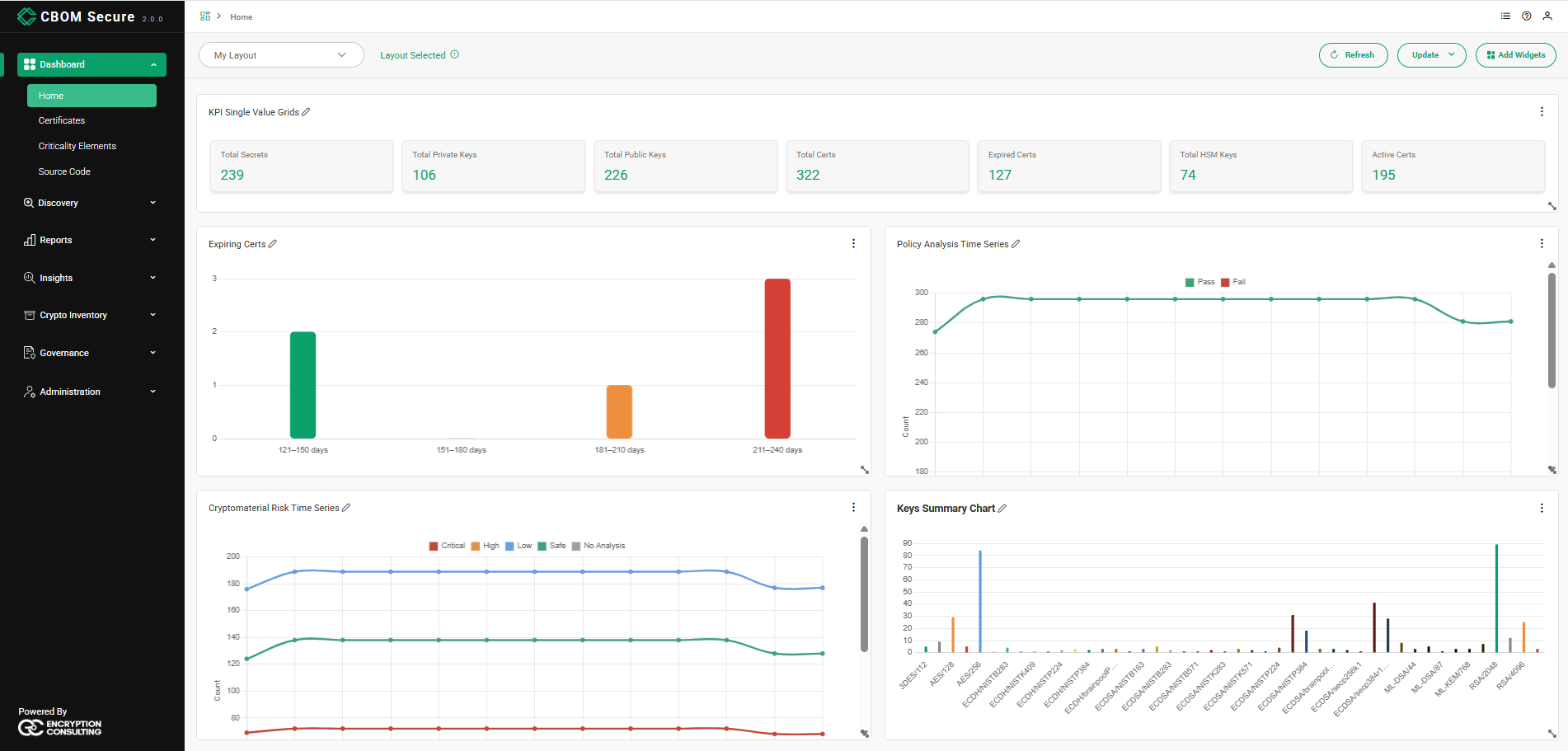
CBOM Secure dashboard after sign-in

Signing In with SSO

Where single sign-on is available, an Or divider appears below Sign In, followed by a Select a Realm dropdown. Choose the realm your account belongs to and the identity providers configured for it appear as buttons beneath it — one per provider. Clicking one hands you to that provider to authenticate, and returns you to the portal afterwards.

If no realm dropdown is shown, no external providers are configured and username-and-password sign-in is the only route in.

Staying Signed In

A successful sign-in opens a session with a limited lifetime. The portal renews it for you in the background, well before it lapses, so ordinary work is never interrupted by a re-login. You do not need to do anything to keep a session alive while the tab is open.

If a session cannot be renewed — after a long period with the browser closed, or if an administrator revokes it — a Session Expired dialog appears with a Login Again button, which returns you to this page. A brief network interruption is not treated as an expiry: the portal reports a connection error and keeps your session.

To end a session yourself, choose Logout from the user menu at the top right of any page.

On this Page:
Support Privacy Policy Terms of Service

Copyright 2026 Encryption Consulting LLC. All rights reserved.