
AI Services
AI Services provides CBOM AI Query, a conversational assistant that lets you ask questions about your cryptographic assets in plain English and receive answers in seconds. Instead of building filters or writing queries, you simply type a question — such as how many certificates you have, or which hosts use the weakest keys — and the assistant interprets it, retrieves the relevant data from your CBOM inventory, and responds with a summary, a table, or a chart as appropriate.
The page is reached from Insights > AI Services in the left navigation menu, and needs the ai-services:access permission.
The CBOM AI Query Interface
The page is a chat workspace. A Chats panel on the left holds your saved conversations and a list of suggested prompts; the conversation itself fills the main area, with a row of controls above it and the message box below.
A new conversation opens on the landing view, headed CBOM AI Query. / How can I Help you Today? above the invitation to Ask questions about your cryptographic assets in plain English, with the suggested prompts offered as buttons you can click instead of typing.
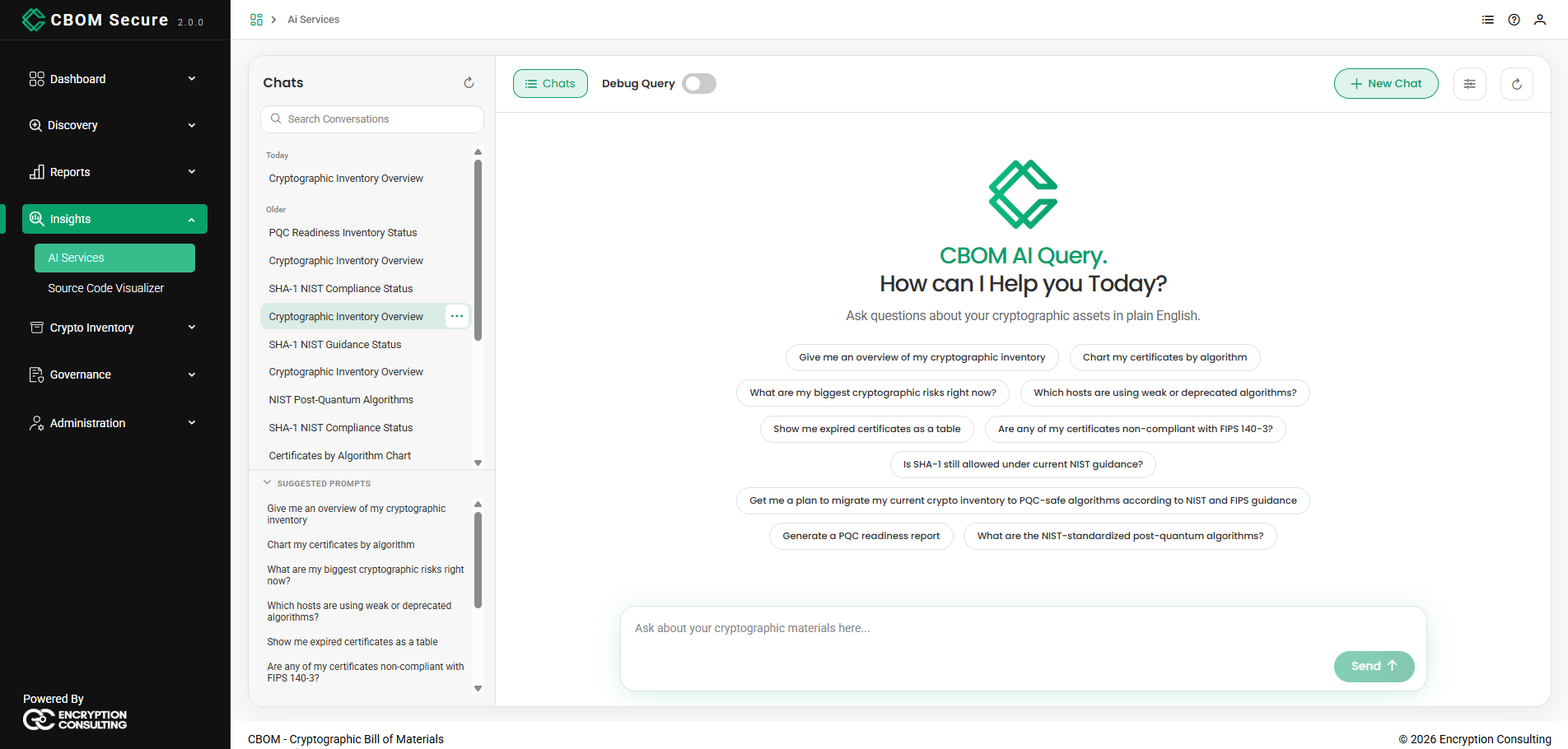
The controls above the conversation are, from left to right:
-
Chats: Shows or hides the conversations panel on the left.
-
Debug Query: A switch that reveals the database query behind each answer. See Debug Query below.
-
New Chat: Starts a fresh conversation, leaving the current one saved in the panel.
-
Response detail (sliders icon): Sets how much the assistant explains. See Response Detail.
-
Refresh AI service (refresh icon): Re-checks the AI backend, for use after a service restart.
Asking a Question
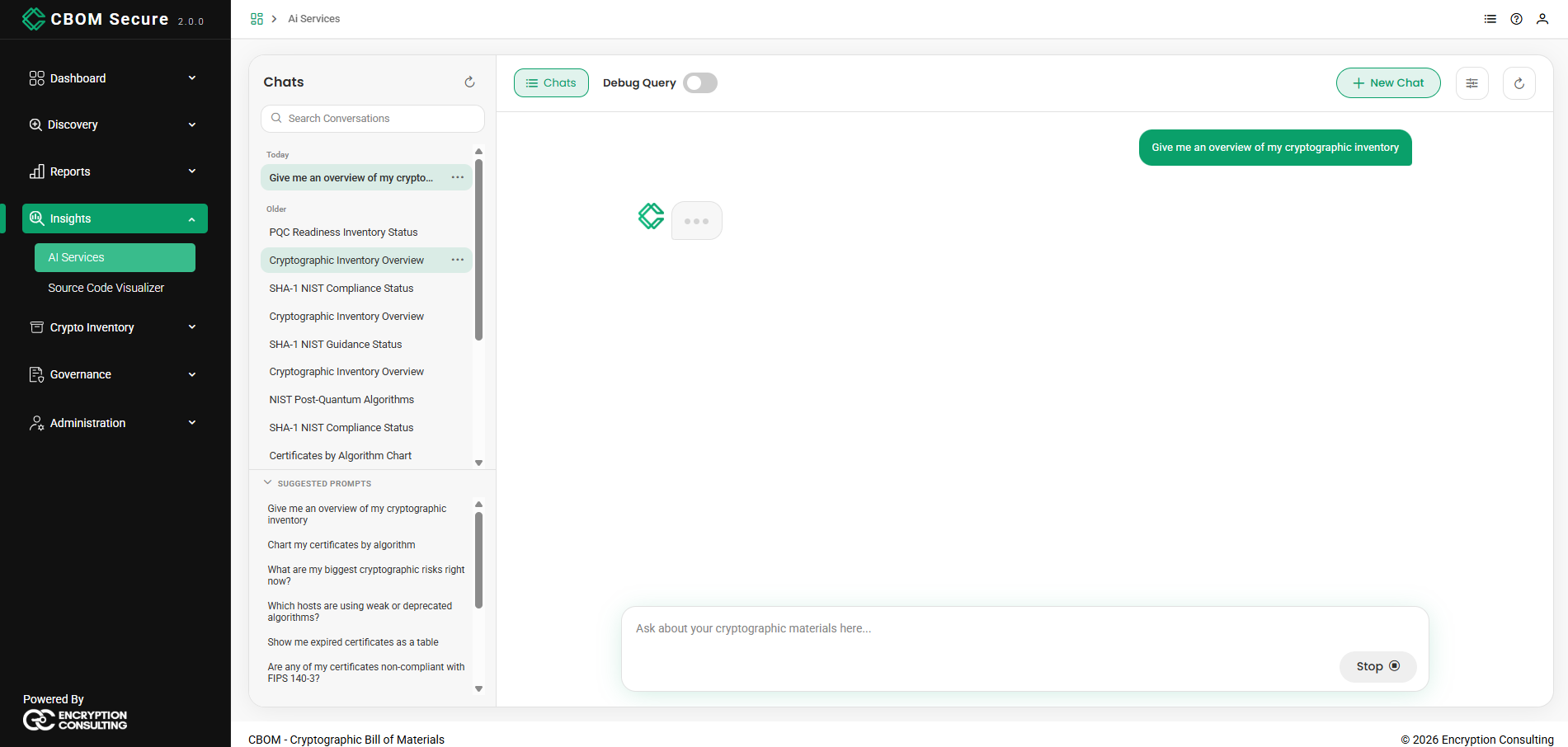
Type your question into the message box at the bottom — marked Ask about your cryptographic materials here... — and click Send. Your question appears at the right of the conversation and the answer builds beneath it.
While the assistant is working, Send is replaced by Stop, which halts generation and keeps whatever has already arrived.
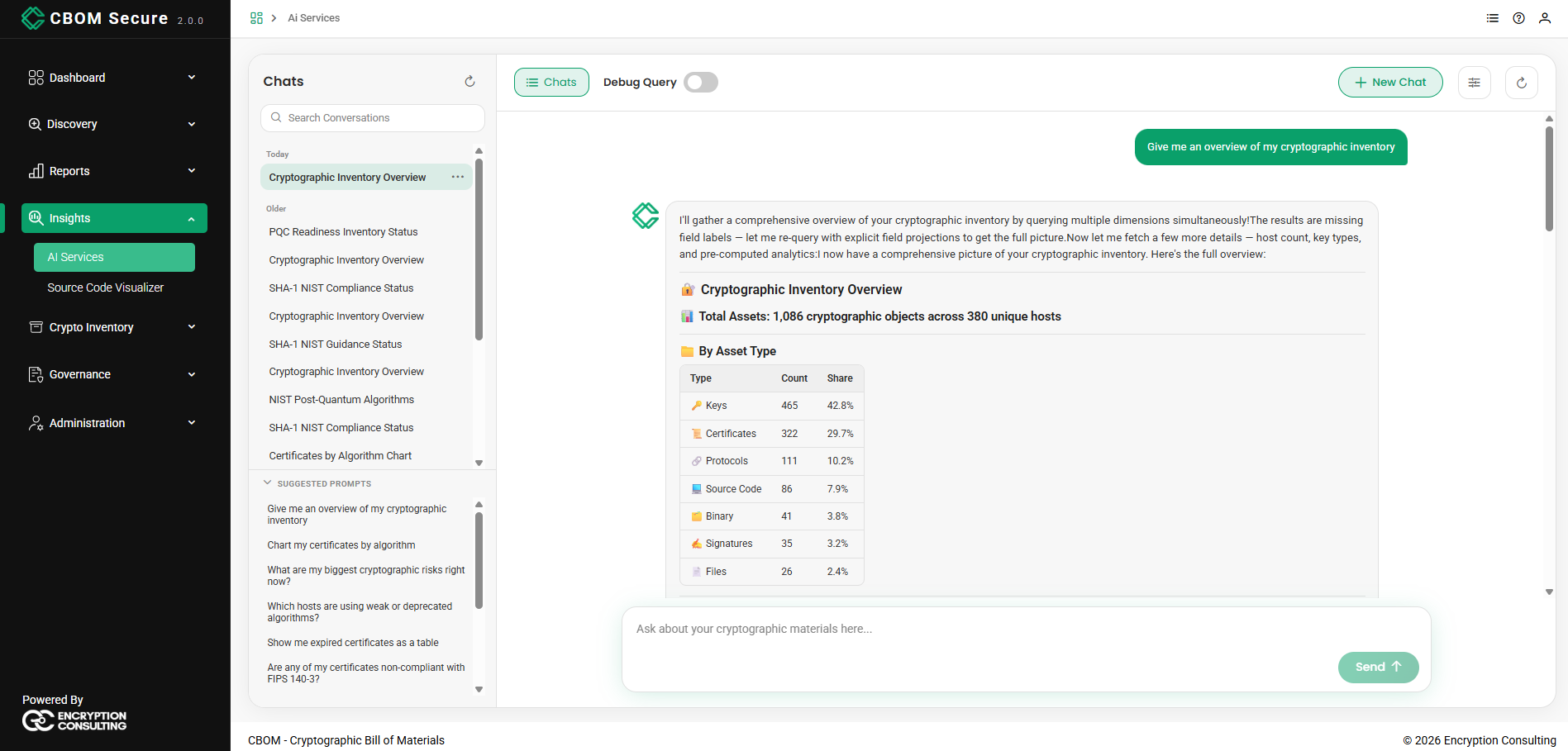
Answers are formatted, not plain text: headings, tables and figures are laid out for reading. Asking for an inventory overview, for example, returns the totals followed by a breakdown by asset type — keys, certificates, protocols, source code, binaries, signatures and files — with counts and shares.
Conversations
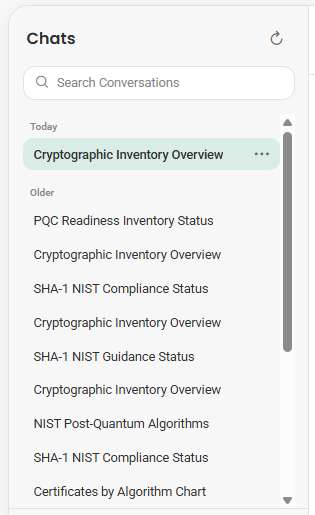
Conversations are saved, so you can return to an earlier line of enquiry instead of asking again. The Chats panel lists them newest first, grouped by age — Today, Yesterday, Previous 7 Days, Previous 30 Days and Older. Only groups that have conversations in them are shown, so a short history may display just Today and Older.
Above the list are a Search Conversations box and a refresh control beside the Chats heading.
-
Click a conversation to reopen it.
-
Hover a conversation and use its … menu for Rename and Delete. Delete asks for confirmation, and removes only the chat history — never any cryptographic data.
A new conversation is listed under Today as soon as you send the first question, titled with the question itself. Once the answer is complete the platform replaces that with a short generated title, which is why a chat that started as “Give me an overview of my cryptographic inventory” ends up listed as Cryptographic Inventory Overview. Rename it if you would rather label it yourself.
Suggested Prompts
Suggested prompts appear in two places: as buttons on the landing view of a new conversation, and in a collapsible Suggested Prompts section at the foot of the Chats panel, where they stay available while you are mid-conversation. Clicking one submits it immediately.
The list comes from the server, so it can change between releases. The set shipped today is:
Give me an overview of my cryptographic inventory
Chart my certificates by algorithm
What are my biggest cryptographic risks right now?
Which hosts are using weak or deprecated algorithms?
Show me expired certificates as a table
Are any of my certificates non-compliant with FIPS 140-3?
Is SHA-1 still allowed under current NIST guidance?
-
Get me a plan to migrate my current crypto inventory to PQC-safe algorithms according to NIST and FIPS guidance
Generate a PQC readiness report
What are the NIST-standardized post-quantum algorithms?
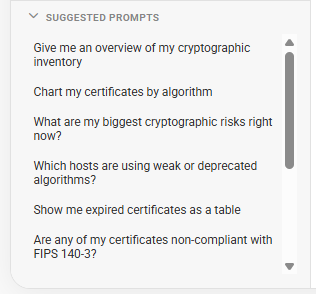
They also illustrate the response formats available: a written answer, a table, or a chart, depending on how the question is phrased.
Response Detail
The sliders icon above the conversation opens Response Detail, a choice of Concise, Standard or Detailed. Standard is the default. Choose Concise for short, direct answers or Detailed for fuller explanations.
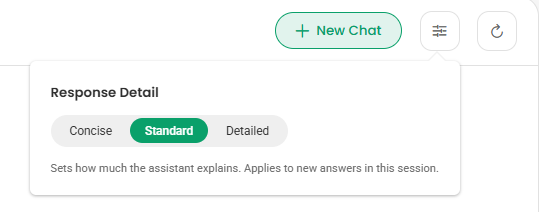
As the panel notes, the setting applies to new answers in the current session: answers already on screen are not rewritten, and the choice is not saved between sessions.
Response Formats
The assistant returns answers in whichever format best fits the question:
-
Text: A written summary answering the question directly, with headings and highlighted figures where they help.
-
Table: A structured list of results, returned when you ask to see data “as a table”.
-
Chart: A bar, pie or doughnut chart, returned when you ask the assistant to “chart” or graph something such as certificates by algorithm.
A single answer may combine them, opening with a short summary and following it with the table or chart that supports it.
Debug Query
The Debug Query switch above the conversation reveals the database query the assistant ran to produce each answer, with a Copy pipeline action for lifting it out. This is useful for confirming exactly how a figure was derived, and for troubleshooting an answer that looks wrong. The switch is off by default and changes only what is displayed, not how the question is answered.