
Dashboard
The Dashboard is the central, customizable landing view of CBOM Secure. Built on a widget-based architecture, it presents the state of your cryptographic infrastructure — keys, certificates, cipher suites, and related metrics — through graphs, charts, KPIs, and other visual components that can be arranged to suit your workflow. This section explains how the dashboard is laid out, how to work with its widgets and layouts, and how cryptographic data is visualized.
It is reached from Dashboard > Home in the left navigation menu, and is where the portal lands you after sign-in. Any dashboard templates you have added as submenu entries appear beneath Home in the same menu.
In This Section
-
Dashboard Interface: The layout of the dashboard — navigation bar, sidebar, action buttons, and the main content area — along with an introduction to widgets, templates, and layouts. See Dashboard Interface.
-
Dashboard Operations: The actions you perform on the dashboard, such as adding widgets, refreshing data, saving changes, and switching layouts. See Dashboard Operations.
-
Data Visualization: The families of visualization available for cryptographic metrics — KPI grids, chart widgets, percentage indicators, tables, and text and detail widgets. See Data Visualization.
Available Widgets
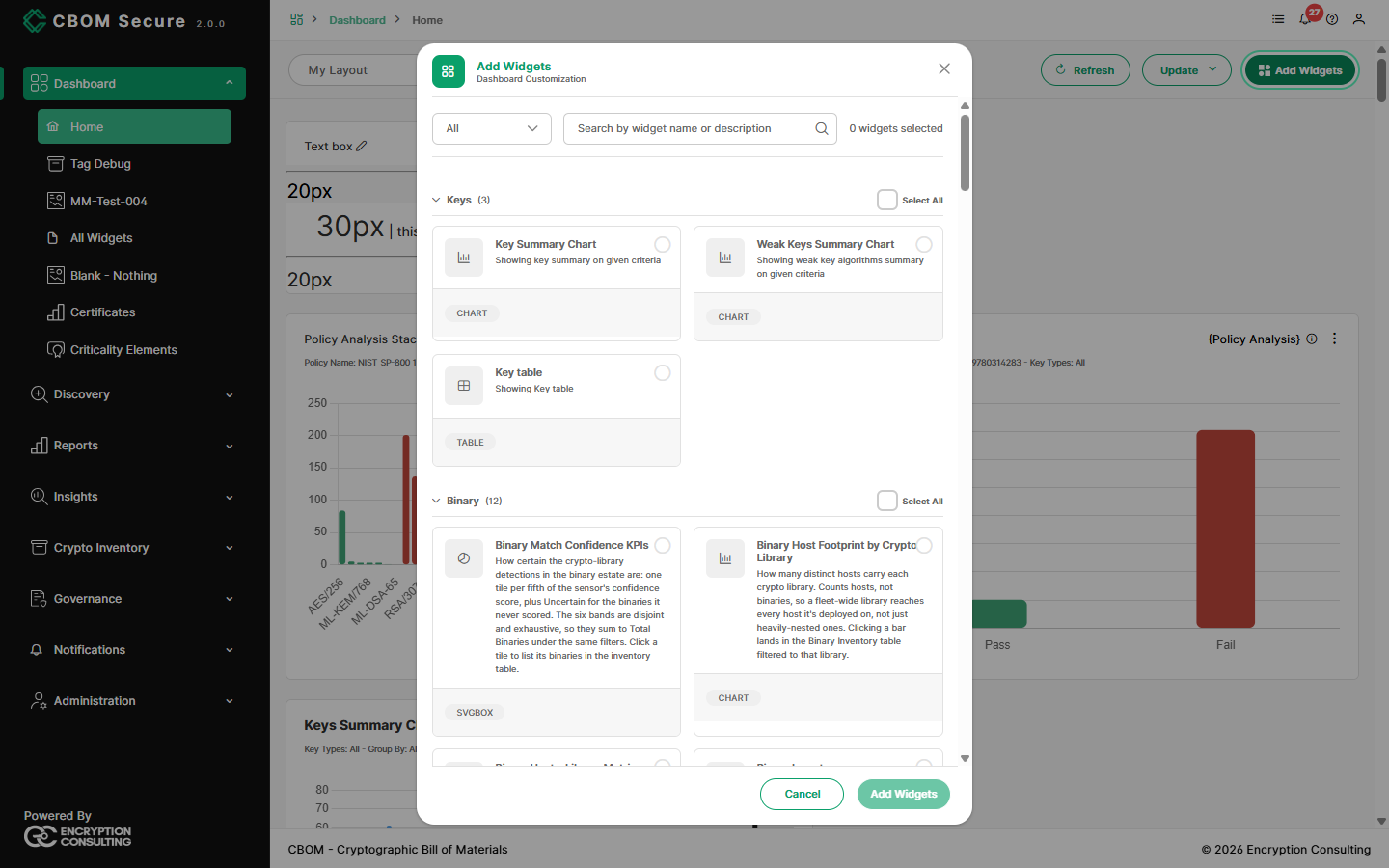
A widget is one panel on the dashboard — a chart, a table, a row of KPI tiles, a text box. Every dashboard, template and layout in CBOM Secure is a set of widgets. The widgets you can add are listed in the Add Widgets dialog, grouped into the categories below. Each card shows the widget's name, a one-line description, and its type: CHART, TABLE, STACKED CHART, LINE CHART, SVGBOX (KPI tiles), DOC (text and detail panels), TREEMAP, GRAPH, and so on.
| Category | What its widgets show | Widgets |
|---|---|---|
| Keys | The key inventory: algorithms, sizes and weak keys. | Key Summary Chart, Weak Keys Summary Chart, Key table |
| Certificate | Certificates, expiry and validity periods. | Certificate Chart, Certificate Expiry Chart, Certificate expiration table, Certificate Lifetime Chart, Certificate Table, Chart and Table, Multi Charts |
| Protocol | TLS cipher suites and SSH endpoints — what they negotiate and how strong it is. | CipherSuites Chart, CipherSuites Summary Table, Protocol Table, SSH Algorithm Chart, SSH Algorithm Table, SSH Security Posture, SSH Algorithm Strength Overview |
| Analyze | Risk and compliance: criticality, policy pass/fail, quantum safety, crypto-agility, and how they change over time. | Cryptomaterial Risk Time Series, Cryptomaterial Risk analysis, Cryptomaterial Risk Stacked chart, Crypto Inventory risk criticality Table, Enterprise Agility CHT, Host Risk Analysis, Hostwise Agility Table, PQC Safe Chart, PQC Safe Multi-Chart, Policy Analysis, Policy Analysis Stack Chart, Policy Analysis Stacked Analysis, Policy Analysis Table, Policy Analysis Time Series |
| Source Code | Cryptography found in scanned repositories: findings, algorithms, files and severity over time. | Source Code Algorithm Risk Table, Source Code Risk Time Series, Source Code File Table, Source Code Findings Chart, Source Code Findings Table, Source Code KPI Single Value Grids, Source Code Severity Mix, Chart Insights |
| Binary | Crypto libraries embedded in executables, their versions and known vulnerabilities, and code signing. | Binary Match Confidence KPIs, Binary Host Footprint by Crypto Library, Binary Host x Library Matrix, Binary Inventory, Binary Crypto Library Mix by Host, Library Version Sprawl, Binary Filesystem Treemap, Code Signers, Binary Trust Chain, Unsigned & Untrusted Binaries, Binary Library Version Spread, Vulnerable Binaries |
| Deployment | Where material was found: host operating systems and the sensors that found it. | Host OS Chart, Sensor Discovery Chart |
| Search | One search across certificates, keys and protocols, as a chart or a table. | CMDocs Search Chart, CMDocs Search Table |
| Misc | KPI tiles, free text, and the detail and history of a single material. | KPI Single Value Grids, Text box, Crypto Material Detail, Crypto Material History |
Every widget, with its configuration options, is described in the Widget Catalogue. The kinds of chart and table are explained in Data Visualization. The dialog lists what is installed in your deployment, so treat it, rather than this table, as the authoritative list.
Focusing a Widget with a Tag Scope
By default a widget analyses your whole inventory. A Tag Scope narrows it to just the part of the estate you care about. That part might be one region, one business unit, one environment, a data classification, or the systems a particular team owns. A tag scope is a named filter over your own tags, so it follows whatever your organisation tags by.
Most widgets — charts, tables, KPI tiles and time series alike — carry a Tag Scope setting. Put widgets with different scopes side by side and you can compare slices of the estate on one dashboard: Production against Test, EMEA against North America, or Finance-owned against everything else.
Setting a widget's scope
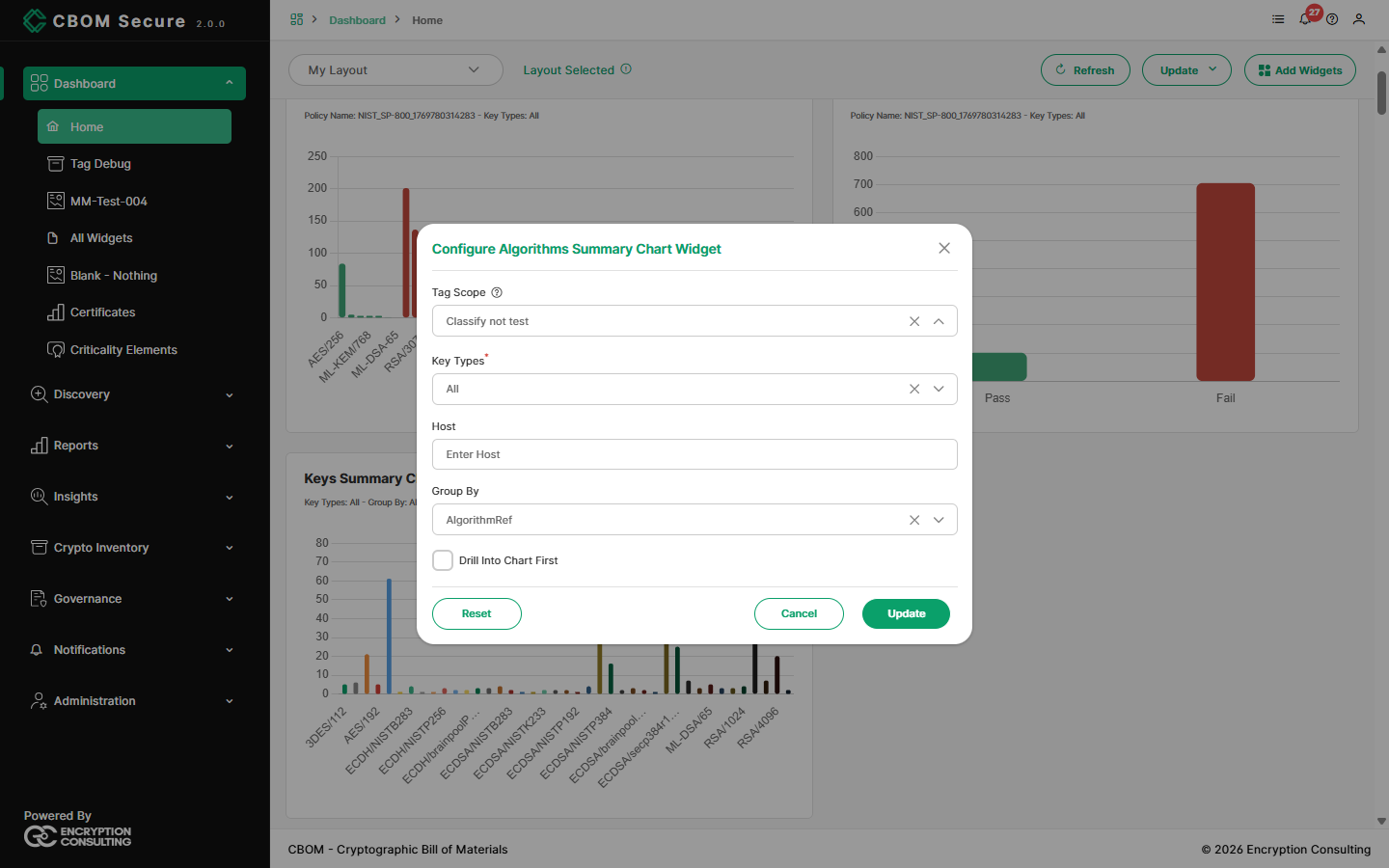
Open the widget's ⋮ menu and choose Configure.
-
In Tag Scope, pick a scope from the list. Choose All materials, or clear the field, to go back to the whole inventory.
Click Update. The widget redraws with only the materials in that scope.
-
Save the dashboard from the Update menu to keep the setting. Each widget keeps its own scope, inside a template or a published layout.
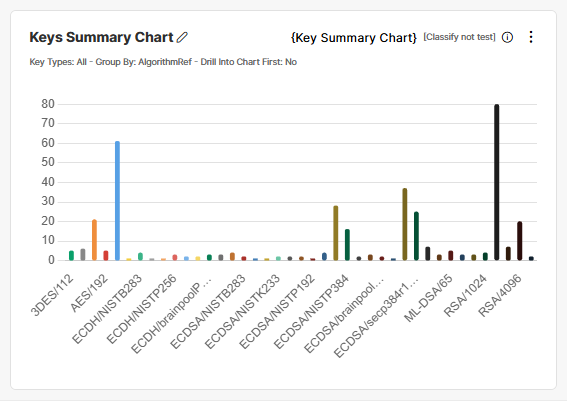
A scoped widget shows the scope's name in brackets beside its title, for example [Classify not test], so you can see at a glance which slice each panel shows.
How the scope applies
-
It follows you when you drill down. Clicking a bar or a slice opens the detail table with the same scope, so the number you clicked matches the rows you see.
-
It works with the widget's other settings. The scope combines with the key type, policy, grouping and any other options the widget has.
-
It reaches back in time. Time-series widgets apply the scope at every point on the timeline, so a trend shows how that slice of the estate has changed.
-
It comes from where material is deployed. A material carries the tags of the hosts and tasks it was found through. Tagging a host therefore places everything discovered on it into the matching scopes.
Defining scopes
Scopes are created once and shared by every user and every
widget. Define them on
Discovery > Settings > Tag Scope with an
expression such as "EMEA" $and "Production" or
"Owner: Finance" $and $not "Test". Tag the hosts and
tasks first on Tags, so the
materials found through them carry those tags. Changing a scope's
expression updates every widget that uses it.
Building a Dashboard Template
A template is a named, saved arrangement of widgets. You can keep it for yourself or share it with everyone, and switch to it from the selector at the top left of Dashboard > Home.
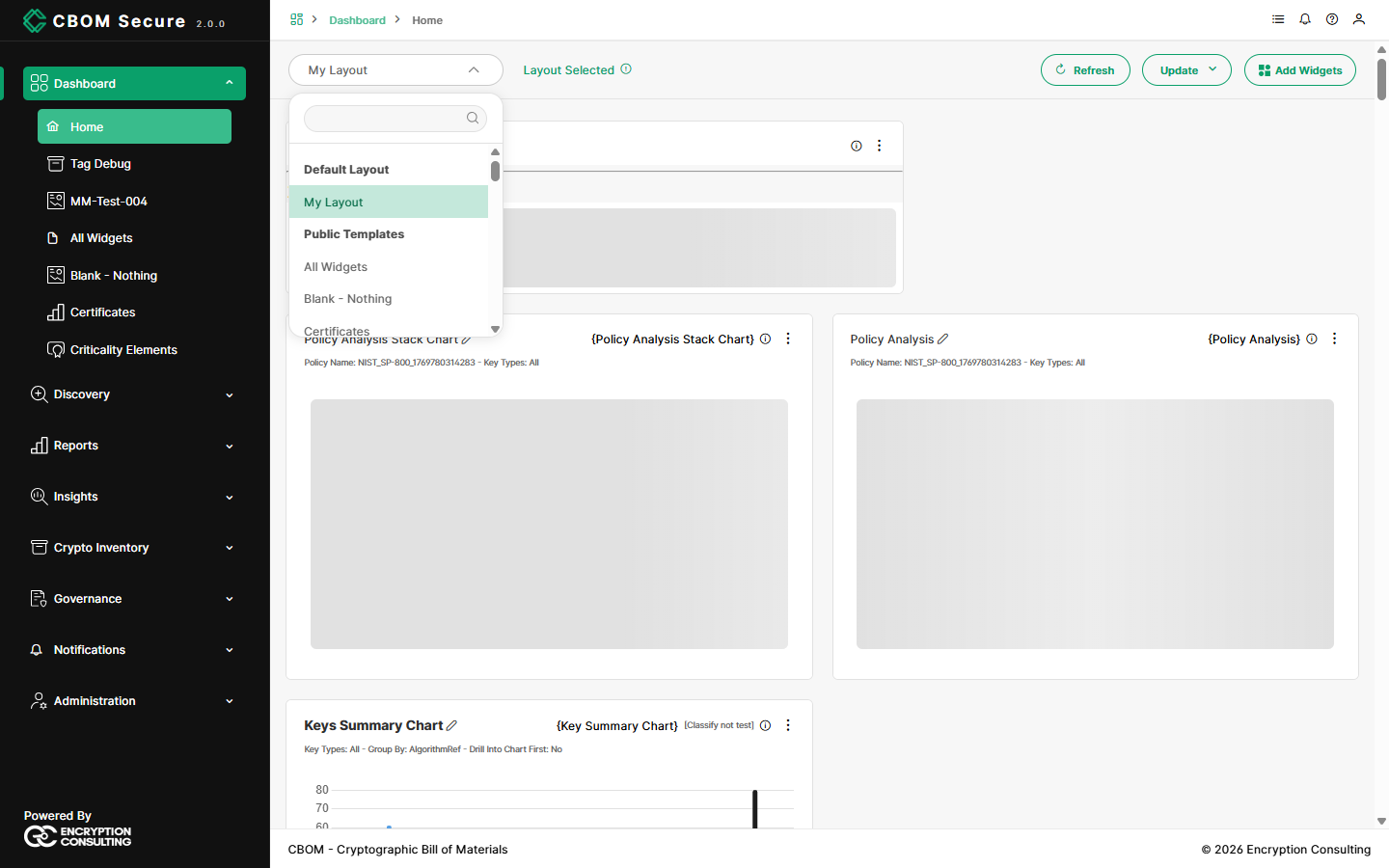
The selector lists My Layout (your personal dashboard), then Public Templates and your own Private Templates. To build a template:
-
Start from something. Open Dashboard > Home and choose a starting point in the selector: My Layout, an existing template, or an empty one if your deployment provides it.
-
Add widgets. Click Add Widgets. Narrow the list with the category dropdown or the search box, and tick the widgets you want — or Select All beside a category. Some widgets ask you to choose a variant from a dropdown on their card. Click Add Widgets at the bottom of the dialog.
-
Arrange them. Drag a widget by its title to move it, and drag its corner to resize it.
-
Configure each widget. Open the widget's ⋮ menu. Configure sets what it shows — for example the policy, key type, grouping or tag scope. Display sets how it looks. Remove takes it off the dashboard. Click the pencil beside a widget's title to rename it.
-
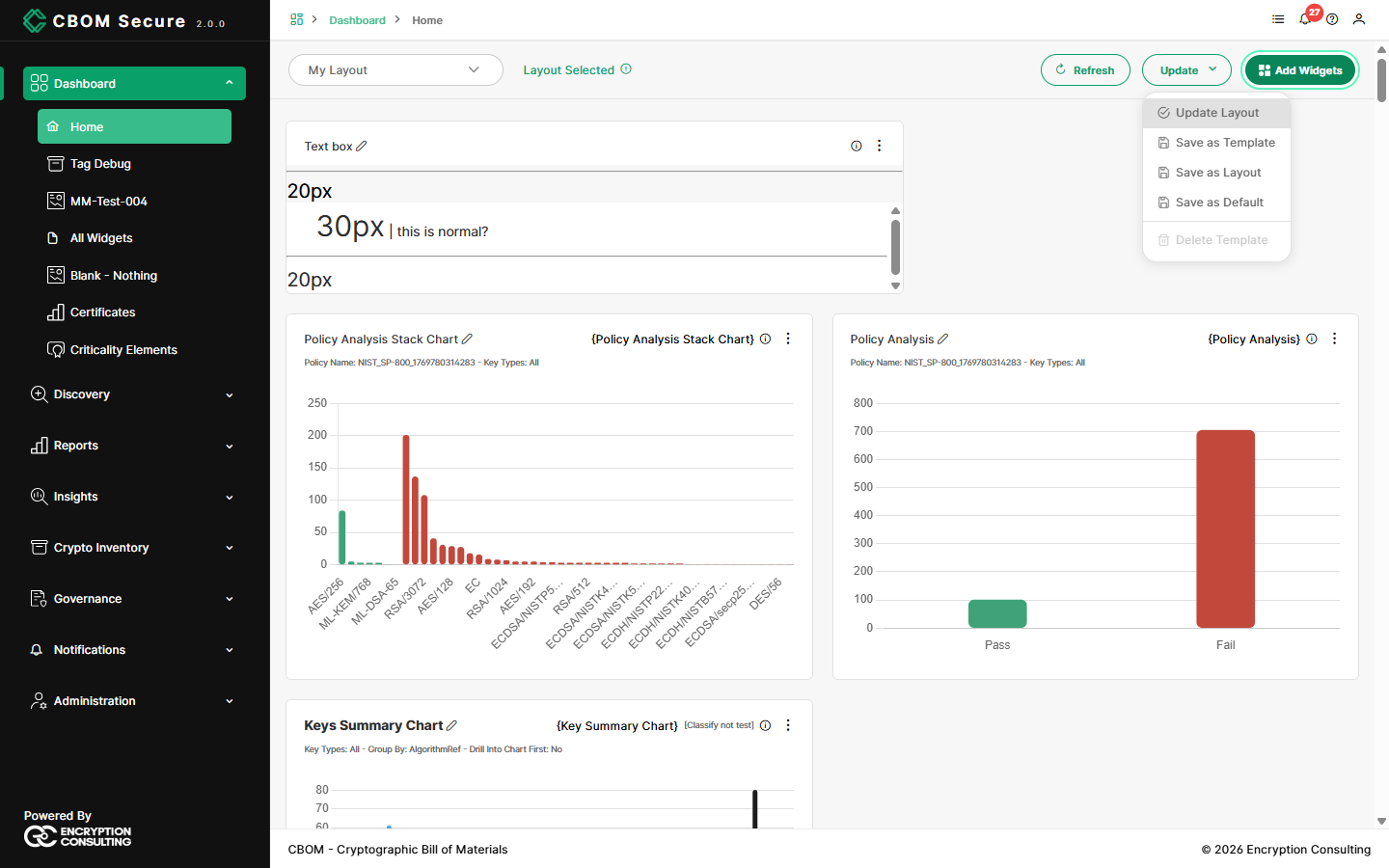
Save it as a template. Open the Update menu and choose Save as Template.
The Save as New Template dialog asks for:
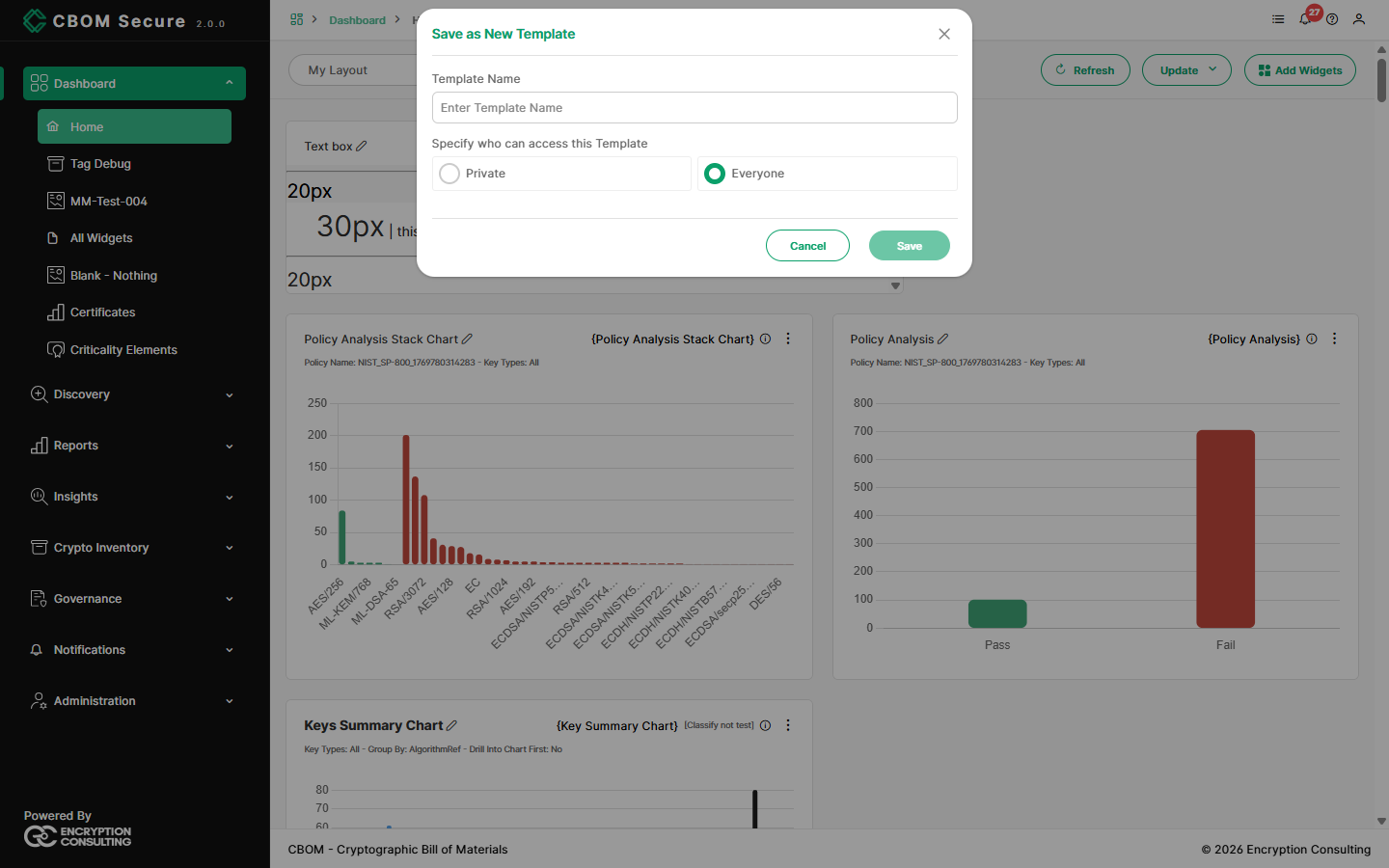
-
Template Name: Required. 3 to 40 characters, using letters, numbers, spaces, hyphens and underscores, with at least three letters or numbers.
-
Who can access this Template: Private (only you) or Everyone (it appears under Public Templates for all users). Offering Everyone needs the dashboard-manage permission; without it, only Private is available.
Click Save. The new template opens straight away, and the dashboard you started from is left unchanged.
Later changes to the template are saved with Update > Update Template while it is open. Nothing on the canvas — added, moved, resized or reconfigured widgets — is kept until you choose an entry from the Update menu. See Saving Changes for every entry.
Publishing a Template as a Layout
A layout is the arrangement shown on one of the report pages in the left menu: Reports > Summary Report and PQC Report, and Crypto Inventory > Key, Certificate, CipherSuites and Analysis. Those pages are read-only — they have no Add Widgets or Update menu of their own. They are changed by publishing a dashboard over them:
-
In Dashboard > Home, open the template that holds the arrangement you want, as built in Building a Dashboard Template.
-
Choose Update > Save as Layout.
-
In Save as New Layout, open Layout Name and pick the page to publish to. The list offers only the pages that hold a layout, grouped under Reports and Crypto Inventory.
-
Click Save.
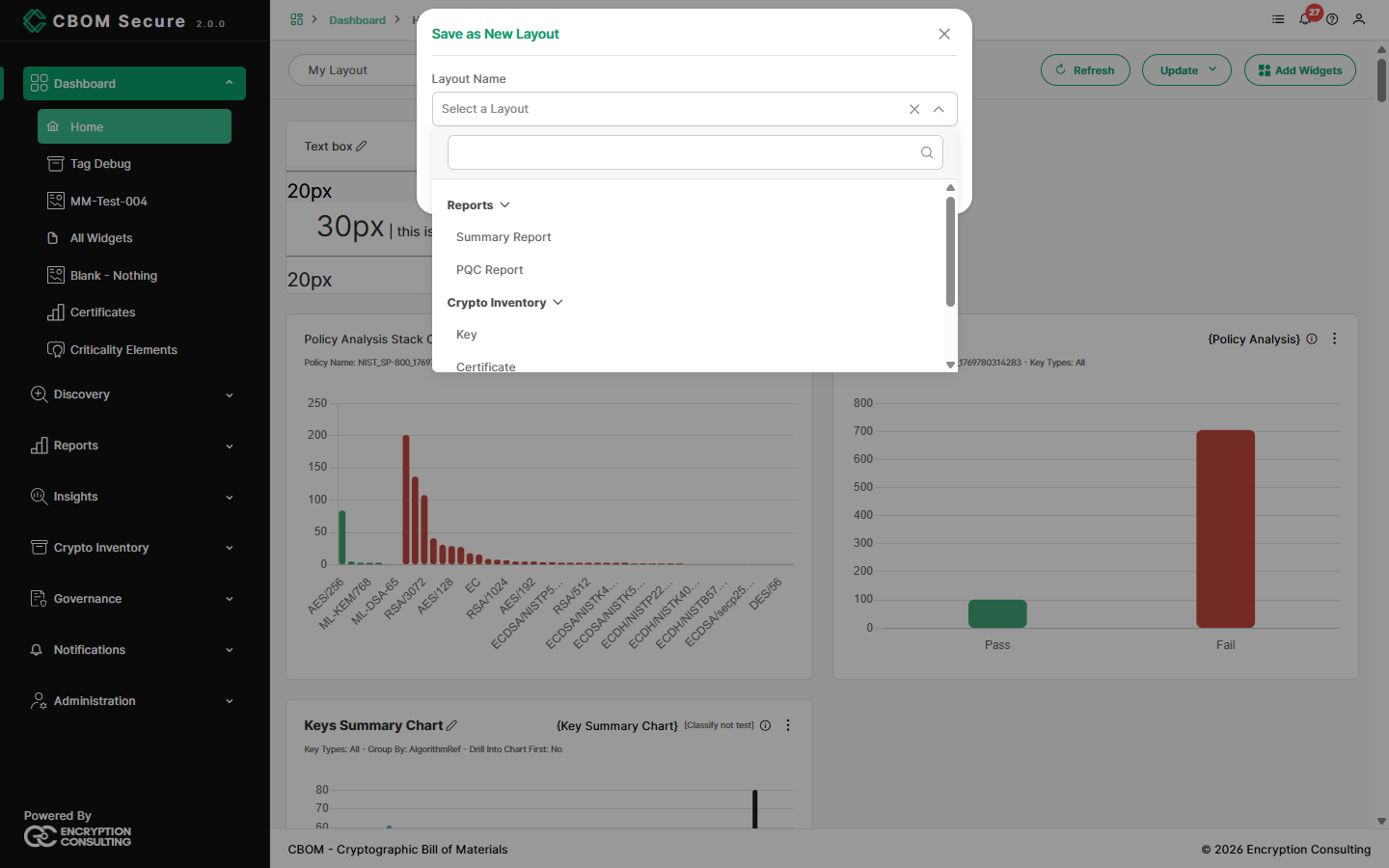
Saving a layout replaces that page for everyone. The chosen page shows the new arrangement to every user from then on, and its previous arrangement is not kept. There is no undo in the portal. If you may want the current version back, rebuild it as a template first. Save as Layout needs the layout-update permission, which administrators hold as shipped.
Save as Layout publishes widgets to an existing page; it does not add a new entry to the left menu. To give users quick access to a template without replacing a report page, add it as a submenu under Dashboard — see Dashboard Interface.