
- Overview
- Reference Guide
- Setup & Architecture
- Release Notes
- Workflow
- API Reference
- Integration Guide
- Discovery Agent Setup Guide
Renewal Manager is a separate component that can be deployed on a Windows server-based machine (2016 or later) as a Windows service, which works together with CertSecure Manager and automates the deployment and renewal of SSL/TLS certificates for applications like Apache, IIS, Tomcat, etc., and databases like MongoDB, MSSQL, and much more.
Besides these, the Renewal Manager can renew certificates on Cloudflare, AudioCodes session border controllers, Cisco ISE, Cisco ACI, and Palo Alto PAN-OS firewalls and Panorama. These targets are managed through their own HTTPS management interface instead of a WinRM or SSH session, so no operating system is selected for them.
Note: This section gives a brief overview of the Renewal Manager. For complete instructions, see Integration Guide > Renewal Manager, which covers the renewal workflow, setup, and troubleshooting, along with a dedicated guide for each supported agent: IIS, Apache, Tomcat, Nginx, MSSQL, MongoDB, Oracle, Cloudflare, AudioCodes session border controllers, Cisco ISE, Cisco ACI, and Palo Alto PAN-OS firewalls and Panorama.
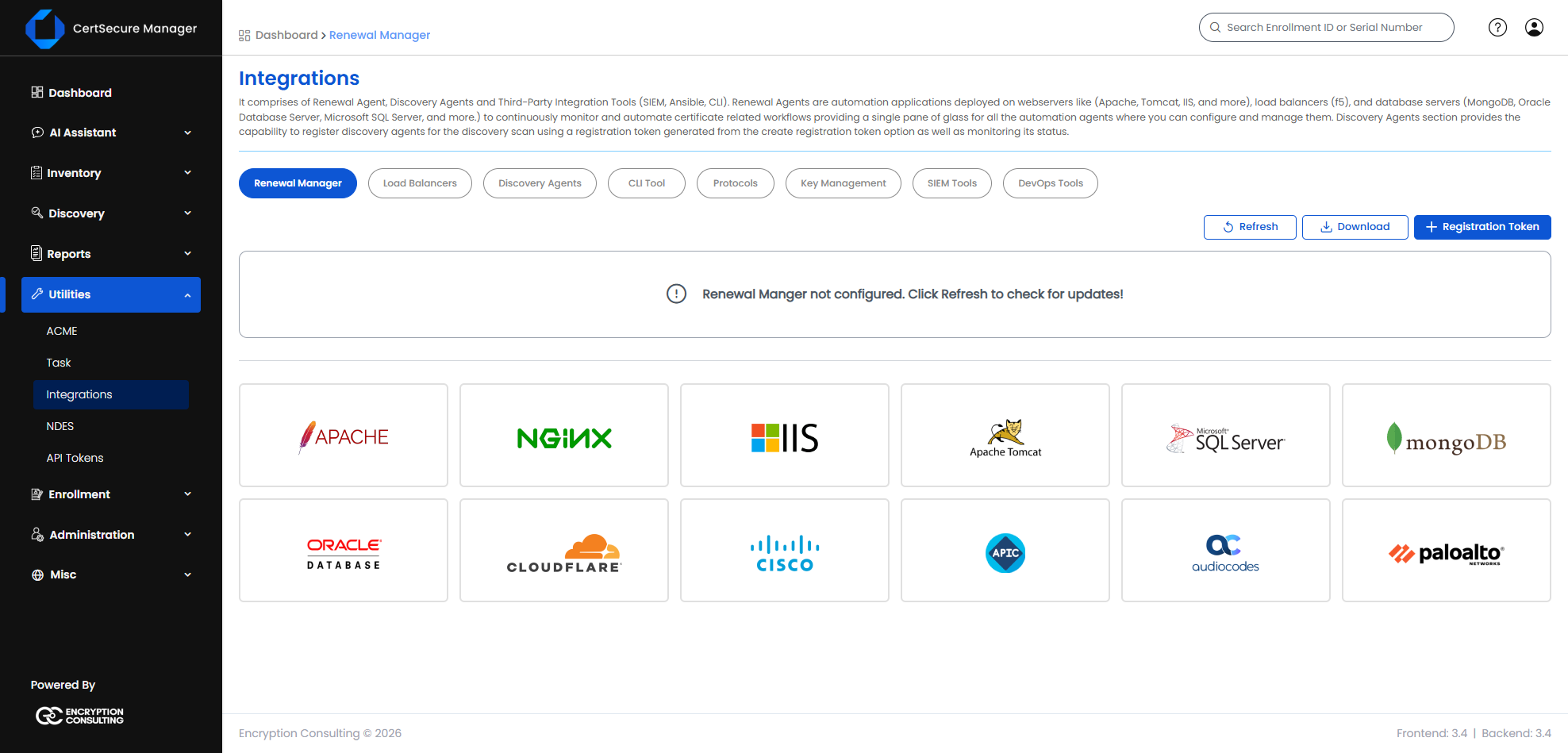
From this page, you can download the Renewal Manager by clicking on the download button. The registration token required during the Renewal Manager service installation can also be generated from this same page.
Once the Renewal Manager service is up and running, you can start adding servers for which you want to manage and automate SSL/TLS renewal by clicking on the application icon and then clicking on the add server button.
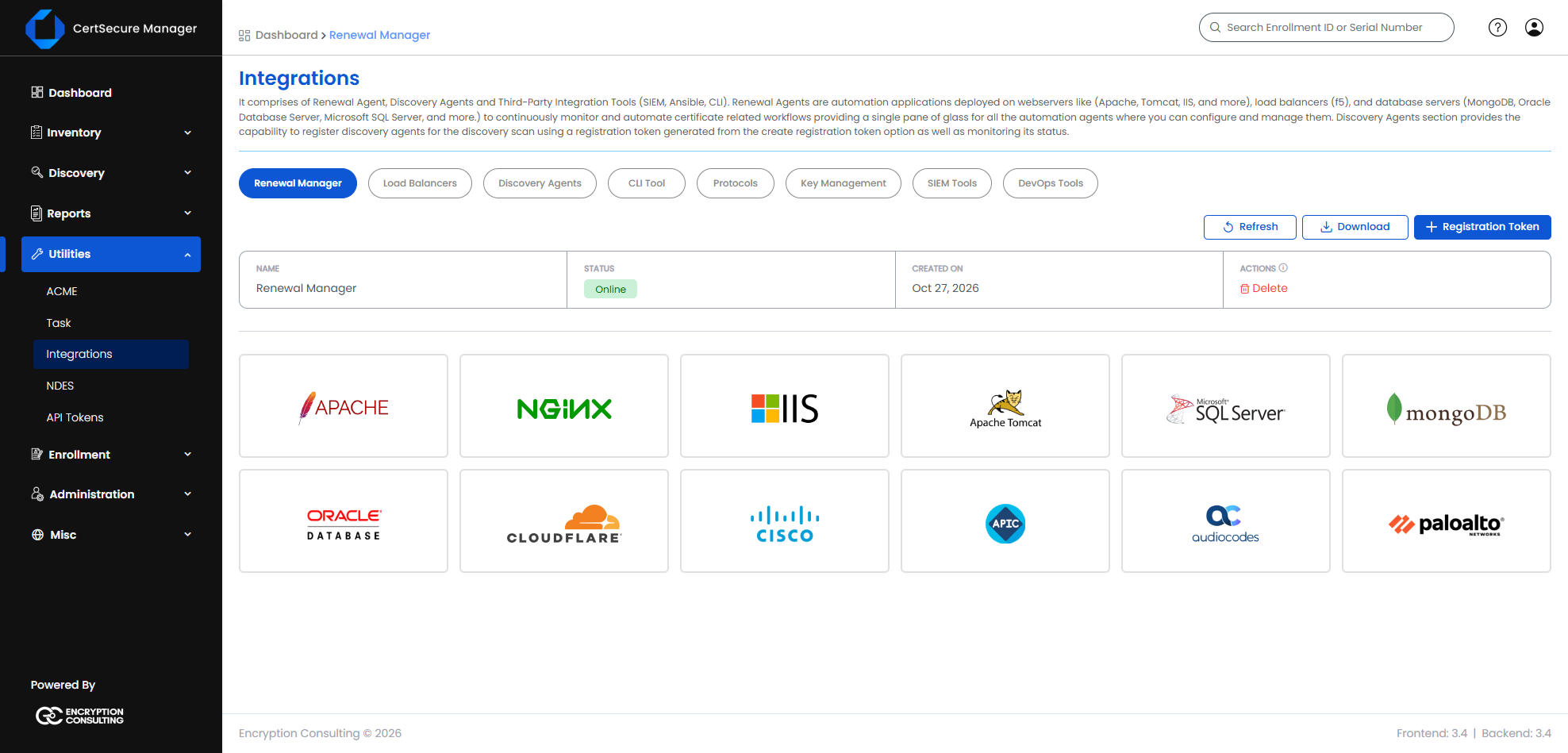
A summary bar above the application icons shows the Name of the Renewal Manager, its Status (Online or Offline), the Created On date, and an Actions column with Delete. Until a Renewal Manager has registered, the page says that the Renewal Manager is not configured and asks you to click Refresh to check for updates.
Delete removes the Renewal Manager from CertSecure Manager. It also removes all the servers onboarded to it, so a confirmation is asked first.
Each application icon opens the servers of that target. The search box above the icons filters them by name. The Renewal Manager works with the targets in two ways:
| Icon | How the Renewal Manager works with it |
|---|---|
| IIS, Apache, Tomcat, Nginx, SQL (MSSQL), MongoDB, Oracle | Through a remote session to the server: WinRM for Windows, SSH for Linux. |
| Cloudflare | Through the Cloudflare API, using an API token or an account email with its Global API Key. |
| AudioCodes | Through the management interface of the session border controller (SBC) over HTTPS. |
| Cisco ISE | Through the ISE management interface, addressed at the Primary Admin Node. |
| Cisco ACI | Through the API of the APIC cluster. |
| Palo Alto PAN-OS | Through the XML API of the firewall or Panorama. |
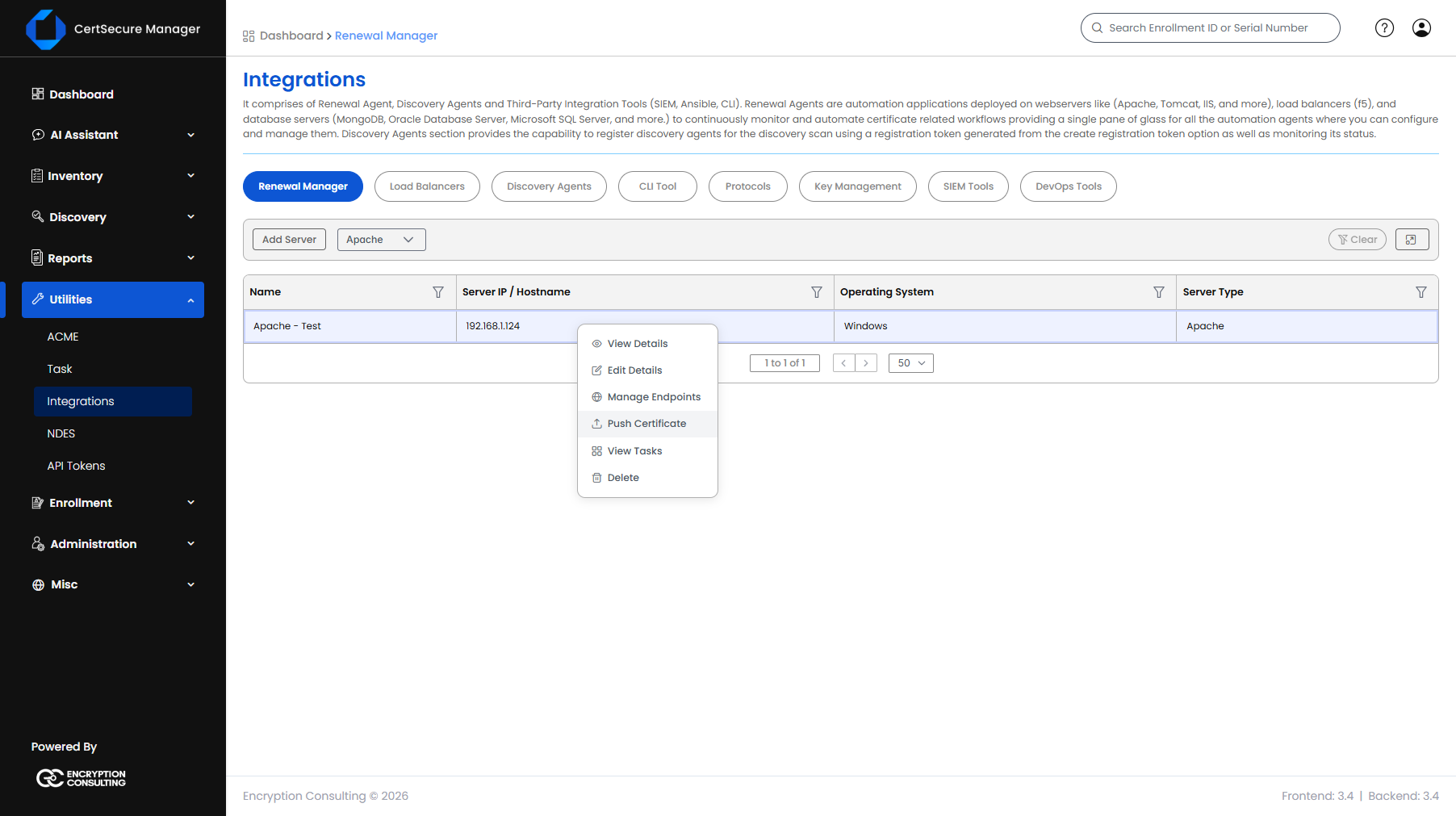
Select an application icon and use Add Server to onboard a server. A server has endpoints: the certificates that the Renewal Manager keeps renewed on it. The server list and the endpoint list each have a row menu: right-click a row, or open its actions menu.
| Action | What it does | Available for |
|---|---|---|
| View Details | Opens a read-only summary of the server's configuration. | All targets |
| Edit Details | Reopens the Add Server form pre-filled. | All targets |
| Manage Endpoints | Opens the endpoint list for the server. | All targets |
| Push Certificate | Issues a certificate and places it on the server without binding it. See Pushing a Certificate to a Server below. | IIS, Apache, Tomcat, Nginx, MSSQL, MongoDB, Oracle |
| View Tasks | Opens the task history for the server. | All targets except Cloudflare |
| Delete | Deletes the server and every endpoint under it, after a confirmation prompt. | All targets |
| Action | What it does | Available for |
|---|---|---|
| View Details | Opens the Endpoint Information window. | All targets |
| Edit Details | Reopens the Add Endpoint form pre-filled. The address, hostname, and port that identify the endpoint cannot be changed, and a password left blank keeps the saved one. To change an identifying value, delete the endpoint and add it again. | IIS, Apache, Tomcat, Nginx, MSSQL, MongoDB, Oracle |
| Renew | Opens the Renew Endpoint dialog. Not available while automation is on for the endpoint. | All targets |
| Delete | Removes the endpoint. It does not affect other endpoints on the same server. | All targets |
| Change Request | Raises a ServiceNow change request about the endpoint. See ServiceNow Change Requests. | Users who can raise change requests |
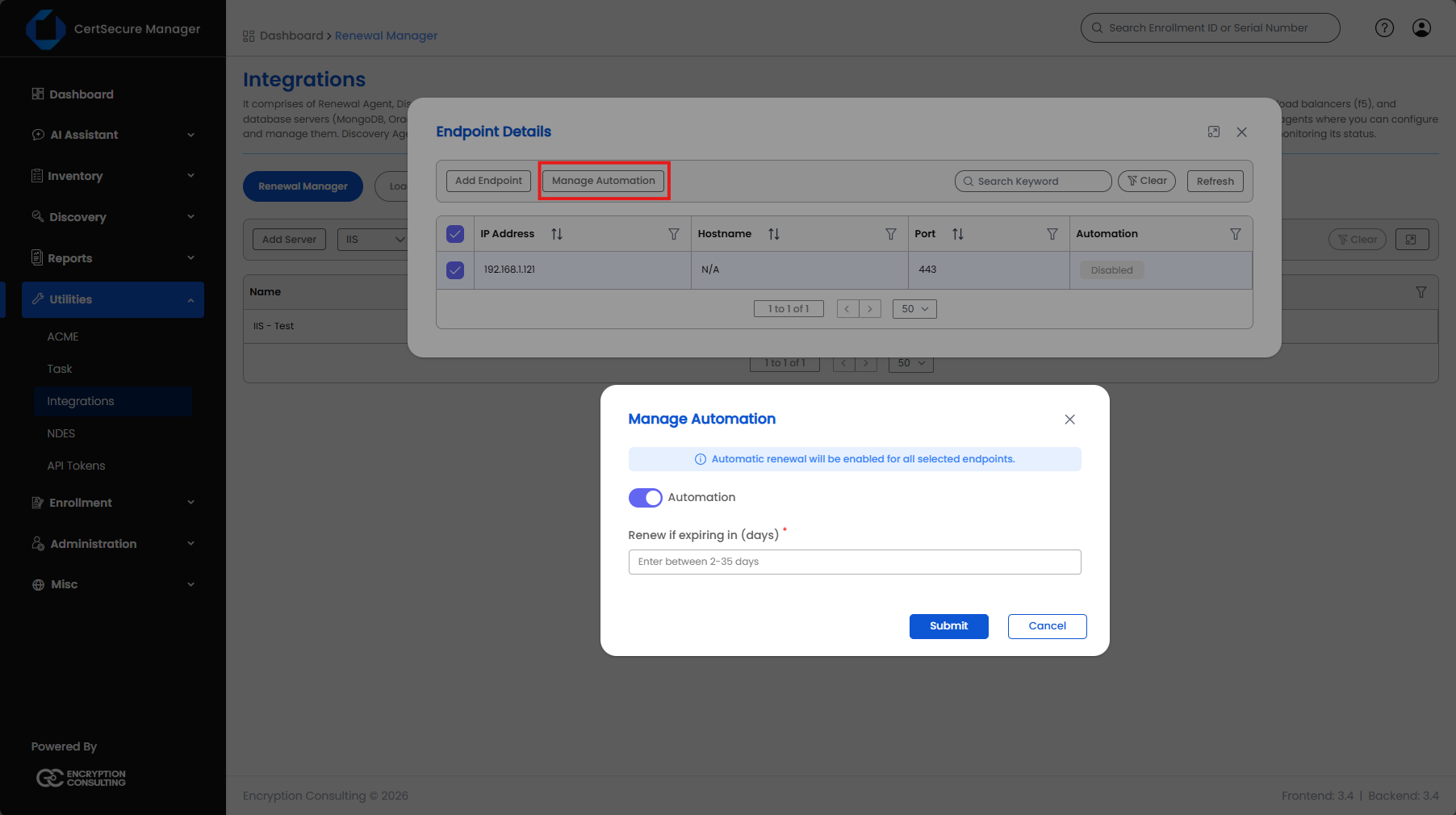
Above the endpoint list, Add Endpoint adds an endpoint. For IIS, Apache, Tomcat, Nginx, MSSQL, MongoDB, and Oracle servers, Manage Automation switches automatic renewal for the endpoints you have ticked. The endpoint list can be searched with Search Keyword, filtered with the column filters, cleared with Clear, and reloaded with Refresh.
For IIS, Apache, Tomcat, Nginx, MSSQL, MongoDB, and Oracle servers, the Certificate Authority, Template, and Owner (and, for DigiCert, the Organization ID and Order Validity) are chosen on each endpoint instead of on the server. The Add Server form for these targets no longer asks for them, and the server list no longer shows the CA and Template columns. Different endpoints on one server can therefore be renewed with different CAs, templates, and owners.
For Cloudflare, AudioCodes, Cisco ISE, Cisco ACI, and Palo Alto PAN-OS servers, these settings stay on the server and are used for all of its endpoints.
Automatic renewal can be switched on or off for each endpoint.
The dialog states the effect before you submit. When Automation is on it reads "Automatic renewal will be enabled for all selected endpoints." When it is off it reads "Automatic renewal will be disabled for all selected endpoints. Their certificates will need to be renewed manually before expiry."
Push Certificate issues a new certificate from the CA and places it on a server, without waiting for a renewal and without changing how the server uses its certificate. It is available for IIS, Apache, Tomcat, Nginx, MSSQL, MongoDB, and Oracle servers.
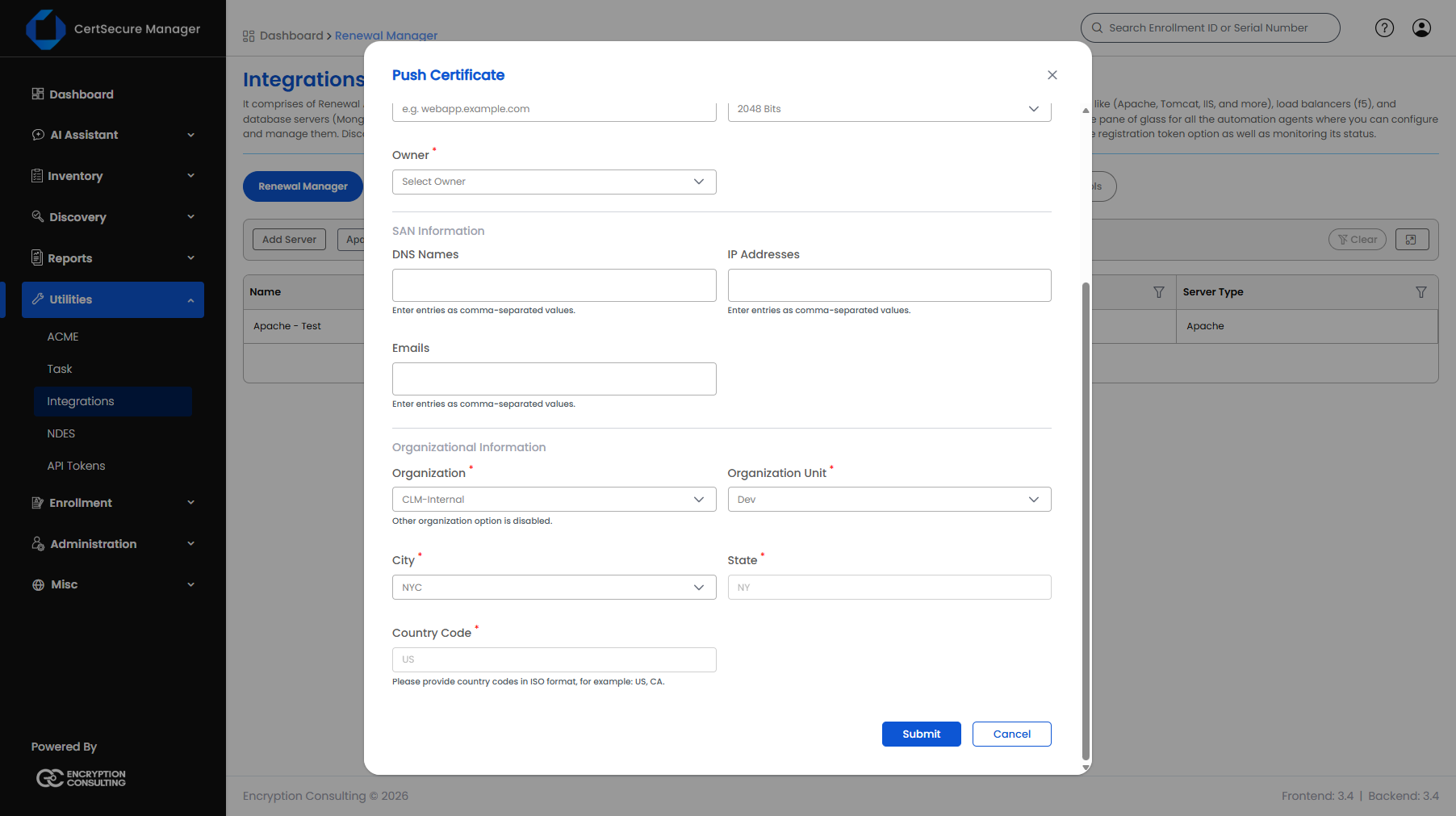
| Server type | Target fields | Where the certificate is placed |
|---|---|---|
| Apache, Nginx, Tomcat | Certificate Directory and Key Directory (absolute paths) | A certificate file and a key file named after the Common Name, with a UTC time stamp, in those directories. |
| MongoDB | Certificate Directory (shown under Target Directory) | One combined key and certificate PEM file in that directory. |
| Oracle | Wallet Path and Wallet Password (shown under Target Oracle Wallet) | Added to the wallet at the Wallet Path. The wallet password is stored encrypted. |
| IIS, MSSQL | None | The Windows Local Machine certificate store (My). |
Push Certificate only places the certificate. It does not update a binding, restart a service, or change a configuration file; use the certificate where you need it yourself. The Renewal Manager must be Online, otherwise the push is refused with "Renewal Manager is Offline. Cannot queue task." The push runs as a task named Push Certificate (Renewal Manager), which you can follow under View Tasks on the server. It requires the Manage Renewal Agents permission.