
- Overview
- Reference Guide
- Setup & Architecture
- Release Notes
- Workflow
- API Reference
- Integration Guide
- Discovery Agent Setup Guide
Renews the certificates of the TLS contexts on an AudioCodes Mediant session border controller (SBC). One server is one SBC. Each endpoint is one TLS context on that SBC, such as the one that carries SIP over TLS, or the SBC's own web interface. The Renewal Manager works with the SBC through its management interface.
sbc.ec.com.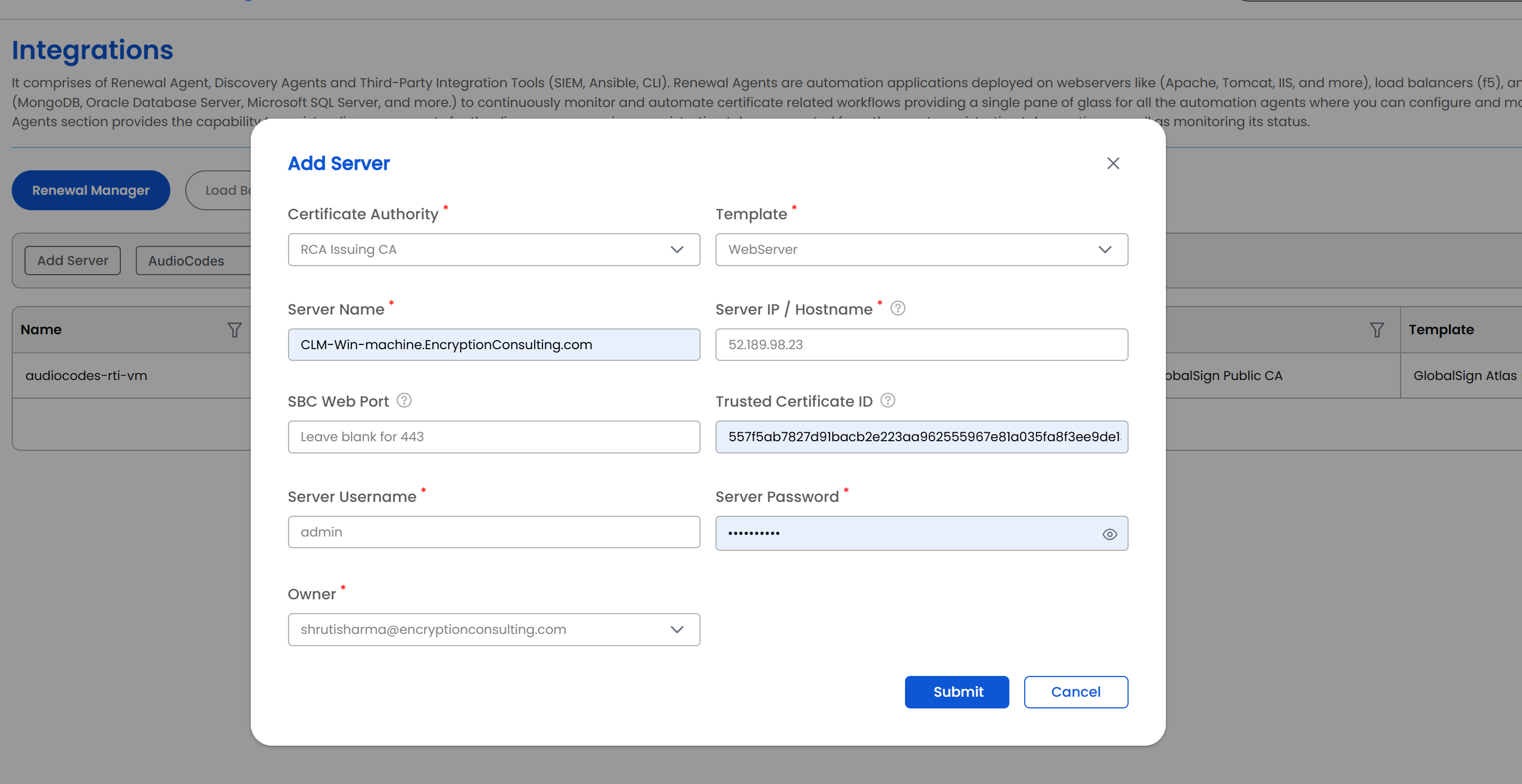
| Field | Applies to | What it means |
|---|---|---|
| Server Type | Required, Add only | AudioCodes. Already selected when you start from the AudioCodes tile. |
| Server Name | Required, Add only | A unique display name for this SBC. Cannot be changed later. Maximum 50 characters. |
| Server IP / Hostname | Required | The SBC's management IP address or hostname. Enter the address only, without a scheme or path. |
| SBC Web Port | Optional | The HTTPS port of the SBC's web interface. Leave blank to use 443. Can be changed later. |
| Trusted Certificate ID | Optional | Identifies the SBC's web certificate. Leave blank: CertSecure trusts the certificate the SBC shows the first time it connects, and remembers it. To set it yourself, paste the certificate's SHA-256 fingerprint. Can be changed later. |
| Server Username | Required | The account used to sign in to the SBC. |
| Server Password | Required on Add | The password for Server Username. Stored encrypted. On Edit, leave blank to keep the existing password. |
| Certificate Authority | Required | The CA that will issue renewed certificates for this SBC. |
| Template | Required | The certificate template/profile to request from the selected CA. Options depend on the CA chosen. |
| Owner | Required | The person responsible for this SBC. Autocompletes as you type an organization user's name or email. |
| Organization ID | Only when CA = DigiCert | The DigiCert organization ID to request the certificate under. |
| Order Validity | Only when CA = DigiCert | How many days the requested certificate should be valid for. |
Right-click a server row (or open its actions menu) to see:
CertSecure remembers the certificate that the SBC's web interface presents, so that it can tell a certificate you renewed from a connection that has been redirected elsewhere.
An endpoint is one TLS context on the SBC.
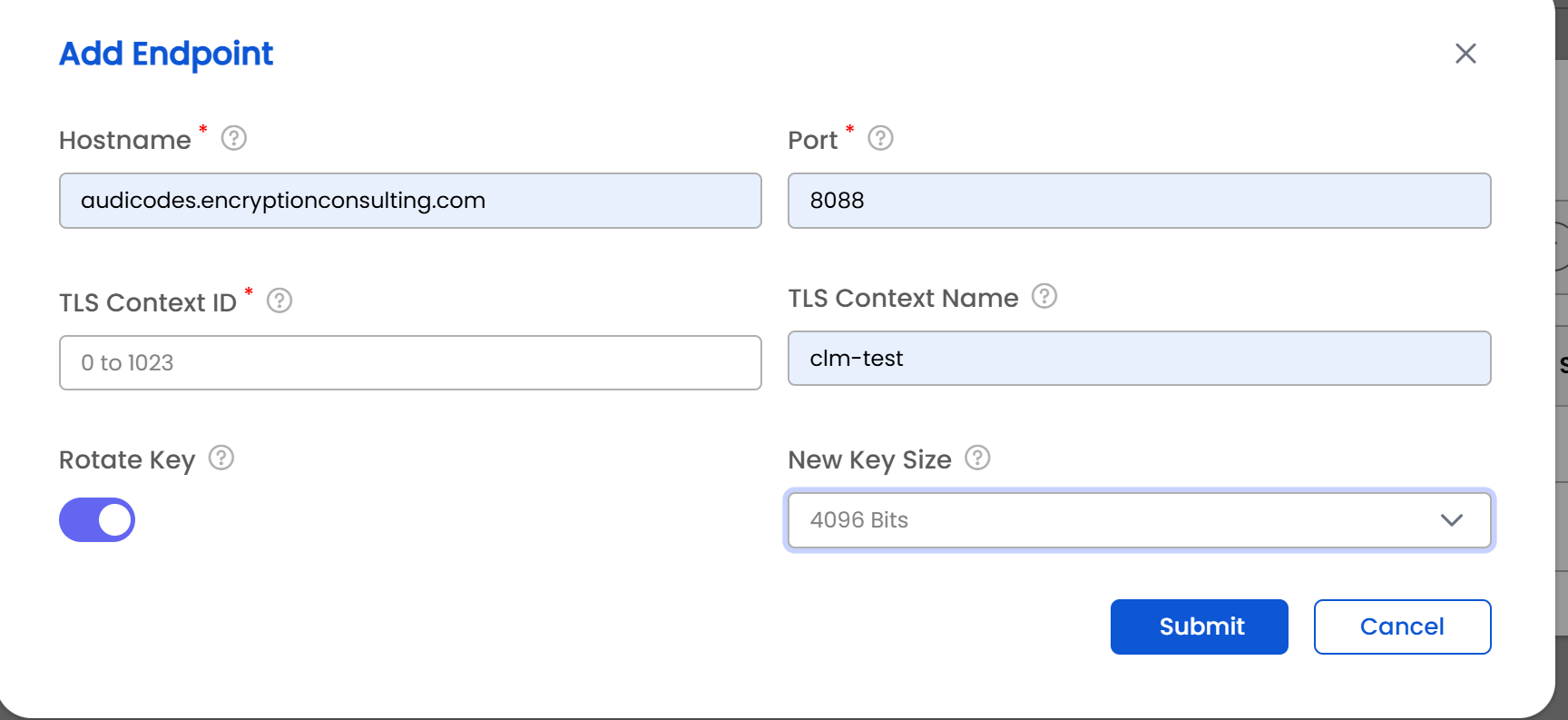
| Field | Applies to | What it means |
|---|---|---|
| Hostname | Required | The name on the certificate, for example sbc.contoso.com. A leading "." is allowed for a wildcard certificate. Stored in lowercase. |
| Port | Required | The port this context serves, for example 5061 for SIP-TLS or 443 for the web interface. |
| TLS Context ID | Required | The context's number on the SBC, under IP Network > Security > TLS Contexts, from 0 to 1023. 0 is the SBC's own web certificate. Each context can be added only once per server. |
| TLS Context Name | Optional | A label to recognise this context, for example teams. |
| Rotate Key | Optional | When switched on, the SBC creates a new private key on the device at each renewal. Off by default. Not available for context 0. |
| New Key Size | Only when Rotate Key is on | The size of the new private key: 2048 Bits (default) or 4096 Bits. |
The endpoint list shows Hostname, Port, TLS Context, Context Name, Rotate Key, and New Key Size for each endpoint.
From the endpoint list, use the row actions (right-click or the actions menu) to:
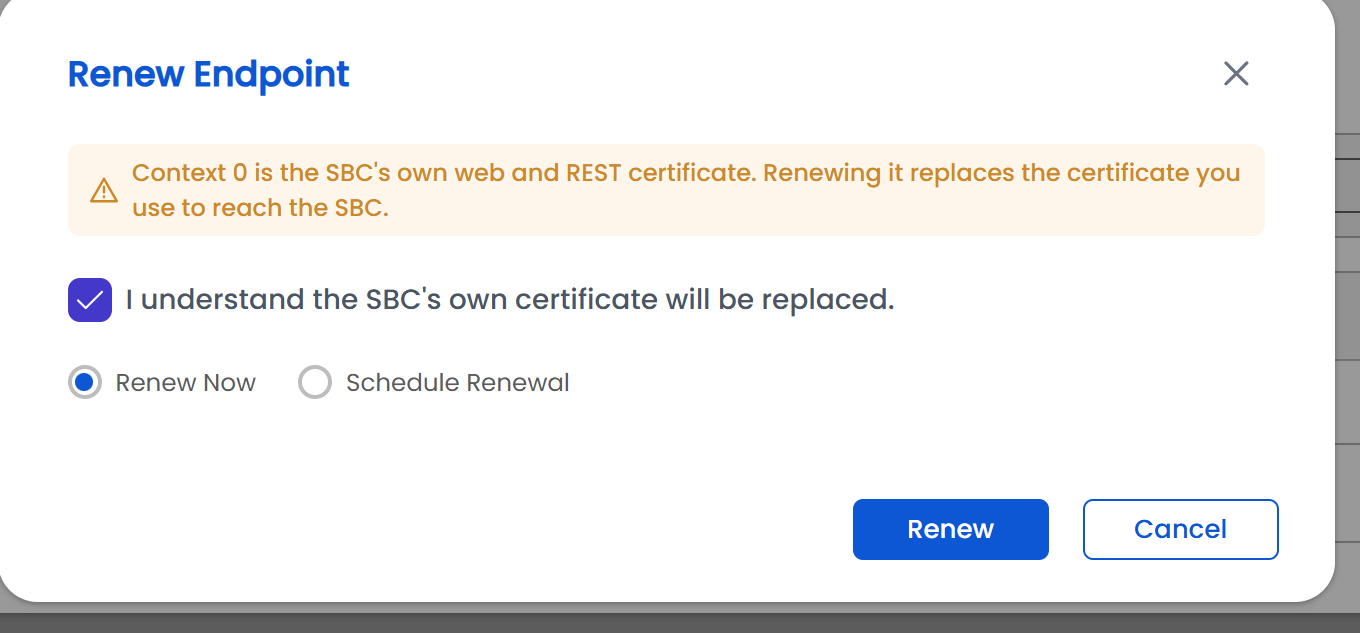
Before you can renew manually:
Here is how to check renewal progress:
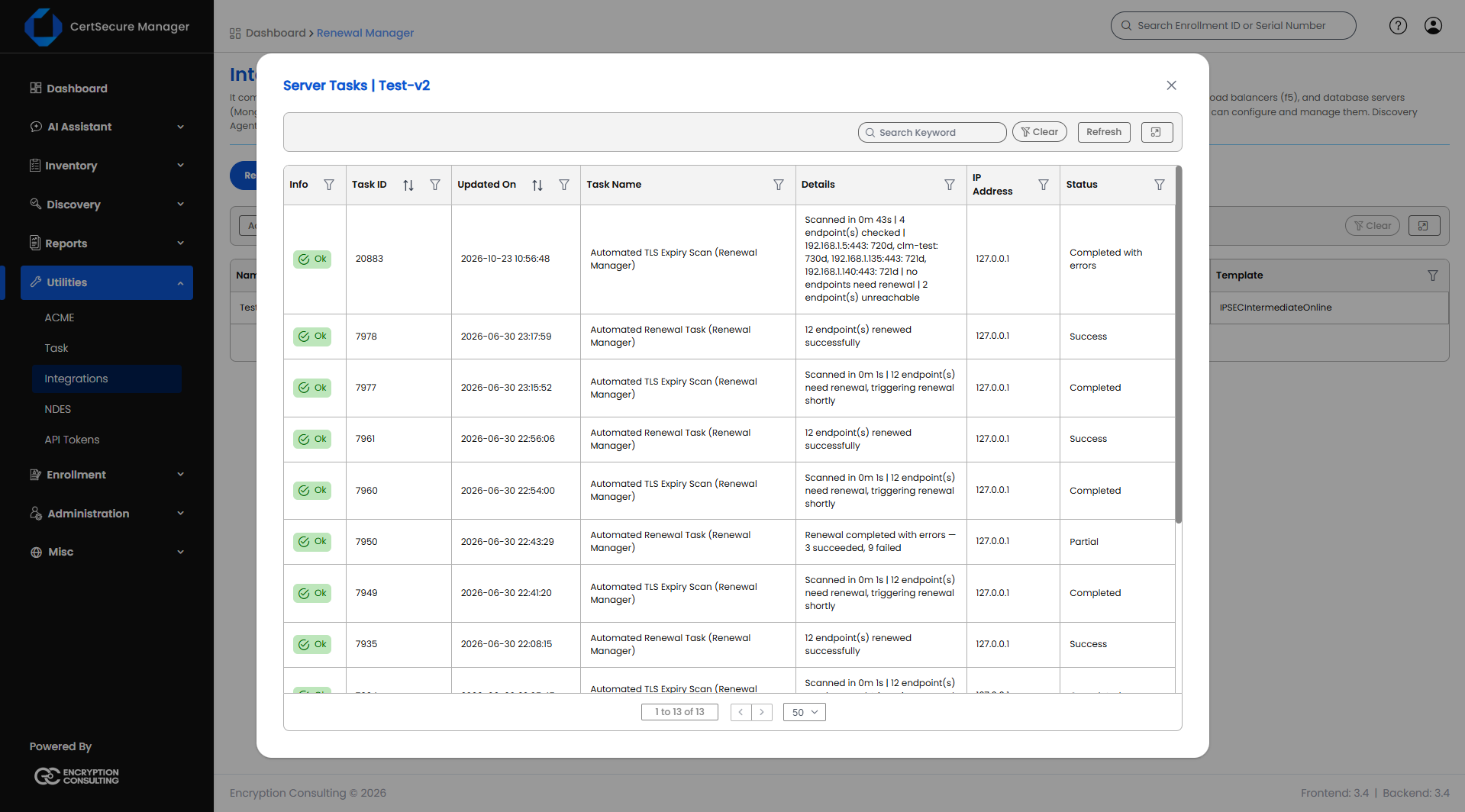
Task Columns
| Column | What it shows |
|---|---|
| Info | A colored status badge: OK, ERROR, PROCESSING, PENDING, INITIALIZED, or WARNING. |
| Task ID | The unique ID of this task. |
| Updated On | When the task status last changed. Filterable by date. |
| Task Name | What kind of task this is, for example a renewal. |
| Details | A short description of the current status or the last error. |
| IP Address | The endpoint address(es) involved. |
| Status | The current status text. |
Task Status Meanings
| Symptom | What to check |
|---|---|
| The form shows "Enter a SHA-256 fingerprint: 64 hex characters, colons optional" | Paste the SBC web certificate's SHA-256 fingerprint as 64 hexadecimal characters. Separators are ignored. Leave the field blank to let CertSecure learn it on first connection. |
| The endpoint is skipped when added | That TLS Context ID already exists on the server. A context can be added only once per server. |
| The endpoint is refused with "rotate_key is not supported on TLS context 0" | Switch Rotate Key off for context 0. |
| The form shows "TLS Context ID must be between 0 and 1023" | Enter a whole number from 0 to 1023, as listed under IP Network > Security > TLS Contexts on the SBC. |
| The form shows "Enter the name on the certificate, for example sbc.ec.com" | Enter a DNS name, with an optional leading "." for a wildcard certificate. |