CertSecure Documentation
  • Overview
    • About CertSecure Manager
    • Documentation Guide
  • Reference Guide
    • Header Bar
      • CertSecure Documentation
      • Swagger API
      • Profile Section
      • Search
    • Dashboard
      • Key Performance Indicators
      • Expiring Certificates
      • CA metrics
      • Key Strength
      • Signing Algorithm
      • Certificate Risk Report Profile
      • PKI Posture Management
      • NDES Health Information
    • AI Assistant
      • Chat
      • Configuration
      • Usage Report
    • Inventory
      • Overview
        • Overall
        • CertSecure
      • Template Management
        • Switch Templates
        • Exclusion List
        • Alert Templates
        • Certificate Templates
      • Template Categories
    • Discovery
      • Inventory
      • Scan Config
      • Cloud Config
      • Vault Config
      • Discovery Analytics
      • Scan Details
      • Discovery Ingestion
    • Reports
    • Utilities
      • ACME
      • Tasks
      • Integrations
        • Renewal Manager
        • Load Balancers
        • Discovery Agents
        • CLI Tool
        • Key Management
        • SEIM Tools
        • DevOps Tools
        • Ansible Automation Platform
      • NDES
      • Azure Key Vault
      • API Tokens
    • Enrollment
      • Certificate Request
      • Generate CSR
      • Enroll CSR
      • Generate Certificate
      • Import Certificate
      • Bulk Certificate Generation
      • Manage Policies
      • Organization Details
    • Administration
      • Users
      • Roles and permission
      • Certificate Authorities
      • Departments
    • Miscellaneous
      • Logging
      • Service Setup
        • Zoom
        • Zendesk
      • Settings
        • Configure Realms
        • Schedule Alerts
        • Metrics
        • Web Branding
        • About License
  • Setup & Architecture
    • Identity and Access Control
    • Architecture
    • Installation
      • Pre-requisites
      • Windows
      • Linux
      • Docker
    • Upgrade
      • Windows
      • Docker
  • Release Notes
    • Releases for 2026
      • v3.4.0
      • v3.3.1
      • v3.3.0
    • Releases for 2025
      • v3.2.0
      • v3.1.0
    • Releases for 2024
      • v3.0.0
  • Workflow
    • Approval Workflow
  • API Reference
    • Getting Started
    • Authorizing Requests
    • Securing API Access
    • Request and Response Conventions
    • Endpoint Reference
      • Health
      • API Token Management
      • CA Management
      • Templates
      • Certificate Enrollment
      • Inventory
      • Certificate Discovery
      • Tasks
      • Watcher Groups
      • Alerts
      • Reports
      • Logs
      • Monitoring
      • Scheduling
      • SMTP
      • ACME
      • Azure Key Vault
      • Google Cloud (GCP)
      • HashiCorp Vault
      • EJBCA
      • ServiceNow
  • Integration Guide
    • Renewal Manager
      • Workflow
      • Setup
      • Troubleshooting
      • IIS
      • Apache
      • Tomcat
      • Nginx
      • MSSQL
      • MongoDB
      • Oracle
      • Cloudflare
      • AudioCodes
      • Cisco ISE
      • Palo Alto PAN-OS
      • Cisco ACI
    • Load Balancer
      • F5
        • Workflow
        • Setup
        • Onboarding
        • UI Guide
        • Troubleshooting
      • NetScaler
        • Workflow
        • Setup
        • UI Guide
        • Troubleshooting
    • Certificate Authorities
      • ACME CAs
      • AWS
      • DigiCert Connector
      • EJBCA
      • GlobalSign
      • GoDaddy
      • HashiCorp Vault PKI
      • Microsoft AD CS
      • Sectigo
      • Sectigo-PS
    • Ansible Automation Platform
    • Azure Key Vault
  • Discovery Agent Setup Guide

Palo Alto PAN-OS

Renews a certificate object on a Palo Alto Networks firewall or on Panorama, using the PAN-OS XML API.

Supported target(s): Palo Alto Networks firewalls and Panorama.

Operating system: Not applicable. The Renewal Manager Agent connects to the device's management address over the XML API, so no operating system is selected and the server is registered with the operating system api.

Agent: PAN-OS is managed by the Renewal Manager Agent that is already registered with CertSecure Manager. The Palo Alto PAN-OS tile has no download of its own. To install and register the agent, see Renewal Manager Setup.
Before You Start
  • The Renewal Manager Agent must be Online and able to reach the management address of the firewall or Panorama.
  • An administrator account on the firewall or Panorama with access to the XML API. Use a dedicated API-only administrator for this.
  • The name of each certificate object to renew, exactly as it appears on the device.
  • For a certificate object that lives in a Panorama template, also the name of the template and the name of the template stack the change is pushed to.
  • A Certificate Authority and a template in CertSecure Manager to issue the renewed certificates, and an owner for the server.
Adding a PAN-OS Server
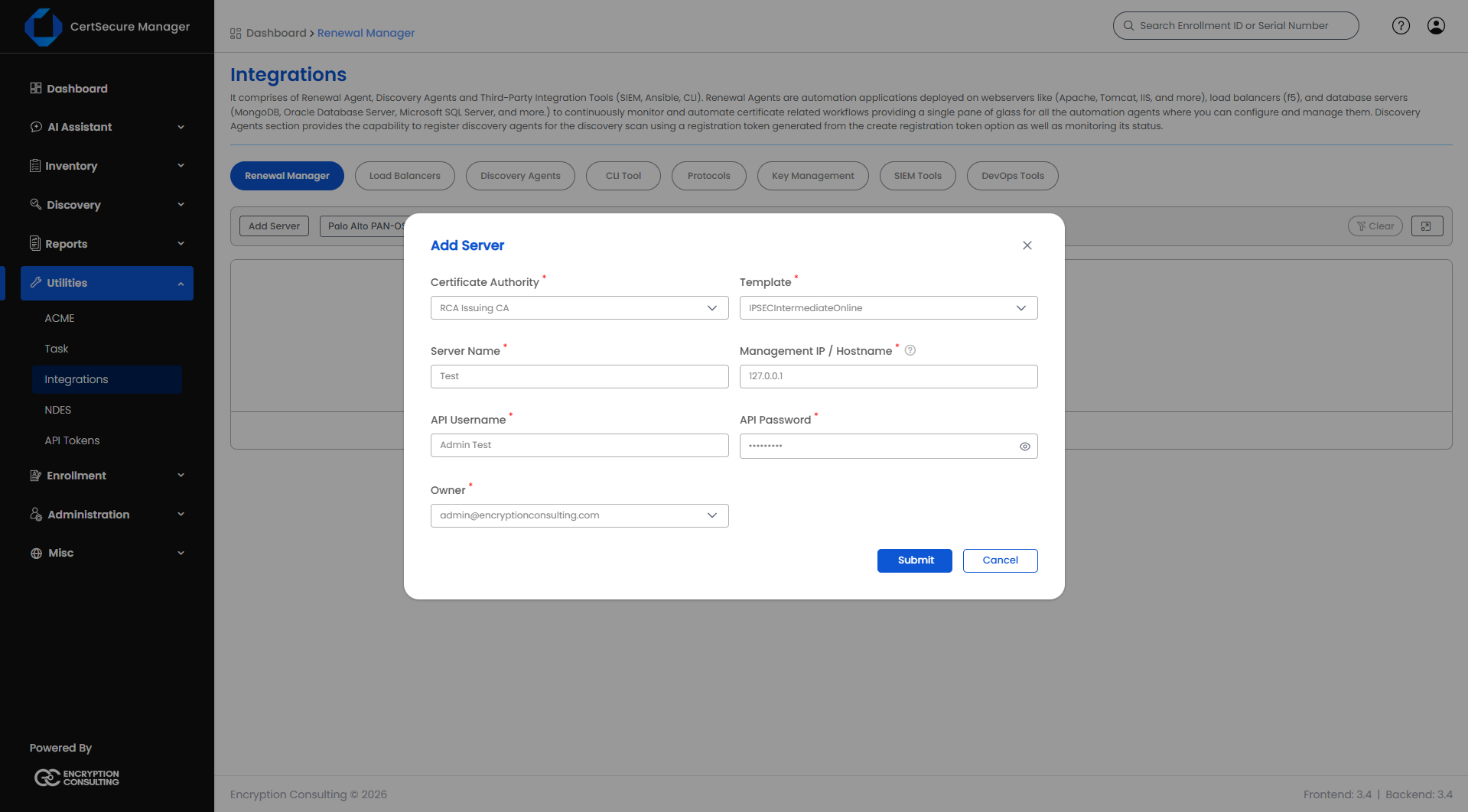
  1. On the Renewal Manager tab, click Add Server (or click the Palo Alto PAN-OS tile in the connector grid).
  2. Select Palo Alto PAN-OS as the Server Type and fill in the fields below.
  3. Click Submit.
Palo Alto PAN-OS - Renewal Manager
Field Applies to What it means
Server Type Required Select Palo Alto PAN-OS.
Certificate Authority Required The CA that will issue renewed certificates for every certificate object on this server.
Template Required The certificate template/profile to request from the selected CA. Options depend on the CA chosen.
Server Name Required, Add only A unique display name for this server. Cannot be changed later. Maximum 50 characters.
Management IP / Hostname Required The management address of the firewall or Panorama. Enter the management IPv4 address or the hostname. Cannot be changed after the server is created.
API Username Required A PAN-OS administrator with XML API access.
API Password Required The password for API Username. Stored encrypted. Between 6 and 128 characters.
Owner Required The person responsible for this server. Autocompletes as you type an organization user's name or email.
Organization ID Only when CA = DigiCert The DigiCert organization ID to request the certificate under.
Order Validity Only when CA = DigiCert How many days the requested certificate should be valid for.

Note: The Operating System field is not shown for PAN-OS. A management address can be registered only once for each server type.

Note: Unlike file-based targets, the Certificate Authority, Template, and Owner are set once on the server and are used for every certificate object registered under it. Endpoints do not carry their own.

PAN-OS Server List Actions

Right-click a server row (or open its actions menu) to see:

  • View Details – opens a read-only summary of the server's configuration.
  • Edit Details – reopens the Add Server form pre-filled, so you can update the API credentials, CA, template, or owner.
  • Manage Endpoints – opens the endpoint list for this server.
  • View Tasks – opens the task history for this server.
  • Delete – deletes the server after a confirmation prompt. Deleting a server also removes every endpoint added under it.
Note: Push Certificate is not offered for PAN-OS servers.
Adding a PAN-OS Endpoint

A PAN-OS endpoint is one certificate object on the device. Unlike file-based targets, no Certificate Path or Key Path is needed: the certificate stays in its object on the device.
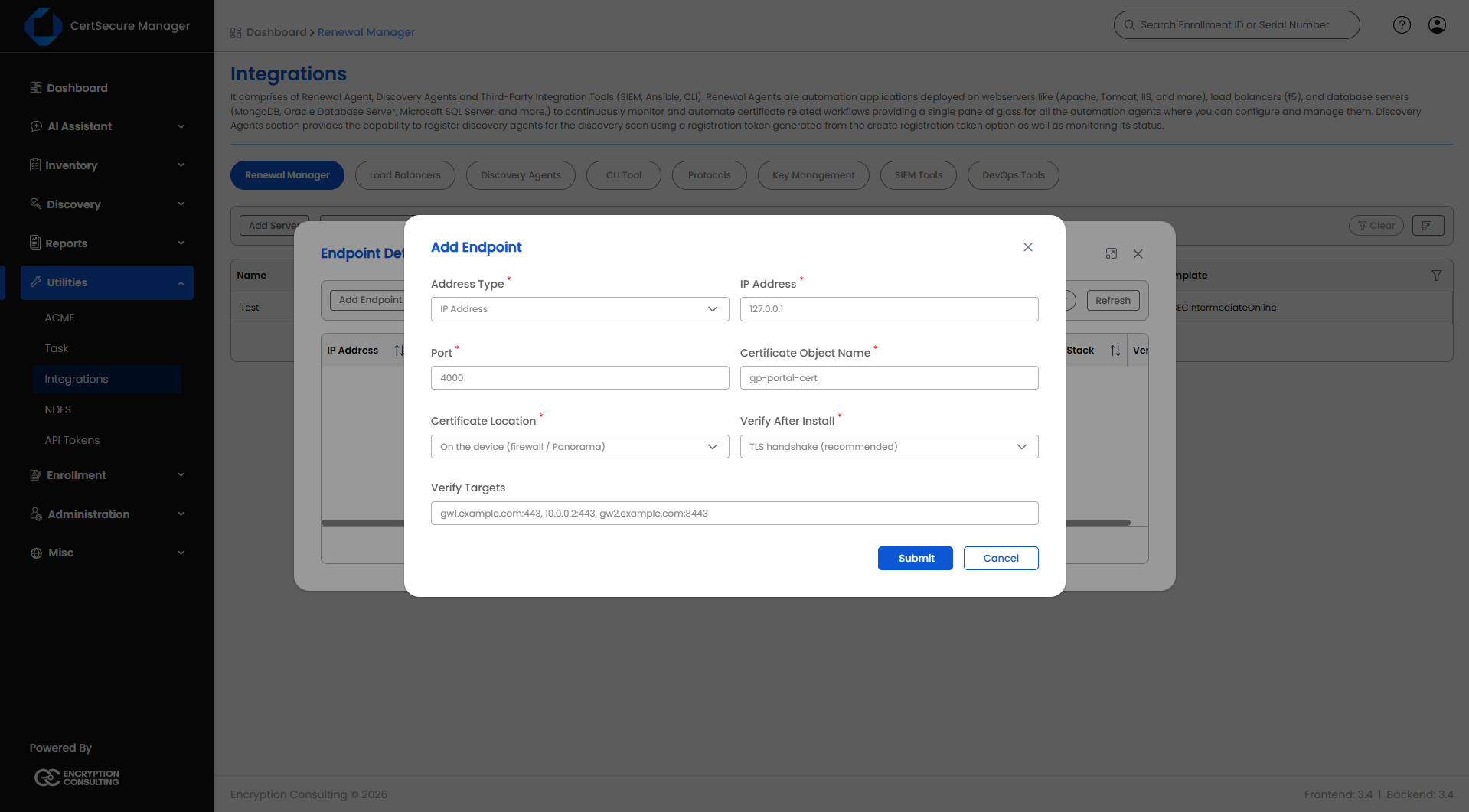
  1. From the server list, open Manage Endpoints on the server (right-click → Manage Endpoints).
  2. Click Add Endpoint.
  3. Fill in the fields below.
  4. Click Submit.
Palo Alto PAN-OS - Renewal Manager
Field Applies to What it means
Address Type Required Whether you will identify this endpoint by IP Address or by Hostname.
IP Address / Hostname Required The address of the service that presents this certificate, for example a GlobalProtect portal or gateway. After the renewal is activated, the agent connects to it to confirm that the new certificate is live.
Port Required The TCP port of that service, for example 443.
Certificate Object Name Required The name of the certificate object on the device that is renewed, for example gp-portal-cert. 1 to 63 characters: letters, digits, space, ".", "_" or "-", starting with a letter or digit.
Certificate Location Required Where the certificate object lives: On the device (firewall / Panorama) – the object is on the device itself; or Panorama template – the object is in a Panorama template.
Panorama Template Required when Certificate Location is Panorama template The name of the Panorama template that holds the certificate object. Same character rule as the object name.
Template Stack to Push Required when Certificate Location is Panorama template The template stack the change is pushed to after the certificate is renewed. Same character rule as the object name.
Verify After Install Required TLS handshake (recommended) – after renewal is activated, the agent opens a TLS connection to each verify target and checks that it answers. None (e.g. IKE-only certificate) – no connection is made. Use it for a certificate that no TLS listener serves, such as one used only for IKE.
Verify Targets Optional. Shown when Verify After Install is TLS handshake A comma-separated list of host:port entries to check, for example gw1.example.com:443, 10.0.0.2:443. Write an IPv6 address as [address]:port. Up to 50 entries. Leave empty to check the endpoint address itself. Use it when one certificate is served by several firewalls or GlobalProtect gateways.

Note: A certificate object can be registered only once on a server. A second endpoint with the same Certificate Object Name and Certificate Location (and the same Panorama Template, for a template object) is skipped, even if it uses a different address or port. If several listeners use one certificate object, register it once and list the other listeners under Verify Targets.

Note: PAN-OS endpoints cannot be edited. To change an endpoint, delete it and add it again.

Endpoint List

The endpoint list shows the IP Address, Hostname, and Port, followed by these PAN-OS columns:

Column What it shows
Certificate Object The Certificate Object Name.
Location On device, or Panorama template.
Template The Panorama template name. N/A for an object on the device.
Template Stack The template stack the change is pushed to. N/A for an object on the device.
Verify None; TLS (this endpoint) when no Verify Targets are set; or TLS followed by the list of Verify Targets.
Endpoint Actions

From the endpoint list, use the row actions (right-click or the actions menu) to:
  • View Details – opens a read-only summary of the endpoint.
  • Renew – opens the Renew Endpoint dialog.
  • Delete – removes this endpoint from the server after a confirmation prompt. It does not delete the certificate object on the device.
Renewing a PAN-OS Certificate
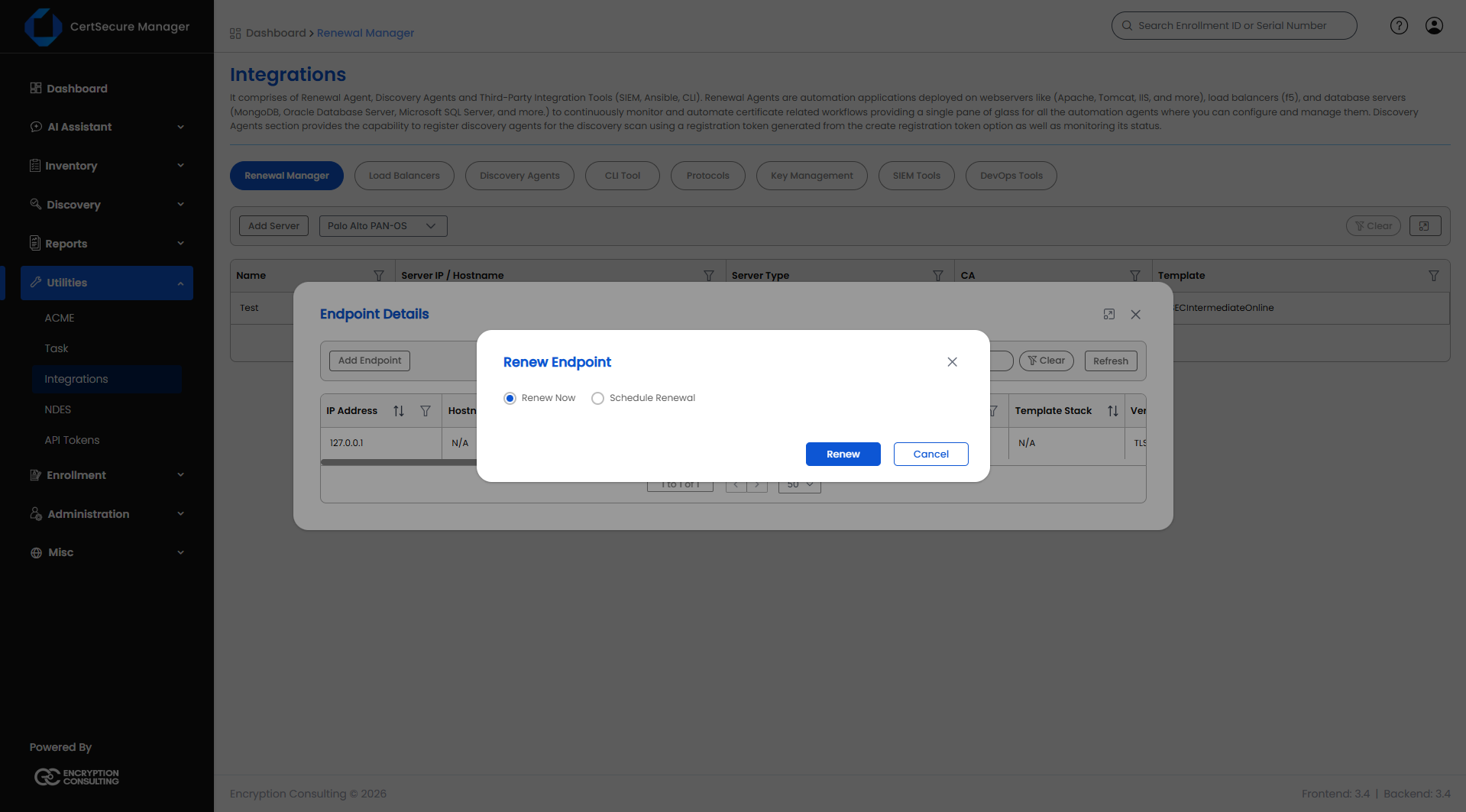
  1. Open Manage Endpoints on the server, find the endpoint, and choose Renew.
  2. Pick one of:
    • Renew Now – queues the renewal immediately.
    • Schedule Renewal – pick a date and time at least 30 minutes from now using Enter Schedule Time.
  3. Click Renew (or Schedule if you chose to schedule it).
Palo Alto PAN-OS - Renewal Manager

Before you can renew manually:

  • The Renewal Manager Agent must be Online.
  • The endpoint must already exist under the server. Add it first if it does not.
What Happens When You Renew
  1. The agent signs in to the device's XML API with the API Username and API Password.
  2. It obtains a renewed certificate for the named certificate object from the Certificate Authority and template set on the server.
  3. It installs the certificate in the object and commits the change. For an object in a Panorama template, the change is pushed to the template stack named in Template Stack to Push.
  4. Unless Verify After Install is None, it connects to every verify target (the endpoint address when none are listed) and checks that the new certificate is being served.
  5. If a verify target answered before the change and stops answering after it, the renewal is treated as broken and the agent rolls back to the previous certificate.
Viewing Tasks

Here’s how to check renewal progress:

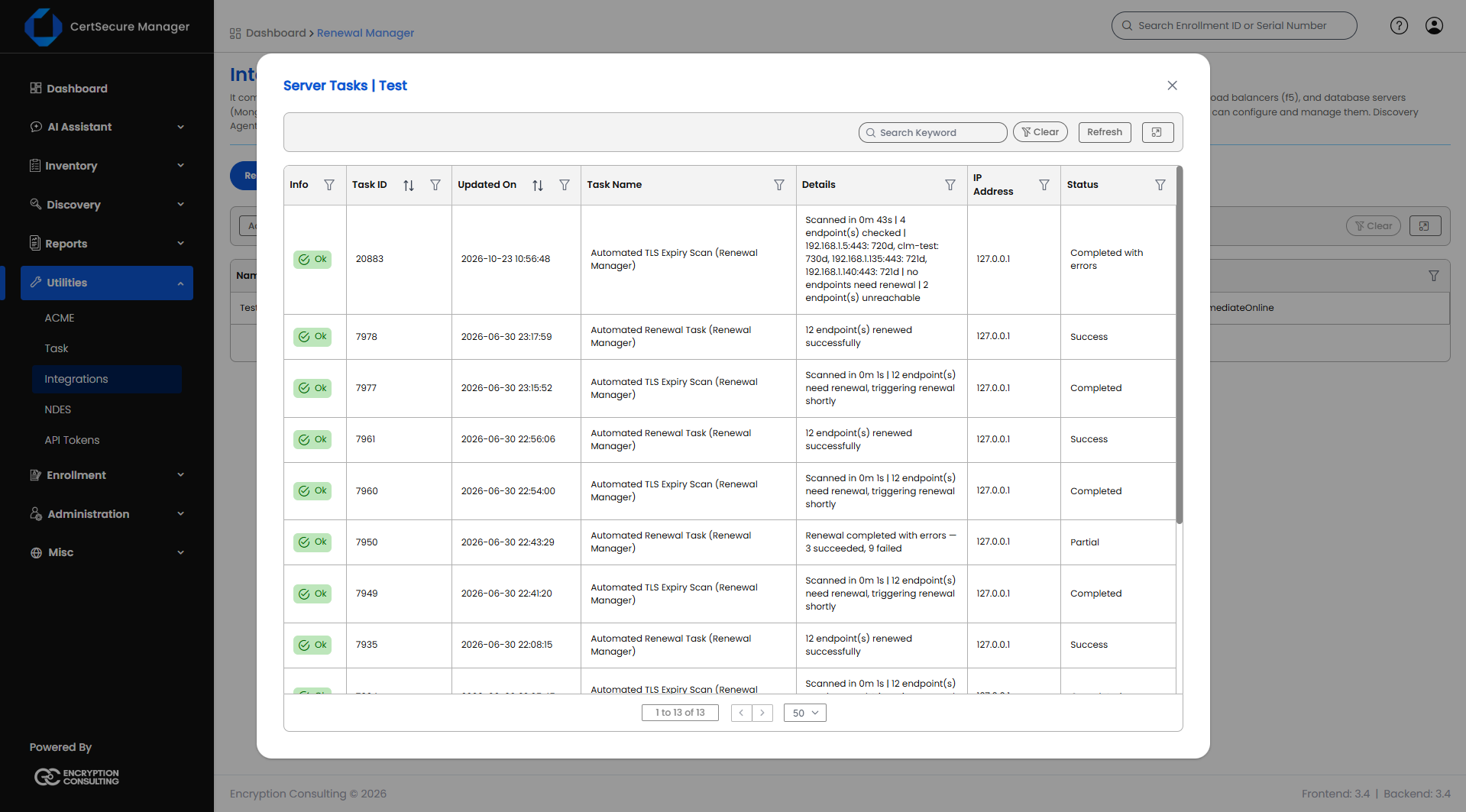
  1. Right-click a server → View Tasks.
  2. Use Search Keyword, the column filters, or Refresh to find a specific task.
Palo Alto PAN-OS - Renewal Manager

Task Columns

Column What it shows
Info A colored status badge: OK, ERROR, PROCESSING, PENDING, INITIALIZED, or WARNING.
Task ID The unique ID of this task.
Updated On When the task status last changed. Filterable by date.
Task Name What kind of task this is, for example a renewal.
Details A short description of the current status or the last error.
IP Address The endpoint address(es) involved.
Status The current status text.

Task Status Meanings

  • INITIALIZED – the task was just created and is queued.
  • PENDING – waiting for the agent to pick it up.
  • PROCESSING – the agent is actively working on it.
  • OK – completed successfully.
  • WARNING – completed, but with something worth checking.
  • ERROR – failed. Check Details for the reason.
Messages You May See When Adding an Endpoint
Message What to do
1-63 characters: letters, digits, space, '.', '_' or '-', starting with a letter or digit The Certificate Object Name, Panorama Template, or Template Stack to Push uses a character that is not allowed, or is too long.
At most 50 verify targets Remove entries from Verify Targets.
'<entry>' must be host:port (IPv6 as [addr]:port) The named Verify Targets entry is not in host:port form. Write each entry as host:port, with a port from 1 to 65535.
Enter the management IPv4 address or hostname The Management IP / Hostname of the server is not an IPv4 address or a valid hostname.
On this Page:
Support Privacy Policy Terms of Service

Copyright 2026 Encryption Consulting LLC. All rights reserved.