- Overview
- Reference Guide
- Setup & Architecture
- Release Notes
- Workflow
- API Reference
- Integration Guide
- Discovery Agent Setup Guide
This section provides a comprehensive installation guide for the Renewal Manager agent service, which works with CertSecure Manager to automate and manage SSL/TLS certificate renewals for web servers (IIS, Apache, Nginx, Tomcat) and databases (MSSQL, MongoDB, OracleDB) running on Windows and Linux environments.
The purpose of this section is to facilitate the seamless deployment and configuration of the Renewal Manager on either a virtual machine (VM) or a physical machine. This section assumes that CertSecure Manager is already up and running in your environment.
Before proceeding with the deployment, ensure that the CertSecure Manager frontend and backend are fully operational.
The Renewal Manager supports the following applications on the target operating systems shown below. Any combination not marked in the table is not supported in the current release.
| Application | Windows (Server 2016 or later) | Linux (Ubuntu 22.04, SLES 15, RHEL 9 or later) |
|---|---|---|
| IIS | Supported | N/A |
| Apache | Supported | Supported |
| Nginx | Supported | Supported |
| Tomcat | Supported | Supported |
| MSSQL | Supported | - |
| MongoDB | Supported | - |
| OracleDB | Supported | - |
| Cloudflare | Managed through its API | Managed through its API |
| AudioCodes | Managed through its management interface | Managed through its management interface |
| Cisco ISE | Managed through its management interface | Managed through its management interface |
| Cisco ACI | Managed through its API | Managed through its API |
| Palo Alto PAN-OS | Managed through its API | Managed through its API |
Hardware Requirements
The machine running the Renewal Manager service must meet the following minimum hardware requirements:
Software Requirements
The host running the Renewal Manager service must adhere to the following software requirements:
The following requirements apply to each server that will be onboarded through the CertSecure Manager portal after the Renewal Manager is installed.
Software Required on Target
The Renewal Manager generates the CSR and installs the renewed certificate on the target itself. The tooling it invokes for that depends on the target type:
| Target | Windows Tooling | Linux Tooling |
|---|---|---|
| IIS | certreq.exe (built into Windows) | N/A |
| Apache | OpenSSL on PATH | OpenSSL on PATH (comes pre-installed) |
| Nginx | OpenSSL on PATH | OpenSSL on PATH (comes pre-installed) |
| Tomcat | OpenSSL on PATH | OpenSSL on PATH (comes pre-installed) |
| MSSQL | certreq.exe (built into Windows) | Not supported currently |
| MongoDB | OpenSSL on PATH | Not supported currently |
| OracleDB | OpenSSL on PATH, and orapki (ships with Oracle DB) | Not supported currently |
| Cloudflare | None. Managed through its API | None. Managed through its API |
| AudioCodes | None. Managed through its management interface | None. Managed through its management interface |
| Cisco ISE | None. Managed through its management interface | None. Managed through its management interface |
| Cisco ACI | None. Managed through its API | None. Managed through its API |
| Palo Alto PAN-OS | None. Managed through its API | None. Managed through its API |
Note: IIS and MSSQL targets do not require OpenSSL because certreq.exe is built into Windows and handles CSR generation and certificate installation natively. All other target types require OpenSSL to be installed on the target machine and available on the machine PATH.
Remote Access
The Renewal Manager reaches each target over a single remote channel; the protocol depends on the target OS.
| Target OS | Protocol | Port | Direction |
|---|---|---|---|
| Windows | WinRM (HTTP) | 5985 | Inbound from Renewal Manager host |
| Windows | WinRM (HTTPS) | 5986 | Inbound from Renewal Manager host |
| Linux | SSH | 22 | Inbound from Renewal Manager host |
Account Permissions by Target Type
A dedicated account must be added while onboarding each target through the CertSecure Manager portal. The account must have administrative access (in most cases) on the target because operations such as writing to the Windows certificate store, writing to protected key directories on Linux, and restarting services all require elevated privileges. The exact requirements per target type are given below.
IIS — Windows only
Importing certificates into the Local Machine store and modifying IIS site bindings are all privileged operations. Without administrative rights, the renewal will fail at the cert-import step or the binding-rebind step, and the site will continue serving the old certificate until an administrator intervenes manually.
Apache — Windows or Linux
The Apache cert and key files typically live in paths owned by root (Linux) or SYSTEM (Windows), and Apache must be restarted for a new certificate to take effect. Both writing to those paths and restarting the service require elevated privileges. A non-privileged account will fail either at the file-write step or at the service-restart step, leaving the site on the old certificate.
Nginx — Windows or Linux
Same requirements as Apache — the renewal writes to protected paths and restarts the service, both of which need elevated privileges.
Tomcat — Windows or Linux
Same requirements as Apache — the renewal writes to protected paths and restarts the service, both of which need elevated privileges.
MSSQL — Windows only
HKLM\SOFTWARE\Microsoft\MicrosoftSQLServer\<InstanceID>\MSSQLServer\SuperSocketNetLib)
so the new certificate's thumbprint can be written into the
Certificate value.
sql_service_account)
must resolve to a real Windows or AD account on the target.
MSSQLSERVER for the default instance, or
MSSQL$<instance_name> for a named instance.
The MSSQL renewal writes into HKLM, ACLs a private-key file, and restarts a Windows service — all privileged operations. Without administrative rights, the renewal will fail at the cert-install, ACL-grant, registry-write, or service-restart step, and the instance will continue serving the old certificate on the next TLS handshake.
MongoDB — Windows only
cert_path. MongoDB reads the certificate
from this single file (net.tls.certificateKeyFile in
mongod.conf).
service_name.
The MongoDB renewal overwrites the combined key+cert file and restarts the mongod service. If the account can't write to the PEM path or can't restart the service, the endpoint will continue serving the old certificate until an administrator intervenes.
OracleDB — Windows only
wallet_path.
wallet_password. It is stored encrypted end-to-end and
decrypted only on the agent host for the duration of an orapki call.
listener_service_account) must resolve to a real
Windows or AD account on the target.
listener_service_name.
The OracleDB renewal mutates the wallet via orapki, re-ACLs the wallet files for the listener service account, and restarts the listener. Every one of these steps needs elevated privileges; a non-privileged or mis-scoped account will fail at wallet import, ACL grant, or service restart, and the listener will continue serving the old certificate.
Cloudflare — API only
Custom certificates are available only on Cloudflare zones whose plan includes them. A zone that the token or the plan does not allow is reported when the domains are imported, and the other zones are still imported.
Cisco ISE — API only
The Renewal Manager changes system certificates and, for the Admin role, restarts the node. Credentials that ISE rejects fail the renewal with an ISE credential error.
AudioCodes, Cisco ACI, and Palo Alto PAN-OS — API only
See the page of each target for its other requirements: Cloudflare, AudioCodes, Cisco ISE, Cisco ACI, and Palo Alto PAN-OS.
Trust Chain Requirements
The Renewal Manager operates only on leaf certificates — it installs the renewed leaf and updates the application binding, but it does not modify trust anchors. Every target that will serve a renewed certificate must already trust the Root CA and any Intermediate CAs in the chain of the leaf being issued.
Key operational notes:
Once the requirements are met, the installation and setup of the renewal manager service will be done as follows:
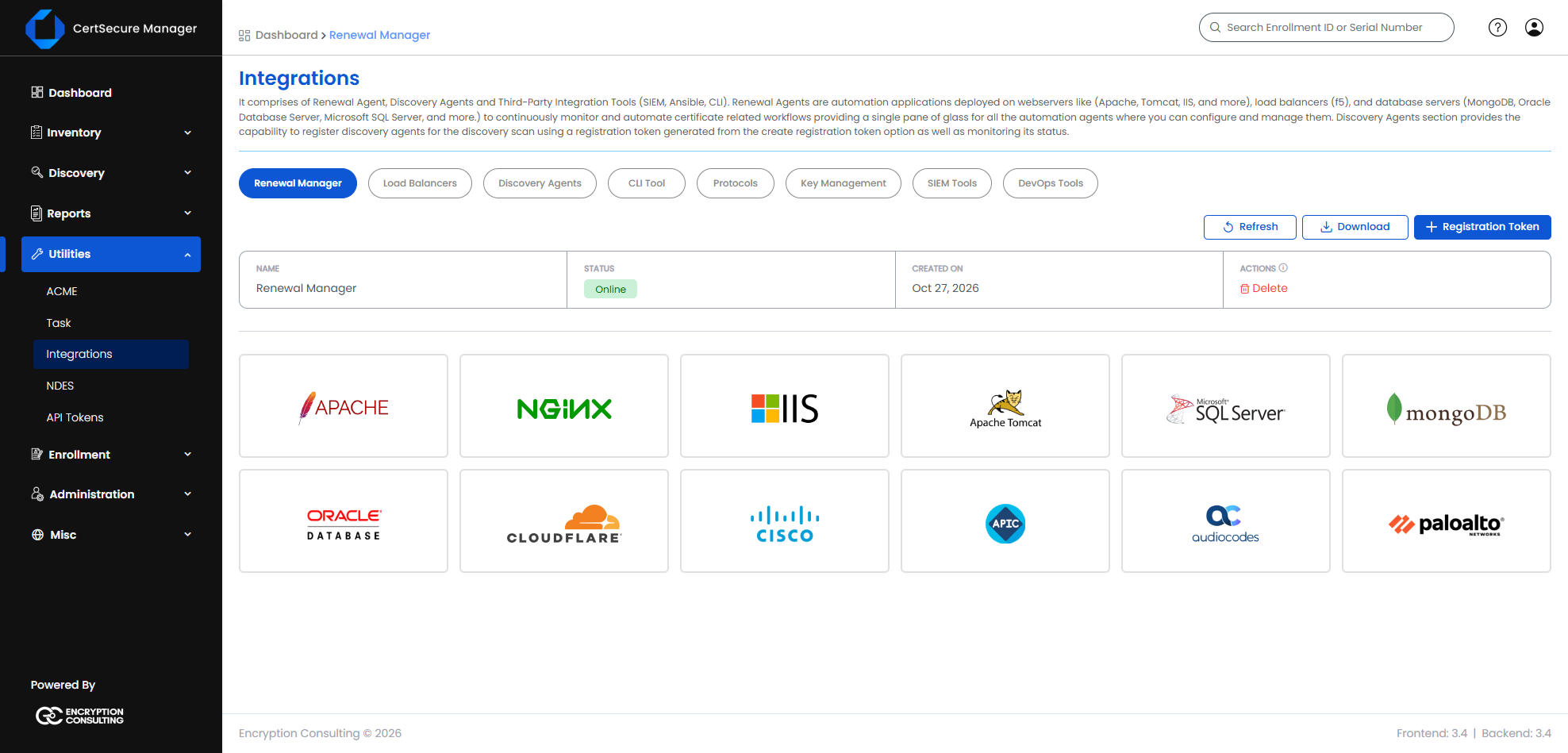
Download the zip from the CertSecure Manager Portal by going to Utilities, then Integrations, then clicking on any of the application icons, and then finally clicking on the download button.
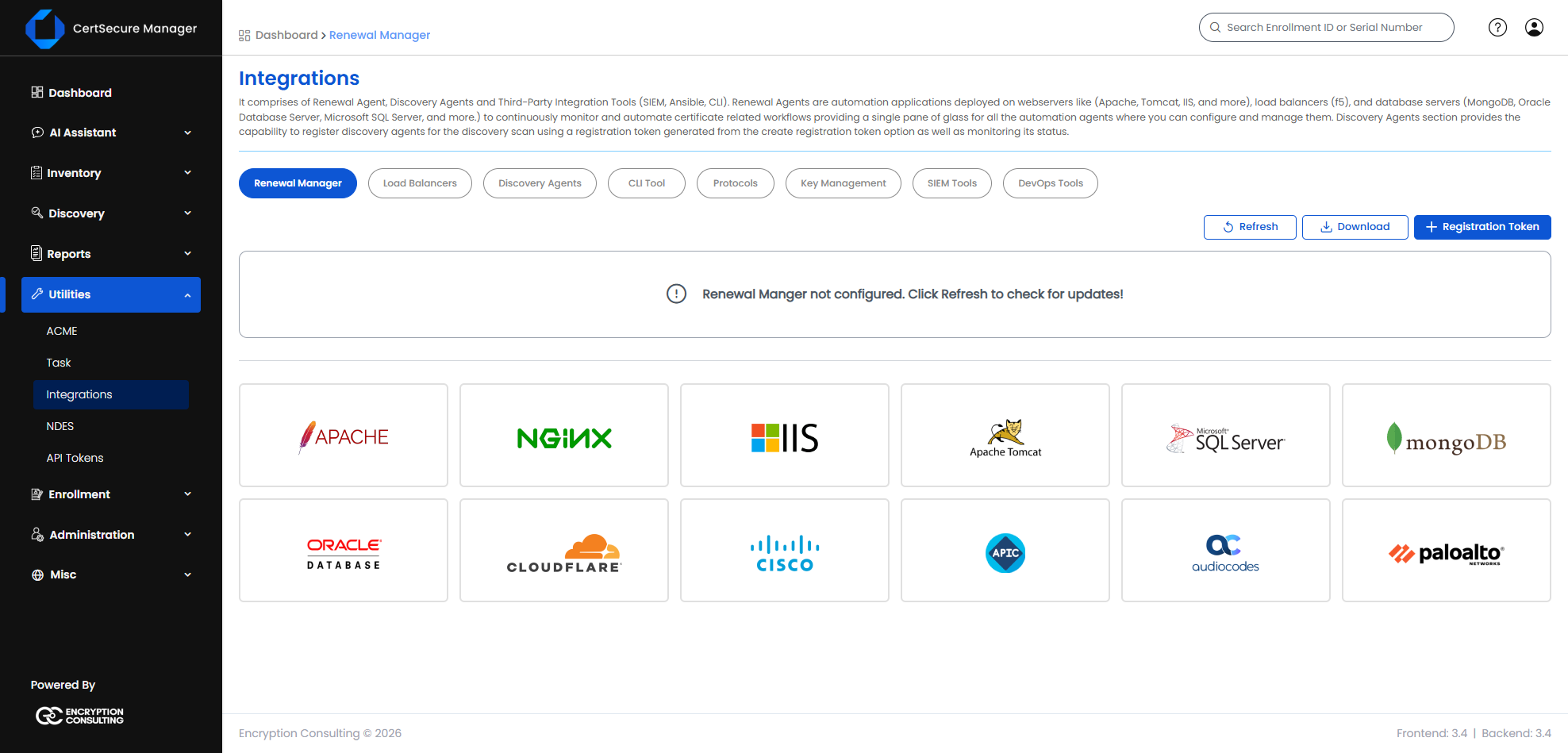
Note: The Download and Registration Token buttons are at the top of the Renewal Manager page, next to Refresh.
Extract the zip, Mount the ISO, and run the installer as an Administrator.
Proceed with the installation by accepting the terms and continue forward until the installer asks for the backend IP or URL and the service account credentials; provide the details, press Next, and then click on the Install button.
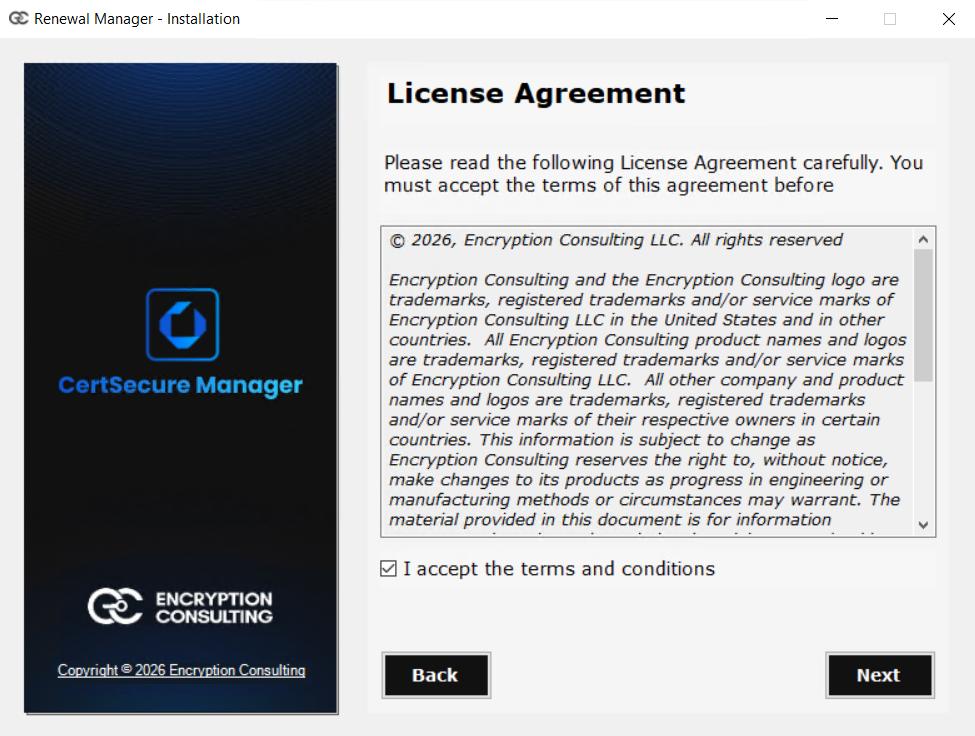
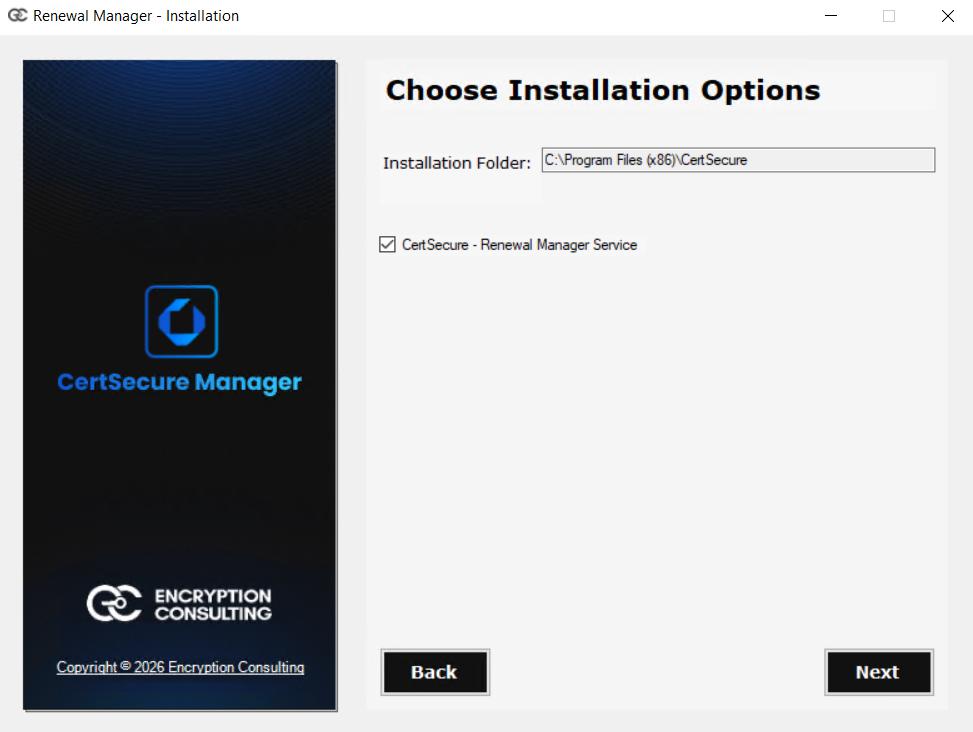
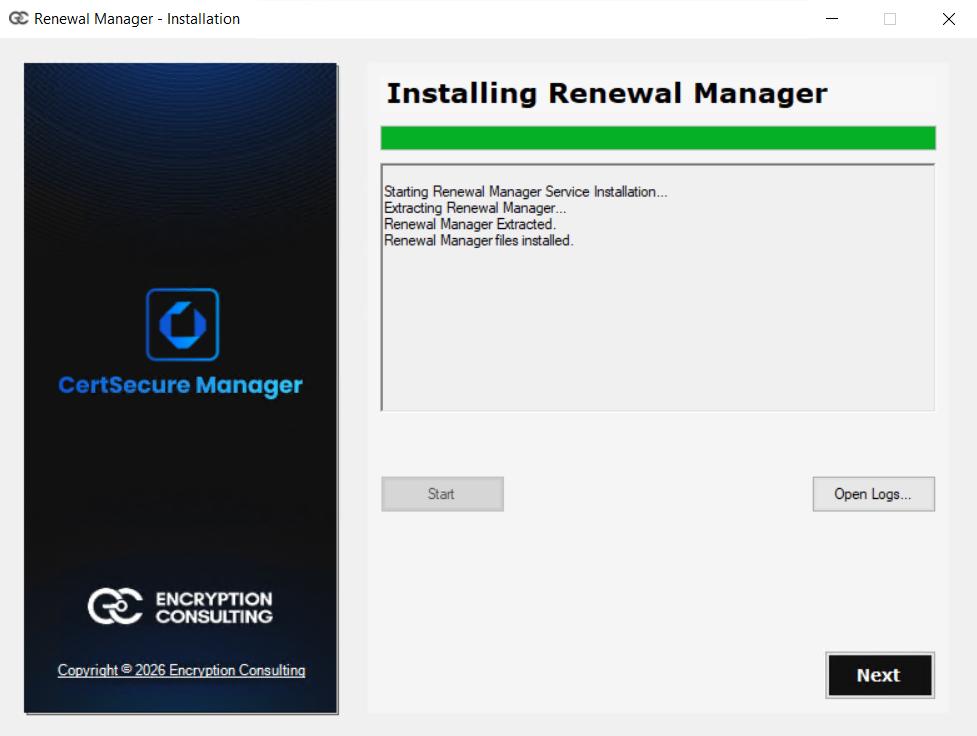
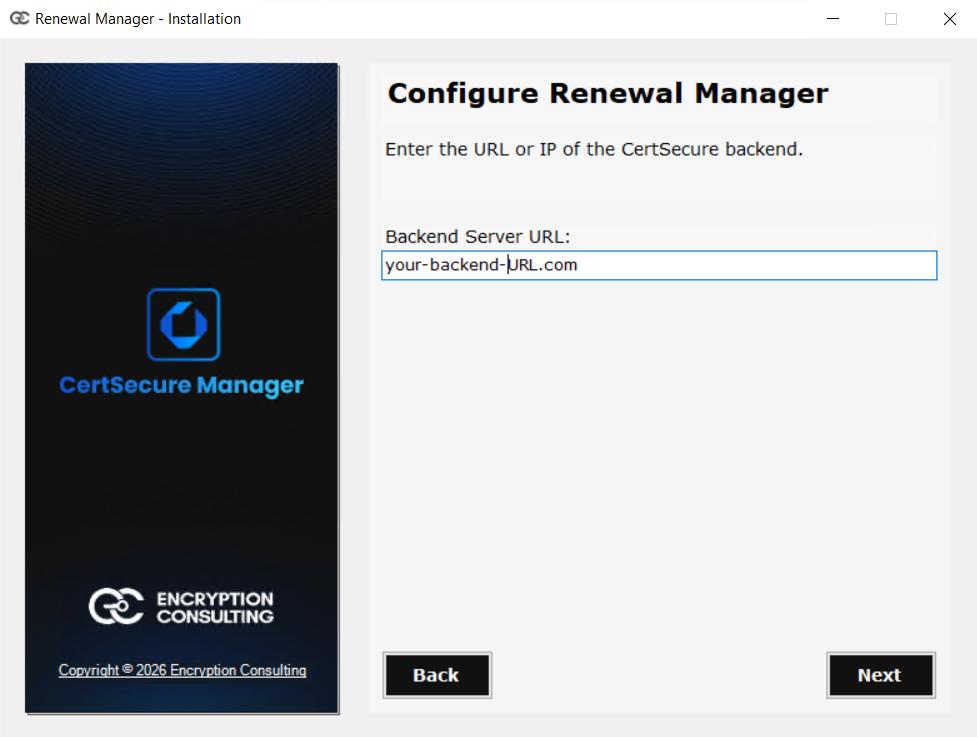
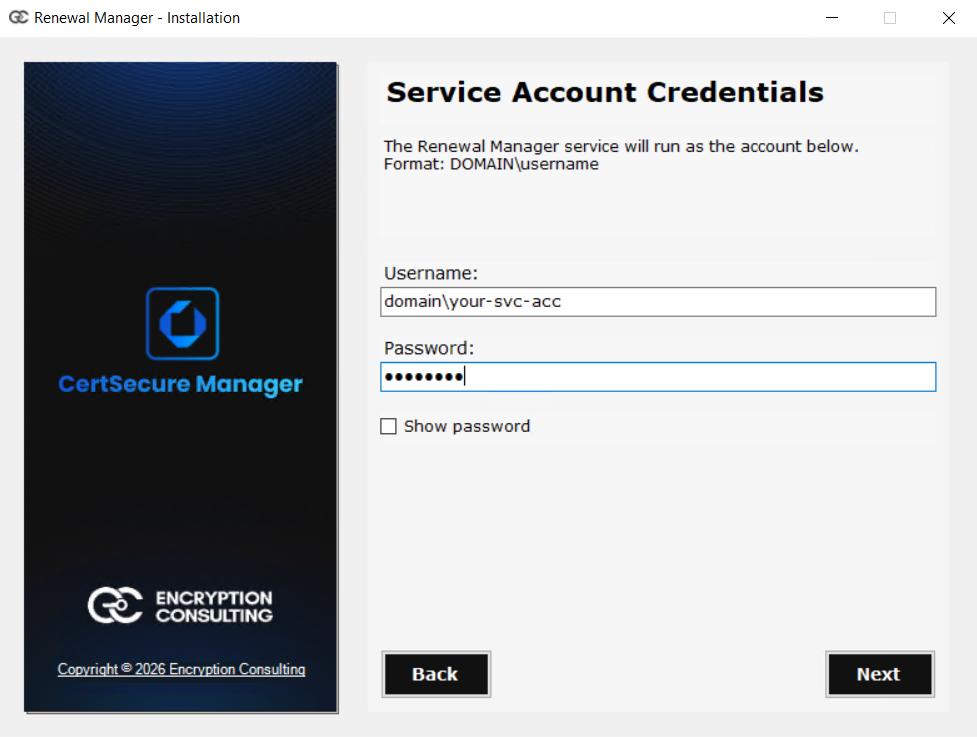
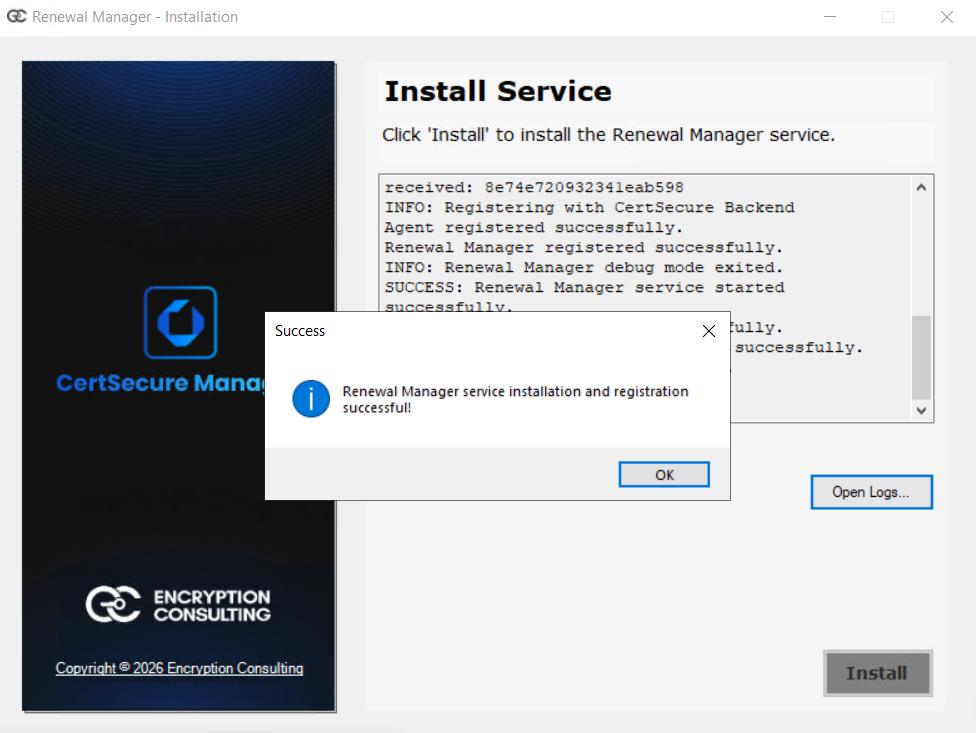
During the installation, the installer will ask for a registration token that can be generated from the portal by going under Utilities, Integrations, and then clicking on the Registration Token button, copy it, and then submit the token and wait for the service to start automatically.
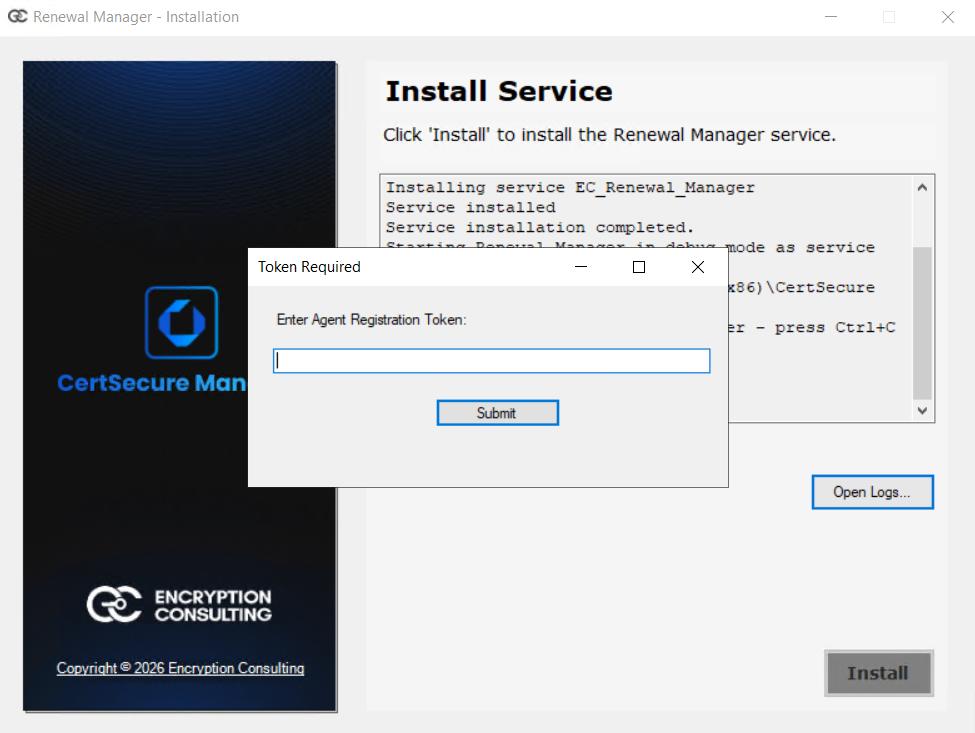
Close the installer after successful installation.
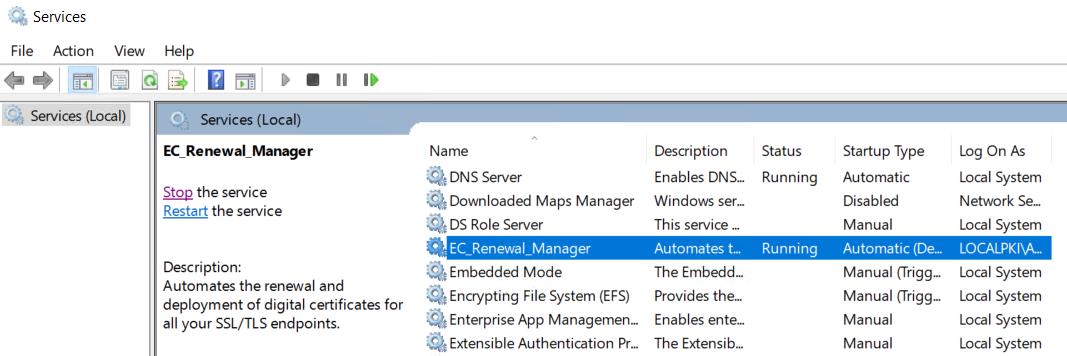
Now go to services.msc and look for EC_Renewal_Manager; you can manage the service from here.
Now go to Utilities, Integrations, and then click on any of the application icons to see the renewal manager up and running. You can now start adding servers and automating SSL/TLS certificate renewals for applications running on your infrastructure.
To get a detailed guide on how to onboard servers, applications, and manage and automate renewals, go to the Integrations section by accessing the CertSecure Manager Documentation.