Renews the certificate used by a SQL Server instance for encrypted connections.
Supported operating system(s): Windows
only.
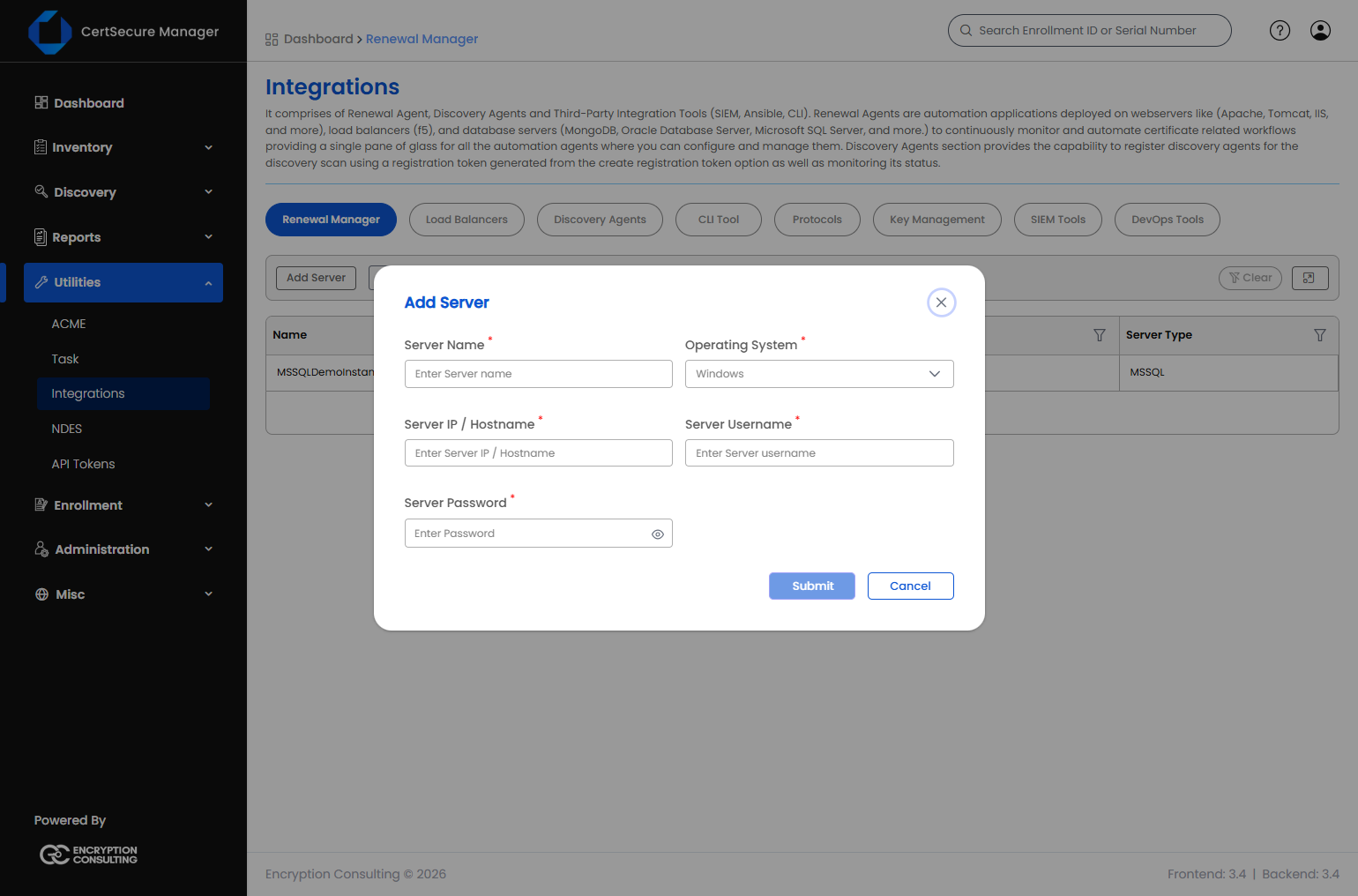
Adding a MSSQL Server
On the Renewal Manager tab, click Add Server (or click the MSSQL tile in the
connector grid).
Fill in the fields below.
Click Submit.
Field
Applies to
What it means
Server Name
Required, Add only
A unique display name for this server. Cannot be changed later.
Maximum 50 characters.
Operating System
Fixed to Windows
MSSQL only runs on Windows targets.
Server IP
Required
The IPv4 address CertSecure uses to reach this server.
Server Username
Required
The WinRM account used to connect to this server.
Server Password
Required
The password for Server Username. Stored encrypted. On Edit,
leave blank to keep the existing password.
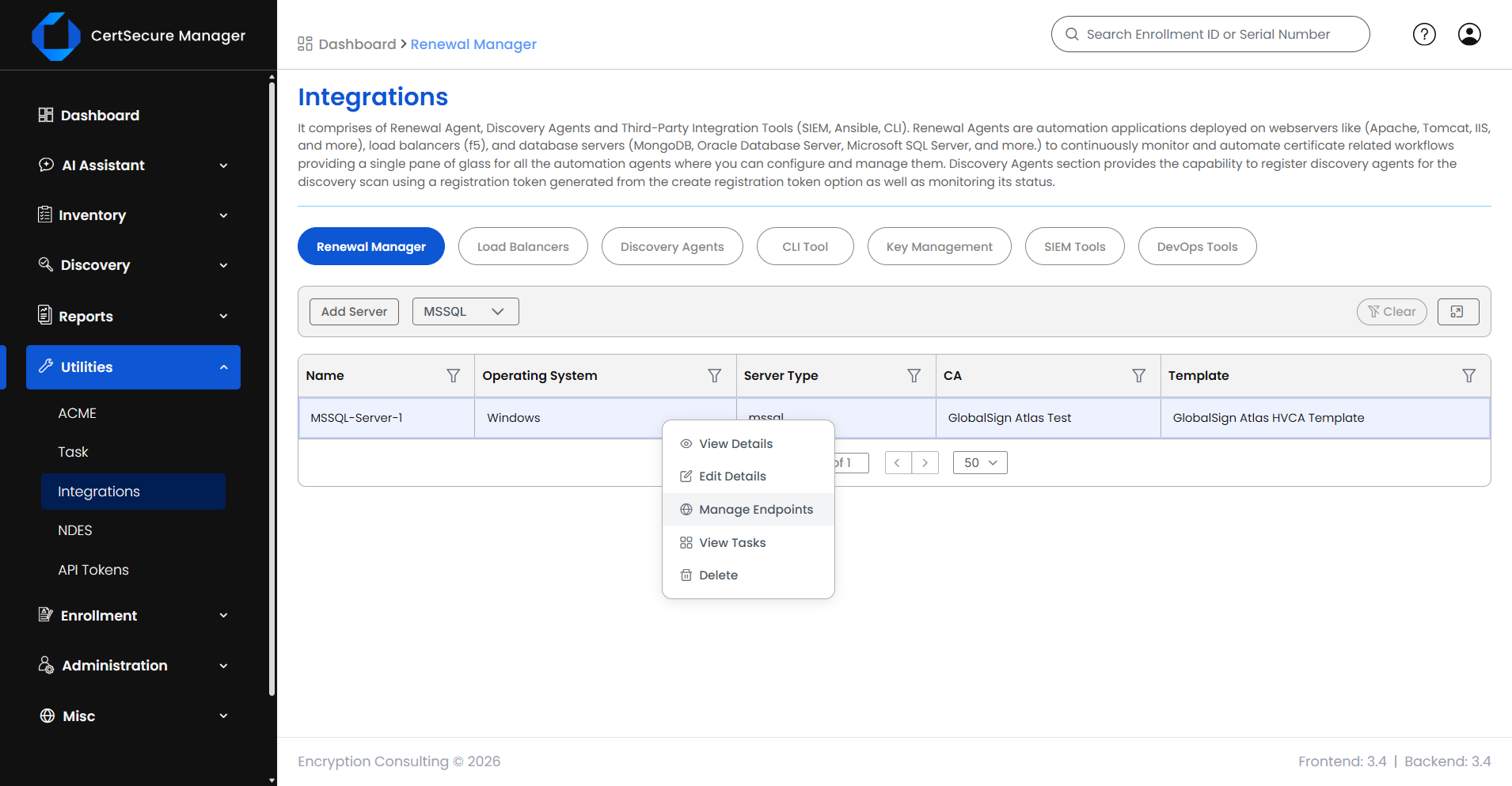
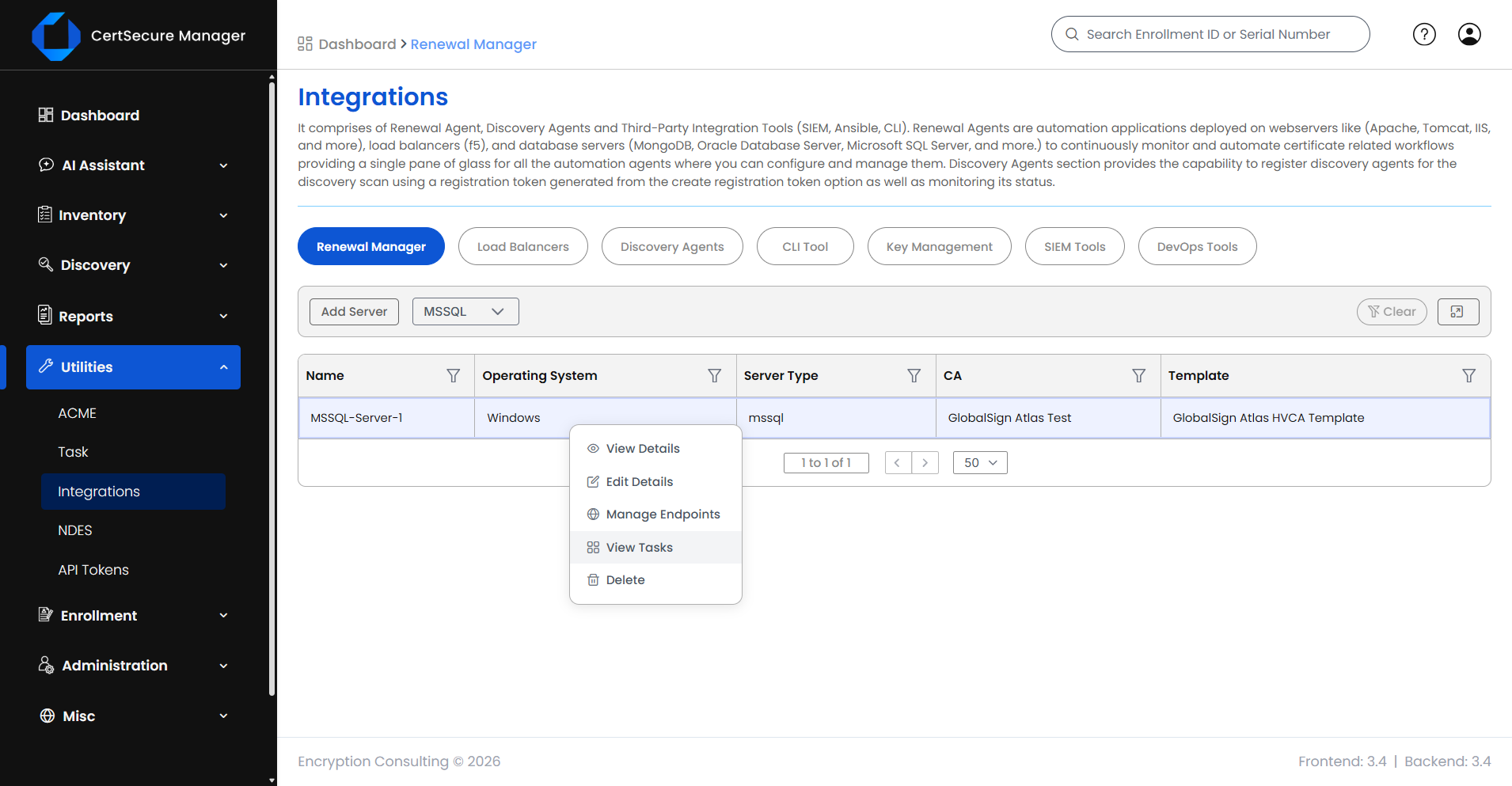
MSSQL Server List Actions
Right-click a server row (or open its actions menu) to see:
View Details – opens a read-only
summary of the server's configuration.
Edit Details – reopens the Add Server form pre-filled, so you can update credentials.
Manage Endpoints – opens the endpoint
list for this server.
Push Certificate – issues a new certificate for this server and installs it in the Local Machine Personal certificate store, without binding it to an instance or restarting SQL Server. See Pushing a Certificate.
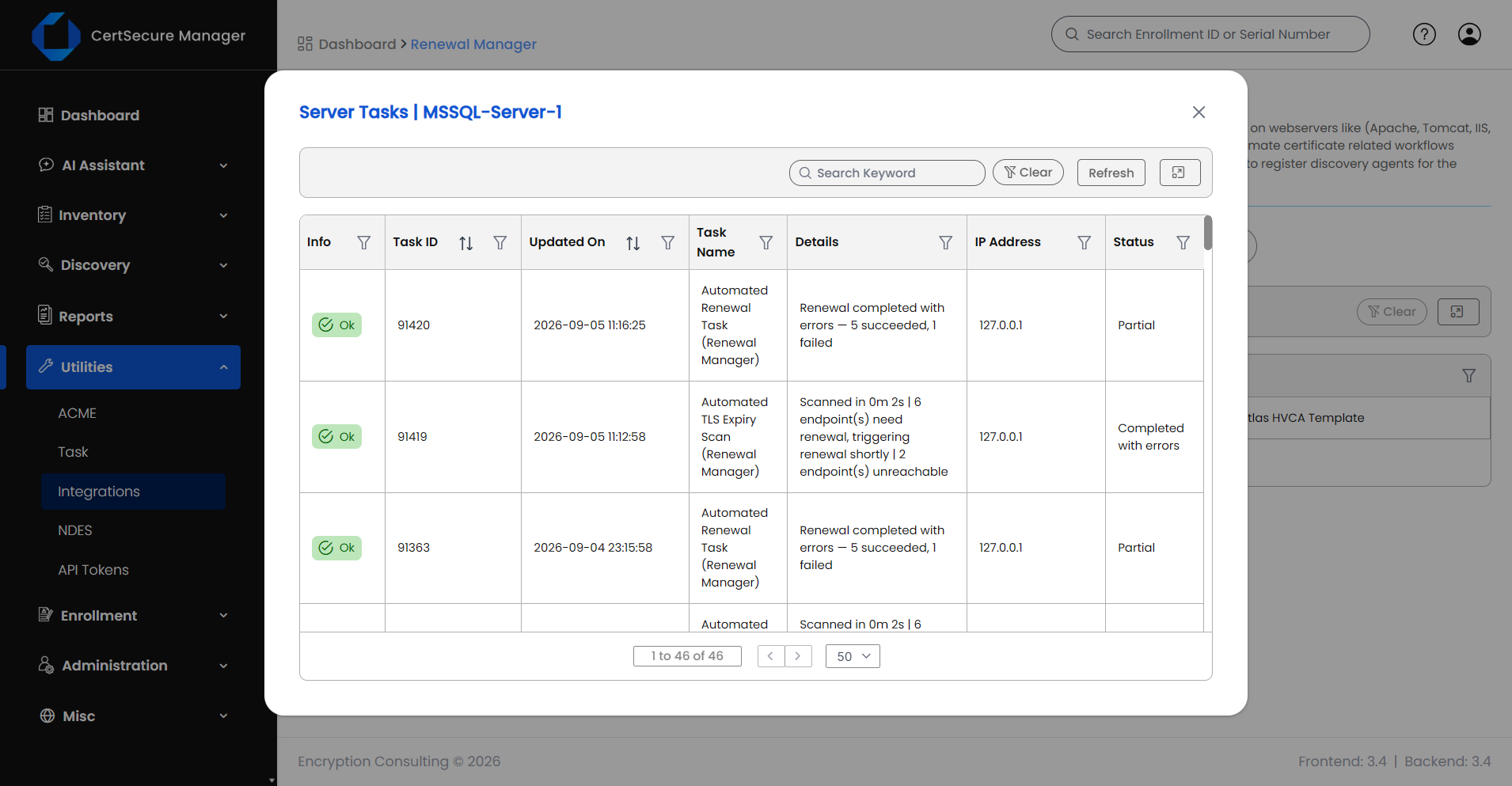
View Tasks – opens the task history for
this server.
Delete – deletes the server after a
confirmation prompt. Deleting a server also removes every endpoint added
under it.
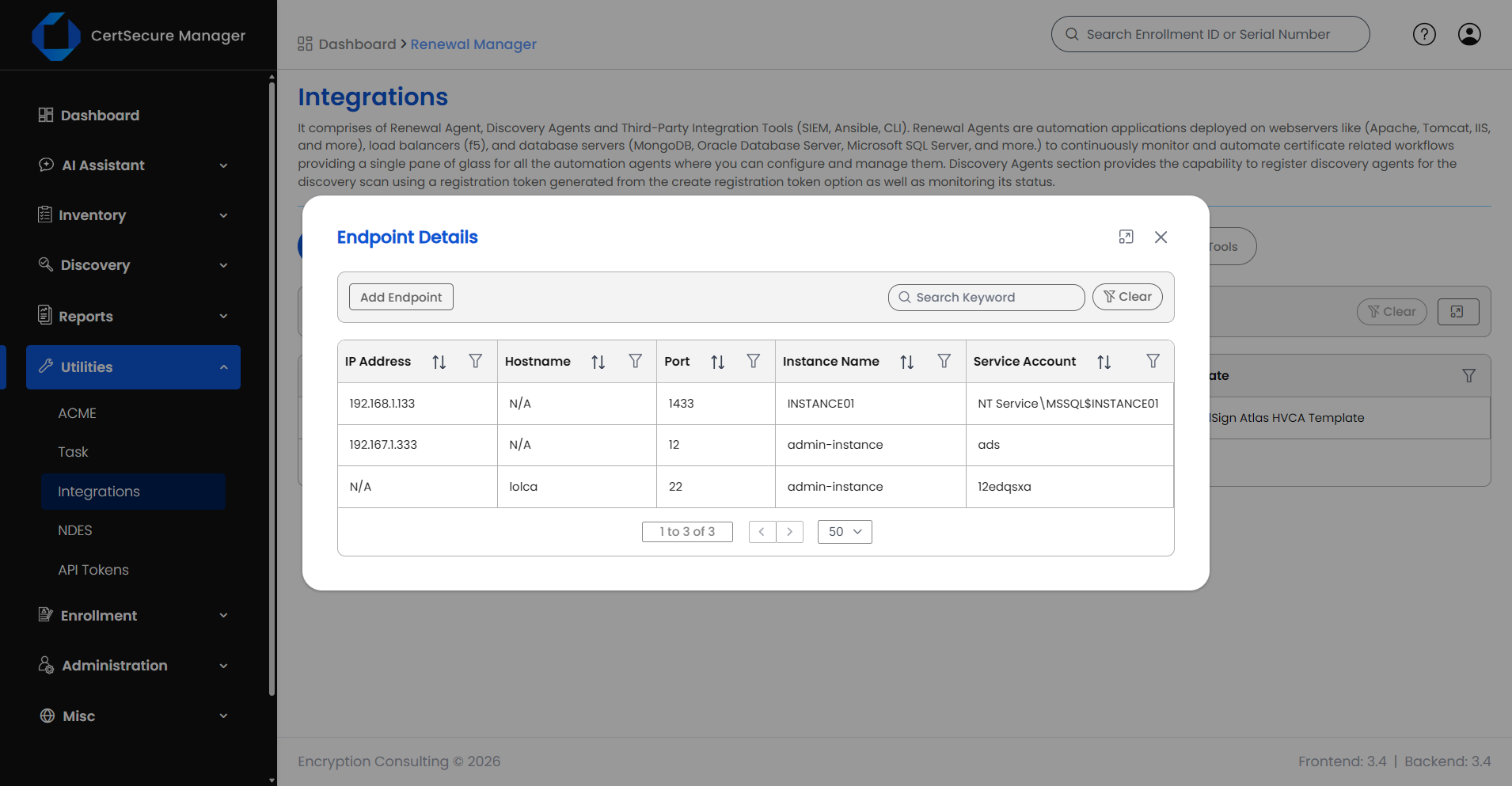
Adding a MSSQL Endpoint
From the server list, open Manage Endpoints on the server (right-click →
Manage Endpoints).
Click Add Endpoint.
Fill in the fields below.
Click Submit.
Field
Applies to
What it means
Certificate Authority
Required
The CA that will issue renewed certificates for this endpoint.
Template
Required
The certificate template/profile to request from the selected CA. Options depend on the CA chosen.
Address Type
Required
Whether you will identify this endpoint by IP Address or by Hostname.
IP Address / Hostname
Required
The exact address of the TLS service to watch.
Port
Required
The TCP port the TLS service listens on, for example 443.
Instance Name
Required
The SQL Server instance name. Must match the server's real
instance name. Maximum 250 characters.
SQL Service Account
Required
The account the SQL Server service runs as, for example NT
Service\MSSQL$INSTANCE01. Maximum 200 characters.
Owner
Required
The person responsible for this endpoint. Select an organization user from the list.
Organization ID
Only when CA = DigiCert
The DigiCert organization ID to request the certificate under.
Order Validity
Only when CA = DigiCert
How many days the requested certificate should be valid for.
Endpoint Actions
From the endpoint list, use the row actions (right-click or the actions menu)
to:
View Details – opens a read-only summary of the endpoint.
Edit Details – reopens the Add Endpoint form pre-filled, so you can change the certificate settings (Certificate Authority, Template, Owner) and the other endpoint details. The address type, IP address / hostname and port cannot be changed; delete the endpoint and add it again to change them.
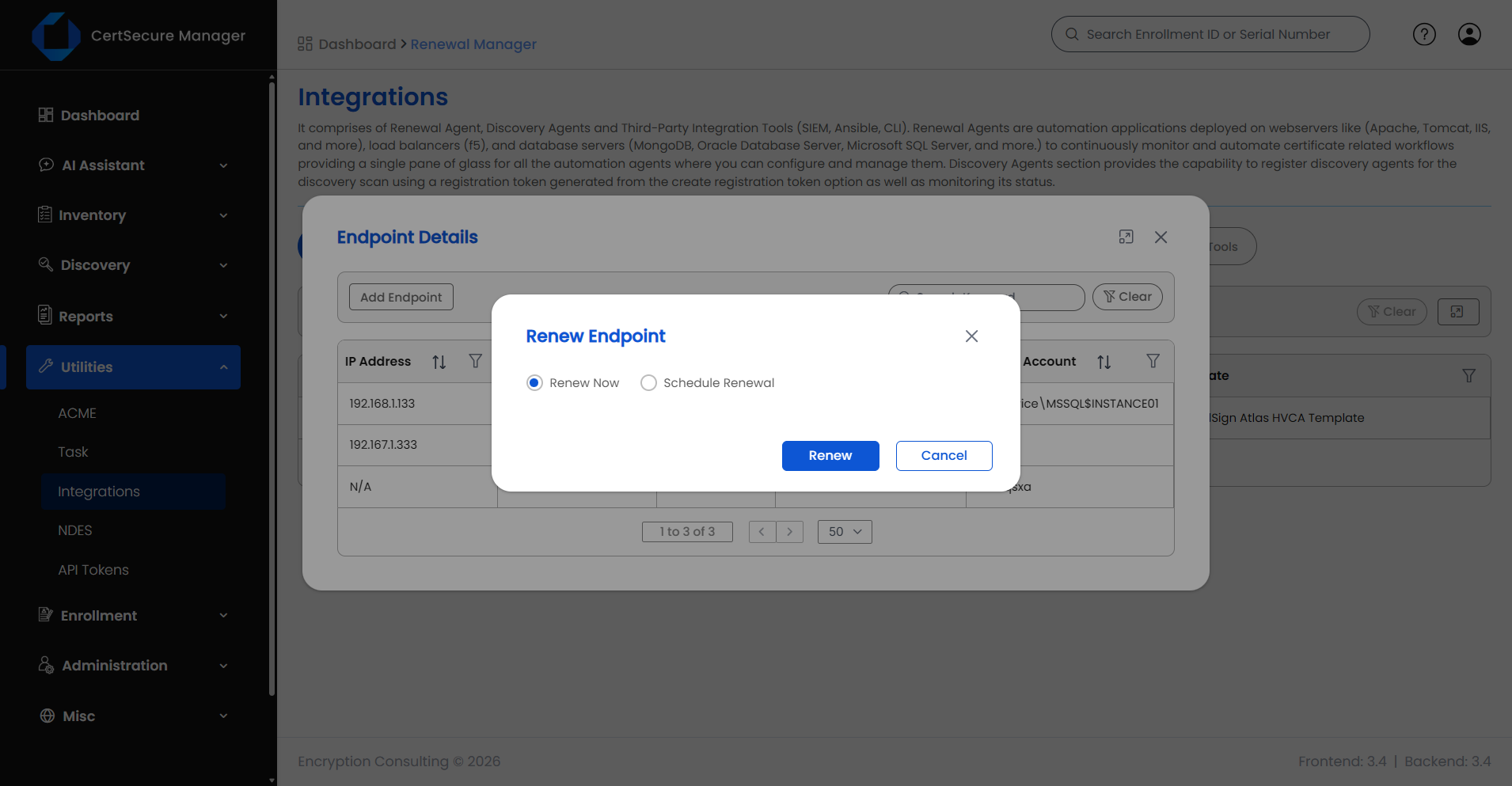
Renew – opens the Renew Endpoint dialog. Available only while automation is disabled for the endpoint.
Delete – removes this endpoint from the server. It does not affect other endpoints on the same server.