
- Overview
- Reference Guide
- Setup & Architecture
- Release Notes
- Workflow
- API Reference
- Integration Guide
- Discovery Agent Setup Guide
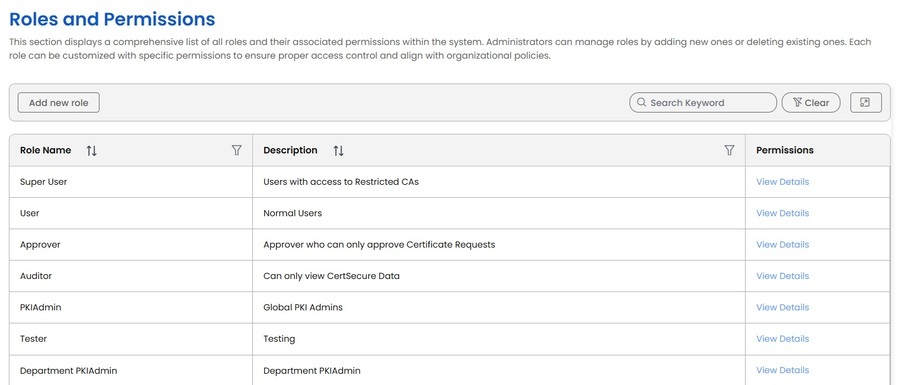
The Roles and Permissions section has all existing roles in CertSecure:
Note: Within this section you will also be able to create custom roles
Access in CertSecure Manager is governed by roles. A role is a named collection of permissions; users are granted one or more roles, and a user's effective access is the union of the permissions those roles grant. Identity and single sign-on are provided through the platform's Keycloak / OIDC authentication layer, which supports multiple realms; the realm administrator holds top-level control.
Departments provide an additional scoping boundary. A department restricts the CAs and templates its members can interact with, enabling delegated administration and clean separation between business units. Roles such as Department PKI Admin operate strictly within their assigned department(s).
Permissions are organized into two groups, mirrored in the Add new role dialog. Administrator permissions govern configuration and management of the platform — CAs, templates, users, policies, and integrations. User permissions govern day-to-day certificate operations and visibility — requesting, issuing, renewing, downloading, importing, and viewing certificates and reports. Every role, built-in or custom, is expressed as a selection across these two groups. The Granular Permissions Reference section documents each permission individually with a use case.
CertSecure Manager provides two categories of role. Built-in roles ship with the platform and cover the most common access patterns; they are detailed in Built-In Roles. Custom roles are defined by an administrator by selecting an explicit set of permissions, allowing access to be tailored precisely to an organization's needs; they are covered in Custom Roles. A consolidated built-in role to permission mapping is provided in the Built-In Role → Permission Matrix.
The table below summarizes the seven built-in roles. Detailed descriptions follow in Built-In Roles, and the exact permission mapping is given in the Built-In Role → Permission Matrix.
| Role | Type | Scope | Summary |
|---|---|---|---|
| Admin (Realm / Super Admin) | Administrator | Global | Full platform control including licensing; the realm administrator. |
| PKI Admin | Administrator | Global | Full PKI administration; everything except platform settings management. |
| Department PKI Admin | Administrator | Department | Delegated PKI administration within assigned department(s). |
| Super User | User | User + Restricted CAs | Standard user extended with access to Restricted CAs, can be extended to business specific use cases, like certificate renewal, revocation, etc. |
| User | User | Self / Department | Standard certificate self-service. |
| Auditor | User (read-only) | Global (read-only) | Read-only visibility into all CertSecure data. |
| Watcher | User (read-only) | Watched certificates | Expiry alerts and read-only view of assigned certificates. |
Note: The permission sets described below reflect the recommended standard baseline for each built-in role. Individual permissions are configurable; validate them against your deployment's defaults and adjust to your organization's access-control policy. The authoritative mapping used throughout this document is consolidated in the Built-In Role → Permission Matrix. Granular Permissions are described in the Granular Permissions Reference.
The highest-privilege built-in role. The Realm Admin (Super Admin) administers the CertSecure authentication realm and holds every Administrator and User permission, including licensing. It is typically the identity / realm administrator who performs initial platform setup and retains unrestricted control.
A global PKI administrator with full operational control of the platform. Holds all Administrator and User permissions except Change License, which remains with the Realm / Super Admin.
A PKI administrator whose authority is confined to one or more assigned departments. Manages the CAs, templates, requests, renewal agents, and users associated with the department, without global or realm-level control.
A standard user with a single elevation — access to Certificate Authorities marked as Restricted. Functionally identical to the User role plus the Access Restricted CAs permission.
The standard self-service end-user role. Can request, generate, renew, download, and import certificates, and view basic inventory and reports.
A read-only oversight role. Grants visibility across CertSecure data — inventory, reports, enrollment database, roles and permissions, configuration, discovery, and automation — with no ability to request, issue, renew, download, or modify anything.
The most limited built-in role. A Watcher is associated with certificates through owner / watcher-group assignment and receives lifecycle notifications — notably expiry alerts, for example 30-day advance notices — for the certificates it watches. Visibility is read-only and limited to those certificates.
This matrix consolidates the permissions granted to each built-in role. A check mark indicates the permission is granted; a blank cell indicates it is not.
| Permission | Admin | PKI Admin | Dept PKI Admin | Super User | User | Auditor | Watcher |
|---|---|---|---|---|---|---|---|
| Administrator permissions | |||||||
| Add PKI Admins | ✓ | ||||||
| Manage Users | ✓ | ||||||
| Change License | ✓ | ||||||
| Configure CertSecure | ✓ | ||||||
| Manage Certification Authorities | ✓ | ✓ | ✓ | ||||
| Manage Templates | ✓ | ✓ | ✓ | ||||
| Remove Restricted Templates | ✓ | ||||||
| Manage Certificate Requests | ✓ | ✓ | ✓ | ||||
| Manage User Roles and Permissions | ✓ | ✓ | ✓ | ||||
| Manage Enrollment Policies | ✓ | ✓ | ✓ | ||||
| Manage Renewal Agents | ✓ | ||||||
| Manage Departments | ✓ | ||||||
| Manage Organization Details | ✓ | ||||||
| Manage ACME | ✓ | ||||||
| Manage API Tokens | ✓ | ||||||
| Manage Discovery | ✓ | ✓ | ✓ | ||||
| Manage Tags | ✓ | ✓ | ✓ | ||||
| Bypass Certificate Approval | ✓ | ||||||
| Manage Azure Key Vaults | ✓ | ||||||
| Manage Automation | ✓ | ||||||
| User permissions | |||||||
| View Inventory | ✓ | ✓ | ✓ | ✓ | ✓ | ✓ | ✓ |
| View Reports | ✓ | ✓ | |||||
| View Enrollment Database | ✓ | ✓ | |||||
| View All User Certificates | ✓ | ✓ | ✓ | ✓ | ✓ | ||
| View Roles and Permissions | ✓ | ✓ | |||||
| Transfer Ownership of User Certificates | ✓ | ✓ | ✓ | ||||
| Submit CSR | ✓ | ✓ | ✓ | ✓ | |||
| Generate Certificate with Private Key | ✓ | ✓ | ✓ | ✓ | |||
| Access Restricted CAs | ✓ | ✓ | ✓ | ✓ | ✓ | ||
| View Renewal Agents | ✓ | ✓ | |||||
| View All Renewal Agents | ✓ | ✓ | |||||
| View CertSecure Configuration | ✓ | ✓ | |||||
| Renew Inventory Certificates | ✓ | ||||||
| View ACME | ✓ | ✓ | |||||
| Download Certificate | ✓ | ||||||
| Import Certificate | ✓ | ||||||
| View Discovery | ✓ | ✓ | ✓ | ✓ | |||
| View Automation | ✓ | ✓ | |||||
Legend & notes
Where the built-in roles do not fit a required access pattern, administrators can create custom roles. A custom role is defined by a name, a description, and an explicit selection of Administrator and User permissions. Custom roles appear alongside built-in roles in the Roles and Permissions list and are assigned to users in the same way. Roles observed in a deployment — for example, Approver or Tester — are typically custom roles.
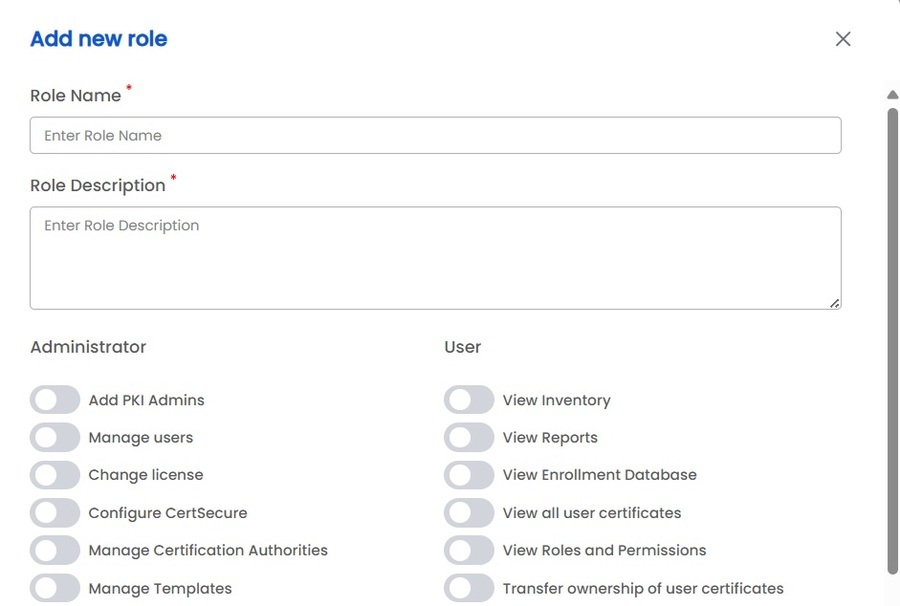
Go to Administration → Roles and Permissions.
Select Add new role.
Enter a Role Name and Role Description. Both fields are required.
Toggle on the required permissions under the Administrator and User columns. Enable only what the role needs.
Select Create Role to save, or Cancel to discard.
Note: Existing roles can be inspected via View Details in the Roles and Permissions list. Managing roles requires the Manage User Roles and Permissions permission.
The following are illustrative custom roles built from the granular permissions. Adapt the permission selections to your own requirements.
| Custom role | Purpose | Representative permissions |
|---|---|---|
| Approver | Review and approve or reject certificate requests only. | Manage Certificate Requests; View Inventory |
| Enrollment Operator | Request, generate, renew, and download certificates without administrative rights. | Submit CSR; Generate Certificate with Private Key; Renew Inventory Certificates; Download Certificate; Import Certificate; View Inventory |
| Reporting Analyst | Read-only reporting for a compliance or reporting function. | View Inventory; View Reports; View Enrollment Database |
| Discovery Operator | Configure and review certificate discovery jobs. | Manage Discovery; View Discovery; View Inventory |
| Automation Engineer | Manage automation, ACME, and API access for pipelines. | Manage Automation; Manage ACME; Manage API Tokens; View Automation |
This section documents every permission available in CertSecure Manager, grouped as in the Add new role dialog. Each entry lists the permission, what it controls, and a representative use case.
| Permission | Description | Example use case |
|---|---|---|
| Add PKI Admins | Add other users as PKI administrators who can perform critical PKI tasks. | During onboarding, promote a senior engineer to PKI Admin without granting full realm control. |
| Manage Users | Create, modify, or delete user accounts. | Provision a new team member and deactivate a departing employee's account. |
| Change License | Modify or update product licensing, such as entering new license keys. | Apply a renewed or upgraded license key after a subscription change. |
| Configure CertSecure | Access global system settings and integrations (e.g., Microsoft Teams, ServiceNow, SMTP). | Connect CertSecure to ServiceNow for ticket-driven workflows and configure SMTP for alerts. |
| Manage Certification Authorities | Add, remove, or configure internal and external CAs. | Onboard a Microsoft Issuing CA via the MSCA Connector or add a public CA integration. |
| Manage Templates | Manage certificate template policies, including approval workflows and the exclusion list. | Configure dual approval on a code-signing template; exclude low-risk templates from active management. |
| Remove Restricted Templates | Delete policies that marked certificate templates as restricted. | Retire an approval-workflow policy on a template that no longer requires oversight. |
| Manage Certificate Requests | View, approve, and reject certificate requests submitted by users. | Review and approve a pending TLS request submitted by an application team. |
| Manage User Roles and Permissions | Define and assign custom roles and set granular permissions. | Create an “Approver” role and assign it to the security review team. |
| Manage Enrollment Policies | Create and enforce rules controlling how certificates are requested or approved (DNS validation, wildcard enrollment, etc.). | Require DNS validation before public issuance; disable wildcard enrollment org-wide. |
| Manage Renewal Agents | Add or manage agents that handle renewals, including updates, binding, and restarts. | Register an nginx renewal agent and trigger a binding refresh after renewal. |
| Manage Departments | Manage department structures and restrict access to specific CAs and templates. | Create a “Finance” department scoped to a dedicated CA so its users see only relevant resources. |
| Manage Organization Details | Edit global organization metadata used to auto-populate CSR and certificate fields. | Set the legal entity name and address once so Subject fields auto-fill and reduce entry errors. |
| Manage ACME | Configure and manage ACME profiles and credentials for automated issuance. | Set up an ACME profile so DevOps pipelines and web servers can auto-enroll. |
| Manage API Tokens | Generate, revoke, or configure API tokens for programmatic access. | Issue a scoped token for a CI/CD pipeline and revoke a leaked token immediately. |
| Manage Discovery | Configure and run discovery jobs that scan networks, servers, and cloud for existing certificates. | Schedule a scan to inventory unmanaged TLS certificates across a subnet. |
| Manage Tags | Create, edit, and delete tags used to categorize certificates. | Tag certificates by application and environment (prod/staging) for filtering and reporting. |
| Bypass Certificate Approval | Skip configured approval workflows and issue certificates directly. | Break-glass issuance of an emergency replacement certificate during an outage. Grant sparingly. |
| Manage Azure Key Vaults | Add, configure, or remove Azure Key Vault integrations for certificate and key storage. | Link an Azure Key Vault so issued certificates and keys are stored and rotated centrally. |
| Manage Automation | Create and configure automated workflows such as scheduled renewals and notifications. | Auto-renew certificates 30 days before expiry and notify the owner. |
| Permission | Description | Example use case |
|---|---|---|
| View Inventory | See the list of all certificates with basic metadata. | Check which certificates are expiring this month. |
| View Reports | Access pre-built reports on expiration, key length, templates, and more. | Pull a key-length compliance report ahead of an audit. |
| View Enrollment Database | Access the inventory of certificates issued through CertSecure Manager and re-download them at any time. | Re-download a previously issued certificate for redeployment. |
| View All User Certificates | View certificates owned by others in the same department. | A department lead reviews all team-owned certificates for coverage gaps. |
| View Roles and Permissions | Read-only access to the configured roles and permissions. | A security reviewer audits which roles hold administrative permissions. |
| Transfer Ownership of User Certificates | Transfer certificate ownership from one user to another. | Reassign a departing employee's certificates to their successor during offboarding. |
| Submit CSR | Submit certificate signing requests, generated externally or in-platform. | An application owner requests a new TLS certificate. |
| Generate Certificate with Private Key | Create both the private key and certificate in-platform. | Generate a key pair and certificate for a new web server. |
| Access Restricted CAs | Work with Certificate Authorities marked as restricted. | Request a certificate from a restricted high-assurance CA reserved for sensitive systems. |
| View Renewal Agents | See the renewal agents belonging to the user's departments. | Confirm a department's renewal agent is online before a scheduled renewal. |
| View All Renewal Agents | See all renewal agents across departments. | Verify renewal-agent health fleet-wide. |
| View CertSecure Configuration | Read-only visibility into global CertSecure settings. | Confirm SMTP and integration settings without the ability to change them. |
| Renew Inventory Certificates | Initiate renewal of certificates in the inventory. | Manually renew a certificate flagged as expiring soon. |
| View ACME | View ACME profiles and related information. | Check ACME endpoint and profile details for pipeline configuration. |
| Download Certificate | Download issued certificates for installation or deployment. | Download a PEM bundle to install on a load balancer. |
| Import Certificate | Import existing certificates into the inventory. | Bring an externally issued certificate under CertSecure management. |
| View Discovery | Read-only access to discovery job results and status. | Review certificates flagged by the latest discovery scan. |
| View Automation | View automation workflows and their execution status. | Confirm that a scheduled renewal automation ran successfully. |