
- Overview
- Reference Guide
- Setup & Architecture
- Release Notes
- Workflow
- API Reference
- Integration Guide
- Discovery Agent Setup Guide
The ACME Profile section provides an overview of all configured ACME profiles, displaying key details such as Profile ID, Email Address, IP Address, Certificate Authority (CA), and Template.
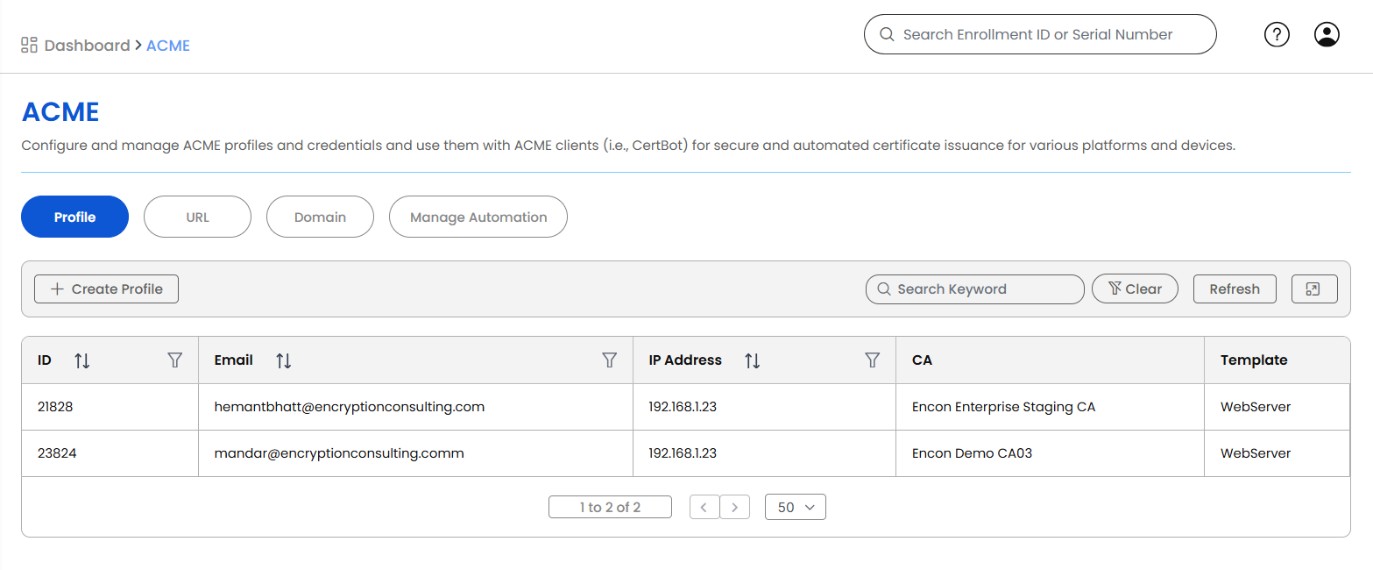
Each ACME profile defines how certificates are issued and managed within CertSecure Manager, allowing for seamless automation through ACME-enabled Certificate Authorities. Users can review, modify, or remove profiles as needed to maintain control over automated certificate issuance while ensuring security and compliance with organizational policies.
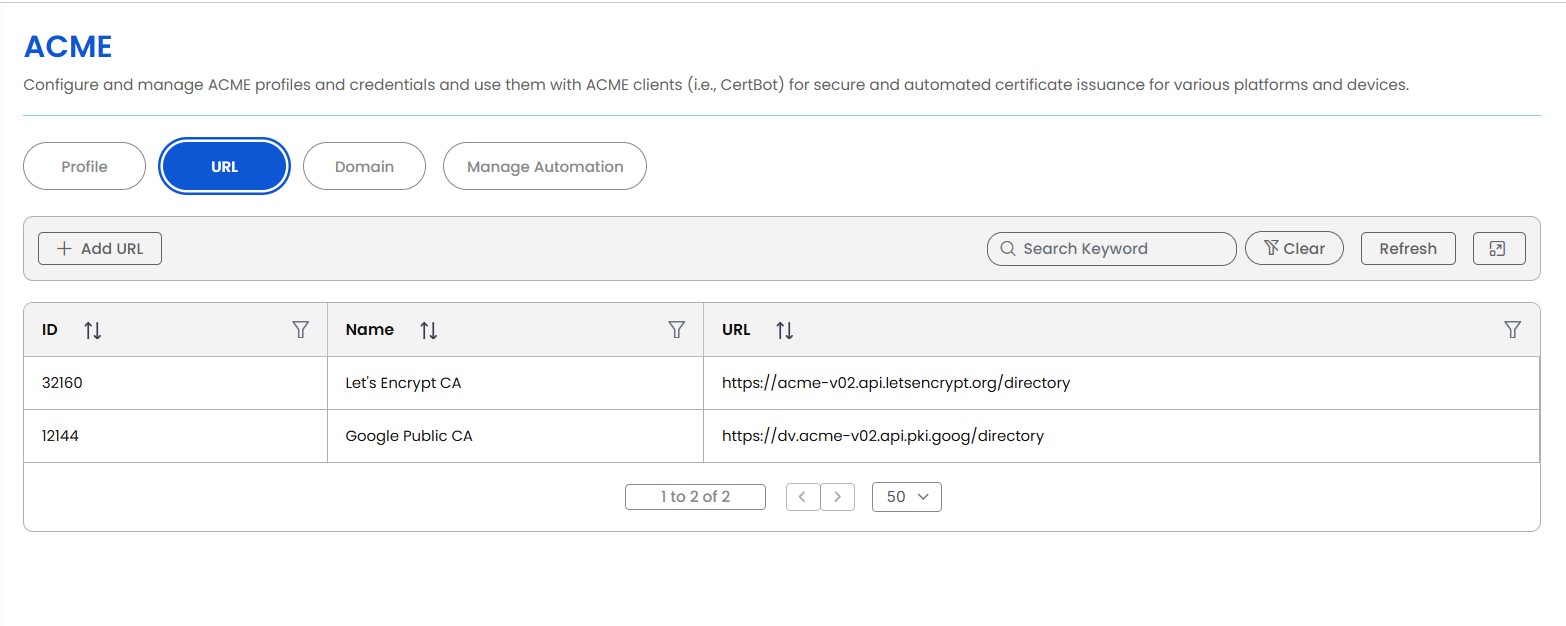
The URL section under ACME allows you to configure and manage Certificate Authority (CA) directory URLs used by ACME clients (such as CertBot) for automated certificate issuance.
The table displays:
Two CAs that can be configured are as follows:
| Name | URL |
|---|---|
| Let's Encrypt CA | https://acme-v02.api.letsencrypt.org/directory |
| Google Public CA | https://dv.acme-v02.api.pki.goog/directory |
Adding a New URL
Click + Add URL to open the Add URL dialog. Fill in the following fields:
| Field | Required | Description |
|---|---|---|
| Name | Yes | A descriptive label for the CA endpoint |
| URL | Yes | The ACME directory URL of the CA |
| Google Public CA | — | Toggle this checkbox if the CA being added is Google Public CA |
| HMAC | Yes* | HMAC key used for External Account Binding (EAB) |
| KID | Yes* | Key Identifier associated with the EAB credentials |
| Yes | Email address linked to the ACME account |
*HMAC and KID are required when the Google Public CA option is enabled, as Google's ACME service requires External Account Binding (EAB).
Click Save to add the entry, or Cancel to discard changes.
Note: Ensure HMAC and KID credentials are obtained from your CA provider (e.g., Google Cloud Console for Google Public CA) before adding the entry.
Right-click to edit or delete the URL configuration.
add_url, update_url, delete_url, get_urls and validate_url) were removed as well.
Let's Encrypt, Google Public CA, GlobalSign Atlas (ACME), GoDaddy Automated SSL and any other RFC 8555 directory are configured under Administration > Certificate Authorities, from the tile of the CA (LetsEncrypt, GooglePublicCA, GlobalSign, GoDaddy or ACME). Each ACME CA is a CertSecure Manager connector like any other CA: its account key is stored encrypted in the CertSecure Manager database, so any backend node can issue with it, and it appears in the CA lists of Enrollment.
| CA | Directory | External Account Binding | Certificate lifetime |
|---|---|---|---|
| Let's Encrypt | Production: https://acme-v02.api.letsencrypt.org/directoryStaging / Test: https://acme-staging-v02.api.letsencrypt.org/directory |
Not used | Set by the CA, about 90 days |
| Google Public CA | Production: https://dv.acme-v02.api.pki.goog/directoryStaging / Test: https://dv.acme-v02.test-api.pki.goog/directory |
Required. Generate the key ID and HMAC key in the GCP Public CA console. | Set by the CA, about 90 days |
| GlobalSign Atlas (ACME) | https://emea.acme.atlas.globalsign.com/directory |
Required. In Atlas, open API Credentials and choose Request an ACME MAC on the credential card. The Key ID is your Atlas API key. The MAC key is shown only once, so save it. | 200 days |
| GoDaddy Automated SSL | https://acme.godaddy.com/v1/acme/directory |
Read from your GoDaddy account automatically. See the GoDaddy page. | Set by the CA |
| ACME | Any ACME directory URL | Only when the directory requires it. Read directory tells you. | Set by the CA |
Adding an ACME CA
| Field | Required | Description |
|---|---|---|
| Name | Yes | The name of the CA in CertSecure Manager. It is filled in for Let's Encrypt and Google Public CA and can be changed. |
| Description | No | A free-text description. |
| Directory URL | Yes | For Let's Encrypt and Google Public CA, select Production or Staging / Test. For the generic ACME type, enter the directory URL, for example https://acme.example.com/directory. The directory URL cannot be changed after the CA is saved. |
| Account Email | No | The contact address registered with the ACME account, which the CA uses for expiry notices. |
| CA Certificate | No | Generic ACME type only. The PEM certificate of the CA that issued the ACME server's own TLS certificate. Needed only for an internal ACME server behind a privately issued certificate. |
| External Account Binding | Depends on the CA | Not shown for Let's Encrypt. For the other CAs enter the Key ID and the HMAC key as Field Name and Value rows (EAB Key ID and EAB HMAC Key are pre-filled where the CA requires them). Select Add New Field to add another row. The values are stored encrypted, and when you edit the CA a blank Value keeps the stored one. |
Domain control is proved with the dns-01 challenge. CertSecure Manager publishes the challenge TXT record through the DNS provider registered for the domain under ACME > Domain, and removes it again when the order finishes, whether it succeeds or fails. A domain must therefore be added in the Domain section, and its credentials must be able to create and delete TXT records, before a certificate can be requested for it.
A certificate request names the CA that was configured here. Choose the CA in Enrollment, or send its name in the ca field through the API. The certificate is recorded under a template that the CA has: the template you requested if the CA has it, otherwise the default template of the CA.
Select Check Credential on an ACME CA to confirm that its ACME account is still accepted. See Credential Status on the Certificate Authorities page.
The Domain section under ACME allows you to configure and manage domains used for automated certificate issuance. Each domain is linked to a DNS provider and validated to confirm ownership before certificates can be issued.
The table displays:
Adding a New Domain
Click + Add Domain to open the Add Domain dialog. Fill in the following fields:
| Field | Required | Description |
|---|---|---|
| Domain | Yes | The fully qualified domain name (e.g. encryptionconsulting.com) |
| Provider | Yes | Select the DNS provider managing this domain |
| API Token | Yes | The API token or credential required by the DNS provider |
| Re-validate this domain automatically | No | Switch on to let CertSecure Manager validate the domain again on its own before the last validation gets old. It is off by default, because re-validation publishes a temporary TXT record in the zone. |
| Re-validate when older than (days) | Yes, when automatic re-validation is on | Shown when the switch is on. The age of the last validation, in days, after which the domain is validated again. A whole number from 1 to 365; the default is 30. |
Click Save to add the entry, or Cancel to discard changes.
Managing Domains
Each domain entry in the list has a context menu with the following actions:
| Action | Description |
|---|---|
| Edit | Modify the domain name, provider, or API token |
| Validate | Trigger a DNS validation check to confirm ownership of the domain |
| Delete | Remove the domain entry from the system |
Validation Status
After adding a domain, use the Validate action to confirm DNS ownership. Once successful, the Validation column will display Valid. Domains must be validated before they can be used for certificate issuance.
Validate publishes a temporary TXT record named _certsecure-dns-test in the zone, waits for it to become visible, and removes it again, which proves that CertSecure Manager can write to the zone with the credentials entered. The Validation column shows Waiting while the check runs, then Valid or Invalid. If the record was written but is not yet visible, the domain is still marked Valid.
When the zone check succeeds, CertSecure Manager also starts domain control validation at every configured CA that can validate a domain before an order (Sectigo, GlobalSign and DigiCert). Each CA is shown as a sub-task of the validation task under Utilities > Tasks, and a failure at one CA does not affect the others. Other CAs validate domain control as part of each certificate order, so they are skipped.
Notes