
- Overview
- Reference Guide
- Setup & Architecture
- Release Notes
- Workflow
- API Reference
- Integration Guide
- Discovery Agent Setup Guide
GoDaddy sells SSL/TLS certificates under two different product models, and CertSecure Manager has one connector for each. Both are configured from the same GoDaddy tile under Administration > Certificate Authorities, and both use the same GoDaddy API key, API secret and Customer #.
| Product Model | What the account holds | How certificates are issued |
|---|---|---|
| GoDaddy SSL (Credits) | Standard, Deluxe and Premium SSL products. Each purchased product becomes a credit, and each order consumes one credit. | CertSecure Manager places an order with the GoDaddy Certificates API. Domain control is proved for each order. |
| GoDaddy Automated SSL | An Automated SSL subscription (90-day auto-reissuing certificates) with the domains attached. It grants no order credits. | CertSecure Manager issues over ACME with External Account Binding. It reads the binding from your GoDaddy account, so no key has to be copied by hand. |
Note: The two models are not interchangeable. An account that holds only an Automated SSL subscription is fully entitled, but the credit ordering API refuses its orders with "You do not have an available product" however many subscriptions are bought. If CertSecure Manager detects that the account can issue over ACME, the error tells you to register the account as GoDaddy Automated SSL instead. Select the product model that matches what your account holds.
Note: GoDaddy and GoDaddy Automated SSL use a single license entry. A license that includes GoDaddy covers both product models.
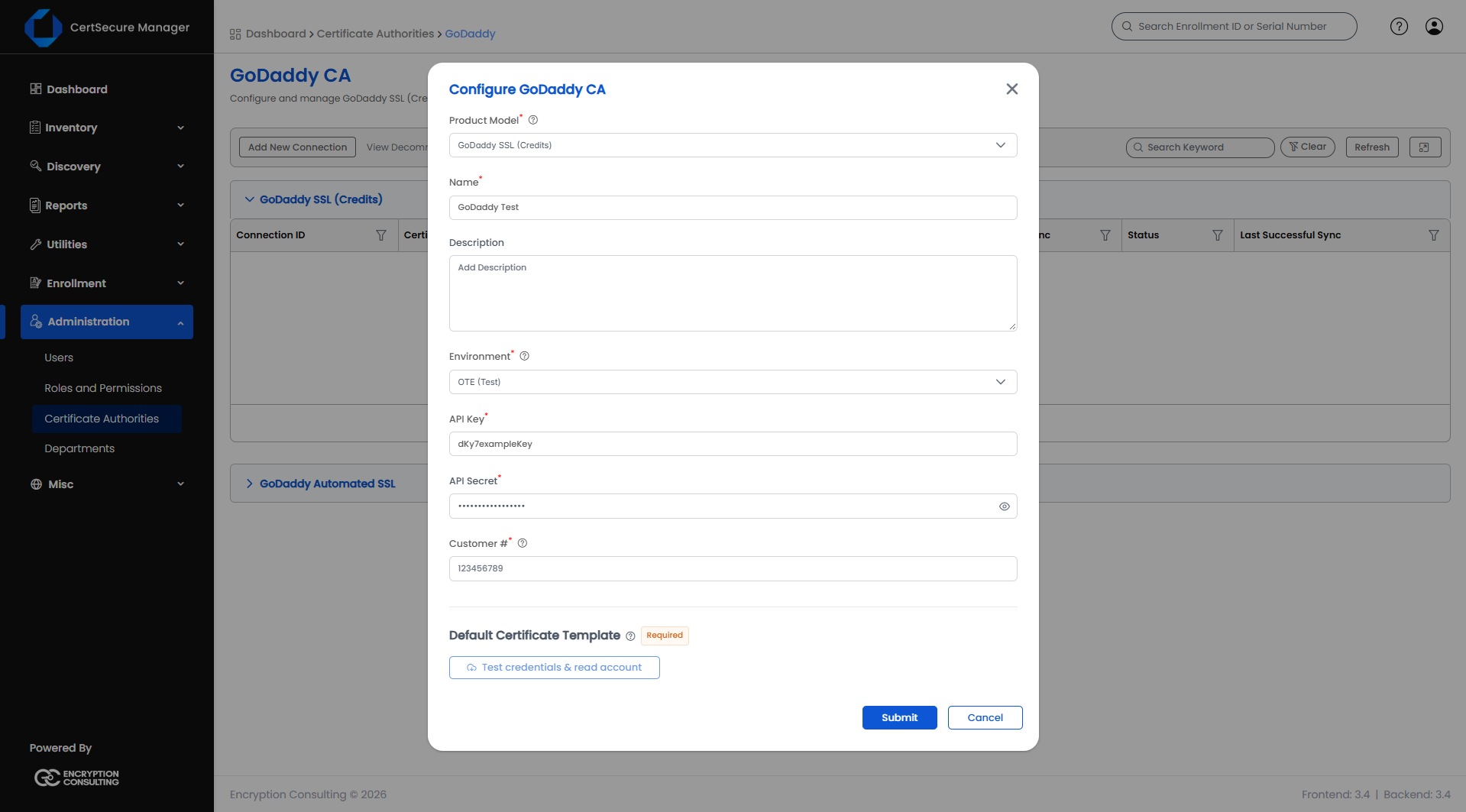
| Field | Required | Description |
|---|---|---|
| Product Model | Yes | GoDaddy SSL (Credits) or GoDaddy Automated SSL. It cannot be changed after the CA is saved, because it decides which connector the CA is and certificates it already issued would be left on a CA that could no longer collect or revoke them. |
| Name | Yes | The name of the CA in CertSecure Manager. |
| Description | No | A free-text description. |
| Environment | Yes | Production or OTE (Test). OTE and production take different API keys, so select the one your credentials belong to. |
| API Key | Yes | The GoDaddy API key. |
| API Secret | Yes | The GoDaddy API secret. When you edit a CA, leave it blank to keep the stored secret. |
| Customer # | Yes | Your GoDaddy customer number. CertSecure Manager resolves it to the customer ID the API needs. |
Every CA is registered with a default certificate template. The template has the same fields as a template created under Certificate Templates and can be changed there later.
GoDaddy SSL (Credits) templates offer:
| Field | Description |
|---|---|
| Product Type | The GoDaddy product ordered for each request. See the table below. |
| Root Type | The chain the certificate is signed under: GoDaddy SHA-2 or Starfield SHA-2. The default is GoDaddy SHA-2. |
| Order Contact | The contact GoDaddy requires on every order. An email address is mandatory; first name, last name, phone and job title are optional. A contact supplied on a request overrides the template, and the template overrides the CA. |
| Organization | The organization block of the order. Required for Organization Validated (OV) and Extended Validation (EV) products and ignored for Domain Validated (DV) products. |
| Validity | Ordered in whole years. A value in days is rounded up to the next whole year. |
| Product Type | Description | Order period (years) | Organization required |
|---|---|---|---|
DV_SSL |
Domain Validated SSL (single domain) | 1, 2, 3 | No |
DV_WILDCARD_SSL |
Domain Validated Wildcard SSL | 1, 2, 3 | No |
UCC_DV_SSL |
Domain Validated Multi-Domain (UCC/SAN) SSL | 1, 2, 3 | No |
OV_SSL |
Organization Validated SSL (single domain) | 1, 2, 3 | Yes |
OV_WILDCARD_SSL |
Organization Validated Wildcard SSL | 1, 2, 3 | Yes |
OV_SAN_SSL |
Organization Validated Multi-Domain (SAN) SSL | 1, 2, 3 | Yes |
UCC_OV_SSL |
Organization Validated Multi-Domain (UCC) SSL | 1, 2, 3 | Yes |
EV_SSL |
Extended Validation SSL (single domain) | 1, 2 | Yes |
UCC_EV_SSL |
Extended Validation Multi-Domain (UCC) SSL | 1, 2 | Yes |
GoDaddy Automated SSL templates have no product, root type or order contact, because ACME has no product catalogue. They offer key material, signing algorithm, validity and the common name only. ACME does not allow a lifetime to be requested, so the validity is fixed by GoDaddy.
Note: For GoDaddy SSL (Credits), GoDaddy sets the key usages (digital signature and key encipherment), the extended key usages (server authentication and client authentication) and the organization, country, state and locality of the subject from the validated account record. A template cannot choose them. Subject Alternative Names are DNS names only (up to 100); IP address, email and URI names are not supported. Keys can be RSA or EC, signed with SHA-256 or SHA-384.
Note: A certificate request always includes the common name as a DNS Subject Alternative Name, as public CAs require.
The GoDaddy page lists the configured connections in two sections, one for each product model. Select Refresh to reload the list, and use the search box and the column filters to find a connection. View Decommissioned Connections shows connections that have been decommissioned.
GoDaddy SSL (Credits) columns:
| Column | Description |
|---|---|
| Connection ID | The identifier of the connection in CertSecure Manager. |
| Certification Authority | The name given to the CA. |
| API Key | The GoDaddy API key, as stored. |
| Credential | Whether GoDaddy still accepts the stored key: Configured, Expired, Unverified or Not set. See Certificate Authorities. |
| Customer # | The GoDaddy customer number. |
| Product | The product type of the default template. |
| Sync | The state of the last inventory synchronization. |
| Status | Enabled, Disabled or Decommissioned. |
| Last Successful Sync | When the inventory was last synchronized successfully. |
GoDaddy Automated SSL columns: Connection ID, Certification Authority, Customer #, ACME Account, Credential and Status. ACME Account reads Registered once CertSecure Manager has created its account with GoDaddy, and Not registered before that. The account is created when the first certificate is issued; adding the CA only checks that the GoDaddy ACME directory can be reached. The ACME account key is stored encrypted in the CertSecure Manager database, so any backend node can issue with it.
Right-click a connection for these actions: View Details, Check Credential, Edit, Decommission, and, for a decommissioned connection, Restore. Check Credential tests the stored key with GoDaddy immediately. Edit opens the Configure GoDaddy CA dialog with the title Edit followed by the name; the Product Model, the name and the connector cannot be changed, and Save Changes is available only after Test credentials has been run in the dialog. Decommission takes effect straight away, without a confirmation, and can take up to 15 minutes to complete. Restore opens the dialog again with the name carried over, and asks for the credentials again.
Certificates are requested from Enrollment like those of any other CA. GoDaddy-specific behaviour:
If a request fails, the cause that GoDaddy reported is shown on the task. Failed requests are not retried automatically. Re-run them from Utilities > Tasks once the cause is fixed.
The inventory of both models is synchronized with GoDaddy's customer certificate listing, so certificates that were ordered outside CertSecure Manager appear in the inventory too. Each synchronized certificate is tagged with the CertSecure certificate template whose product matches it; if none or several match, the default template of the CA is used.
| Symptom | Cause and action |
|---|---|
| The Credential column shows Expired | GoDaddy rejected the key or secret, or the Environment does not match the key (OTE and production keys are different). Edit the connection, enter the new values and run Test credentials & read account. |
| "You do not have an available product" | The account has no credit for the product. If the account holds an Automated SSL subscription, register it as GoDaddy Automated SSL. |
| The order stays pending | The domain validation record was not published or GoDaddy has not re-checked it yet. Check that the domain's DNS zone is registered under Utilities > ACME > Domain or hosted in the GoDaddy account, and wait for the re-check. |
| Test credentials & read account is disabled | API Key, API Secret and Customer # must all be filled in. |
| Test credentials & read account fails for GoDaddy Automated SSL | The External Account Binding could not be read from the account. Check that the API key can read the account's ACME binding and that the Automated SSL subscription is active. |