
- Overview
- Reference Guide
- Setup & Architecture
- Release Notes
- Workflow
- API Reference
- Integration Guide
- Discovery Agent Setup Guide
Three tiles under Administration > Certificate Authorities > Agentless CAs connect CertSecure Manager to a CA over the ACME protocol (RFC 8555):
| Tile | Page | Directory | External Account Binding |
|---|---|---|---|
| LetsEncrypt | Let's Encrypt CA | Production: https://acme-v02.api.letsencrypt.org/directoryStaging / Test: https://acme-staging-v02.api.letsencrypt.org/directory |
Not used |
| GooglePublicCA | Google Public CA | Production: https://dv.acme-v02.api.pki.goog/directoryStaging / Test: https://dv.acme-v02.test-api.pki.goog/directory |
Required. Generate the key ID and HMAC key in the GCP Public CA console. |
| ACME | ACME CA | Any ACME directory URL, for example an internal ACME server. | Only if the directory requires it. Read directory tells you. |
Certificates from these CAs are issued with dns-01 validation, using the DNS providers registered under ACME > Domain. GlobalSign Atlas (ACME) and GoDaddy Automated SSL are also ACME CAs, but they are configured from the GlobalSign and GoDaddy tiles. For how ACME CAs relate to the rest of the ACME features, see ACME Certificate Authorities.
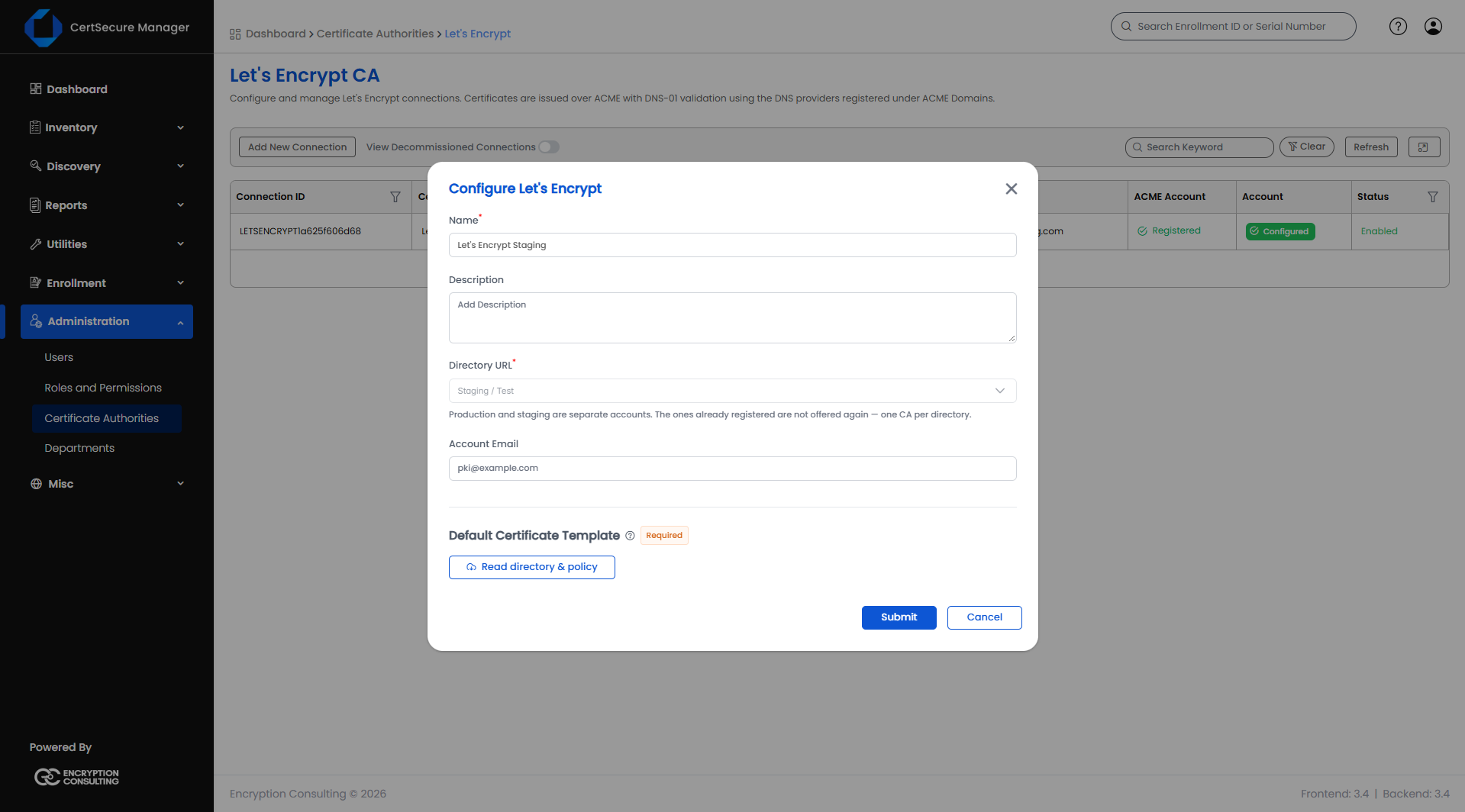
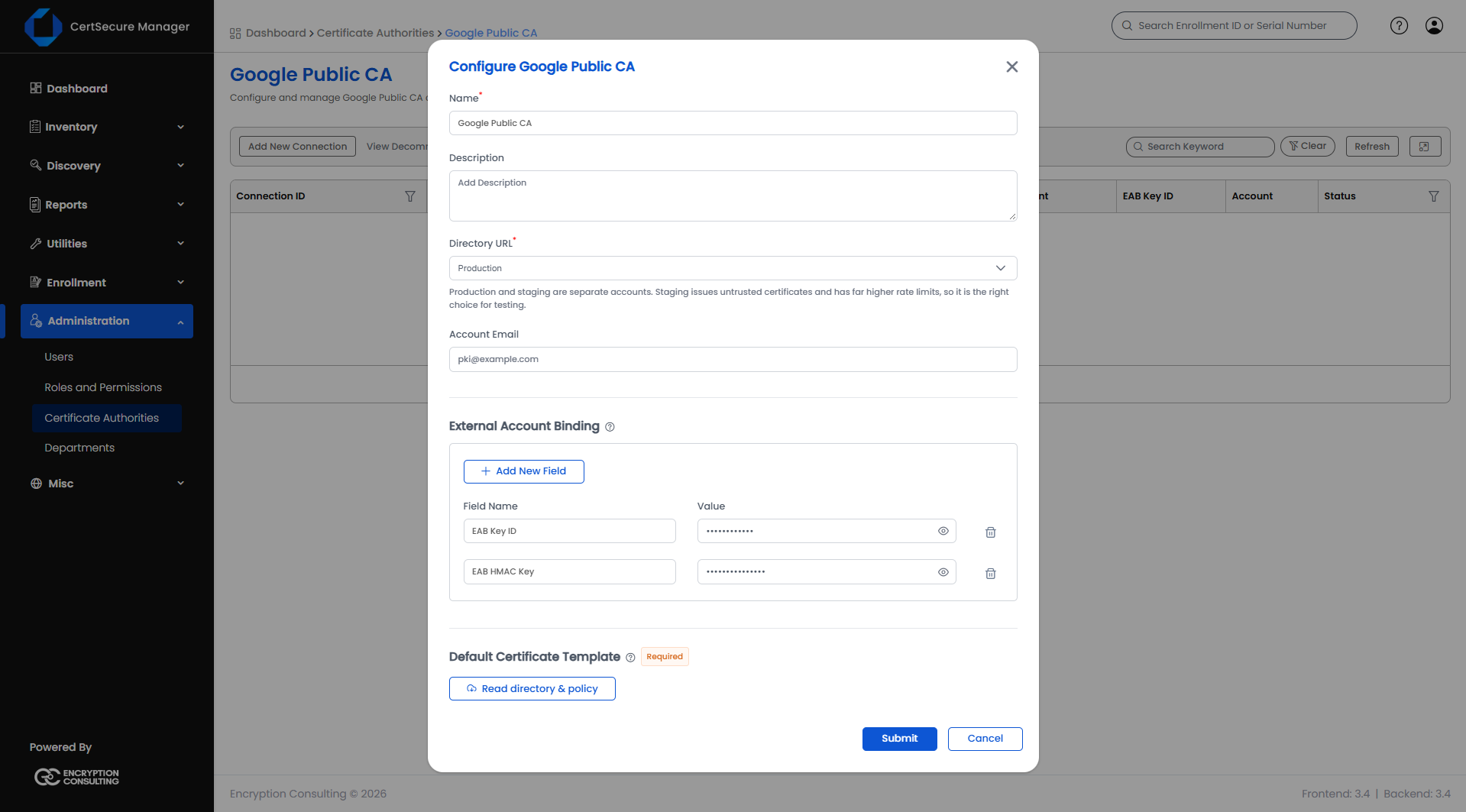
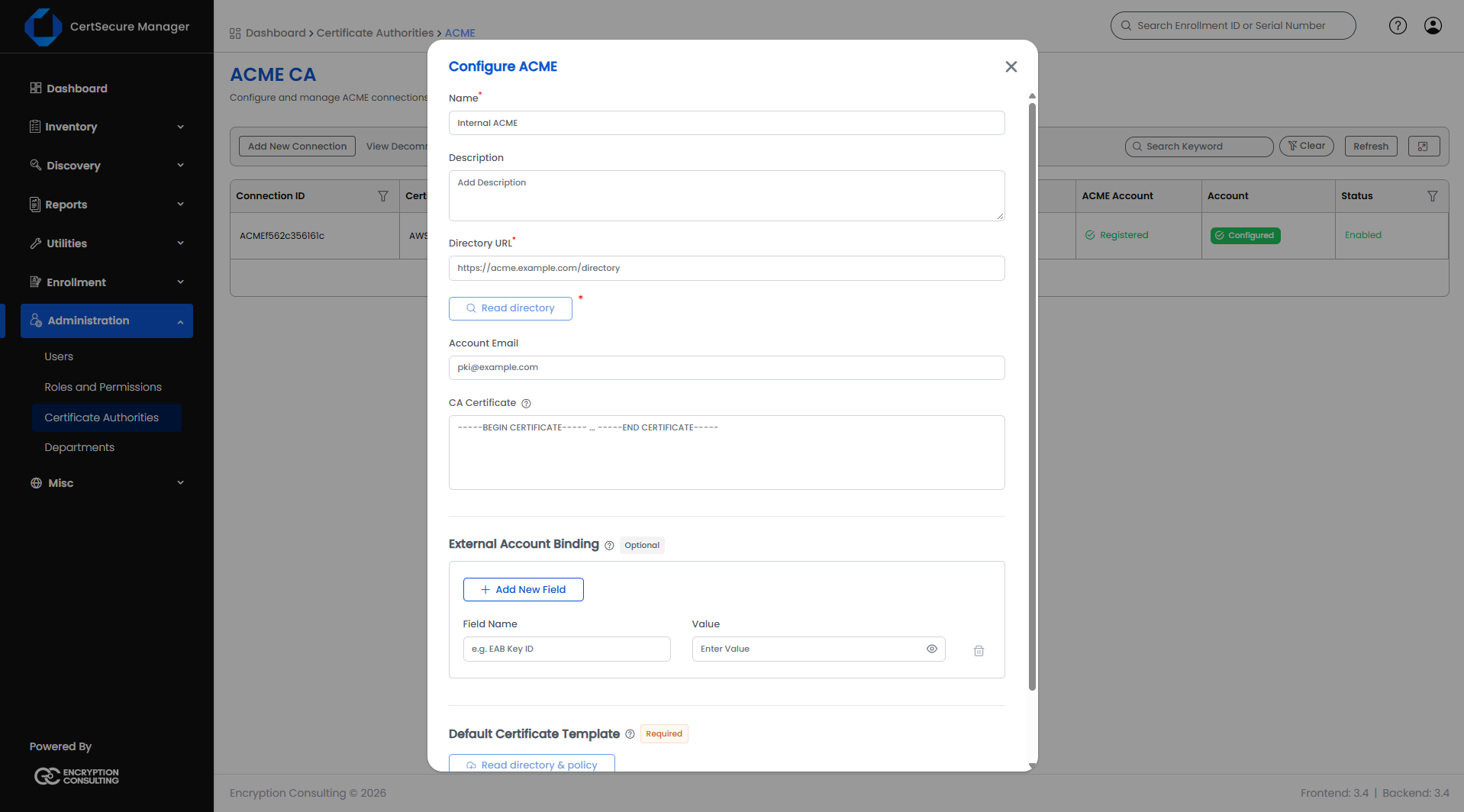
| Field | Applies to | What it means |
|---|---|---|
| Name | Required | The name of the CA in CertSecure Manager. Pre-filled for Let's Encrypt and Google Public CA (with "Staging" added for the staging directory); empty for ACME. It cannot be changed later. |
| Description | Optional | A note about the CA. |
| Directory URL | Required | For Let's Encrypt and Google Public CA, select Production or Staging / Test. Production and staging are separate accounts; staging issues untrusted certificates with far higher rate limits, so it suits testing. For ACME, enter the directory URL, for example https://acme.example.com/directory. The directory URL cannot be changed later. |
| Account Email | Optional | The contact address registered with the ACME account. If left blank, the account is registered without a contact. |
| CA Certificate | ACME only, optional | For an internal ACME server only: the PEM certificate of the CA that issued the server's own HTTPS certificate, if the backend does not already trust it. It is not related to the certificates this CA issues. Leave blank for a publicly trusted directory. |
| External Account Binding | Google Public CA and ACME | Field Name and Value rows for the EAB key ID and HMAC key. Google Public CA starts with the rows EAB Key ID and EAB HMAC Key. Select Add New Field to add a row. Values are masked; when you edit the CA, a blank value keeps the stored one. Not shown for Let's Encrypt. |
The page lists the connections with their Connection ID, Certification Authority, Directory URL, Account Email, ACME Account (Registered or Not registered), Account (the credential status: Configured, Expired, Unverified or Not set) and Status (Enabled, Disabled or Decommissioned). For Google Public CA the list also shows the EAB Key ID. View Decommissioned Connections shows decommissioned connections too.
Select a row to open its Connection Details. The right-click menu offers:
| Message | What to do |
|---|---|
| Could not reach the ACME directory. Check the URL and the network, then try again. | Check the directory URL and that the backend can reach it. For an internal server, add its CA Certificate. |
| This directory requires External Account Binding — supply its key ID and HMAC key | Enter the EAB key ID and HMAC key issued by the CA. |
| Every External Account Binding field needs both a name and a value | Complete or remove the empty External Account Binding row. |
| Must be a PEM certificate, beginning with -----BEGIN CERTIFICATE----- | Paste the whole PEM certificate, including the BEGIN and END lines. |
| Account shows Expired | The CA rejected the ACME account. Issuance fails until the credential is replaced. Edit the CA, or decommission it and add it again. |