GlobalSign
CertSecure Manager issues GlobalSign certificates through GlobalSign Atlas. Atlas can be reached in two ways, and each is its own connection type on the GlobalSign tile under Administration > Certificate Authorities > Agentless CAs:
| Connection Type |
How it connects |
| GlobalSign Atlas (Managed PKI) |
Atlas HVCA over mutual TLS. Uses your Atlas API key and secret together with a client (mTLS) certificate and its private key. |
| GlobalSign Atlas (ACME) |
Atlas over ACME with External Account Binding. The Key ID is your Atlas API key, and the MAC key is shown only once when you request it in Atlas. See the ACME page. |
Note: Both connection types use a single license entry, so they are available or greyed out together. This page describes GlobalSign Atlas (Managed PKI).
Prerequisites
- An active GlobalSign Atlas account with a valid certificate service and a valid identity. An identity is needed to create API credentials.
- An Atlas user role with API permissions. Administrator, or Manage Certificates together with Manage Credentials, is recommended.
- Your CertSecure Manager account has the Manage Certification Authorities permission.
- The CertSecure Manager backend can reach the Atlas HVCA API, for example
https://emea.api.globalsign.com:8443.
Creating an API Credential in Atlas
- Sign in to GlobalSign Atlas.
- In the left panel, go to Access Credentials > API Credentials.
- Generate a new API credential and choose View and Copy.
- Select an active service, then one valid identity.
- Give the credential a name you will recognize.
- Download the credential and store it securely. It contains the API key and API secret. GlobalSign discloses the secret only once.
Creating the mTLS Certificate
The mTLS certificate is issued by Atlas from a CSR. You can generate the CSR in CertSecure Manager:
- In CertSecure Manager, go to Enrollment > Generate CSR.
- Enter the certificate details for the mTLS certificate and a password to encrypt the private key.
- Generate the CSR and download the CSR and the encrypted private key. Keep the key and its password: they are entered when the CA is added.
- In GlobalSign Atlas, go to Access Credentials > mTLS Certificate.
- Generate an mTLS certificate directly via the API, select the API credential you created, and paste the CSR.
- Download the mTLS certificate and store it securely.
Adding the GlobalSign CA
- Go to Administration > Certificate Authorities and select Configure on the GlobalSign tile.
- Select Add New Connection on the GlobalSign CA page. The Configure GlobalSign CA dialog opens.
- Set the Connection Type to GlobalSign Atlas (Managed PKI).
- Enter the CA Name and, optionally, a Description.
- Enter the API Base URL, the Api Key and the Api Secret.
- Enter the MTLS Key Password, then upload the MTLS Certificate and the MTLS Encrypted Key.
- Select Test credentials & read policy. CertSecure Manager contacts Atlas and loads the validation policy of the account.
- Complete the Default Certificate Template fields that appear and select Add.
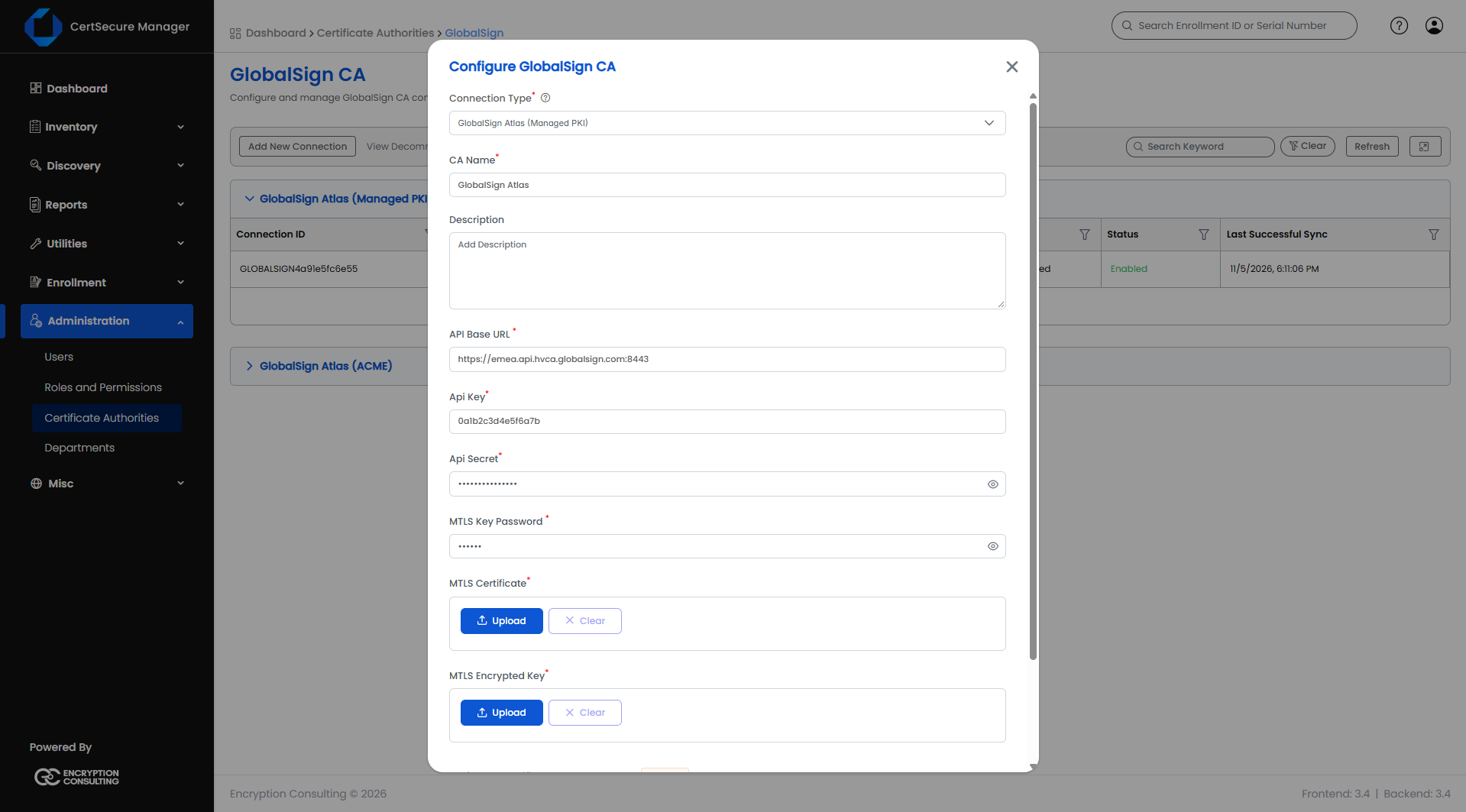
Note: When you edit a connection, leave the secret, the key password and the mTLS uploads empty to keep what is stored. The CA Name cannot be changed, because it links the CA to its existing certificates.
The GlobalSign CA page lists the connections in two groups, one per connection type. Managed PKI connections show the Connection ID, Certification Authority, API Key, Sync, Status and Last Successful Sync; ACME connections show the Connection ID, Certification Authority, Directory URL, ACME Account and Status. The right-click menu of a connection offers View Details, Edit, Check Credential, and Decommission (Restore for a decommissioned connection). See Managing a Configured CA.
Adding a GlobalSign Atlas (ACME) CA
- In Atlas, open API Credentials and choose Request an ACME MAC on the credential card. Save the MAC key: GlobalSign shows it only once and does not store it.
- On the GlobalSign CA page, select Add New Connection and set the Connection Type to GlobalSign Atlas (ACME).
- Enter the CA Name and, optionally, a Description.
- Check the Directory URL. It is pre-filled with
https://emea.acme.atlas.globalsign.com/directory.
- Optionally enter an Account Email.
- Enter the EAB Key ID, which is your Atlas API key, and the EAB MAC Key.
- Select Read directory & policy, complete the Default Certificate Template fields, and select Add.
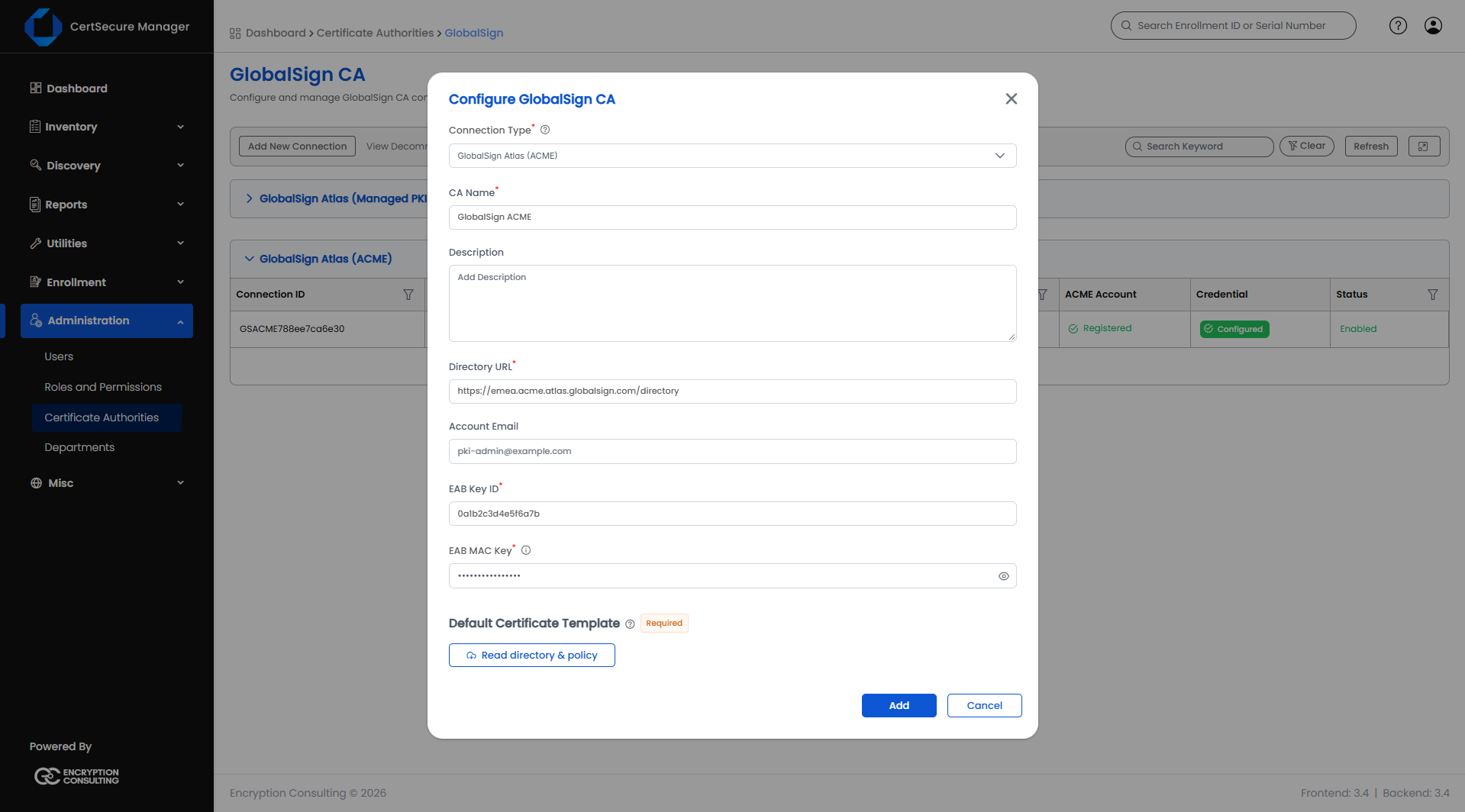
Note: Read directory & policy reads the ACME directory and checks the format of the MAC key. Atlas offers no separate credential test over ACME, so a wrong key is reported when the first certificate is requested.
Certificate Templates
GlobalSign does not provide named certificate templates. A CertSecure Manager template is bound to the validation policy of the Atlas account instead, so the request details do not have to be entered every time. To add more templates, go to Inventory > Template Management, open Certificate Templates, and select the GlobalSign CA under "CAs allowing template customization".
