- Overview
- Reference Guide
- Setup & Architecture
- Release Notes
- Workflow
- API Reference
- Integration Guide
- Discovery Agent Setup Guide
The Ansible Automation Platform (AAP) integration connects CertSecure Manager to a Red Hat Ansible Automation Platform Controller so that certificate enrollment and deployment can be driven from CertSecure while the actual work runs as AAP jobs against your own inventories. From this page you register one or more AAP connections, browse and extend the inventories and playbooks each connection exposes, and create, onboard, launch, and schedule Job Templates — without leaving CertSecure.
Before configuring a connection, make sure the following are in place:
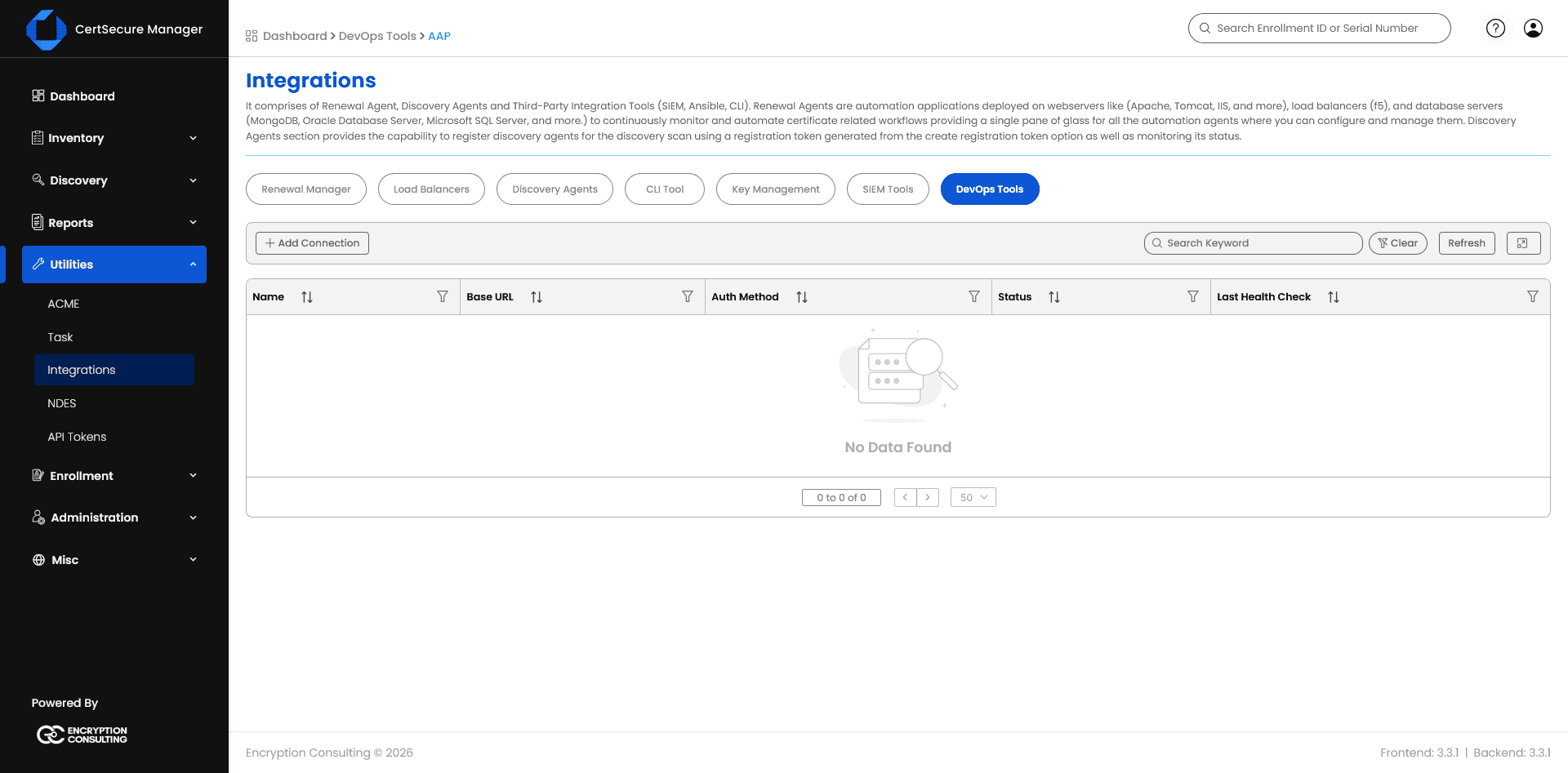
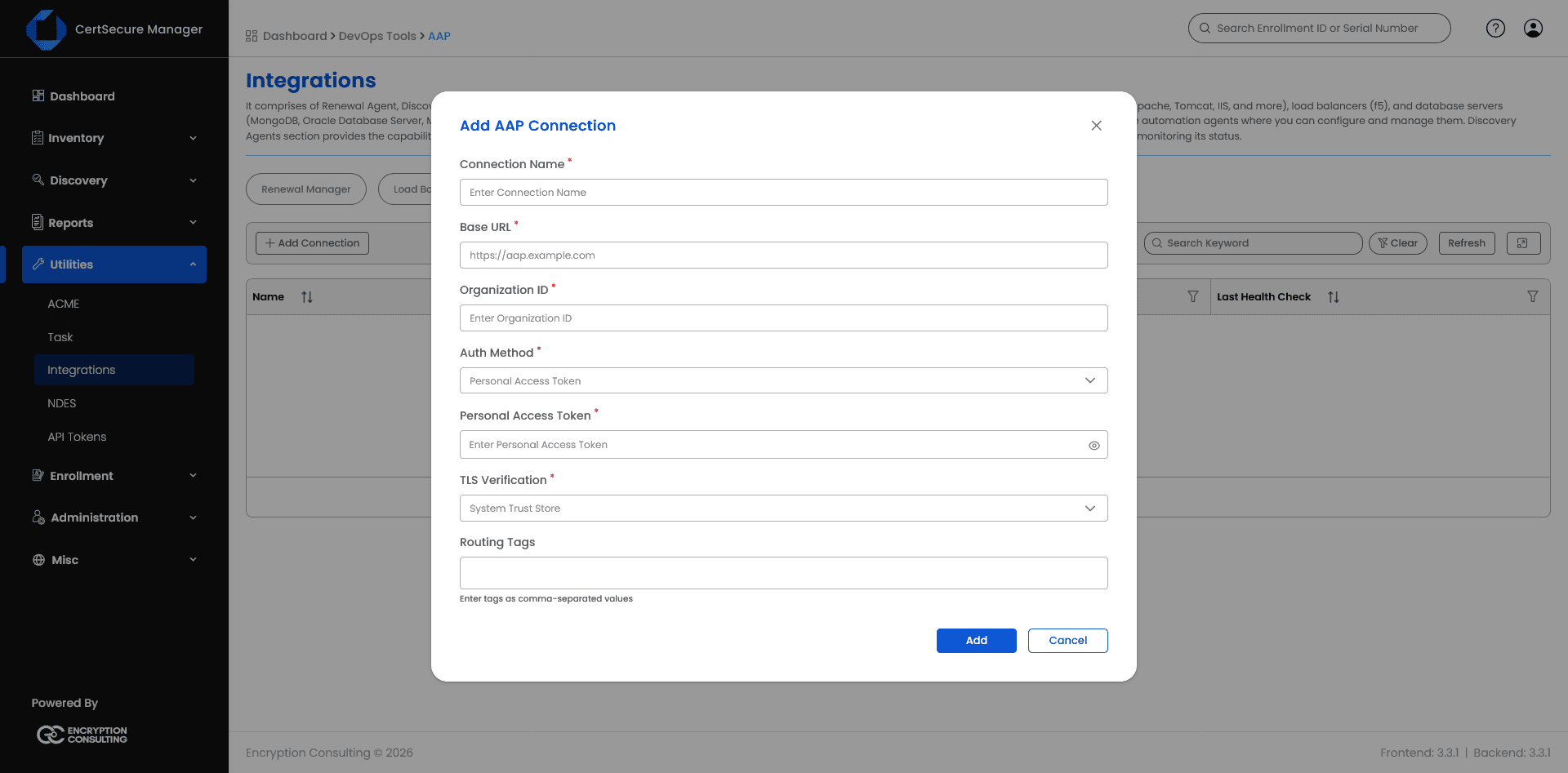
Click Add Connection. Fill in the connection form and click Add. Fields:
| Field | Purpose |
|---|---|
| Connection Name | A human-readable label for this AAP instance (e.g. ENCON-AAP) |
| Base URL | The AAP Controller’s base URL, e.g. https://aap.example.com |
| Organization ID | The numeric ID of the single AAP Organization this connection is scoped to |
| Auth Method | Personal Access Token (used here), or an OAuth2 grant type |
| Personal Access Token | The Personal Access Token generated in AAP for this integration. Masked on screen; click the eye icon to reveal it while typing |
| TLS Verification | System Trust Store (public/enterprise-trusted CA), a custom CA bundle, or Insecure (not recommended; disables certificate validation) |
| Routing Tags | Optional comma-separated tags (e.g. region:eu,env:prod) used to route Deployment Profiles to the right connection when more than one AAP instance is configured |
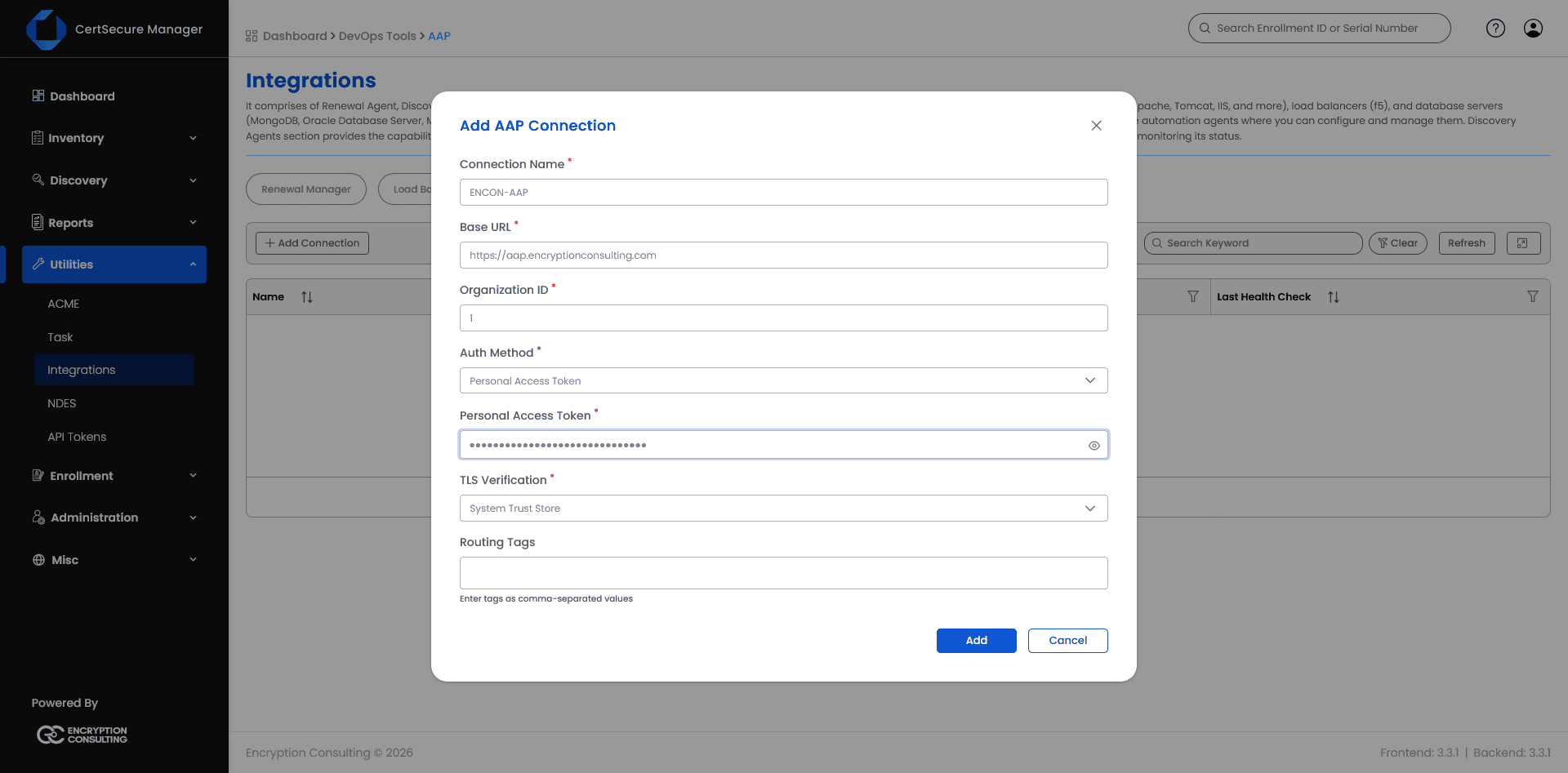
CertSecure tests the connection (reachability, credential validity, and effective permissions) before saving it. If the test fails, the form reports which check failed rather than silently saving bad credentials.
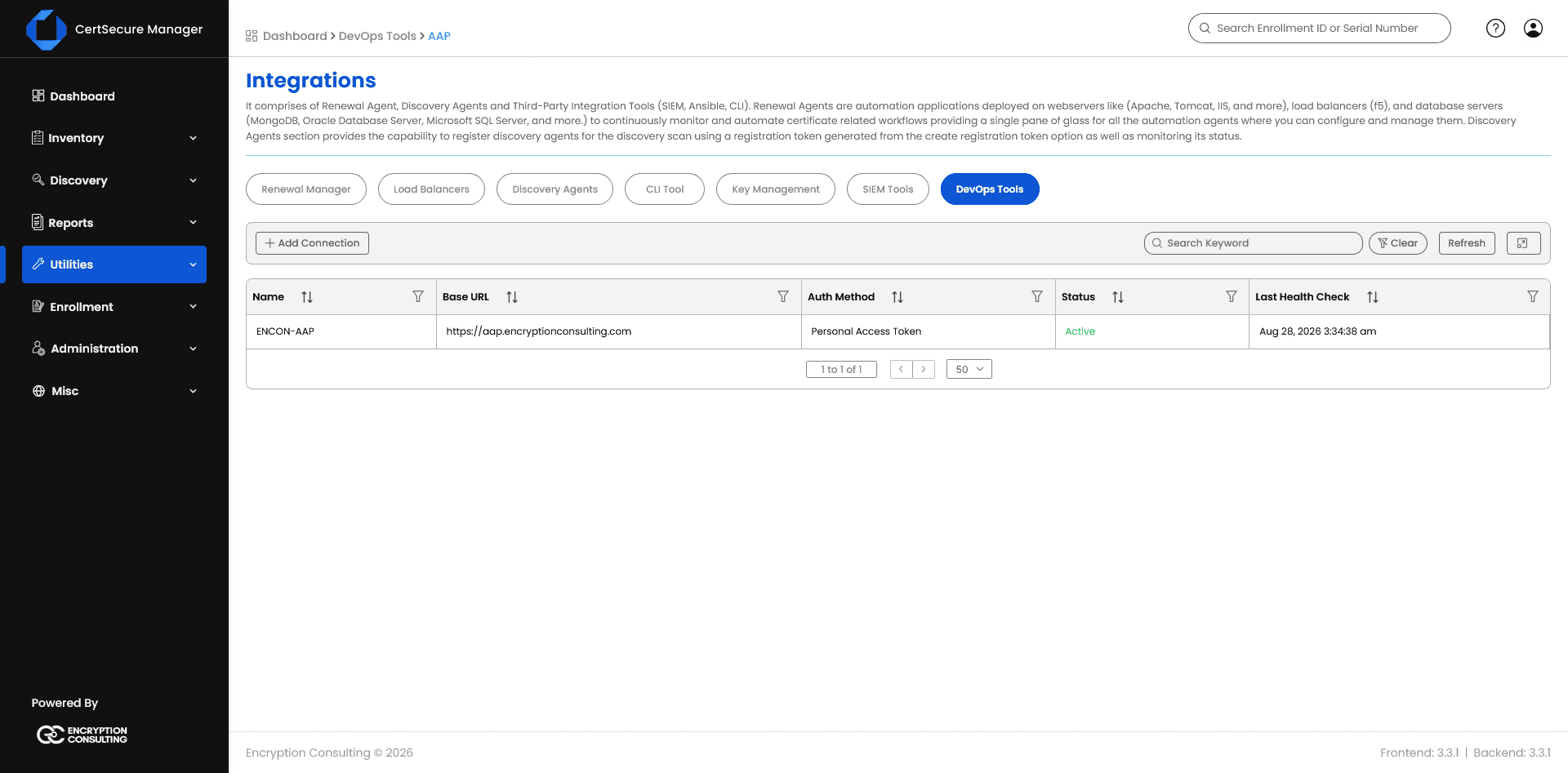
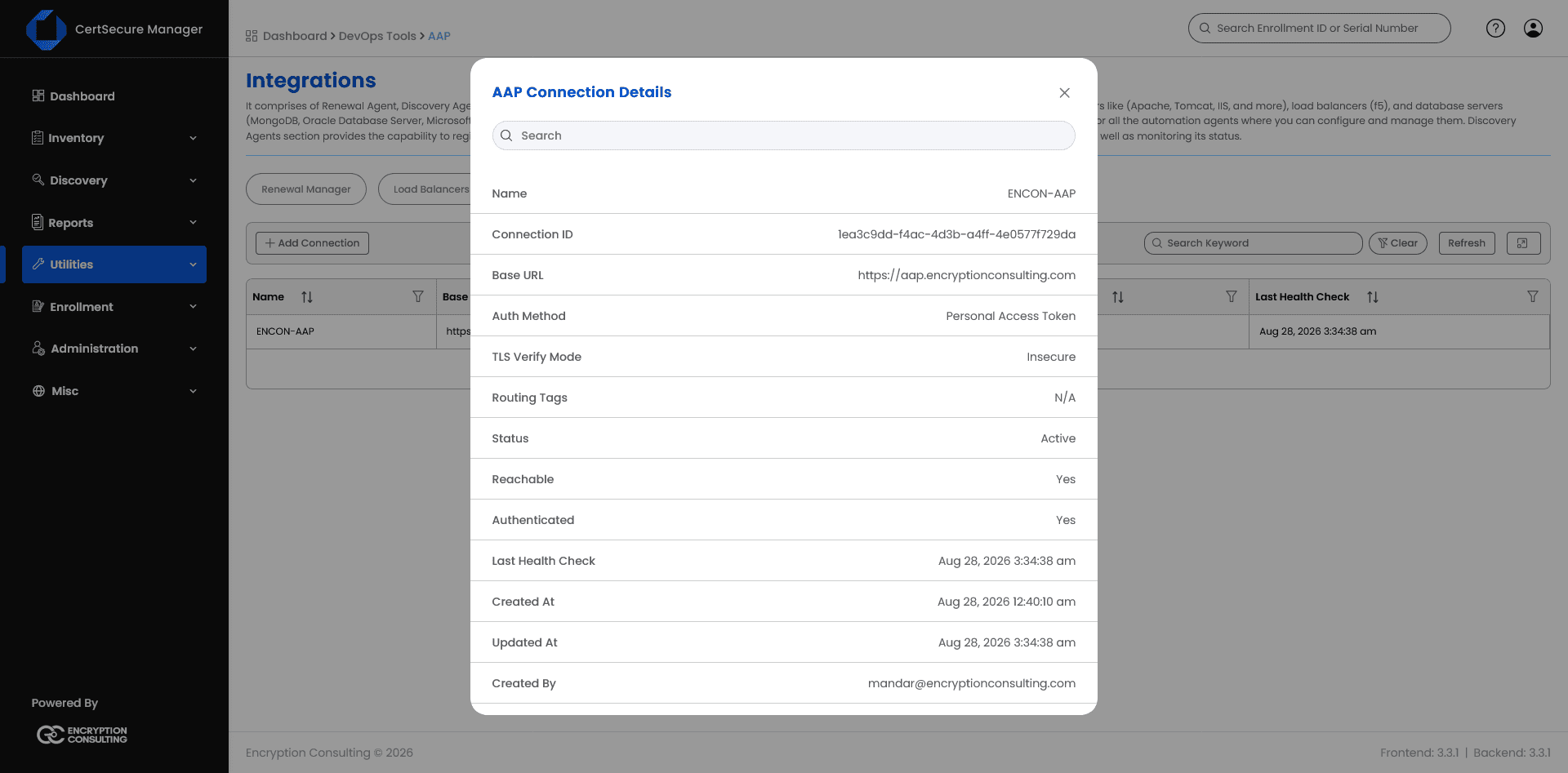
Once saved, the connection appears in the All Connections list with a live Status. Click the row to open AAP Connection Details, a read-only summary that separately reports whether AAP is currently Reachable and whether the stored credential Authenticated, independent of the periodic background health check.
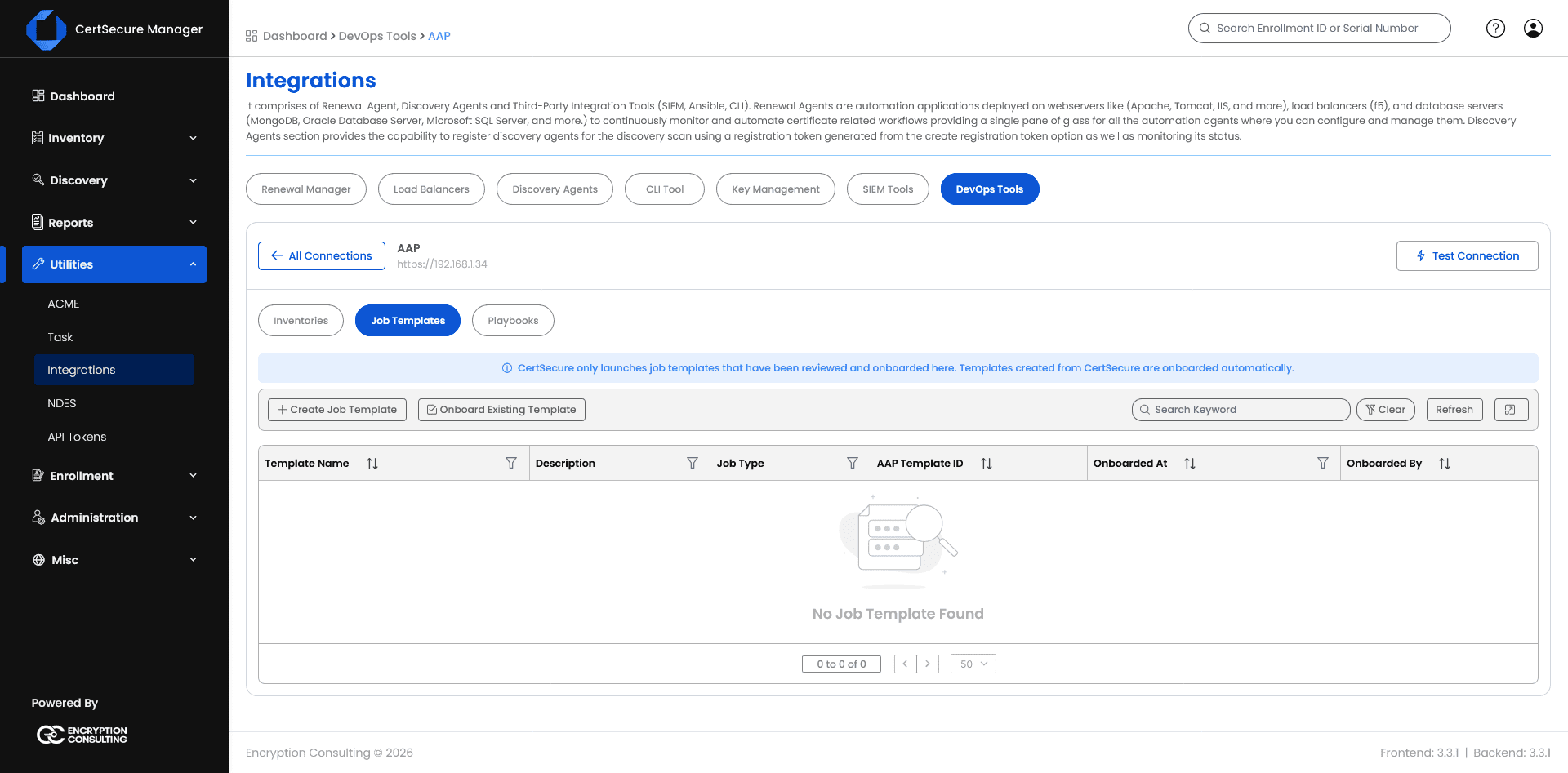
The connection then opens to its detail view with three tabs: Inventories, Job Templates, and Playbooks. Use Test Connection at any time to re-validate.
The Inventories tab lists every AAP inventory reachable through this connection, along with the hosts in each. Inventories and hosts are read live from the AAP instance; CertSecure does not cache them, so this always reflects the current state in AAP.
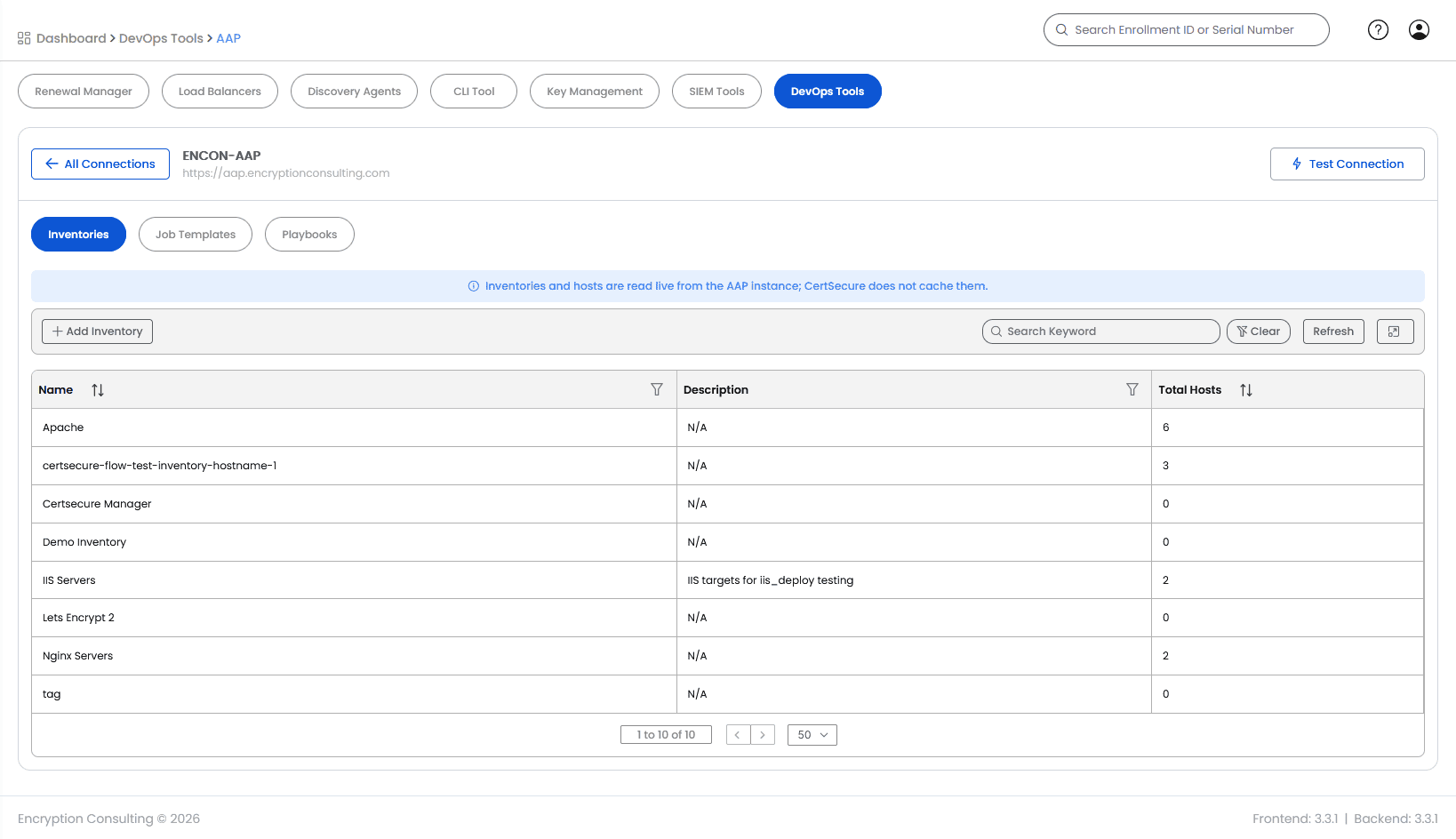
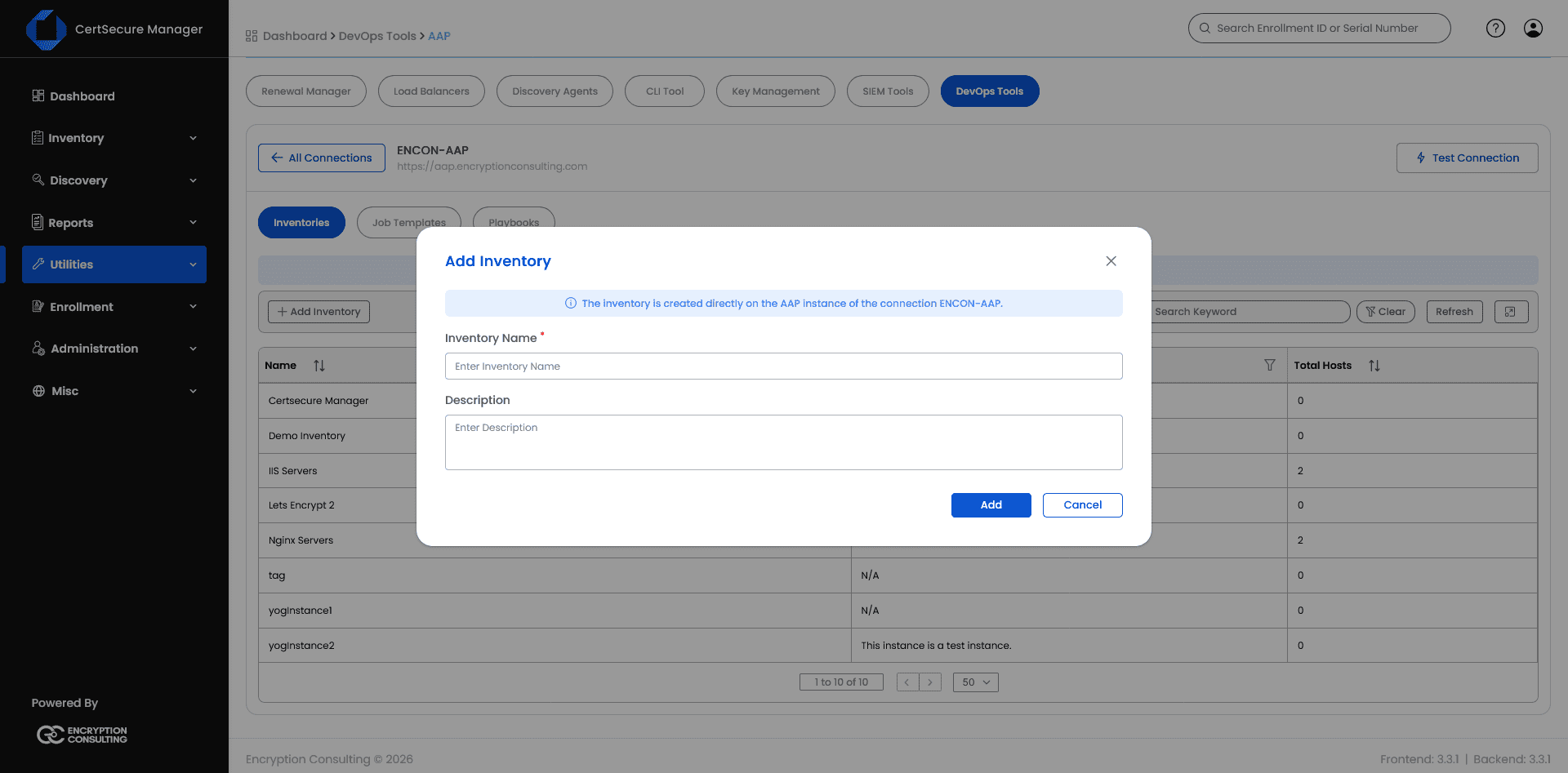
Click Add Inventory to create a new one directly on the AAP instance.
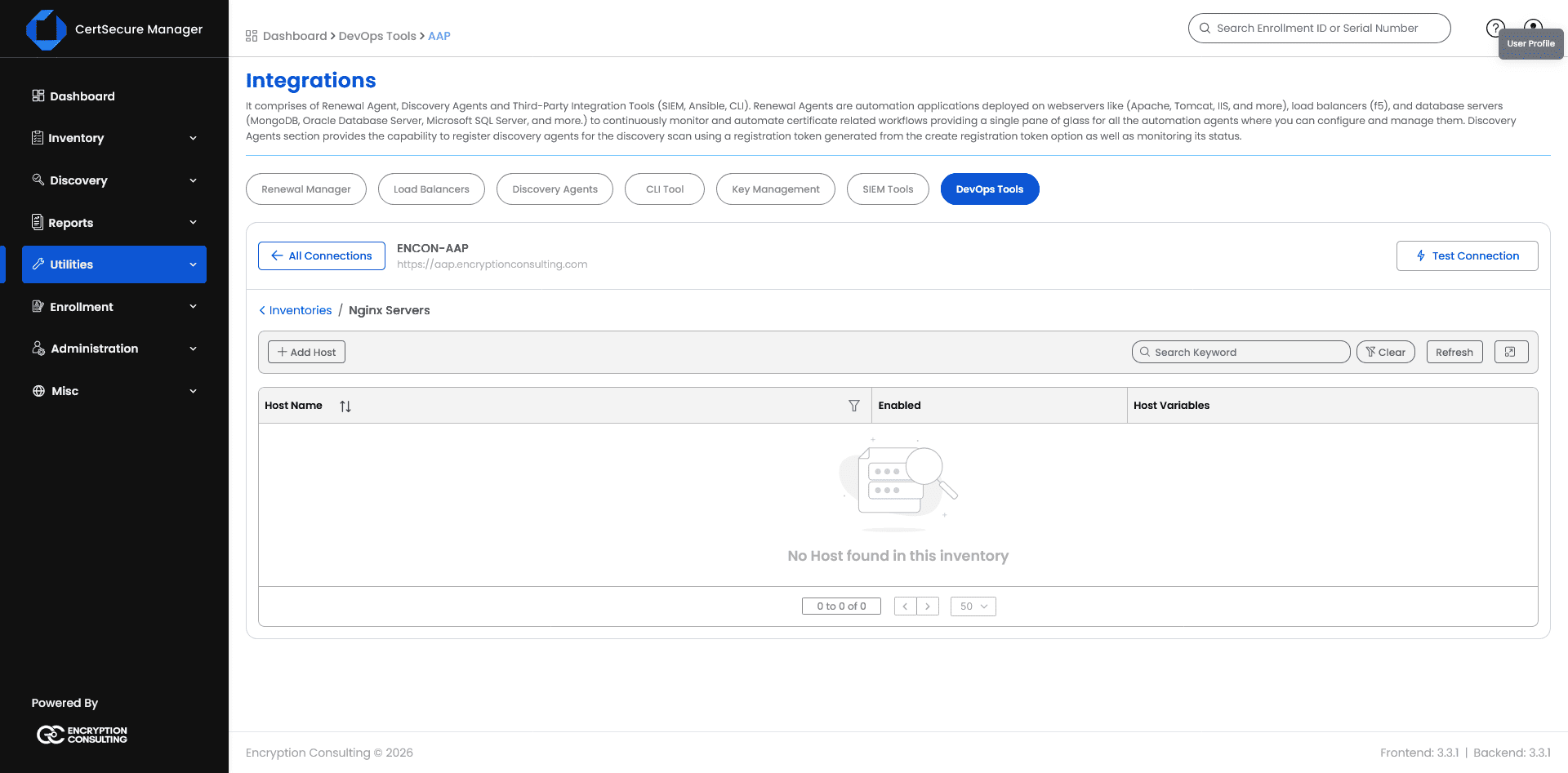
Click into an inventory to view (and add) its hosts.
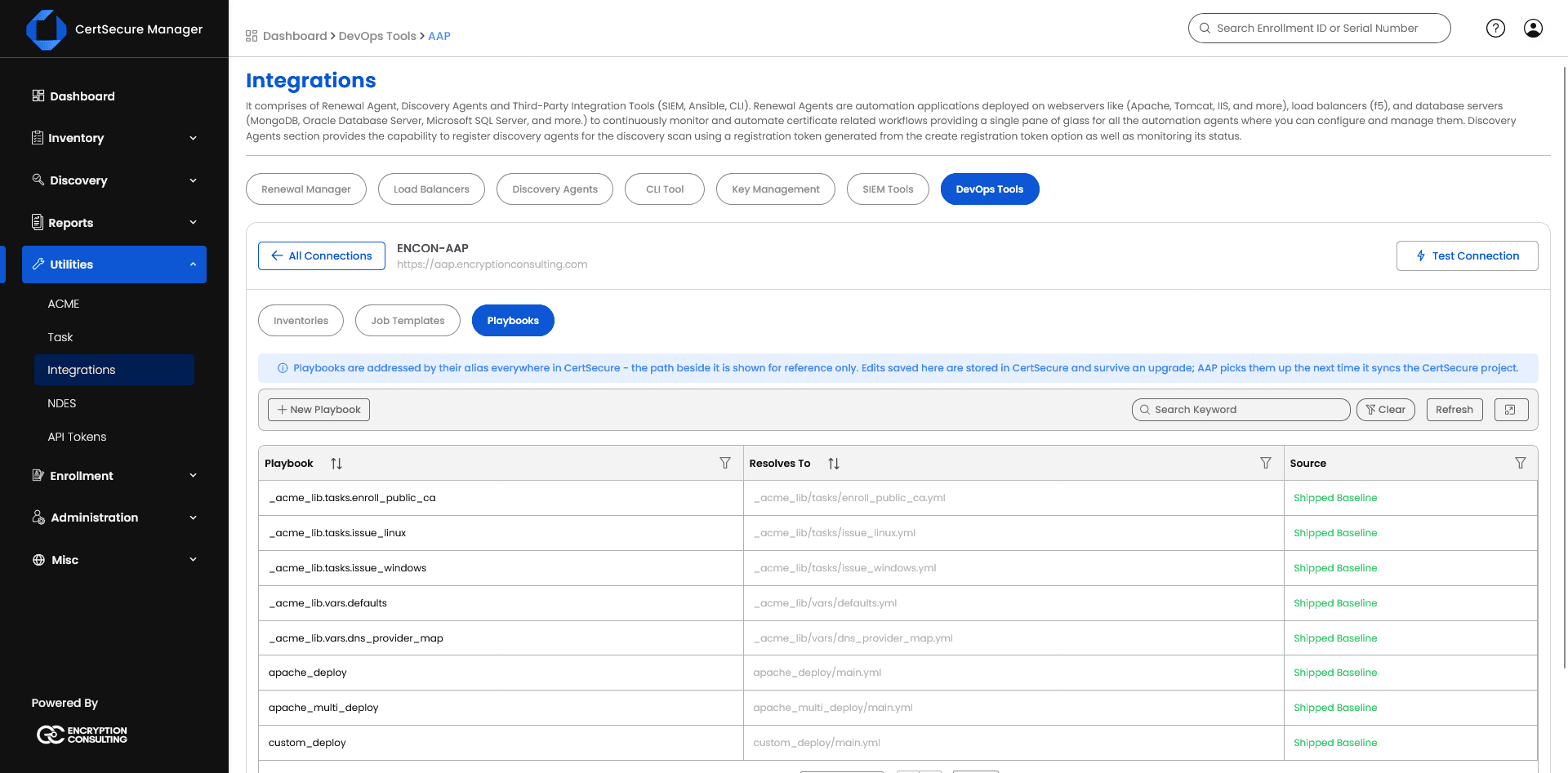
The Playbooks tab lists every playbook path shipped in the encryptionconsulting.certsecure collection (the ACME task library under _acme_lib, plus per-platform deploy roles such as apache_deploy, iis_deploy, and custom_deploy) together with which tier is currently serving its content: Shipped Baseline (the file as released) or Saved Edit (an override saved through CertSecure). Playbooks are referenced everywhere in CertSecure by their alias, never by the raw on-disk path shown alongside it; that path is for reference only.
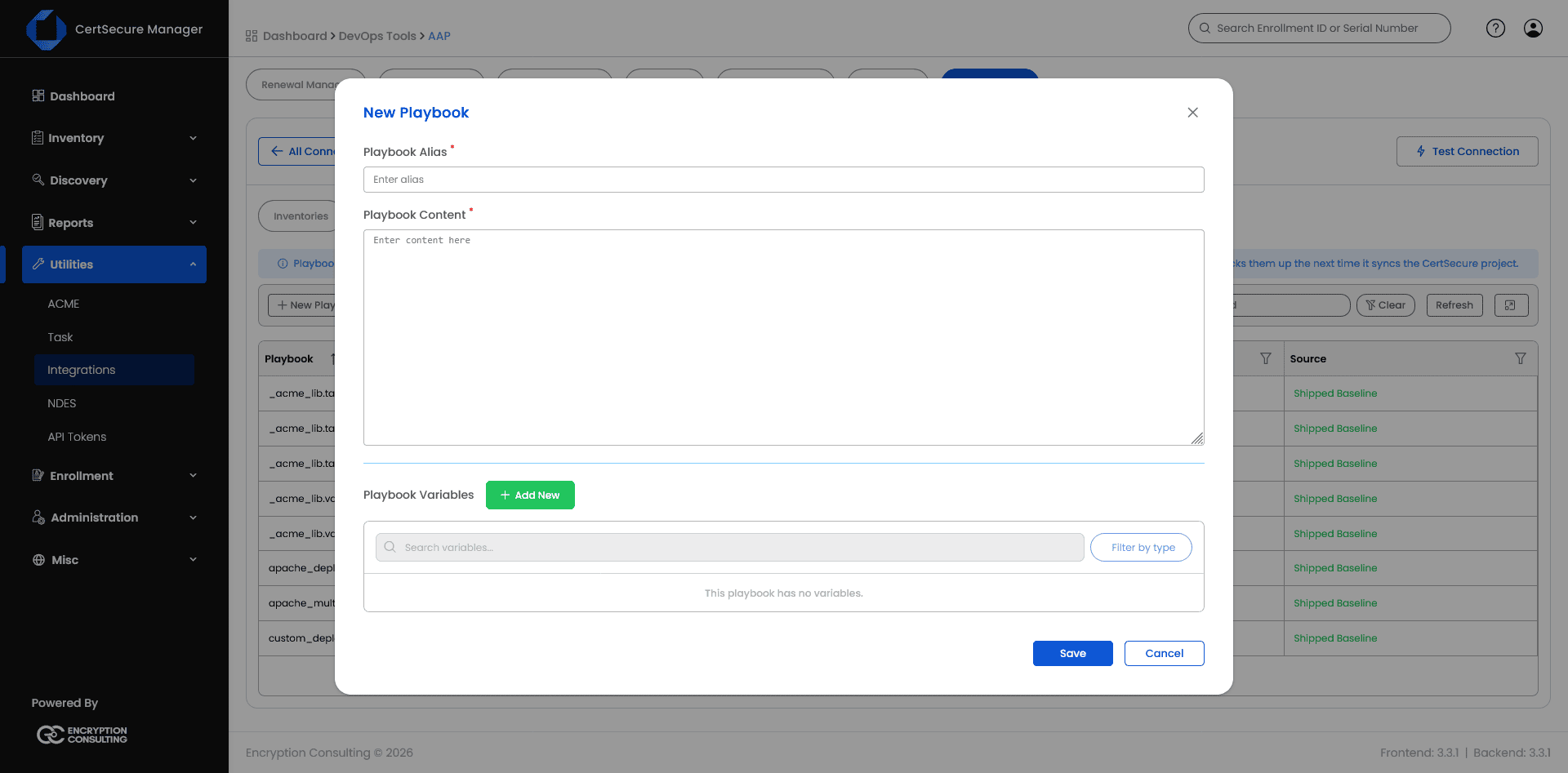
Click New Playbook to add a custom playbook of your own: give it a Playbook Alias and paste its Playbook Content, then Save. A custom playbook with no shipped-baseline counterpart is still included in the collection AAP syncs.
To edit an existing playbook in place, use the Edit Playbook action in its row.
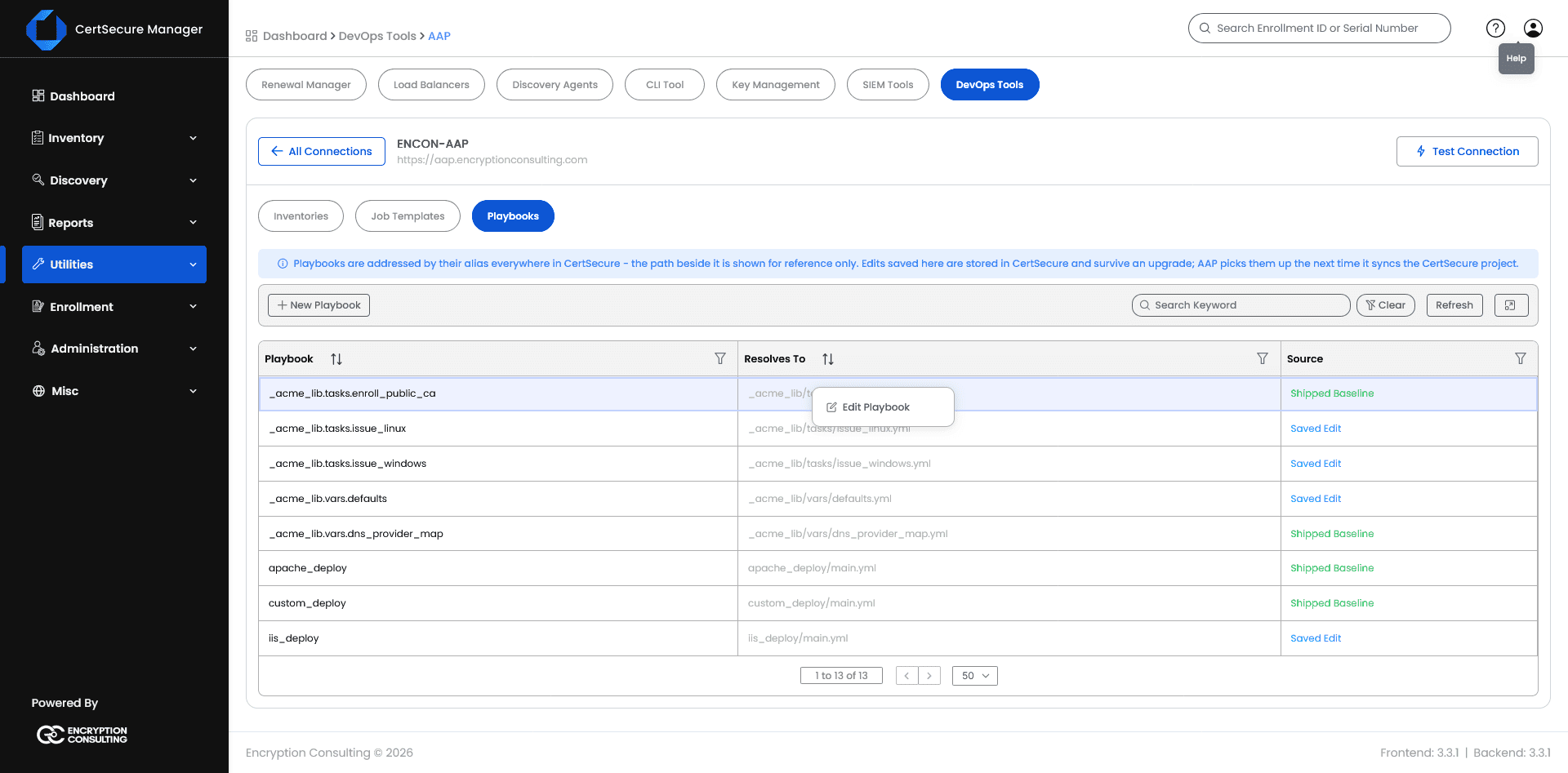
Edits saved here are stored in CertSecure (they survive a CertSecure upgrade) and are picked up by AAP the next time it syncs the CertSecure project; no backend redeploy is required to change a playbook.
Create a Job Template
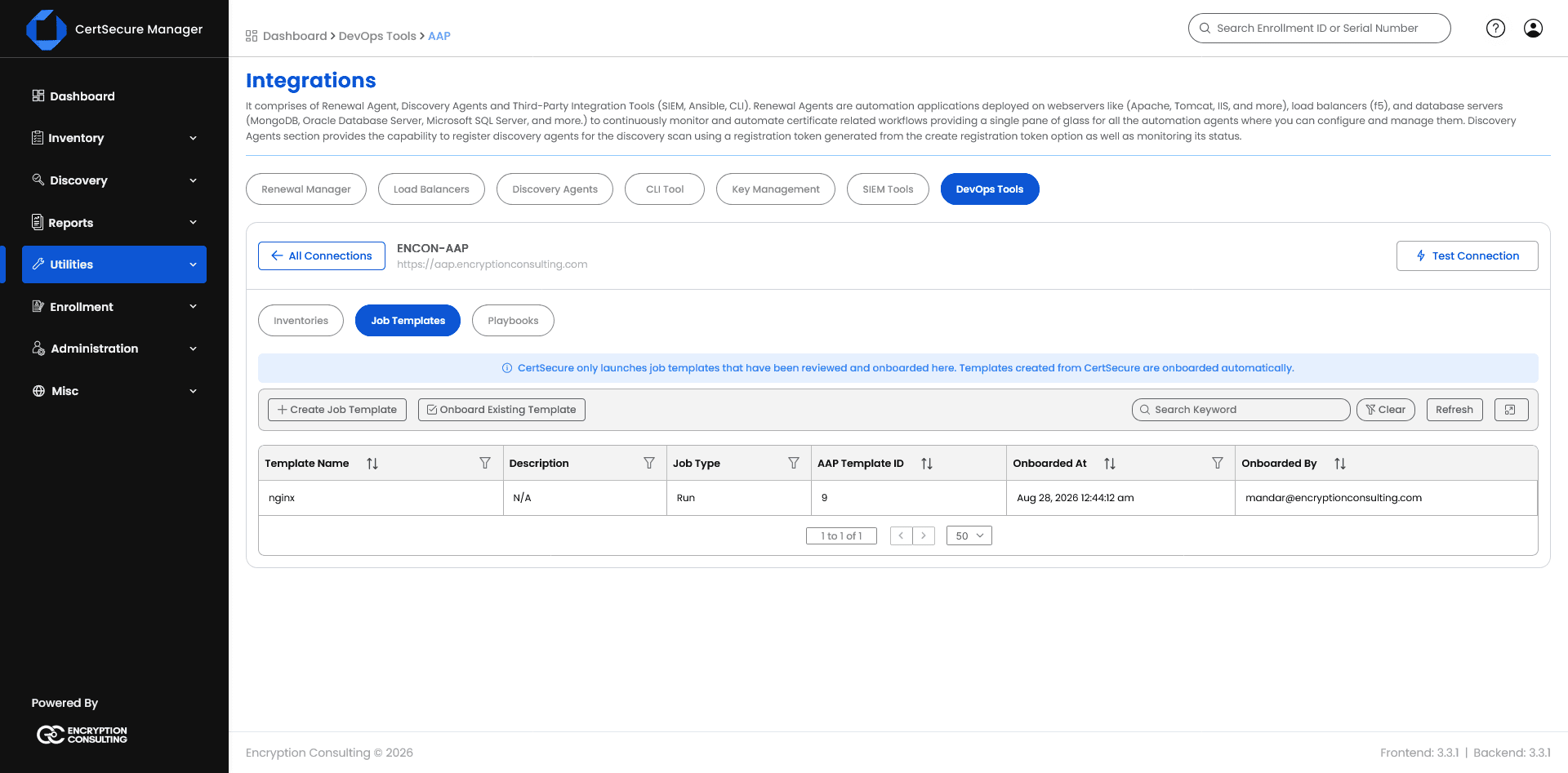
From the connection’s Job Templates tab, click Create Job Template. This creates the Job Template directly on the AAP side and registers it with CertSecure in one action; templates created this way are onboarded automatically.
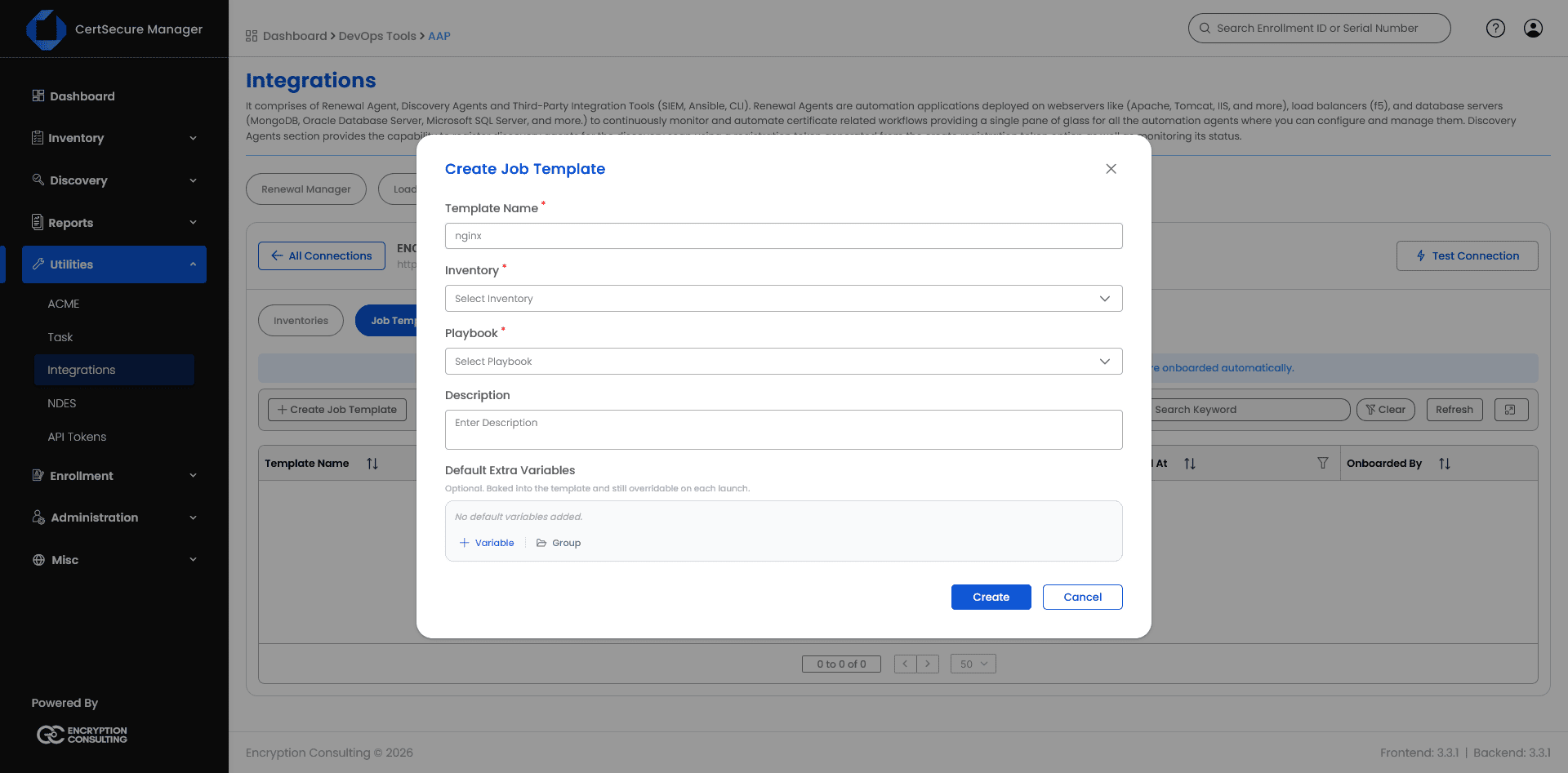
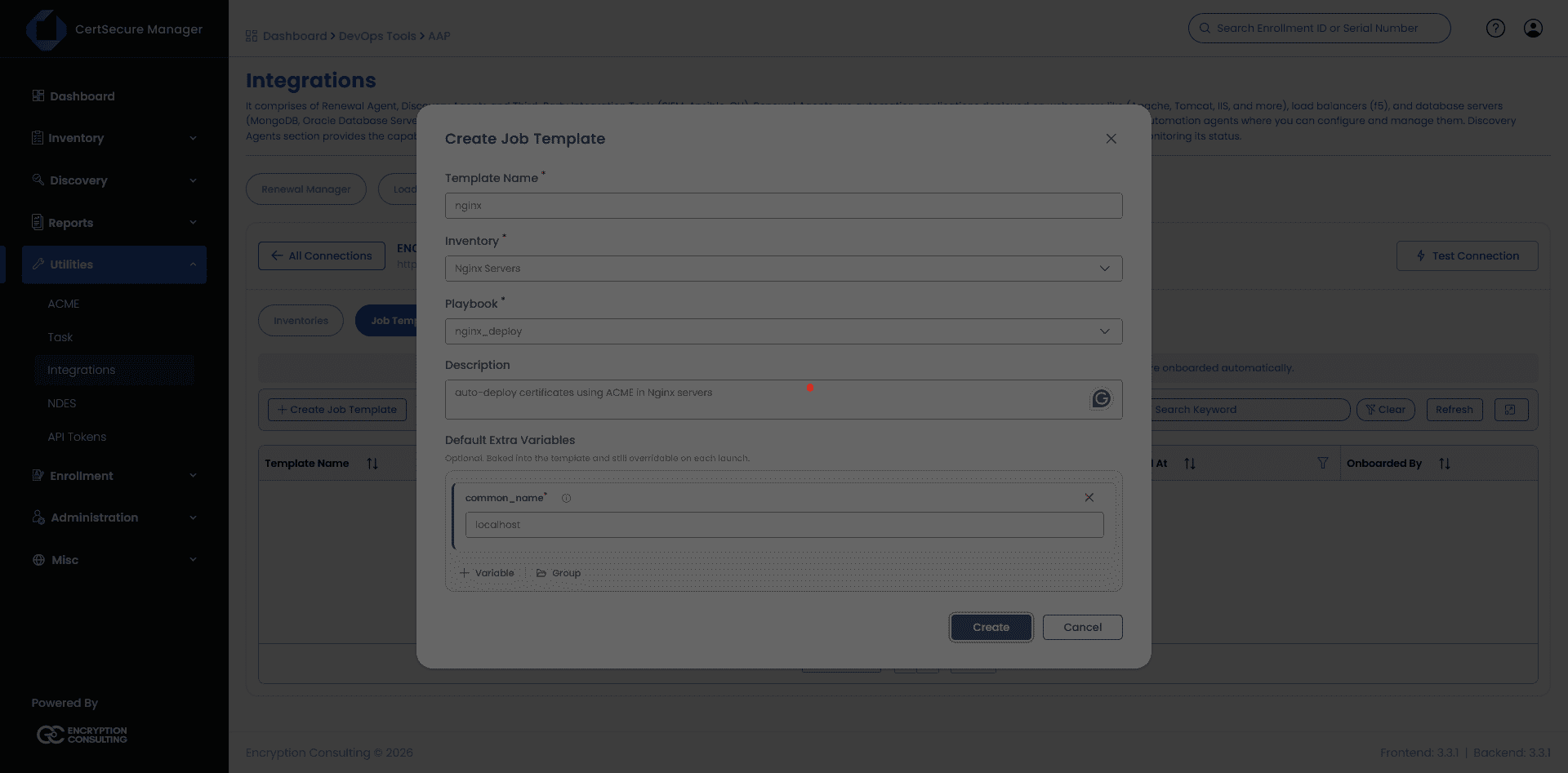
Fill in the Template Name, select the Inventory and Playbook, add a Description, and set any Default Extra Variables (here, common_name = localhost). Click Create.
After clicking Create, the template appears in the Job Templates list, already onboarded; CertSecure records its AAP Template ID and when, and by whom, it was onboarded.
Onboard an Existing AAP Job Template
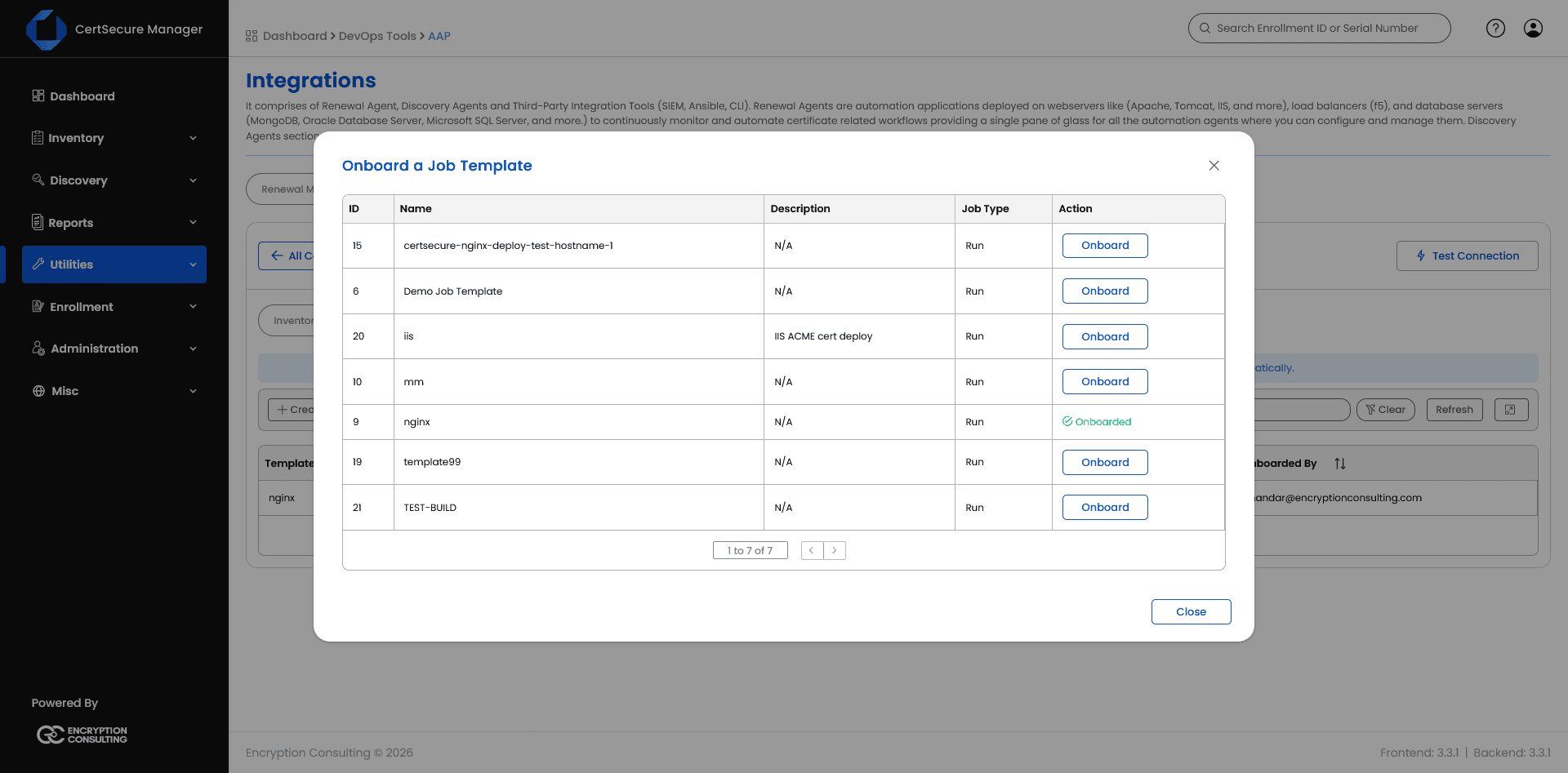
If a Job Template already exists directly in AAP (created by a platform engineer outside CertSecure), it will not appear in CertSecure’s Job Templates list until it is onboarded; CertSecure only launches templates that have been reviewed and onboarded this way. Click Onboard Existing Template to see every Job Template AAP knows about that CertSecure has not yet onboarded, then click Onboard next to the one you want to bring in.
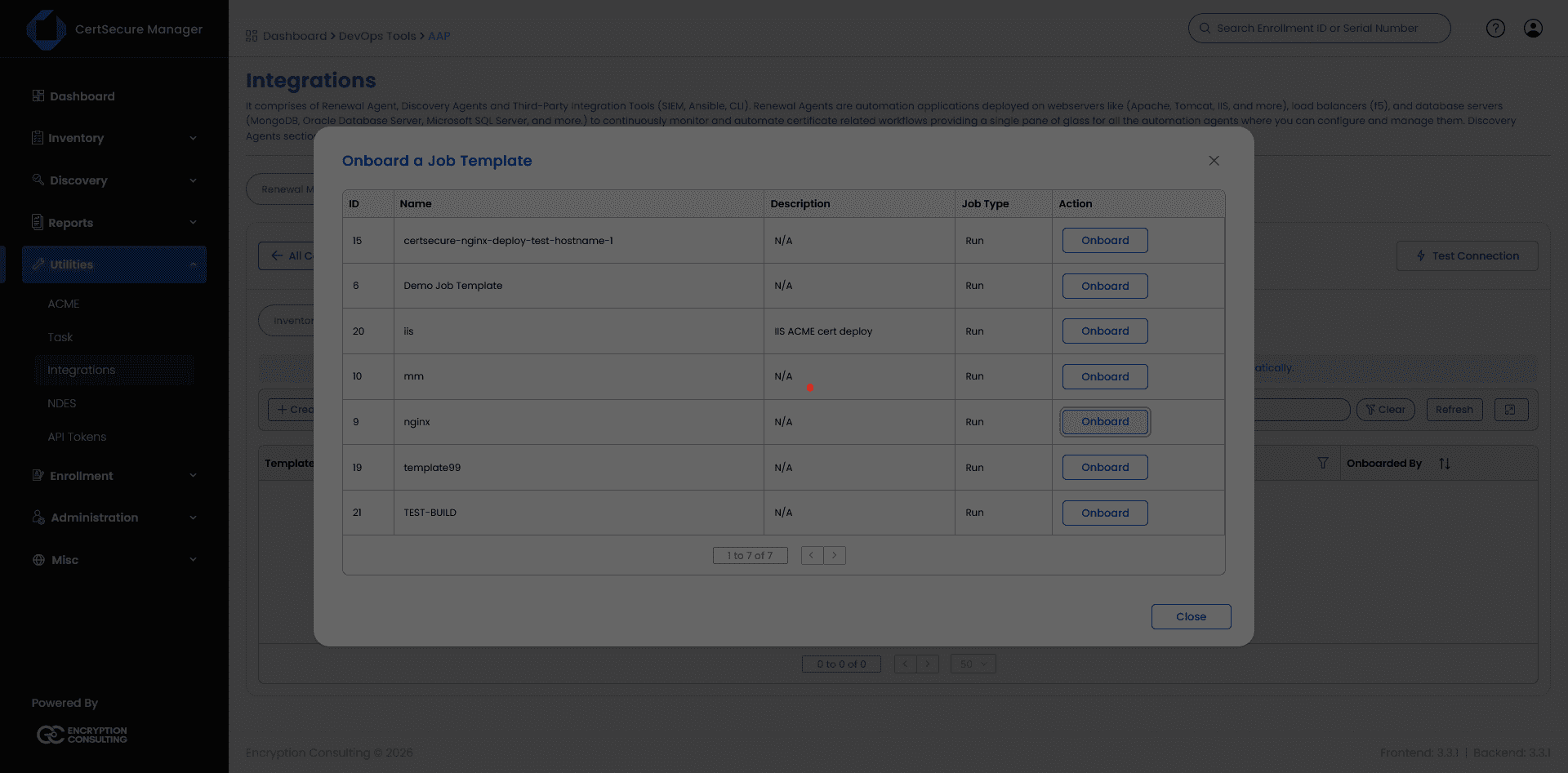
Once onboarded, the same picker shows the template as Onboarded instead of offering the action again.
Launch a Job
From the Job Templates list, open the template you want to run to bring up its Launch dialog. CertSecure pre-fills the Playbook (read-only) and any Default Extra Variables, and prompts for whatever the playbook’s variable contract still requires.
Extra Variables can also be extended ad hoc with Add Variable / Group if a specific launch needs something beyond the template’s defaults. Fill in the required fields and the Limit, then click Launch.
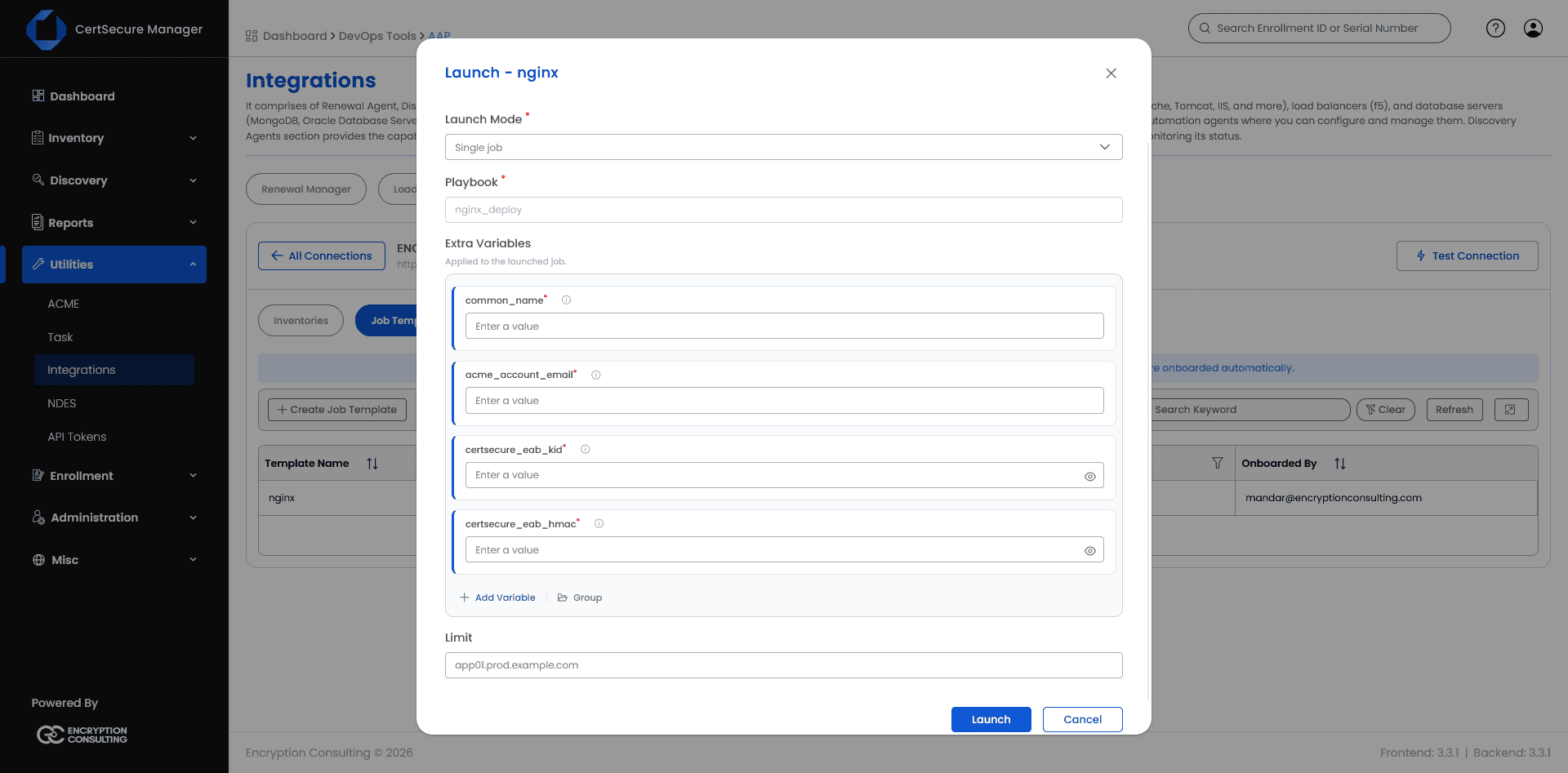
The Launch dialog opens with Launch Mode set to Single job, which runs the template once against the target named in Limit. To run the template against several hosts in one action, set Launch Mode to One job per host (batch).
In batch mode the Limit field is replaced by a list of hosts:
A batch appears on the Tasks screen as one parent task, named
Automation batch: <template name> on <connection name> (<number> hosts),
with a child task for each host. All the jobs in the batch share one batch identifier.
Schedule a Recurring Job
A job template does not have to be launched by hand every time. Open the template and go to its Schedules tab, then click Add Schedule.
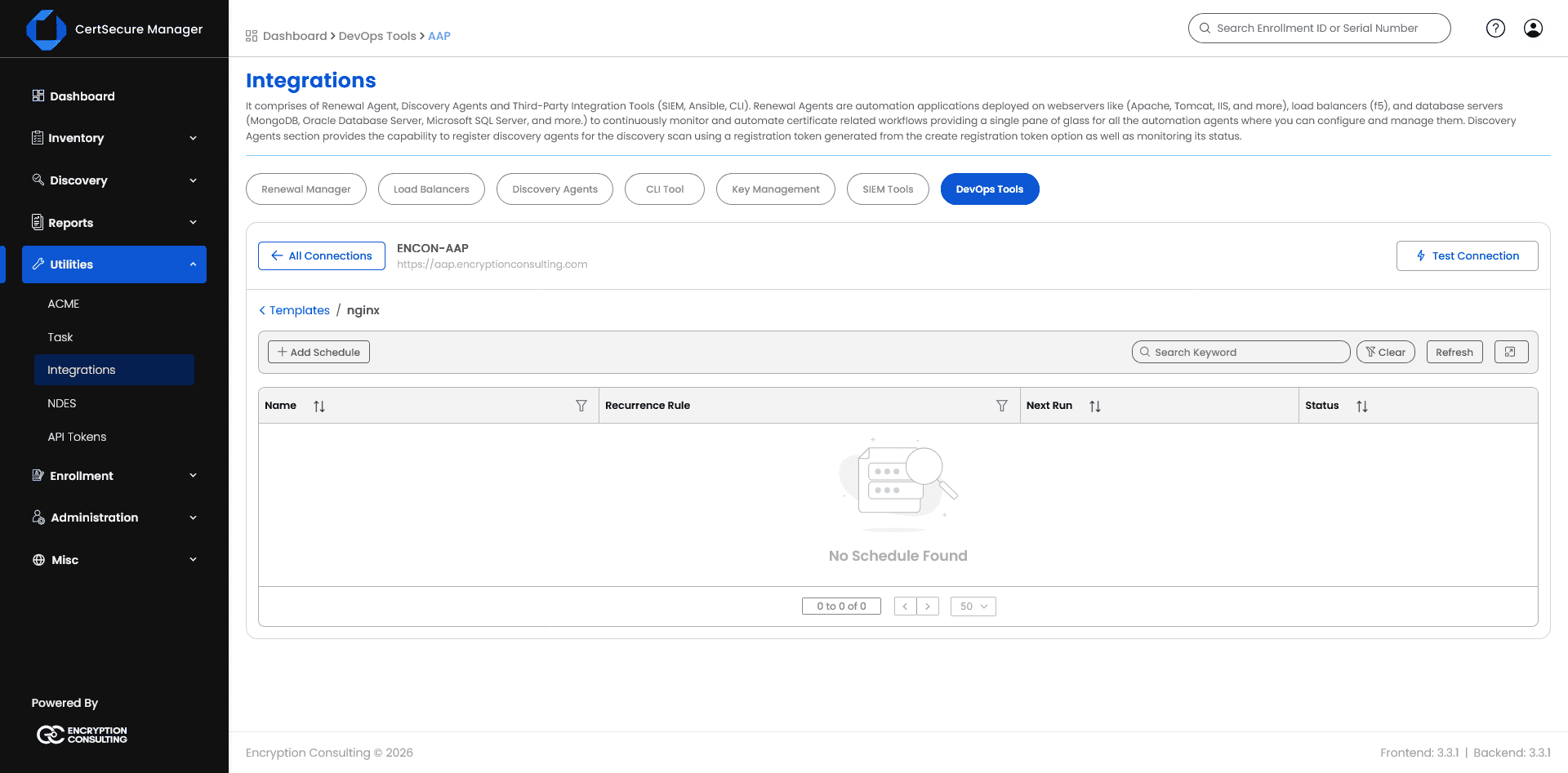
Give the schedule a name and choose a Schedule Mode (Simple, used here), a Frequency (Hourly, Daily, …) and Interval, a Start Date and Time, and a Timezone. Below that, the same Extra Variables the template needs at launch (common_name, certsecure_eab_kid, certsecure_eab_hmac, acme_account_email) must be filled in here too, since a scheduled run has no one present to supply them interactively.
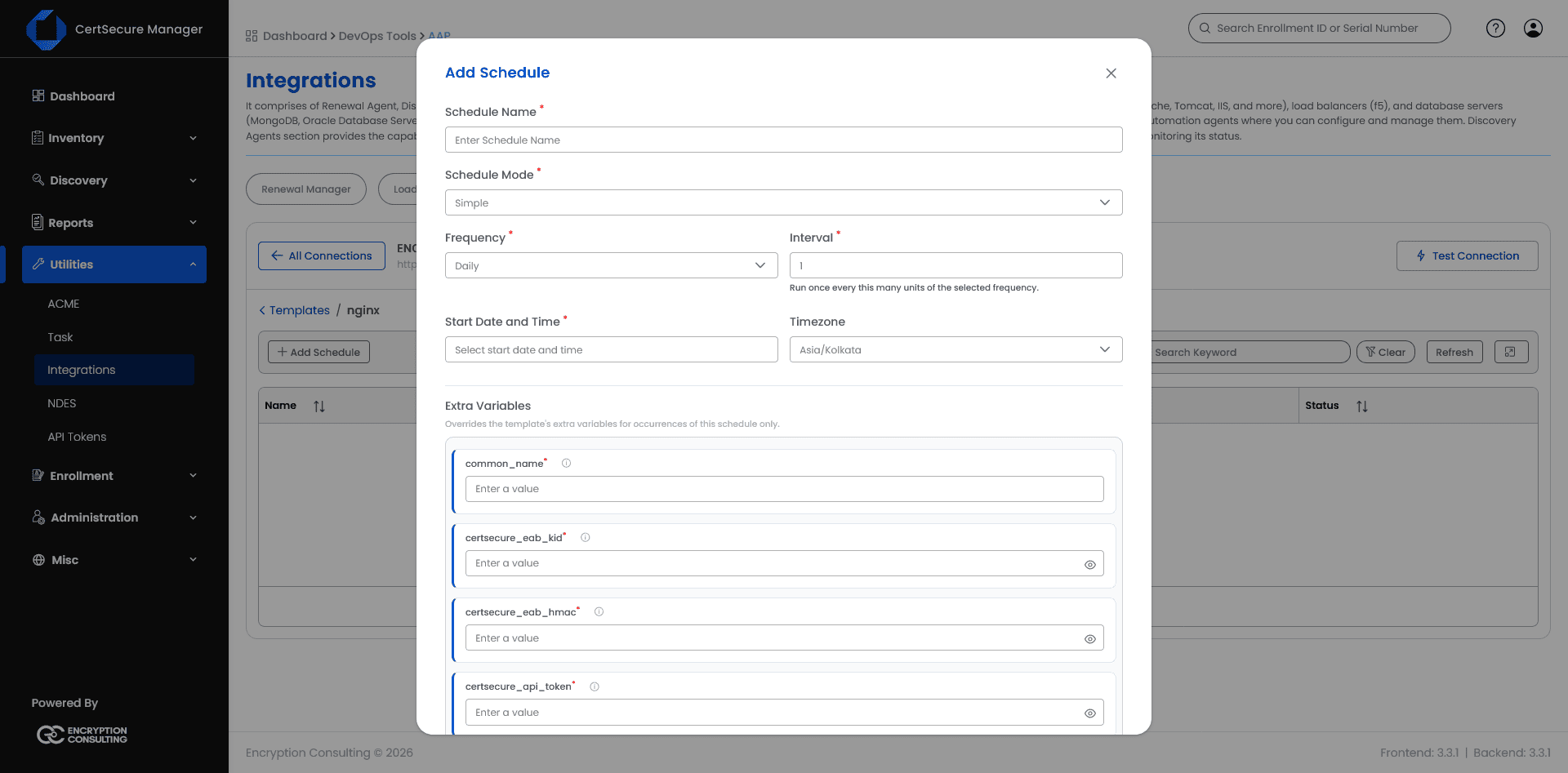
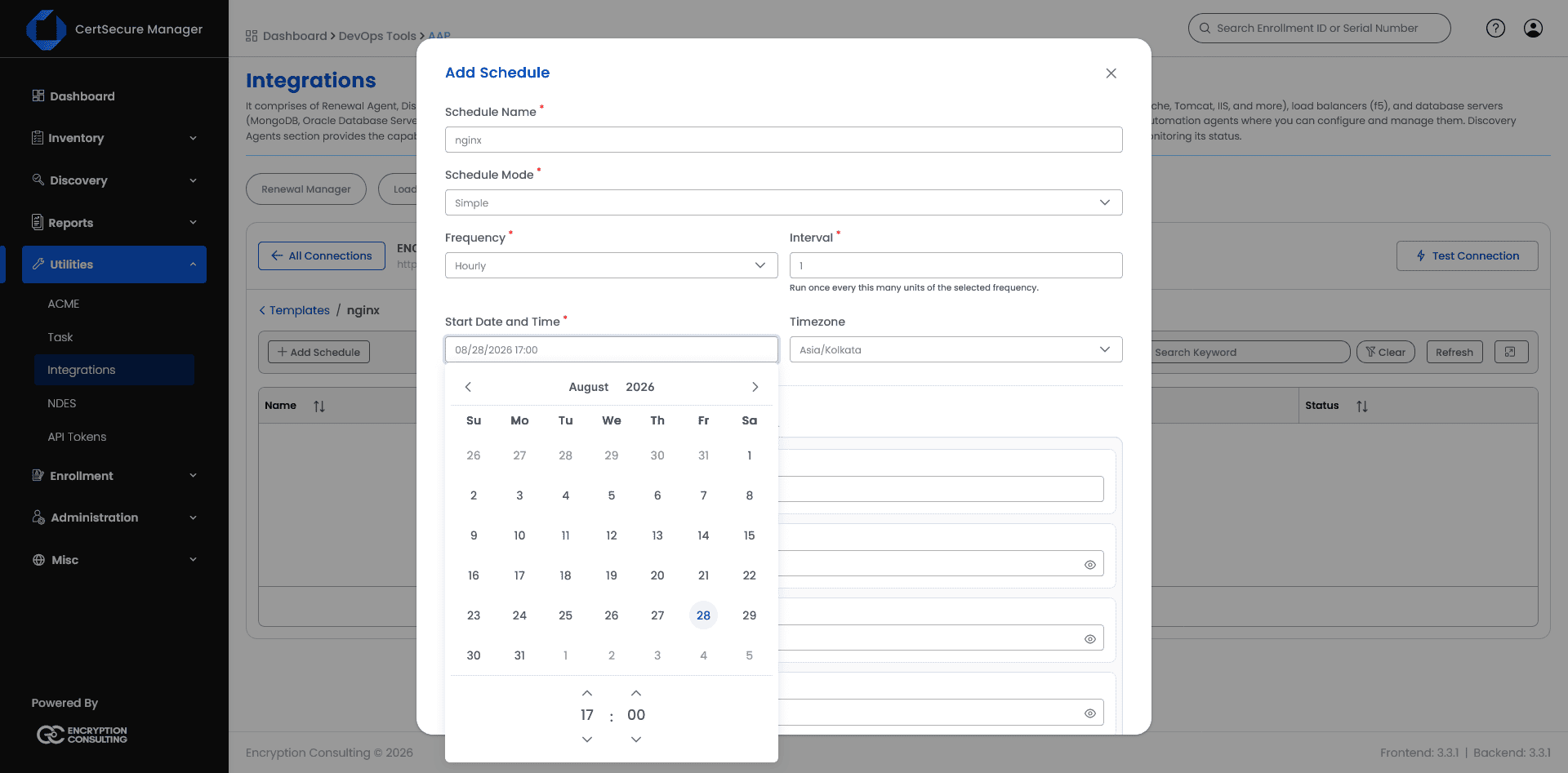
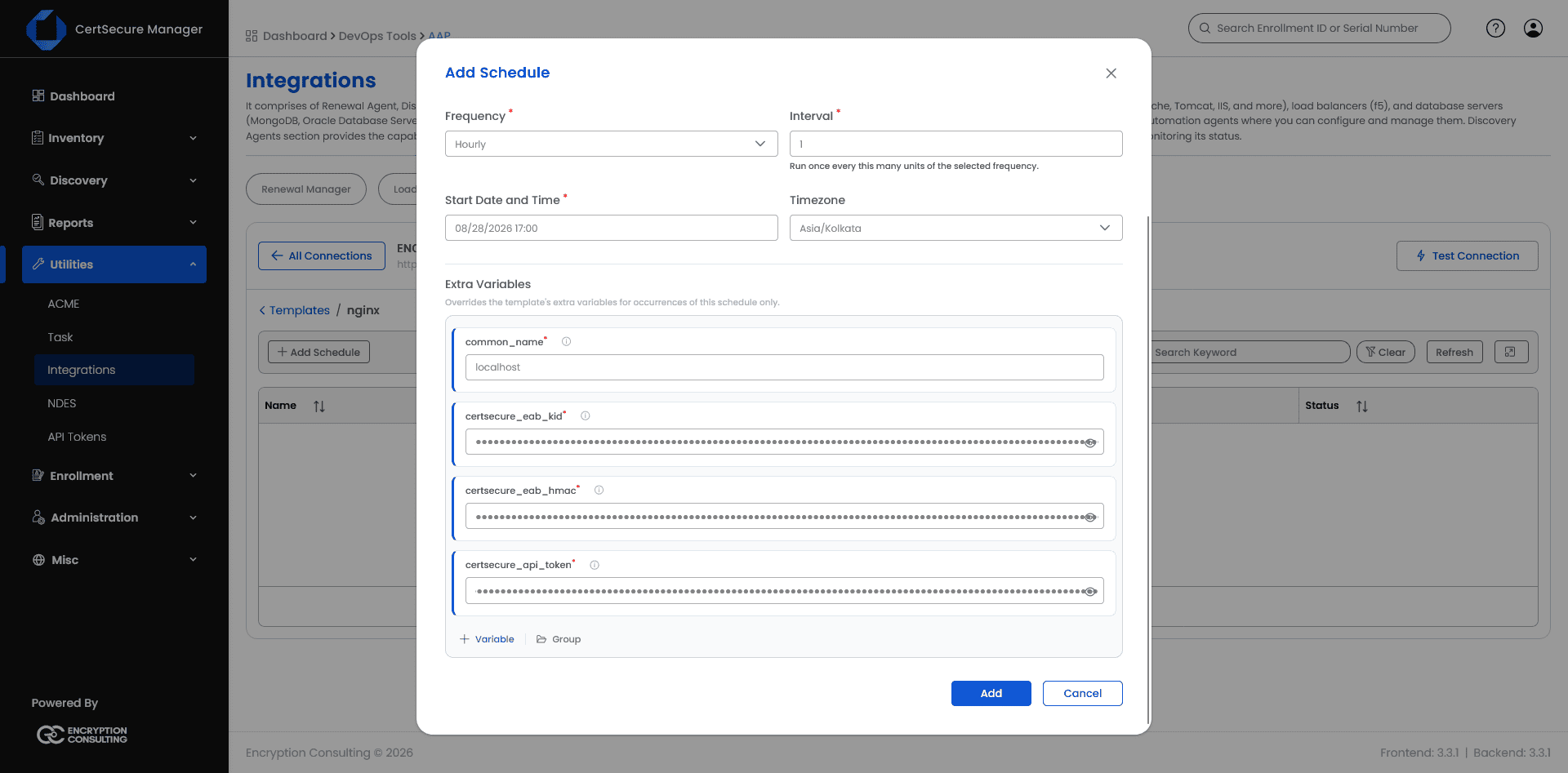
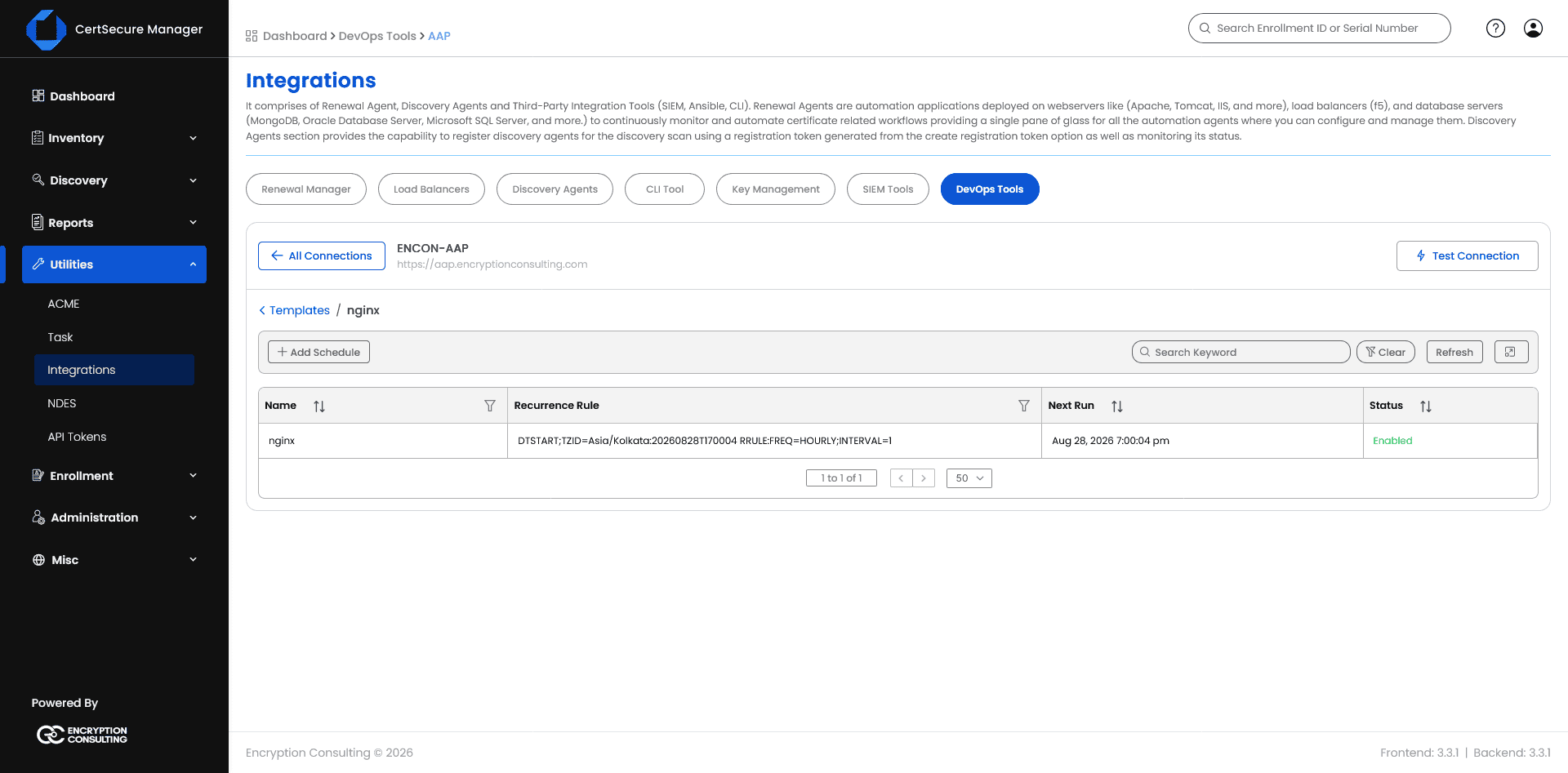
Once added, the schedule appears in the list with its recurrence rule (in standard iCalendar RRULE form), its computed Next Run, and a Status of Enabled.