
- Overview
- Reference Guide
- Setup & Architecture
- Release Notes
- Workflow
- API Reference
- Integration Guide
- Discovery Agent Setup Guide
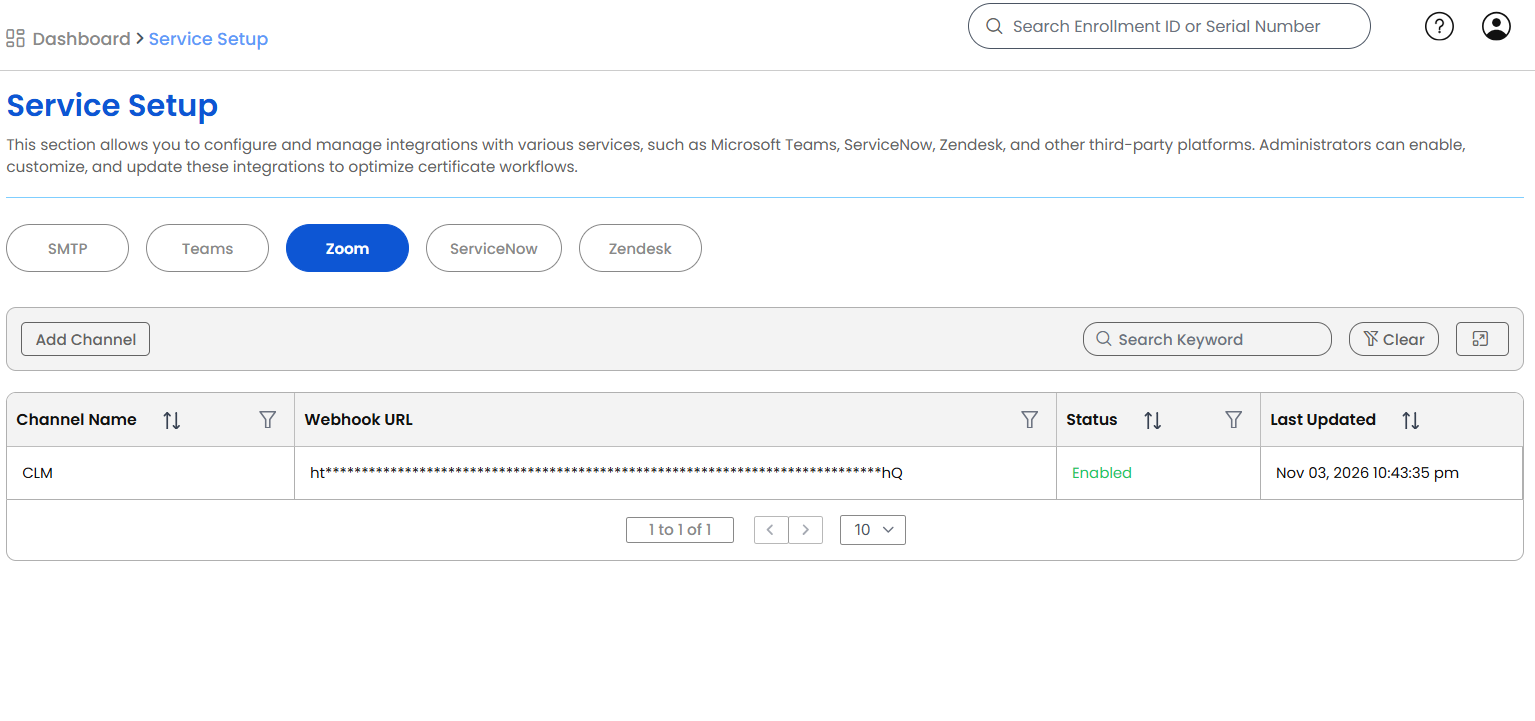
The Zoom tab in Service Setup sends certificate notifications to Zoom Team Chat channels. Each channel is a Zoom incoming webhook that CertSecure Manager posts to when a certificate is created, renewed, revoked, or about to expire. Any number of channels can be defined, and each channel chooses which events it receives and which CAs, templates, and departments it receives them for.
To open it, go to Miscellaneous > Service Setup and select Zoom.
CertSecure Manager posts through the Incoming Webhook chatbot of Zoom Team Chat. In the Zoom Team Chat channel that should receive the notifications, connect the Incoming Webhook app, for example, with the command /inc connect followed by a name. Zoom then shows two values that CertSecure Manager needs:
https://integrations.zoom.us/chat/webhooks/incomingwebhook/...The Zoom tab lists the channels that have been added.
| Column | Description |
|---|---|
| Channel Name | The name of the channel in CertSecure Manager. |
| Webhook URL | The webhook URL. |
| Status | Enabled or Disabled. |
| Last Updated | When the channel was last changed. |
Use Search Keyword to search the list, Clear to remove the filters, and Add Channel to add a channel. The row menu of a channel offers the following actions:
| Action | Description |
|---|---|
| View Details | Shows the Zoom Channel Details: the Channel Name, Webhook URL, Verification Token, Status, the notifications that are switched on, the routing, and when the channel was created and last updated. |
| Edit Information | Opens the Edit Zoom Channel dialog. |
| Test | Sends a test message to the channel. |
| Delete | Removes the channel after confirmation: "Are you sure you want to delete the channel?" followed by the channel name. |
Edit Information, Test, and Delete are shown to users with the Configure CertSecure permission.
| Field | Description |
|---|---|
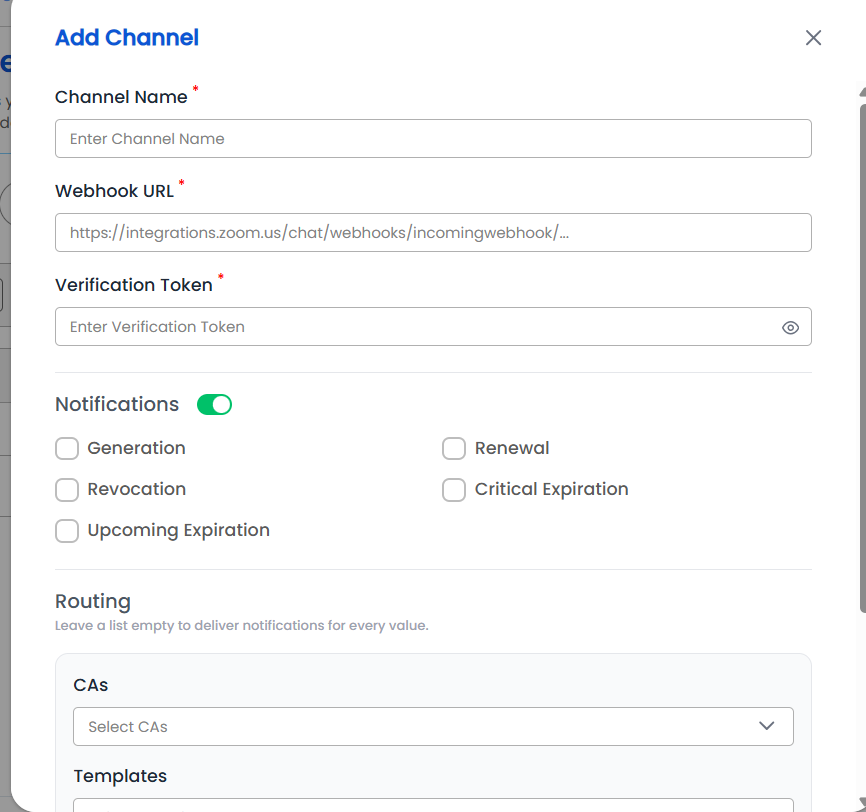
| Channel Name | Required. A name for the channel, up to 100 characters. The name must be unique. |
| Webhook URL | Required. An https URL on a zoom.us domain, up to 2048 characters. Other addresses are refused, so that the server cannot be pointed at other hosts. |
| Verification Token | Required. The verification token of the webhook, up to 2048 characters. |
| Notifications | The switch next to the heading turns the channel on or off. It is on for a new channel. When it is off, the channel receives nothing, and the events cannot be changed. |
| Generation, Renewal, Revocation, Critical Expiration, Upcoming Expiration | The events the channel receives. Each is a checkbox, and none is selected by default. |
| Routing: CAs, Templates, Departments | Limits the channel to the certificates of the selected CAs, templates, and departments. Leave a list empty to receive the notifications for every value. Select a CA first to see its templates. |
Routing works as follows. A notification is sent to a channel only when the channel is enabled, the event is selected, and the certificate matches every routing list that is not empty. A certificate whose value is not known, for example, a certificate with no owner and therefore no department, does not match a channel that is limited by that list.
Each message has a title, a text with the certificate details, and for most events a View Certificate link that opens the certificate in CertSecure Manager.
| Event | When it is sent | Title of the message |
|---|---|---|
| Generation | A certificate has been issued. | Certificate Created: followed by the common name |
| Renewal | A certificate has been renewed. The message names the old serial number. | Certificate Renewed: followed by the common name |
| Revocation | A certificate has been revoked. | Certificate Revoked: followed by the common name |
| Critical Expiration | A certificate expires in less than 7 days. | [Critical] Certificate Expiration: followed by the common name |
| Upcoming Expiration | A certificate is approaching its expiry date, at the alert days configured for expiry alerts. The message states the number of days left. | Certificate Expiration: followed by the common name |
The messages carry the enrollment ID where there is one, the serial number, the CA, the owner and watchers, and the expiry date. Zoom does not support formatting in these messages, so they are plain text.
A message that cannot be delivered to one channel does not stop the delivery to the others, and does not affect the certificate operation. Delivery failures are written to the application log.
Select Test in the row menu of a channel to check the webhook. CertSecure Manager sends a message titled CertSecure Test Notification that names the channel. The notification "Test notification sent to the Zoom channel" confirms that Zoom accepted it, and "Unable to send the test notification" reports a failure.