
- Overview
- Reference Guide
- Setup & Architecture
- Release Notes
- Workflow
- API Reference
- Integration Guide
- Discovery Agent Setup Guide
This section shows how to use the NetScaler pages in CertSecure: finding the agent, adding the certificate-key pairs CertSecure should manage, renewing them manually or automatically, and checking tasks.
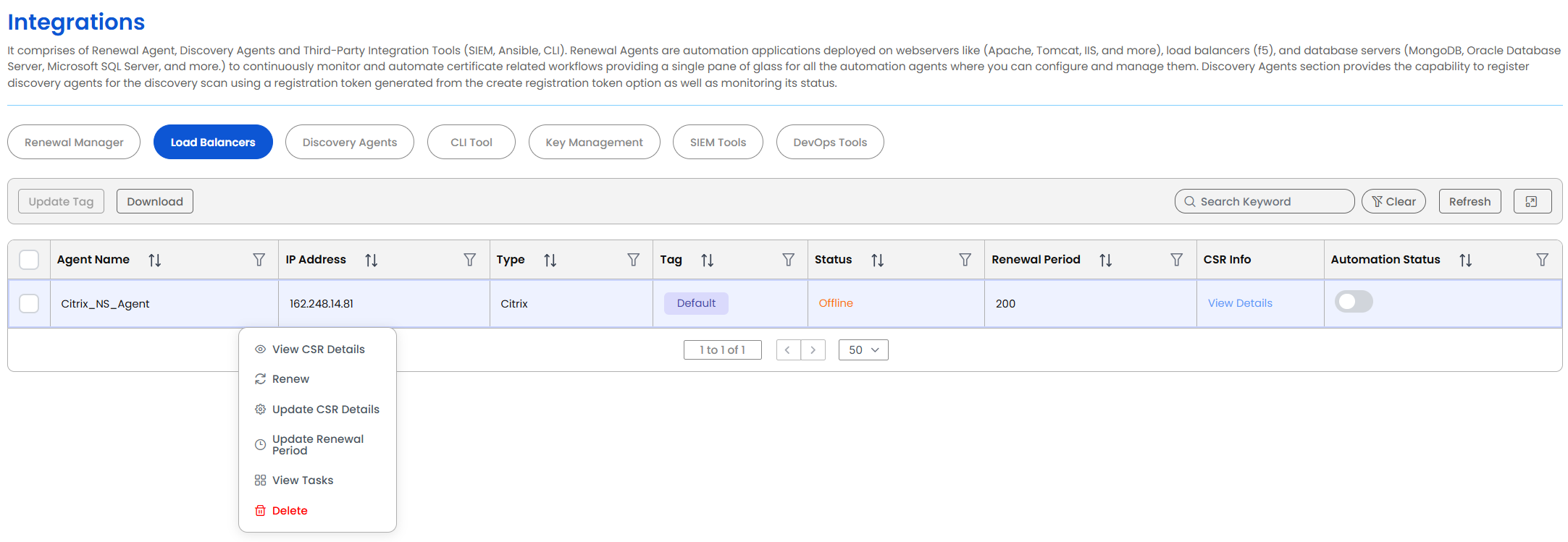
| Item | What it shows |
|---|---|
| Agent Name | The name of the agent, set by NAME in its conf.ini. Each agent manages one NetScaler. |
| IP Address | The IP address registered for the agent. |
| Type | Citrix, for a Citrix NS Agent. |
| Tag | The tag the agent is grouped under (RENEWAL_AGENT_TAG in conf.ini). Change it with Update Tag. |
| Status | Online while the agent is checking in; Offline otherwise. A scheduled renewal is skipped while the agent is offline. |
| Renewal Period | How many days after a certificate is issued automatic renewal renews it. The default is 200. Change it with Update Renewal Period. |
| CSR Info > View Details | The certificate-key pairs registered on the agent and the certificate details saved for each. |
| Automation Status | The switch that turns automatic renewal on or off for this agent. |
Right-click an agent to see the actions shown in the screenshot above:
CertSecure renews only the certificate-key pairs you register on the agent. Each pair must already exist on the NetScaler, under the same name (see NetScaler Requirements).
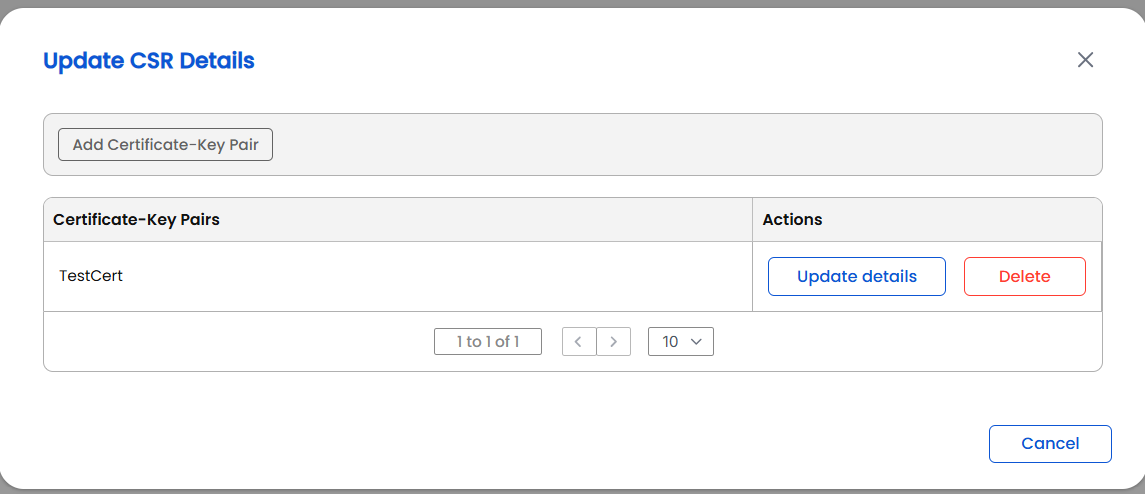
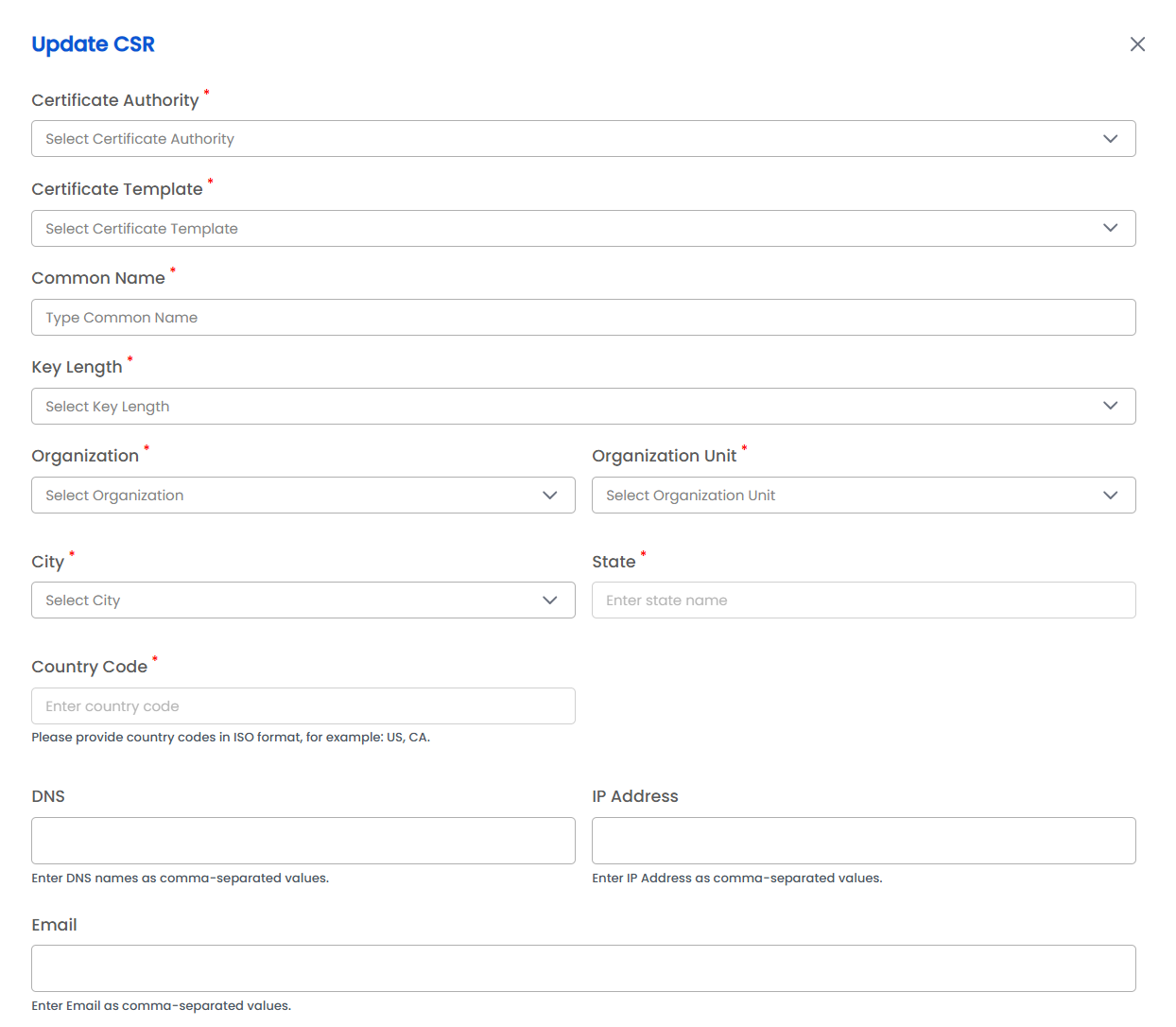
| Field | Applies to | What it means |
|---|---|---|
| Certificate Authority | Required | The CA that issues the renewed certificates for this pair. |
| Certificate Template | Required | The template to request from the selected CA. Options depend on the CA chosen. |
| Organization ID | Only when CA = DigiCert | The DigiCert organization to request the certificate under. |
| Order Validity | Only when CA = DigiCert | How many days the requested certificate should be valid for. |
| Common Name | Required | The common name of the certificate. Keep the name of the certificate the pair holds now; the NetScaler rejects an update when the domain changes. |
| Key Length | Required | The size of the new RSA key. |
| Organization, Organization Unit, City | Required | Chosen from the lists. |
| State | Required | The state or province, written out in full. |
| Country Code | Required | The two-letter ISO country code, for example US or CA. |
| DNS | Optional | DNS names to include in the certificate, separated by commas. |
| IP Address | Optional | IP addresses to include in the certificate, separated by commas. |
| Optional | Email addresses to include in the certificate, separated by commas. | |
| Watchers List | Required | The email addresses of the people to notify about this certificate. |
Delete next to a pair removes it from the agent, so CertSecure no longer renews it. The certificate-key pair on the NetScaler is not changed.
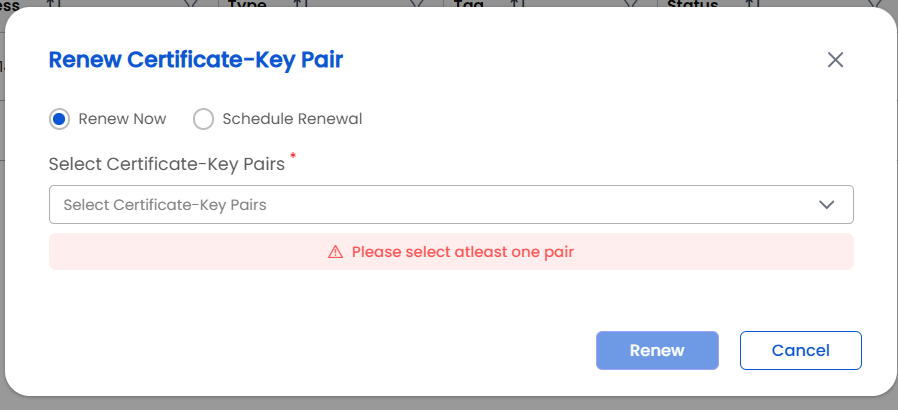
Before you renew:
What the agent does next is described in Workflow Steps under NetScaler Workflow.
The agent then checks its pairs every 12 hours and renews each one when it is due. Automatic Renewal under NetScaler Workflow explains how it decides.