DigiCert Connector Setup Guide
This section explains how to generate an API key in DigiCert CertCentral and
outlines the full set of requirements to integrate it with the CertSecure
Manager Connector, including prerequisites related to account setup, domain
validation, certificate availability, and billing balance. It then describes how to
install the DigiCert connector and add the DigiCert CA in CertSecure Manager.
Prerequisites for API Key Generation
Active DigiCert CertCentral Account
You must have a valid and accessible DigiCert CertCentral account.
User Role with API Permissions
Recommended roles: Administrator or Manager. Other roles may have limited API
access.
Steps to Generate an API Key
-
Log in at
https://www.digicert.com/account/login.php
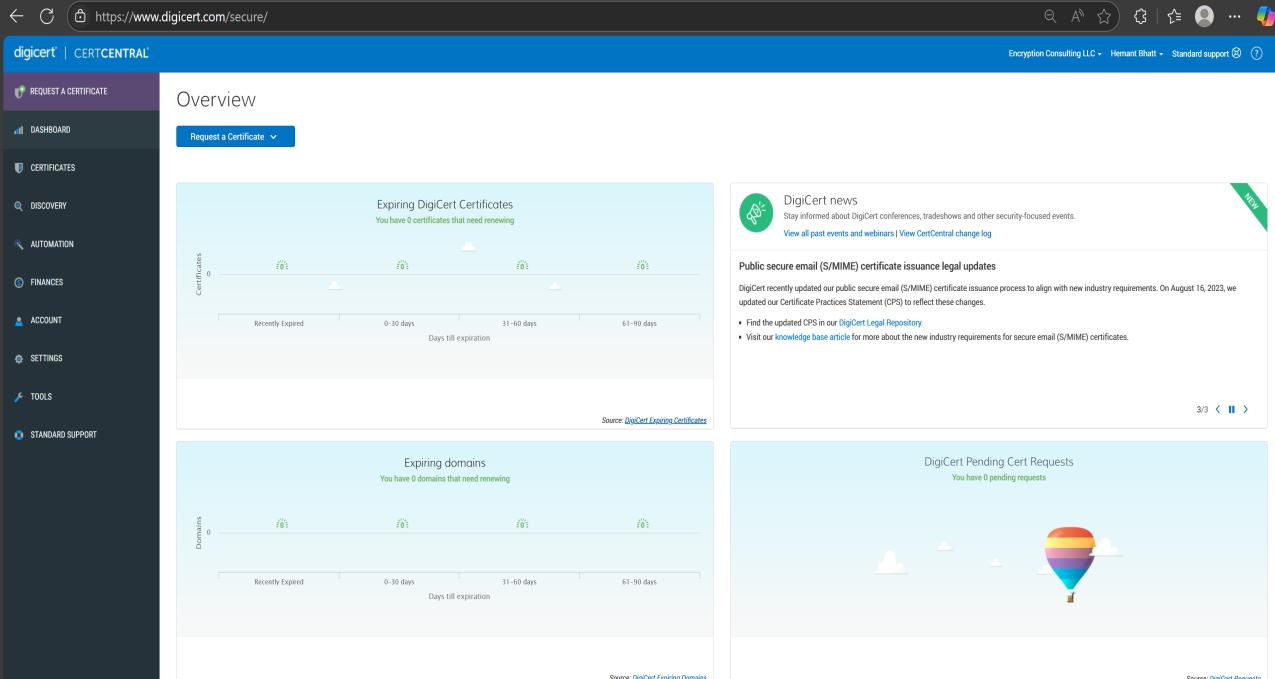
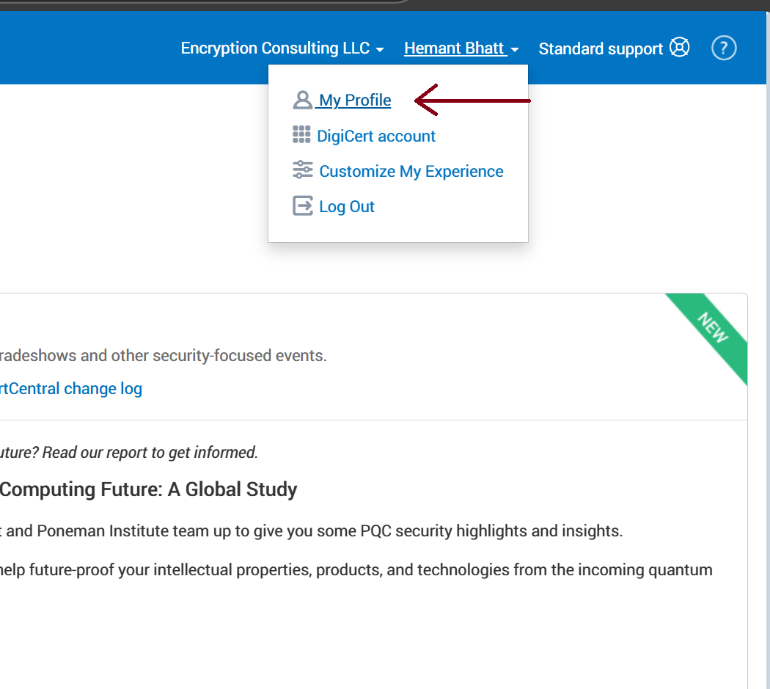
- Click your username in the top-right corner
-
Select “My Profile”
-
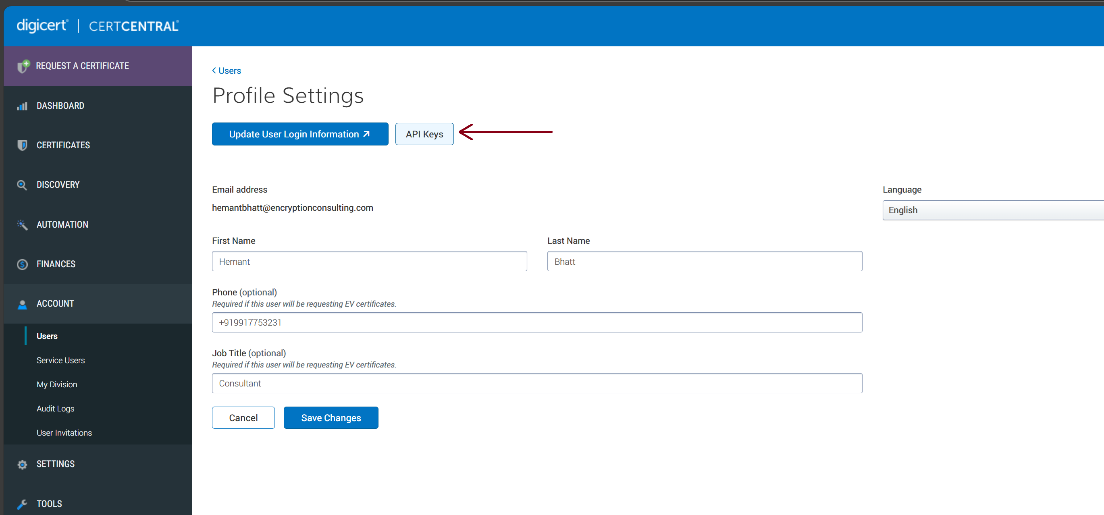
Click on the “API Keys” button.
-
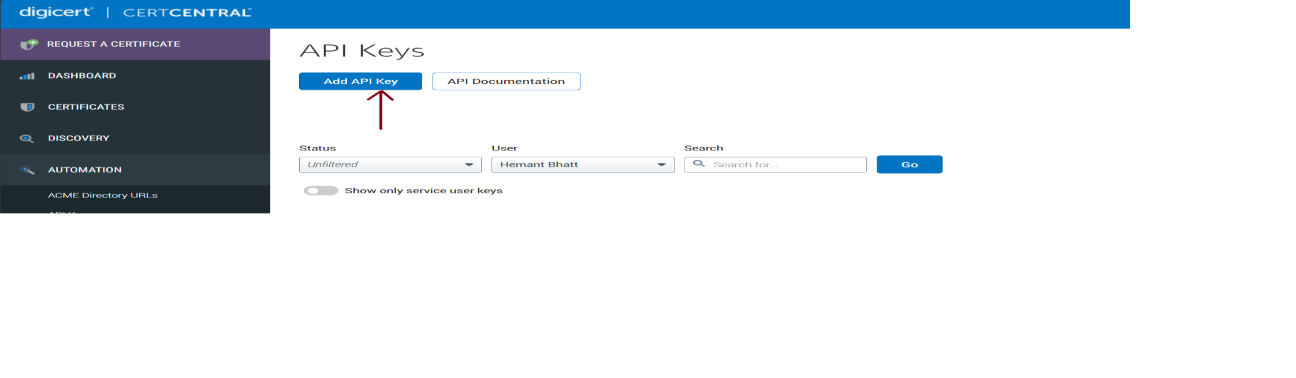
Click on “Add API Key”
-
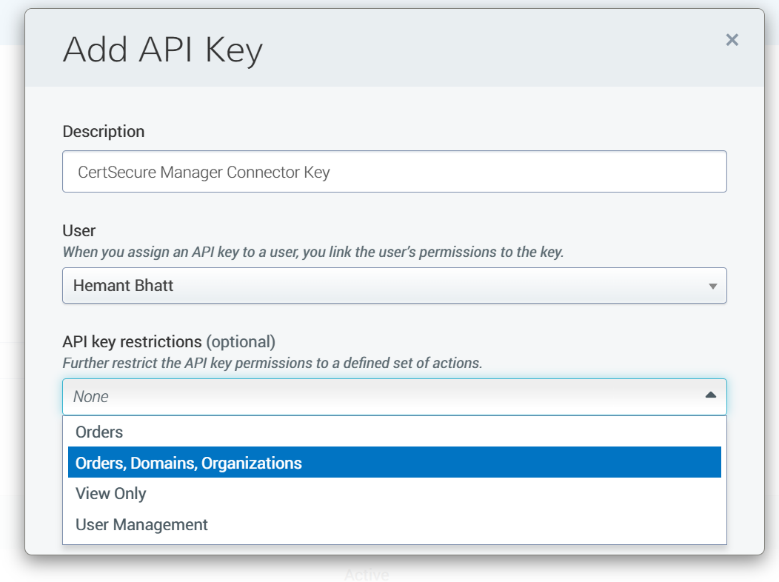
In the Add API Key dialog box, enter the following details:
-
Description: Provide a brief
explanation of where or how the API key will be used. Example: CSM
Connector Integration
-
User: Select a valid user
account with the necessary permissions. The key will inherit this
user's access rights.
-
API Key Restriction (Optional):
Define specific areas where the key is allowed to operate, such as
certificate order or domain management. This helps limit the key's
scope and improves security.
- Click the “Add API Key” button.
-
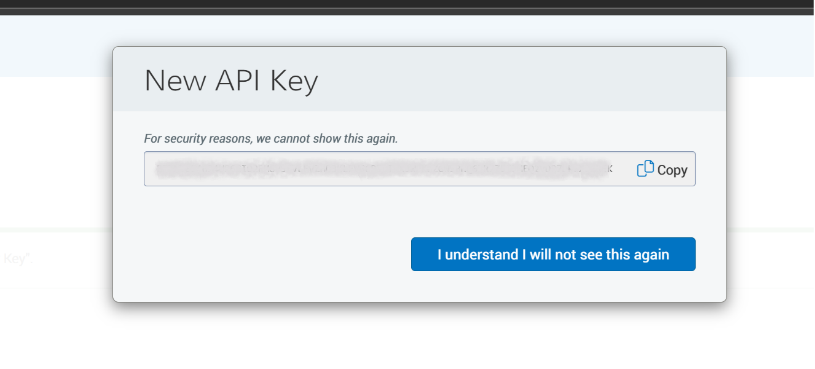
Copy the API key generated and store it at a secure location, as it will not
be shown again.
-
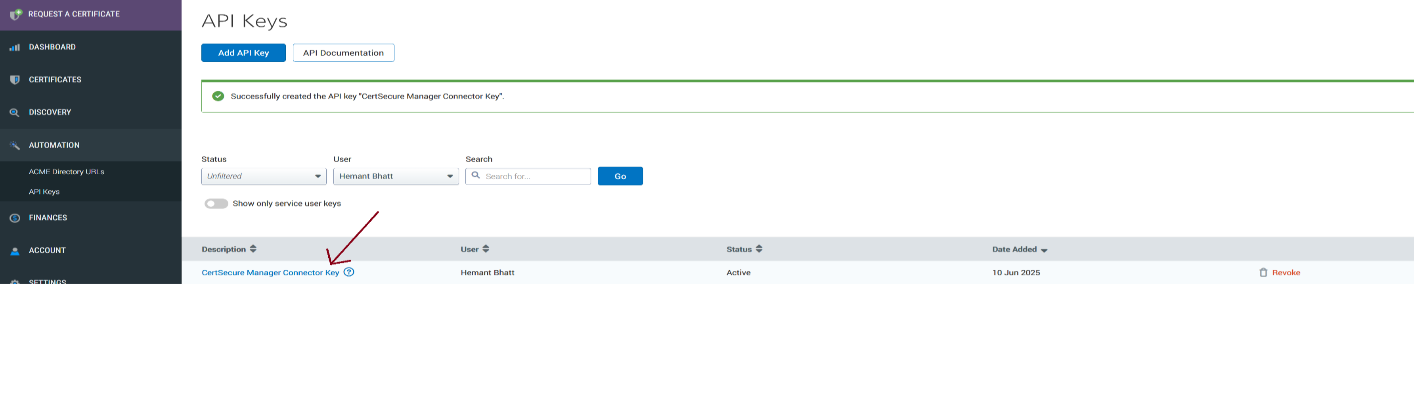
Now the key is generated and listed on the CertCentral platform.
Additional Requirements for CertSecure Manager Connector Integration
-
Domain Control Validation (DCV): The
domains you plan to request certificates for must be pre-validated in
DigiCert. You can check domain status from the CertCentral dashboard under
the “Certificates” → “Domains” section.
-
Available Certificate Types: You must
have at least one type of certificate available in your CertCentral account.
Examples:
- SSL/TLS Certificates (OV, DV, EV)
- Code Signing Certificates
- Client Authentication Certificates
- Document Signing Certificates
-
Sufficient Account Balance or Contracted
Product Access
-
Either pre-paid balance or contract entitlements must be available
for API-based issuance to succeed.
-
You can check this under Billing or by contacting your DigiCert
account manager
-
CertSecure Manager Connector
Configuration: Once the API key is generated and the above conditions
are met:
- The CLM Connector must be configured with the API key
-
Ensure the connector has access to the DigiCert API endpoint
https://www.digicert.com/services/v2
-
All required template parameters (like commonName, SANs, validity)
must match your DigiCert product configuration
Installing the DigiCert Connector
The DigiCert connector is agent-based. It runs as a Windows service and uses the API key to work with CertCentral on behalf of CertSecure Manager.
Prerequisites
- Administrative privileges on the connector machine.
- Your CertSecure Manager account has the Manage Certification Authorities permission.
- The DigiCert API key generated above.
- The URL or IP address of the CertSecure Manager backend.
- Hardware: 16 CPU cores, 32 GB RAM and 200 GB of storage.
- Operating system: Windows 11, or Windows Server 2019 or later.
- Go to Administration > Certificate Authorities and select Download on the Digicert tile under CA Connectors.
- Right-click the ISO and select Mount. Open the mounted drive and run the installer as Administrator.
- Select Next, accept the license, keep the default installation path, and select Next.
- On the installation page, select Start and wait for the installation to finish. Optionally view the logs, then select OK and Next.
-
On the Configure Connector Settings page, enter:
- Connector Name – any name for the connector.
- CA Name – the CA name from your DigiCert account, or a name such as DigiCertCA. It is used for display only; DigiCert operations rely on the API key.
- Backend URL – the URL of the CertSecure Manager backend.
- On the Install Service page, select Install. When the service is installed, the installer asks for a registration key.
- In CertSecure Manager, select View Status on the Certificate Authorities page to open the Connectors page, then select Registration Token. Copy the token, paste it into the installer and select Submit.
- After the registration, the installer asks for the DigiCert API key. Enter it, select Submit, close the prompt, then select OK and Next.
- Open
services.msc, right-click EC_DigiCert_Connector and select Start. Wait until the status shows Running.
- In CertSecure Manager, select Refresh on the Connectors page. The connector appears in the list.
- Back in the installer, select Finish, then Yes to exit.
Adding the DigiCert CA
- Go to Administration > Certificate Authorities and select Manage CAs.
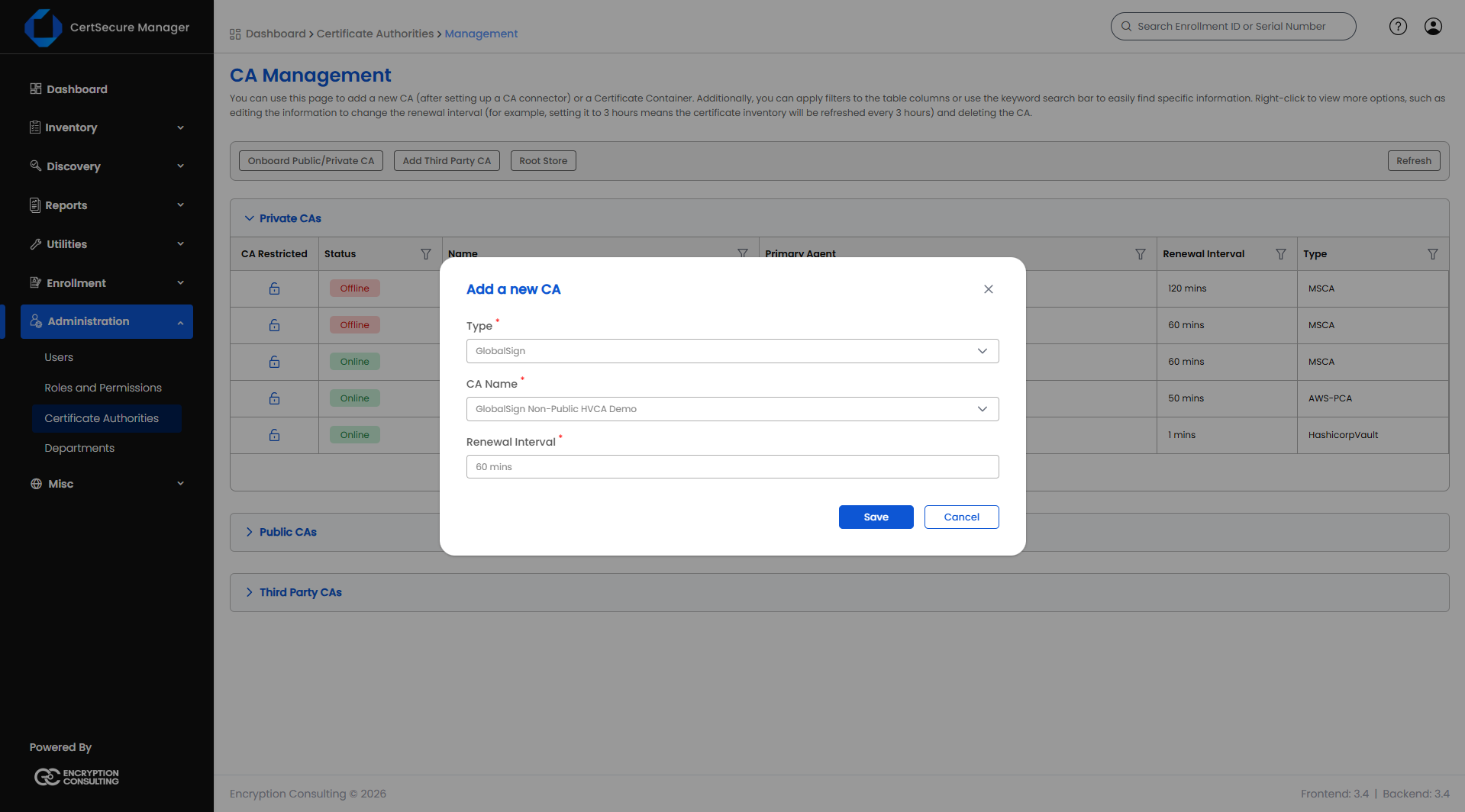
- Select Add CA. The Add a new CA dialog opens.
- Set the Type to DigiCert and select the CA Name you entered in the installer, for example DigiCertCA.
- Set the Renewal Interval: the number of minutes after which the inventory of the CA is refreshed. The minimum is 60 minutes.
- Select Save.