
- Overview
- Reference Guide
- Setup & Architecture
- Release Notes
- Workflow
- API Reference
- Integration Guide
- Discovery Agent Setup Guide
CertSecure Manager connects to Sectigo Certificate Manager (SCM) through the SCM REST API. The connector is agentless: no software is installed, and the CA is configured from the Sectigo tile under Administration > Certificate Authorities > Agentless CAs. Sectigo issues a certificate only for domains that have passed Domain Control Validation (DCV).
https://cert-manager.com/api.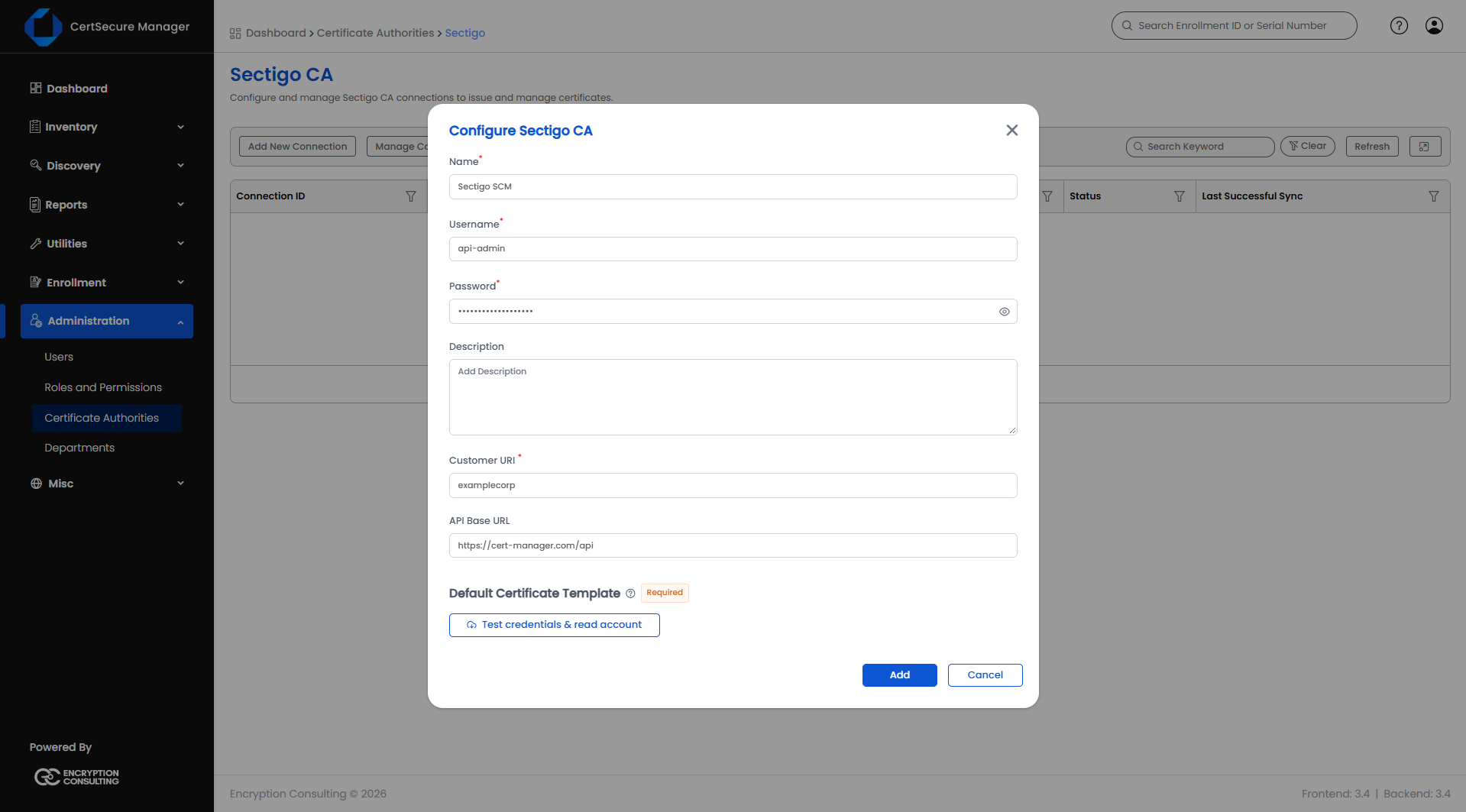
The Sectigo CA page lists the connections with their Connection ID, Certification Authority, Customer URI, Sync, Status and Last Successful Sync. The right-click menu of a connection offers View Details, Edit, Check Credential, and Decommission (Restore for a decommissioned connection). See Managing a Configured CA.
Select Manage Configs on the Sectigo CA page to open Sectigo Configs. The list shows the Name, Username, Customer URI, API Base URL and DCV Mode of each config. The right-click menu of a config offers View Details, Edit Config, Manage DCVs, Manage Domains and Delete Config.
| Field | Applies to | What it means |
|---|---|---|
| Name, Username, Password, Customer URI | Required | The SCM connection details. |
| DCV Mode | Required | Manual or Auto. |
| API Base URL | Optional | The SCM API address. |
| Organization ID | Optional | The numeric ID of the SCM organization to issue under. |
| Cert Type ID | Optional | The SSL certificate type to request. |
| Description | Optional | A note about the config. |
| Symptom | Likely cause | What to do |
|---|---|---|
| The Sectigo tile is greyed out | The license does not cover Sectigo. | Check the license under About License. |
| The credential test fails | The credentials or the Customer URI are wrong, or the login has no API access. | Check the values, and ask Sectigo to enable API access for the login. |
| An enrollment is rejected because a domain is not validated | The domain has not passed DCV. | Complete DCV for the domain first. |
| 401 or 403 | The credentials were changed or revoked in Sectigo. | Edit the connection with the current credentials. Check Credential confirms them. |
| TLS error | A proxy or firewall intercepts TLS to the Sectigo host. | Allow direct HTTPS from the backend to the Sectigo host. |