
- Overview
- Reference Guide
- Setup & Architecture
- Release Notes
- Workflow
- API Reference
- Integration Guide
- Discovery Agent Setup Guide
CertSecure Manager uses a HashiCorp Vault PKI secrets engine as a CA through the Vault HTTP API. The connector is agentless: no installer or connector host is needed, and the CA is configured from the HashiCorp Vault tile under Administration > Certificate Authorities > Agentless CAs. CertSecure Manager signs in to Vault with an AppRole, issues certificates through the PKI mount, and synchronizes the certificates of the mount into the inventory.
| Item | Value |
|---|---|
| Vault address | HTTPS, by default port 8200, for example https://vault.example.com:8200 |
| Authentication | AppRole (Role ID and Secret ID) |
| PKI mount path | For example pki_int |
| Namespace | The Vault namespace that holds the PKI mount. The field is required in CertSecure Manager. |
| TLS trust | The CertSecure Manager backend must trust the Vault server certificate |
Make sure the PKI engine is enabled at the mount with a CA configured, and that at least one role exists.
vault secrets enable -path=pki_int pki
vault list pki_int/roles
vault read pki_int/roles/<role>Grant the credential only the calls that CertSecure Manager makes. Replace <mount> with the PKI mount path:
# certsecure-pki.hcl
path "<mount>/roles"       { capabilities = ["list"] }
path "<mount>/roles/*"     { capabilities = ["read"] }
path "<mount>/issue/*"     { capabilities = ["create", "update"] }
path "<mount>/revoke"      { capabilities = ["create", "update"] }
path "<mount>/certs"       { capabilities = ["list"] }
path "<mount>/cert/*"      { capabilities = ["read"] }
path "<mount>/config/urls" { capabilities = ["read"] }
Write the policy, then create an AppRole for CertSecure Manager and read its role ID and secret ID:
vault policy write certsecure-pki certsecure-pki.hcl

vault auth enable approle
vault write auth/approle/role/certsecure token_policies=certsecure-pki token_period=768h
vault read auth/approle/role/certsecure/role-id
vault write -f auth/approle/role/certsecure/secret-idhttps://vault.example.com:8200.pki_int.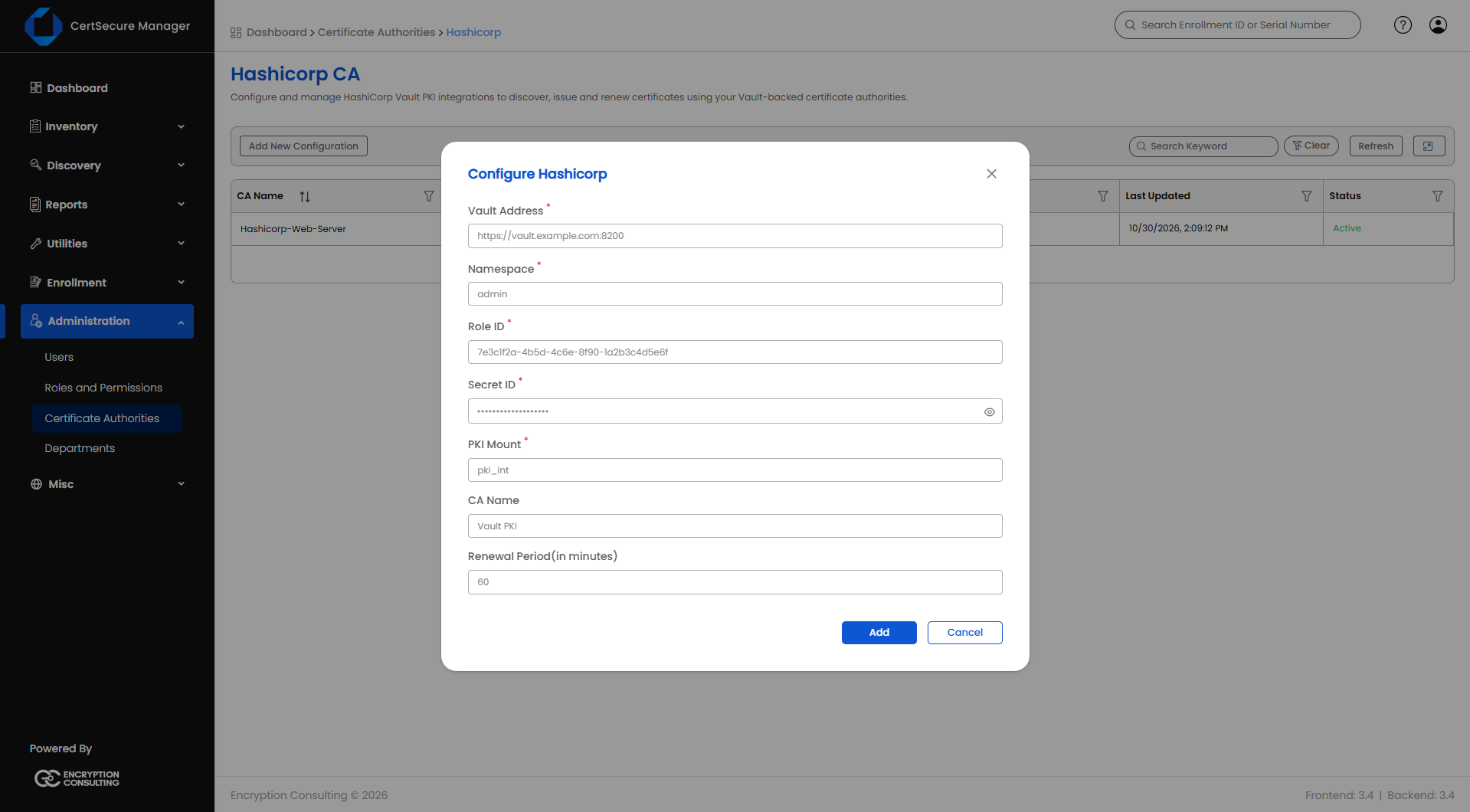
The configuration list shows the CA Name, Vault Address, Namespace, PKI Mount, Last Updated and Status (Active or Inactive) of each configuration. Its right-click menu offers:
<mount>/revoke with its serial number. CRL and OCSP follow the config/urls and CRL settings of the mount.| Symptom | Likely cause | What to do |
|---|---|---|
| No roles are listed | The policy does not allow list on <mount>/roles, or the mount path is wrong. |
Grant list on the roles path and check the exact PKI mount path. |
| 403 when issuing | The policy does not allow create on <mount>/issue/*, or the role name does not match. |
Align the policy and the role name. |
| TLS handshake fails | The CertSecure Manager backend does not trust the Vault server certificate. | Add the CA chain of the Vault server to the trust store of the backend. |
| New certificates do not appear | The renewal period is long, or the AppRole secret ID has expired. | Use Sync Now under Manage Sync, shorten the renewal period, or issue a new secret ID. |