
- Overview
- Reference Guide
- Setup & Architecture
- Release Notes
- Workflow
- API Reference
- Integration Guide
- Discovery Agent Setup Guide
The Scan Configuration section allows users to create and manage certificate discovery jobs across their environment. Each scan job can be configured to target either a Network, Store or Cloud Service based on the selected discovery Scan type.
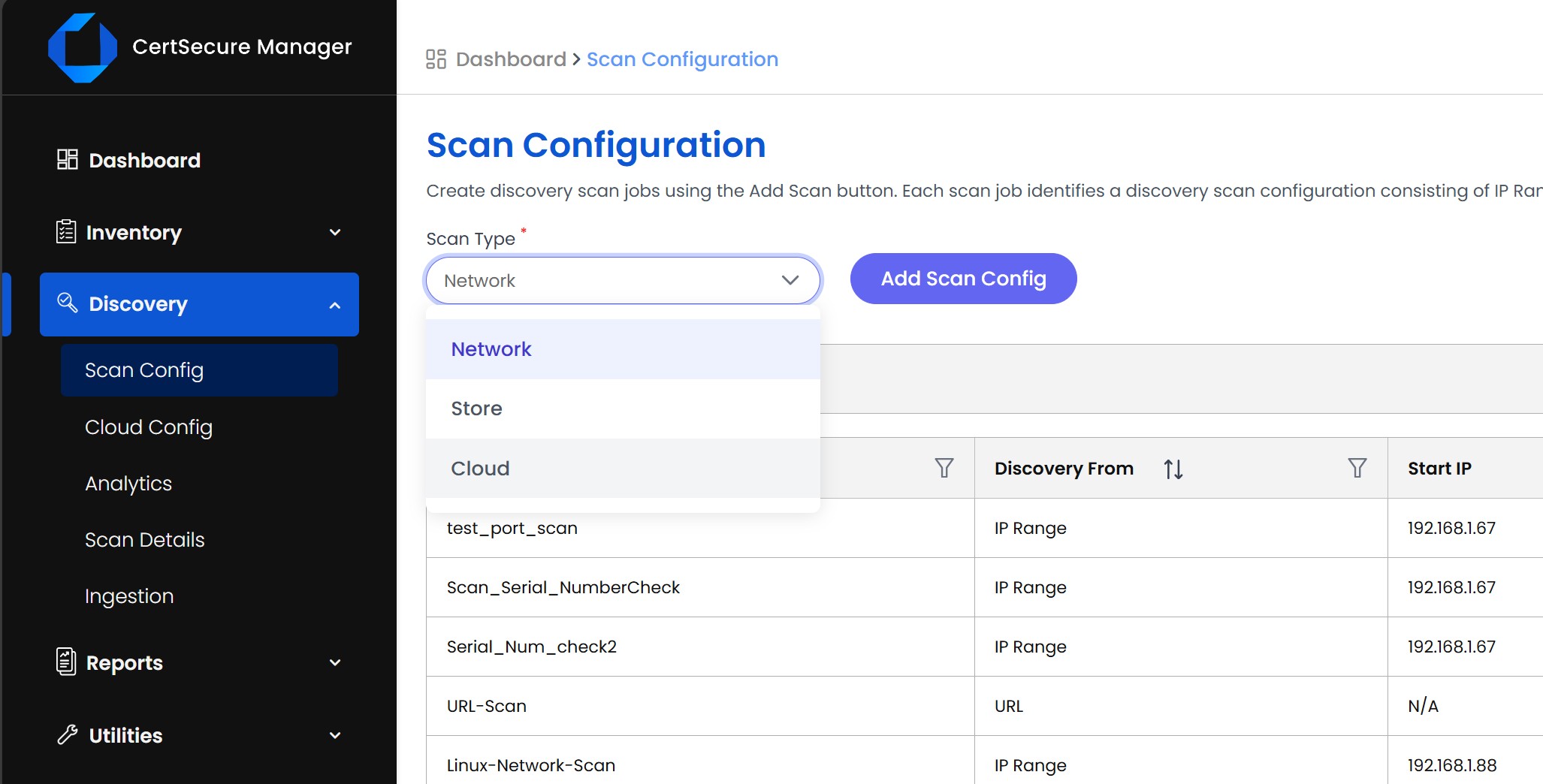
For Network Discovery, users can define an IP Range, Subnet or URL and choose between standard, custom, or all ports to discover certificates. This ensures broad and flexible coverage across network segments and services.
For Store Discovery, users select between Windows, IIS CCS, JKS and Linux as the target platform. Windows based scans require the agent to be installed on a domain-joined machine with WinRM enabled. Linux scans involve discovering Linux hosts or manually adding target systems using SSH credentials.
The Cloud Discovery feature allows agentless scanning of cloud environments like Azure and AWS to identify associated certificates with active cloud assets and services. This helps in extending certificate visibility to workloads hosted in cloud environments. You need to first set up cloud provider details in the Cloud Config page.
The Container Discovery feature allows you to scan containerized environments like Docker Containers to identify certificates used by pods, etc. Users provide cluster connection details by adding a Linux host or discovering the Linux hosts, running the container, and the scan is performed.
The Vault Discovery feature enables scanning of secret managers like HashiCorp Vault and Azure Key Vault to locate certificates stored as secrets. You need to first configure the vault connection and authentication details on the Vault Config page before initiating a scan.
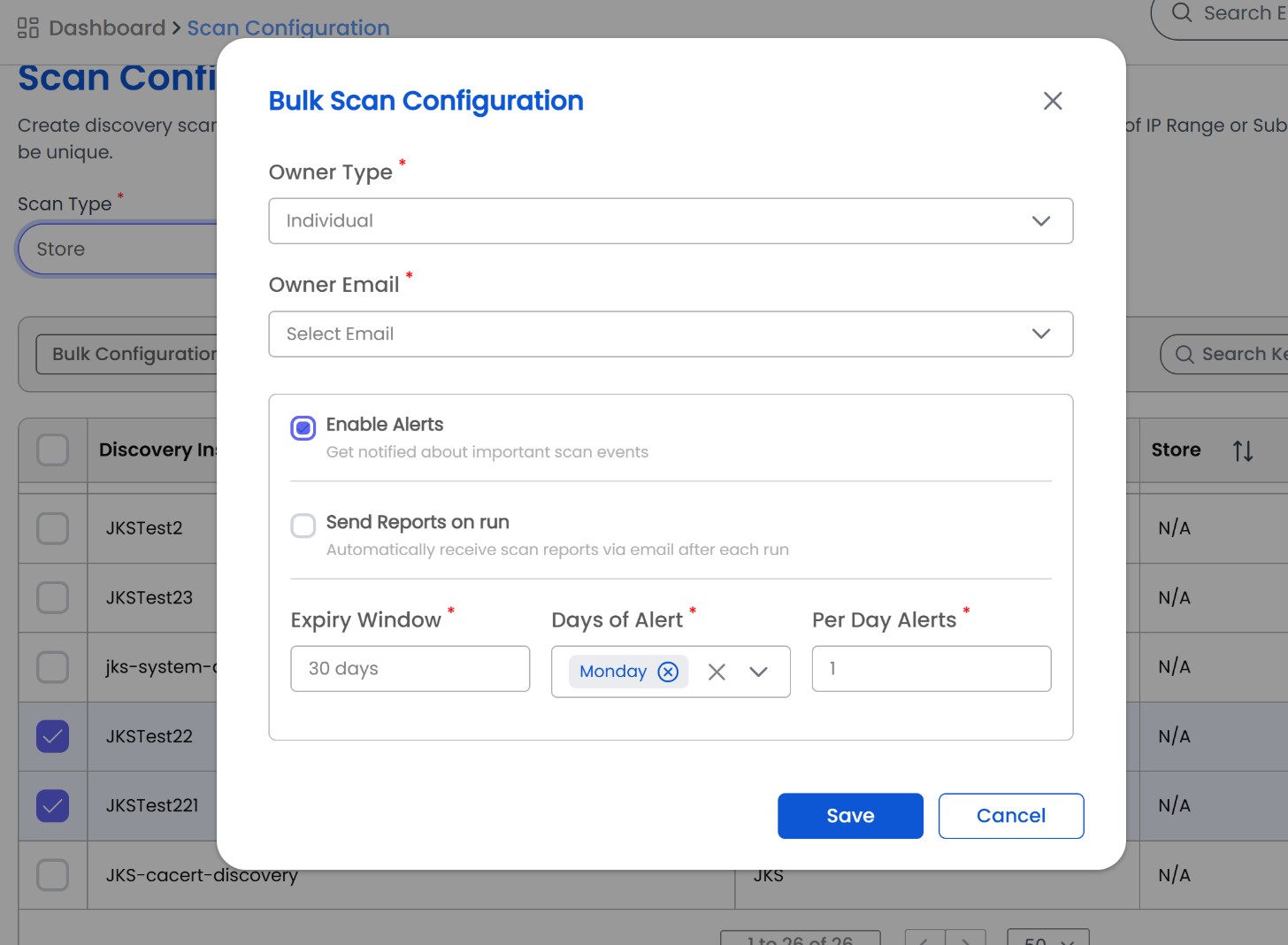
The Alert Information settings are common to every scan type. Whether you are configuring a Network, Store, Vault, Container, or Cloud scan, the same alerting options are available. Users can assign an owner on the Scan level, and they will receive alerts regarding that specific scan.
Alert settings can also be updated for several scan jobs at once. On the Scan Configuration page, select the required discovery instances and click Bulk Configuration to open the Bulk Scan Configuration window, where you can set the Owner Type and Owner Email and apply the same Enable Alerts, Send Reports on run, Expiry Window, Days of Alert, and Per Day Alerts values to all the selected scans in a single save.
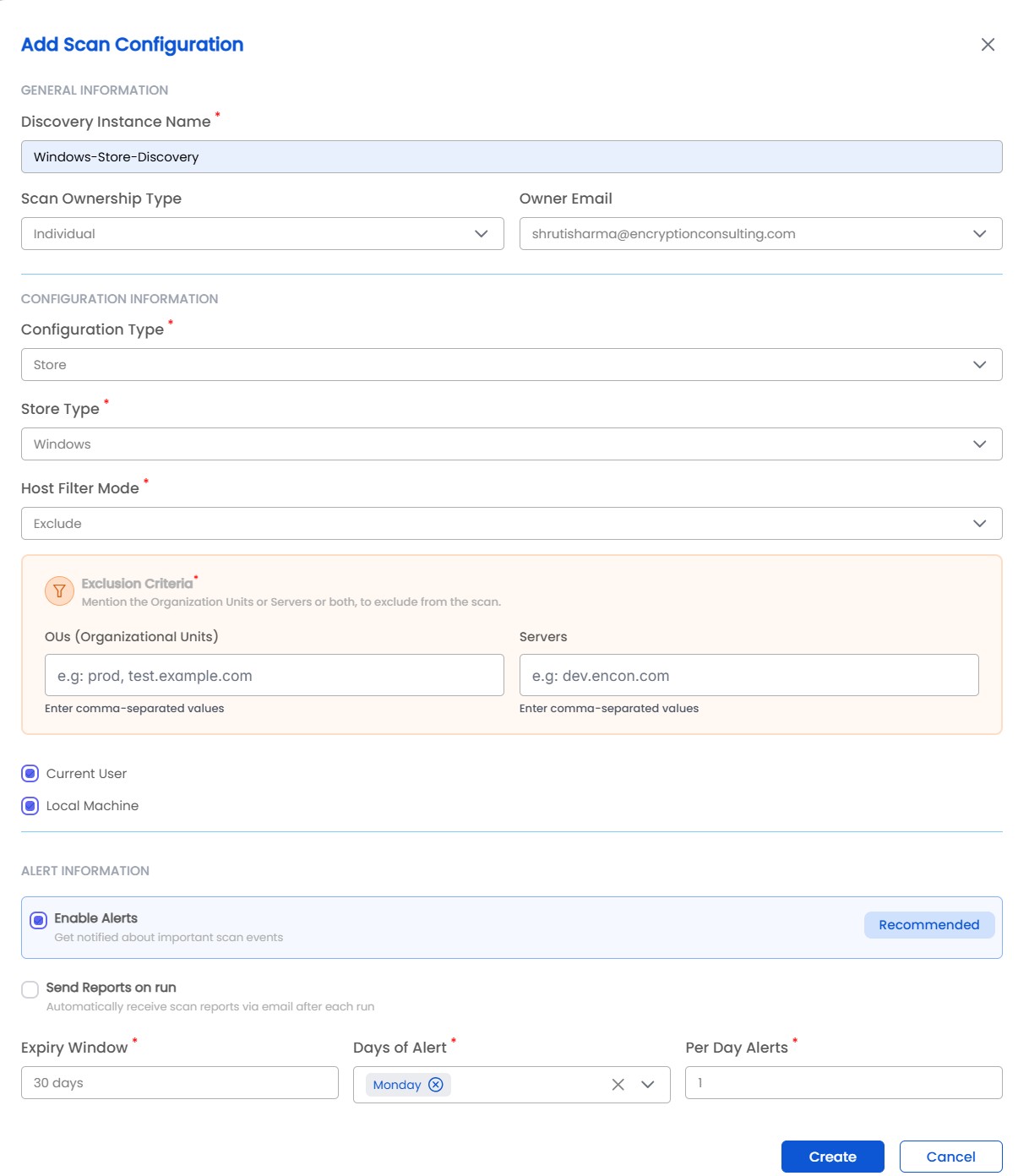
For Windows Store Discovery, the scan is configured through the following fields:
For Linux Store Discovery, users can add individual or multiple hosts at once using the CSV Bulk Upload option. CertSecure Manager also provides you with an option to discover Linux Hosts on AWS for Certificate Discovery.
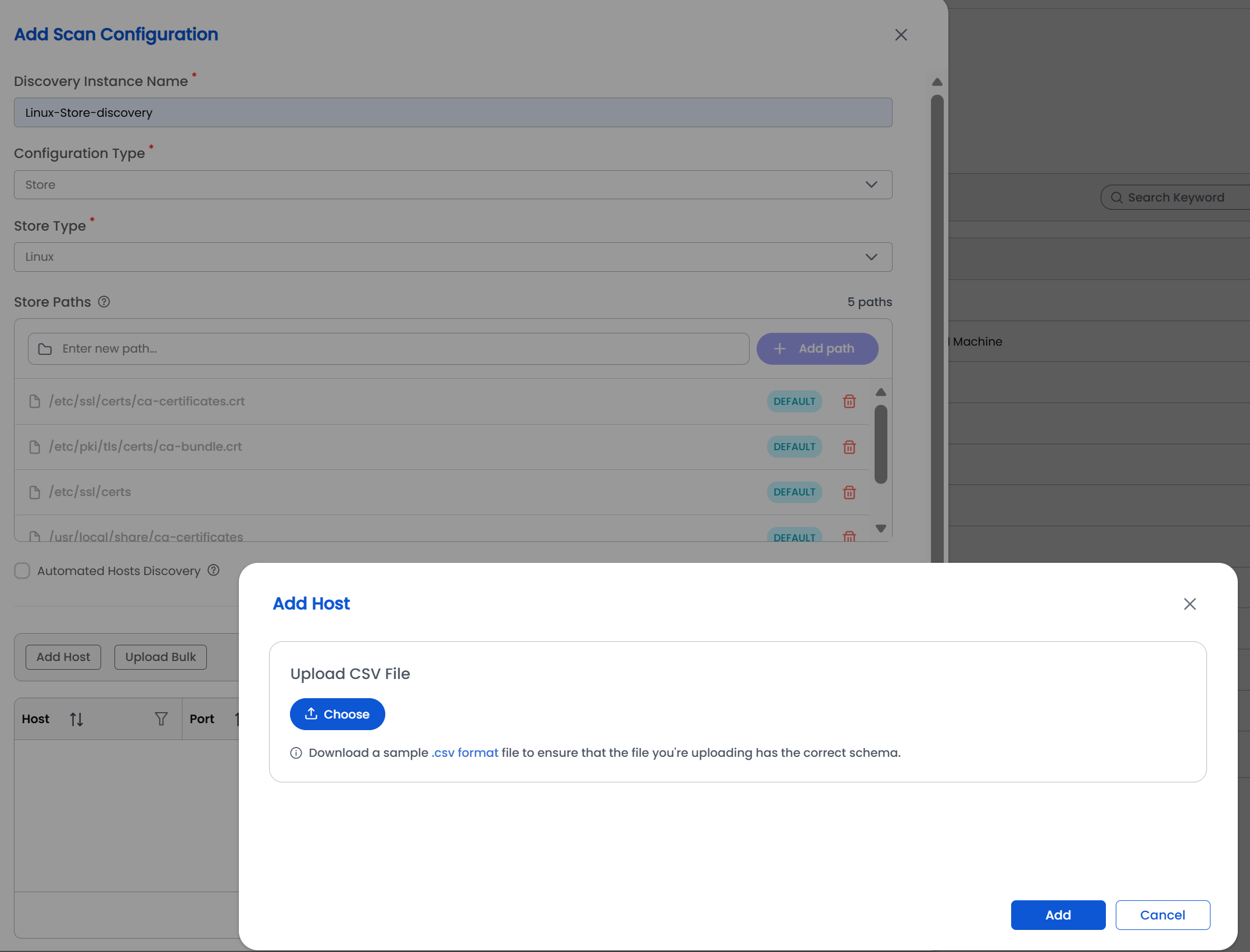
You can also add custom paths in Linux Store Scans when certificates are stored outside the default paths; the AD/SSSD account used for SSH access must be able to read the certificate files and traverse (execute permission) the directory and all its parent directories.
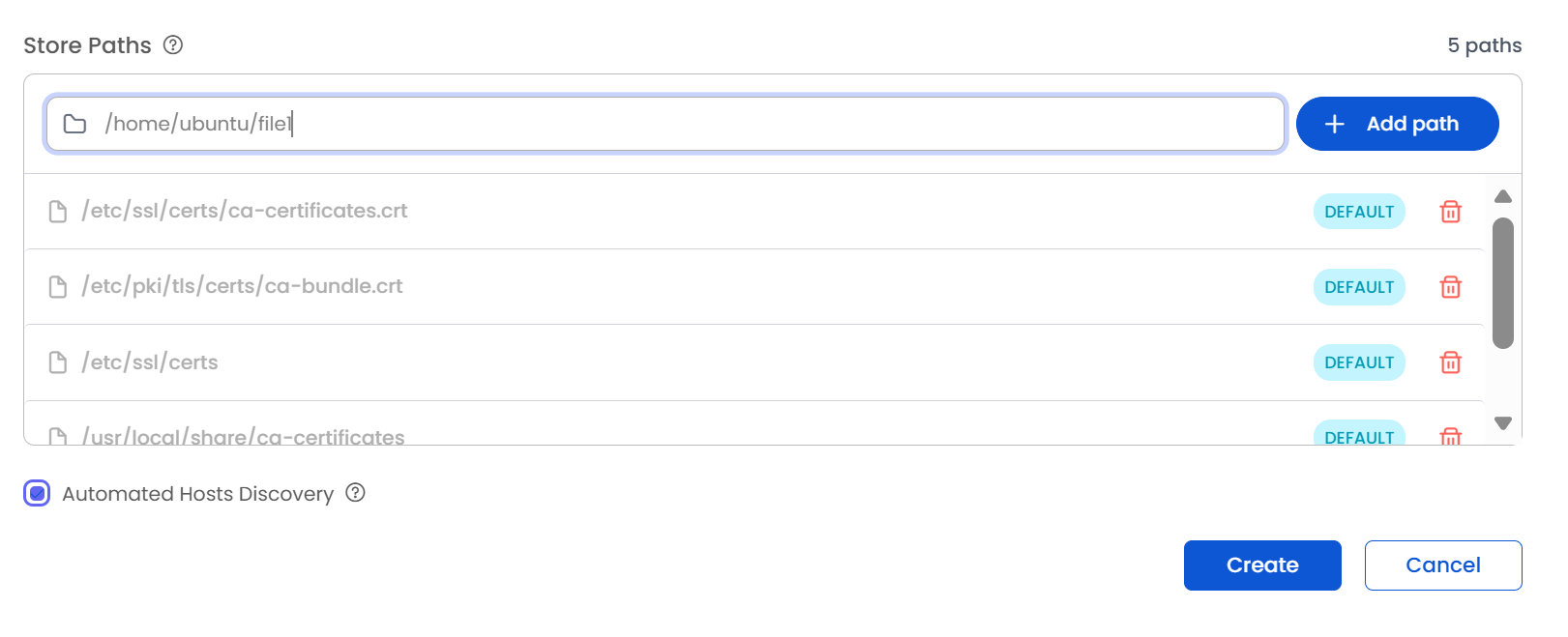
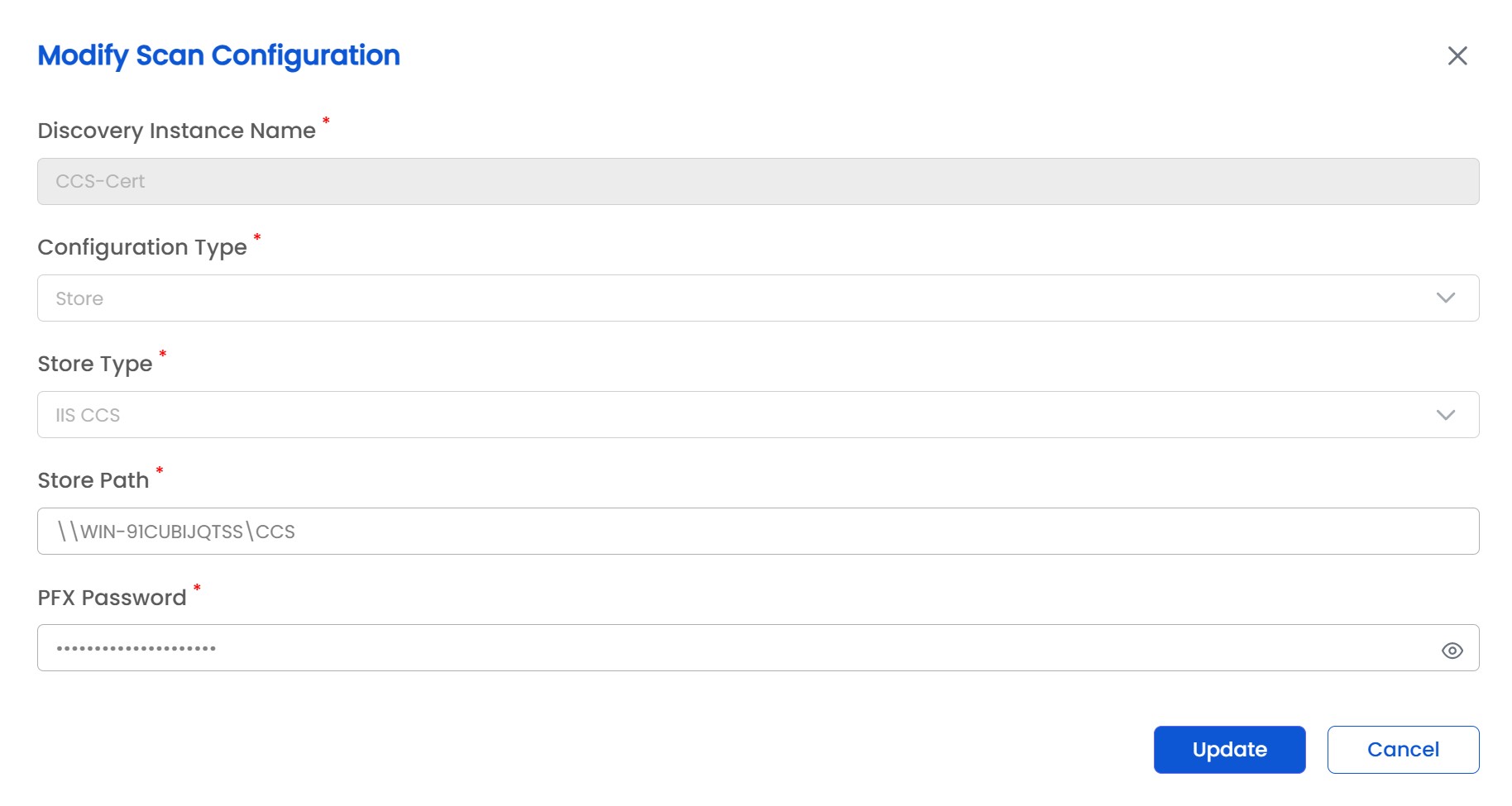
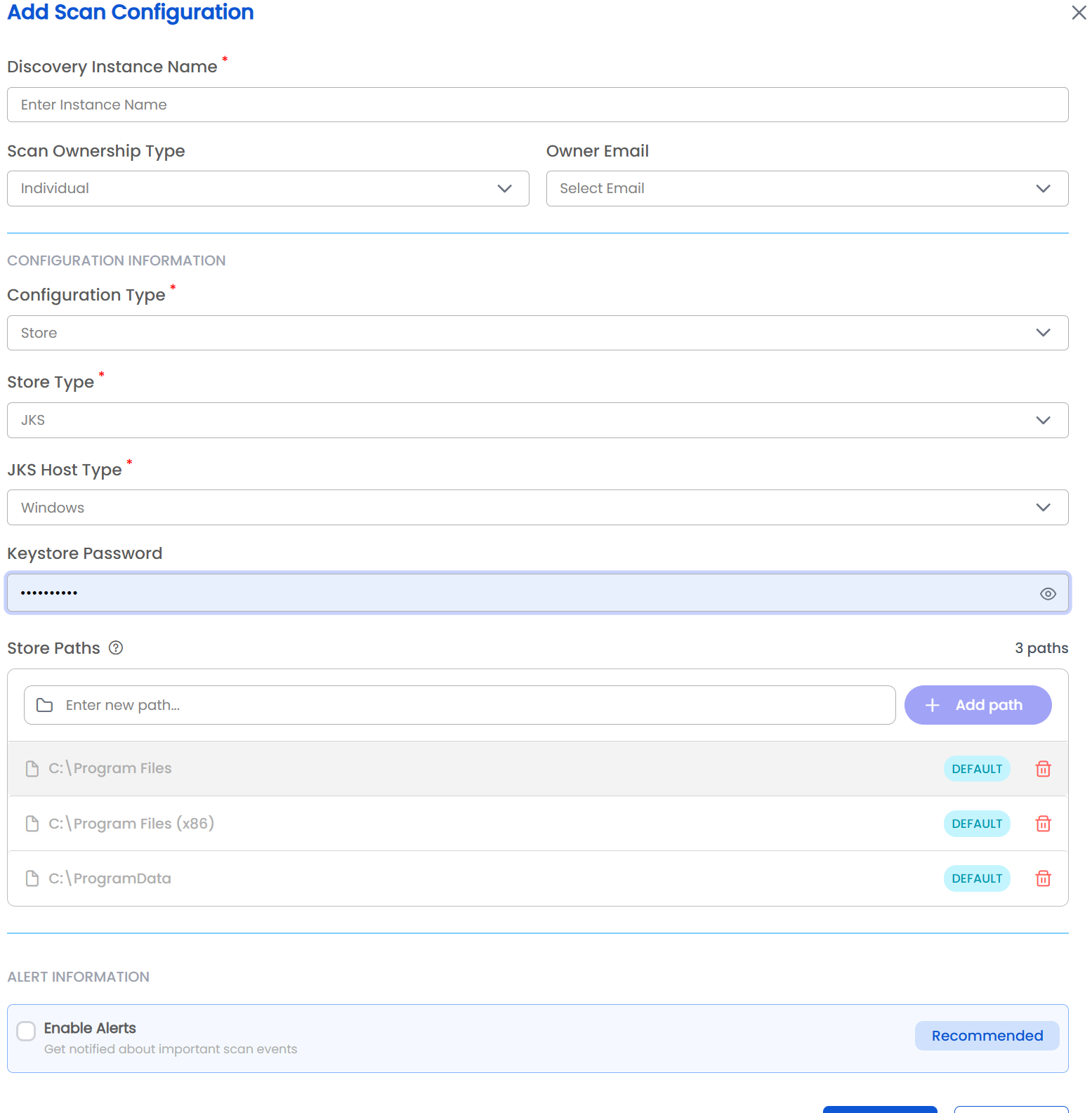
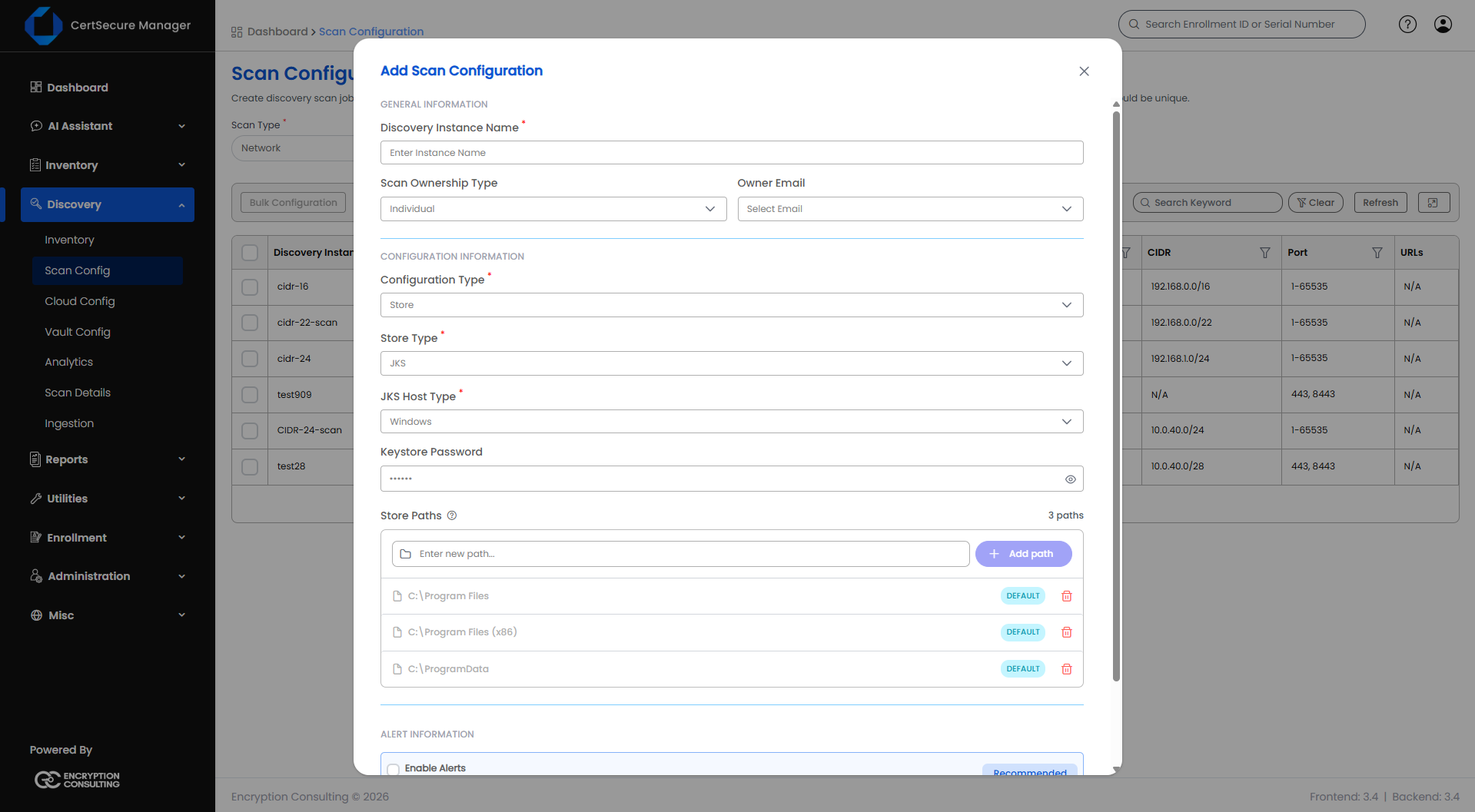
For JKS Store Discovery, select Store as the Configuration Type and JKS as the Store Type, and then define the keystore details:
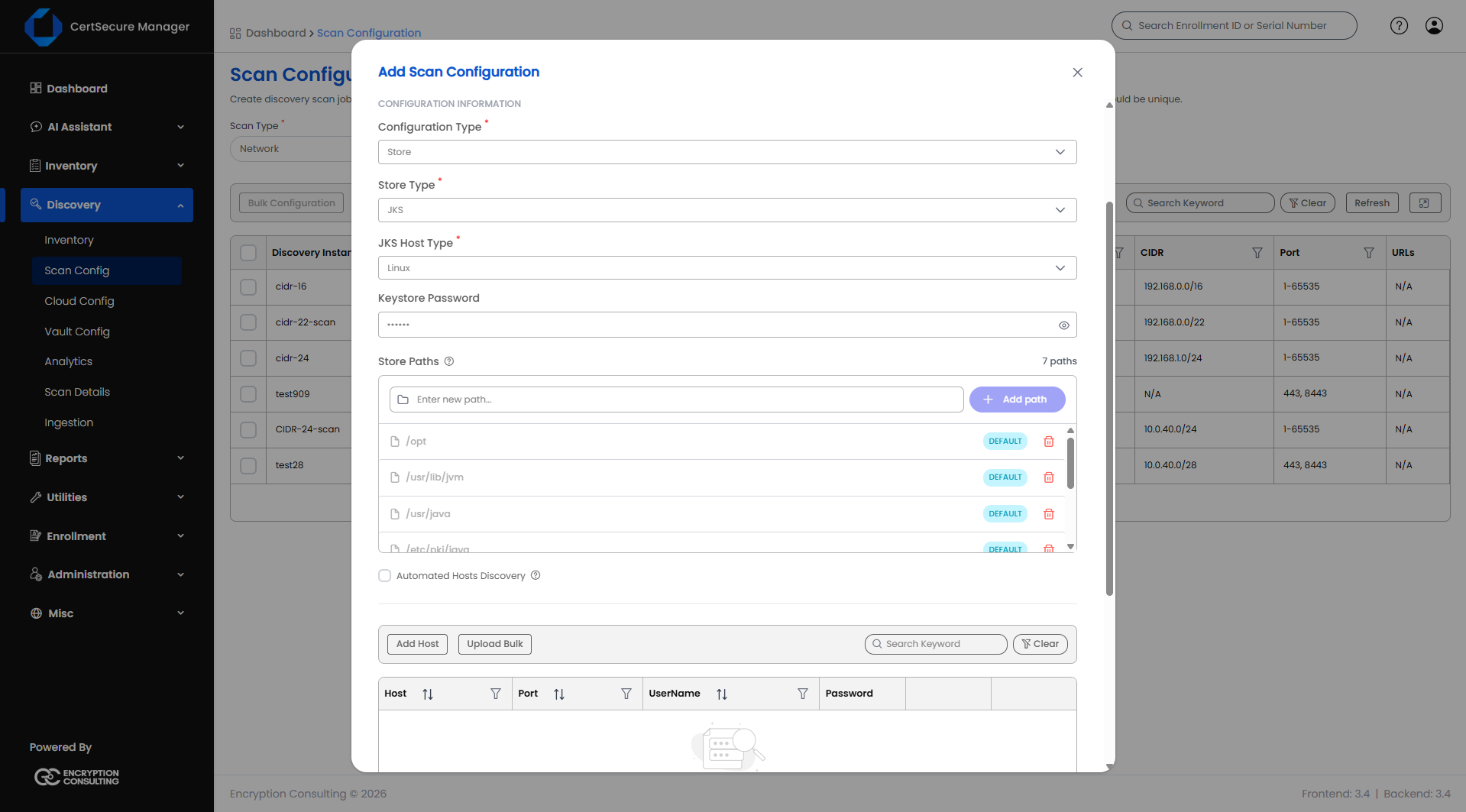
Each entry in Store Paths can be a keystore file or a directory. Files and directories can be mixed in the same list, and a directory is searched for keystores in the folders beneath it. The accepted formats depend on the JKS Host Type:
C:\certs\app.jks, or a UNC share, for example \\server\share\keystores./opt/app/keystore.jks.Up to 100 paths can be saved in one scan, and each path can be up to 4,096 characters long. Paths that repeat an earlier entry (the comparison ignores case) are removed when the scan is saved. A path in any other format is rejected with an Invalid Path message.
When the JKS Host Type is Linux, Store Paths is pre-filled with the following locations, which include the Java trust stores installed by common Linux distributions. Remove any path that is not required.
/opt/usr/lib/jvm/usr/java/etc/pki/java/srv/etc/pki/ca-trust/extracted/java/etc/ssl/certs/javaA JKS scan can be run by any registered discovery agent, whatever store type the agent was installed for. The one restriction is the operating system of the agent: a scan whose paths are drive-letter paths or UNC shares can be opened only from Windows, so it must be run by a discovery agent installed on a Windows machine. A scan that connects to Linux hosts over SSH, or that uses Linux paths, runs on an agent on either operating system.
CertSecure Manager records the operating system of each discovery agent when the agent registers. If a Windows-path scan is started on an agent that is not on Windows, the scan is refused with a message that names the operating system of the agent. If the agent is on Windows but its operating system is reported as unknown, the agent was registered before it began reporting its operating system; re-register the agent.
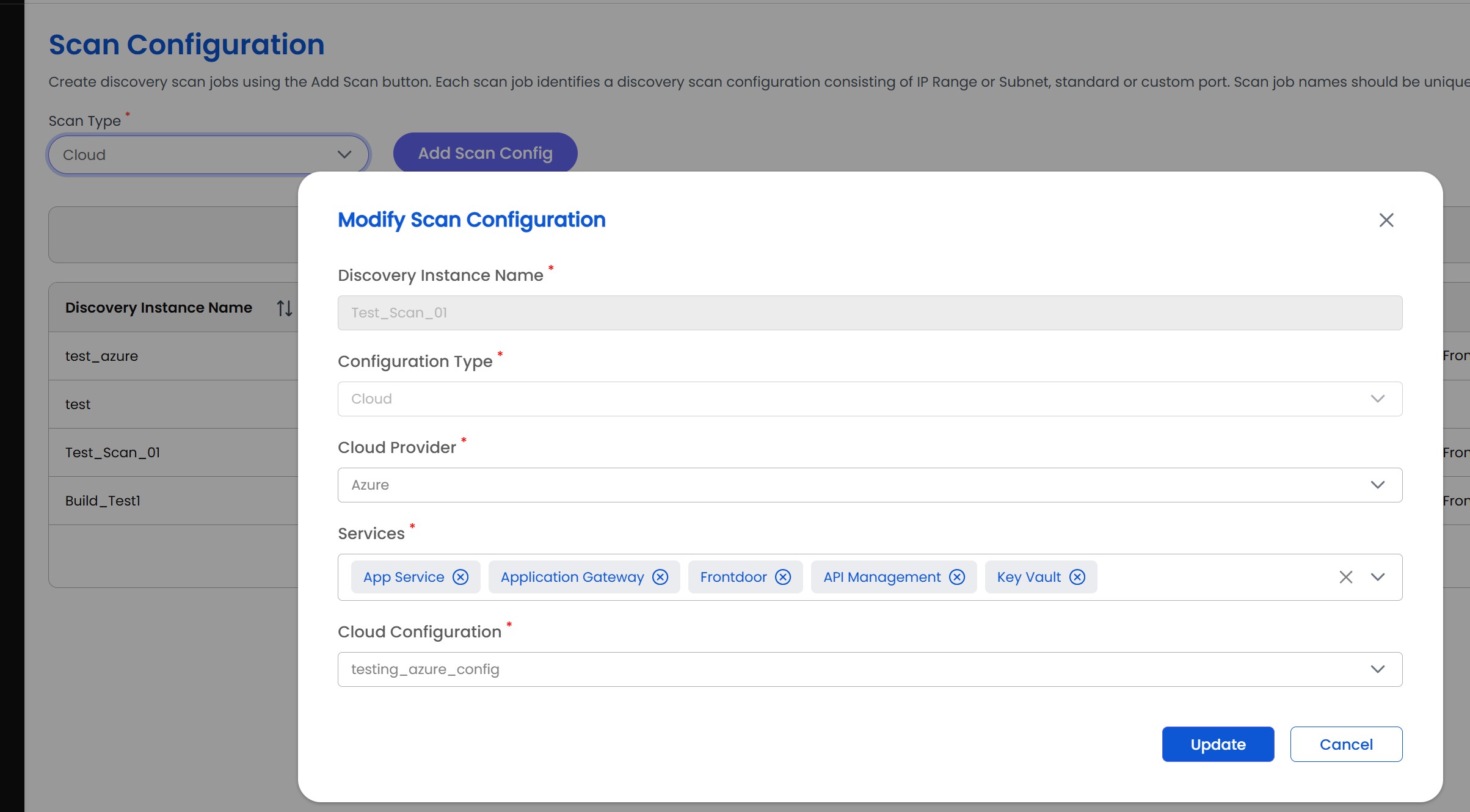
All configured scan jobs are displayed in a centralized table, where users can view, edit, delete, or initiate scans. Scans can be triggered on-demand or scheduled for a later time, with the ability to assign them to any registered agent. This configuration workflow helps automate certificate discovery, making it easy to manage large-scale environments while ensuring no certificate is missed.