
Overview of WSTEP Auto-Enrollment
Windows computers and users can receive certificates automatically, without anyone filling in a request. This is called auto-enrollment. In a traditional on-premises PKI, Windows clients talk to the CA directly over the internal network. In PKI-as-a-Service the Issuing CA sits in the EC network, so two services are placed in the customer network to connect the clients to it:
- Certificate Enrollment Policy Web Service (CEP): MS-XCEP over HTTPS. Port: 443; Role: Tells the client which certificate templates it may request and where to send the request.
- EC PKI-as-a-Service Enrollment Gateway (CES): MS-WSTEP over HTTPS. Port: 8443; Role: Receives the certificate request, authenticates the client and forwards the request to the EC Issuing CA.
In short, CEP tells the client what it can request, and the Enrollment Gateway carries the request to the CA and brings the certificate back. The CA itself is never exposed to the clients.
Automated certificate enrollment workflow
For automated enrollment, every certificate request starts inside the customer environment. The requester can be a server, user, device, application, container, network appliance, Intune-managed endpoint or any other workload that needs a certificate. The request never goes to the CA directly; it passes through two gateways and a secure CA proxy.
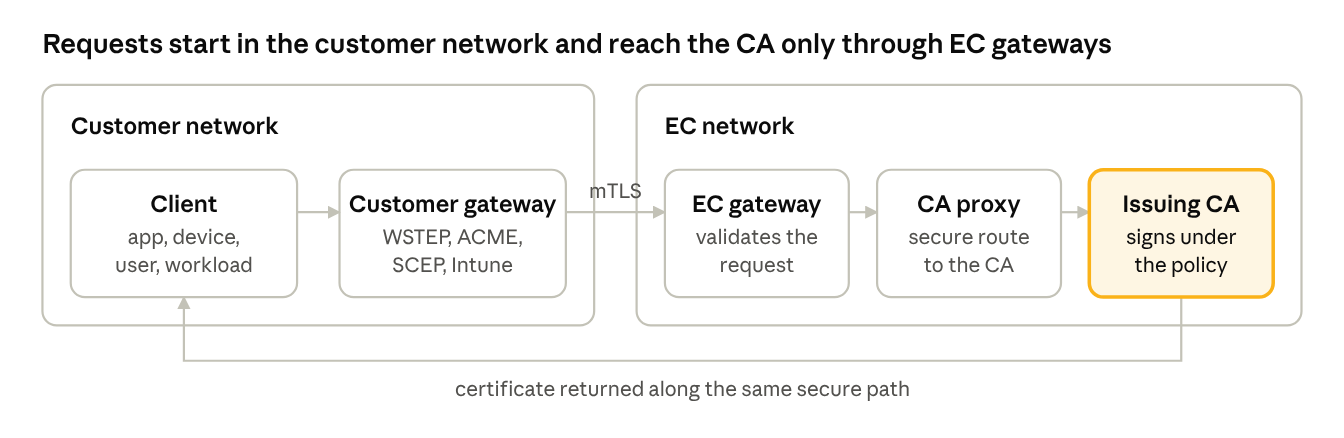
- The client submits a certificate request through a supported method: Windows auto-enrollment (WSTEP), ACME, SCEP, Microsoft Intune or the API. (Where: Customer network)
- The Enrollment Gateway in the customer environment forwards the request securely to the EC PKI-as-a-Service environment. Mutual TLS with certificates establishes trust between the customer gateway and the EC services. (Where: Customer to EC)
- The EC gateway validates the request and routes it through the CA integration (proxy) layer to the designated Issuing CA. (Where: EC network)
- The Issuing CA checks the request against the certificate policy or template and, when authorised, signs and issues the certificate. (Where: EC network)
- The issued certificate travels back through the same secure path to the customer gateway and then to the requesting endpoint. (Where: EC to customer)
Enrollment stays fully automated, while the CA infrastructure remains hosted, protected and managed by EC. The rest of this section describes the most common case: Windows auto-enrollment through CEP and the Enrollment Gateway.
Windows auto-enrollment step by step
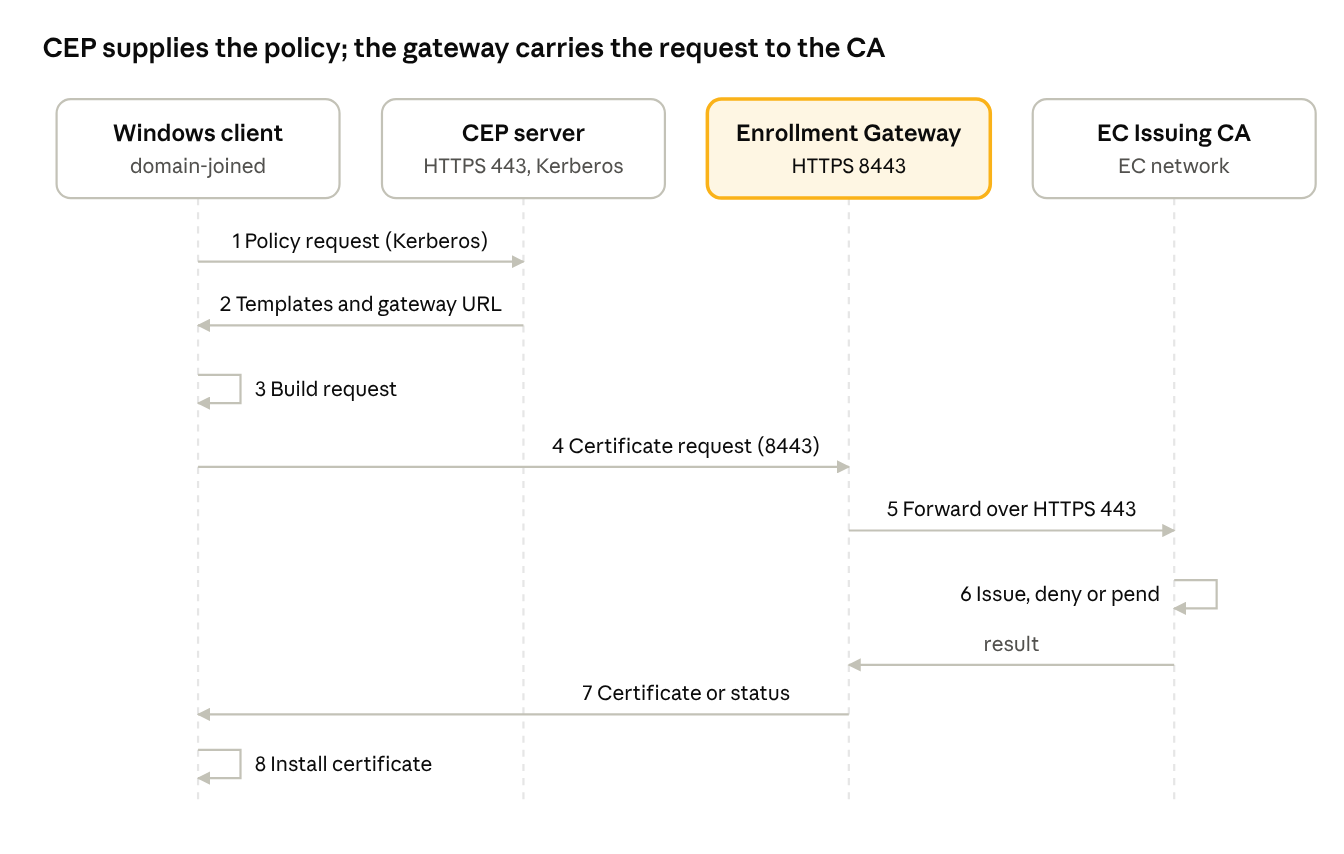
- Policy request. Group Policy tells the client the CEP URL. The client contacts CEP over HTTPS (port 443) and authenticates with its Kerberos ticket.
- Policy response. CEP reads the certificate templates from Active Directory and returns the templates the client may use, the enrollment URL of the gateway and the enrollment settings.
- Request preparation. The client creates a key pair and builds a certificate request that matches the template.
- Request submission. The client sends the request to the Enrollment Gateway over HTTPS (port 8443).
- Authentication and forwarding. The gateway validates the client's Kerberos token and forwards the request to the EC Issuing CA over an outbound HTTPS connection.
- CA decision. The Issuing CA checks the request against the template and policy, then issues, denies or holds the request for approval.
- Response. The gateway returns the issued certificate, a pending status or an error to the client.
- Installation. The client installs the certificate in its certificate store. Renewal happens automatically before expiry in the same way.