
CertSecure Documentation
  • Overview
    • About CertSecure Manager
    • Documentation Guide
  • Reference Guide
    • Header Bar
      • CertSecure Documentation
      • Swagger API
      • Profile Section
      • Search
    • Dashboard
      • Key Performance Indicators
      • Expiring Certificates
      • CA metrics
      • Key Strength
      • Signing Algorithm
      • Certificate Risk Report Profile
      • PKI Posture Management
      • NDES Health Information
    • AI Assistant
      • Chat
      • Configuration
      • Usage Report
    • Inventory
      • Overview
        • Overall
        • CertSecure
      • Template Management
        • Switch Templates
        • Exclusion List
        • Alert Templates
        • Certificate Templates
      • Template Categories
    • Discovery
      • Inventory
      • Scan Config
      • Cloud Config
      • Vault Config
      • Discovery Analytics
      • Scan Details
      • Discovery Ingestion
    • Reports
    • Utilities
      • ACME
      • Tasks
      • Connectors
      • Integrations
        • Renewal Manager
        • Load Balancers
        • Discovery Agents
        • CLI Tool
        • Key Management
        • SEIM Tools
        • DevOps Tools
        • Ansible Automation Platform
      • NDES
      • Azure Key Vault
      • API Tokens
    • Enrollment
      • Certificate Request
      • Generate CSR
      • Enroll CSR
      • Generate Certificate
      • Import Certificate
      • Bulk Certificate Generation
      • Manage Policies
      • Organization Details
    • Administration
      • Users
      • Roles and permission
      • Certificate Authorities
      • Departments
    • Miscellaneous
      • Logging
      • Service Setup
        • Zoom
        • Zendesk
      • Settings
        • Configure Realms
        • Schedule Alerts
        • Metrics
        • Web Branding
        • About License
  • Setup & Architecture
    • Identity and Access Control
    • Architecture
    • Installation
      • Pre-requisites
      • Windows
      • Linux
      • Docker
    • Upgrade
      • Windows
      • Docker
  • Release Notes
    • Releases for 2026
      • v3.4.0
      • v3.3.1
      • v3.3.0
    • Releases for 2025
      • v3.2.0
      • v3.1.0
    • Releases for 2024
      • v3.0.0
  • Workflow
    • Approval Workflow
  • API Reference
    • Getting Started
    • Authorizing Requests
    • Securing API Access
    • Request and Response Conventions
    • Endpoint Reference
      • Health
      • API Token Management
      • CA Management
      • Templates
      • Certificate Enrollment
      • Inventory
      • Certificate Discovery
      • Tasks
      • Watcher Groups
      • Alerts
      • Reports
      • Logs
      • Monitoring
      • Scheduling
      • SMTP
      • ACME
      • Azure Key Vault
      • Google Cloud (GCP)
      • HashiCorp Vault
      • EJBCA
      • ServiceNow
  • Integration Guide
    • Renewal Manager
      • Workflow
      • Setup
      • Troubleshooting
      • IIS
      • Apache
      • Tomcat
      • Nginx
      • MSSQL
      • MongoDB
      • Oracle
      • Cloudflare
      • AudioCodes
      • Cisco ISE
      • Palo Alto PAN-OS
      • Cisco ACI
    • Load Balancer
      • F5
        • Workflow
        • Setup
        • Onboarding
        • UI Guide
        • Troubleshooting
      • NetScaler
        • Workflow
        • Setup
        • UI Guide
        • Troubleshooting
    • Certificate Authorities
      • ACME CAs
      • AWS
      • DigiCert Connector
      • EJBCA
      • GlobalSign
      • GoDaddy
      • HashiCorp Vault PKI
      • Microsoft AD CS
      • Sectigo
      • Sectigo-PS
    • Ansible Automation Platform
    • Azure Key Vault
  • Discovery Agent Setup Guide

SEIM Tools

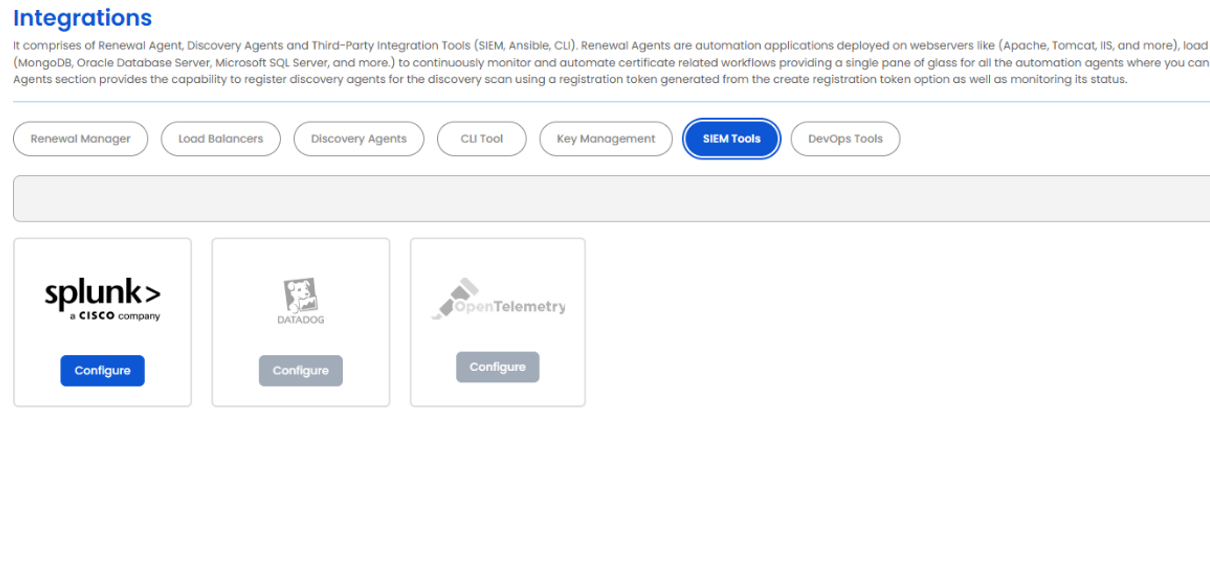
CertSecure’s SIEM Tool section provides users with a seamless integration option to push Certificate Lifecycle Management (CLM) logs directly into a Security Information and Event Management (SIEM) platform. This ensures real-time visibility, monitoring, and centralized management of certificate events such as issuance, renewal, revocation, and failures across the enterprise environment. Currently, CertSecure Manager offers native integration with Splunk as part of the SIEM Tools ecosystem.
SIEM Tools
Splunk Integration

The Splunk Integration within CertSecure enables organizations to forward certificate lifecycle logs into their Splunk environment through a configurable HTTP Event Collector (HEC) connection. This allows security and operations teams to correlate certificate activities with enterprise security events, helping with compliance, auditing, and threat detection.
Splunk Integration

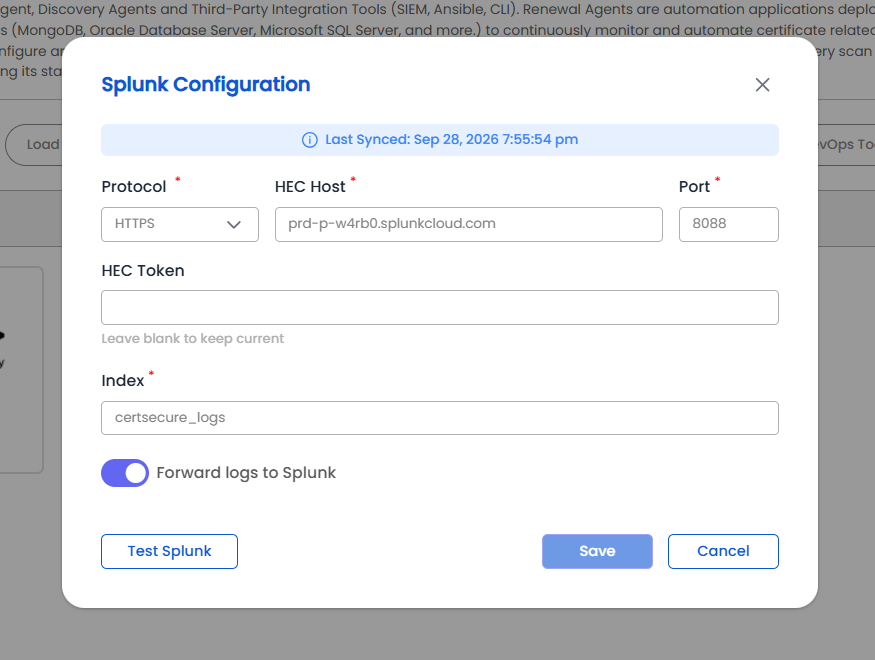
Users can configure the Splunk integration directly from the CertSecure UI by providing the following parameters:

  • Protocol: HTTP or HTTPS connection type
  • HEC Host: Hostname of the Splunk HTTP Event Collector (for example, splunk.company.com). Enter the hostname only, without https://, a port, or a path. On a paid Splunk Cloud stack, the HEC host is usually a different hostname from the one used to log in to Splunk (http-inputs- .splunkcloud.com).
  • Port: Splunk HEC port (default: 8088)
  • HEC Token: HEC token generated in the Splunk environment (Settings → Data Inputs → HTTP Event Collector). The token is required when Splunk is configured for the first time. For security, the saved token is never displayed; when updating an existing configuration, leave this field blank to keep the current token, or enter a new token to replace it.
  • Index: Name of the Splunk index that receives the logs (for example, certsecure_logs). This field is required. The index must already exist in Splunk and the HEC token must be allowed to write to it; neither CertSecure nor Splunk HEC creates it.
  • Forward logs to Splunk: Option to enable or disable automatic log forwarding to Splunk

Before a configuration can be saved, users must test the Splunk connection from within the configuration panel using Test Splunk. The test checks the values currently entered in the form, not the previously saved configuration, and sends a test event to the selected index. When the test succeeds, the index that received the event is displayed and the Save button is enabled.

If the test fails, a message describes what to check, such as an unreachable host, an unhealthy HEC endpoint, or an index that Splunk rejected. Changing any field after a successful test disables Save until the connection is tested again.

To stop forwarding logs for an existing configuration, switch off Forward logs to Splunk and click Save. No connection test is required in this case, so forwarding can be turned off even when Splunk is unreachable or the HEC token has been revoked. A first-time configuration always requires a successful test before it can be saved.

CertSecure Manager periodically synchronizes the CLM logs based on internal refresh cycles and pushes new logs to Splunk, ensuring near real-time updates. A “Last Synced” timestamp is also displayed for transparency.

Note: This integration provides a centralized view of certificate activities within the existing SIEM infrastructure, enhancing operational efficiency and security monitoring.

On this Page:
Support Privacy Policy Terms of Service

Copyright 2026 Encryption Consulting LLC. All rights reserved.