
- Overview
- Reference Guide
- Setup & Architecture
- Release Notes
- Workflow
- API Reference
- Integration Guide
- Discovery Agent Setup Guide
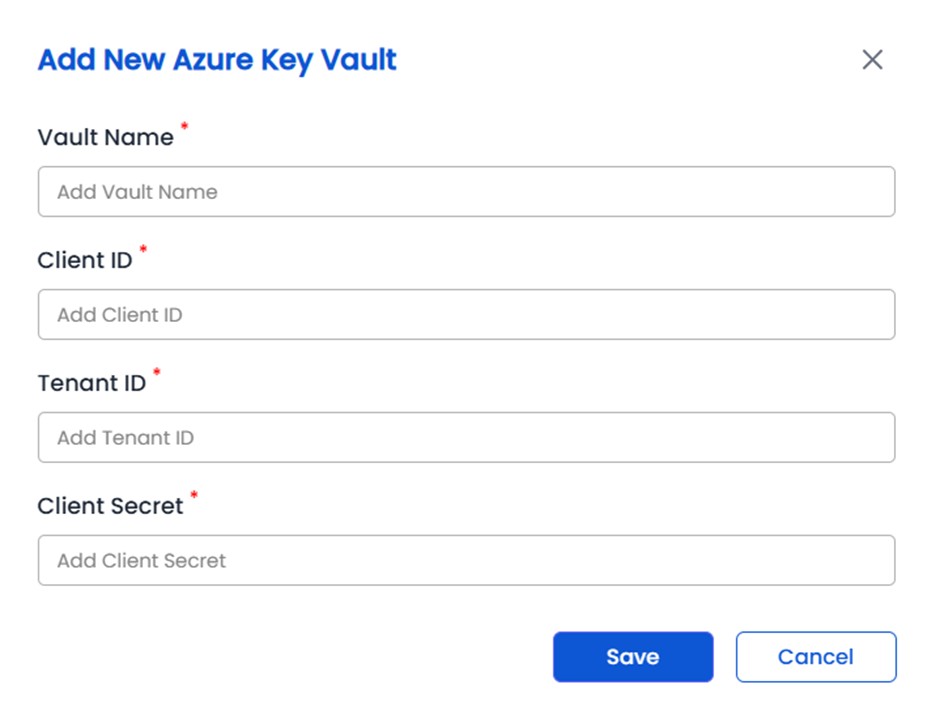
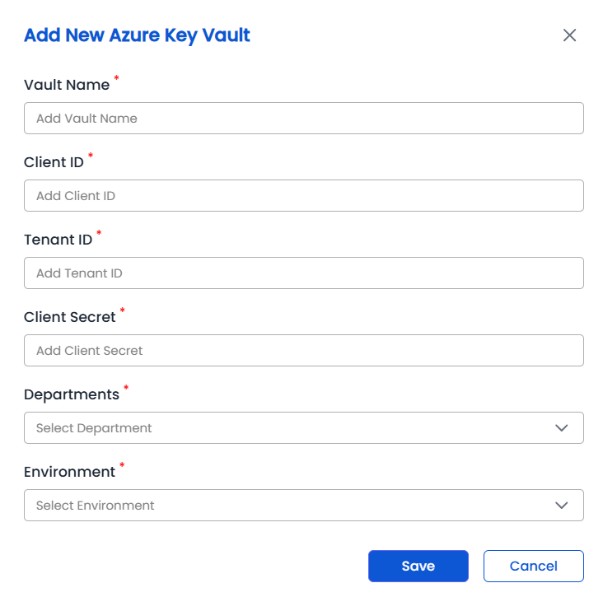
Only users with the “Manage Azure Key Vaults” permission can configure an Azure Key Vault, but any user with the “Submit CSR” or “Generate Certificate with Private Key” permission can upload certificates to the vault. To add a new Azure Key Vault, click on Configure. Click on Create New on the new page.
To upload a certificate to a configured Azure Key Vault:
Navigate to Enrollment > Generate Certificate.
After filling in the necessary details, click the Generate Certificate button. If Azure Key Vault has been integrated, a pop-up window will appear.
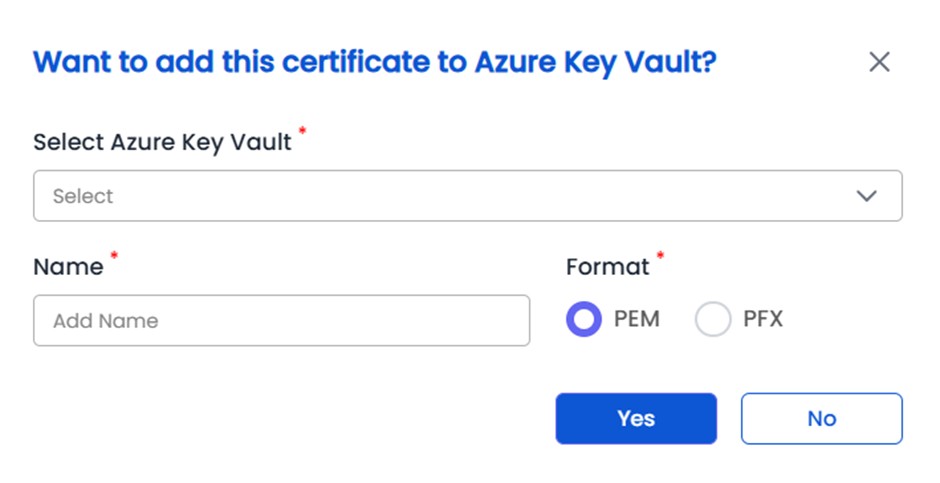
In the pop-up, choose the Azure Key Vault, specify a name (which serves as the unique identifier for the certificate within the Key Vault), and select the desired format.
Click Yes to proceed. Once the certificate is issued, it will be automatically uploaded to the selected Key Vault.
A log entry will be created under Misc > Logging > Certificate Management, indicating success or failure of the upload.
