
- Overview
- Reference Guide
- Setup & Architecture
- Release Notes
- Workflow
- API Reference
- Integration Guide
- Discovery Agent Setup Guide
The Configure Realms section allows administrators to configure how users sign in to CertSecure Manager using Keycloak-Based Authentication, an identity brokering and federation capability that lets organizations bring their own identity providers, connecting external SAML or OIDC IdPs such as Okta and Microsoft Entra ID through Keycloak realms acting as the broker.
Keycloak-Based Authentication integrates CertSecure Manager with one or more Keycloak realms to handle user authentication and single sign-on. Keycloak serves as the identity broker, verifying user identities and federating external identity providers such as Okta and Microsoft Entra ID through each realm. Administrators can connect multiple realms to support different organizational units, business partners, or environments.
A realm can also be federated to a corporate directory, such as Active Directory, over LDAP. Keycloak reads the directory users, and CertSecure Manager creates its own user accounts from them, so a directory user can be given a department or a role before the first sign-in. The directory connection is configured on the User Federation tab of the Manage Realm page.
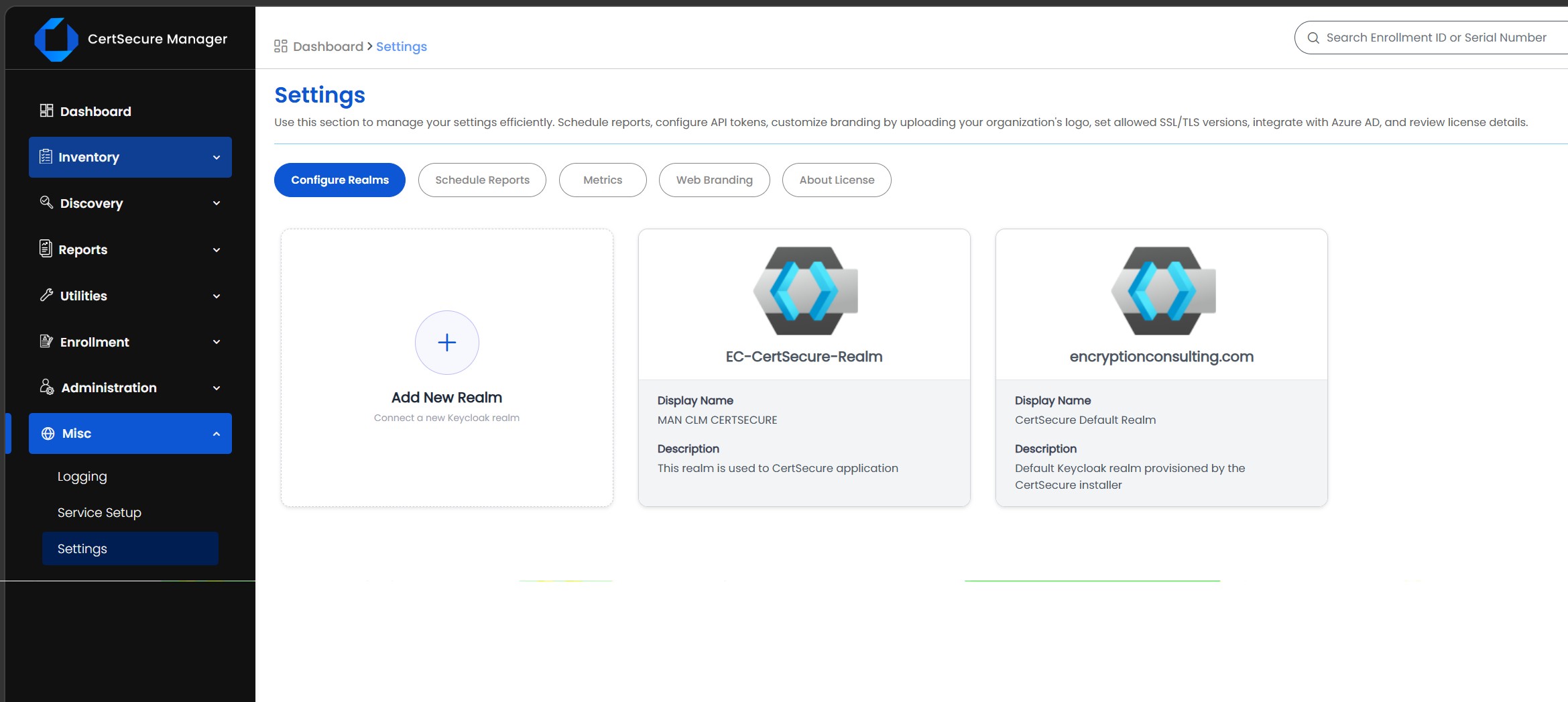
The Configure Realms tab lists all Keycloak realms currently connected to CertSecure Manager. Each realm tile displays the realm name, its display name, and a short description. By default, the installer provisions a default realm (for example, encryptionconsulting.com with display name "CertSecure Default Realm"), and additional realms can be added at any time using the "Add New Realm" tile to connect another Keycloak realm.
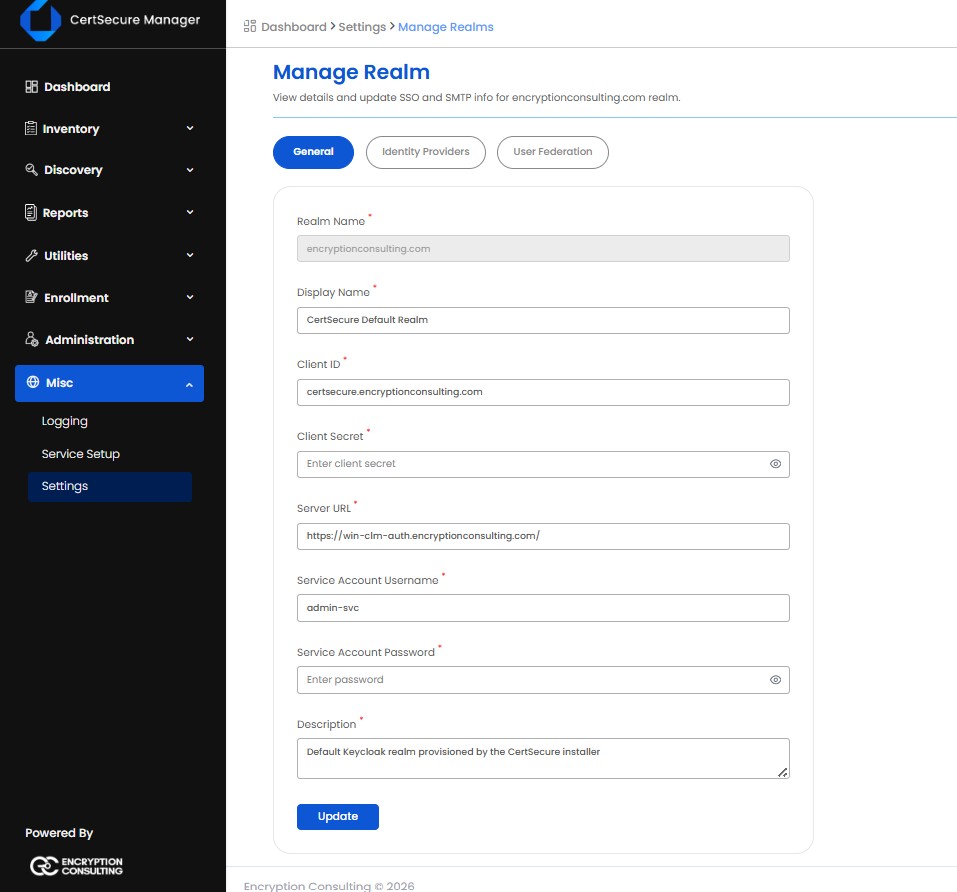
Selecting a realm opens the Manage Realm page, where SSO and Keycloak connection details for that realm can be reviewed and updated. The General tab captures the connection details that CertSecure Manager uses to communicate with the Keycloak server on behalf of the realm.
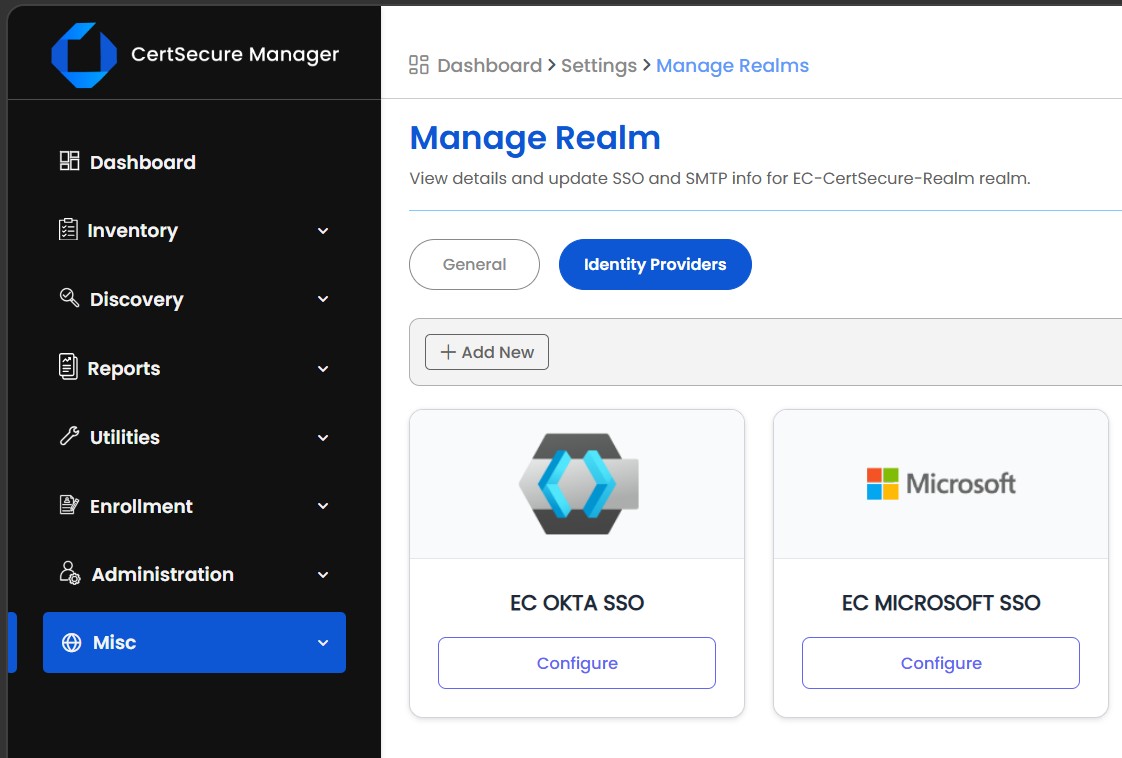
The Identity Providers tab lists the external identity providers federated through the selected realm. Each provider is shown as a tile with a Configure action to review and update its settings. New identity providers can be added using the "+ Add New" button. Through the realm, CertSecure Manager supports a wide range of authentication integrations including Microsoft Entra ID, Okta and several other standards-based OIDC and SAML 2.0 identity providers.
The User Federation tab lists the LDAP and Active Directory providers connected to the selected realm. Each provider is shown as a tile with the vendor logo, the provider name, and the Configure and Delete actions. When no provider has been added the tab shows "No User Federation Found".
| Control | Description |
|---|---|
| Add New | Opens the Add LDAP Provider dialog to connect a directory. |
| Type your search | Filters the provider tiles by provider name. |
| Refresh | Reloads the list of providers from Keycloak. |
| Configure | Opens the Manage dialog for the provider. The alias of an existing provider cannot be changed. |
| Delete | Asks for confirmation, then removes the provider. Users imported from the provider are removed from Keycloak, and CertSecure Manager accounts are reconciled on the next directory sync. |
Add New opens the Add LDAP Provider dialog. Configure opens the same dialog as Manage followed by the alias of the provider. The dialog is divided into General, Connection, Searching and Syncing sections, followed by the identity options.
| Section | Field | Description |
|---|---|---|
| General | Alias | Required. A name for the provider: 1 to 64 letters, digits, spaces, hyphens or underscores. It cannot be changed after the provider is created. |
| General | Vendor | Required. Active Directory (default), Red Hat Directory Server, Tivoli, Novell eDirectory or Other. The vendor selects the default User Object Classes; the field is replaced only while it still holds a default, so a list typed by hand is kept. |
| Connection | Connection URL | Required. The directory server, which must start with ldap:// or ldaps://, for example ldaps://dc01.example.com:636. |
| Connection | Enable StartTLS | Upgrades an ldap:// connection to TLS. It cannot be combined with Connection Pooling; turning one on turns the other off. |
| Connection | Use Truststore SPI | Always (default) or Never. Controls whether Keycloak uses its truststore to validate the directory's TLS certificate. |
| Connection | Connection Pooling | Reuses connections to the directory. Not available together with StartTLS. |
| Connection | Connection Timeout | Optional, in milliseconds. Default 15000. |
| Connection | Bind DN | Required. The distinguished name of the service account used to read the directory, for example CN=svc-account,CN=Users,DC=example,DC=com. |
| Connection | Bind Credential | Required when adding a provider. When editing, leave it blank to keep the stored password; the stored value is never shown. |
| Searching | Edit Mode | Read Only (default), Writable or Unsynced. |
| Searching | Users DN | Required. The subtree that holds the users, for example CN=Users,DC=example,DC=com. |
| Searching | Username LDAP Attribute | Required. The attribute that becomes the user name. The default is userPrincipalName. |
| Searching | User Object Classes | Required. For Active Directory the default is person, organizationalPerson, user. For the other vendors it is inetOrgPerson, organizationalPerson. |
| Searching | Custom User Search Filter | Optional LDAP filter that narrows which entries are imported. It must be enclosed in parentheses, for example (objectClass=person). |
| Searching | Search Scope | One Level (default) or Subtree. |
| Searching | Read Timeout | Required, in milliseconds. The minimum is 5000 and the default is 30000. |
| Syncing | Import Users | On by default. Imports directory users into the realm. |
| Syncing | Sync Registrations | Off by default. Writes users created in Keycloak back to the directory. It requires Edit Mode to be Writable. |
| Syncing | Trust Email | On by default. Treats the email address read from the directory as verified. |
| Syncing | Full Sync Period | In seconds. The minimum is 3600 and the default is 604800 (7 days). |
| Syncing | Changed Users Sync Period | In seconds. The minimum is 3600 and the default is 86400 (1 day). |
| Identity | Map Identity Attributes | On by default. Creates the mappers that bring userPrincipalName and sAMAccountName into Keycloak, so that the user principal name can be used as the sign-in identity. |
| Identity | Publish Identity Claims | On by default. Puts the user principal name (upn) in the access token, so a sign-in resolves the identity without an extra lookup. |
| Identity | Sync After Save | On by default. Runs a full user sync as soon as the provider is saved instead of waiting for the first periodic sync. |
| Identity | Import Groups | Off by default. Creates the group mapper that makes directory groups available in the Active Directory Group list of the Synchronize with Active Directory dialog. |
The dialog has two checks that can be run before saving. Test Connection confirms that the directory server can be reached. Test Authentication signs in to the directory with the Bind DN and Bind Credential. When editing a provider, Test Authentication can be run with the Bind Credential left blank, in which case the stored password is used. The result of each check is shown as a notification.
Save (Update when editing) creates the provider in the realm and sets up the mappers that CertSecure Manager relies on. Saving is repeatable: saving again updates the provider and its mappers in place and never creates duplicates.
CertSecure Manager chooses the sign-in identity of a directory user in this order: the userPrincipalName; a user name that is itself in user@domain form; the sAMAccountName; the plain user name; and finally the display name. The email address of an account is never left empty. When the directory has no mail attribute, the userPrincipalName is used, and failing that the sign-in identity itself. The first and last name are read from the given name and family name, or split from the display name when those are not available.
For Active Directory, saving the provider also points the email, first name and last name mappers at the attributes Active Directory fills in (userPrincipalName, givenName and sn), because an Active Directory account often has no mail attribute and would otherwise reach Keycloak with a blank email address and blank first name and be refused at sign-in.
Note: The Username LDAP Attribute decides the identity under which every imported user is known. Choose it before users are imported. Changing it later changes the identity of the existing federated users.