CertSecure Documentation
  • Overview
    • About CertSecure Manager
    • Documentation Guide
  • Reference Guide
    • Header Bar
      • CertSecure Documentation
      • Swagger API
      • Profile Section
      • Search
    • Dashboard
      • Key Performance Indicators
      • Expiring Certificates
      • CA metrics
      • Key Strength
      • Signing Algorithm
      • Certificate Risk Report Profile
      • PKI Posture Management
      • NDES Health Information
    • AI Assistant
      • Chat
      • Configuration
      • Usage Report
    • Inventory
      • Overview
        • Overall
        • CertSecure
      • Template Management
        • Switch Templates
        • Exclusion List
        • Alert Templates
        • Certificate Templates
      • Template Categories
    • Discovery
      • Inventory
      • Scan Config
      • Cloud Config
      • Vault Config
      • Discovery Analytics
      • Scan Details
      • Discovery Ingestion
    • Reports
    • Utilities
      • ACME
      • Tasks
      • Integrations
        • Renewal Manager
        • Load Balancers
        • Discovery Agents
        • CLI Tool
        • Key Management
        • SEIM Tools
        • DevOps Tools
        • Ansible Automation Platform
      • NDES
      • Azure Key Vault
      • API Tokens
    • Enrollment
      • Certificate Request
      • Generate CSR
      • Enroll CSR
      • Generate Certificate
      • Import Certificate
      • Bulk Certificate Generation
      • Manage Policies
      • Organization Details
    • Administration
      • Users
      • Roles and permission
      • Certificate Authorities
      • Departments
    • Miscellaneous
      • Logging
      • Service Setup
        • Zoom
        • Zendesk
      • Settings
        • Configure Realms
        • Schedule Alerts
        • Metrics
        • Web Branding
        • About License
  • Setup & Architecture
    • Identity and Access Control
    • Architecture
    • Installation
      • Pre-requisites
      • Windows
      • Linux
      • Docker
    • Upgrade
      • Windows
      • Docker
  • Release Notes
    • Releases for 2026
      • v3.4.0
      • v3.3.1
      • v3.3.0
    • Releases for 2025
      • v3.2.0
      • v3.1.0
    • Releases for 2024
      • v3.0.0
  • Workflow
    • Approval Workflow
  • API Reference
    • Getting Started
    • Authorizing Requests
    • Securing API Access
    • Request and Response Conventions
    • Endpoint Reference
      • Health
      • API Token Management
      • CA Management
      • Templates
      • Certificate Enrollment
      • Inventory
      • Certificate Discovery
      • Tasks
      • Watcher Groups
      • Alerts
      • Reports
      • Logs
      • Monitoring
      • Scheduling
      • SMTP
      • ACME
      • Azure Key Vault
      • Google Cloud (GCP)
      • HashiCorp Vault
      • EJBCA
      • ServiceNow
  • Integration Guide
    • Renewal Manager
      • Workflow
      • Setup
      • Troubleshooting
      • IIS
      • Apache
      • Tomcat
      • Nginx
      • MSSQL
      • MongoDB
      • Oracle
      • Cloudflare
      • AudioCodes
      • Cisco ISE
      • Palo Alto PAN-OS
      • Cisco ACI
    • Load Balancer
      • F5
        • Workflow
        • Setup
        • Onboarding
        • UI Guide
        • Troubleshooting
      • NetScaler
        • Workflow
        • Setup
        • UI Guide
        • Troubleshooting
    • Certificate Authorities
      • ACME CAs
      • AWS
      • DigiCert Connector
      • EJBCA
      • GlobalSign
      • GoDaddy
      • HashiCorp Vault PKI
      • Microsoft AD CS
      • Sectigo
      • Sectigo-PS
    • Ansible Automation Platform
    • Azure Key Vault
  • Discovery Agent Setup Guide

Onboarding

This section walks through installing and registering the F5 Orchestrator on its Windows host with the setup wizard.

Installation and Registration
  1. Download the installer. Go to Utilities > Integrations > Load Balancers, click the F5 tile, and click Download.
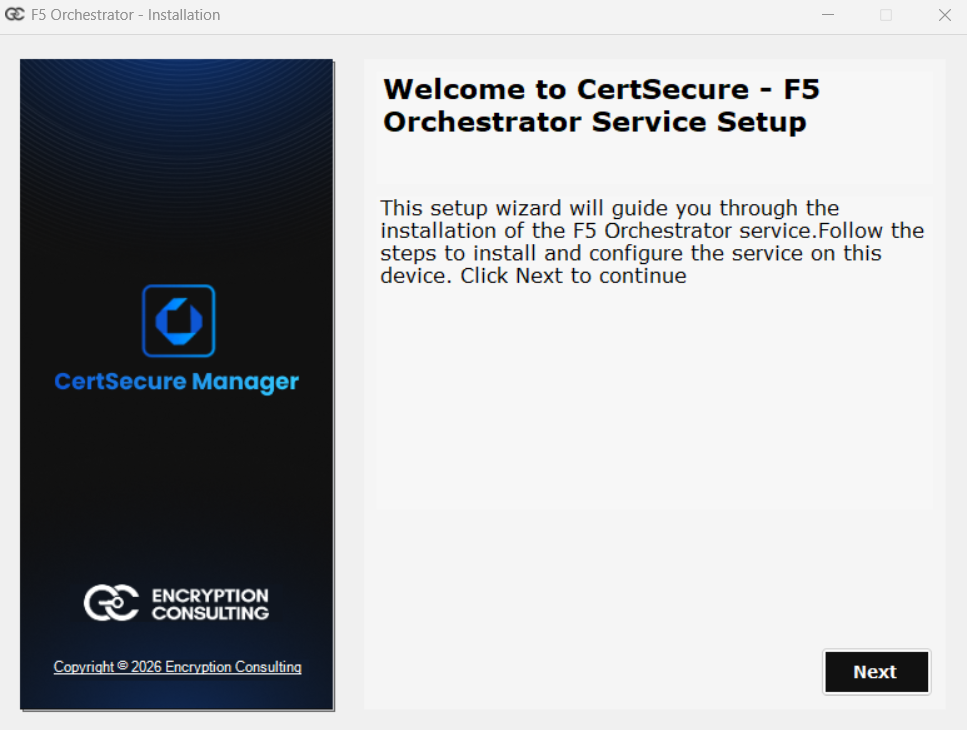
  2. Extract the package to a folder on the F5 Orchestrator host. Keep the src folder next to the setup program: the setup copies the agent from it. Right-click the setup program, select Run as administrator, and click Next on the welcome page. Setup welcome page
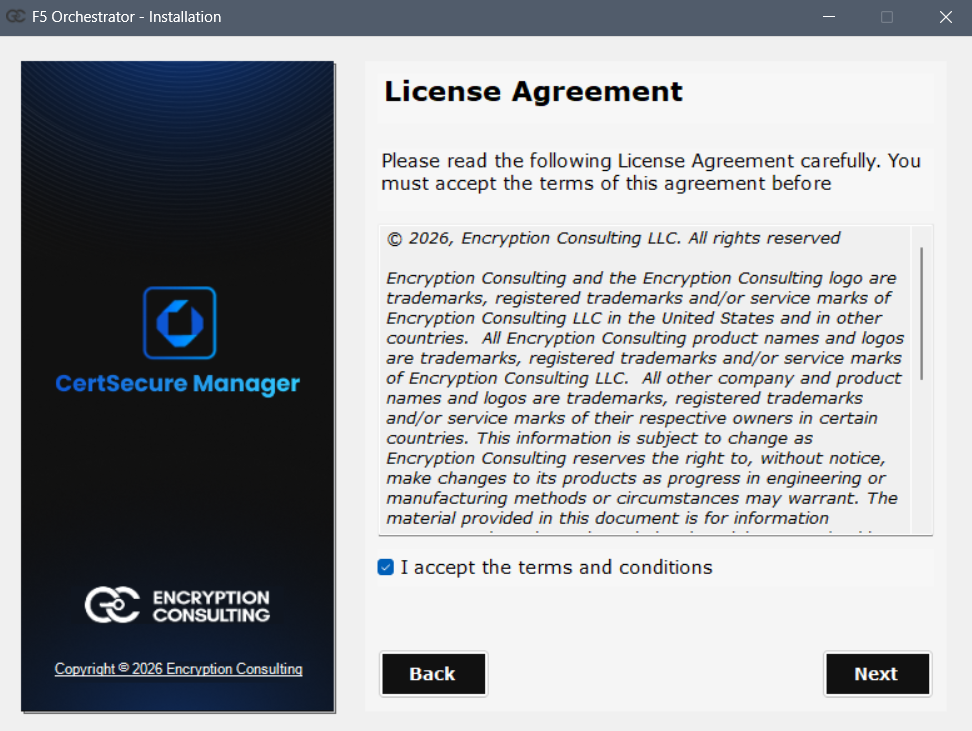
  3. Read the license agreement, select I accept the terms and conditions, and click Next. License agreement
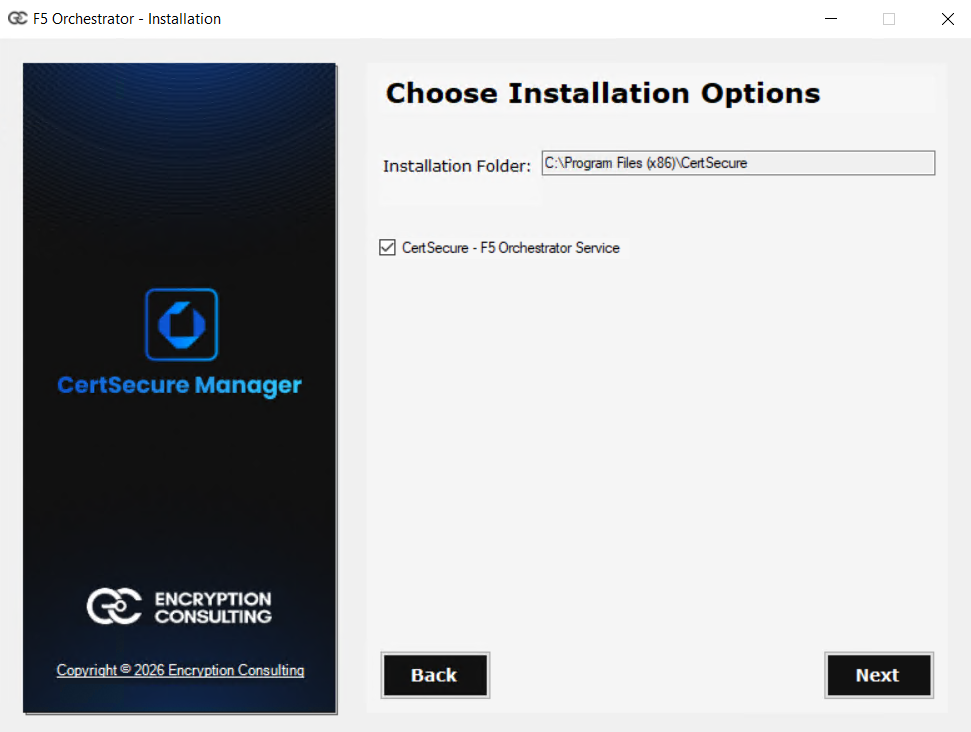
  4. Select CertSecure - F5 Orchestrator Service and click Next, and then click Yes to confirm. The agent is installed in C:\Program Files (x86)\CertSecure\CertSecure - F5 Orchestrator. If F5 Orchestrator is already installed on the host, the setup clears the checkbox and explains how to remove the existing installation first. Select the F5 Orchestrator service
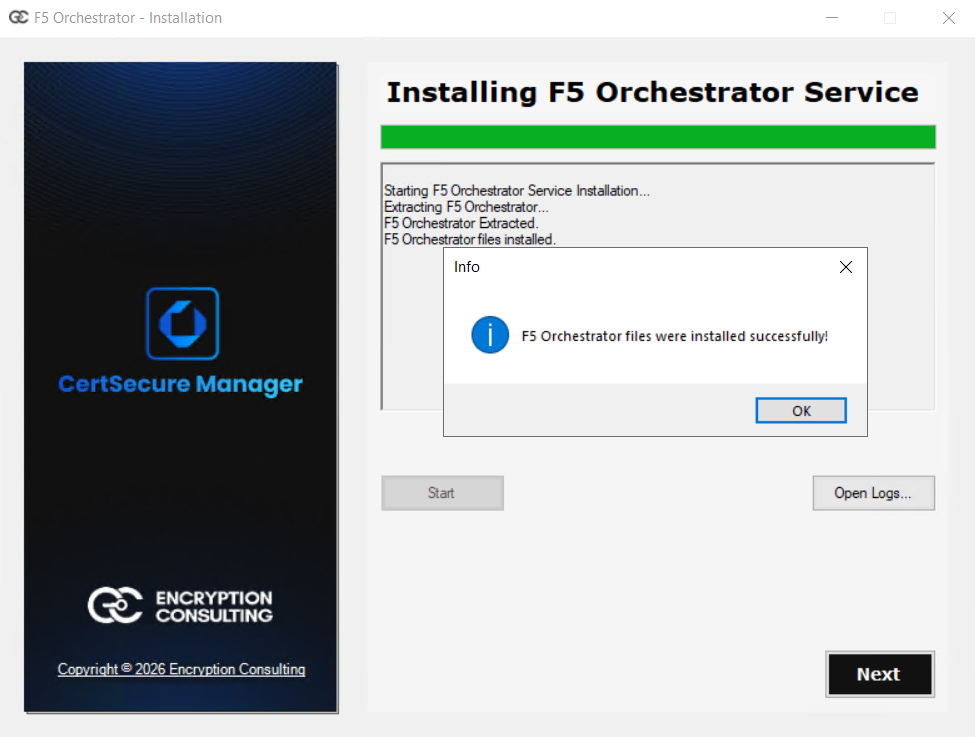
  5. Click Start to copy the agent files. When the message F5 Orchestrator files were installed successfully! appears, click OK, and then click Next. Copying the agent files
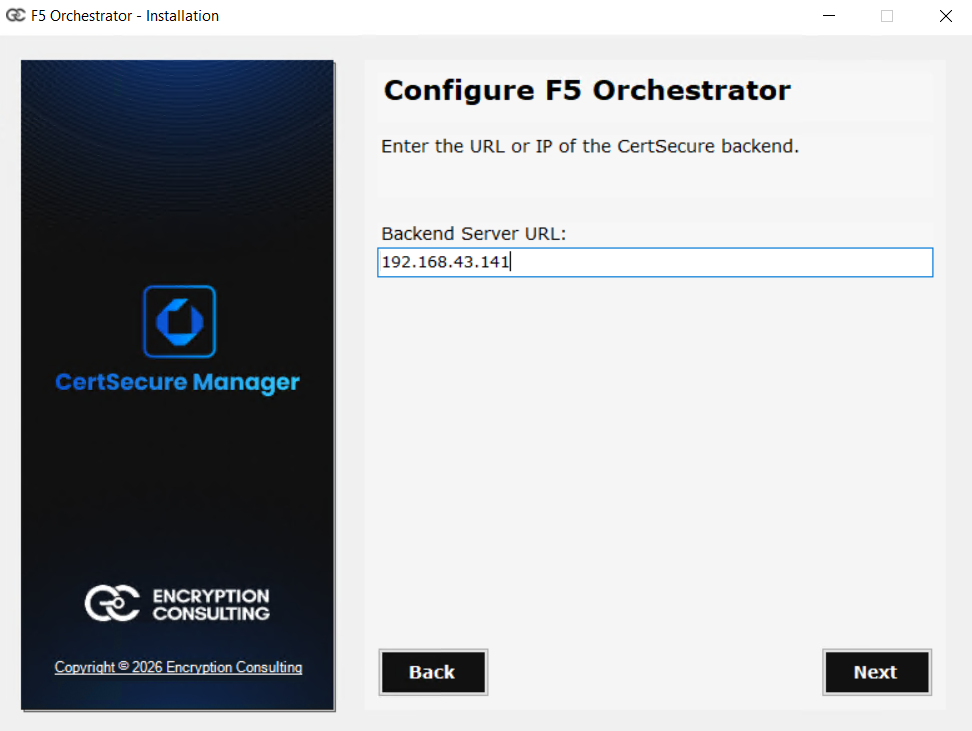
  6. In Backend Server URL, enter the CertSecure backend address. Use the same address you use in the browser, as a hostname or IP, with or without https://. Click Next. The setup saves it in conf.ini under [CERTSECURE]. The remaining values are optional and are described in the Configuration File table. Backend Server URL
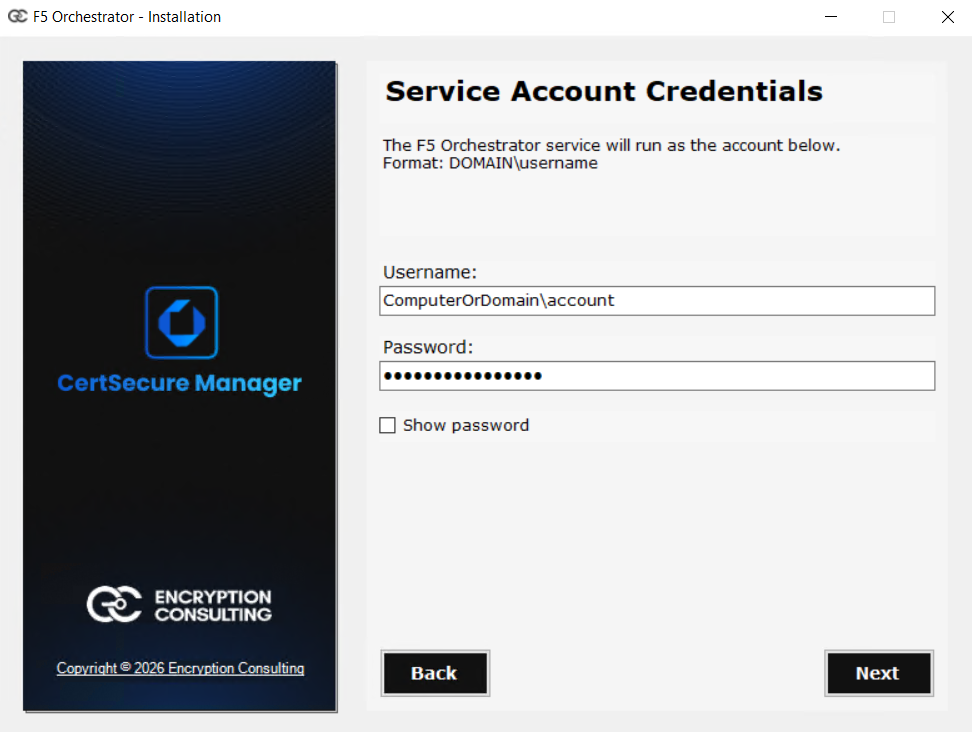
  7. Enter the service account in Username as DOMAIN\username, enter its Password, and click Next. The service runs as this account, and the setup gives it full control over the agent folder. Service account credentials
  8. In CertSecure, go to Utilities > Integrations > Load Balancers and click Registration Token to generate a one-time token.
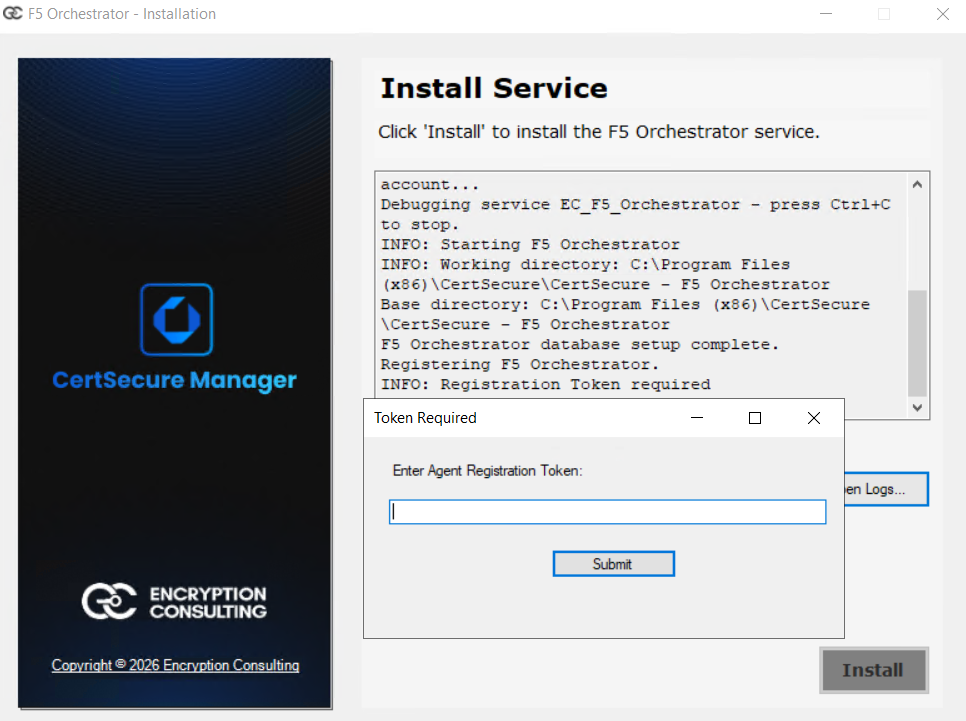
  9. Back in the setup, click Install. The setup installs the EC_F5_Orchestrator service and runs the agent once as the service account to register it. When the Token Required box appears, paste the registration token and click Submit. Token Required
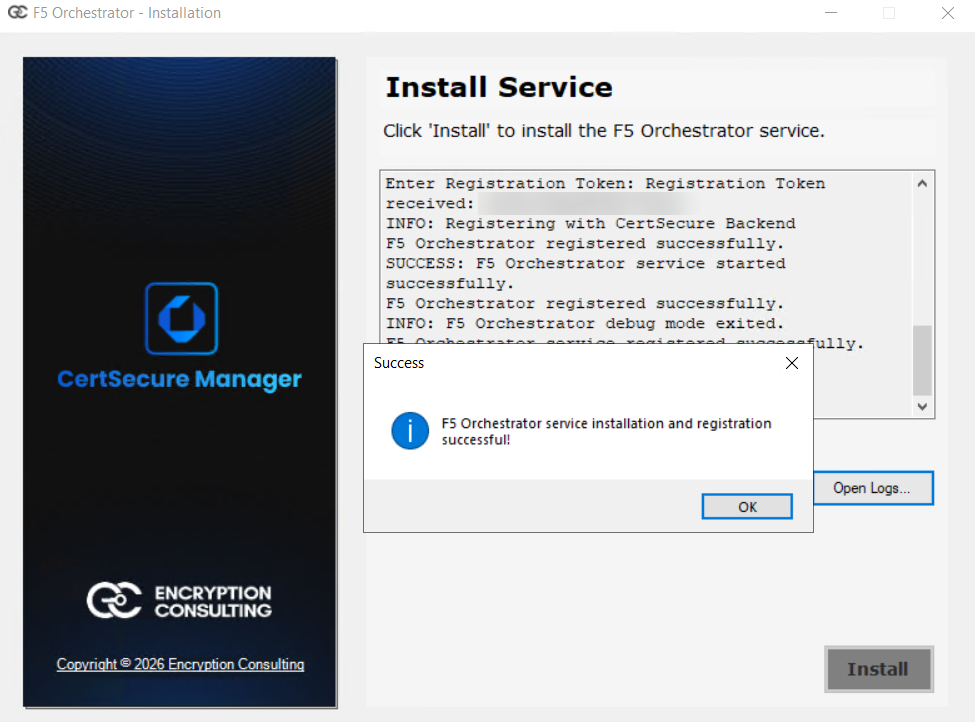
  10. Wait for the message F5 Orchestrator service installation and registration successful!, click OK, and then click Next and Finish. The setup starts the service for you. The agent shows as Online in CertSecure Manager within about 60 seconds. If the installation fails, click Open Logs... for details; Retry on the last page removes the failed attempt so you can start again. Installation complete
On this Page:
Support Privacy Policy Terms of Service

Copyright 2026 Encryption Consulting LLC. All rights reserved.
