
- Overview
- Reference Guide
- Setup & Architecture
- Release Notes
- Workflow
- API Reference
- Integration Guide
- Discovery Agent Setup Guide
This section provides a detailed, step-by-step instructions for connecting CertSecure Manager to Ansible Automation Platform (AAP) and using that connection to deploy ACME-issued certificates. The AAP integration lets CertSecure launch pre-approved Ansible Job Templates in AAP, built from the encryptionconsulting.certsecure collection, to issue and install a certificate on a target host. Job progress and outcome are reported back into CertSecure's Task list alongside every other certificate task.
This integration is found under Utilities › Integrations › DevOps Tools › AAP, one of several Third-Party Integration Tools alongside SIEM Tools and the CLI Tool.
This integration drives an AAP instance that you own and license yourself. CertSecure neither includes nor provides an AAP subscription, and it does not read, validate, or track your AAP entitlement in any way; subscription enforcement lives entirely on the AAP side. Confirm what you are entitled to before bringing production hosts under certificate automation.
| Component | Licensed by | Notes |
|---|---|---|
| Red Hat Ansible Automation Platform (Controller, execution nodes, Automation Hub) | Red Hat — paid subscription | Sized by managed nodes. Current status is visible inside AAP under Settings › Subscription; confirm your entitlement and node count with your Red Hat account team or reseller. |
| ansible-core (the Ansible engine itself) | Open source (GPL-3.0) | Free to use on its own, but not a substitute here — CertSecure talks to AAP's Controller API, which a bare ansible-core installation does not provide. |
| encryptionconsulting.certsecure collection (the playbooks this integration runs) | Encryption Consulting — covered by your CertSecure license | Served by CertSecure itself as a Remote archive Project (see What CertSecure Creates in AAP), so no Automation Hub or Red Hat Certified Content entitlement is required for it. |
| CertSecure Manager | Encryption Consulting | Licensed separately from AAP; a CertSecure license does not include or extend to any Red Hat subscription. |
What actually consumes AAP entitlement when you use this integration:
Note: subscription terms and metrics are set by Red Hat and change over time. Treat Red Hat's current terms as authoritative over anything stated here, and validate sizing with Red Hat before a production rollout.
A user account with the required privileges, (Manage AAP Playbooks, Manage AAP Inventory and Manage AAP Automation) be used for the setup. The requirements for this integration are:
Security note: every credential shown in this section's screenshots (the AAP Personal Access Token and the EAB Key ID / HMAC pair) is masked in the CertSecure UI (dot-masked input, with an eye icon to reveal it locally), and no real token value appears anywhere in this section. Never paste real tokens into a shared document; each environment must generate and use its own.
Go to Utilities › ACME. The ACME screen manages ACME profiles, URLs, domains, and automation credentials used by ACME clients (e.g. Certbot) for automated certificate issuance.
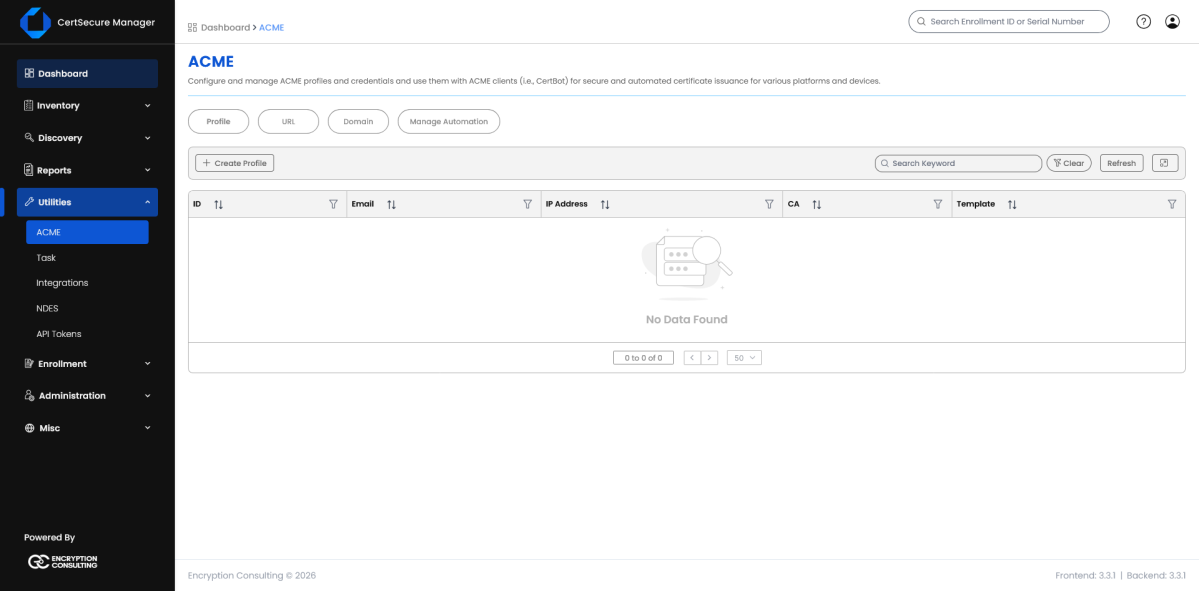
Figure 1. ACME screen: Profile tab, before any profile exists.
Click Create Profile, enter the email address to associate with the profile, and click Save.
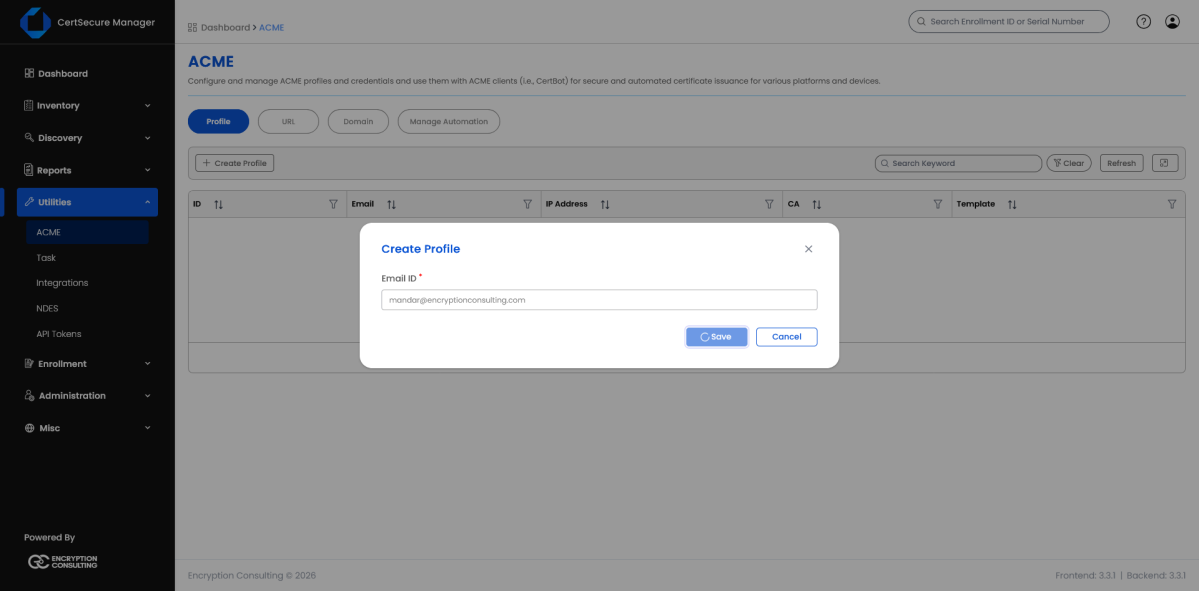
Figure 2. Create Profile dialog: Email ID entered.
Saving immediately shows the User Profile Created Successfully dialog with the profile's User ID and its EAB HMAC and KID5 values. CertSecure only shows them here, at creation time; copy both now, since these are exactly the values pasted into the Launch dialog's certsecure_eab_hmac and certsecure_eab_kid fields later, under Launch a Job.
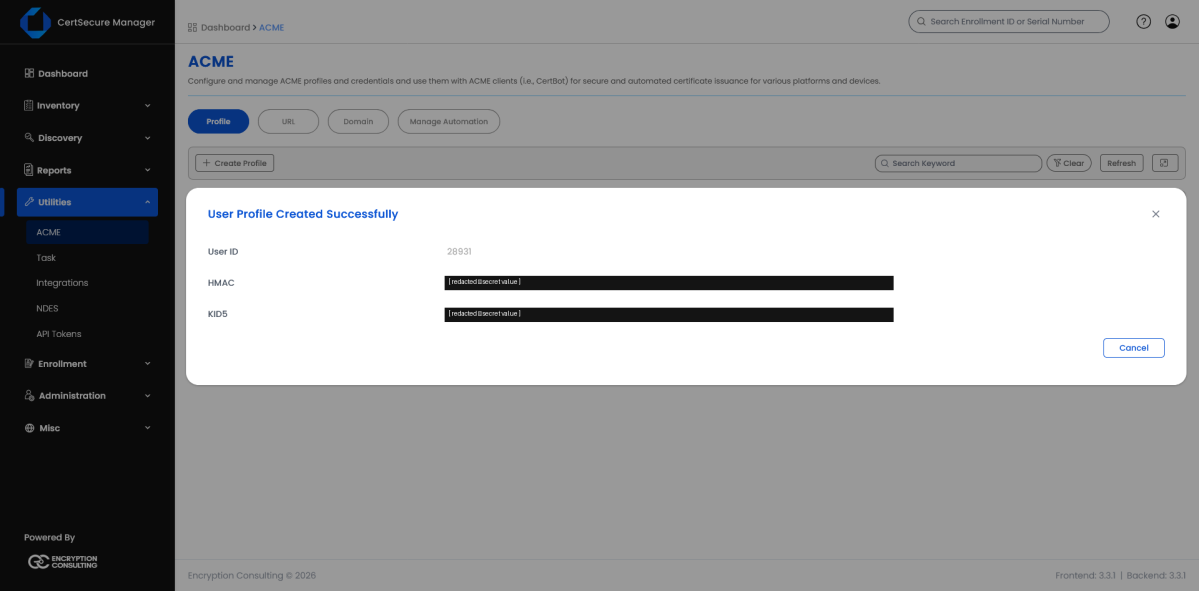
Figure 3. User Profile Created Successfully: HMAC and KID5 values are redacted in this section; CertSecure shows them once, in full, at creation time.
The new profile appears in the list with its ID, email, and originating IP address. This profile is what generates the EAB Key ID / HMAC pair used later, under Launch a Job.
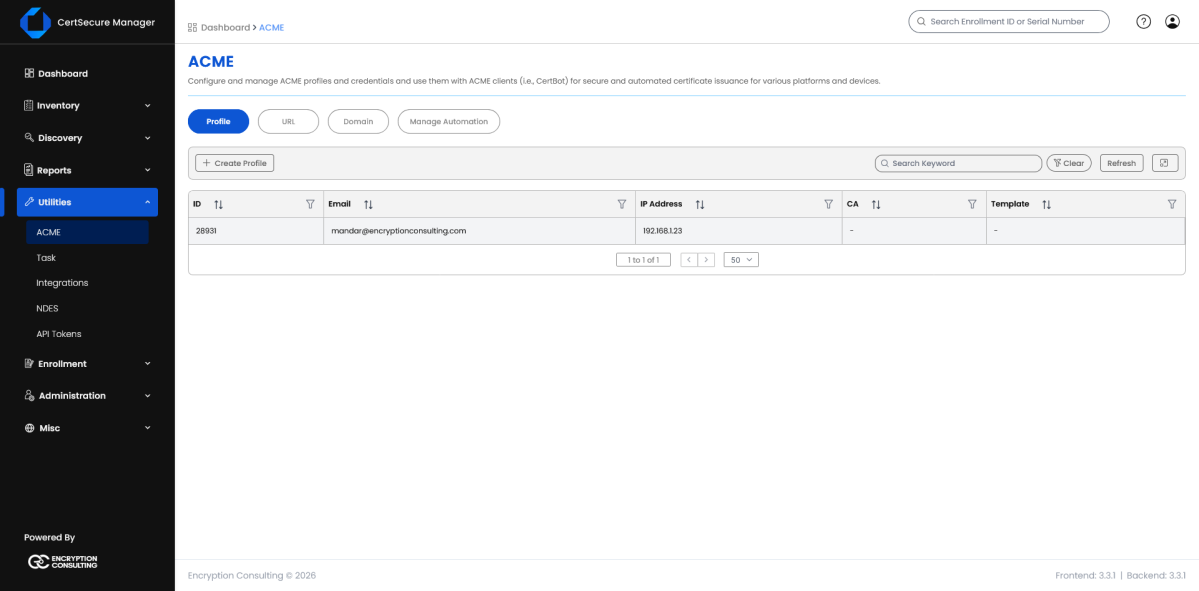
Figure 4. ACME profile created and listed.
Open the row menu on the new profile and choose Update CA Info to associate the profile with the Certificate Authority and Certificate Template that should issue certificates for it.
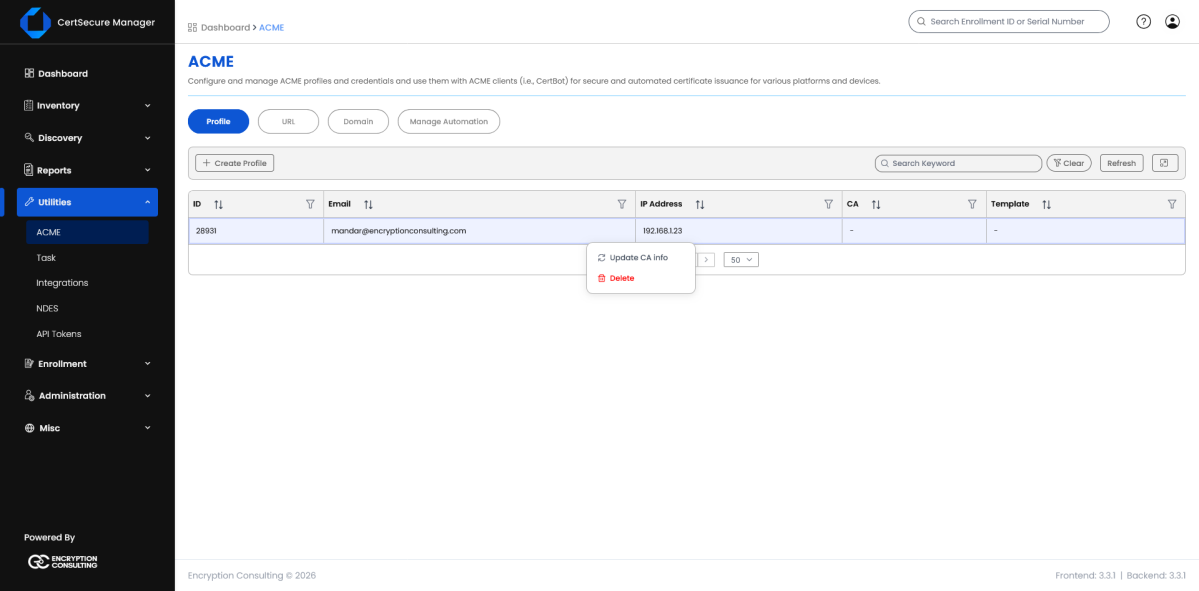
Figure 5. Row menu on an ACME profile: Update CA Info / Delete.
Select the Certificate Authority and Certificate Template and click Save. The profile's CA and Template columns (previously “-”) update to reflect the selection.
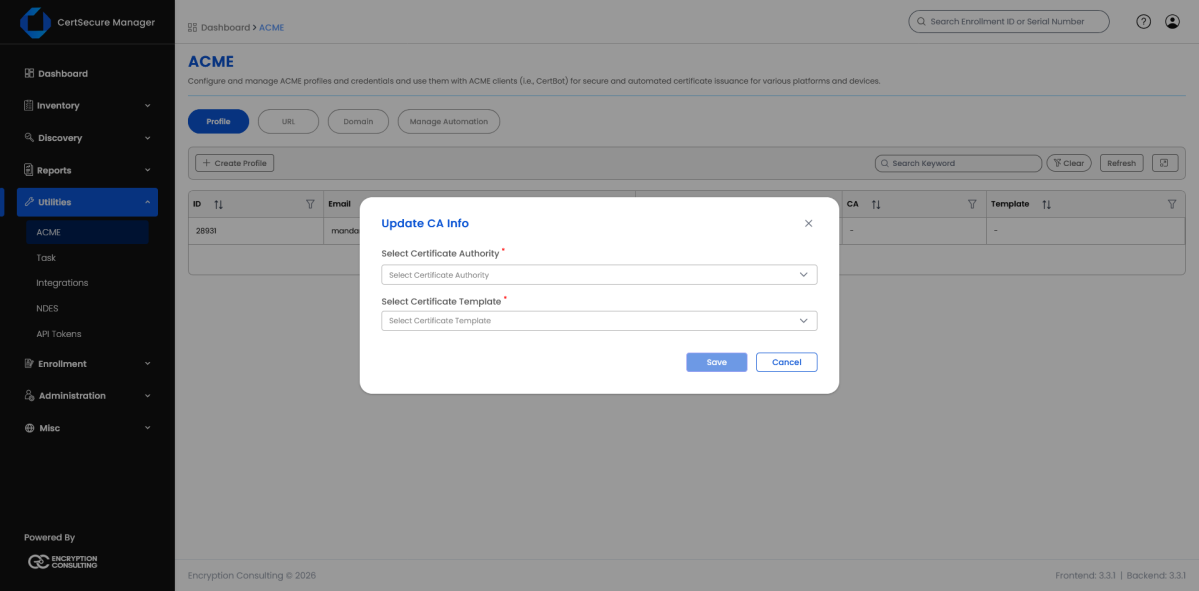
Figure 6. Update CA Info dialog: selecting a Certificate Authority and Certificate Template.
The AAP integration is gated by three independent permissions rather than one blanket “AAP access” switch, so a role can be scoped to just one area: for example, allowed to edit playbooks without also being able to launch jobs or change the AAP connection itself. Each permission is checked in isolation: every screen in this section requires exactly one of them, never a combination, and holding one grants nothing in the other two areas.
| Permission | What it allows | Covered in this section by |
|---|---|---|
| Manage AAP Automation | Add, view, edit, delete and test AAP connections; view, create and onboard job templates; create and manage schedules; launch jobs and view their status. | Step 3 (Connect CertSecure to AAP), Creating and Launching Job Templates, Schedule a Recurring Job, Monitoring Jobs. |
| Manage AAP Inventory | View and create inventories on the connected AAP instance, and add or remove hosts within an inventory. | Managing Inventory. |
| Manage AAP Playbooks | View playbooks, create new custom playbooks, and save or revert playbook edits. | Managing Playbooks. |
All three sit in the Administrator permission group and are assigned to a role the same way as any other CertSecure permission. Go to Administration › Roles and Permissions, which lists every role and its description.
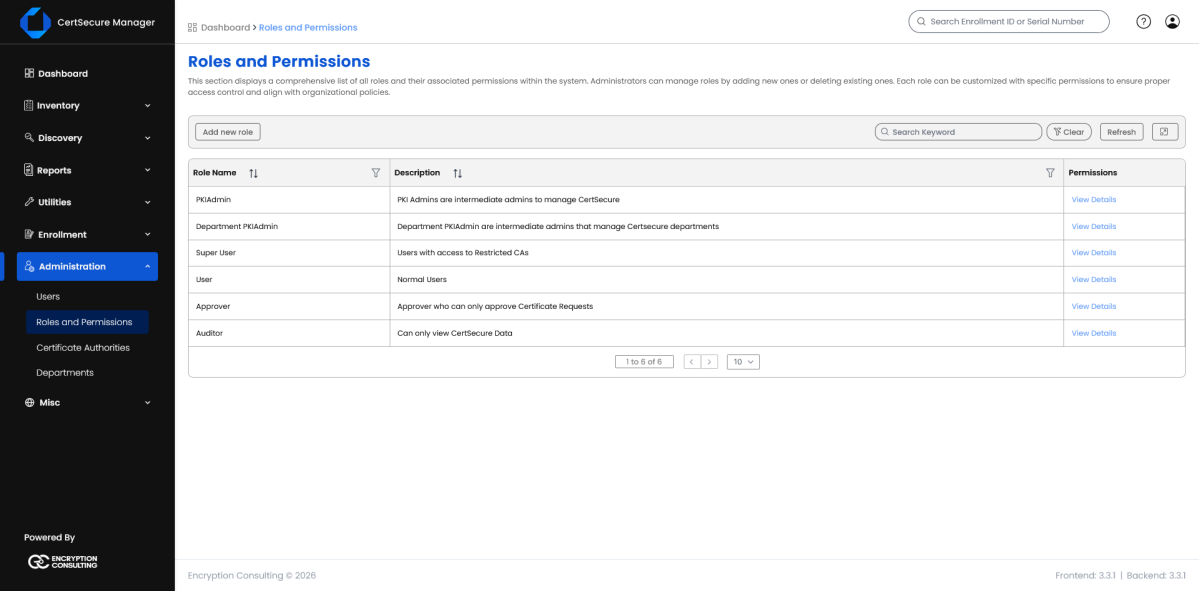
Figure 7. Administration › Roles and Permissions, showing every role, with View Details to edit its permissions.
Open View Details on the role that should be able to use the integration, then enable Manage AAP Playbooks, Manage AAP Inventory, and/or Manage AAP Automation as needed and click Update Role.
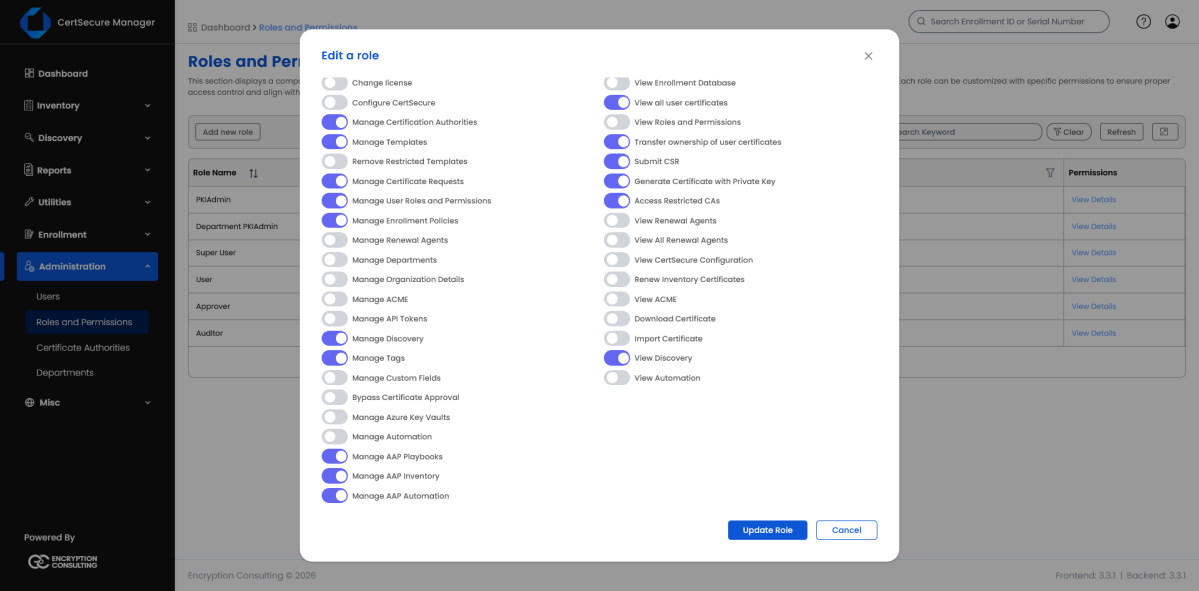
Figure 8. Edit a role, with the three AAP permissions enabled, listed directly below the unrelated Manage Automation permission.
A user attempting an action their role doesn't cover is refused outright with a message naming the action, for example “User is not authorized to manage AAP connections.” or “User is not authorized to launch automation jobs.”
Important: the three AAP permissions are deliberately distinct from Manage Automation, the toggle immediately above them in the same list, which belongs to CertSecure's unrelated Automation Agent feature. Granting Manage Automation does not grant any access to the AAP integration.
Another permissions in the same list are worth granting to whoever follows this section end to end, since the surrounding steps depend on them:
Before adding the connection on the CertSecure side, log in to the AAP Controller UI (as an administrator, or a user with rights to manage its own API tokens) to create the credential CertSecure will authenticate with.
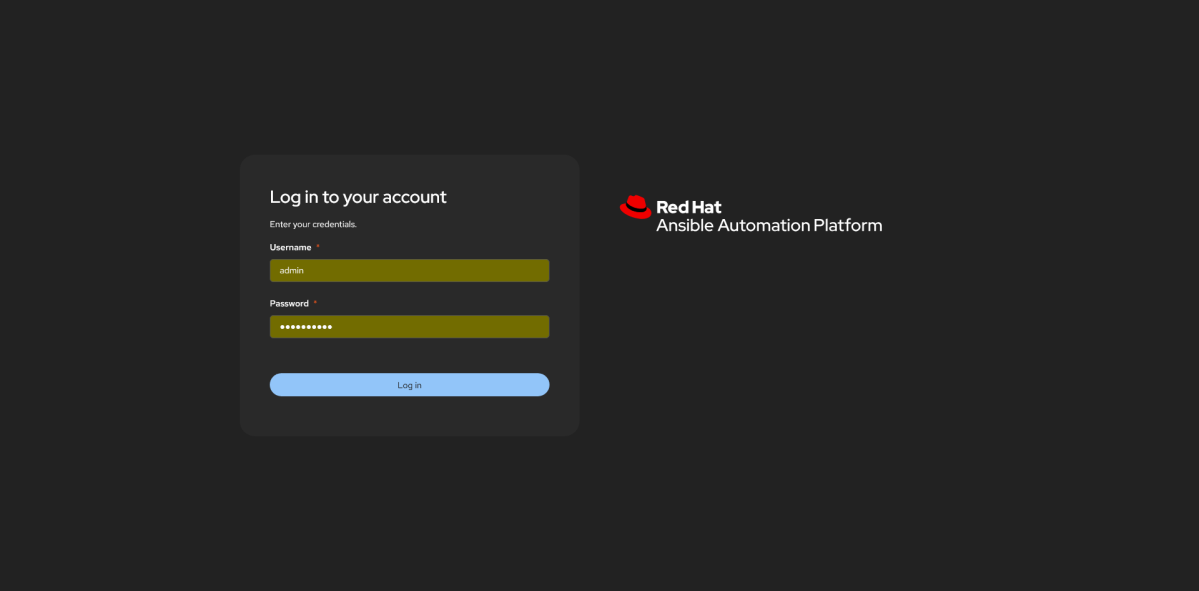
Figure 9. AAP Controller login screen.
In AAP, go to Access Management › API Tokens.
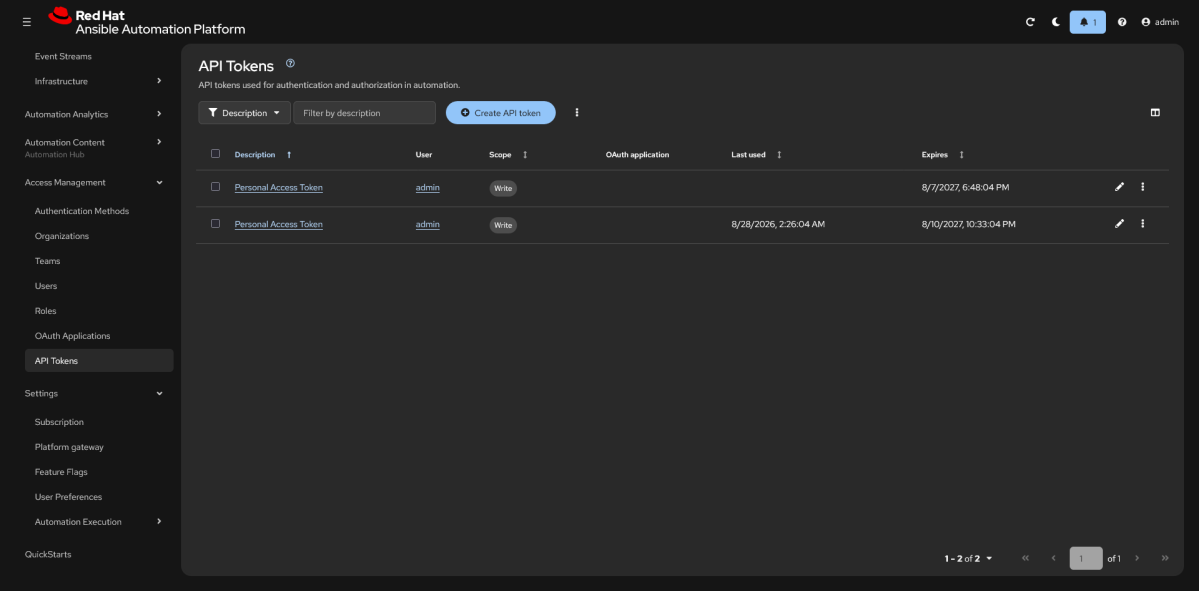
Figure 10. AAP: API Tokens list.
Click Create API token. Give it a Description (e.g. CertSecure Manager) and set the Scope. Write is required so CertSecure can launch jobs; a Read-only scope will fail to launch anything. Click Create token.
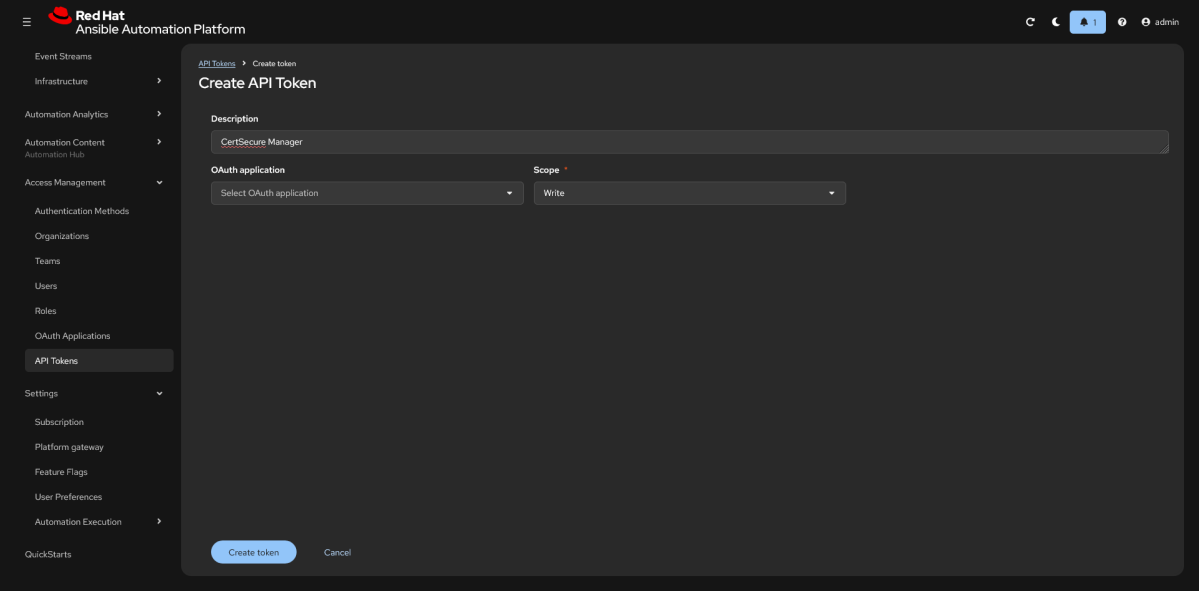
Figure 11. AAP: Create API Token, described as “CertSecure Manager,” Scope set to Write.
As with the CertSecure API token in Step 2, AAP shows the token value only once; copy it immediately. This is the value that goes into the Personal Access Token field below.
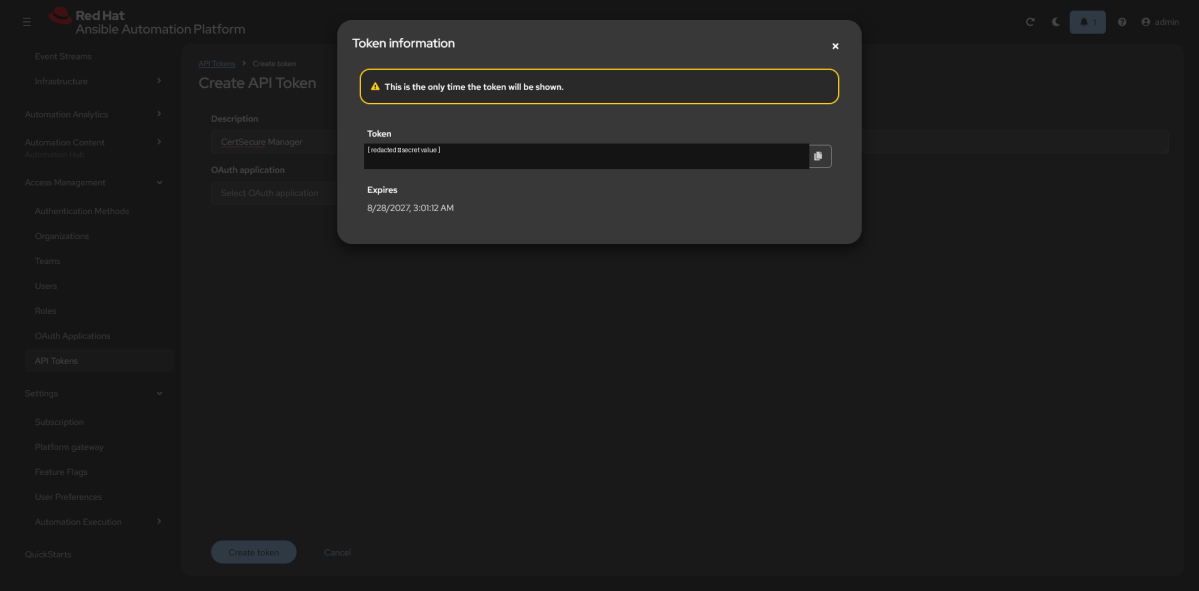
Figure 12. AAP: Token information dialog. The token value itself is redacted in this section; AAP only shows it once, at creation time.
Back in CertSecure, navigate to Utilities › Integrations, then select the DevOps Tools category.
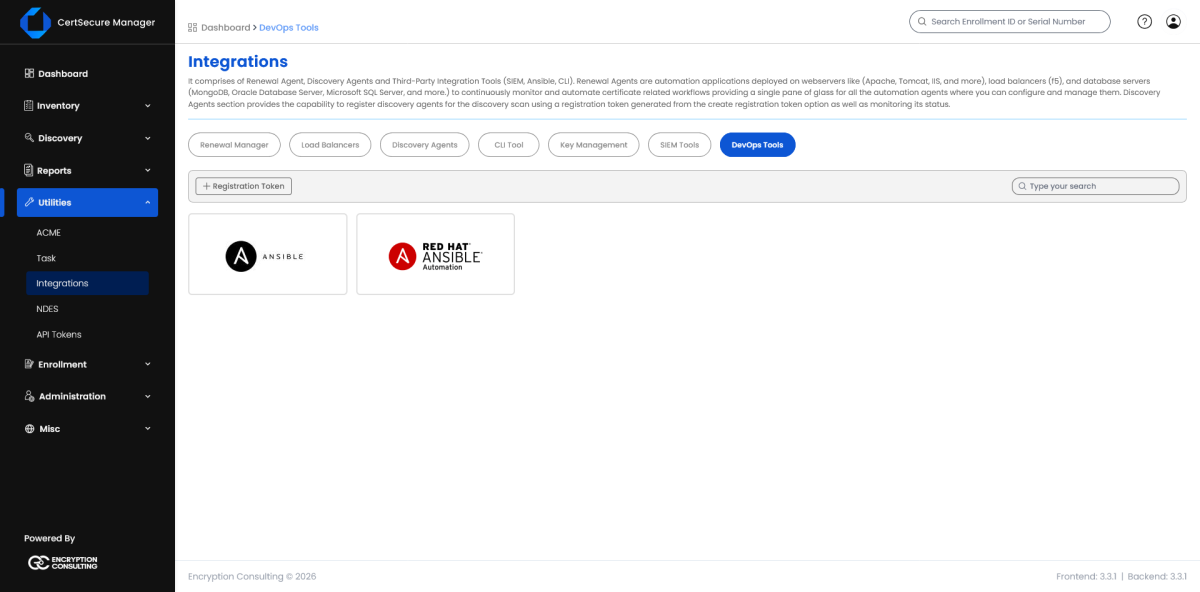
Figure 13. Integrations › DevOps Tools: no AAP connection configured yet.
Click Add Connection. Fill in the connection form and click Add. Fields:
| Field | Purpose |
|---|---|
| Connection Name | A human-readable label for this AAP instance (e.g. ENCON-AAP). |
| Base URL | The AAP Controller's base URL, e.g. https://aap.example.com. |
| Organization ID | The numeric ID of the single AAP Organization this connection is scoped to. |
| Auth Method | Personal Access Token (used here), or an OAuth2 grant type. |
| Personal Access Token | The AAP PAT generated above. Masked on screen; click the eye icon to reveal it while typing. |
| TLS Verification | System Trust Store (public/enterprise-trusted CA), a custom CA bundle, or Insecure (not recommended; disables certificate validation). |
| Routing Tags | Optional comma-separated tags (e.g. region:eu,env:prod) used to route Deployment Profiles to the right connection when more than one AAP instance is configured. |
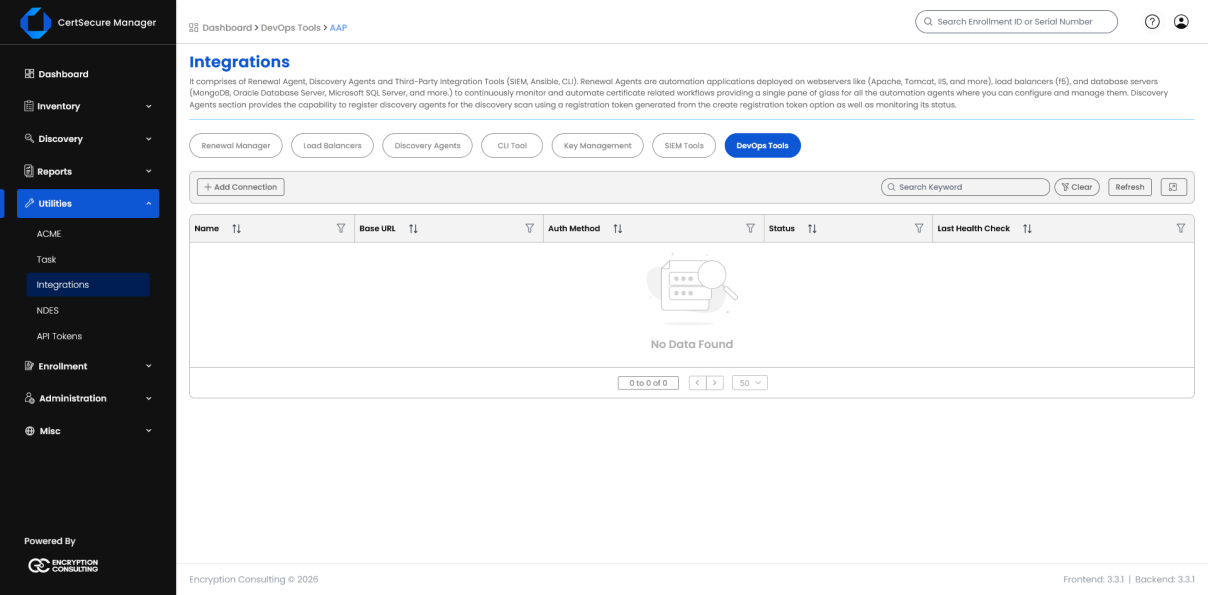
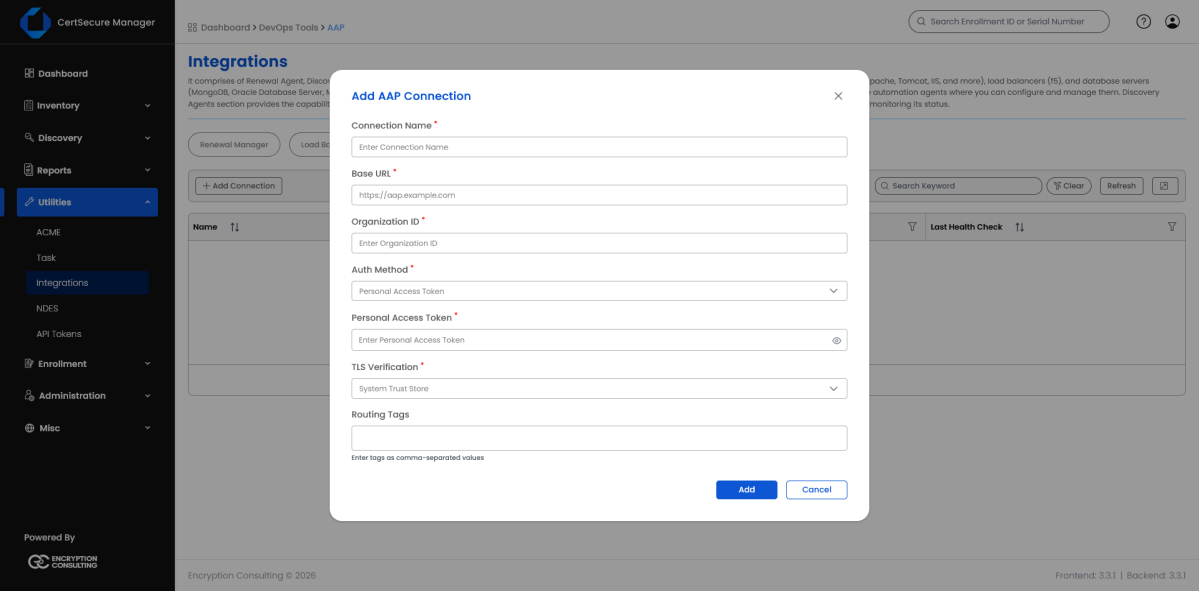
Figure 14. Add AAP Connection: blank form.
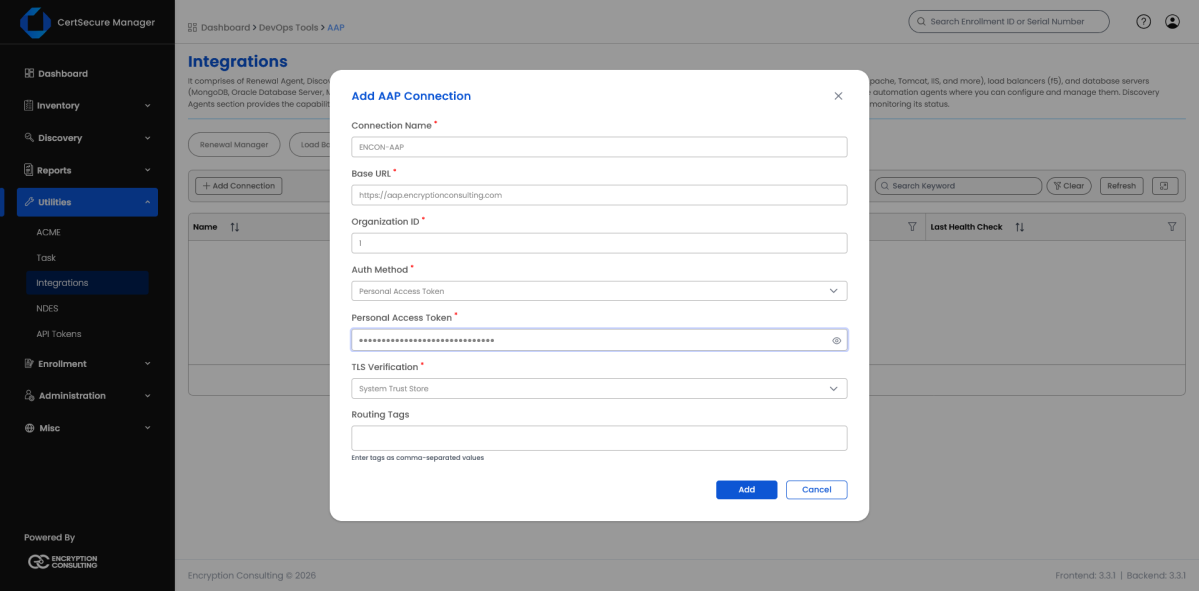
Figure 15. Add AAP Connection: filled in with Personal Access Token auth and System Trust Store TLS verification, ready to Add.
CertSecure tests the connection (reachability, credential validity, and effective permissions) before saving it. If the test fails, the form reports which check failed rather than silently saving bad credentials.
Once saved, the connection appears in the All Connections list with a live Status. Click the row to open AAP Connection Details, a read-only summary that separately reports whether AAP is currently Reachable and whether the stored credential Authenticated, independent of the periodic background health check.
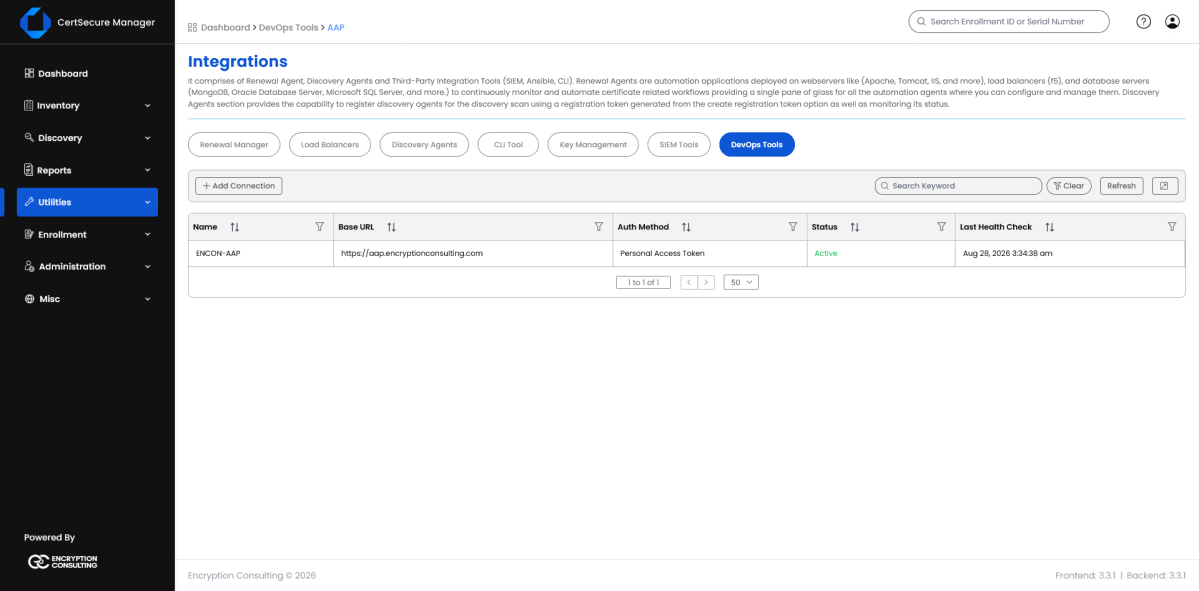
Figure 16. All Connections: ENCON-AAP listed with an Active status.
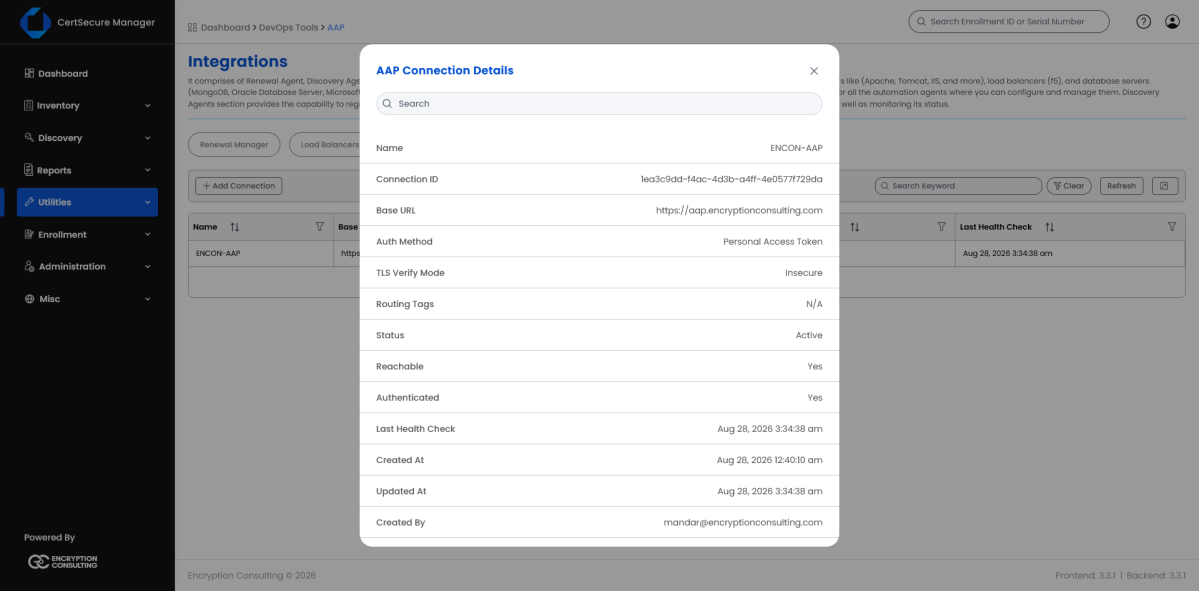
Figure 17. AAP Connection Details: connection id, reachability, and authentication status.
The connection then opens to its detail view with three tabs: Inventories, Job Templates, and Playbooks. Use Test Connection at any time to re-validate.
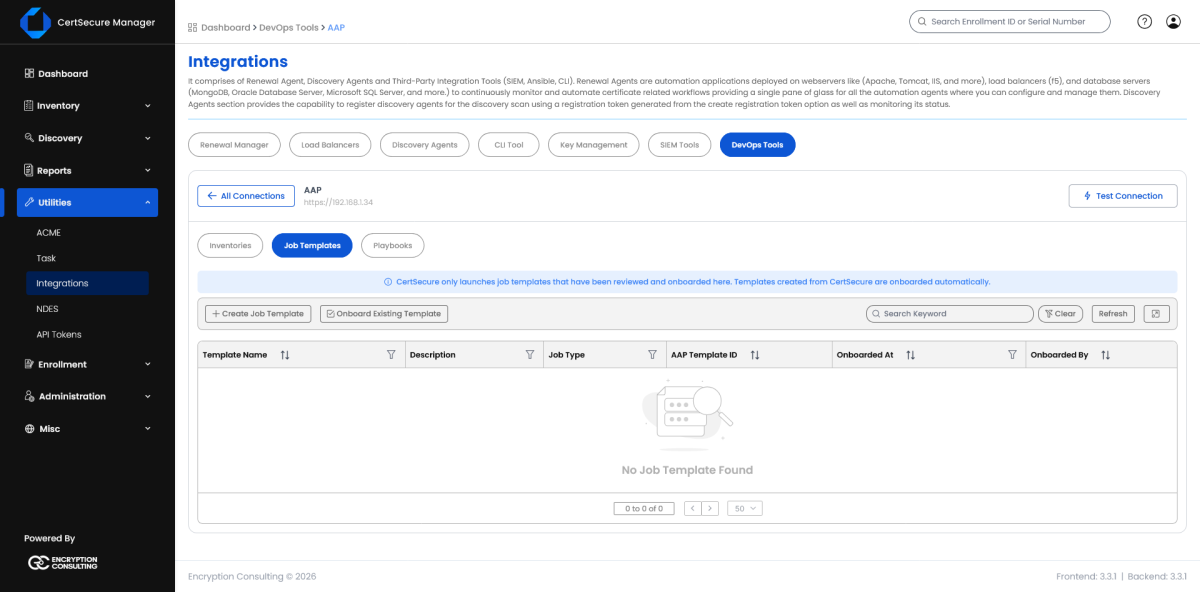
Figure 18. AAP connection detail view: Inventories / Job Templates / Playbooks tabs.
Adding a connection also provisions a Project on the AAP side, named CertSecure, of type Remote archive, pointed at CertSecure's own playbook-archive endpoint (GET /aapIntegration/playbooks/archive). AAP syncs this project to pull in every playbook CertSecure ships, plus any saved edits or custom playbooks; there is nothing to configure by hand on the AAP side.
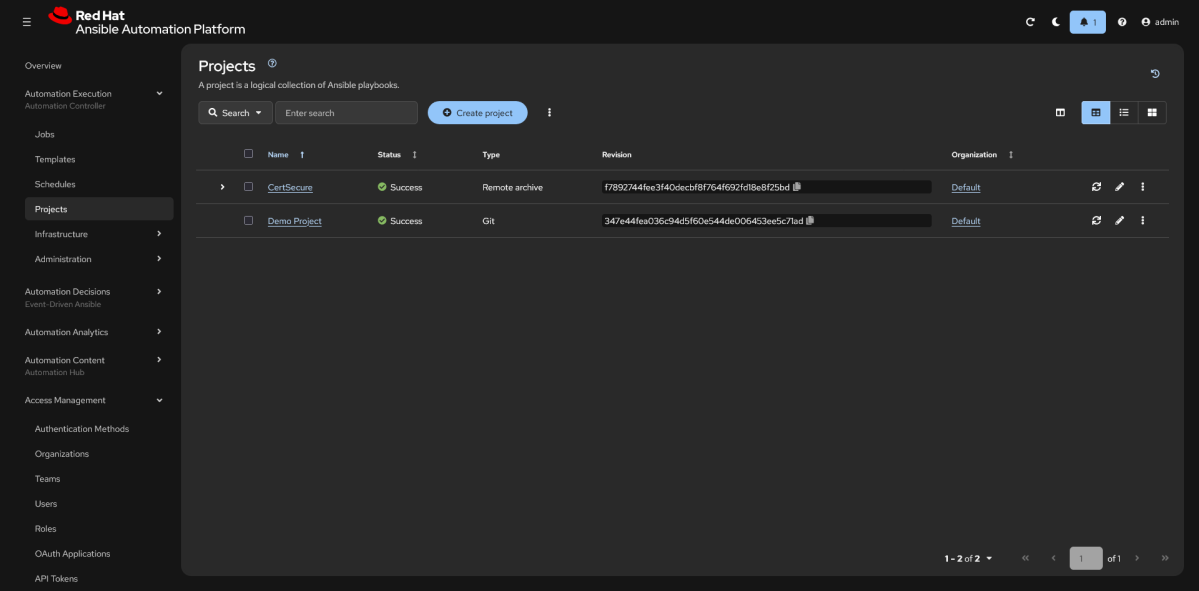
Figure 19. AAP: Projects list, showing the auto-created CertSecure project.
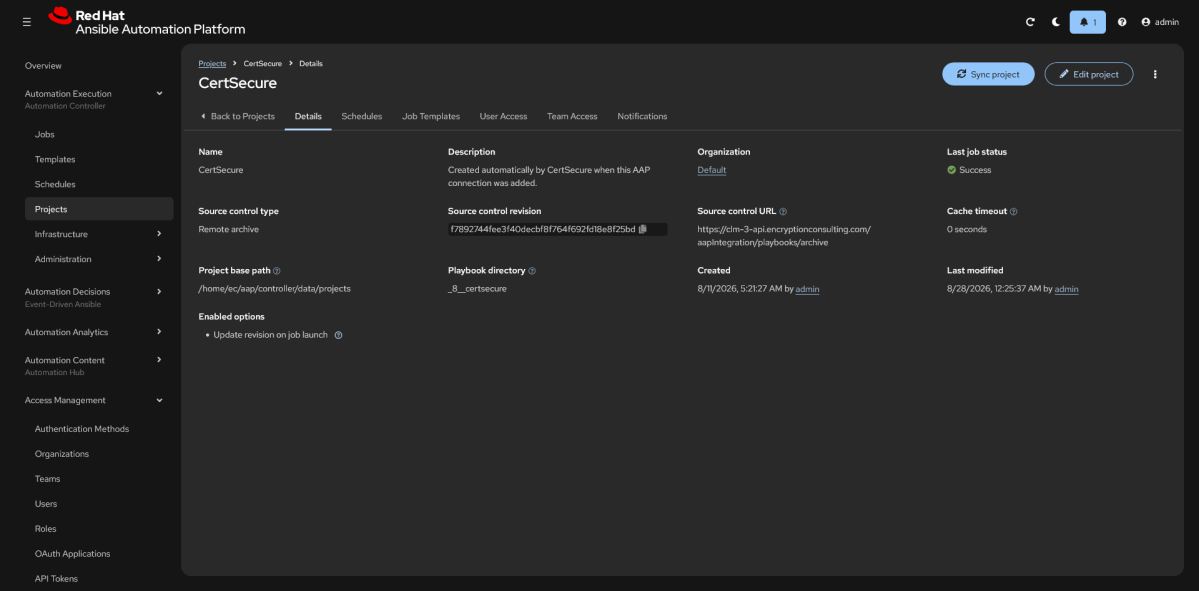
Figure 20. AAP CertSecure project details: Remote archive source pointed at CertSecure's playbook archive endpoint.
The Inventories tab lists every AAP inventory reachable through this connection. Inventories and hosts are read live from the AAP instance; CertSecure does not cache them, so this always reflects the current state in AAP.
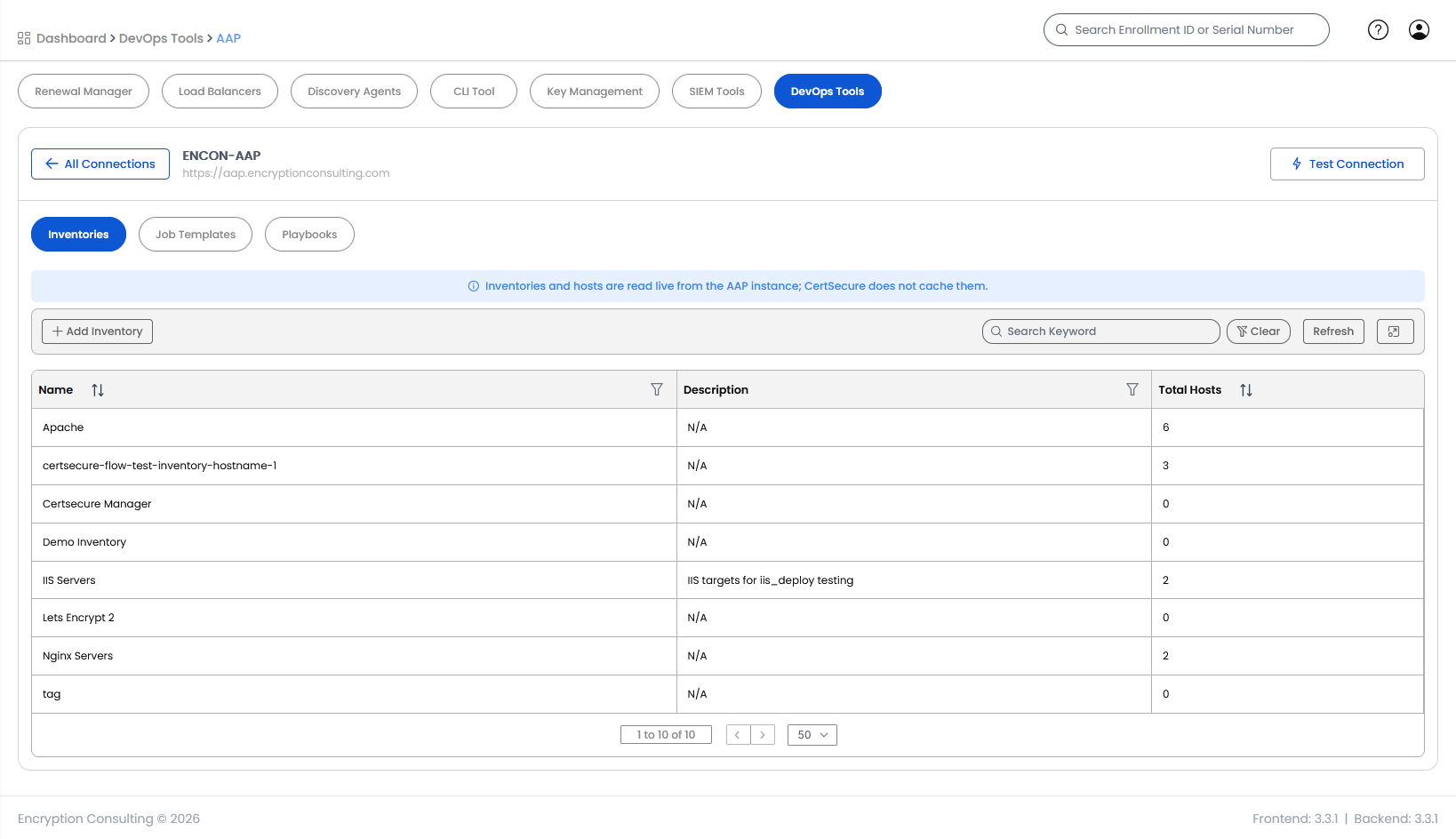
Figure 21. Inventories tab: inventories read live from AAP.
Click Add Inventory to create a new one directly on the AAP instance.
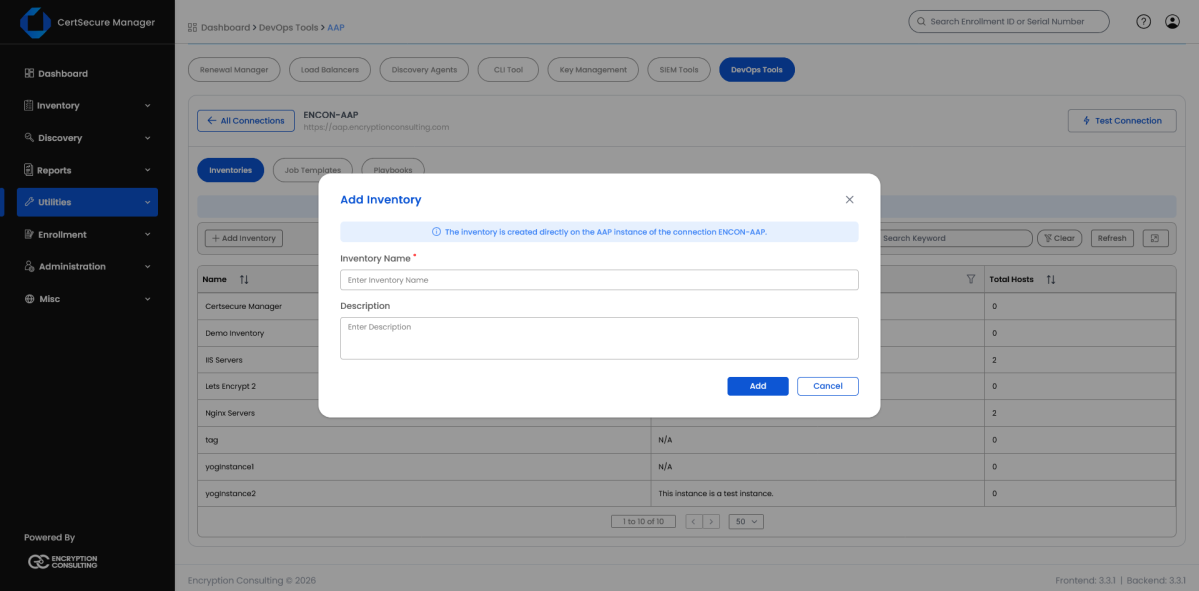
Figure 22. Add Inventory dialog: the inventory is created directly on the AAP instance of this connection.
Click into an inventory to view (and add) its hosts.
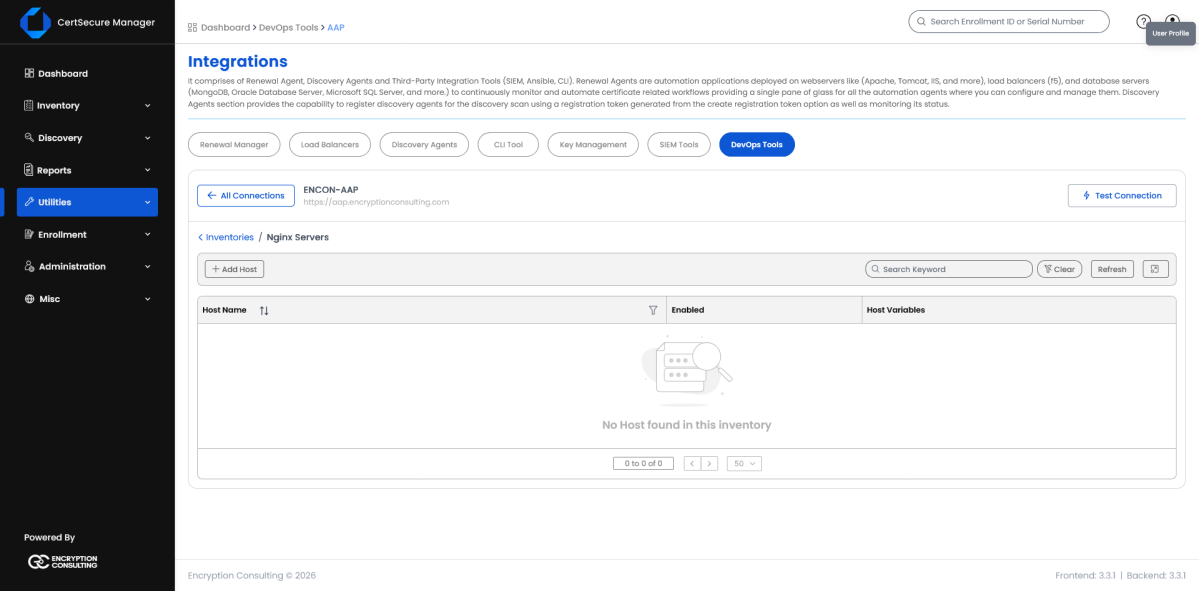
Figure 23. An inventory's Hosts view, with Add Host available.
The Playbooks tab lists every playbook path shipped in the encryptionconsulting.certsecure collection (the ACME task library under _acme_lib, plus per-platform deploy roles such as apache_deploy, iis_deploy, and custom_deploy) together with which tier is currently serving its content: Shipped Baseline (the file as released) or Saved Edit (an override saved through CertSecure). Playbooks are referenced everywhere in CertSecure by their alias, never by the raw on-disk path shown alongside it; that path is for reference only.
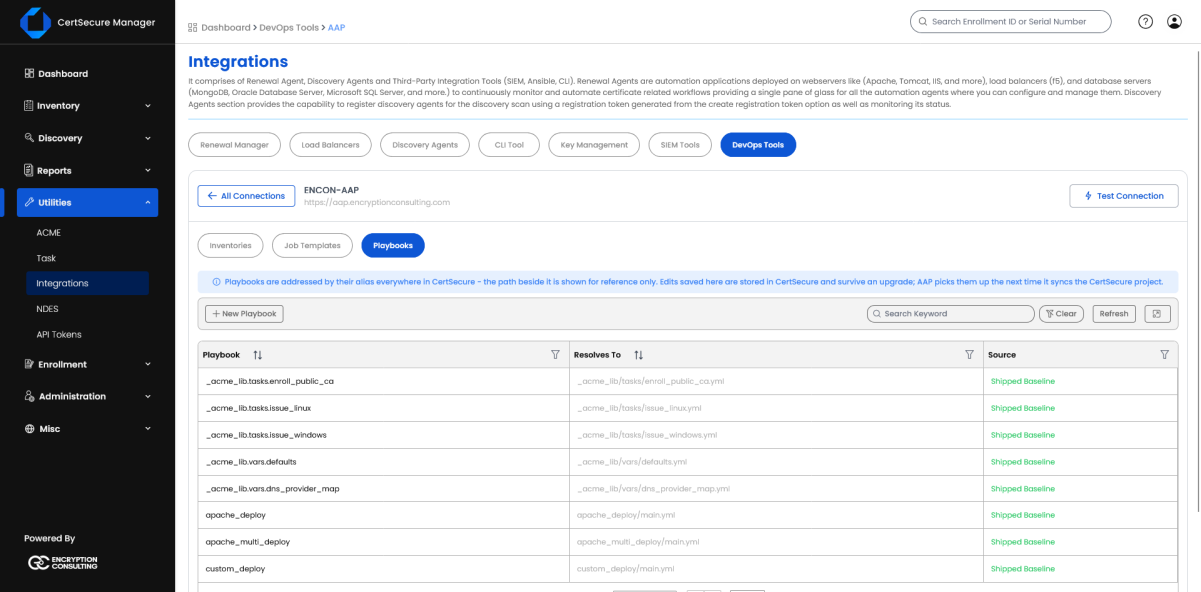
Figure 24. Playbooks tab: shipped playbooks and any saved overrides.
Click New Playbook to add a custom playbook of your own: give it a Playbook Alias and paste its Playbook Content, then Save. A custom playbook with no shipped-baseline counterpart is still included in the collection AAP syncs.
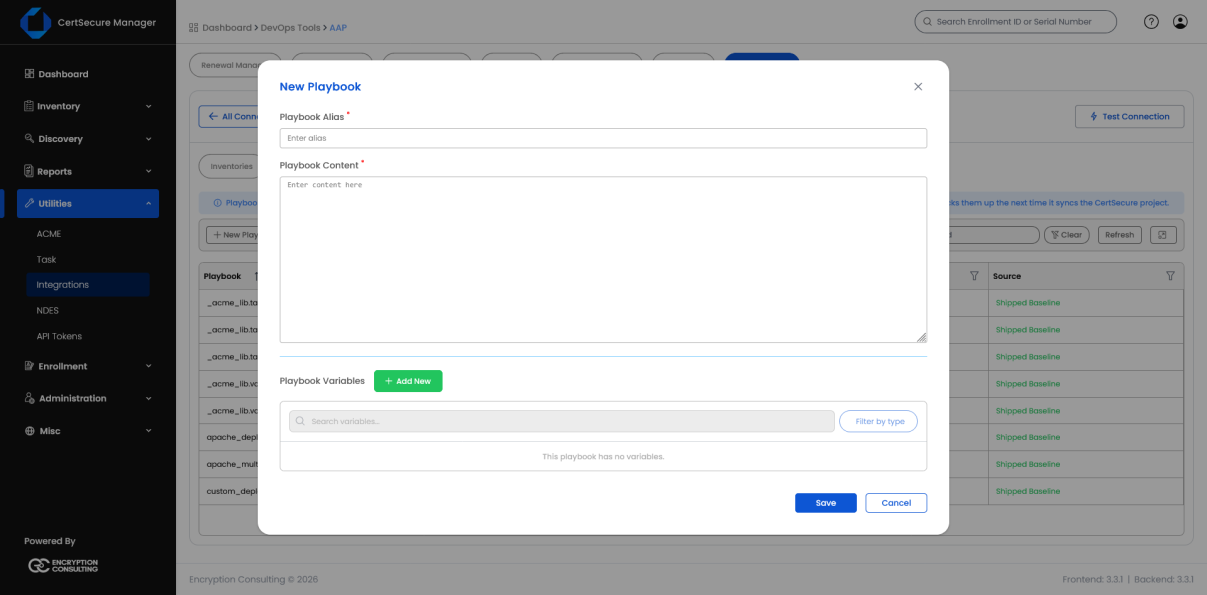
Figure 25. New Playbook dialog: adding a custom playbook by alias and content.
To edit an existing playbook in place, use the Edit Playbook action in its row.
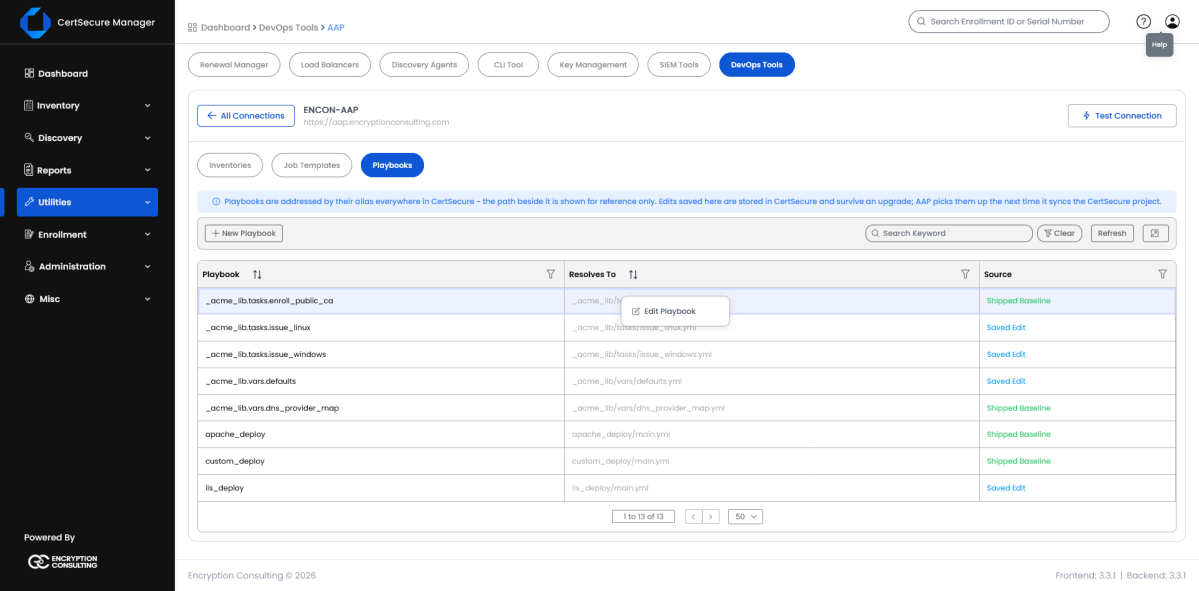
Figure 26. Playbooks tab: Edit Playbook row action.
Edits saved here are stored in CertSecure (they survive a CertSecure upgrade) and are picked up by AAP the next time it syncs the CertSecure project; no backend redeploy is required to change a playbook.
From the connection's Job Templates tab, click Create Job Template. This creates the Job Template directly on the AAP side and registers it with CertSecure in one action; templates created this way are onboarded automatically.
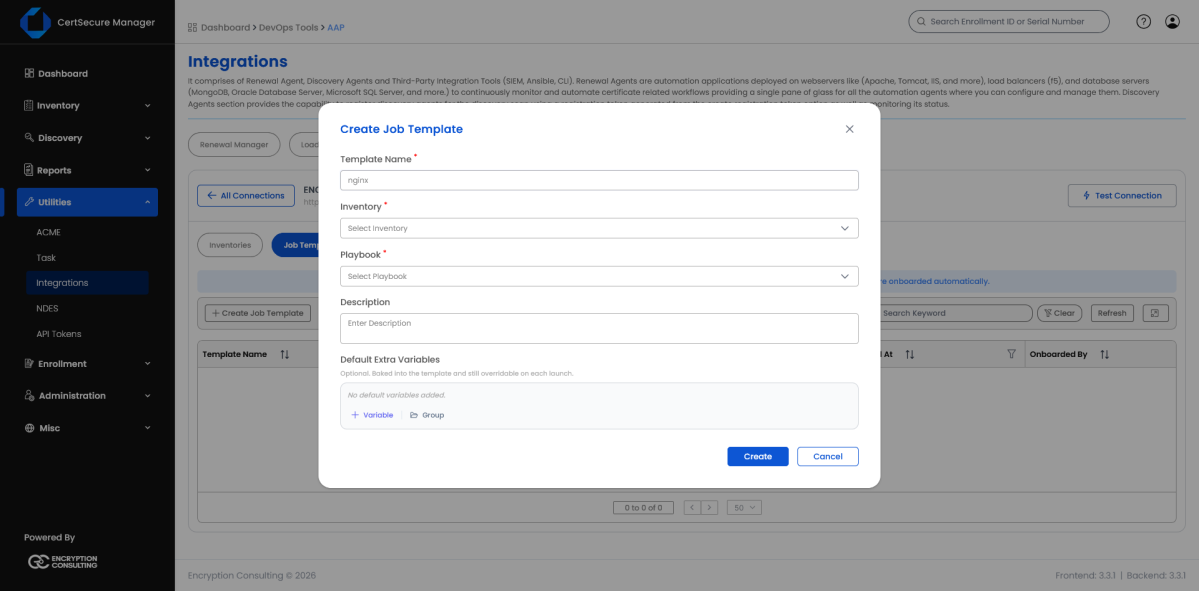
Figure 27. Create Job Template: blank form.
| Field | Purpose |
|---|---|
| Template Name | Name of the Job Template as it will appear in AAP and CertSecure (e.g. nginx). |
| Inventory | Which AAP Inventory of target hosts this template runs against (e.g. Nginx Servers). |
| Playbook | Which collection playbook to run (e.g. nginx_deploy). |
| Description | Free text, shown in the Job Templates list. |
| Default Extra Variables | Variables baked into the template and pre-filled at launch time, still overridable per launch. CertSecure derives the required variable set from the playbook's own argument_spec.yml; for nginx_deploy this surfaces a required common_name field. |
Fill in the Template Name, select the Inventory and Playbook, add a Description, and set any Default Extra Variables (here, common_name = localhost). Click Create.
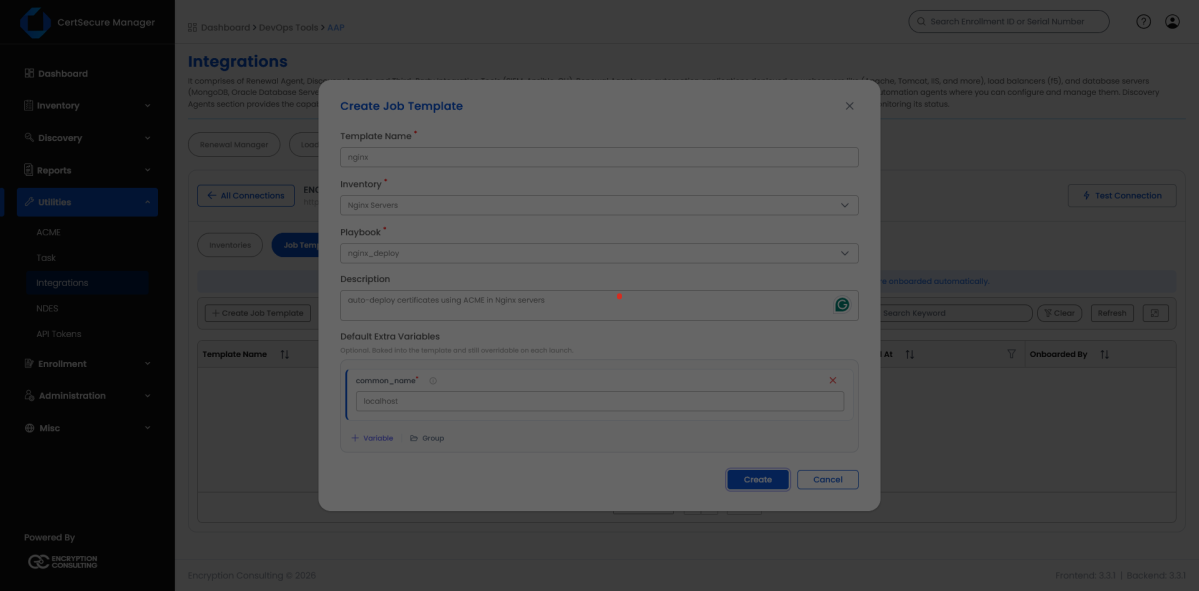
Figure 28. Create Job Template: filled in for the nginx_deploy playbook against the Nginx Servers inventory.
After clicking Create, the template appears in the Job Templates list, already onboarded; CertSecure records its AAP Template ID and when, and by whom, it was onboarded.
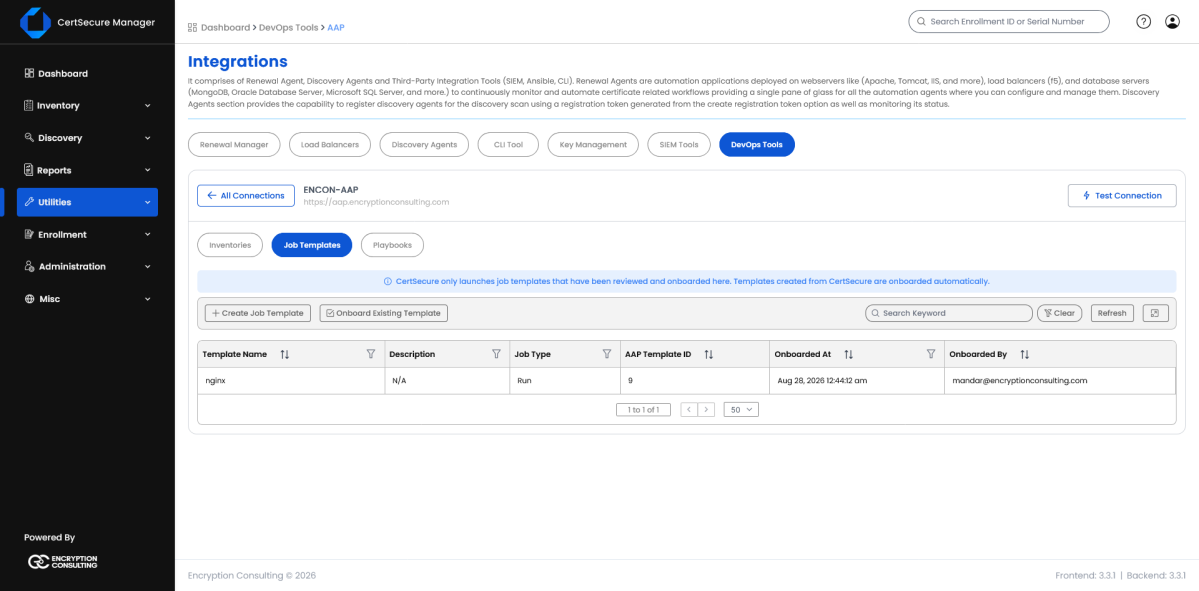
Figure 29. Job Templates list: nginx, onboarded automatically at creation.
If a Job Template already exists directly in AAP (created by a platform engineer outside CertSecure), it will not appear in CertSecure's Job Templates list until it is onboarded; CertSecure only launches templates that have been reviewed and onboarded this way. Click Onboard Existing Template to see every Job Template AAP knows about that CertSecure has not yet onboarded, then click Onboard next to the one you want to bring in.
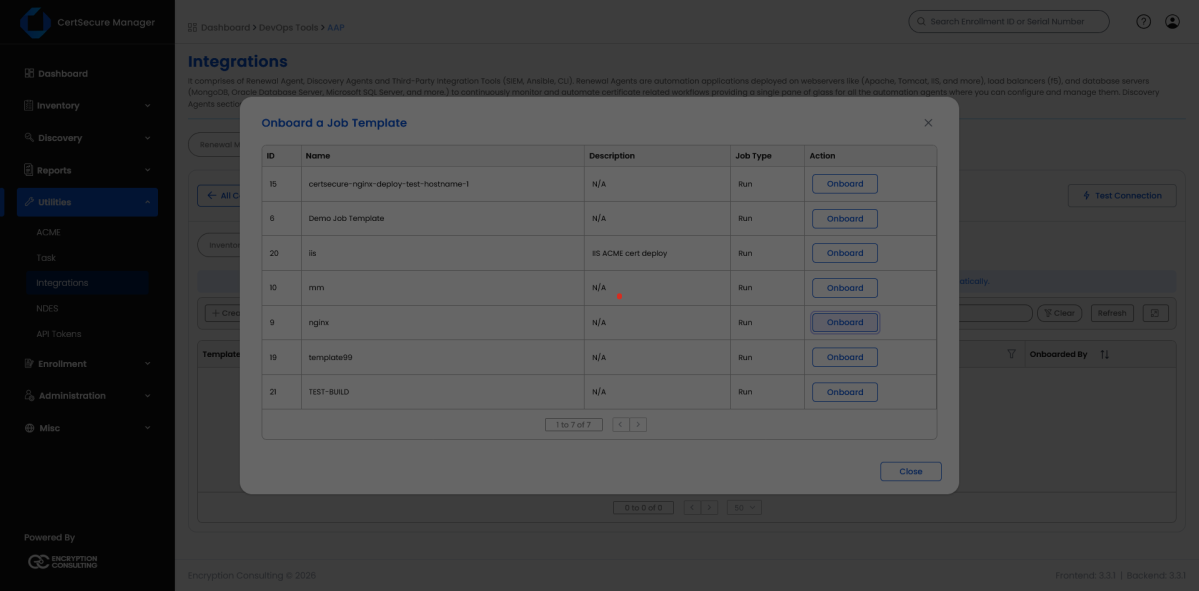
Figure 30. Onboard a Job Template: picking up a template created directly in AAP.
Once onboarded, the same picker shows the template as Onboarded instead of offering the action again.
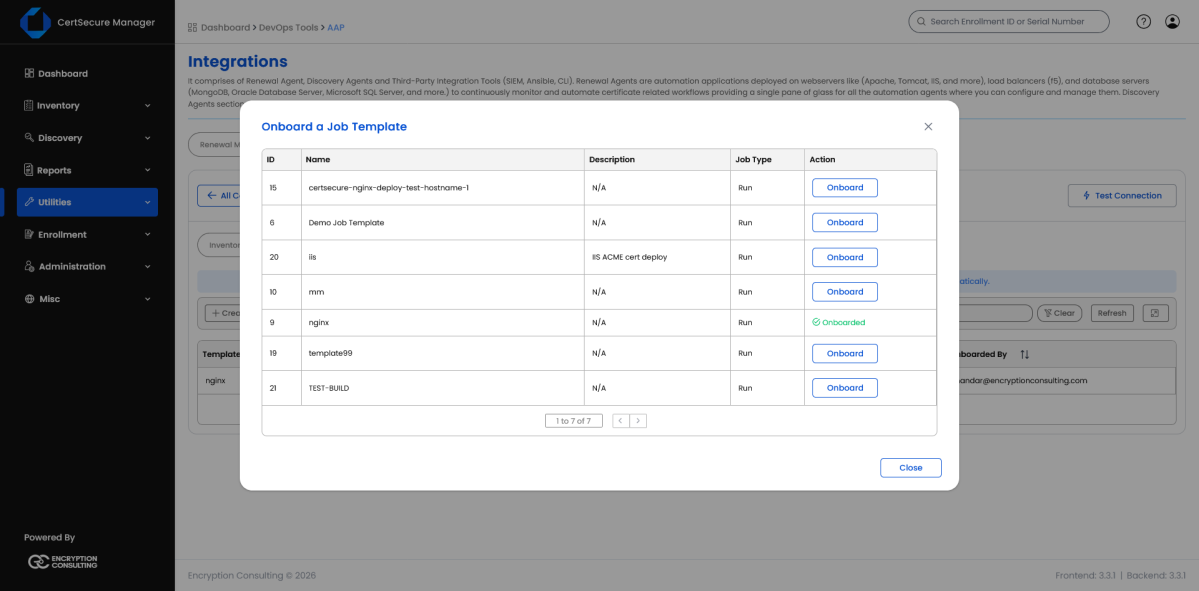
Figure 31. Onboard a Job Template: nginx now shows as Onboarded.
From the Job Templates list, open the template you want to run to bring up its Launch dialog. CertSecure pre-fills the Playbook (read-only) and any Default Extra Variables, and prompts for whatever the playbook's variable contract still requires:
| Field | Purpose |
|---|---|
| common_name | The certificate's common name / subject the ACME order will be issued for. |
| certsecure_eab_kid | The EAB Key ID from the ACME Profile created in Step 1. Masked input. |
| certsecure_eab_hmac | The EAB HMAC key from the same ACME Profile. Masked input. |
| acme_account_email | Contact email registered with the ACME account. Must be a real domain. CertSecure's own ACME server rejects non-routable placeholders like "automation@localhost". |
| Limit | The target host (or Ansible host-pattern limit) within the template's Inventory that this launch should run against, e.g. an IP address or hostname. |
Extra Variables can also be extended ad hoc with Add Variable / Group if a specific launch needs something beyond the template's defaults. Fill in the required fields and the Limit, then click Launch.
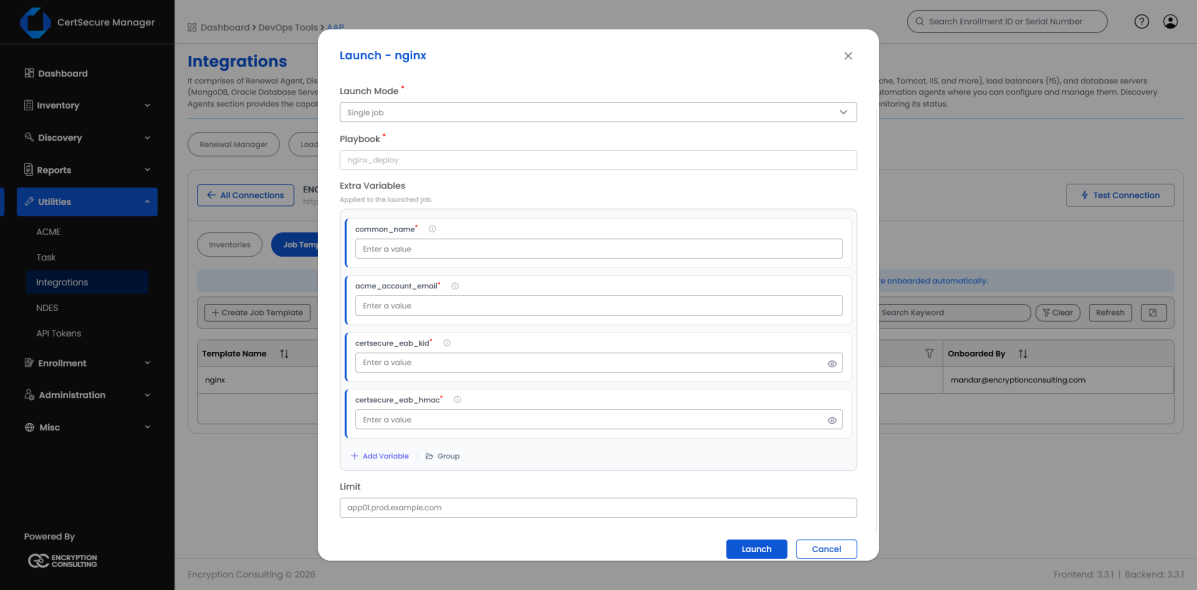
Figure 32. Launch dialog for the nginx template.
The Launch dialog opens with Launch Mode set to Single job, which runs the template once against the target named in Limit. To run the template against several hosts in one action, set Launch Mode to One job per host (batch).
In batch mode the Limit field is replaced by a list of hosts:
A batch appears on the Tasks screen as one parent task, named
Automation batch: <template name> on <connection name> (<number> hosts),
with a child task for each host. All the jobs in the batch share one batch identifier.
A job template does not have to be launched by hand every time. Open the template and go to its Schedules tab, then click Add Schedule.
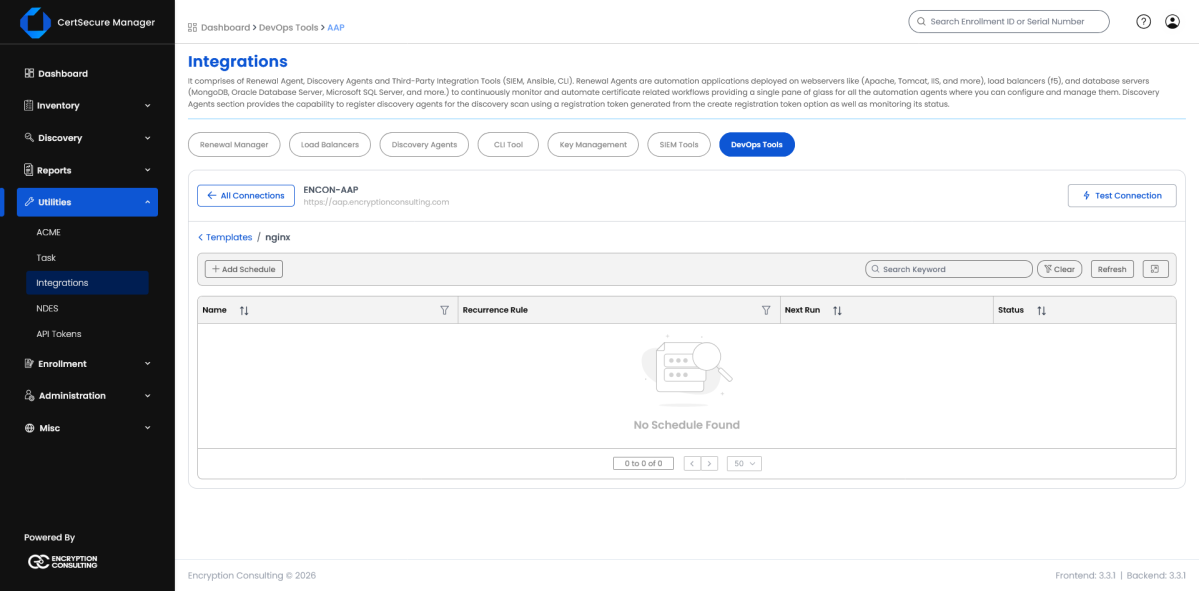
Figure 33. A job template's Schedules tab, before any schedule exists.
Give the schedule a name and choose a Schedule Mode (Simple, used here), a Frequency (Hourly, Daily, …) and Interval, a Start Date and Time, and a Timezone. Below that, the same Extra Variables the template needs at launch (common_name, certsecure_eab_kid, certsecure_eab_hmac, acme_account_email) must be filled in here too, since a scheduled run has no one present to supply them interactively.
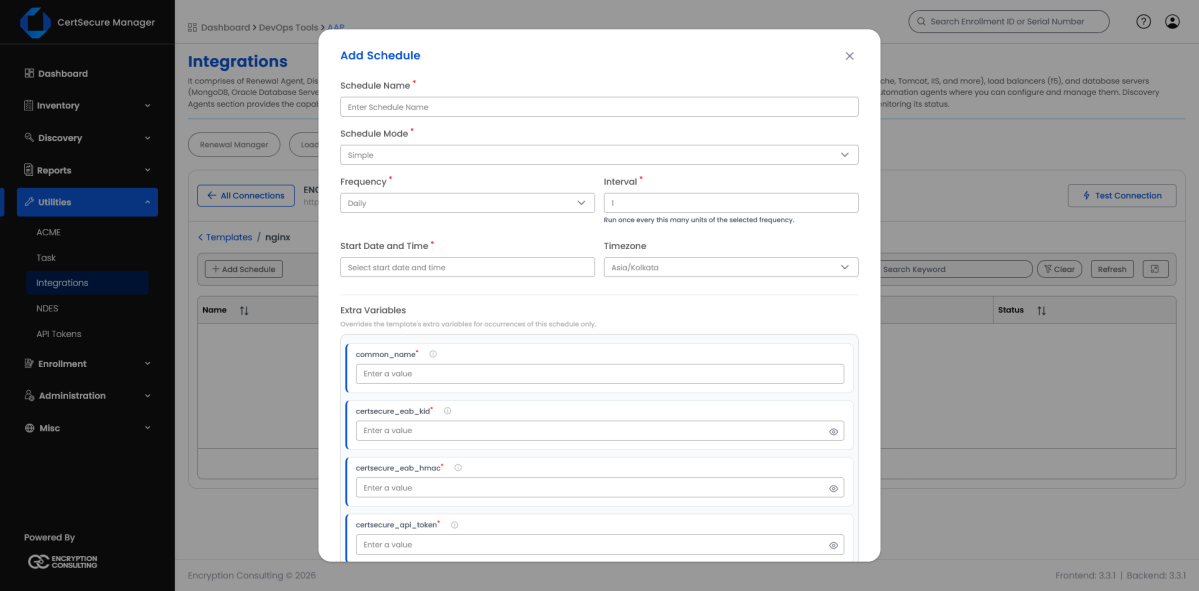
Figure 34. Add Schedule: name, mode, frequency, and the start date/time picker.
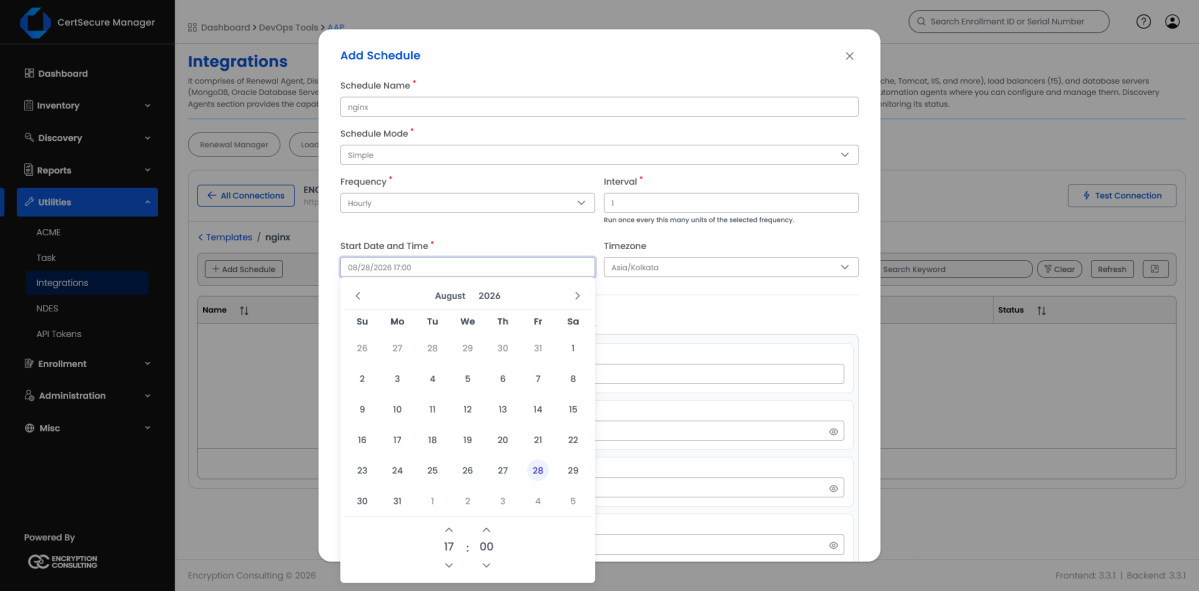
Figure 35. Add Schedule: picking the start date and time; frequency set to Hourly.
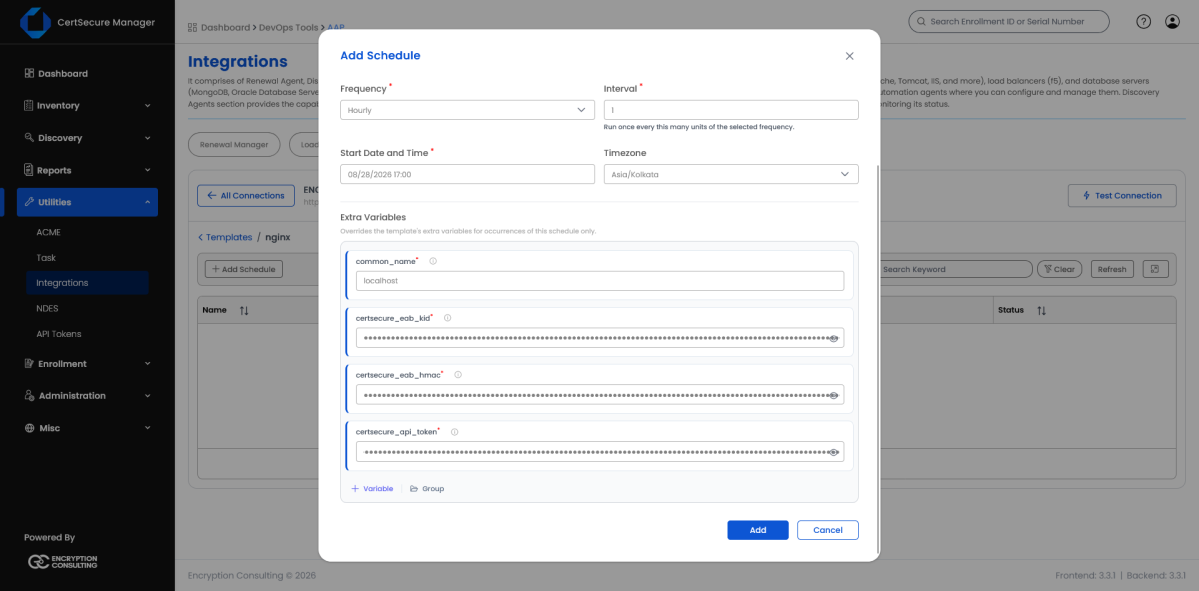
Figure 36. Add Schedule: Extra Variables filled in (secrets masked), ready to Add.
Once added, the schedule appears in the list with its recurrence rule (in standard iCalendar RRULE form), its computed Next Run, and a Status of Enabled.
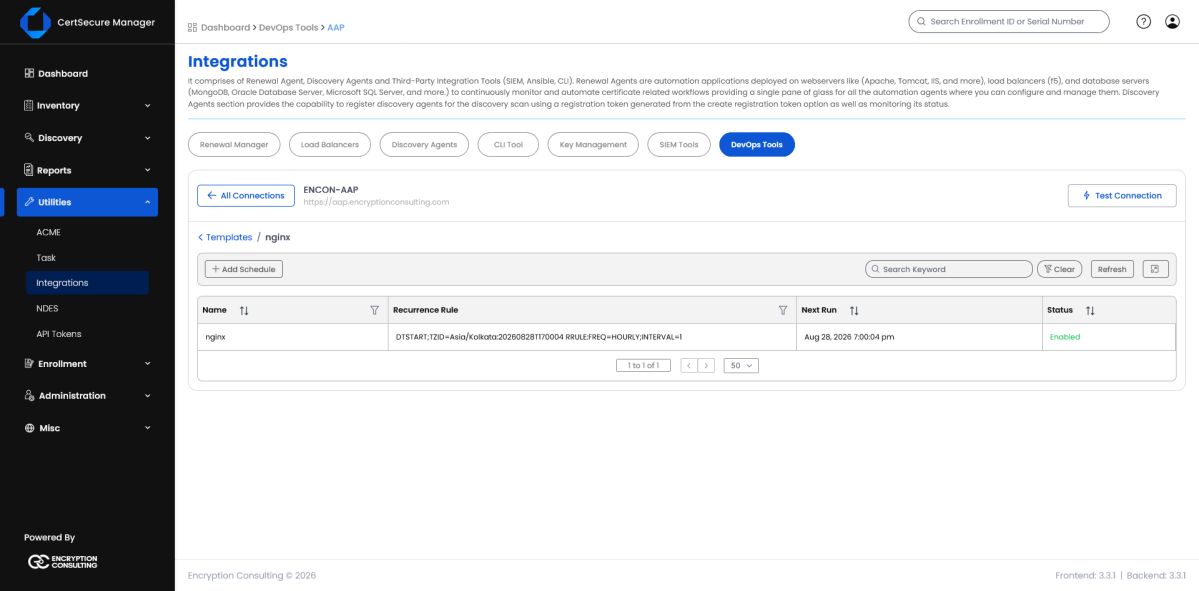
Figure 37. Schedules list: an hourly nginx schedule, Enabled, with its next run time.
Launching a job creates a CertSecure Task and hands the AAP job ID to it. Go to Utilities › Task to watch it progress: the task's Info column shows Processing while the AAP job runs, and its Details column names the underlying AAP job (e.g. “AAP job 232 is running”). Use Refresh to pick up the latest status until the task reaches a terminal state (e.g. Ok / Certificate Issued).
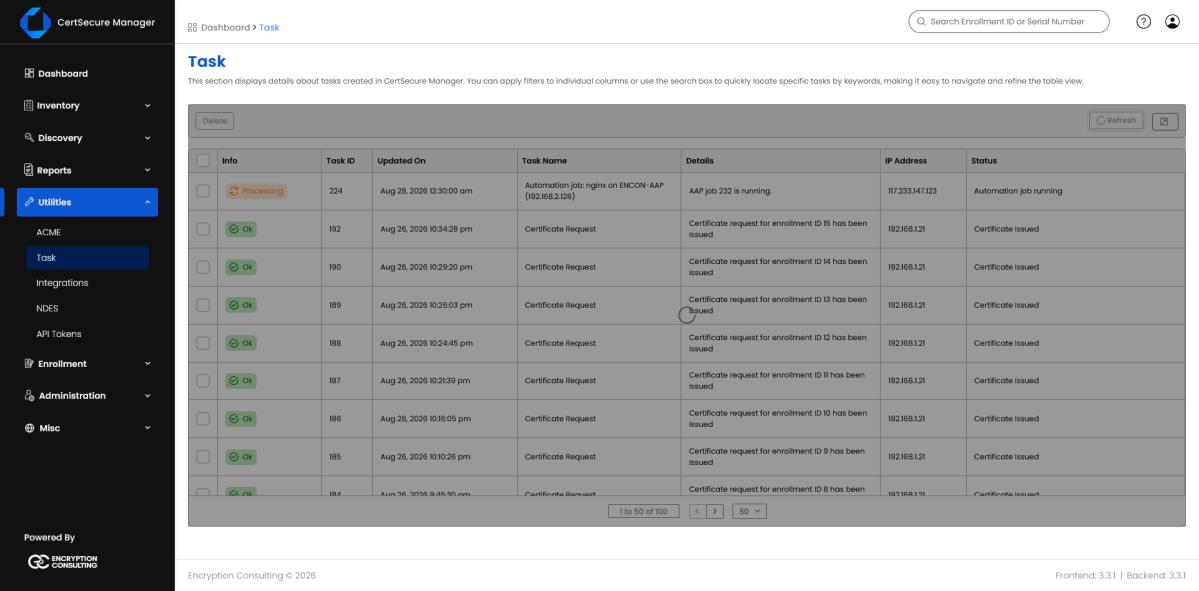
Figure 38. Task list: an AAP automation job in progress alongside regular certificate-request tasks.
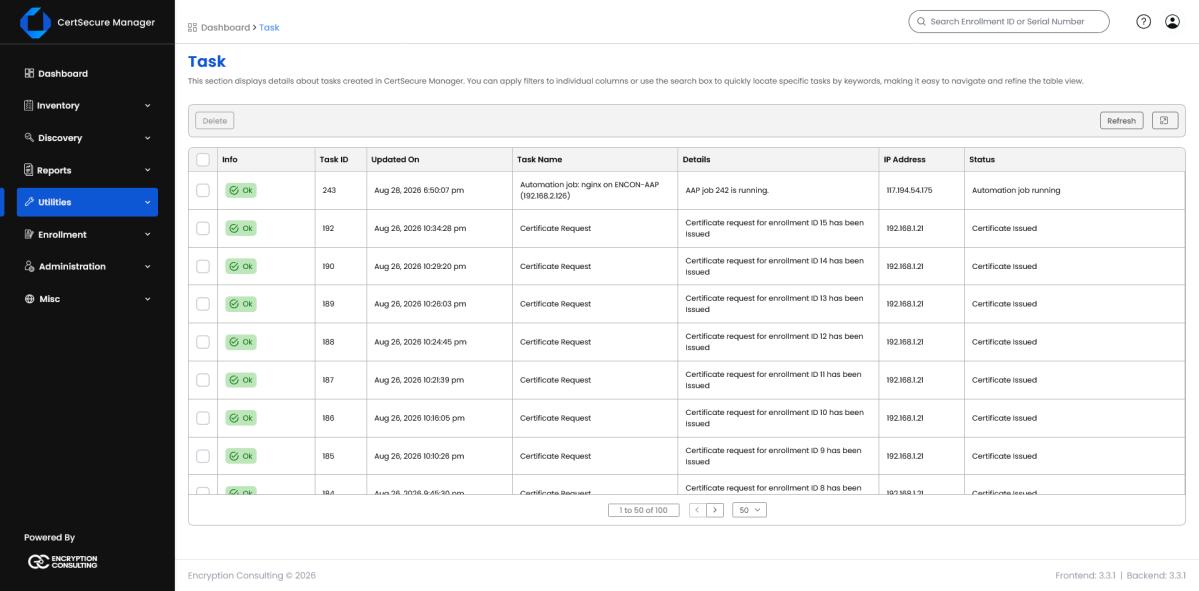
Figure 39. Task list: a later nginx automation run, referencing AAP job 242.
The AAP job id named in the task's Details (here, 242) can be looked up directly in AAP, under Automation Execution › Jobs, for the full run history (status, duration, and start/finish times), including the Source control update jobs AAP runs against the CertSecure project before each launch.
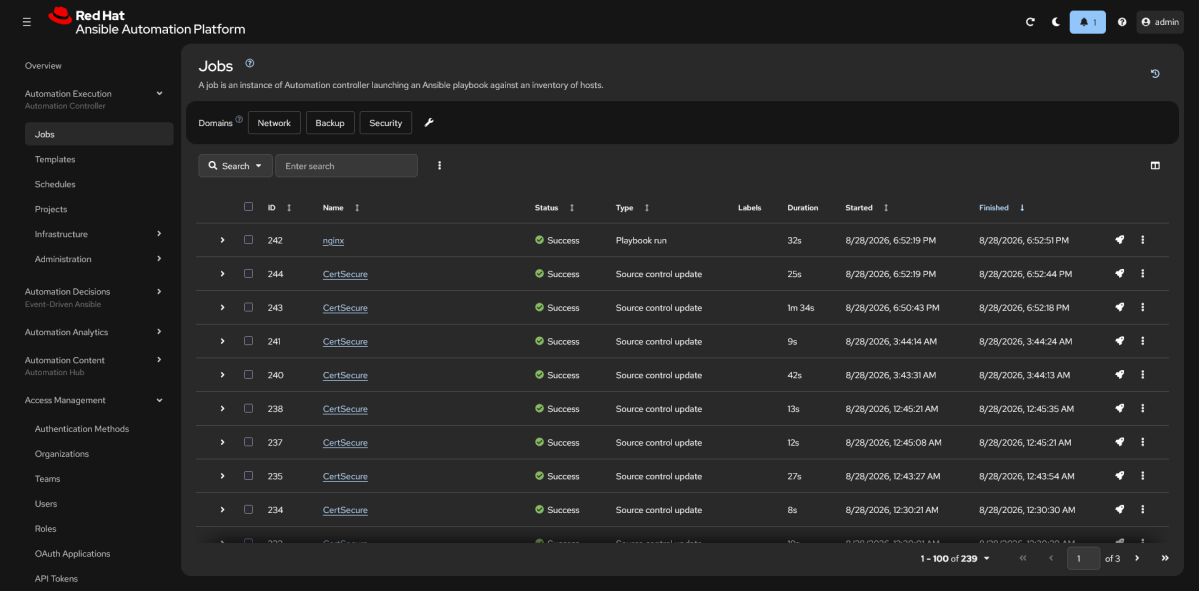
Figure 40. AAP Jobs list: the nginx playbook run (job 242, Success) alongside the project's automatic Source control update syncs.
The single most useful distinction when something goes wrong is whether the failure happened before AAP ever ran anything, or during the AAP job itself:
Connection & Credential Failures
These surface on Add Connection / Test Connection, as the exact message CertSecure received while probing AAP. A failed test is never saved as a connection.
| Message you'll see | Likely cause | What to do |
|---|---|---|
| “Couldn't reach the AAP instance. Check the URL, network path, and TLS trust settings.” | DNS failure, connection refused, network path blocked, or a TLS handshake failure (including a self-signed certificate rejected under System Trust Store). | Confirm the Base URL and that CertSecure can reach it over HTTPS; if AAP's certificate isn't publicly trusted, switch TLS Verification to a custom CA bundle rather than Insecure. |
| “AAP rejected these credentials.” | The Personal Access Token (or OAuth2 client) is wrong, expired, or revoked in AAP. | Generate a fresh Personal Access Token in AAP (Access Management › API Tokens) and re-enter it. See Generate an AAP Personal Access Token, above. |
| “Organization {id} does not exist on this AAP instance.” | The Organization ID doesn't match any organization's primary key in AAP. | Look up the organization's actual id in AAP (Access Management › Organizations) and correct the connection's Organization ID. |
| “tlsVerifyMode is 'custom_bundle' but no trust bundle is configured.” | TLS Verification is set to a custom CA bundle, but no bundle PEM was supplied. | Paste the CA bundle PEM into the connection, or switch back to System Trust Store if AAP's certificate is publicly trusted. |
| “The OAuth2 token endpoint (/api/o/token/) was not found on this AAP instance.” | AAP's split-gateway architecture (2.5+) doesn't expose that endpoint for this auth method. | Use Auth Method = Personal Access Token for this connection instead of an OAuth2 grant type. |
| Connection worked yesterday, now every call fails with an authentication error | The Personal Access Token expired or was revoked in AAP. CertSecure does not track PAT expiry or refresh it automatically. | Generate a new PAT in AAP and update the connection with it. |
Job Template, Playbook & Project Sync Failures
Adding a connection auto-creates a Project in AAP (see What CertSecure Creates in AAP, above) pointed at CertSecure's playbook archive. Creating a Job Template triggers a fresh sync of that Project first, specifically because AAP has been observed rejecting a template creation immediately after a playbook was edited, if the Project hadn't synced the new content yet.
| Message you'll see | Likely cause | What to do |
|---|---|---|
| “'{playbook}' is not a known playbook alias.” | The alias doesn't match anything CertSecure ships or has saved, usually a typo, or a custom playbook that was never saved via New Playbook. | Check Managing Playbooks for the exact alias spelling, or add the custom playbook first. |
| “The 'CertSecure' Project failed to sync (status=…)” or “Timed out … waiting for the 'CertSecure' Project to sync.” | AAP's execution environment couldn't reach CertSecure's playbook-archive endpoint (/aapIntegration/playbooks/archive), or the sync simply took longer than about a minute and a half. | In AAP, open the CertSecure project and check its own sync/job output for the underlying network or auth error, then retry creating the template. |
| “Job template id {id} was not found on this AAP connection.” | Onboarding an existing AAP template whose id has since been deleted or belongs to a different AAP organization. | Refresh Onboard Existing Template's list and pick the current entry; ids are AAP-assigned and not editable. |
| Template creation itself succeeds, but Launch later fails with a generic AAP rejection mentioning the playbook | The playbook was edited in CertSecure after the template was created, and AAP has not yet re-synced the project on its own schedule. | In AAP, manually Sync Project on the CertSecure project (or wait for its next scheduled sync), then retry the launch. |
Job Launch Failures (Rejected Before Running)
These come back as an immediate error on the Launch click itself: no Task is created and no AAP job id is ever assigned, because AAP never accepted the request.
| Symptom | Likely cause | What to do |
|---|---|---|
| “Job template '{name}' has not been onboarded for connection '{name}'.” | The template exists in AAP but was never brought into CertSecure. | Use Onboard Existing Template first. See Onboard an Existing AAP Job Template, above. |
| A generic connection/rejection error naming the job template, with no further detail | AAP itself rejected the launch, most often a required Extra Variable was left empty. CertSecure pre-fills the fields a playbook's argument_spec.yml declares as required, but it does not itself re-validate them before calling AAP, so a genuinely missing value is only caught by AAP's own response. | Re-open the Launch dialog and confirm every field marked with * is filled, especially common_name, certsecure_eab_kid, certsecure_eab_hmac, and acme_account_email. |
| Launch fails and the message matches one of the connection-level errors above | The connection itself became unreachable or its credential expired between when it was added and when you tried to launch. | Re-run Test Connection on the connection before retrying the launch. |
| “User is not authorized to …” (launch automation jobs, manage AAP connections, manage AAP inventories, manage AAP playbooks, …) | The signed-in user's role lacks the permission that covers that area. | Grant the matching permission to their role. See Step 2 (User Permissions Required) for which permission covers which screen. |
Diagnosing a Job That Failed on the AAP Side
Once a job has actually launched (the Task shows “Automation job running” and names an AAP job id), CertSecure stops being the useful place to diagnose a failure. It only ever asks AAP for that job's terminal status: successful, or failed/error/canceled, all three of which show identically in CertSecure as “Automation job failed.” It never retrieves the job's console output, so the actual reason has to be found in AAP itself:
Common root causes once you're looking at the actual Ansible output for this collection's playbooks:
| Where it fails | Typical cause |
|---|---|
| Connecting to the target host | SSH/WinRM credentials wrong or expired, the host is unreachable from the execution node, or the host isn't in the Inventory/Limit that was targeted. |
| The ACME issuance task | certsecure_eab_kid / certsecure_eab_hmac don't match a valid, still-active ACME Profile; or that profile has no Certificate Authority / Template associated (see Associate a Certificate Authority and Template, above); or the target host / execution node can't reach CertSecure's ACME endpoint over the network. |
| Deploying the certificate | The service account the playbook runs as lacks permission to write to the configured certificate path, or the path itself doesn't exist on that host. |
| Reloading/restarting the service | The playbook's reload command (e.g. an nginx/service reload) failed or the service wasn't installed under the expected name. |
Task Stuck in “Automation job running”
Three independent mechanisms keep a running Task's status current, so it should not stay stale for long: opening the Task re-checks AAP on demand; a background sweep re-checks every in-progress job roughly every 15 seconds regardless of anyone looking; and, if AAP's Notification Template is wired up (see Webhook Notifications, below), AAP pushes completion immediately. If a Task still shows Running well after you'd expect it to finish, the job is almost always still genuinely running (or stuck) in AAP, so check it there first before assuming CertSecure lost track of it.
Webhook Notifications
AAP's Notification Template can push job completion straight to CertSecure instead of waiting on the ~15-second background poll. This is optional (the poller is the safety net either way), but when configured, keep in mind:
Schedule Failures
| Symptom | Likely cause | What to do |
|---|---|---|
| Add Schedule rejects the request outright | The job template hasn't been onboarded yet, or neither an RRULE nor a Frequency + Start Date/Time pair was provided. | Onboard the template first (see Onboard an Existing AAP Job Template, above); make sure Frequency, Interval, and Start Date and Time are all filled when using Simple mode. |
| A schedule's Next Run passes with no corresponding Task appearing | The schedule fires entirely on the AAP side: AAP launches the job directly, so it behaves exactly like any other AAP-launched job for troubleshooting purposes (see Diagnosing a Job That Failed on the AAP Side, above), including the same Extra Variables validation. | Check Automation Execution › Jobs in AAP for the scheduled run directly, rather than the CertSecure Task list. |
Note: screenshots in this section are from a live test environment. Names, IDs, and IP addresses are illustrative only; substitute your own connection name, inventory, and target hosts throughout.