
- Overview
- Reference Guide
- Setup & Architecture
- Release Notes
- Workflow
- API Reference
- Integration Guide
- Discovery Agent Setup Guide
Configuration holds the organization-wide settings for the assistant: whether it is available at all, which model providers are connected and which of their models users may choose, and how long conversations are kept. The settings apply to every user in the organization. The screen is available to global administrators only.
It is divided into two tabs, Model and Chat History.
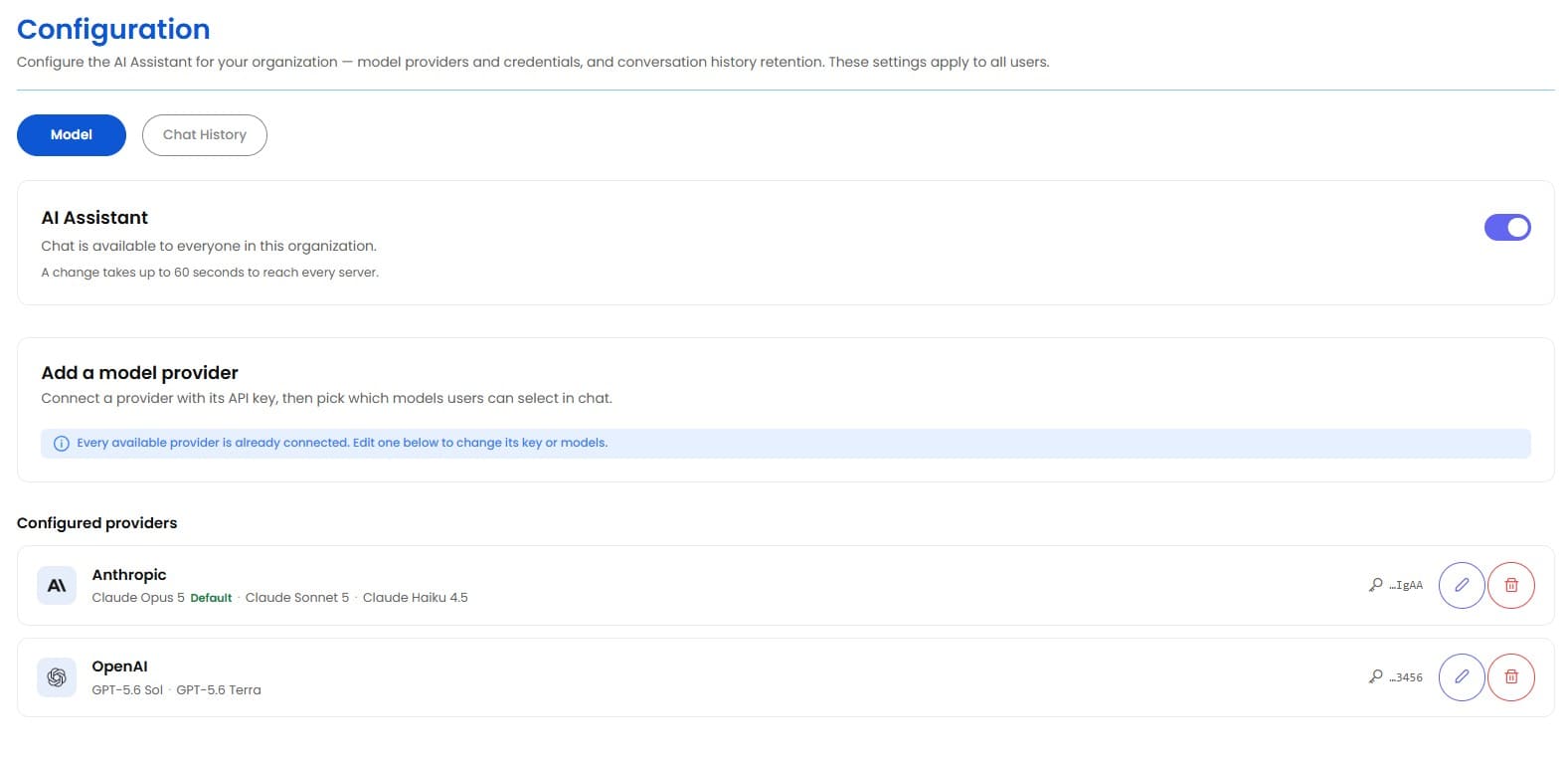
The Model tab answers the question “is the assistant set up?” — the on/off switch, the providers, their credentials, and the models users can pick in chat.
The switch at the top of the tab turns the assistant on or off for everyone in the organization. It saves as soon as it is moved; there is no separate Save step.
Note: A change takes up to 60 seconds to reach every server. The assistant may keep answering for that period after being turned off. This is expected and is stated on screen beneath the switch.
A provider is connected by supplying its API key and choosing which of its models users may select in chat.
| Field | Required | Description |
|---|---|---|
| Provider | Yes | The model provider to connect. Only providers this server supports are listed, and a provider already connected is not offered a second time. |
| API key | Yes | The provider's API key. It is stored on the server and never displayed again — only the last few characters are shown afterwards. When editing an existing provider, leaving this blank keeps the stored key. |
| Models | Yes | Tick each model users may select in chat. At least one is required. |
| Default | — | Select the model new chats open with. Choosing a default also enables that model; clearing a model that was the default also clears the default. |
The actions on the card are:
| Action | Description |
|---|---|
| Save provider / Save changes | Stores the provider, its key and its enabled models. |
| Test connection | Checks the key against the provider before saving, and reports the result on the card. When editing, an empty key field tests the key already stored. |
| Cancel | Abandons an edit and leaves the stored provider unchanged. |
Note: There is a single organization-wide default model. Setting a default here moves it away from whichever provider holds it now, and the card says so before the change is saved.
Note: When every supported provider has already been connected, the card reports “Every available provider is already connected” and offers no form. Use Edit on a provider below to change its key or its models.
Each connected provider is listed with:
Two actions are available on each provider:
| Action | Description |
|---|---|
| Edit | Reopens the provider in the card above, to replace its key or change which models are enabled. |
| Remove | Deletes the provider and its stored API key after a confirmation prompt. Its models disappear from the model selector in chat. |
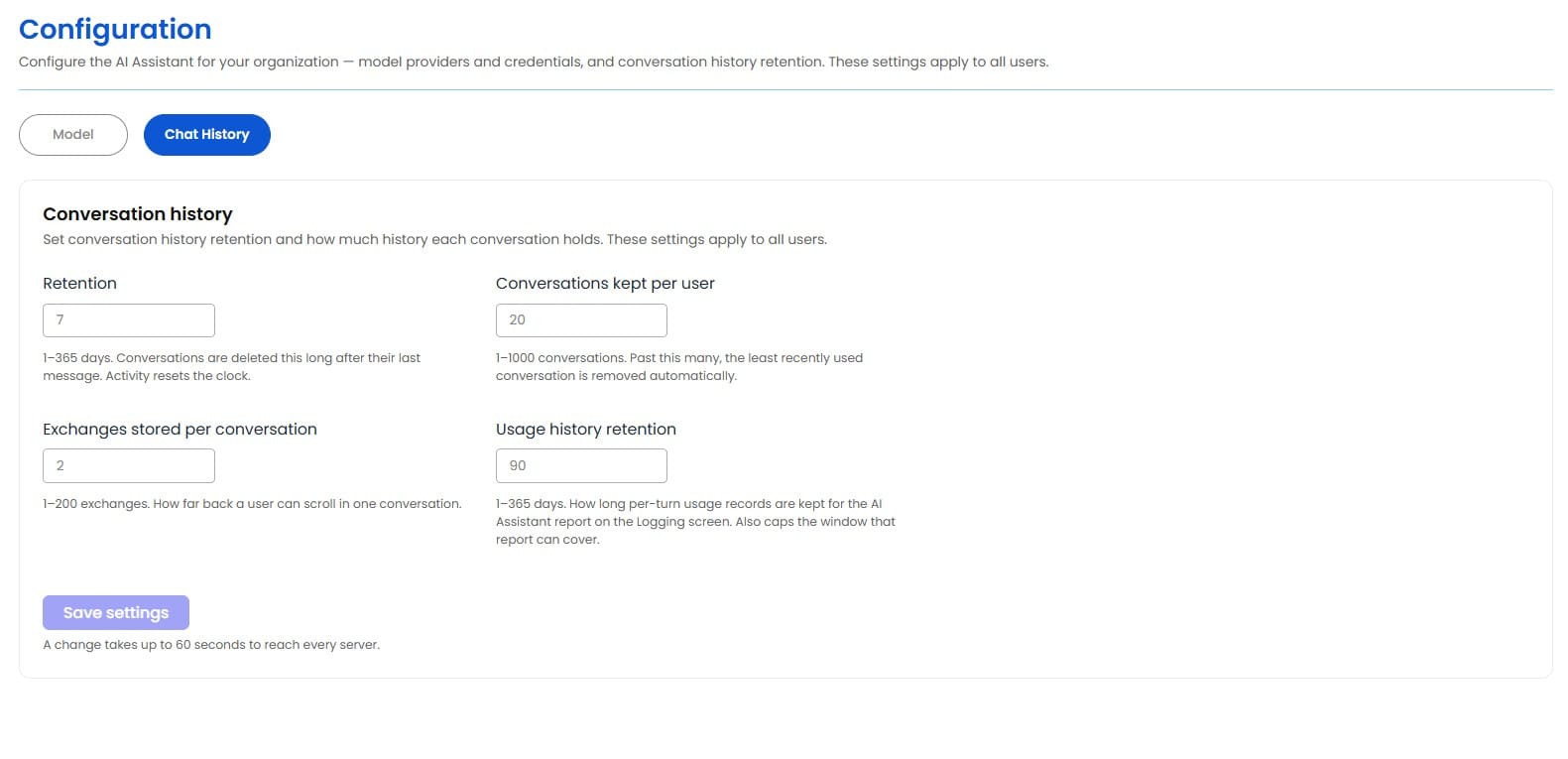
The Chat History tab sets how long conversations live and how much each one holds. The settings apply to all users.
| Field | Range | Description |
|---|---|---|
| Retention | 1–365 days | Conversations are deleted this long after their last message. Activity resets the clock. |
| Conversations kept per user | 1–1000 | Past this many, the least recently used conversation is removed automatically. |
| Exchanges stored per conversation | 1–200 | How far back a user can scroll in one conversation. |
| Usage history retention | 1–365 days | How long per-turn usage records are kept for the AI Assistant report on the Logging screen. It also caps the window that report can cover. |
Select Save settings to apply the changes. The button stays unavailable until something has been changed, and only the changed values are sent.
Note: A change takes up to 60 seconds to reach every server, so a value re-checked immediately may still read as the old one.
Note: Retention and Usage history retention are two different clocks. The first expires whole conversations; the second expires the per-turn accounting records behind the usage report, and does not delete any conversation.
Note: Exchanges stored per conversation is how far a user can scroll back. It is not the same as how much of the conversation the assistant can still see — that window is smaller, and is marked in the conversation by the “The assistant can still see from here” divider.