
- Overview
- Reference Guide
- Setup & Architecture
- Release Notes
- Workflow
- API Reference
- Integration Guide
- Discovery Agent Setup Guide
The Chat screen is split into the Chats list on the left and the conversation itself on the right, with the message box along the bottom. Every figure in an answer is read from live CertSecure data at the moment the question is asked.
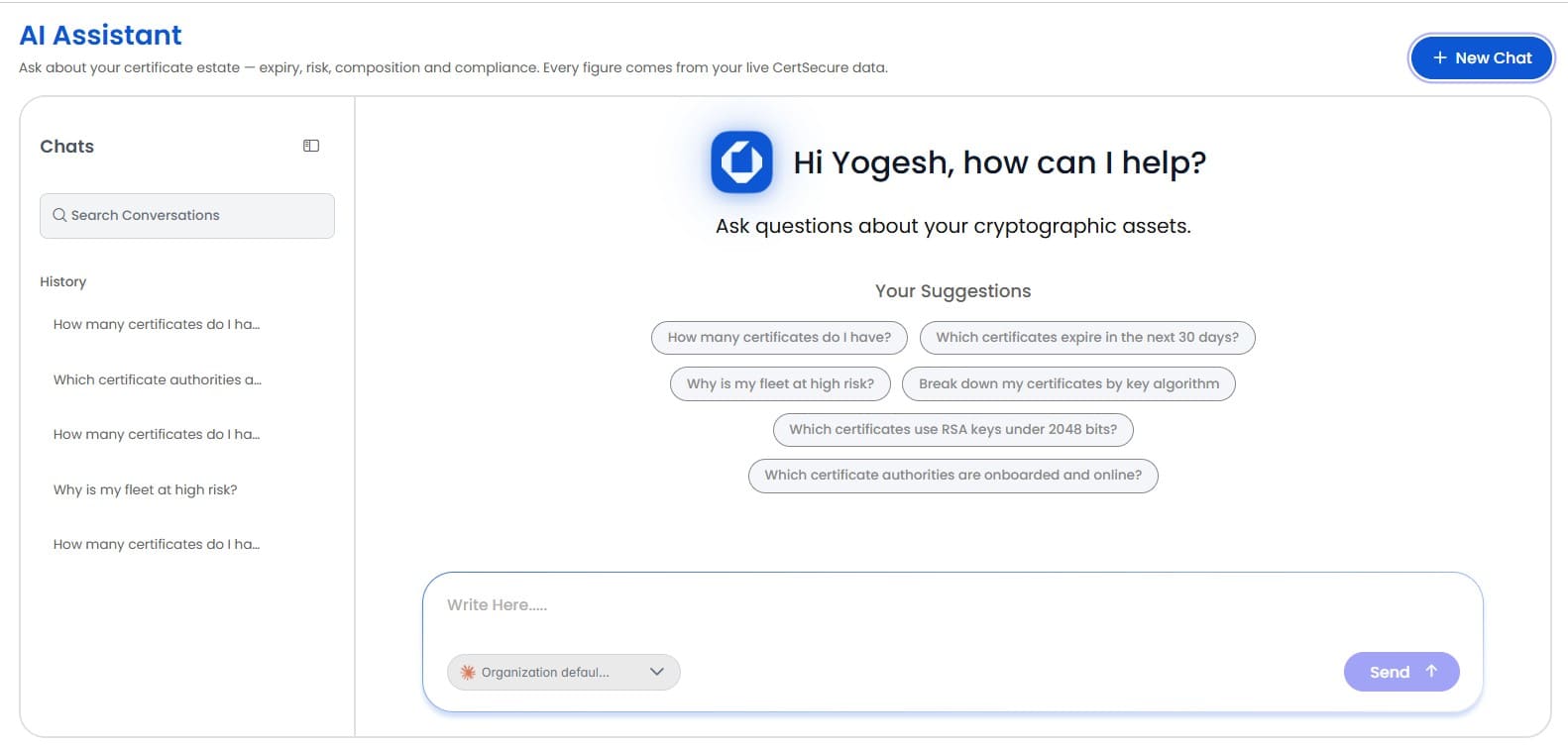
A new conversation opens on a greeting addressed to the signed-in user, a short line of guidance, and a set of suggested questions. Selecting a suggestion places it in the message box, where it can be sent as it stands or edited first.
The suggestions offered are:
New Chat, at the top right of the screen, abandons the conversation on screen and starts a fresh one. Nothing is deleted — the previous conversation stays in the Chats list.
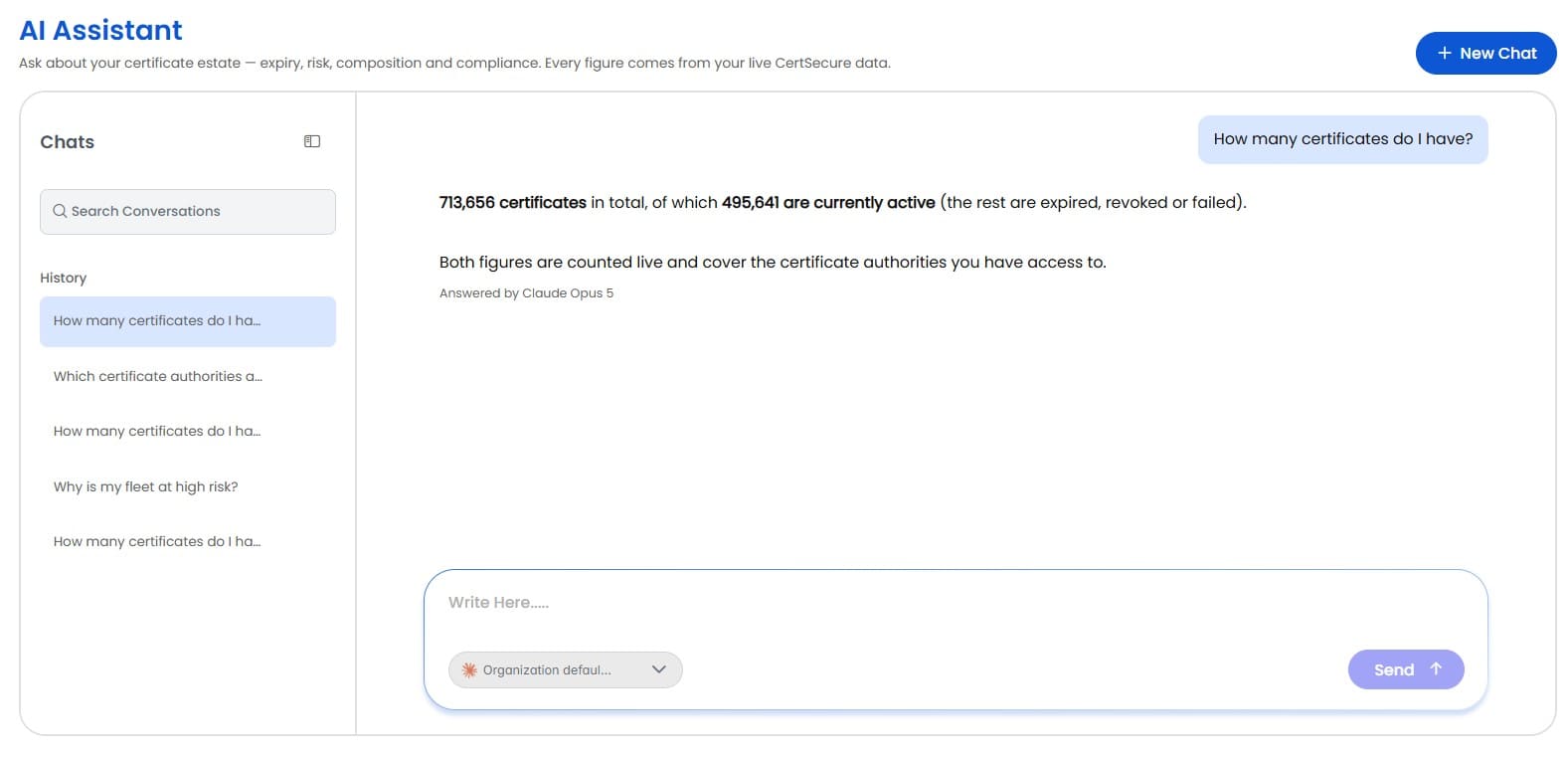
Type the question in the message box and select Send. The controls around the message box are:
| Control | Description |
|---|---|
| Message box | Accepts up to 4,000 characters. Enter sends the message; Shift+Enter starts a new line. A counter appears once fewer than 200 characters remain. |
| Model selector | Chooses which model answers the next message. See Choosing a model below. |
| Send | Submits the question. Disabled while the box is empty and while an answer is being generated. |
| Stop | Replaces Send while an answer is being generated, and asks the server to end the turn. |
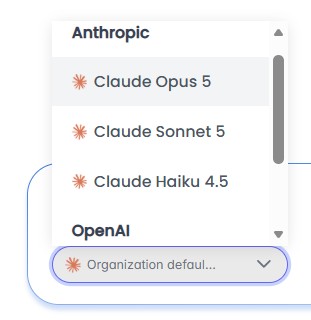
The selector beside the message box lists the models an administrator has enabled, grouped by provider. It affects the next message only; a model chosen part-way through a conversation does not change answers already given.
Note: One conversation can hold answers from several different models. Each answer is labelled underneath with the model that produced it. Answers given before per-message model selection was introduced carry no label.
Note: If no administrator has connected a provider yet, the selector is replaced by a plain label naming the model in use. Questions can still be asked — they are answered by the organization default.
Answering takes between a few seconds and about a minute, depending on how much data the question needs. While the turn runs, the conversation shows an animated indicator and the line “Working on it — this can take up to a minute.”
Selecting Stop asks the server to end the turn. The button changes to “Stopping…” and the conversation shows “Stopped.” once it has ended.
Note: Stopping is cooperative: the turn ends at its next checkpoint, normally within a couple of seconds. A turn that finishes in the moment between Stop being selected and the request being read will deliver its answer as usual.
Note: A stopped turn is not written to chat history — neither the question nor any partial answer is stored.
Answers are formatted text: headings, lists, and tables where several certificates are being listed. Wide tables scroll horizontally within the answer.
Some answers carry a short note underneath. These are statements of fact about how the answer was produced, and are worth reading:
| Notice | What it means |
|---|---|
| Answered from general knowledge — no certificate data was queried. | The assistant did not read any CertSecure data to answer. That is correct for a general question such as “Is SHA-1 still compliant?”, and worth questioning for anything about your own estate. |
| The assistant declined to answer this one. | The question was outside what the assistant will answer. |
| This answer is partial — the assistant hit its step limit. | The question needed more data-gathering steps than one turn allows. Narrowing the question usually completes it. |
| This answer came back past its deadline and may be incomplete. | The turn overran its time budget. Treat the answer as provisional and ask again. |
| Earlier messages are no longer in context — the last N exchanges were used. | The conversation is longer than the model can see. Earlier messages are still stored and readable, but the assistant no longer takes them into account. |
| Answered by <model name> | Which model produced this particular answer. |
| This reply could not be saved to your chat history. | The answer arrived but was not stored, so it will not be there when the conversation is reopened. |
In a reopened conversation, a divider reading “The assistant can still see from here” marks where the model's visible window begins. Everything above the divider is kept and readable by the user, but is out of the assistant's view; the divider moves down as the conversation grows. How many exchanges are kept and how many are replayed are both set on the Chat History tab of the Configuration screen.
The Chats list on the left holds the user's stored conversations, most recently used first. Each user sees only their own.
| Action | Description |
|---|---|
| Search Conversations | Filters the list by conversation title. It searches the chats already loaded, so older conversations must be loaded before they can be found. |
| Select a conversation | Reopens it, with its stored messages. |
| Delete (bin icon) | Removes the conversation after a confirmation prompt. This cannot be undone. |
| Load older chats | Appears when more conversations are stored than have been loaded. Conversations are loaded 25 at a time. |
| Collapse / expand | The icon beside the Chats heading collapses the list to give the conversation the full width; the menu icon that replaces it restores the list. |
Note: Conversations are removed automatically according to the retention rules on the Chat History tab — both after a period of inactivity and once a user exceeds the permitted number of stored conversations.
A failure is reported in place of the answer, in the conversation, with the reason given by the server. Depending on the reason, one or more actions are offered:
The assistant never changes anything on its own. Where a question leads to a renewal, it proposes the renewal and waits: a card appears beneath its reply setting out exactly what would be renewed, and nothing is submitted until the user selects Confirm renewal.
The card names whichever of these the server was able to identify:
| Field | Description |
|---|---|
| Common name | The subject common name of the certificate. |
| CA | The certificate authority that would issue the renewal. |
| Template | The template the renewal would be issued against. |
| Serial number | Present when the certificate was identified from the inventory. |
| Enrollment ID | Present when the certificate was identified by enrollment record. |

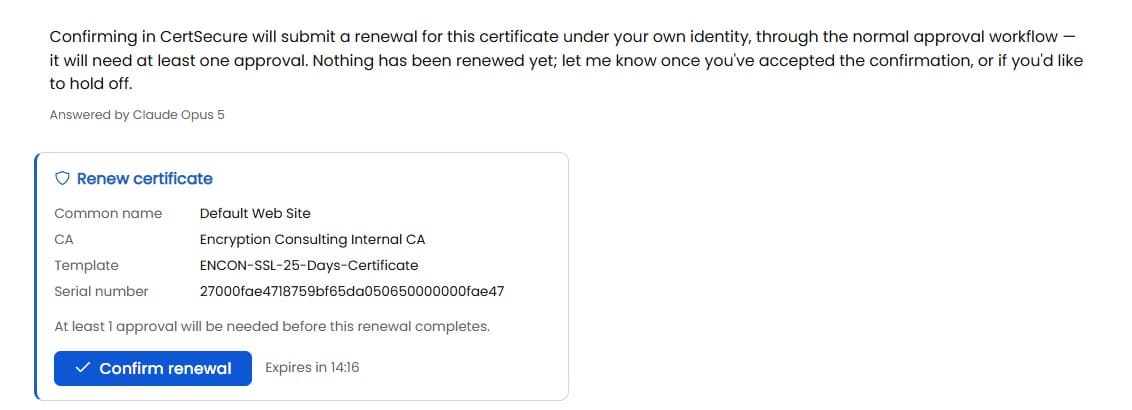
The Renew Certificate card shows the number of approvals required for the renewal. If no approvals are configured, confirming the renewal will submit it immediately. The displayed number represents the minimum approvals required, and the renewal may require additional approvals depending on the approval workflow.
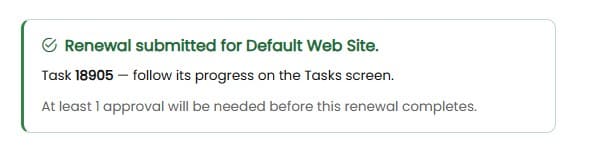
Selecting Confirm renewal submits the renewal under the user's own identity, exactly as though it had been submitted from the Renew Certificate screen. The card is then replaced by a confirmation naming the task that was created, which can be followed on the Tasks screen.
Note: A proposal expires. The card counts down and, once the countdown reaches zero, reports “This request expired. Ask again to get a fresh one.” Asking the same question again produces a new proposal.
Note: A proposal that has not been answered is restored when the panel is reopened or the page is refreshed, and appears at the foot of the conversation. If the check could not be performed, the conversation says so rather than staying silent — silence would be indistinguishable from there being nothing to confirm.
If the assistant cannot answer, the message box explains why before a question is sent, rather than letting the user ask and fail. The message box stays typeable, but Send is disabled.
| What is reported | What it means | What to do |
|---|---|---|
| The assistant has been turned off by an administrator. | The organization-wide switch on Configuration › Model is off. | A global administrator can turn it back on. Stored conversations are unaffected. |
| No model credentials are configured on the server. | No model provider has been connected, or its key is missing. | Connect a provider on Configuration › Model. |
| The server is missing packages the assistant needs. | The provider's software is not installed on this server — most often on an air-gapped installation. | Raise it with whoever maintains the installation. The Configured providers list marks such a provider “Not installed”. |
| The assistant has no data tools available, so it cannot answer questions yet. | The assistant is running but cannot reach CertSecure's data. | Raise it with whoever maintains the installation. |
| Sign in interactively to use the assistant. | The current session cannot be used to read certificate data on the user's behalf. | Sign out and sign in again through the normal sign-in screen. |